

Losing an iPhone is always a stressful experience, especially if you suspect it's been stolen. However, Apple has given the iPhone a bright spot: you can still track and locate the device even if it's completely powered off.
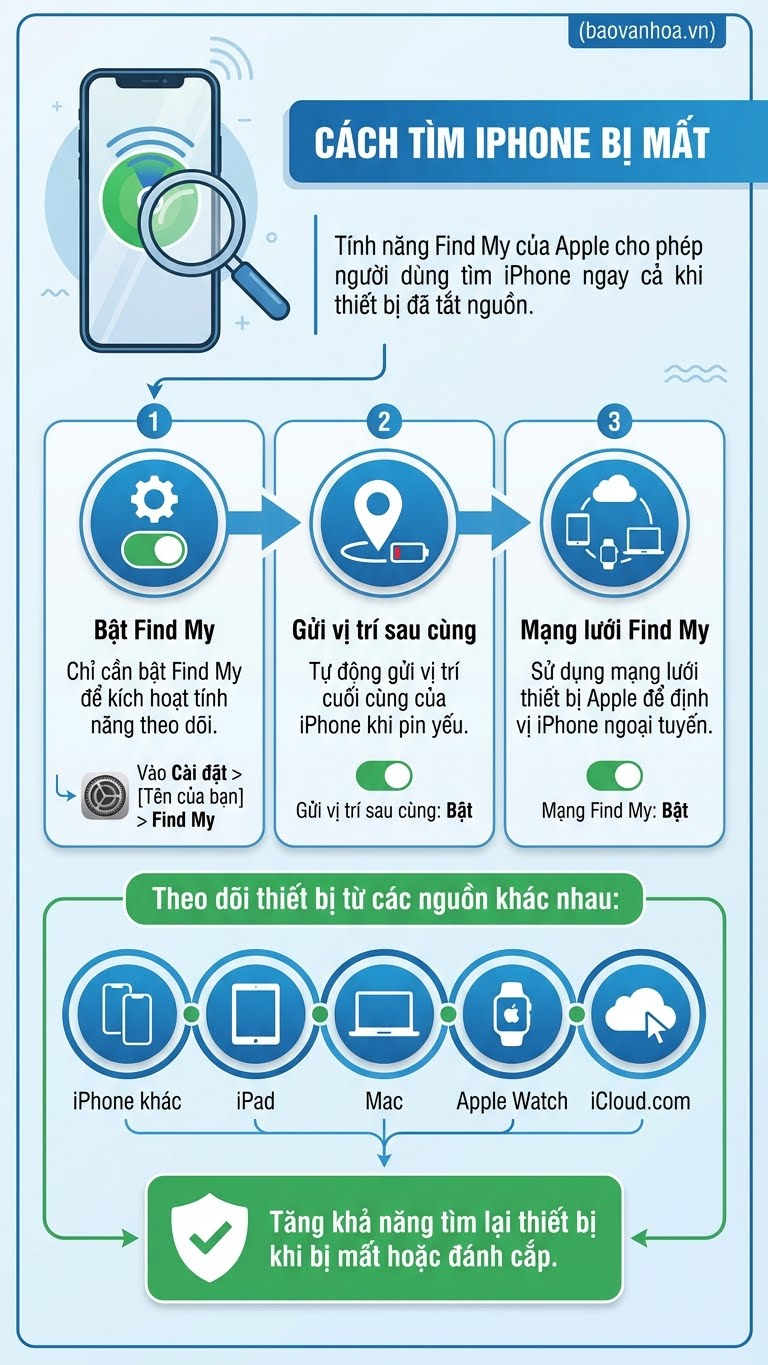
The Find My Network feature uses nearby Apple devices to send encrypted location data to iCloud, meaning a thief can't just turn the device off and make it "disappear."

This feature is available on iPhone 11 and works as long as you've set up Find My before. Even if your phone is broken or turned off, you can still see its location from another Apple device or a web browser. Here's how to make sure it's turned on and how to use it to find your lost iPhone.
First, make sure Find My is turned on. Go to Settings, tap your name at the top, then select Find My Network, Find My iPhone, and turn on Find My iPhone. Below that, turn on both Find My Network and Send Last Location.
To confirm, open Control Center, hold down the power button (or side button + volume down), and check for “iPhone Findable After Power Off” to appear below the power slider. If you see this message, your iPhone can be located even when powered off.

If you have another Apple device like an iPad, Mac, or Apple Watch, open the Find My app, go to the Devices tab, and select your lost iPhone. The location will appear on a map. If you think the device is nearby, tap Play Sound to play a loud sound even if it's on silent.

If you're certain your iPhone is stolen, tap Mark as Lost to lock the device with a passcode, disable Apple Pay, and display custom contact information. You can also choose Directions to navigate to your iPhone's last known location.

If you don't have another Apple device, you can still track your iPhone from a web browser at iCloud.com/find. Sign in with your Apple ID, select your iPhone in the Devices list, then use the same options as in the app: play a sound, mark it as lost, or remotely erase it.

One important note is that thieves can disable Find My by turning on Airplane Mode or turning off cellular data from Control Center on the lock screen.
To prevent this, go to Settings → Face ID & Passcode (or Touch ID & Passcode), enter your passcode, scroll down to Allow Access When Locked, and turn off Control Center.
This can be inconvenient during everyday use but is worth turning on when traveling or in places prone to theft.

With these steps, you can feel more secure when your iPhone is lost, because the device can still be located and protected even when it is turned off.
Source: https://baovanhoa.vn/nhip-song-so/ban-van-co-the-tim-iphone-khi-da-tat-nguon-186357.html




































































































Comment (0)