

To translate any language using your iPhone, follow these steps:
Translate text directly on iPhone
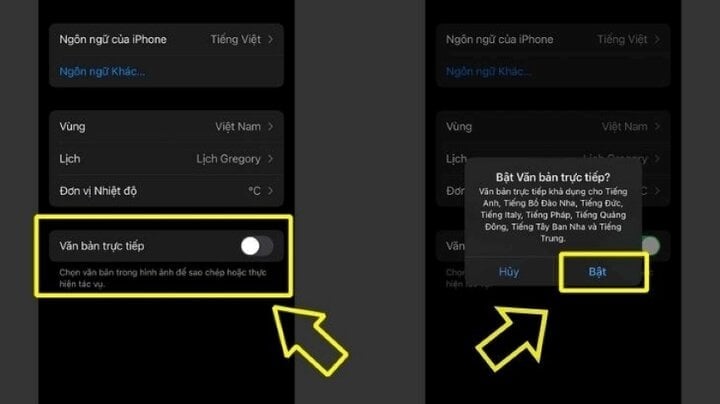
Since Apple launched its live text translation feature, the language barrier for Apple users has not only been greatly reduced but has also become faster and more convenient. This is a built-in feature from Apple, and users can use it as follows:
Step 1: First, open the "Settings" app.
Step 2: Tap on "General Settings".
Step 3: Tap on "Language & Region," then turn on the "Live Text" feature.
Use the Translate app.
The Translate app is a free application developed by Apple and available by default on iPhones to help users quickly translate text, images, and voice even when the device is not connected to the internet. You can use it as follows:
Step 1: Open the Translate app on your device.
Step 2:
- Translate text: You can enter the text you want to translate by typing on the keyboard.
- Voice translation: Tap the microphone icon to speak the text you want to translate.
- Translate via camera: Select the camera tab and point the camera at the text you want to translate.
Step 3: Select the language you want to translate to from the drop-down menu in the upper right corner of the screen, for example, Vietnamese.

Use the Translate app.
Translate text in the Camera app.
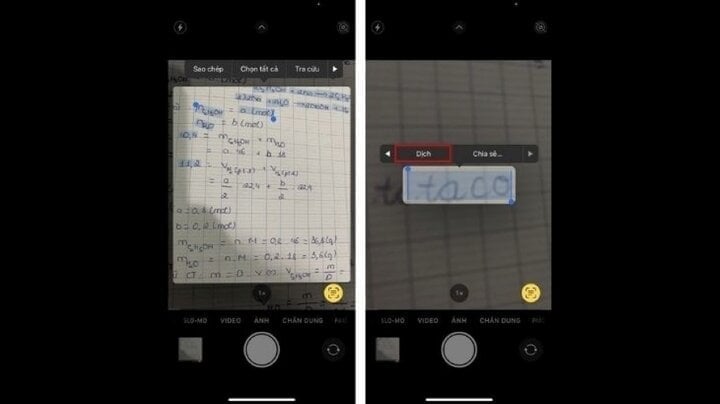
Additionally, you can translate text directly from the default Camera app on your iPhone and iPad. Text translation in the iPhone Camera app is the ability to use the camera to scan and convert displayed text.
Step 1: Open the "Camera" app and move the camera to ensure the text is displayed on the screen.
Step 2: When the yellow frame appears around the text, tap the "Detect Text" button.
Step 3: Next, select the text you want to translate and tap "Translate". If you don't see the "Translate" option, tap the "Show More" button (the > icon) to see other options.
Translate text in the Camera app.
Translate the text in the image.
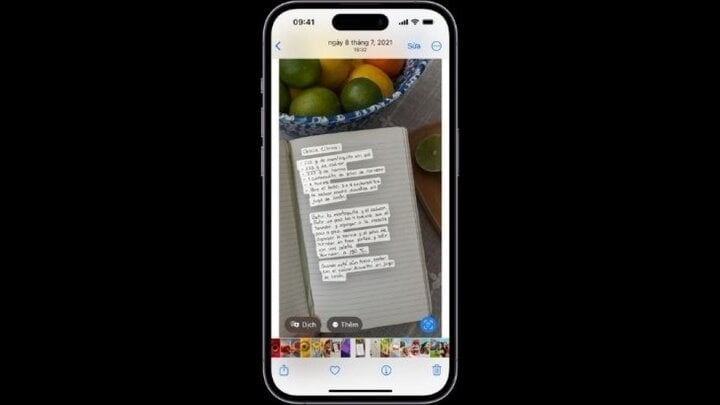
On some Apple devices, you can translate text in images when viewing an image that includes text. The advantage of this method is that it's easy to use and convenient, but the disadvantage is that it only works on certain device models.
Step 1: When you view an image containing text, tap the “Detect Text” button, then tap and hold the text you want to translate.
Step 2: Tap "Translate". If you don't see Translation, tap the Show more options button to see other options.
Translate the text in the image.
Khanh Son (Compiled)
Source









































































































Comment (0)