

You can easily recover deleted SMS messages on your phone in just a few simple steps if you accidentally deleted them, due to device malfunction, or if someone else borrowed your phone and accidentally deleted them. Below is a very simple way to recover deleted SMS messages.
Recover SMS messages on your iPhone (via iCloud)
First, you need to check the time of the most recent backup, by:
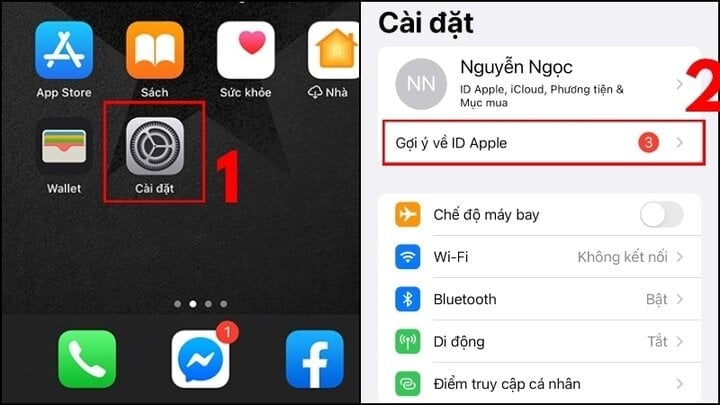
Step 1: Go to "Settings" and select your Apple ID account.
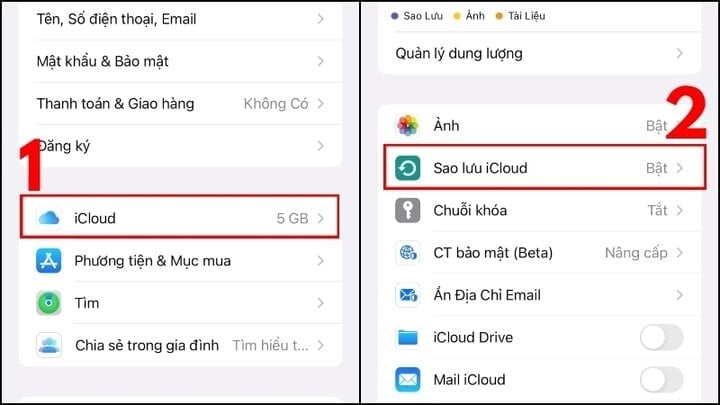
Step 2: Select "iCloud," then click on "iCloud Backup."
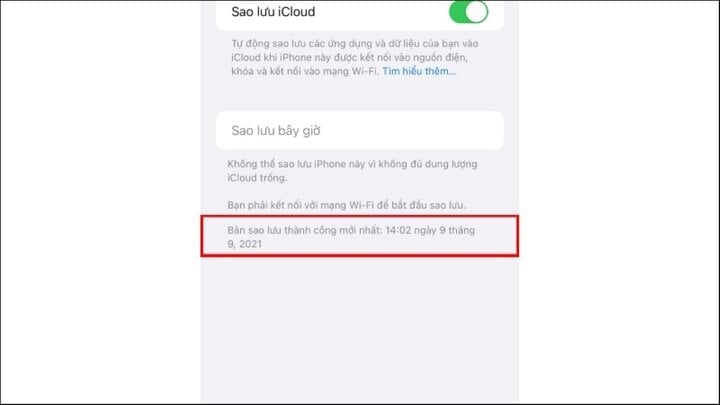
Step 3: Check the backup time. If the timestamp shows a date before the message was deleted, you may be able to recover it.
Next, once you've ensured the backup time is correct, restore the messages as follows:
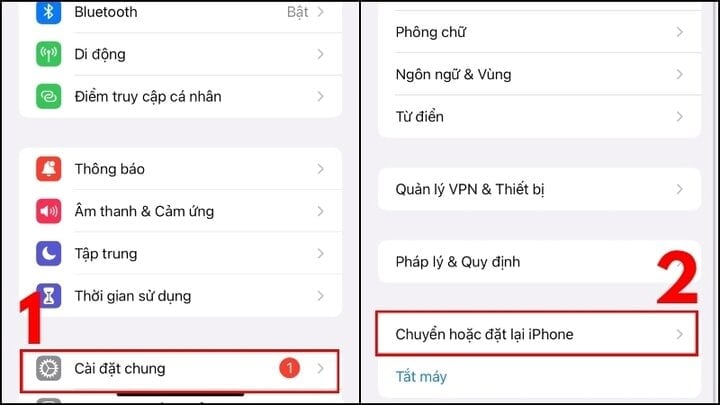
Step 1: Go to "Settings" and select "General," then select "Turn or reset iPhone."
Step 2: Click "Erase all content and settings," then select "Continue."
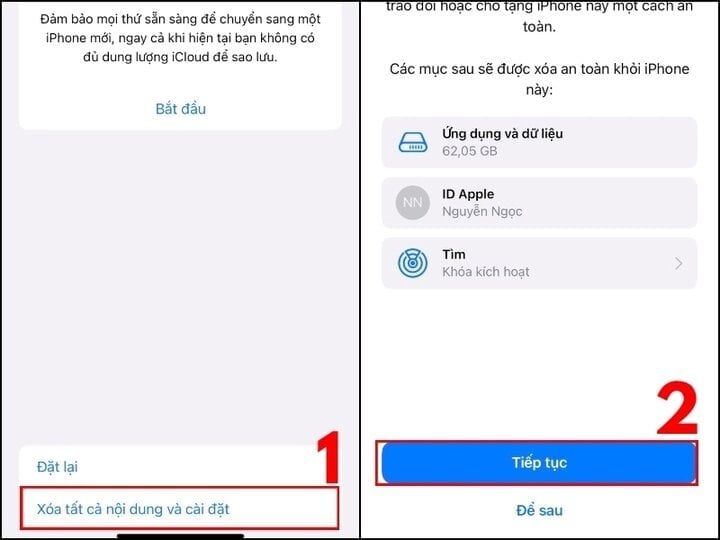
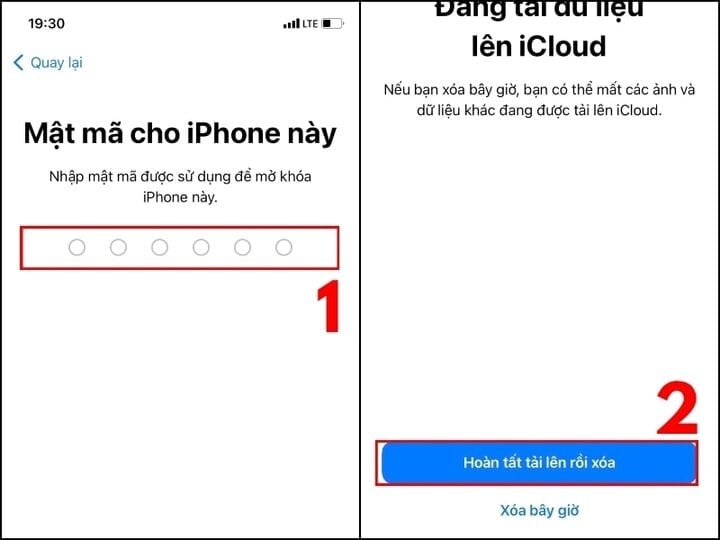
Step 3: Enter your iPhone password and timestamp (if applicable). A notification will appear indicating that data is being uploaded to iCloud. Select "Complete upload and delete".
Step 4: After a few minutes, the Welcome screen will appear. When you reach "Apps & Data," select "Restore from iCloud Backup" and then "Sign in with your Apple ID (iCloud) account."
Step 5: You will see a list of backups sorted by time. Select the most recent backup containing messages that were not deleted to restore them.
Restore SMS messages using Google Backup.
To use Google's Backup feature to recover messages, your phone needs to have "Backup" enabled before the SMS message was deleted.
To access the Backup feature, follow these instructions:
Step 1: Select "Settings," then select "Google," and then select "Backup."
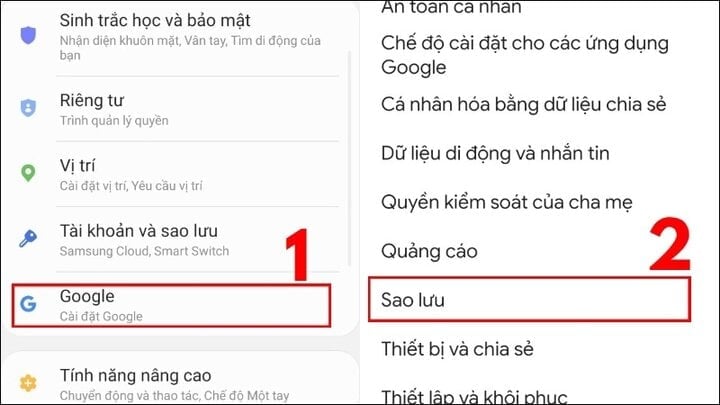
Step 2: View the backup data:
Case 1: The screen displays no data.
This means you haven't backed up your SMS messages and cannot restore them using this feature. You can enable "Backup" to be prepared for future situations.
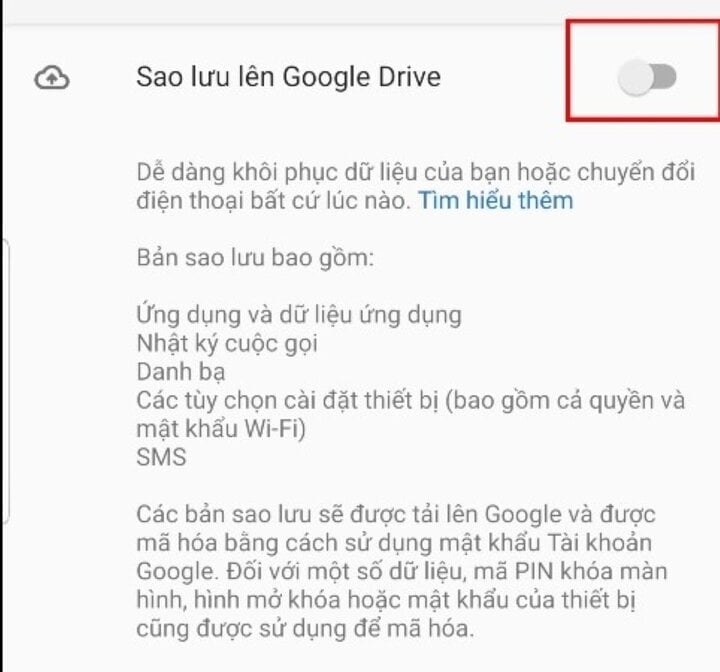
Case 2: The screen displays data information. This means you can retrieve the message by:
Step 1: Select the "Backup…" option, then choose "SMS messages".
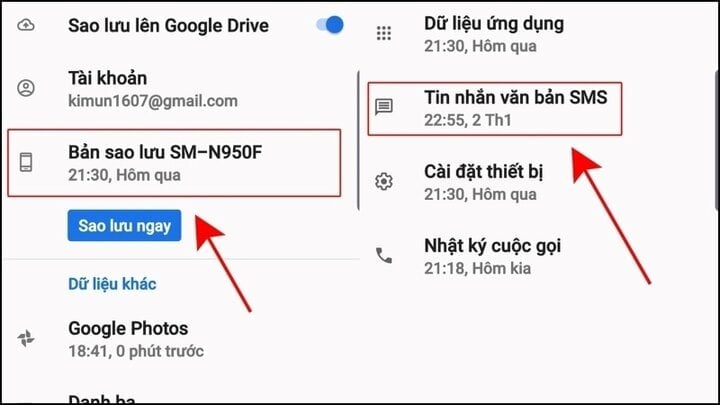
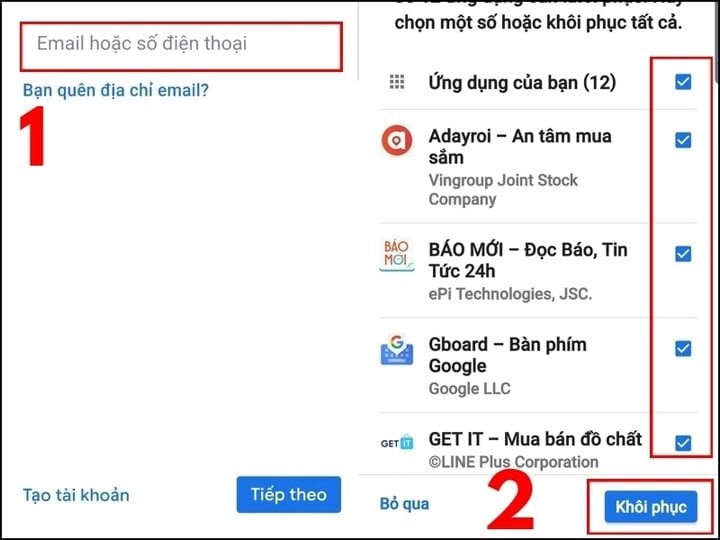
Step 2: Log back into your Google account, then select the item you want to restore, and press "Restore".
How to back up messages to minimize loss
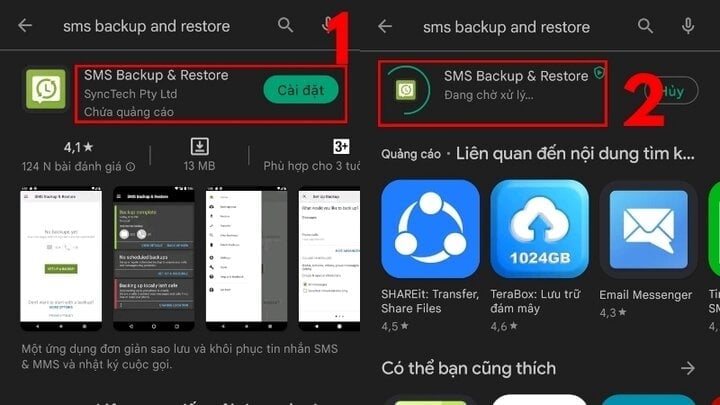
Step 1: Open the "CH Play" app on your phone and search for "SMS backup and restore", then download and install it.
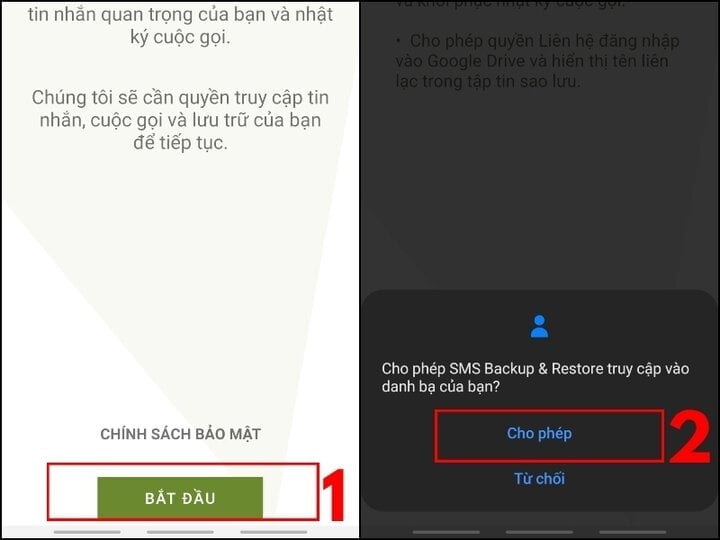
Step 2: When the software interface appears, click "Start," then select "Allow" to grant certain access permissions.
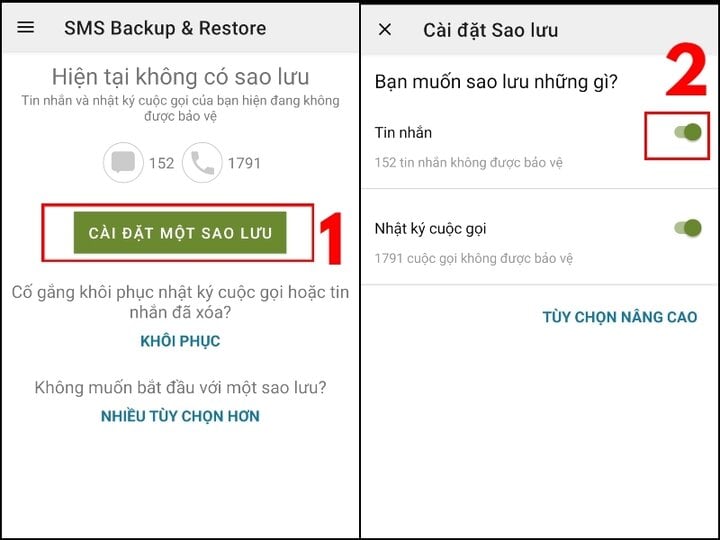
Step 3: In Backup settings, select "SET UP A BACKUP," then choose "Messages" to back up. You can also select "Call Logs" to back up calls.
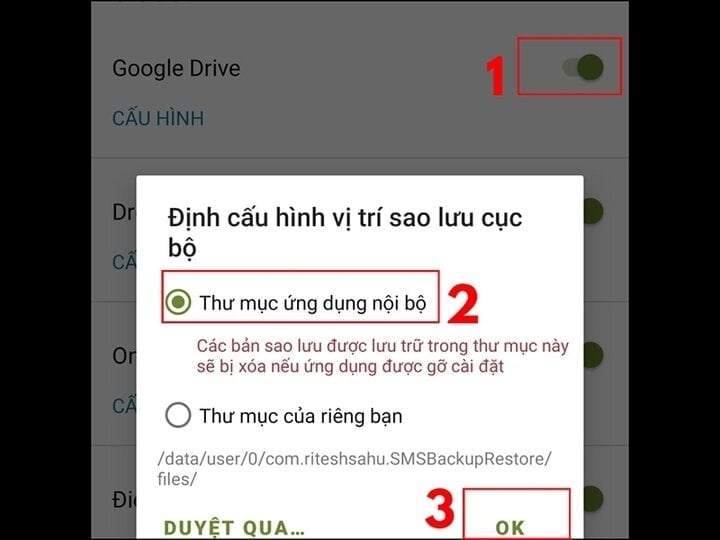
Step 4: Set up the save location. Choose a save location; in this test case, it's Google Drive. Select the appropriate local backup location configuration:
Choose the Internal Application Folder: If you only need to save data when using the application, the backup content will be deleted when you uninstall it.
Choose your own folder: If you want to save it to your computer, press "OK".
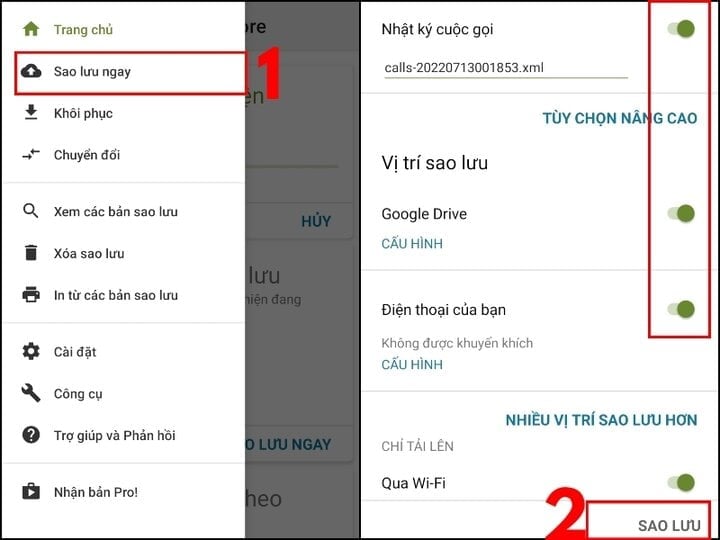
Step 5: Tap the three-line settings button in the upper left corner and select "Backup Now," then select "Backup Content" and "Backup Location," and finally tap "Backup."
Step 6: Next, click "Backup", set your desired backup time, and then click "Backup Now".
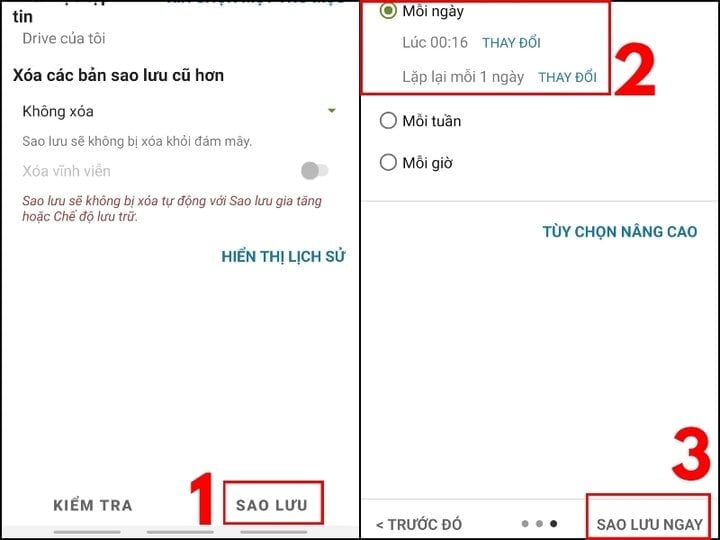
Step 7: Wait for the software to complete the backup. Alternatively, you can press the "Cancel" button if you wish to stop the task.
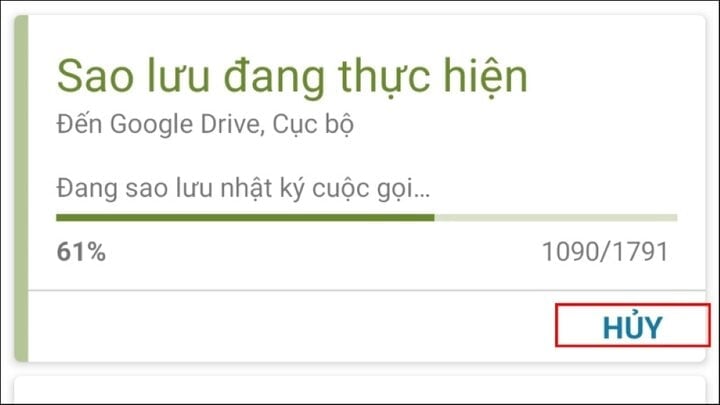
Above are some simple ways to recover deleted SMS messages. Please refer to and follow the instructions; good luck!
Khanh Son (Compiled)
Source
![[Image] National Assembly discusses the implementation of the socio-economic development plan.](https://vphoto.vietnam.vn/thumb/1200x675/vietnam/resource/IMAGE/2026/04/20/1776696707422_ndo_br_img-20260420-185419-jpg.webp)




![[Photo] General Secretary and President To Lam meets with National Assembly delegates from ethnic minorities.](https://vphoto.vietnam.vn/thumb/1200x675/vietnam/resource/IMAGE/2026/04/20/1776696701056_a1-bnd-8331-3342-jpg.webp)
























































































Comment (0)