

Apple's weather map is a specially designed feature, hidden within the weather app, that few people know about. You can track temperatures and rainfall in any province or city across the country, or check the air quality in your area.
This will be quite helpful for users, as you won't need to install additional weather forecast apps or AirVisual apps to measure air quality. Here's how you can check rainfall on your iPhone.
Step 1: Open the Weather app on your iPhone, then in the map interface, tap the stack of papers icon as shown below.
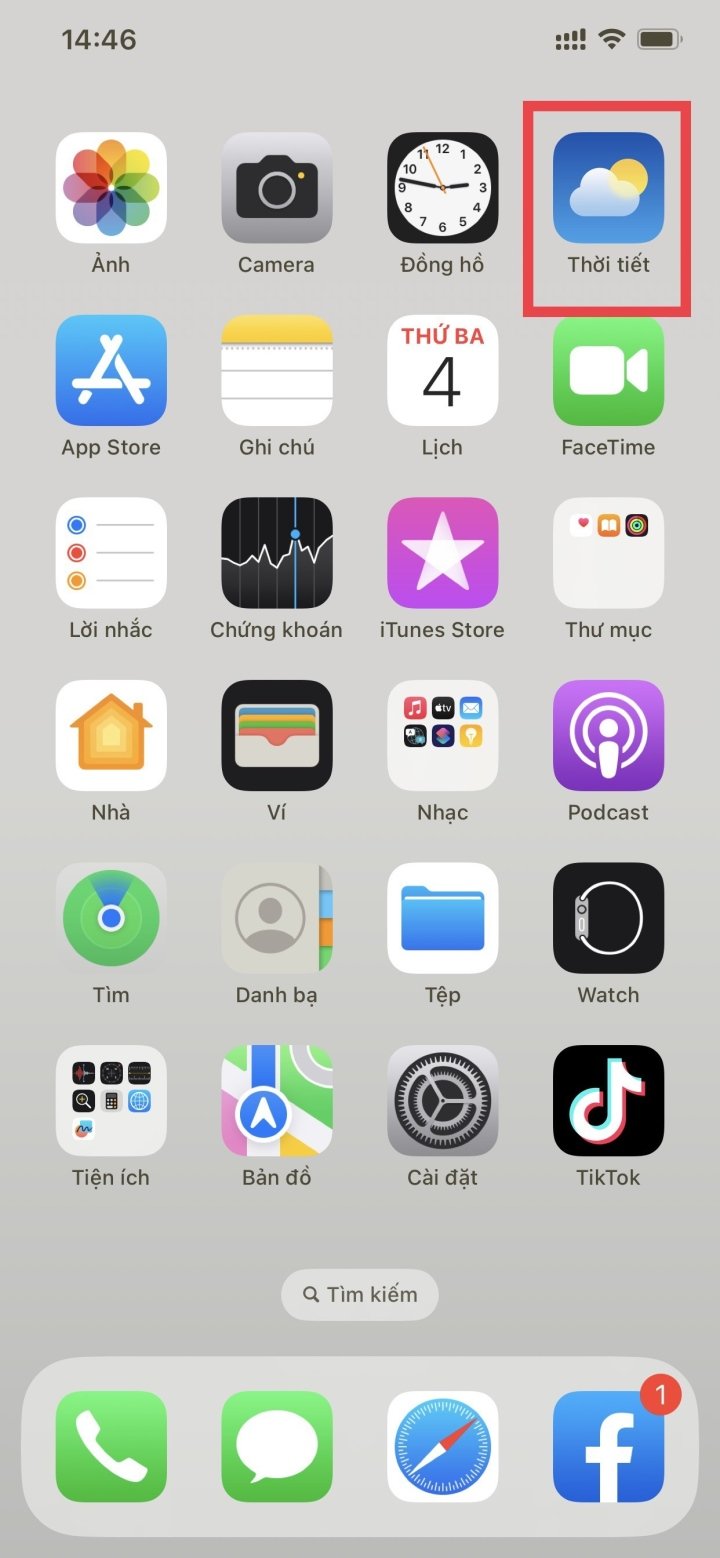
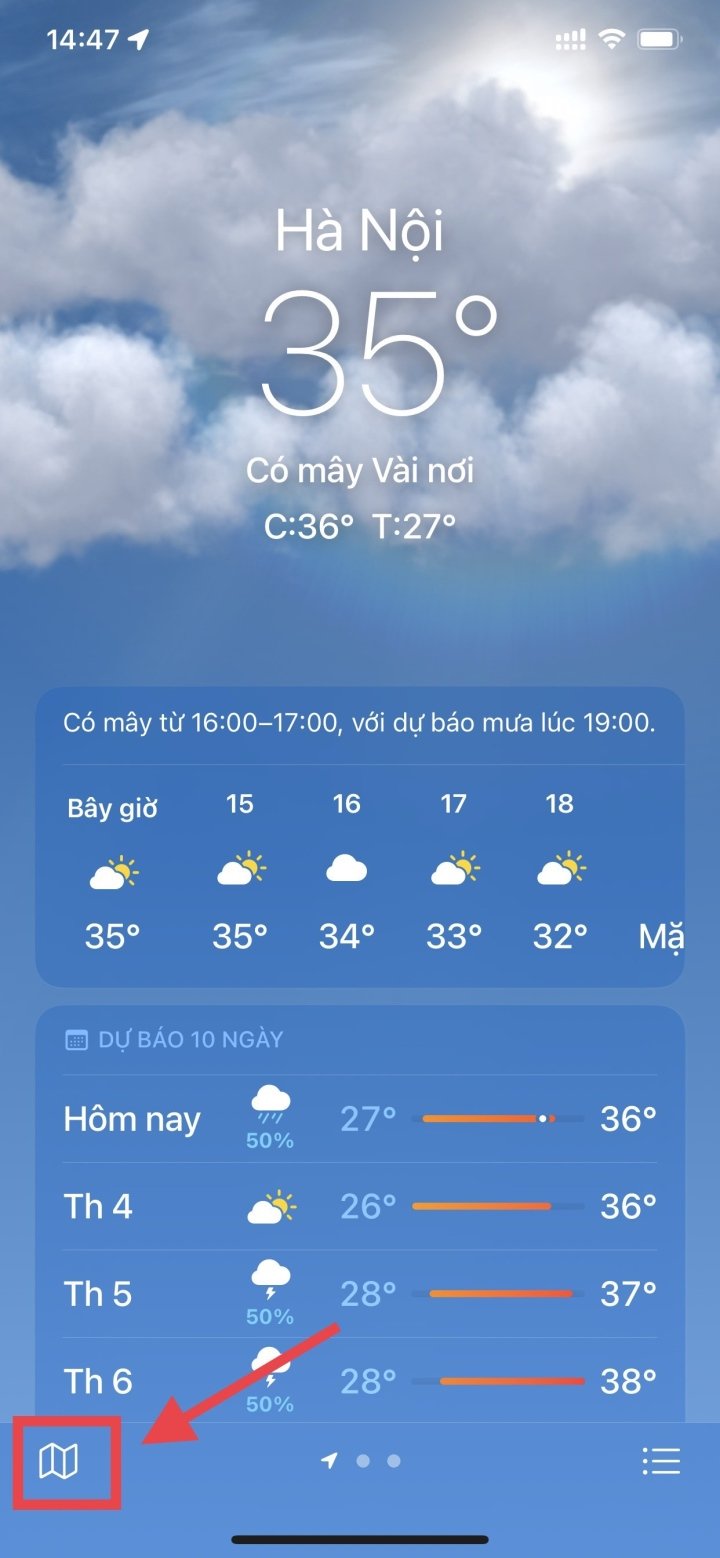
How to check rainfall directly on your iPhone.
Step 2: At this point, you will see a map showing the temperature distribution across provinces and cities nationwide through the Rainfall color bar. Each location will clearly display the daytime and nighttime rainfall amounts.
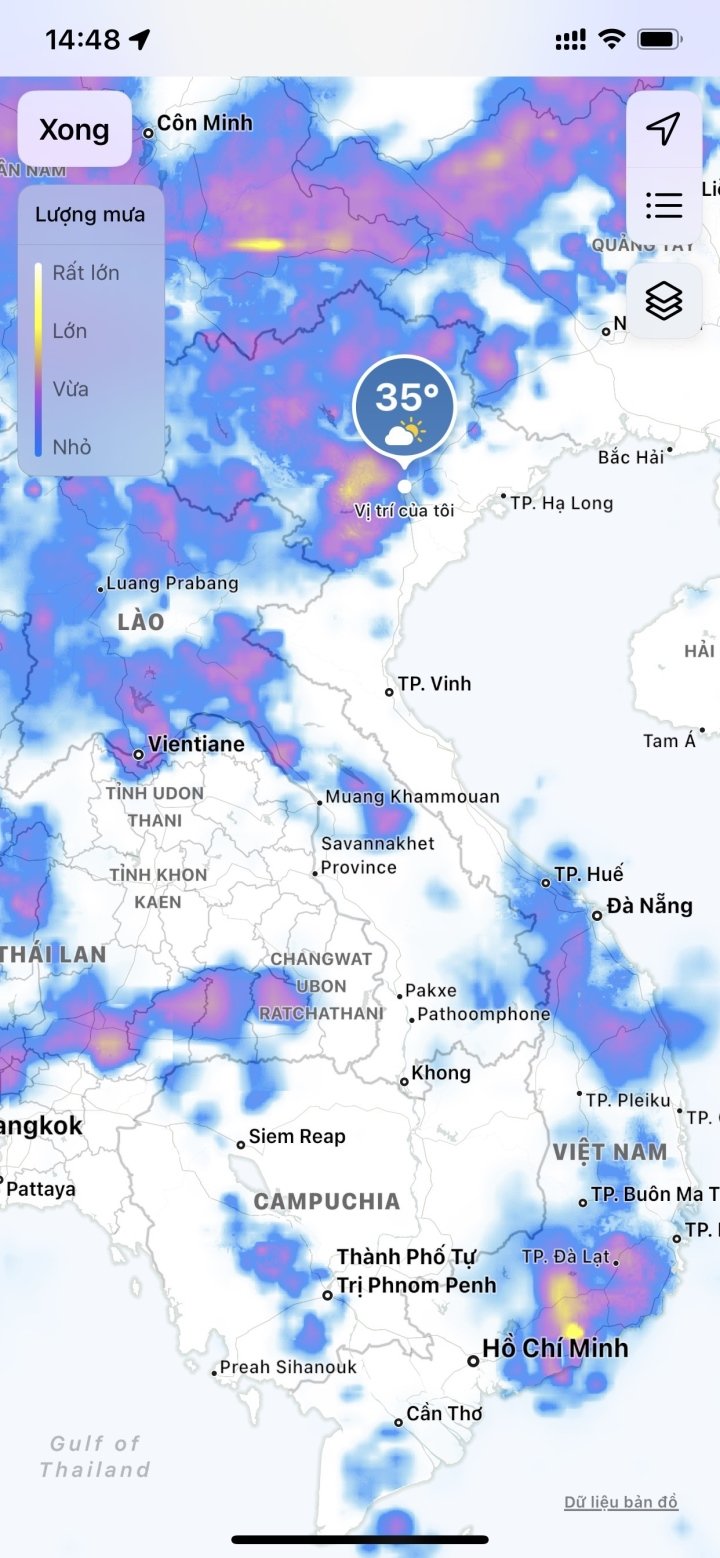
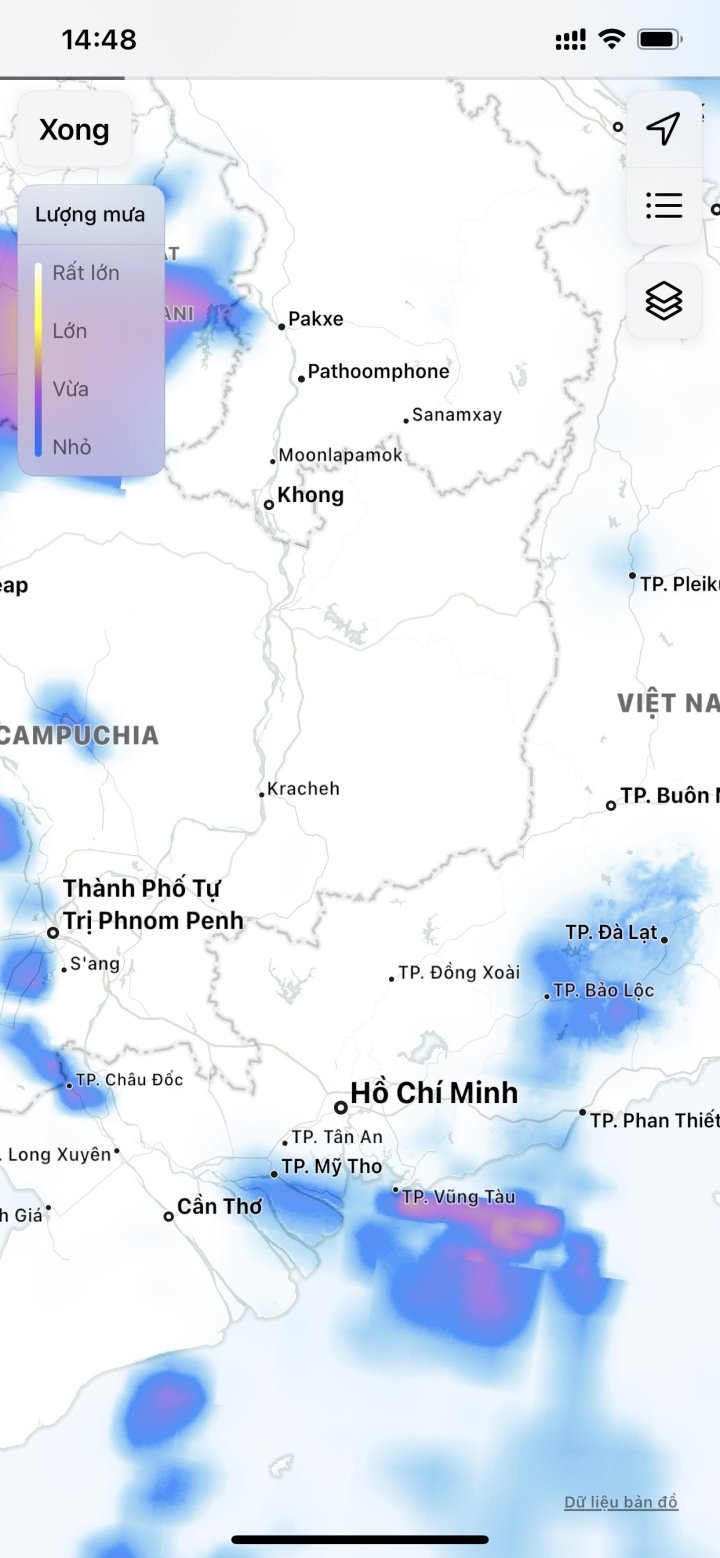
The rainfall map is now displayed on the iPhone.
You can use the timeline below to adjust the automatic real-time rainfall tracking. To stop at a specific time, simply press stop.
Step 3: To view more information, click the Layers icon . A screen will then appear allowing you to select Temperature and Air Quality .
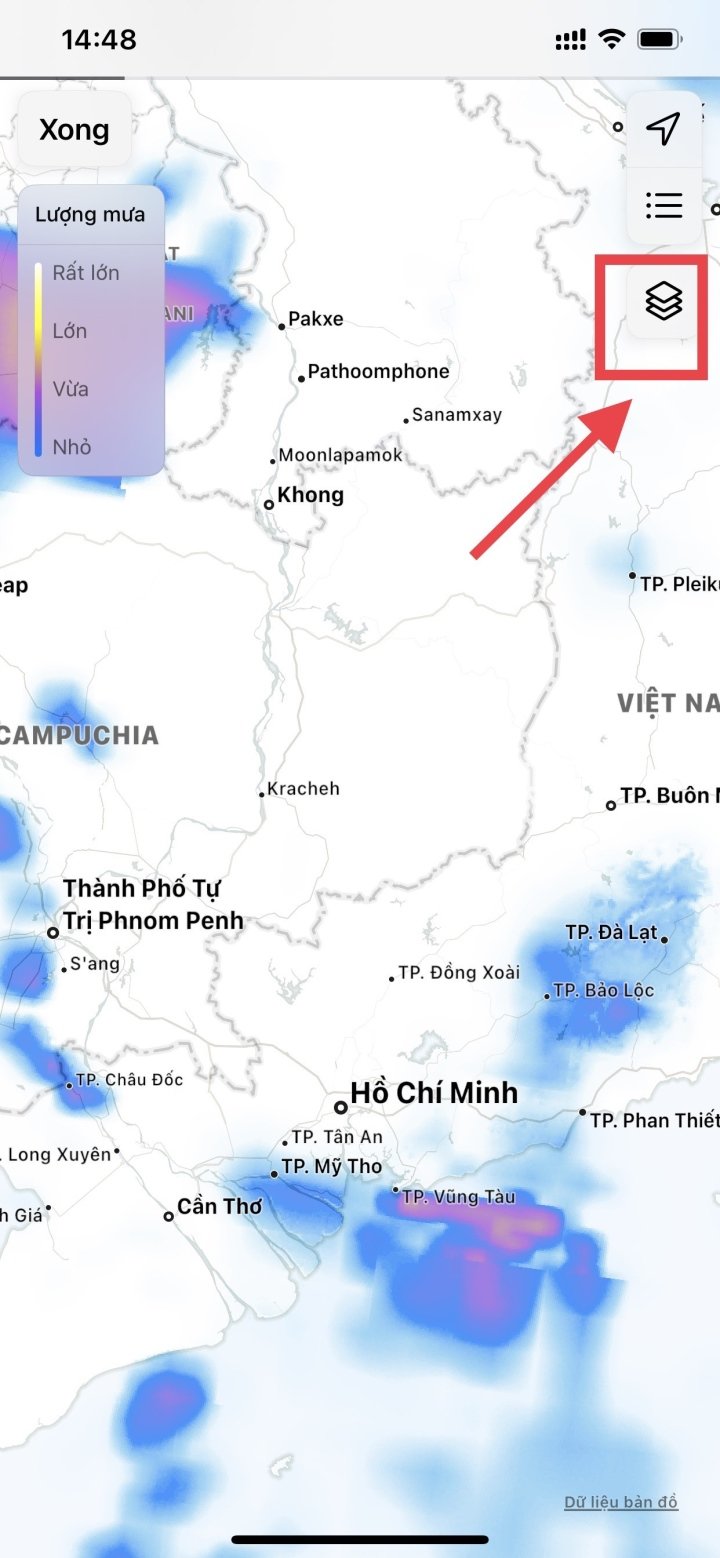
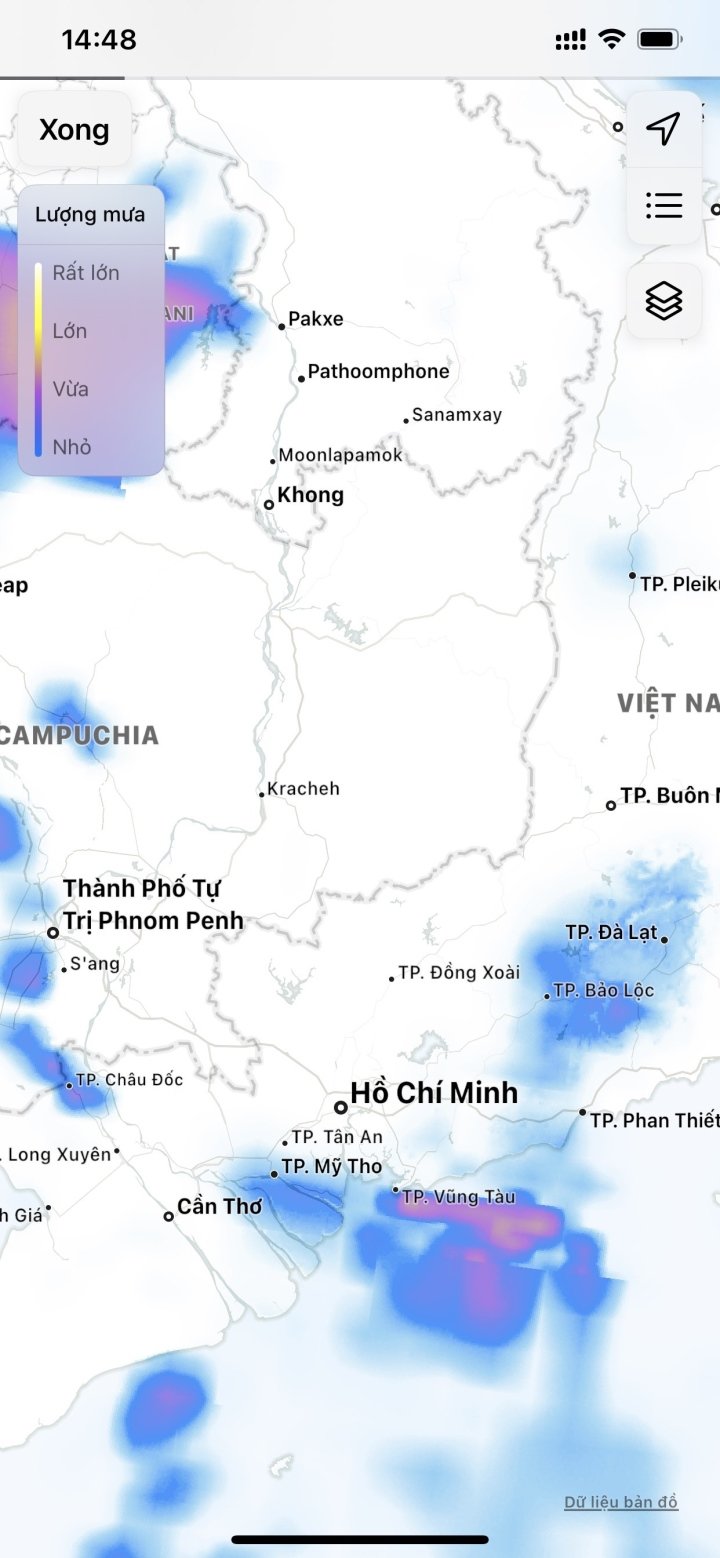
Select the Layers icon > View Temperature and Air Quality.
Step 4: Below is a map showing the rainfall at your current location or other locations via the Temperature bar.
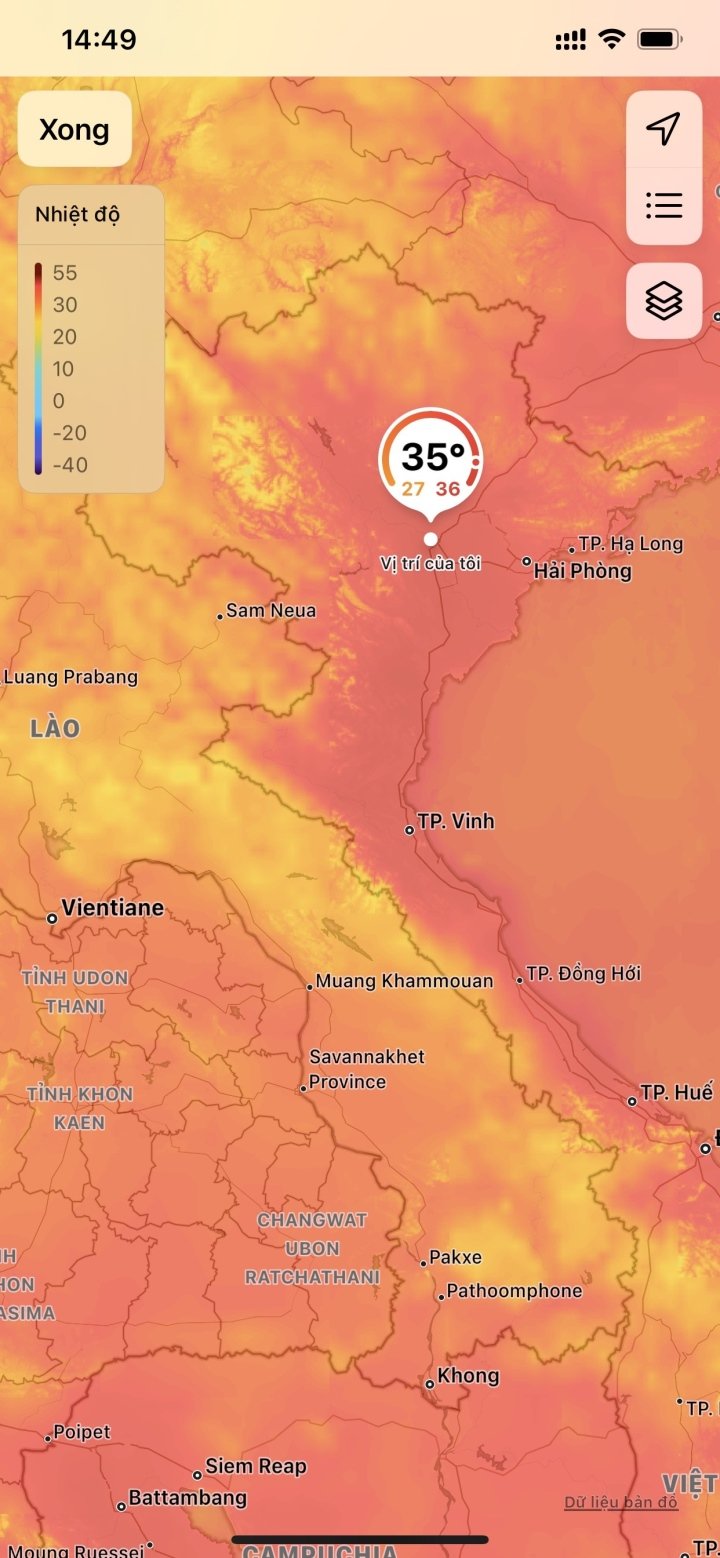
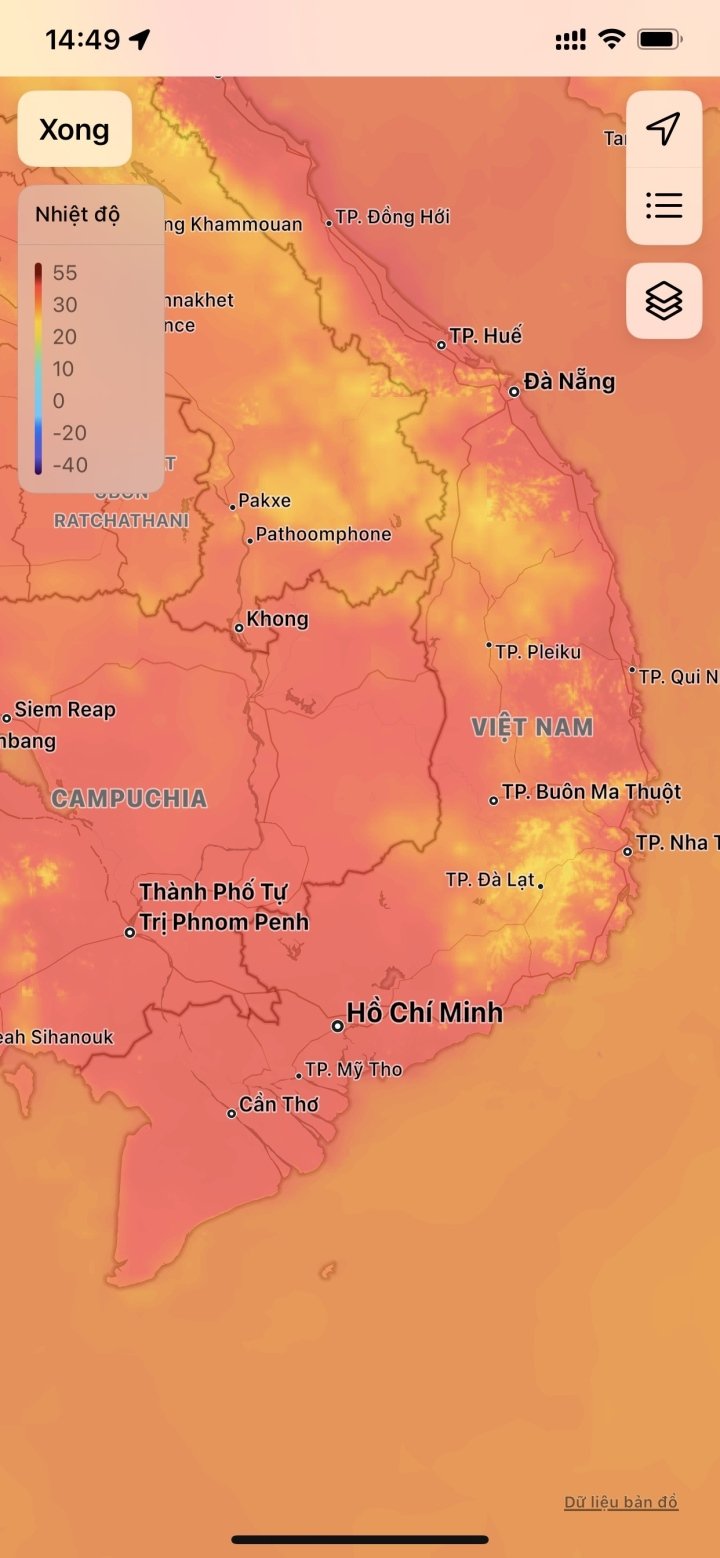
The temperature map is now displayed on the iPhone.
Please note that the air quality tracking feature in the iPhone Weather app is currently experiencing some glitches and is therefore not displaying correctly.
Nhat Thuy
Beneficial
Emotion
Creative
Unique
Wrath
Source




![[Photo] “Red Journey” 2026: Vietnamese Youth Continue Building the Bridge of Friendship Between Vietnam and China](https://vphoto.vietnam.vn/thumb/1200x675/vietnam/resource/IMAGE/2026/04/20/1776629730866_4055880775670638308-9618-4200-jpg.webp)


































































































Comment (0)