

Installing the Samsung USB Driver on your computer helps connect and manage your Samsung devices. If you encounter problems during installation, please refer to the following article for more details.
 |
The Samsung USB Driver is middleware that acts as a bridge between Windows computers and Samsung devices such as phones, laptops, tablets, smartwatches, and many others. This driver helps programs and hardware communicate efficiently and perform tasks accurately. By installing the Samsung driver on your computer, you can easily transfer and synchronize data quickly. Furthermore, this driver optimizes the connection performance between your computer and Samsung devices, providing numerous benefits to users.
How to download and install Samsung drivers for your computer easily
Currently, many people are having difficulty installing the Samsung USB Driver because they are not familiar with the application download process. To help you perform this operation quickly and efficiently, here are some detailed instructions:
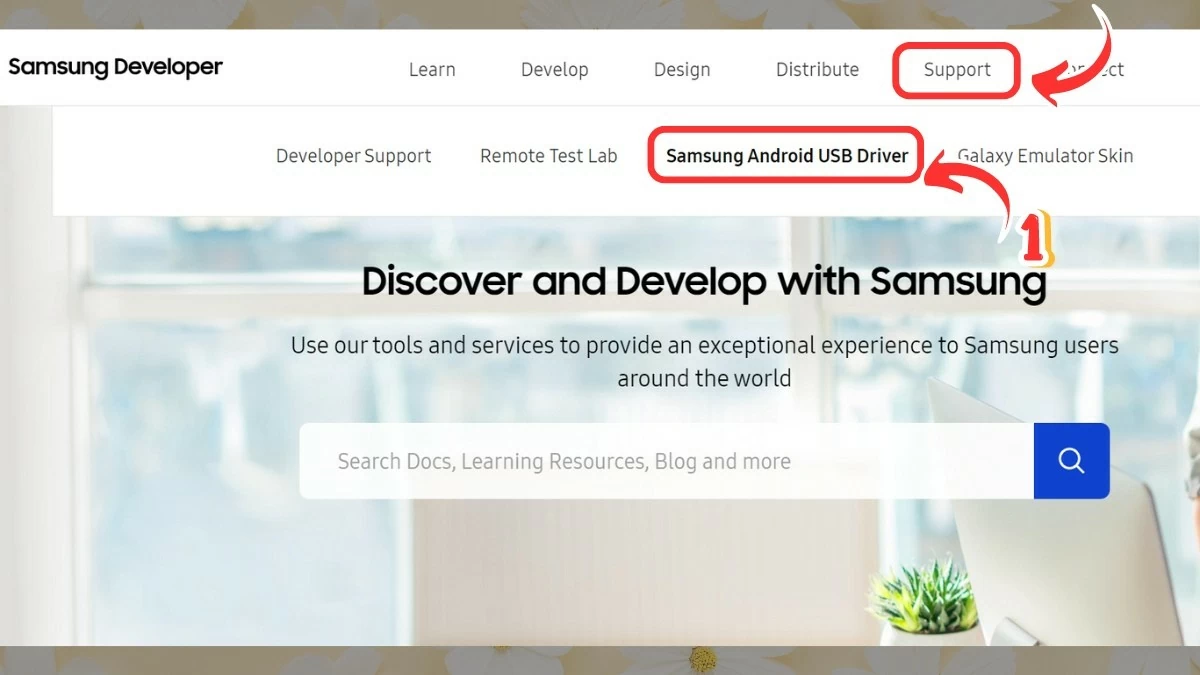
Step 1: Access the Samsung developer website via the link [https://developer.samsung.com/](https://developer.samsung.com/). Under "Support," select "Samsung Android USB Driver."
 |
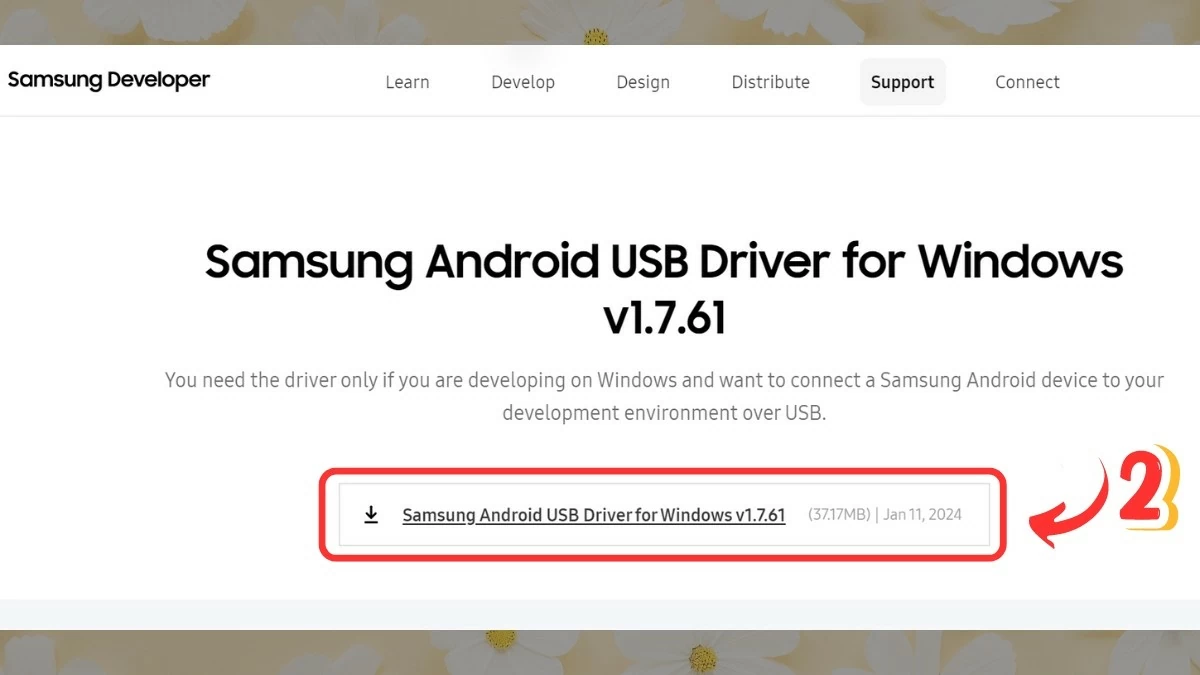
Step 2: Click the link below to download the Samsung USB Driver to your computer.
 |
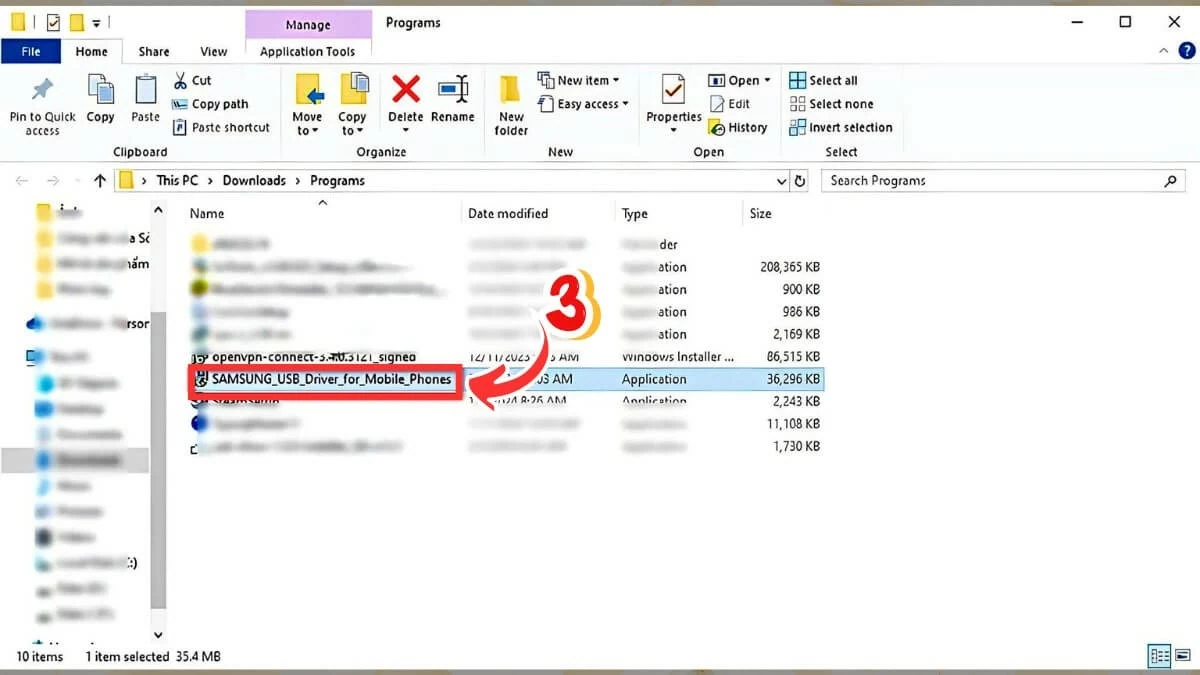
Step 3: After the download is complete, right-click on the file and select "Run as administrator" to begin installing the application.
 |
Step 4: Next, follow the on-screen instructions and press “Next,” then select “Install” to begin the installation. Finally, when the installation is complete, press “Finish.”
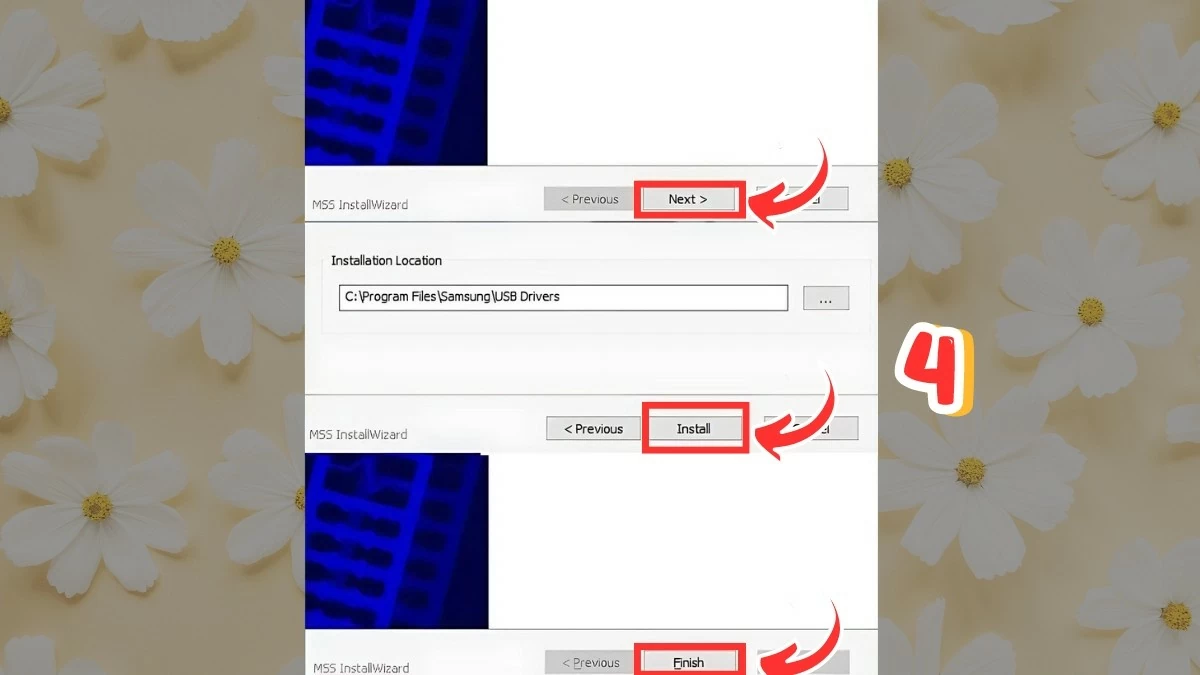 |
Step 5: Connect your computer to your Samsung Android device using a USB cable. The two devices will automatically recognize each other, allowing you to easily transfer data and perform other tasks.
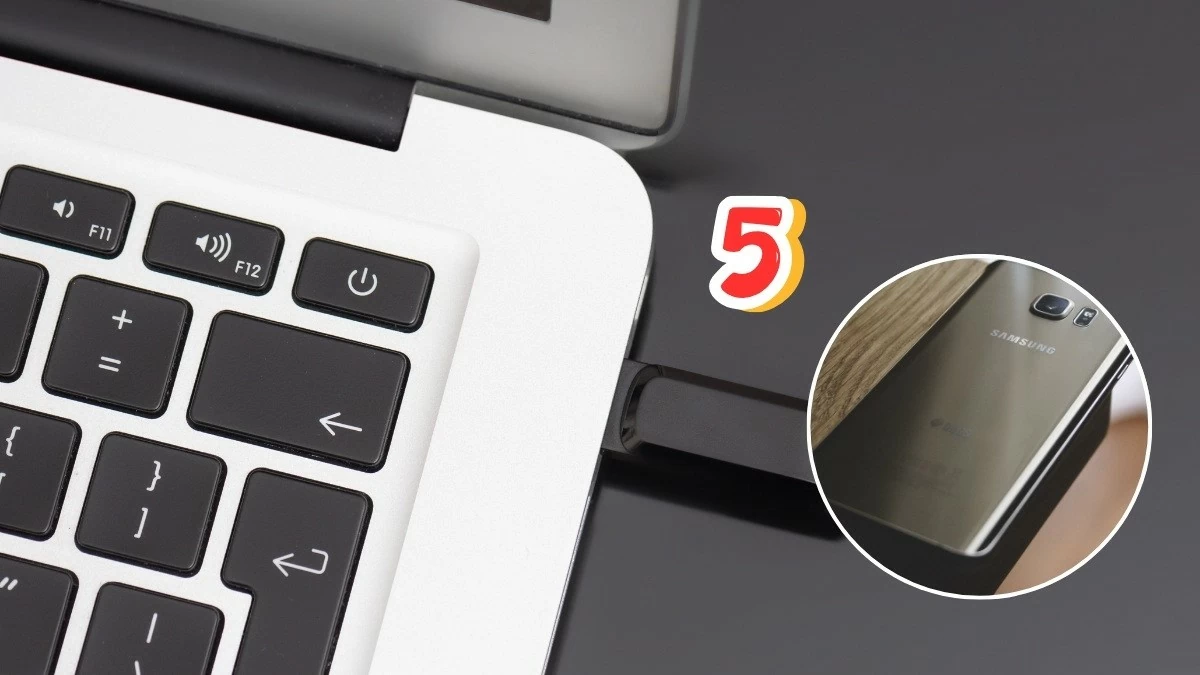 |
How to fix the problem of not being able to install Samsung USB Driver
As instructed above, you can quickly download the Samsung USB Driver for your computer. However, in many cases, the device may have successfully downloaded the driver but still be unable to connect. If you encounter this situation, please refer to the following solutions:
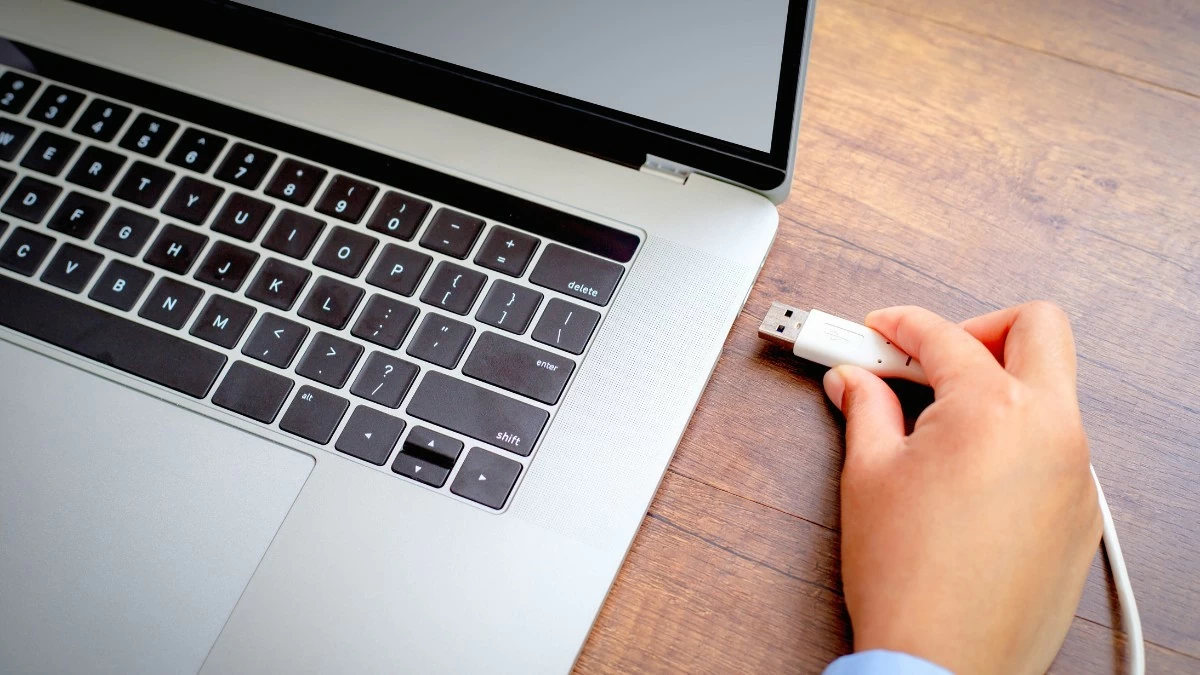
Proceed to check the connecting cable.
USB cables are tools used to connect computers to other devices. If you use a low-quality or damaged cable, the connection will not work effectively. Therefore, use genuine, high-quality USB cables to ensure a smooth connection. Additionally, check the USB ports on your computer to ensure they are not damaged.
 |
Enable USB debugging mode.
Besides connection cable issues, a common reason you might not be able to install the Samsung USB Driver is that your device's USB debugging mode is not enabled. You need to check if "USB Debugging" is activated. If not, turn it on by following these steps:
Step 1: Go to "Phone Information" in the "Settings" section.
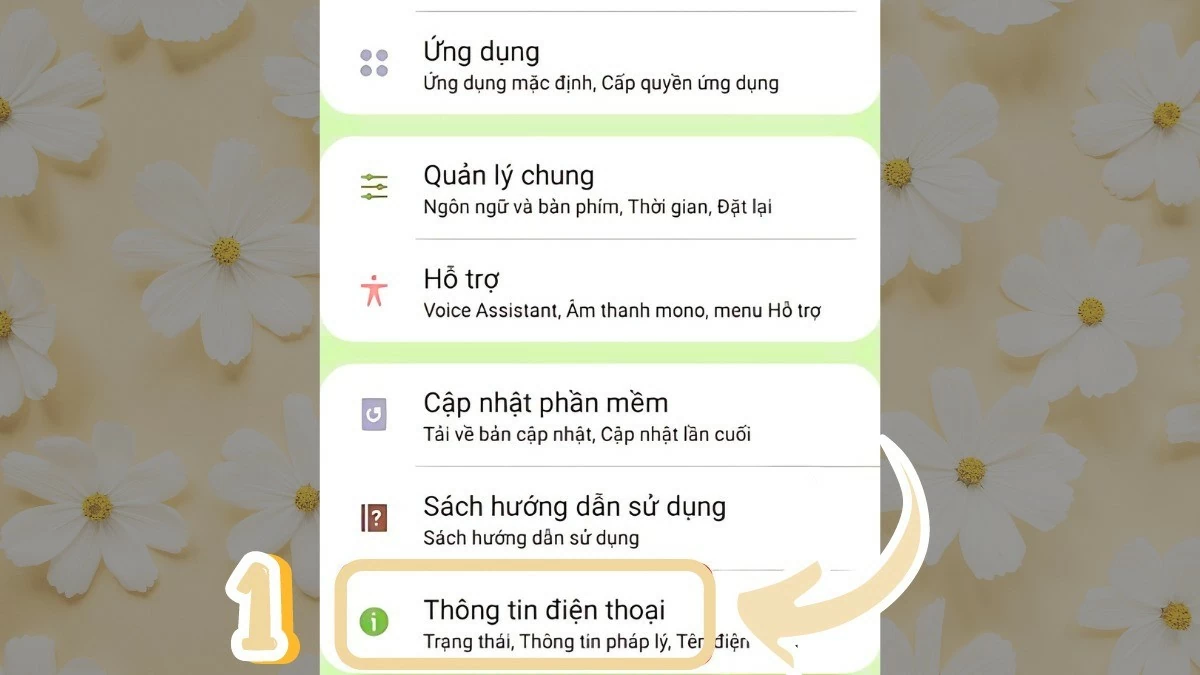 |
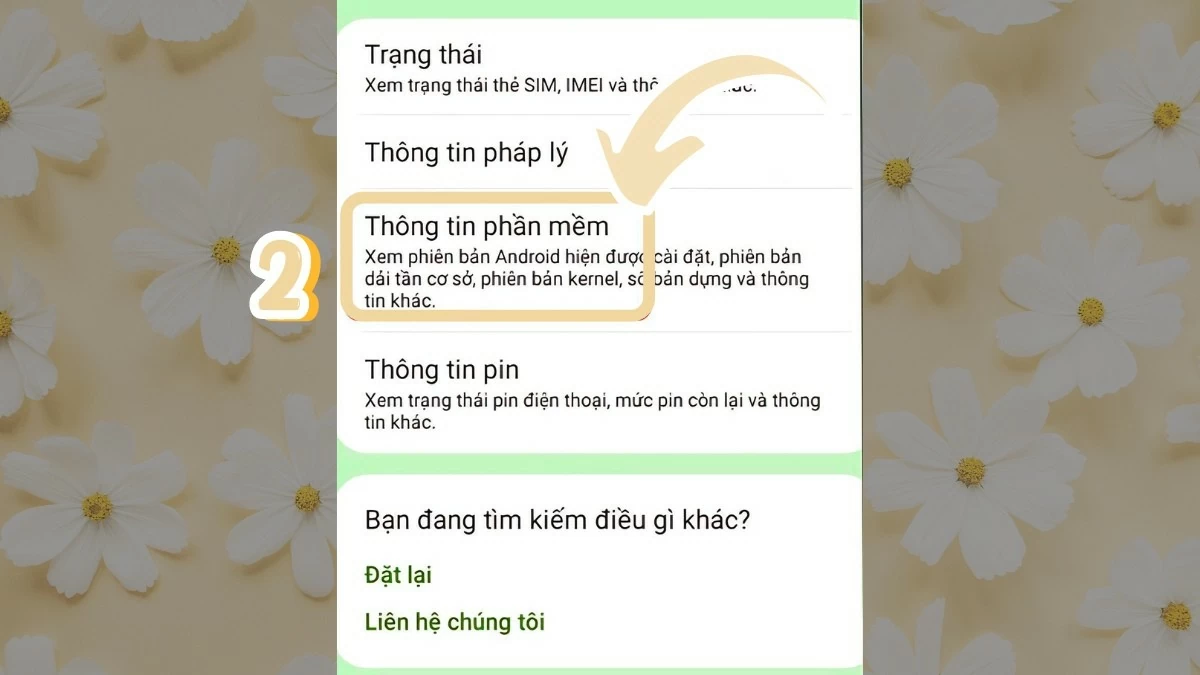
Step 2: Next, click on “Software Information”.
 |
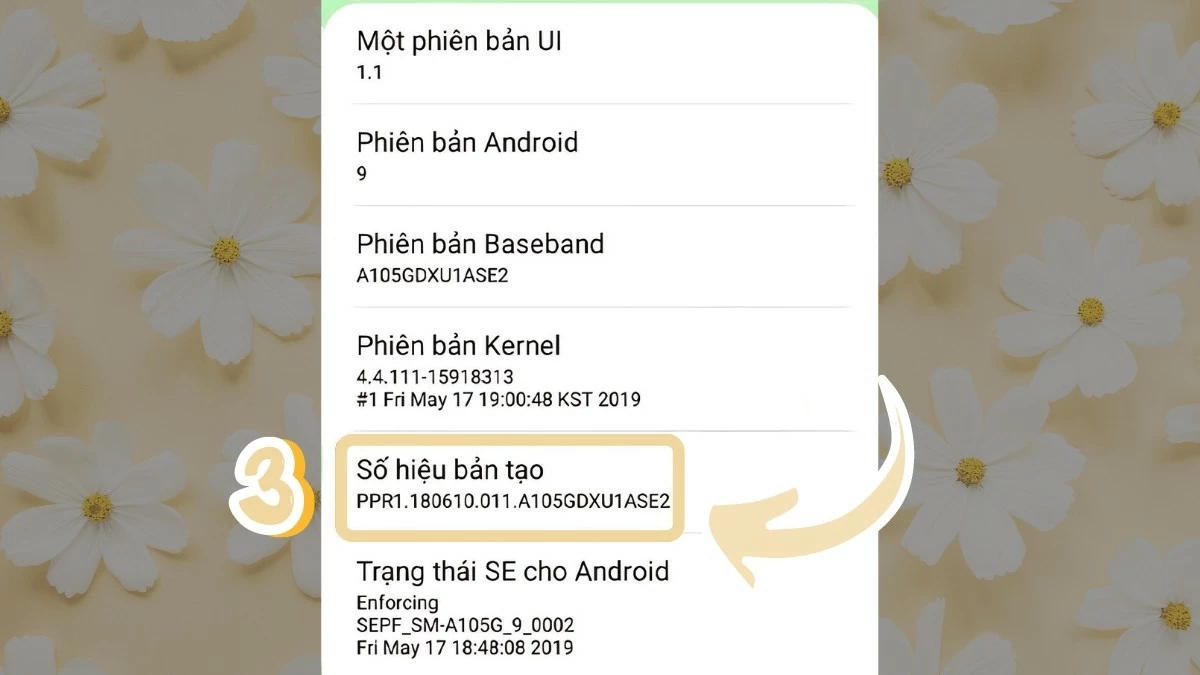
Step 3: To activate developer mode, tap the “Build Number” seven times.
 |
Step 4: Then, go back and select “Developer Settings”.
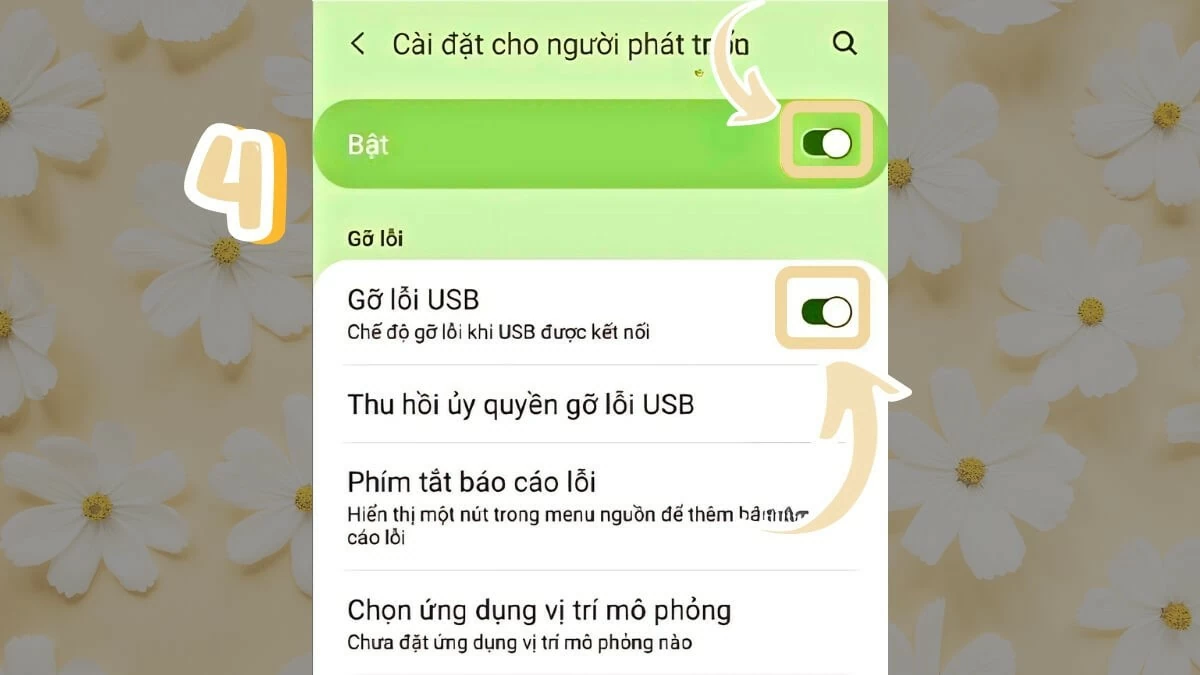 |
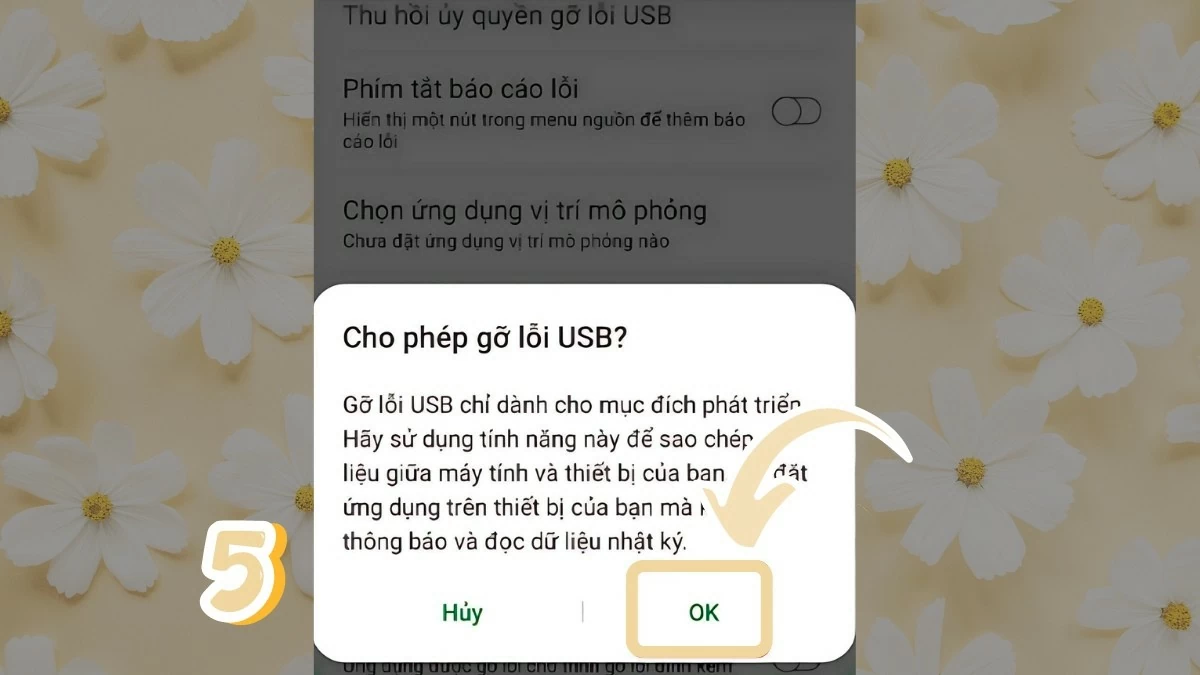
Step 5: Next, open "Developer Settings" and enable "USB Debugging" to complete the process.
 |
Restart your computer or Samsung device.
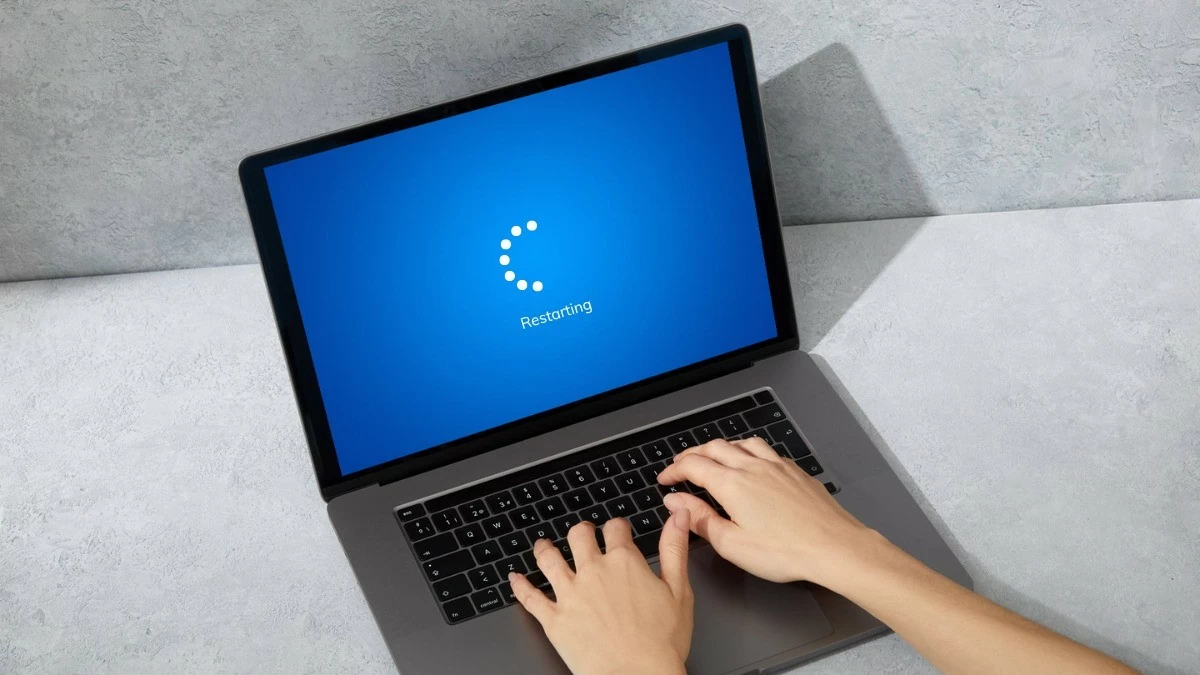
After downloading and installing the Samsung USB Driver for your computer, you need to restart your computer. This ensures the driver works smoothly and efficiently. Restarting your computer and Samsung device helps to correctly identify the driver, preventing compatibility issues, optimizing performance, and stabilizing the system.
 |
Perform a quick update check.
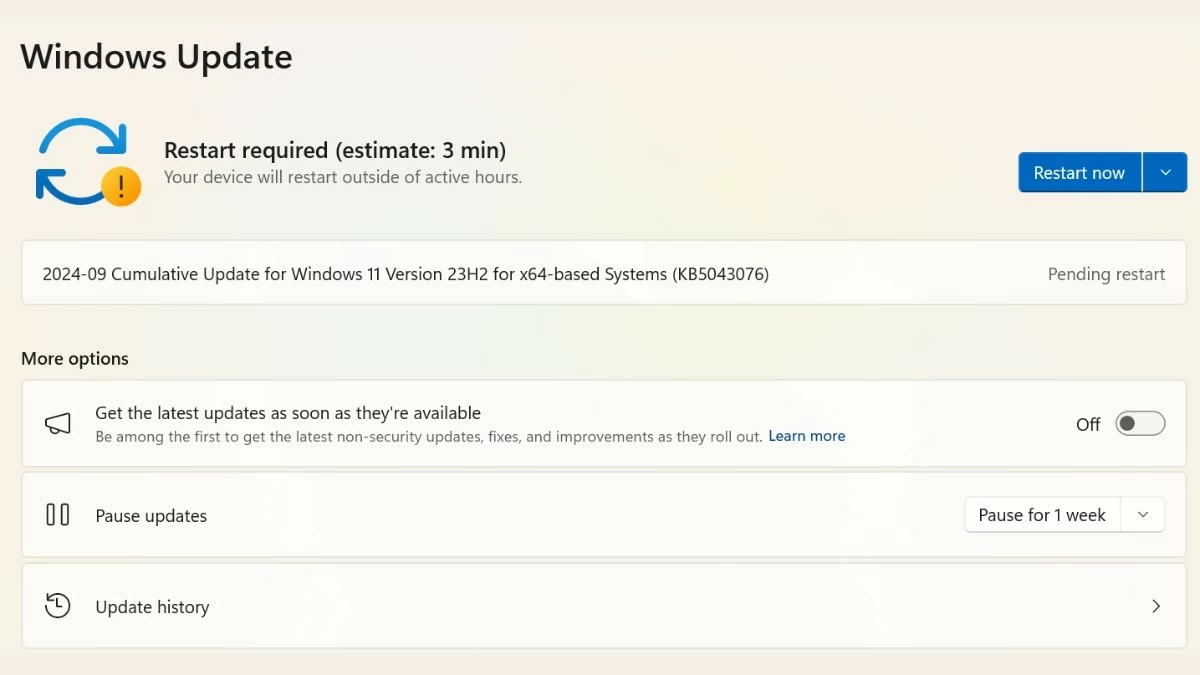
Checking for updates is a crucial step users need to take when downloading any software. Downloading the wrong version can cause conflicts and affect device performance. Remember to always check for software updates when downloading the Samsung USB Driver for your computer and Windows operating system to ensure everything is compatible and works effectively.
 |
Use connection support software.
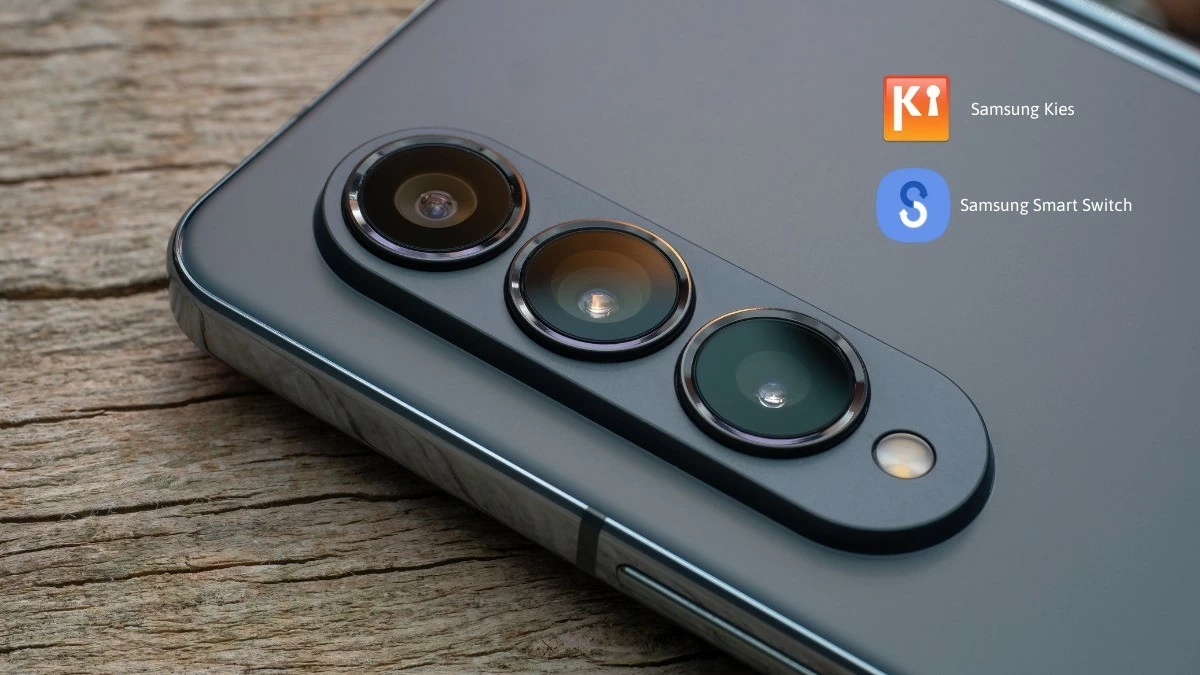
If you've tried the above methods and still can't fix the Samsung USB Driver connection error, consider using supporting software. You can try apps like Samsung Kies or Samsung Smart Switch to assist with the connection. Depending on your device, choose the most suitable tool for the best results.
 |
Above is a detailed guide on how to download and install the Samsung USB Driver for your computer. This software will help you optimize connections and data transfer between devices. If you encounter difficulties downloading or installing the Samsung USB Driver, please refer to the suggested solutions above. Good luck!
Source: https://baoquocte.vn/cach-tai-va-cai-dat-samsung-usb-driver-chi-tiet-nhat-289175.html

![[Photo] General Secretary and President To Lam meets with National Assembly delegates from ethnic minorities.](https://vphoto.vietnam.vn/thumb/1200x675/vietnam/resource/IMAGE/2026/04/20/1776696701056_a1-bnd-8331-3342-jpg.webp)


![[Image] National Assembly discusses the implementation of the socio-economic development plan.](https://vphoto.vietnam.vn/thumb/1200x675/vietnam/resource/IMAGE/2026/04/20/1776696707422_ndo_br_img-20260420-185419-jpg.webp)



























































































Comment (0)