

As 2023 draws to a close, there are a few things to reflect on, including the iPhone that has been your companion for the past year. Perhaps your phone has a few scratches on the corners or a crack in the screen? Performance might also be less smooth than before, due to the many apps installed. Therefore, let's 'detox' your phone with these tips.
Clean up storage space.
Before your iPhone runs out of storage, which is inevitable after some use, it's time to "clean up" some space.
On iPhones, there's a very helpful feature for managing storage space located within the Settings app: iPhone Storage. Access it by going to Settings > General > iPhone Storage. You'll see an interface that visually displays your used storage, as well as suggestions for items you can delete, usually downloaded videos and apps.
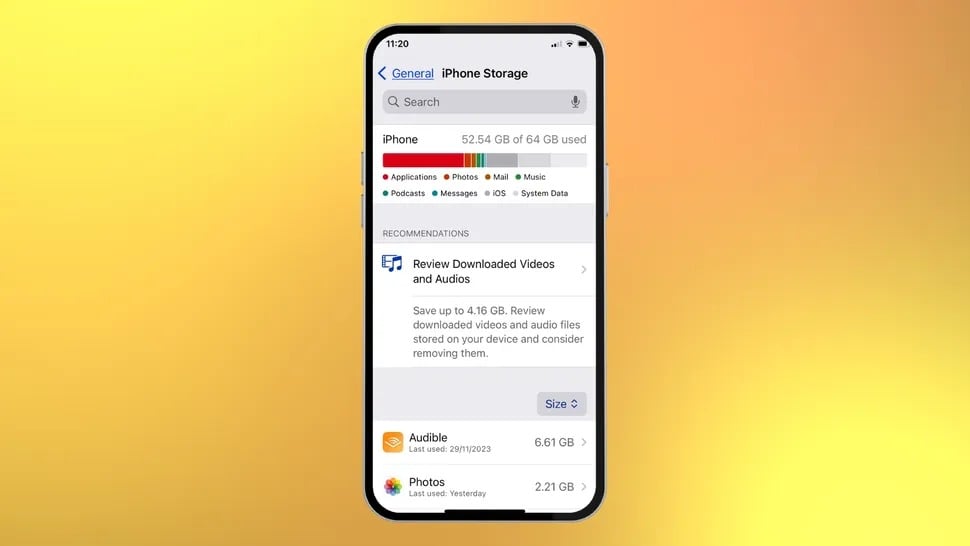
Check and clean up storage on your iPhone.
Below the suggestions is a list of each app and the amount of storage they occupy. Review the list and delete any that you rarely use.
Close unused apps.
One very useful feature on the iPhone is the ability to temporarily 'offload' apps to free up storage space, but without completely deleting them from the device. Called Offload Apps, this feature has been available since iOS 11. In terms of how it works, when 'offloaded,' the app is removed from the home screen, but the data and settings remain on the device, allowing you to reload and continue using it at any time.
This is a safe way to clean up storage, in case you need to use the app again later. You can do this manually in iPhone Storage or enable the feature to automatically close infrequently used apps for at least 12 days at Settings > App Store > Offload Unused Apps.
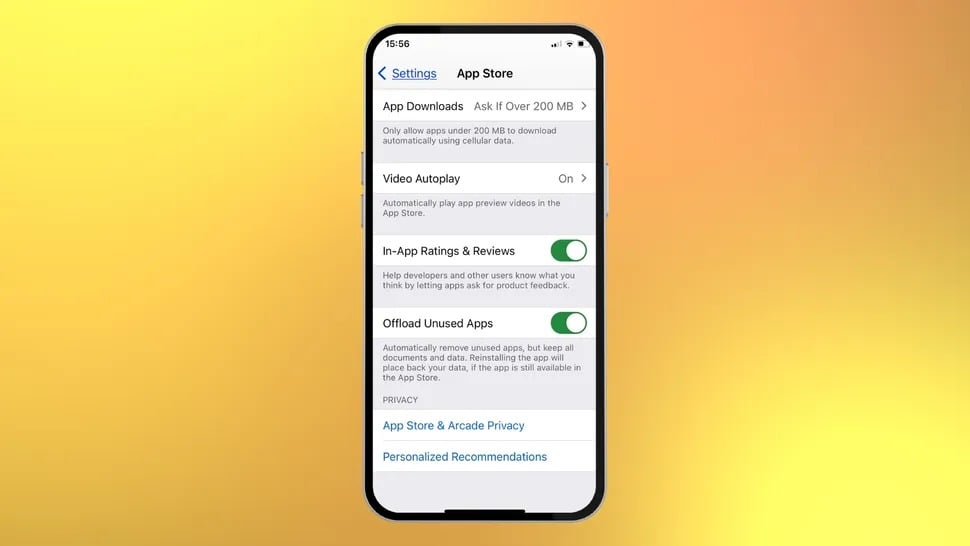
Temporarily disable the app using the Offload Unused Apps feature.
Reloading apps only takes a few seconds, so this is a great way to keep your iPhone as neat and lightweight as possible.
Update the operating system.
After cleaning up your apps, consider updating iOS. While Apple system updates offer security, many people still procrastinate because of the hassle. Check Settings > General > Software Update; if there's an update waiting, update immediately.
Even if you enable automatic updates, this process often happens at night and only installs if the iPhone is plugged in, so it's easy to miss. Therefore, update your operating system to keep your iPhone safe and running smoothly.
Customize your home screen.
Rearranging the home screen logically is also important to simplify iPhone usage.
The most scientific approach is to reorganize applications by frequency of use. Prioritize placing frequently used applications on the first page, and also utilize the bottom menu bar as a prime location for your most frequently used applications. Then, move less frequently used applications into folders. This will make your home screen much tidier.
Stop using Apple Podcasts
If you're using Apple's default Podcasts app instead of third-party apps, think again. The simple reason is that Podcasts takes up a lot of storage space.
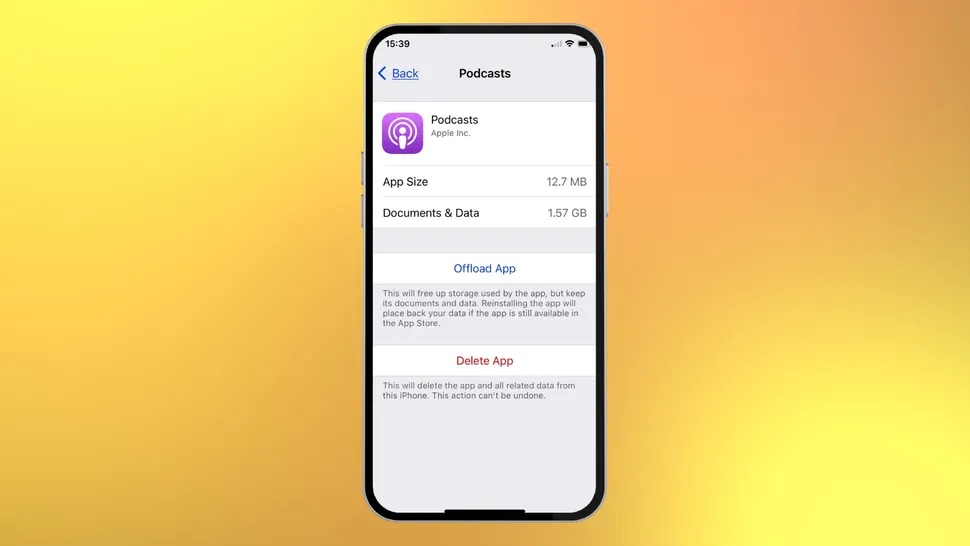
Apple's Podcasts app takes up a lot of storage space.
Unless you're traveling and need to download podcasts to listen offline, you should stream podcasts online, as downloading them consumes a lot of storage. Even without downloading any podcasts, Apple's Podcasts app still takes up 1.5 GB of iPhone storage, while apps like Overcast and Spotify are much lighter.
Turn off Live Photos
Another feature that silently consumes storage space on the iPhone is Live Photos. This feature records the 1.5 seconds before and after taking a photo, allowing you to choose the perfect moment in the frame. While useful, each Live Photo can be up to 7 MB in size, so over time it will consume a considerable amount of storage.
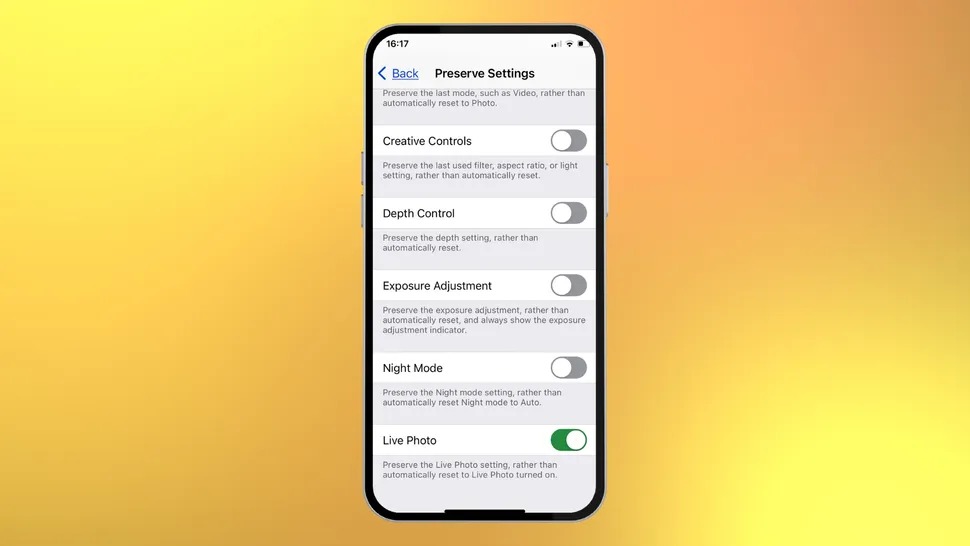
Turn off Live Photos to free up storage space.
Live Photos is usually enabled by default. When you open the Camera app, if you see the Live Photos button with three concentric yellow circles, the feature is turned on. Simply tap this button to turn it off (a diagonal line will appear on the circle).
Restart the faulty application.
Forget about closing recently opened apps to speed up your iPhone. Apps aren't running in the background; they're only temporarily 'dormant.' When you return to them, they'll automatically resume and perform the tasks you requested.
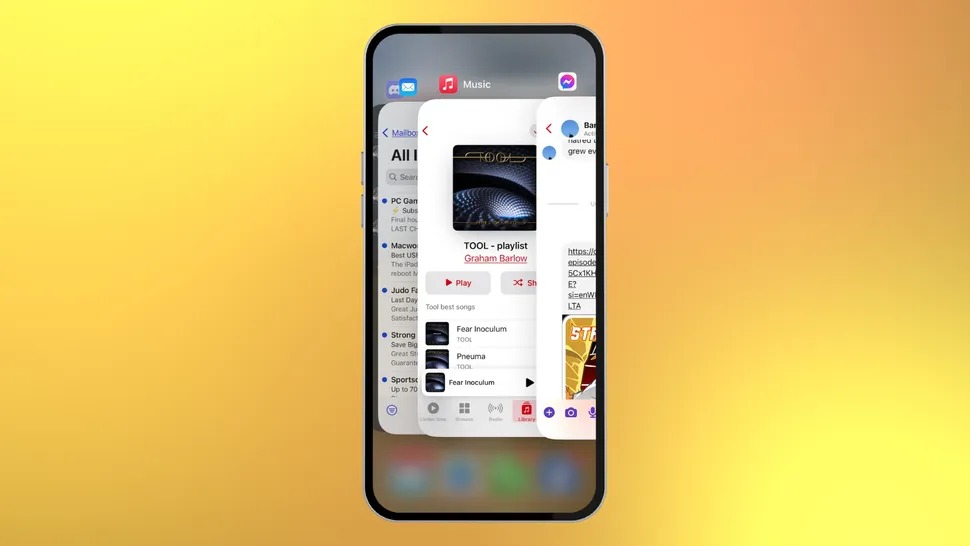
Close any applications that are causing problems.
However, sometimes certain applications may suddenly malfunction. In such cases, completely close them by swiping up. This will close the current session of the application, and when restarted, all problems should be resolved.
Restart your computer.
This is the best iPhone trick and is used to troubleshoot problems. Sometimes iPhones experience issues like unstable network connections, reduced performance, or features not working correctly… In these cases, a hard restart can be an effective solution to restore your iPhone to normal operation .
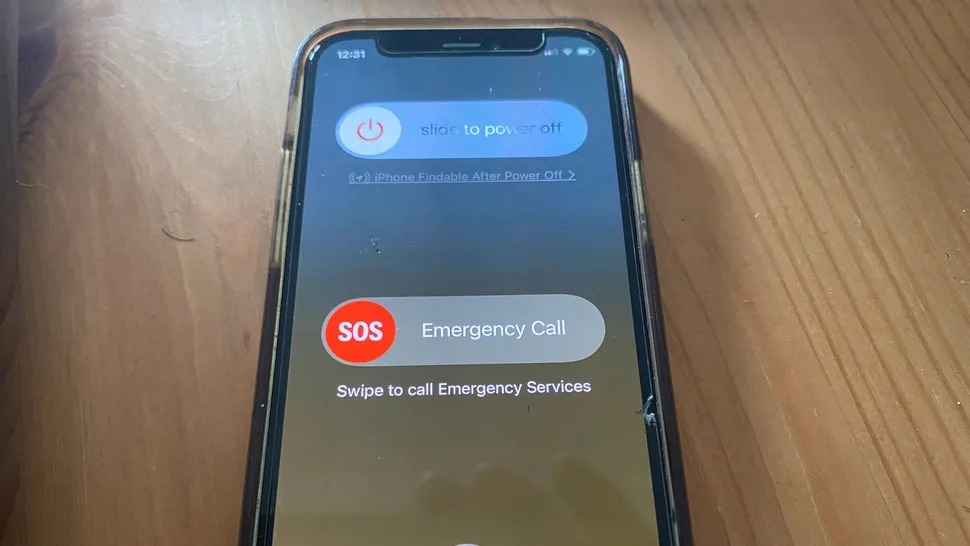
Restarting your iPhone can resolve many issues.
Press and hold the power button and the volume up button simultaneously for a few seconds. A "Slide to Power Off" option will appear; slide horizontally and wait for the iPhone to completely shut down. Then, repeat the same pressing and holding action to restart the device.
Source link


![[Photo] General Secretary and President To Lam meets with National Assembly delegates from ethnic minorities.](https://vphoto.vietnam.vn/thumb/1200x675/vietnam/resource/IMAGE/2026/04/20/1776696701056_a1-bnd-8331-3342-jpg.webp)
![[Image] National Assembly discusses the implementation of the socio-economic development plan.](https://vphoto.vietnam.vn/thumb/1200x675/vietnam/resource/IMAGE/2026/04/20/1776696707422_ndo_br_img-20260420-185419-jpg.webp)








![[Photo Gallery] Group Performance to Welcome Spring 2026](https://vphoto.vietnam.vn/thumb/402x226/vietnam/resource/IMAGE/2026/02/09/1770618453808_kkk_20260209123031.jpeg)
























































































Comment (0)