

Use two-factor authentication everywhere.
Two-factor authentication (2FA) is considered the best way to secure Android phones against malicious attacks. If you have a second layer in your login process, even if a hacker has your password, they won't be able to access your account, according to SlashGear .
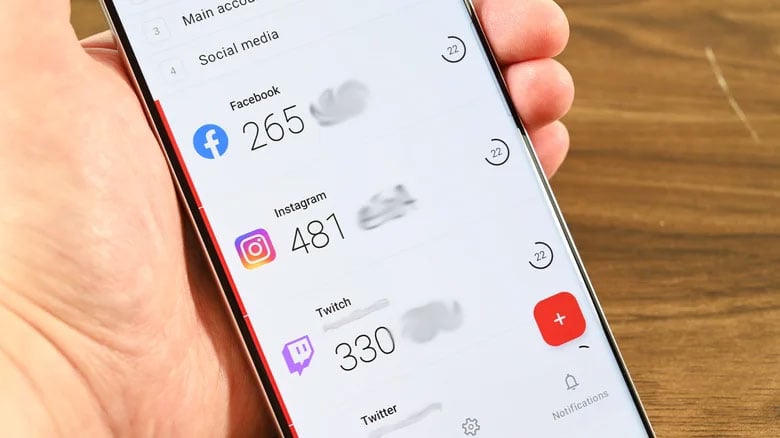
Screenshot from SlashGear
Use the lock screen.
The lock screen is the first step in protecting your Android phone. If thieves can't access your phone, they can't steal any information either. The advice here is to add biometric unlocking, PIN code, or password protection.
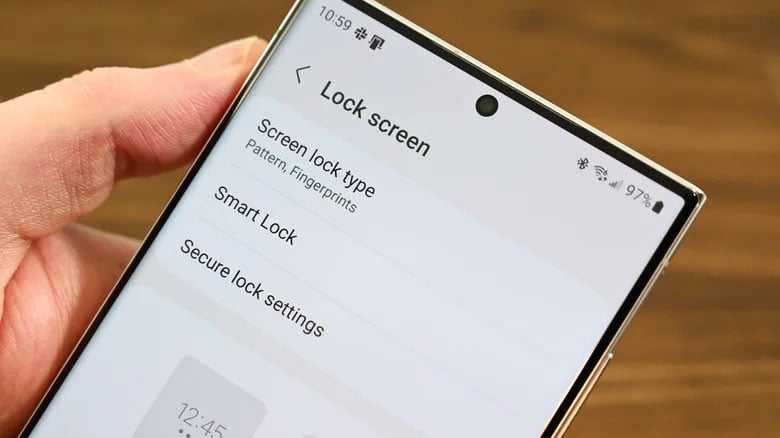
Screenshot from SlashGear
Use Google's Find My Device.
The Find My Device app is great. Google's Find My Device is one of the useful features on Android phones. Every Android phone with Google services has this feature by default. For those unfamiliar with it, Find My Device allows them to use a web browser or someone else's phone to find their own phone, as long as the phone is not turned off.
Screenshot from SlashGear
Make sure Google Play Protect is always enabled.
Google Play Protect acts as a type of antivirus software for Android phones. It's built into the operating system. This feature must be enabled by default on all modern Android devices. However, it won't hurt to double-check that the software is enabled. This is one of those things that millions of people use, even though they may never interact with it.
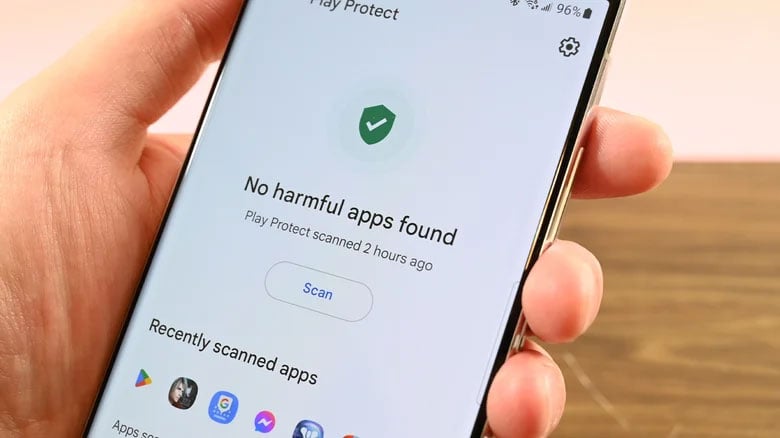
Screenshot from SlashGear
Google Play Protect works in two steps. First, it compares the apps on your phone with their corresponding apps on the Google Play store to ensure you have the latest version. Second, it will notify you of any issues with a particular app or automatically remove it if it detects a threat.
Turning off Google Play Protect is considered a mistake because it runs in the background without you noticing, keeping your device safe every day.
Clean up equipment activity
When you trade, sell, lose, or damage your phone, you typically sign out of everything and sign back in on a new device. However, Google still remembers that you were logged in on those old devices and even tracks active sessions. In short, you'll want to sign out of any devices you no longer own or use to ensure your Google account isn't compromised.
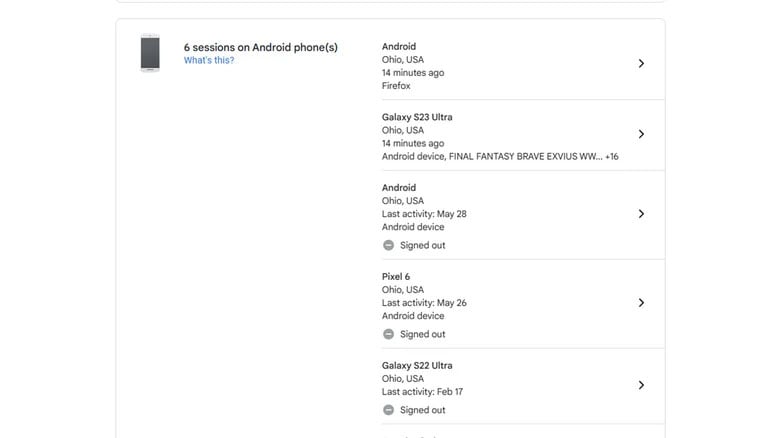
Screenshot from SlashGear
Consider using a password manager.
Passwords are often one of the weakest links in security. Most of the world's most common passwords can be cracked in less than a second. Many people use the same password for multiple services for ease of remembering. Simple and repetitive passwords are common reasons why accounts get hacked in the first place.
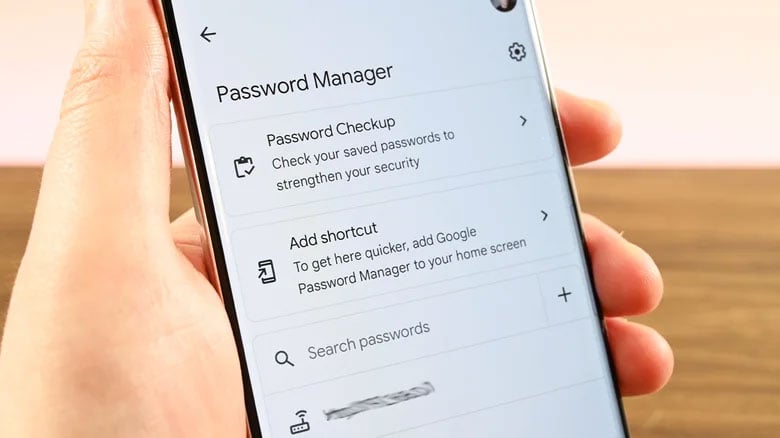
Screenshot from SlashGear
Password managers can solve this problem. Google has a built-in password manager in Android. You can store your passwords and perform security checks; the phone will automatically enter all login information for you. Some password managers, like LastPass and 1Password, can generate random passwords that are much harder to crack than normal.
The password generator is not only available on Android phones, but also integrates with Google Chrome on computers.
Use an app that has encryption.
Encryption is a must-have tool in 2023, and many Android apps are developed with it in mind. When it comes to encryption, people think of messaging apps like WhatsApp. Such messaging apps use end-to-end E2EE encryption to ensure all messages are unreadable except for those viewing the messages on their devices.
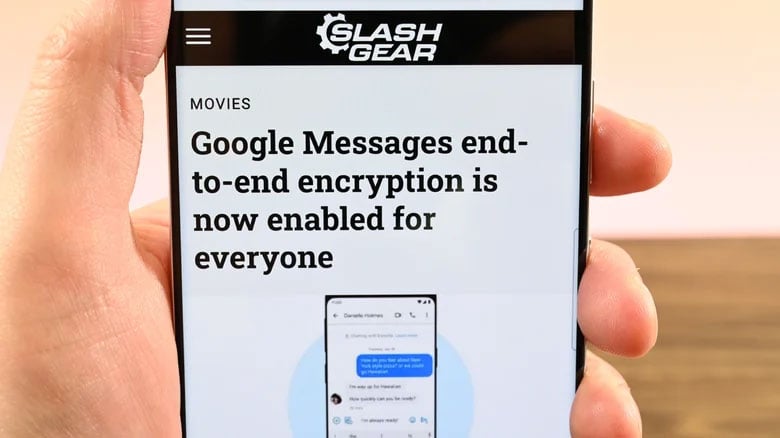
Screenshot from SlashGear
Google has encrypted all data backed up from your phone to your Google account. Therefore, there is no safer option unless you don't want your information stored on Google's servers.
Turn on NFC protection.
Nowadays, most smartphones have NFC, and we use it for payments. This NFC security is easy to check, and you only have to do it once.
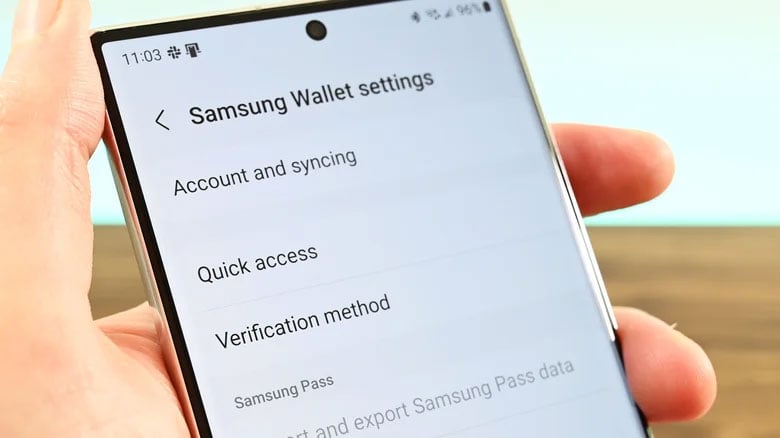
Screenshot from SlashGear
The reason you want to do this is because Google Pay doesn't require you to unlock your phone when buying small-value items. This could lead to the possibility of someone scanning your phone via an NFC reader to pay for small purchases.
To fix this, go to your device settings, then to Device Connections, Connection Options, and then NFC. Enable the option to require unlocking your device for NFC. Once done, you will need to unlock your phone before making any NFC payments.
Source link
![[Image] National Assembly discusses the implementation of the socio-economic development plan.](https://vphoto.vietnam.vn/thumb/1200x675/vietnam/resource/IMAGE/2026/04/20/1776696707422_ndo_br_img-20260420-185419-jpg.webp)



![[Photo] General Secretary and President To Lam meets with National Assembly delegates from ethnic minorities.](https://vphoto.vietnam.vn/thumb/1200x675/vietnam/resource/IMAGE/2026/04/20/1776696701056_a1-bnd-8331-3342-jpg.webp)
































































































Comment (0)