

Is your Samsung phone screen not displaying as you'd like? Discover how to adjust DPI on Android in 3 simple and quick ways below!
 |
DPI, or "Dots per inch," is a measure of the resolution of a phone screen. It's an important term in technology, as it affects the quality of image and text display. During manufacturing, device manufacturers like Samsung typically set a default DPI for each product.
Adjusting the DPI on Samsung devices optimizes display quality, thereby enhancing the user experience. When adjusting the DPI on the latest Android version, icons, text, and images will become sharper or larger, depending on your needs.
How to adjust Samsung DPI using Quick Display Settings
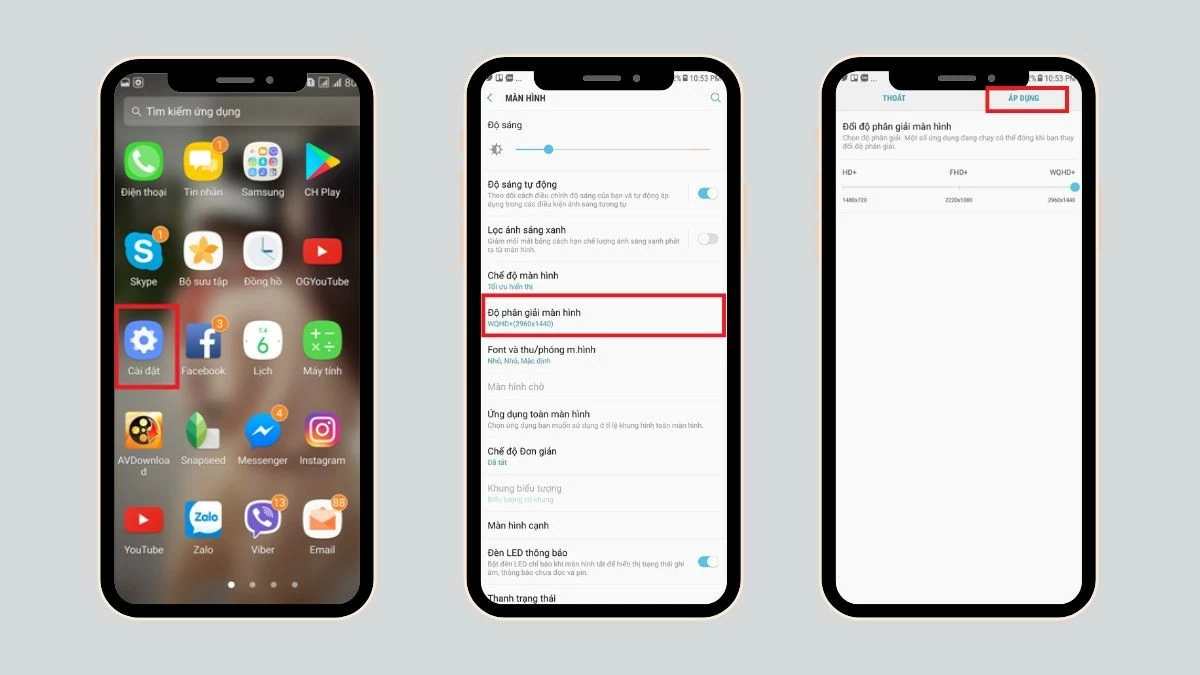
Adjusting DPI on Samsung devices is quick and easy. The steps to adjust DPI through screen settings on Android devices from version 7.0 onwards are similar to the following:
Step 1: First, open the Settings app and find the Display section.
Step 2: Drag the slider on the resolution bar to select your desired DPI level.
Step 3: Finally, click the Apply button to update the DPI settings.
 |
How to adjust Samsung DPI in Developer Settings
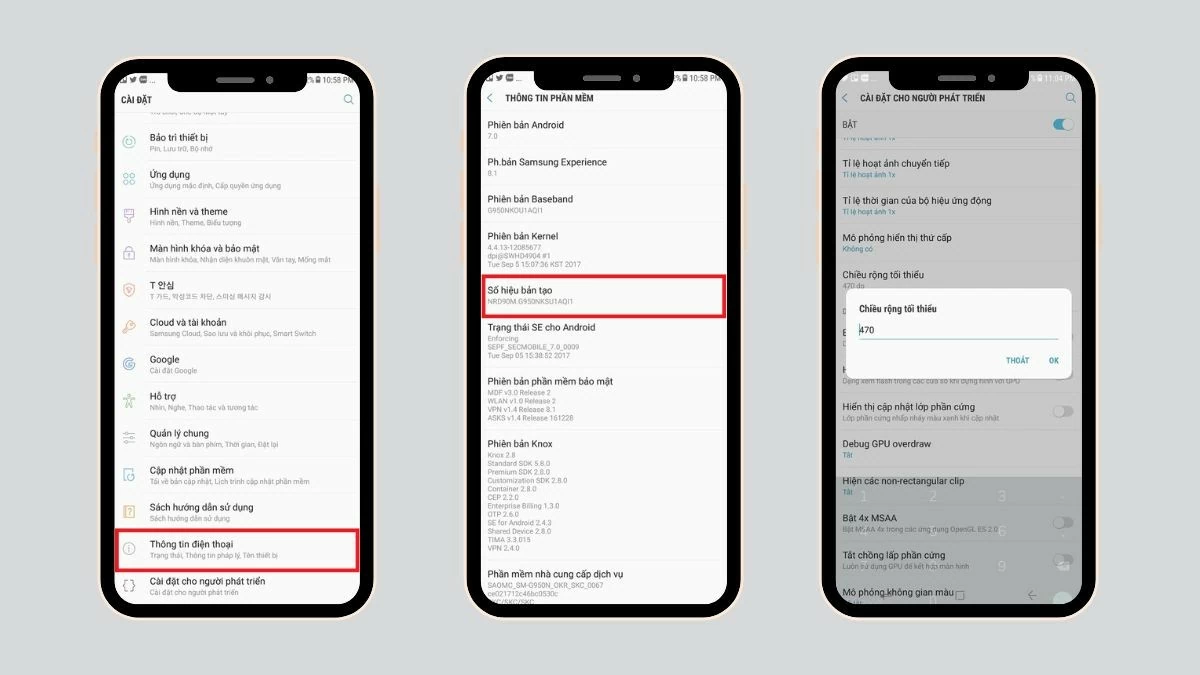
Developer settings are a very useful method for adjusting DPI on older devices that cannot be upgraded to a newer Android version. Below is a guide on how to adjust DPI on Android using this method:
Step 1: Open the Settings app on your phone, then find and select the Phone information section.
Step 2: Tap repeatedly on the Build Number. A message will appear informing you that you have become a developer.
Step 3: After completing the above steps, go back to Settings and find Developer Options. Under Minimum Width, you will see the default value.
Step 4: To adjust the DPI, you can drag the slider at the bottom. Alternatively, for a quicker method, you can directly enter your desired number into the input field.
 |
Instructions on how to adjust DPI on Samsung devices using ABS Drive.
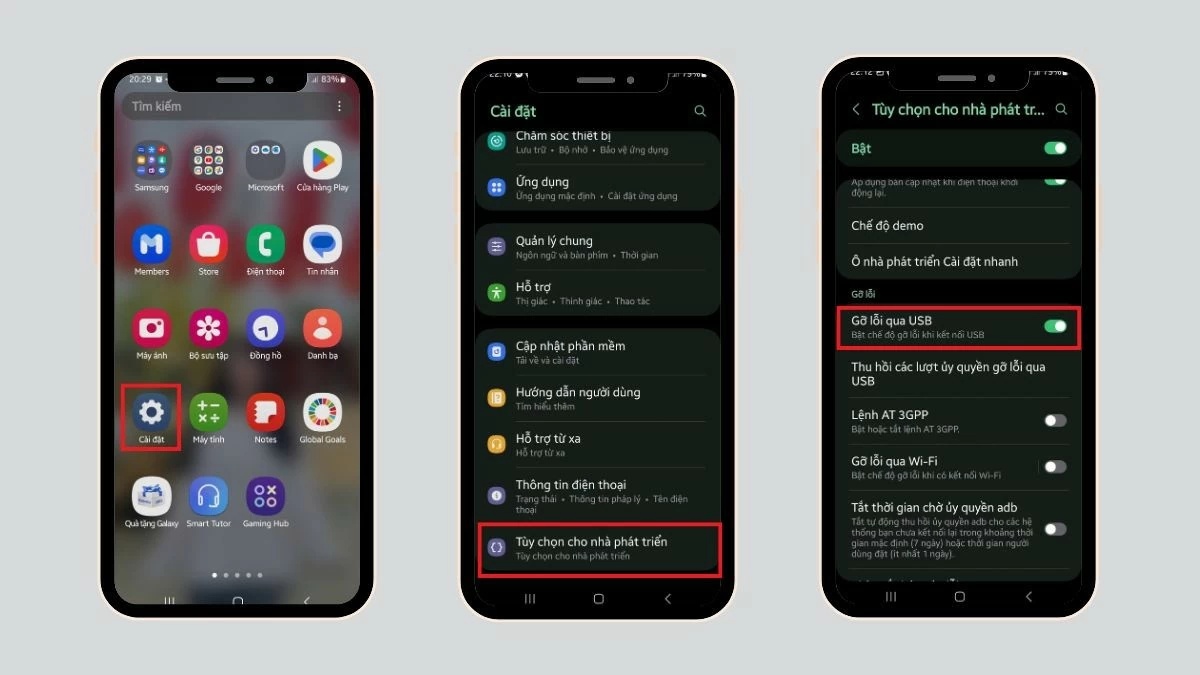
Adjusting DPI on Samsung devices using ABS Drive is very useful for older devices, although the process is more complex than other methods because it requires a computer. Below is a guide on how to adjust DPI on a Samsung Galaxy via ABS Drive:
Step 1: First, download the ABS Drive app to your computer. Then, go to Settings on your phone and find Developer Options to enable USB debugging.
Step 2: Open the downloaded ABS Drive folder on your computer. To open the Command window, press the Shift key and right-click.
Step 3: Enter the command `adb shell wm density xxx` , where "xxx" is the DPI value you want to set, then press Enter to confirm. Finally, you can disconnect the two devices and experience the new resolution settings.
 |
Instructions on how to check your Samsung screen resolution.
After adjusting the DPI on your Samsung device, it's crucial to double-check the settings to ensure the changes have been successfully implemented and the display quality meets expectations. Here's a simple way to check your Samsung screen resolution:
Step 1: Open the Settings app on your phone to begin the check.
Step 2: Scroll down and find the "Display" section to view information about the screen and resolution.
Step 3: Confirm whether the DPI setting on your Samsung phone has been adjusted to your liking.
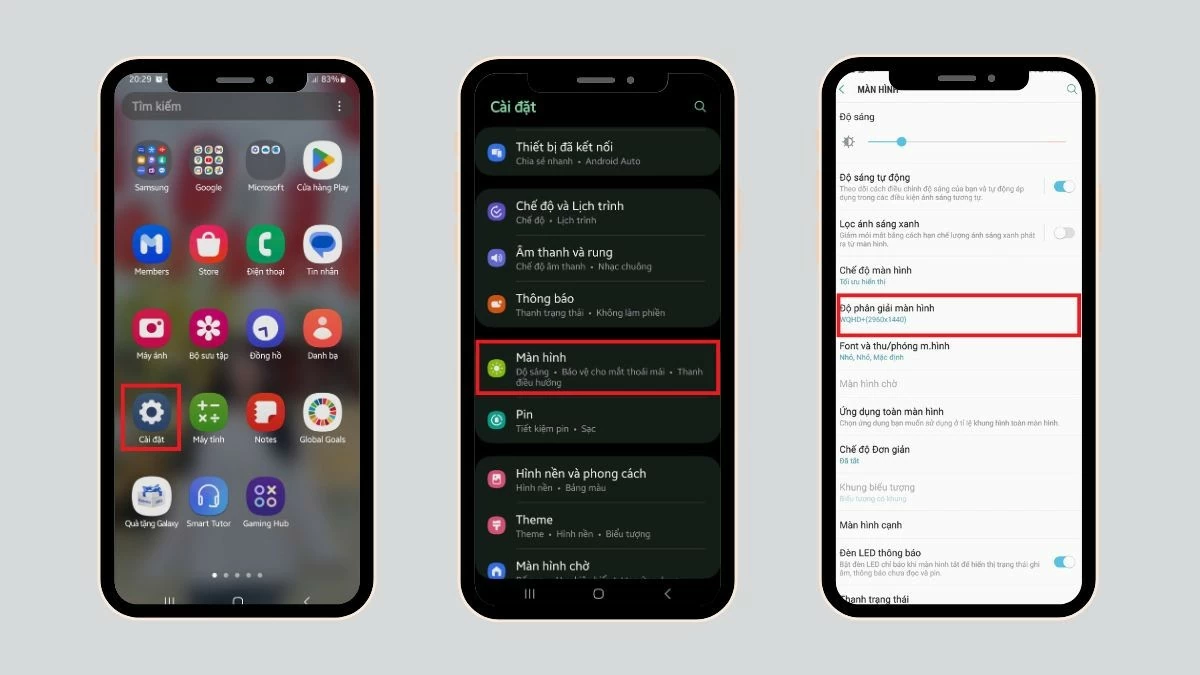 |
If the DPI setting on your Samsung monitor is already as desired, it means your adjustment process has been successful. However, if the results are still unsatisfactory, you can readjust the setting or experiment with other methods to improve screen resolution, ensuring the best user experience.
Changing image resolution is now simpler thanks to the detailed instructions on how to adjust Samsung DPI provided in this article. Hopefully, these methods will help you easily adjust the screen resolution to your needs.
Source
![[Photo] Diary of the photojournalism contest “Vietnam on the journey of innovation”](https://vphoto.vietnam.vn/thumb/1200x675/vietnam/resource/IMAGE/2026/03/09/1773041117692_anh-man-hinh-2026-03-09-luc-14-24-45.png)
![[Image] 20 islands in the Spratly Islands special administrative region hold early elections.](https://vphoto.vietnam.vn/thumb/1200x675/vietnam/resource/IMAGE/2026/03/08/1772949669607_img-20260308-112026-90-jpg.webp)

![[Image] Vietnam's diverse colors on its journey of innovation](https://vphoto.vietnam.vn/thumb/1200x675/vietnam/resource/IMAGE/2026/03/09/1773041390813_anh-man-hinh-2026-03-09-luc-14-28-17.png)





























































![[Photo] Diary of the photojournalism contest “Vietnam on the journey of innovation”](https://vphoto.vietnam.vn/thumb/402x226/vietnam/resource/IMAGE/2026/03/09/1773041117692_anh-man-hinh-2026-03-09-luc-14-24-45.png)



























Comment (0)