According to BGR , macOS Sonoma hides many great features, including an interesting hidden feature called Studio Light. With just two taps, Studio Light will make video calls much higher quality.
Notably, this feature isn't exclusive to FaceTime; it works with any app that uses the camera on a Mac, or even an iPhone if the user wants to (using it as a webcam).
How to enable Studio Light and improve video calls on Mac
Studio Light is similar to the Portrait filter on the iPhone, but on a Mac you only have one option. When the feature is enabled, you'll instantly see yourself in video calls looking much better. Follow these steps to activate the feature.



During a FaceTime, Zoom, or Slack video call, find the camera icon in the upper right corner. Tap it and select Studio Light. Immediately, your image will change. If the lighting is good, you'll see more depth in the image and your face will be highlighted.
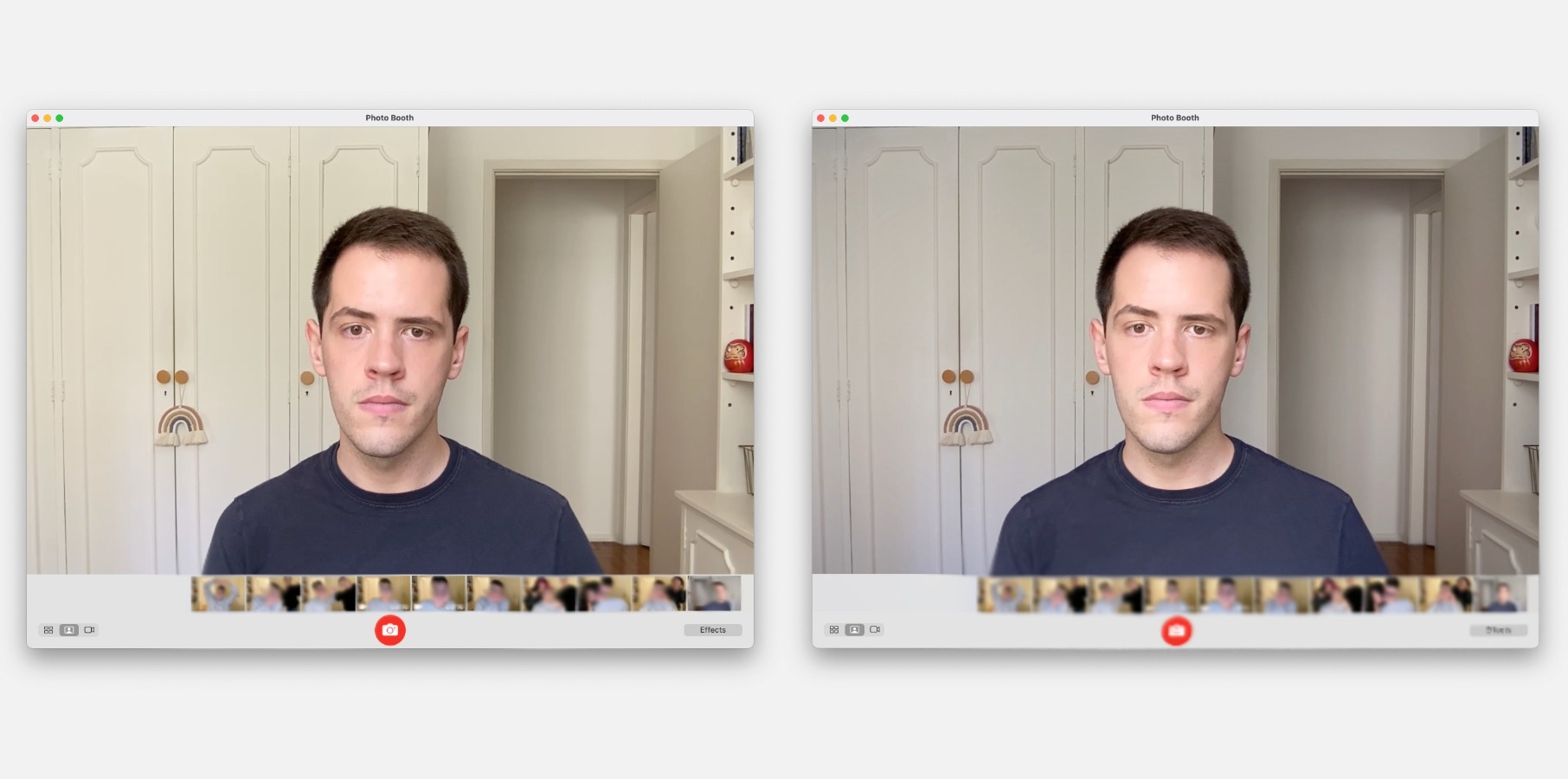
Before and after images using the Studio Light feature.
In addition to Studio Light, you can also blur the background or activate Center Stage (which adjusts to keep you in the center of the frame) if your Mac has this feature. Studio Display, or if using an iPhone as a webcam, also offers Center Stage functionality.



With just two simple steps, you can significantly improve the quality of video calls on your iPhone and Mac, whether it's for presentations, team meetings, or simply chatting with friends.
Source link