

Are you interested in learning how to change your AirDrop name on your iPhone, iPad, MacBook, etc., for more convenient use? Check out this article to find out how!
 |
AirDrop is a wireless networking feature that connects Apple devices such as iPhones, iPads, iMacs, and MacBooks. Using Wi-Fi and Bluetooth, AirDrop allows you to share files, images, and videos between iOS devices. Therefore, you may want to rename it to your desired name for easier use. Below are some ways to easily rename it.
How to quickly change your AirDrop name on iPhone and iPad.
Changing your AirDrop name on iPhone and iPad is popular because it's quick and convenient. Here's how to change your AirDrop name on your iPhone:
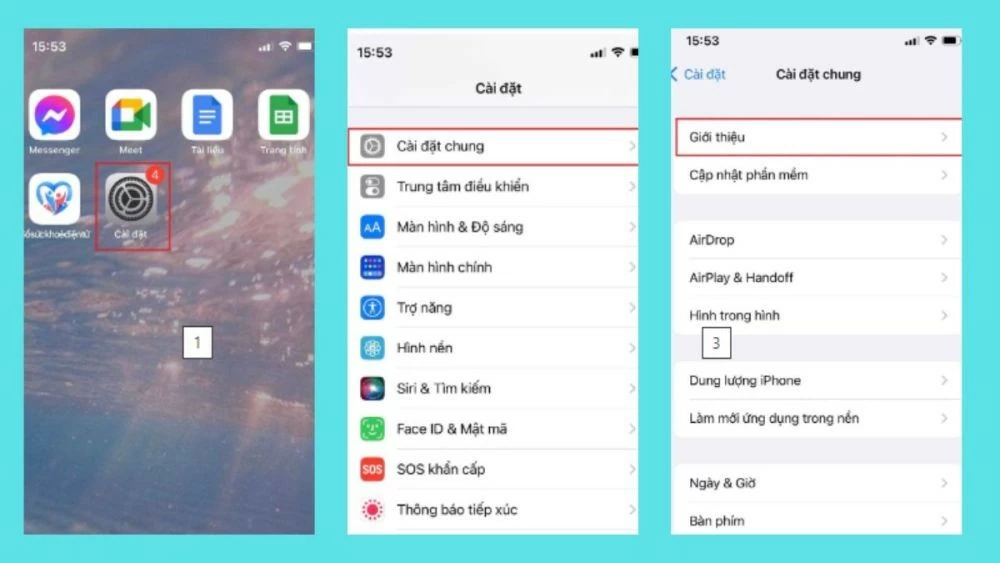
Step 1: On your iPhone, open the Settings app. Select "General," then select "About."
 |
Step 2: Tap "Name" to open the editing mode. Then, enter your desired AirDrop name. Finally, tap the "Done" button in the upper right corner of the screen to complete changing your AirDrop name on your iPhone.
 |
Step 3: Exit settings and go to AirDrop to check the new name. With just a few simple steps like that, you have completed changing your AirDrop name on your iPhone. You can also follow similar steps on your iPad.
 |
Guide on how to effectively change AirDrop name on Macbook
AirDrop can connect on a MacBook to transfer data. Therefore, you can also make settings, including renaming AirDrop on your MacBook, by following these steps:
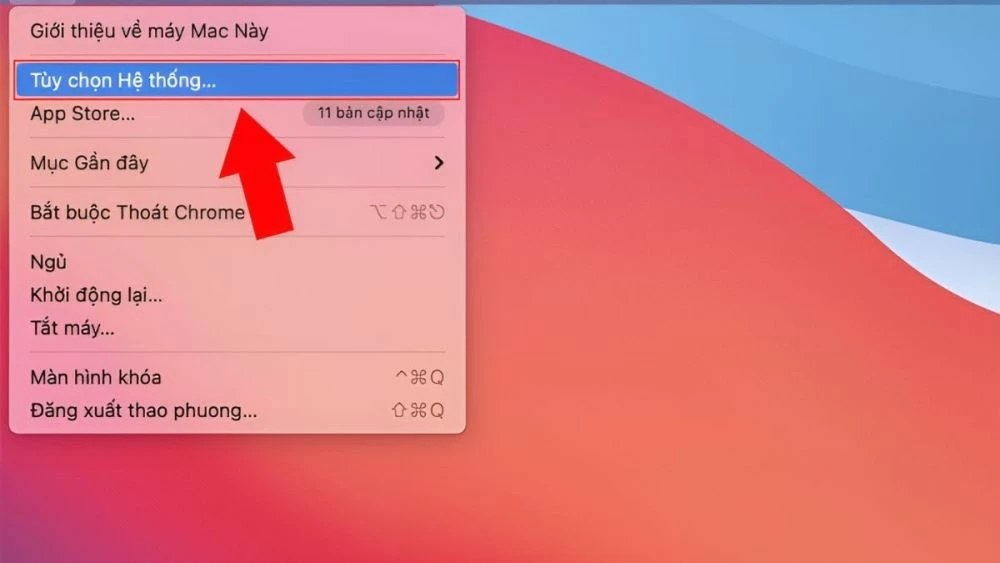
Step 1: Turn on your MacBook, then click the "Apple Menu" icon in the upper left corner of the screen. Find and select "System Preferences".
 |
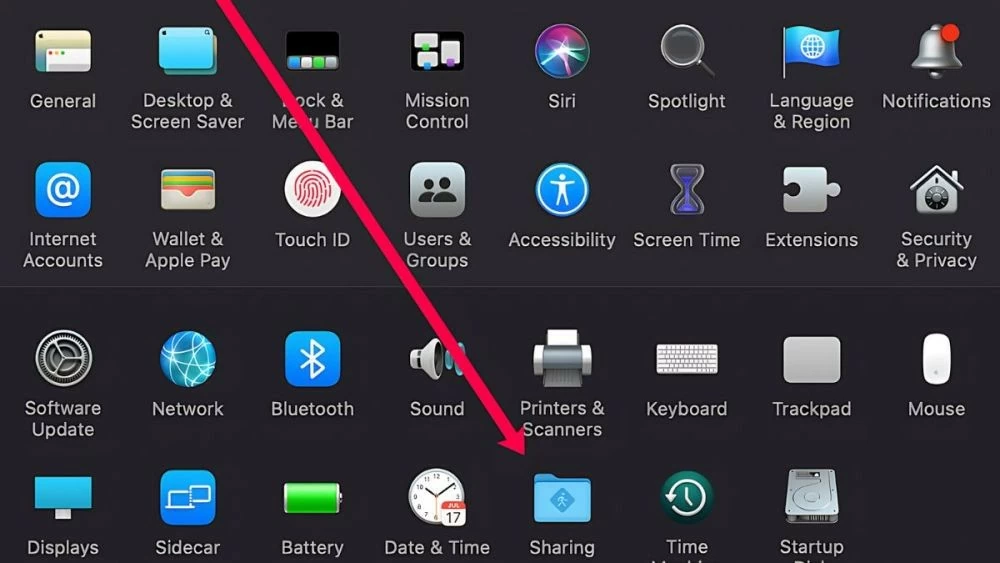
Step 2: Click on the "Sharing" button.
 |
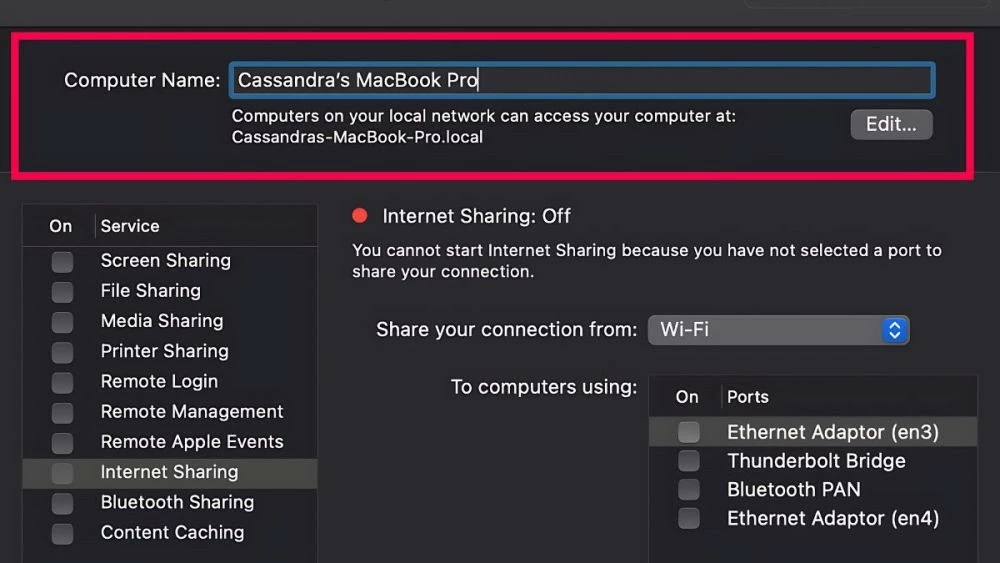
Step 3: Next, select "Computer Name". Then, delete the current AirDrop name and enter a new name of your choice to complete changing the AirDrop name on your MacBook.
 |
Instructions on how to rename your Airdrop on iTunes
iTunes is familiar to Apple users and also supports connecting phones and other mobile devices. You can use iTunes to easily rename your AirDrop account by following these steps:
Step 1 : Download and install the version of iTunes that is compatible with your computer.
 |
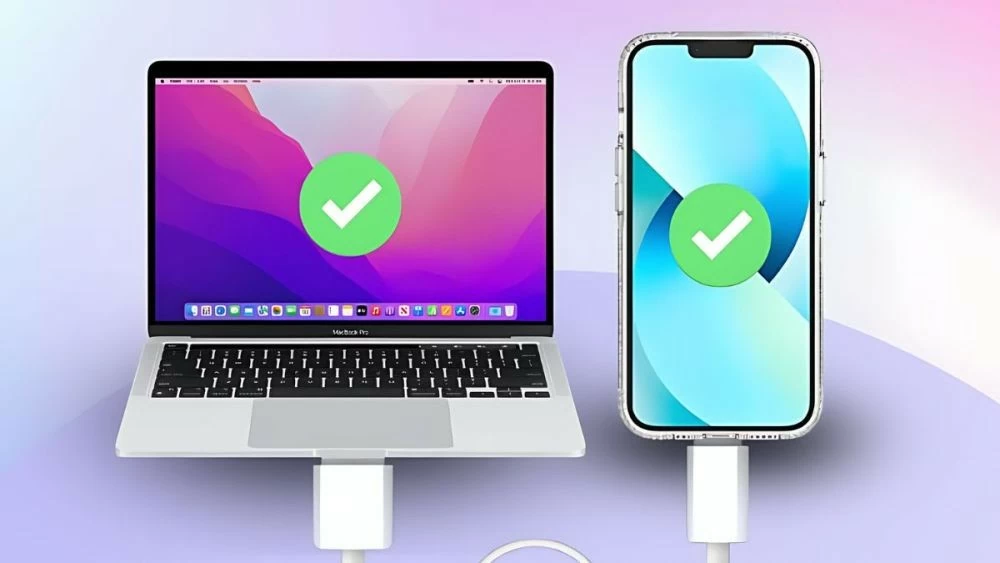
Step 2: Connect your computer to the device using AirDrop, such as an iPhone or iPad, using a cable. Open iTunes and launch the application. When the icon appears on the toolbar at the top of your phone screen, tap it to rename your AirDrop.
 |
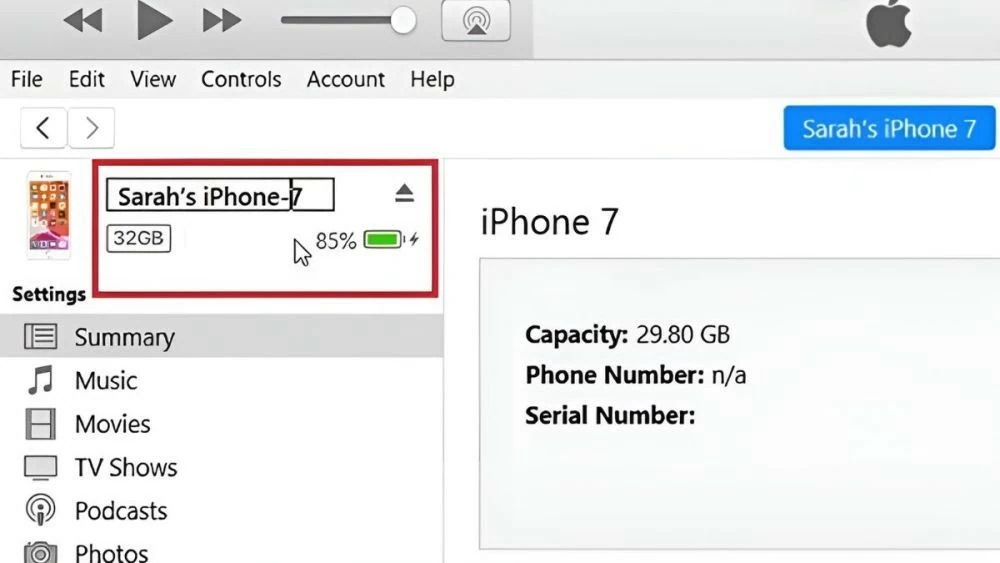
Step 3: Next, click on the iPhone device connected to the computer. Then, in the upper left corner of the screen, click on the current AirDrop name and delete it. Finally, enter the new name to complete the process.
 |
This article has guided you on how to change your AirDrop name on iPhone, iPad, MacBook, and iTunes simply and in detail. Choose the method that suits you best to change your AirDrop name, making it easier for you to identify and use this feature.
Source: https://baoquocte.vn/cach-doi-ten-airdrop-บน-iphone-ipad-macbook-itunes-sieu-de-280422.html


![[Image] National Assembly discusses the implementation of the socio-economic development plan.](https://vphoto.vietnam.vn/thumb/1200x675/vietnam/resource/IMAGE/2026/04/20/1776696707422_ndo_br_img-20260420-185419-jpg.webp)
![[Photo] General Secretary and President To Lam meets with National Assembly delegates from ethnic minorities.](https://vphoto.vietnam.vn/thumb/1200x675/vietnam/resource/IMAGE/2026/04/20/1776696701056_a1-bnd-8331-3342-jpg.webp)





































































































Comment (0)