

 |
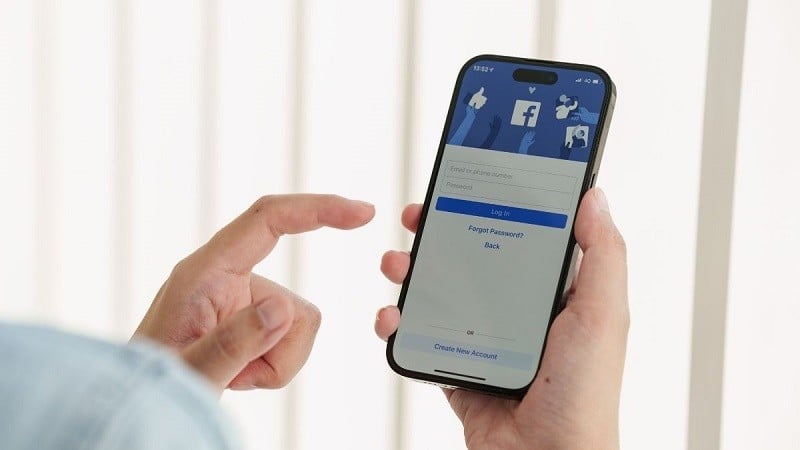
Below are details of 4 of the fastest and safest ways to recover your Facebook password in 2023.
Recover your Facebook password using your phone number .
Step 1: First, launch the Facebook app on your phone. On the login screen, tap "Forgot password."
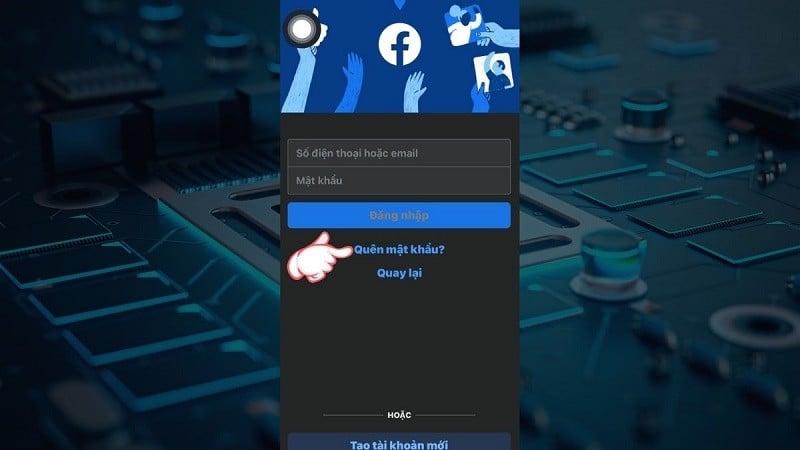 |
On the "Find your account" screen, enter the phone number or email address that you previously linked to your Facebook account. Then, press "Search" on your keyboard.
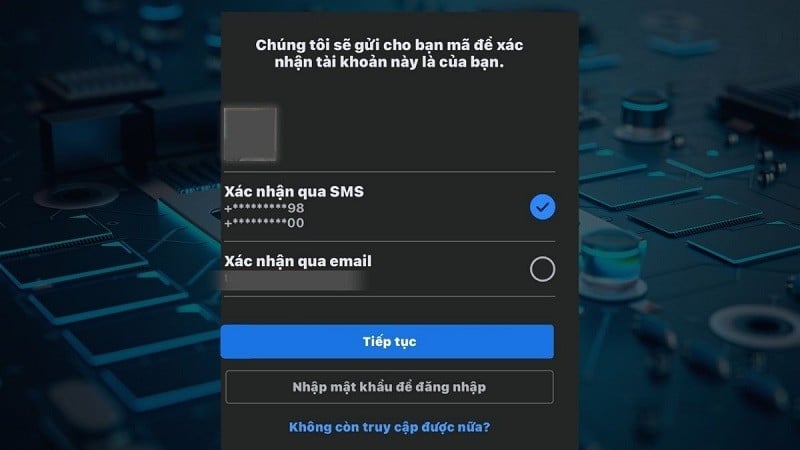
Step 2: Next, choose how you want to receive the verification code for your account. Then, click "Continue" to request the verification code.
 |
Step 3: The system will send a verification code to you via the method you selected.
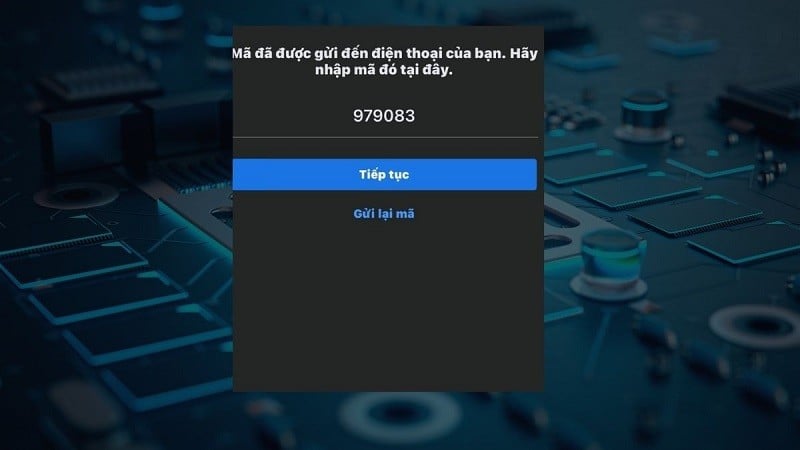 |
Step 4: To complete the process of recovering your Facebook password using your phone number, enter this code into the Facebook app. Once successfully verified, you can access your account again.
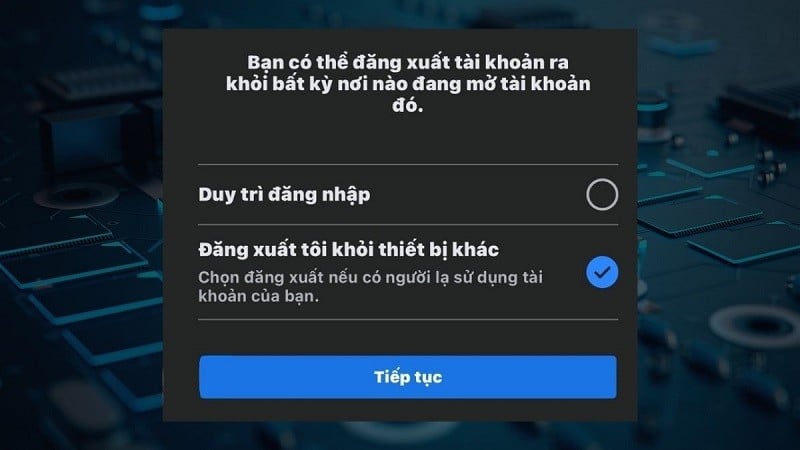
To enhance security, tap the "Log me out of other devices" option if available. Then, tap the "Continue" button to complete the process.
 |
Recover your Facebook password using Gmail.
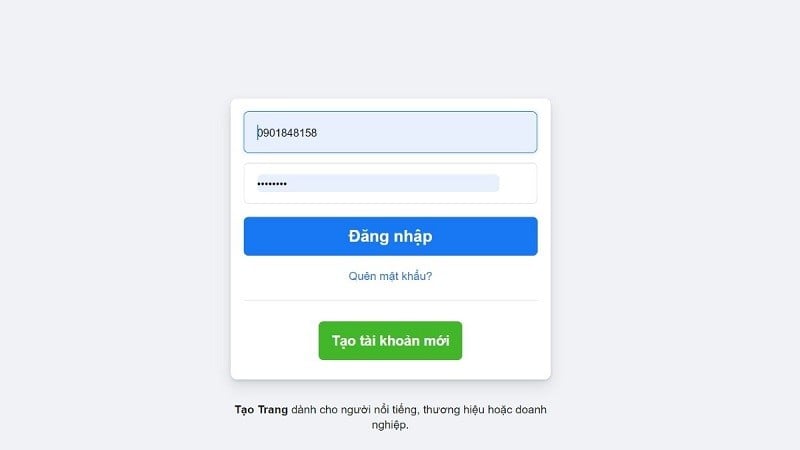
Step 1: Access your Facebook account using your web browser or mobile app as you normally would. Then, click the "Forgot password" button.
 |
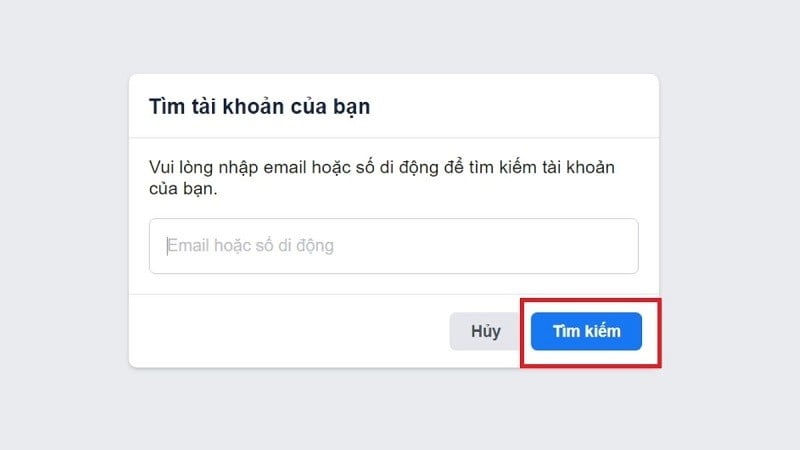
Step 2: Here, the system will ask you to enter your Facebook account login information, which could be the email address or phone number you registered with this account. After entering this information, click "Search" to proceed.
 |
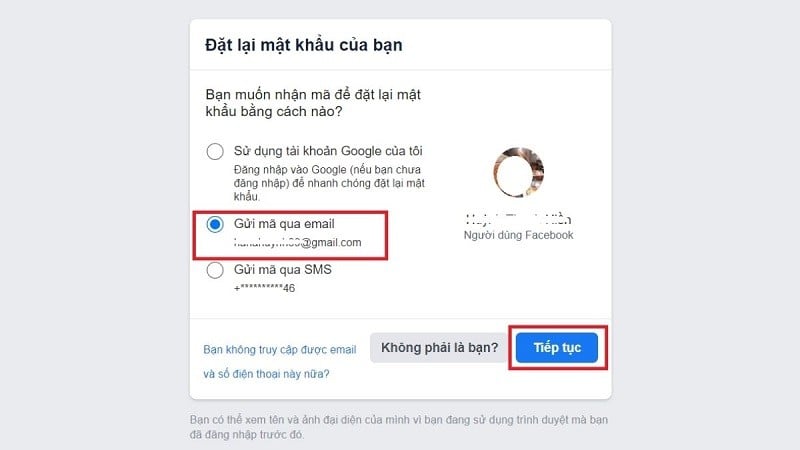
Step 3: Choose to receive the verification code via email by checking the box "Send code via Email." Then, click "Continue."
 |
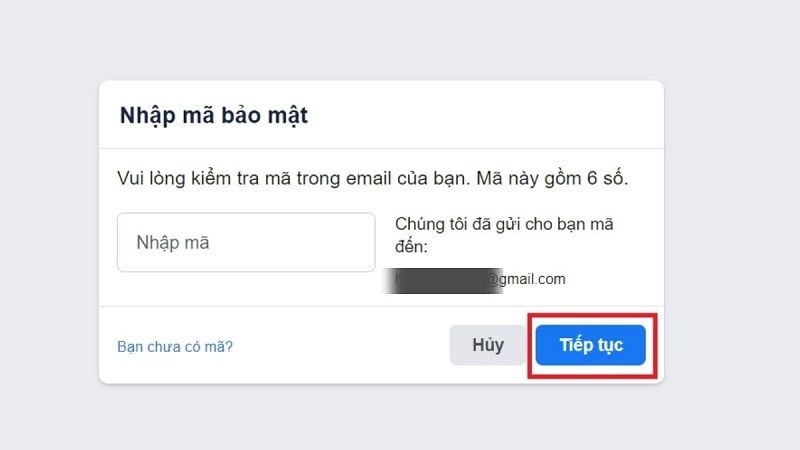
Step 4: Next, access your Gmail account, or the email address linked to your Facebook account, to find the verification code. Once you have received the code, return to the Facebook password reset page and enter it. Then, click "Continue."
 |
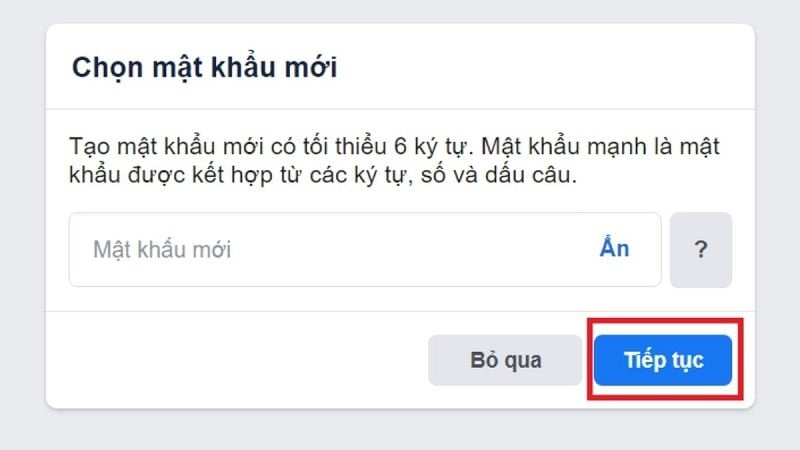
Step 5: At this point, you will have the opportunity to reset your Facebook account password. After you have reset your password, click "Continue."
 |
Recover your Facebook password using your ID card/citizen identification card.
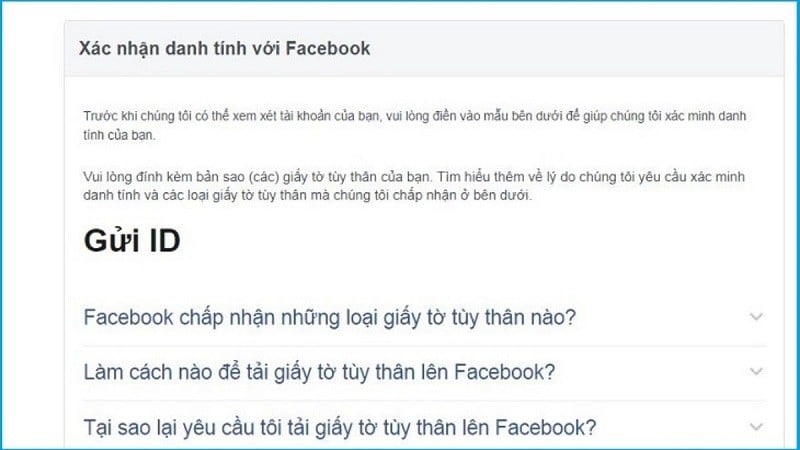
Step 1: Go to the following address: https://www.Facebook.com/help/contact/183000765122339. You will see a message requesting you to submit your ID to verify your identity, along with reading and agreeing to Facebook's terms and conditions.
 |
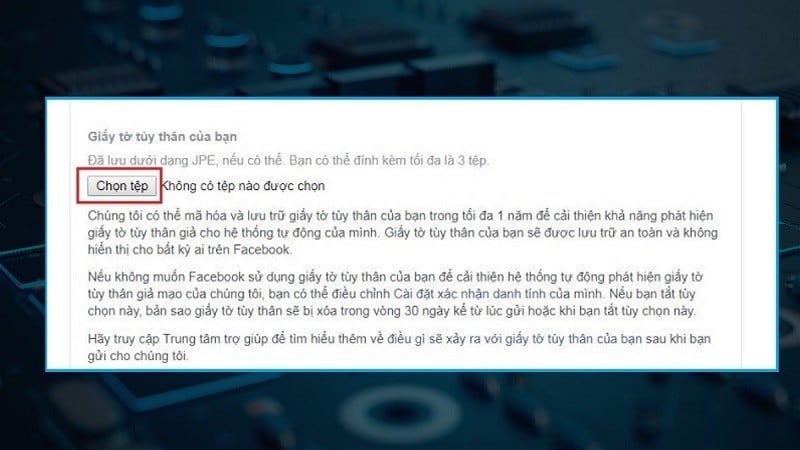
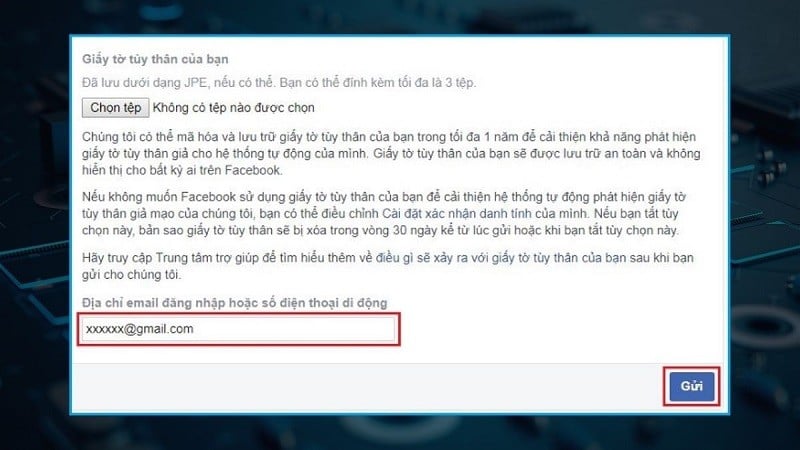
Step 2: Here, you need to upload a file containing three images: the front and back of your ID card, and a portrait of yourself. These are used for verification on Facebook. Make sure the images you upload are of good quality to increase your chances of successfully recovering your Facebook password using your ID card.
 |
Step 3: Finally, enter your email address and then submit the information to Facebook. You will be notified of the results after a waiting period, usually within 30 days of submitting the information.
 |
Instructions on how to recover your Facebook password using Messenger.
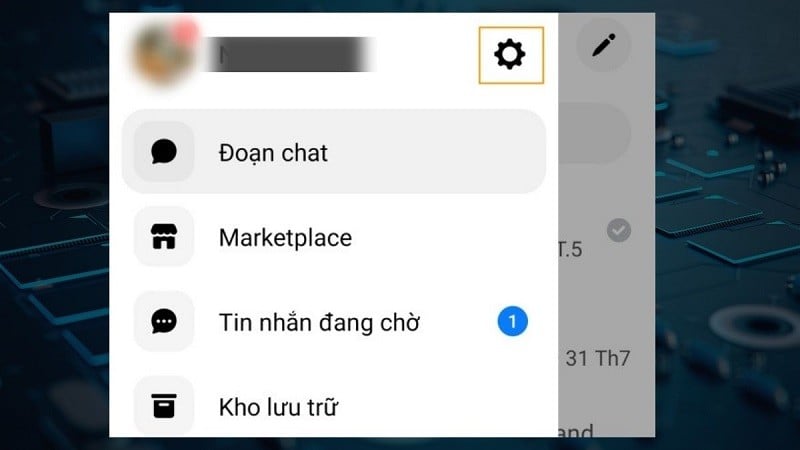
Step 1: Open the Messenger app and tap your avatar icon or the three horizontal lines icon in the top left corner (depending on your Messenger version). Then, tap "Settings".
 |
Step 2: In the latest version of Messenger, tap "Settings" > "Personal Information". In older versions, tap "Meta Account Center" > Select "Personal Information".
 |
Step 3: Next, select "Contact Information" and then click "Add New Contact Information".
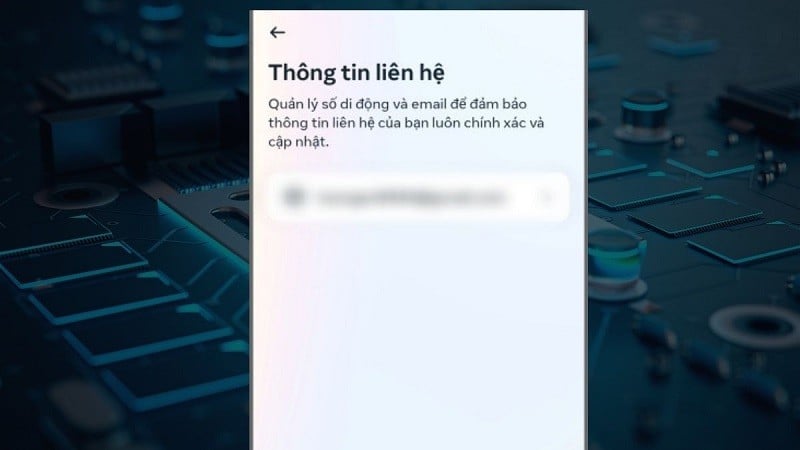 |
At this point, you will be asked to enter a new phone number or email address to receive a verification code. Please note that you need to use a phone number or email address that has never been linked to a Facebook account before.
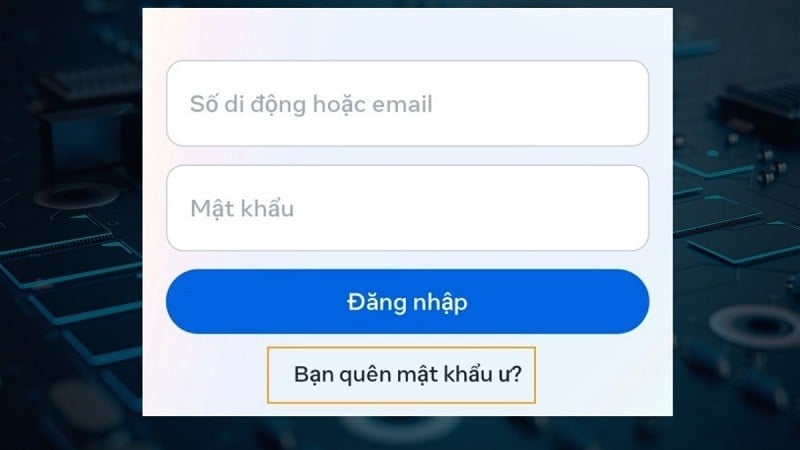
Step 4: After adding your new contact information, go to the Facebook login page. On the login screen, enter your phone number or email address. Then click "Forgot password". Facebook will send you a verification code to your phone number or email address.
 |
The above are instructions to help you recover your Facebook password quickly and safely. Hopefully, this will give you more options to solve your problem.
Source


![[Image] National Assembly discusses the implementation of the socio-economic development plan.](https://vphoto.vietnam.vn/thumb/1200x675/vietnam/resource/IMAGE/2026/04/20/1776696707422_ndo_br_img-20260420-185419-jpg.webp)

![[Photo] General Secretary and President To Lam meets with National Assembly delegates from ethnic minorities.](https://vphoto.vietnam.vn/thumb/1200x675/vietnam/resource/IMAGE/2026/04/20/1776696701056_a1-bnd-8331-3342-jpg.webp)









































































Comment (0)