

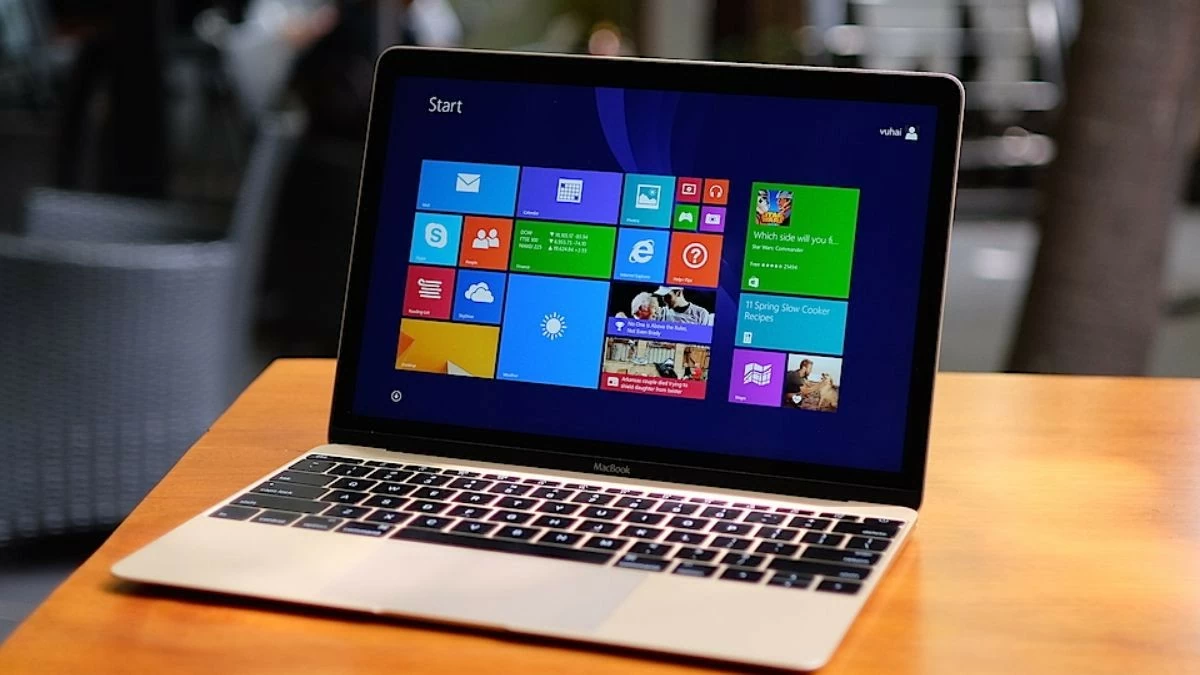
Are you wondering how to install Windows on your MacBook? Windows is essential for work and study. Here's a guide on how to install Windows on a 2024 MacBook!
 |
Quick guide to installing Windows on a MacBook using Bootcamp
Do you own a MacBook but want to experience the Windows operating system? Bootcamp can help you do just that. Let's explore useful information about Bootcamp, supported models, and detailed installation instructions.
Bootcamp is a free utility from Apple that allows users to install and run Windows on their MacBook. This utility creates a separate partition on the hard drive, allowing you to install Windows alongside macOS. Bootcamp is an ideal solution for using both macOS and Windows without difficulty.
MacBook models support installing Windows using Bootcamp.
Not all MacBook models support installing Windows via Bootcamp. Below is a list of compatible models:
- MacBook (2015 and later)
- MacBook Pro (2012 and later)
- MacBook Air (2012 and later)
- iMac (2012 and later)
- iMac Pro (all versions)
- Mac Mini (2012 and later)
- Mac Pro (2013 and later)
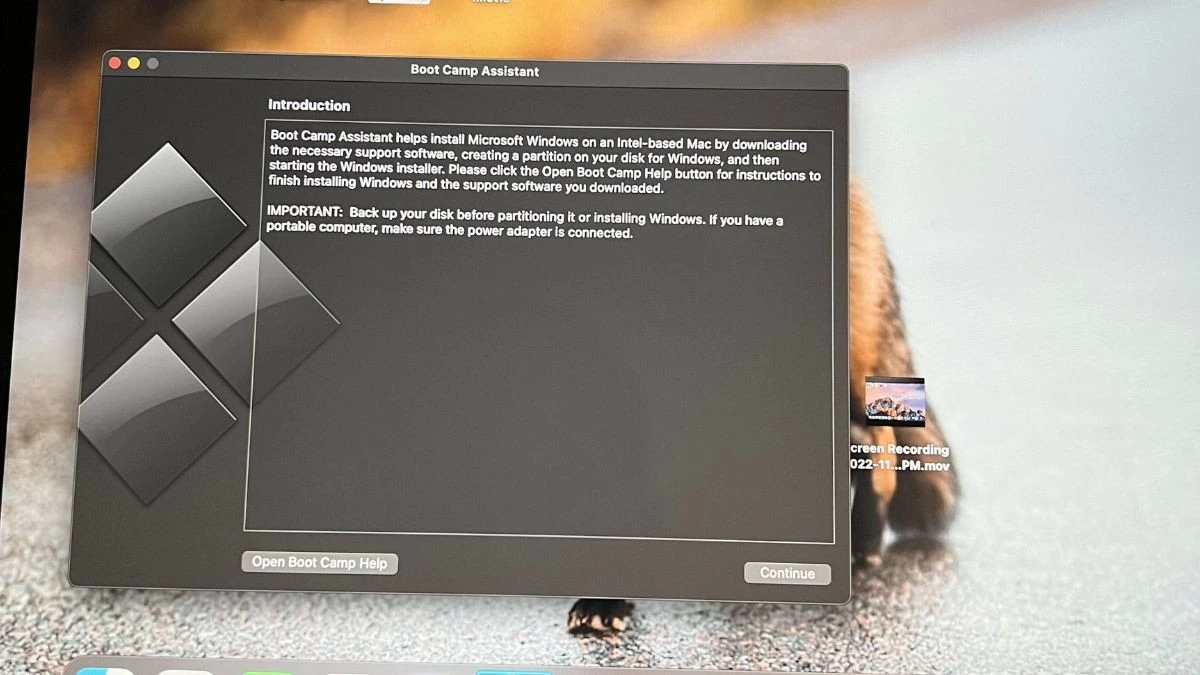 |
The steps to install Windows using Bootcamp are simple.
Installing Windows on a MacBook via Bootcamp is quite simple; you can follow the instructions below. Before you begin, make sure your MacBook has at least 64GB of free space to create a partition for Windows. Also, download the latest Windows ISO version from the Microsoft website and back up all important data to avoid data loss.
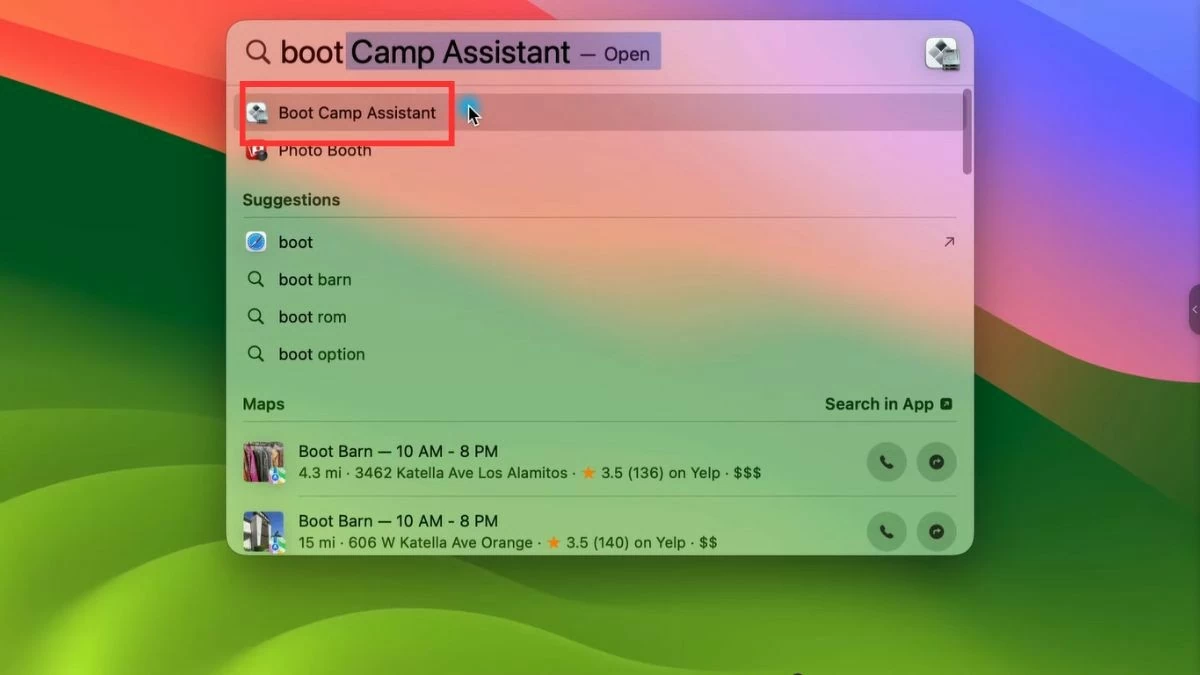
Step 1: Open Bootcamp Assistant
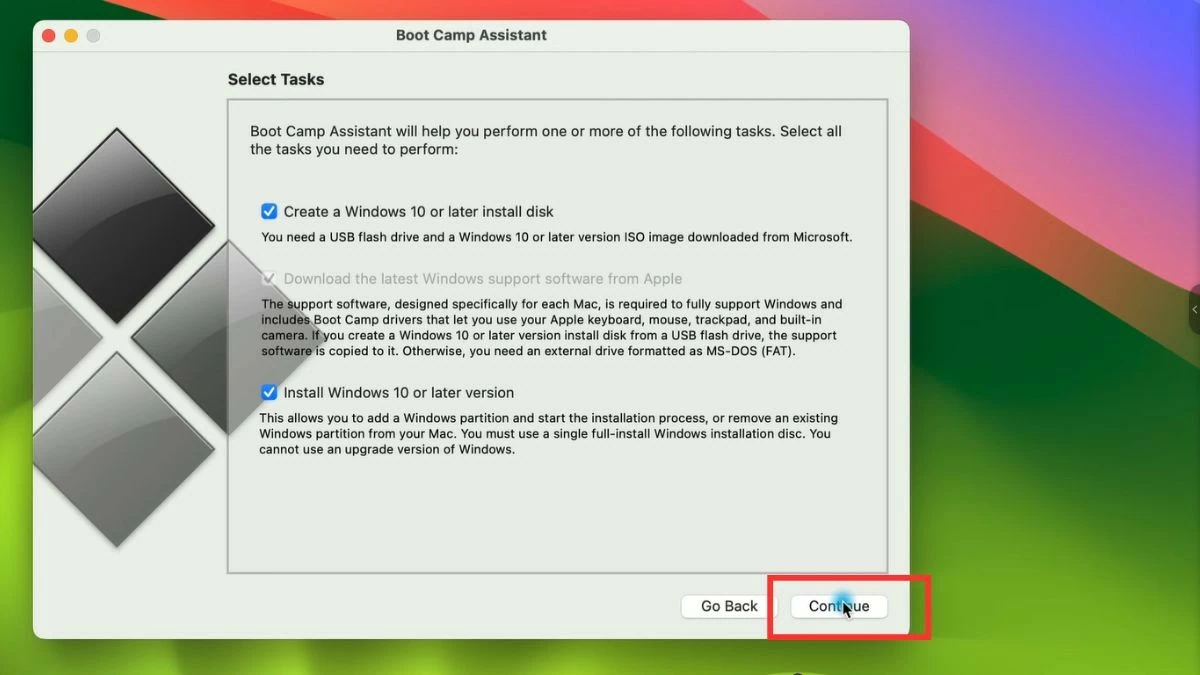
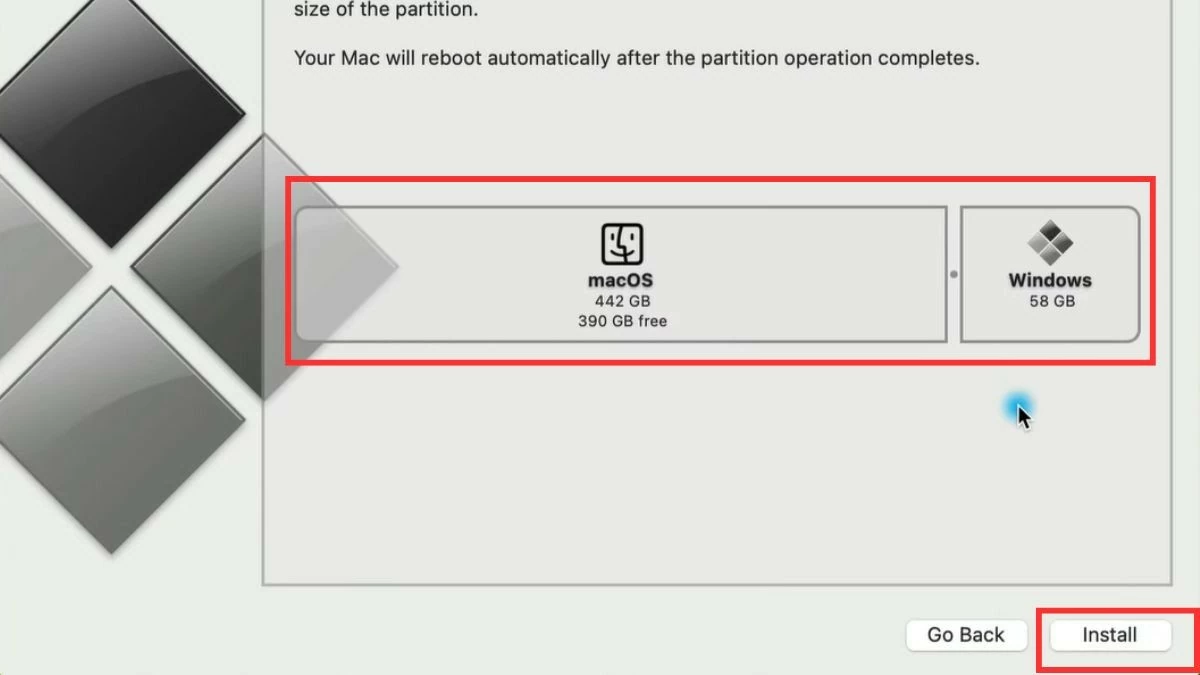
Go to the "Applications" folder, locate the "Utilities" folder, and click on the Boot Camp Assistant icon. Here, select the installation partition and specify the size for that partition.
 |
 |
Step 2: Install Windows
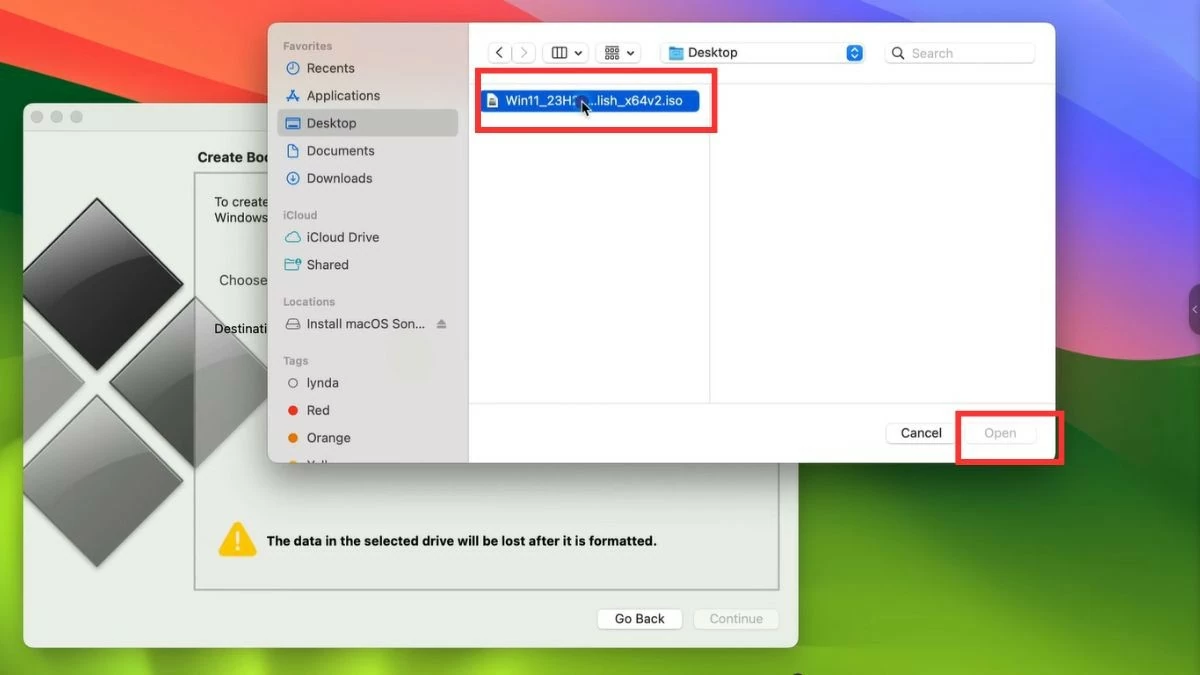
Select the downloaded Windows ISO file and follow the instructions to begin the installation. The computer will restart and enter the Windows installation environment.
 |
 |
Step 3: Complete the installation
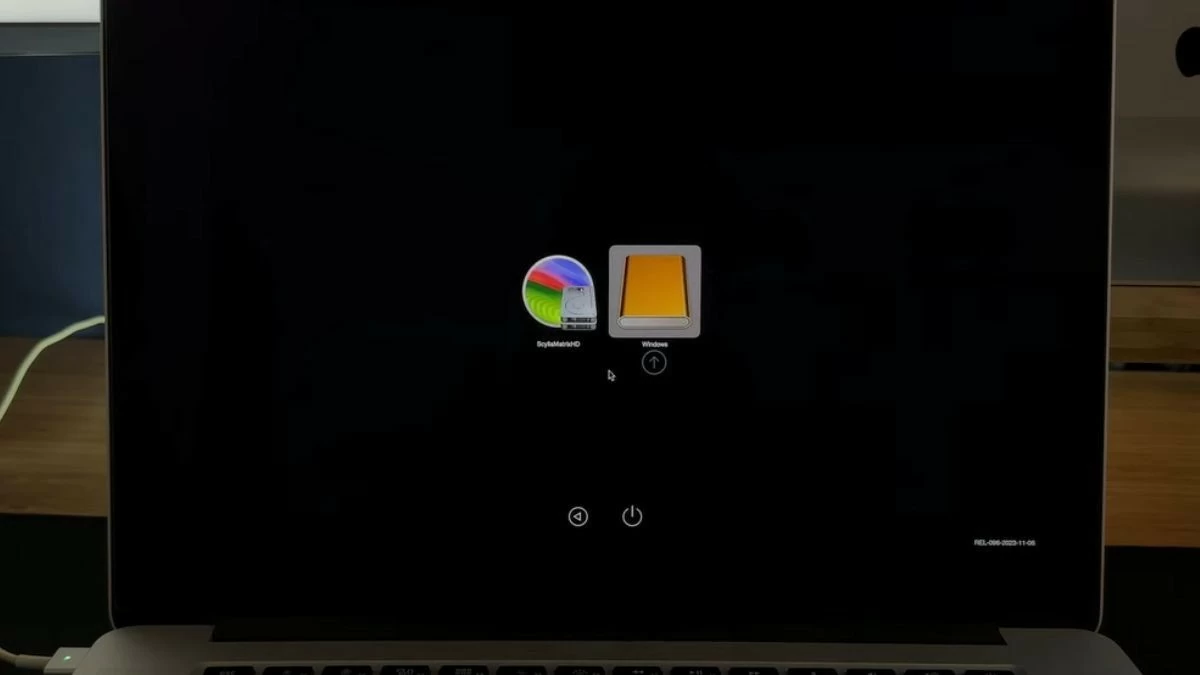
Once the restart process is complete, you will be able to choose between macOS and Windows each time you turn on your computer.
 |
How to install Windows on a MacBook using a virtual machine is simple.
Besides Bootcamp, you can install Windows on your MacBook using a virtual machine, allowing you to switch between the two platforms without restarting your computer. Depending on your needs, choose the most suitable method for installing Windows on your MacBook.
Installing Windows on a MacBook using Parallels is effective.
Parallels Desktop is a popular virtual machine software that allows you to run Windows in a separate window on macOS. This lets you utilize both operating systems without interrupting your work.
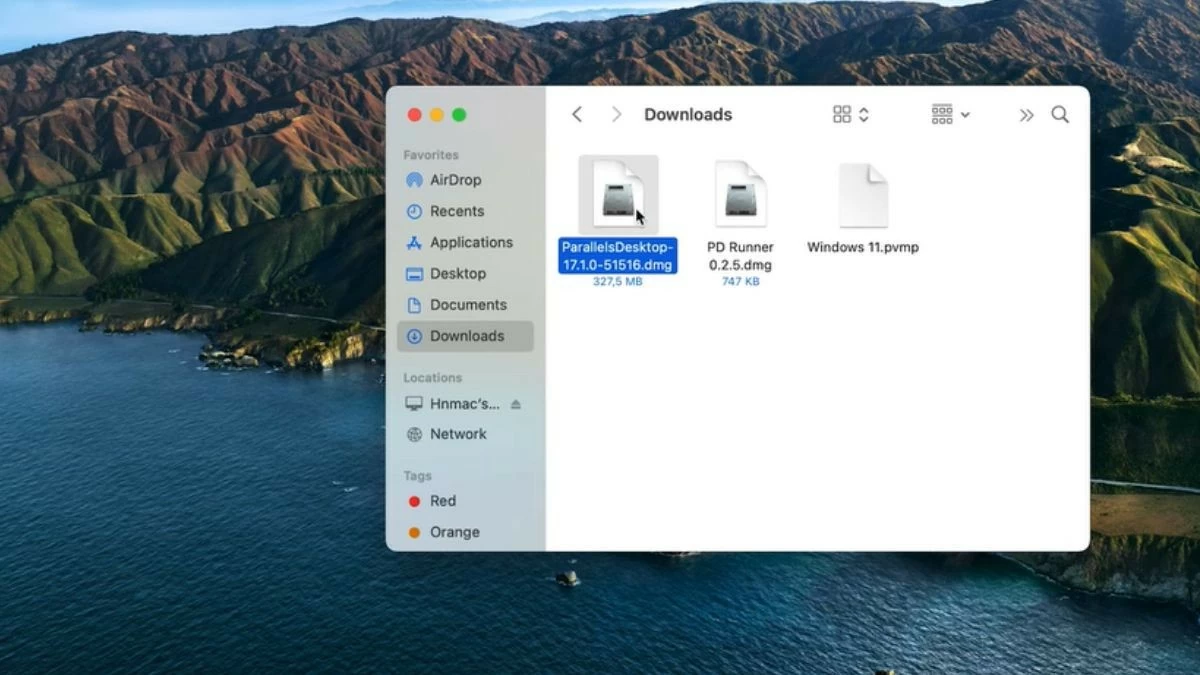
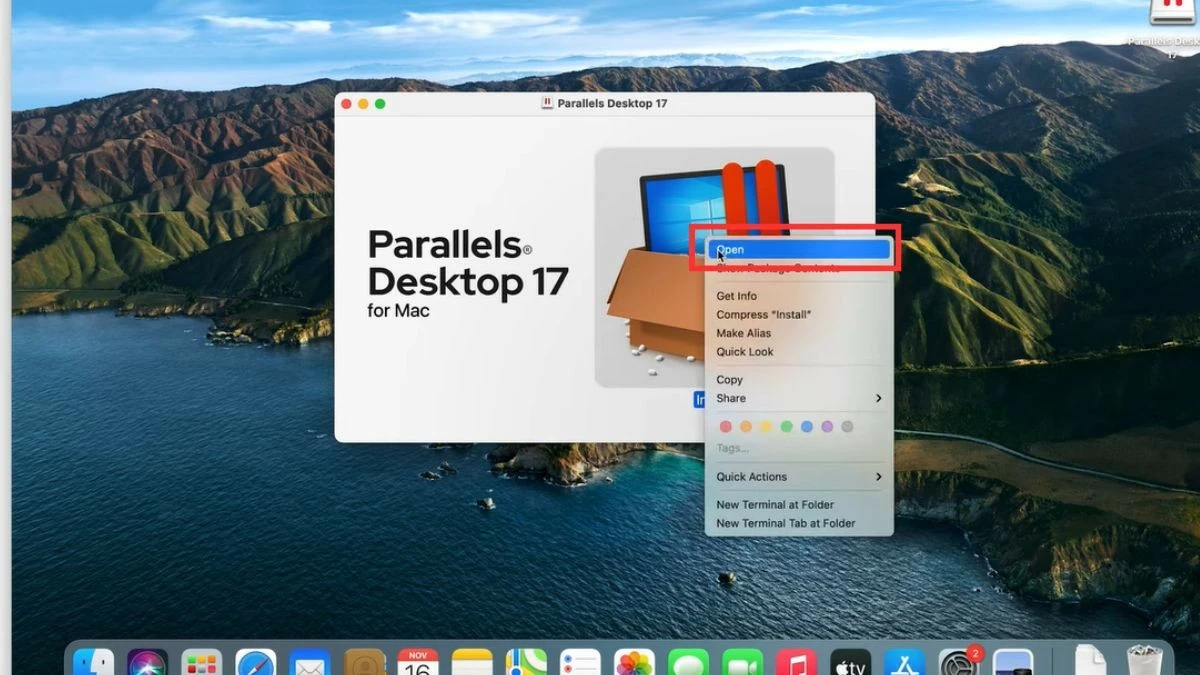
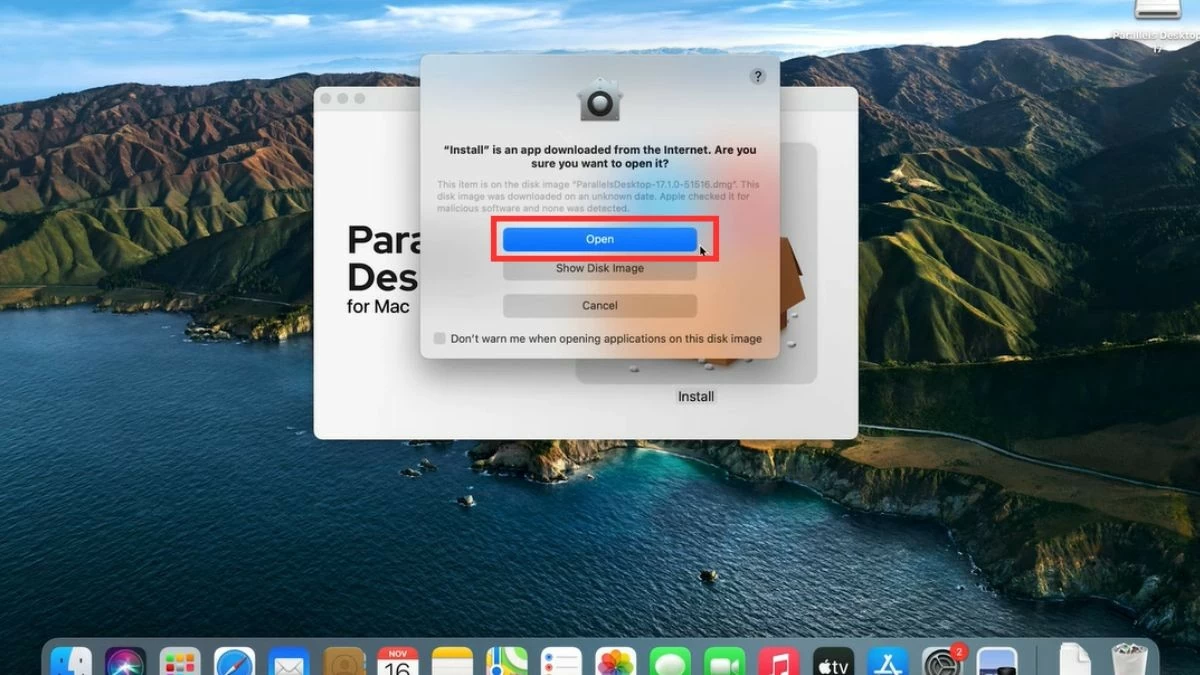
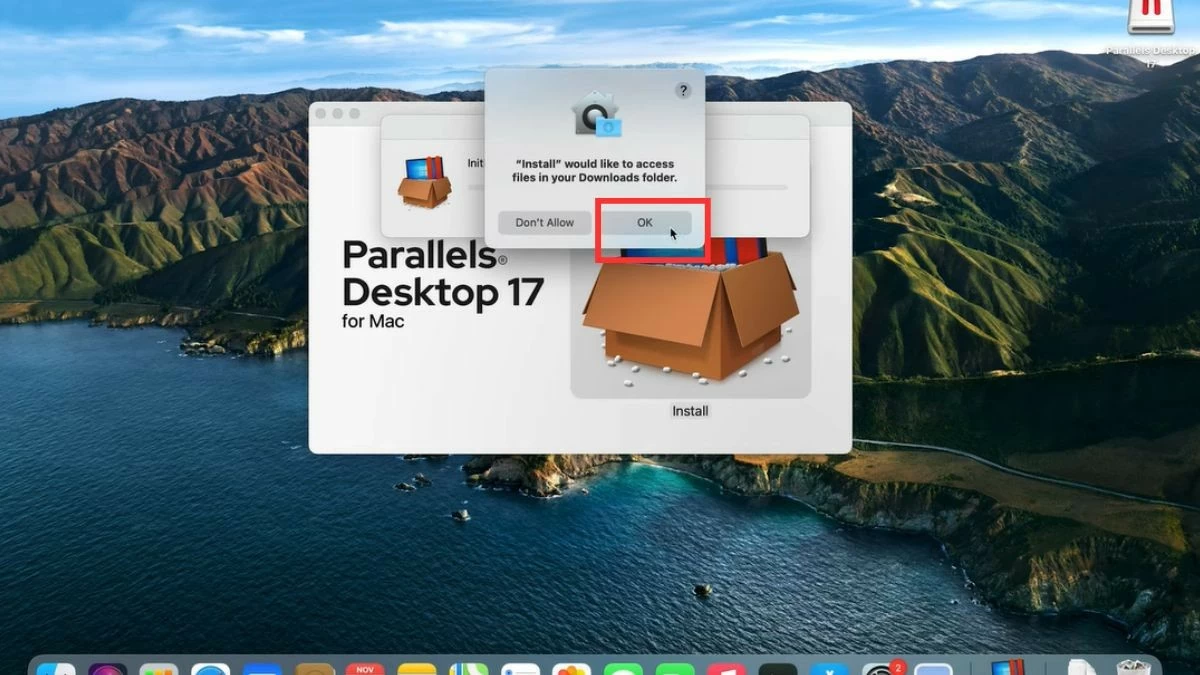
Step 1: Download and install Parallels Desktop from the homepage.
 |
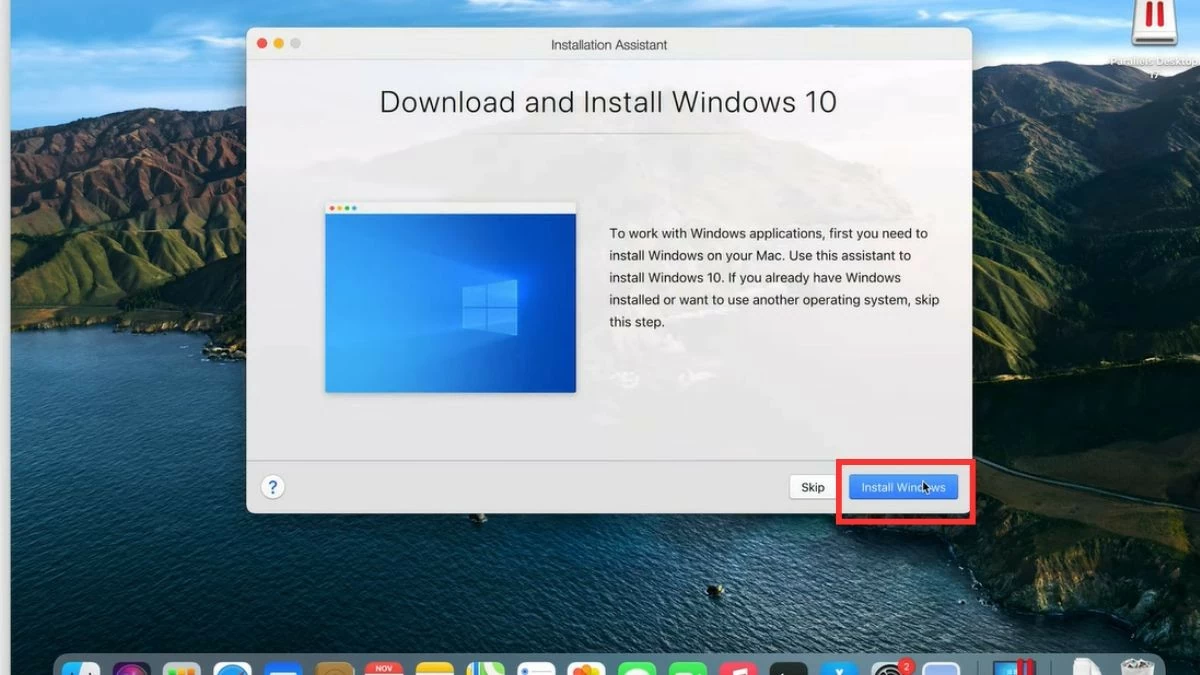
Step 2: Open Parallels and select the option to install Windows on your MacBook from an ISO file.
 |
 |
 |
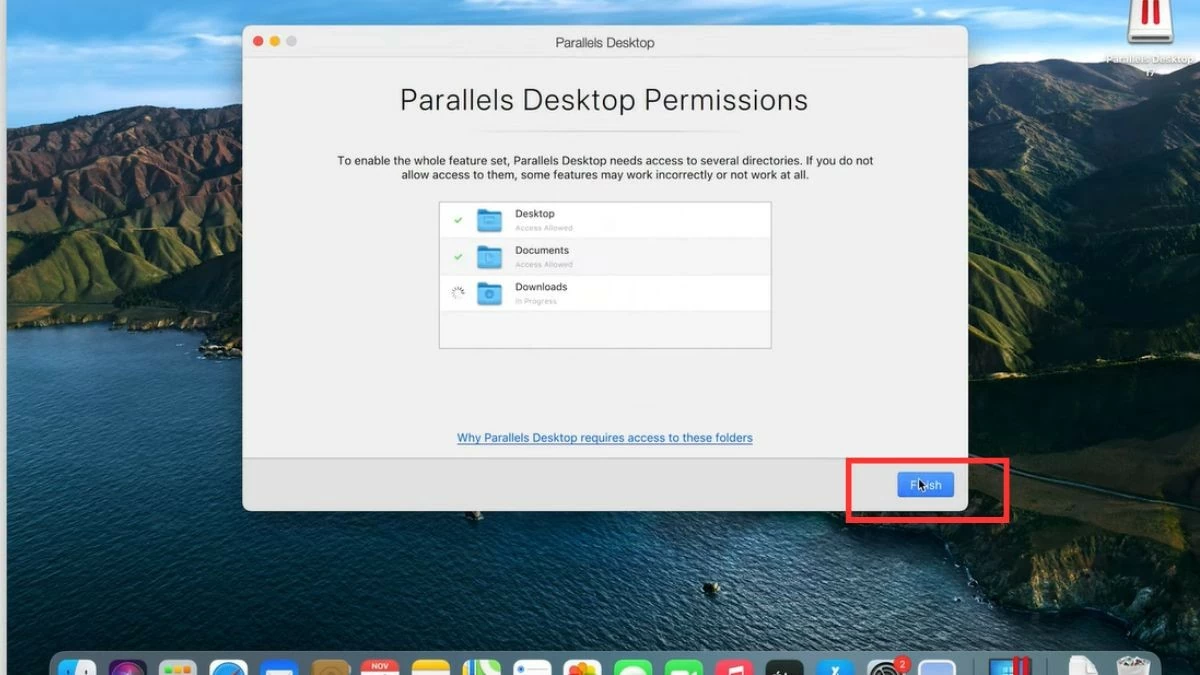
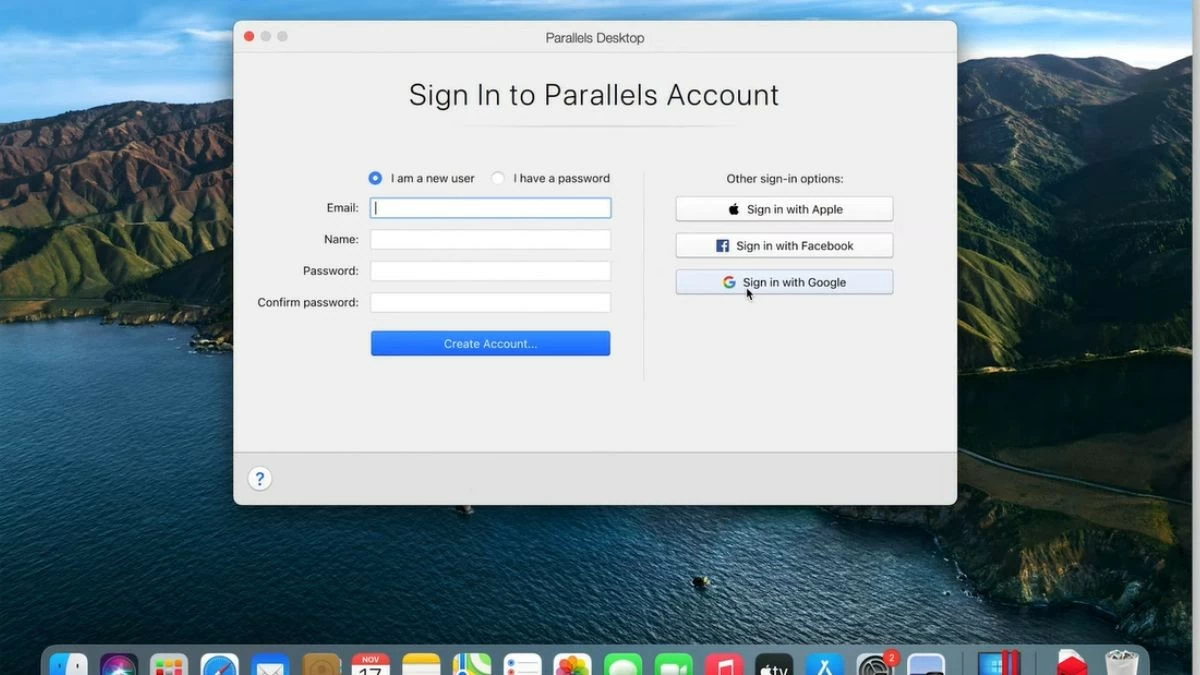
Step 3: Follow the instructions until the installation is complete. After installation, you will need to register or log in to your account.
 |
 |
 |
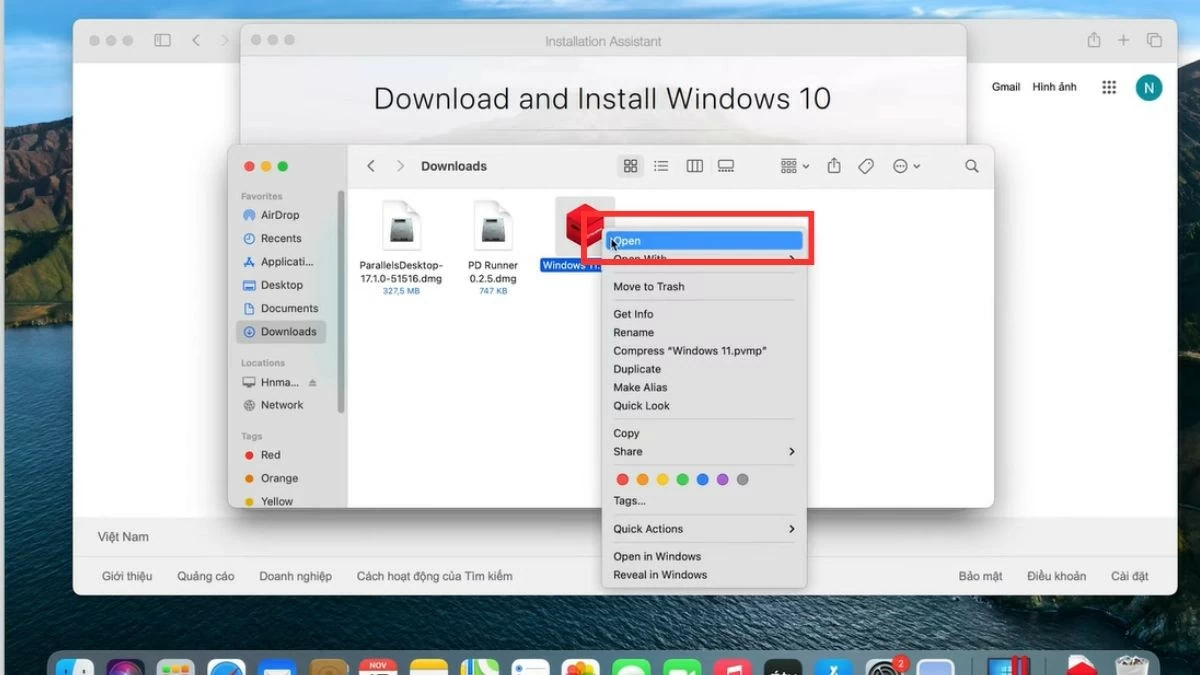
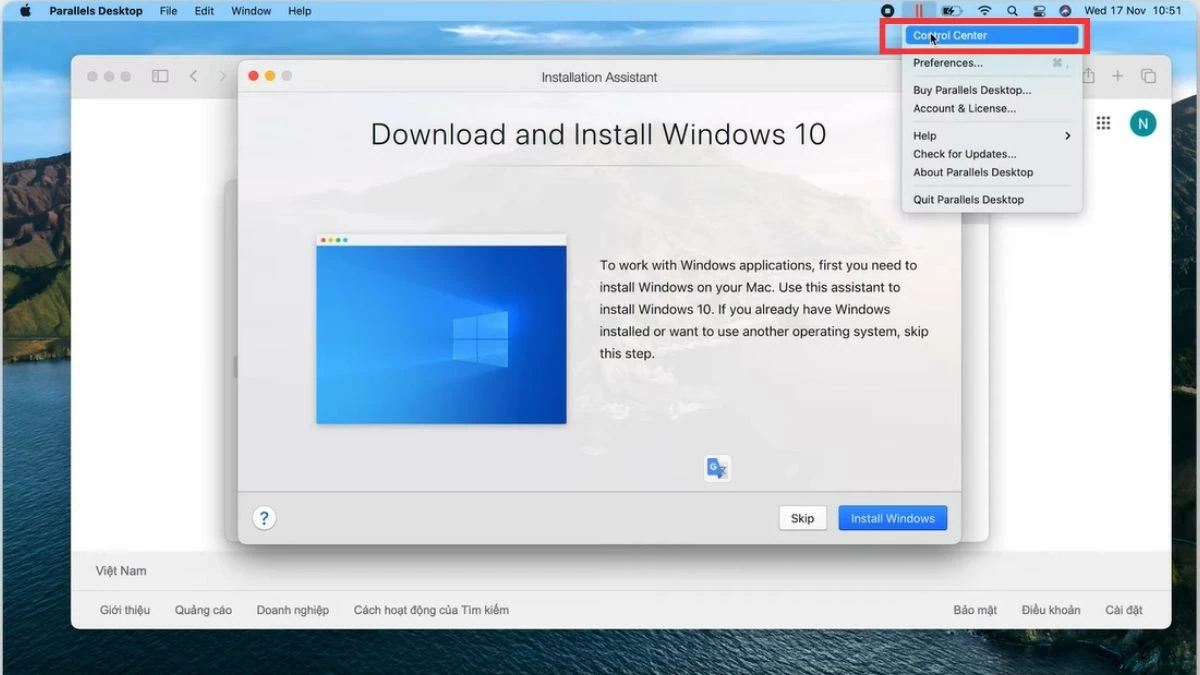
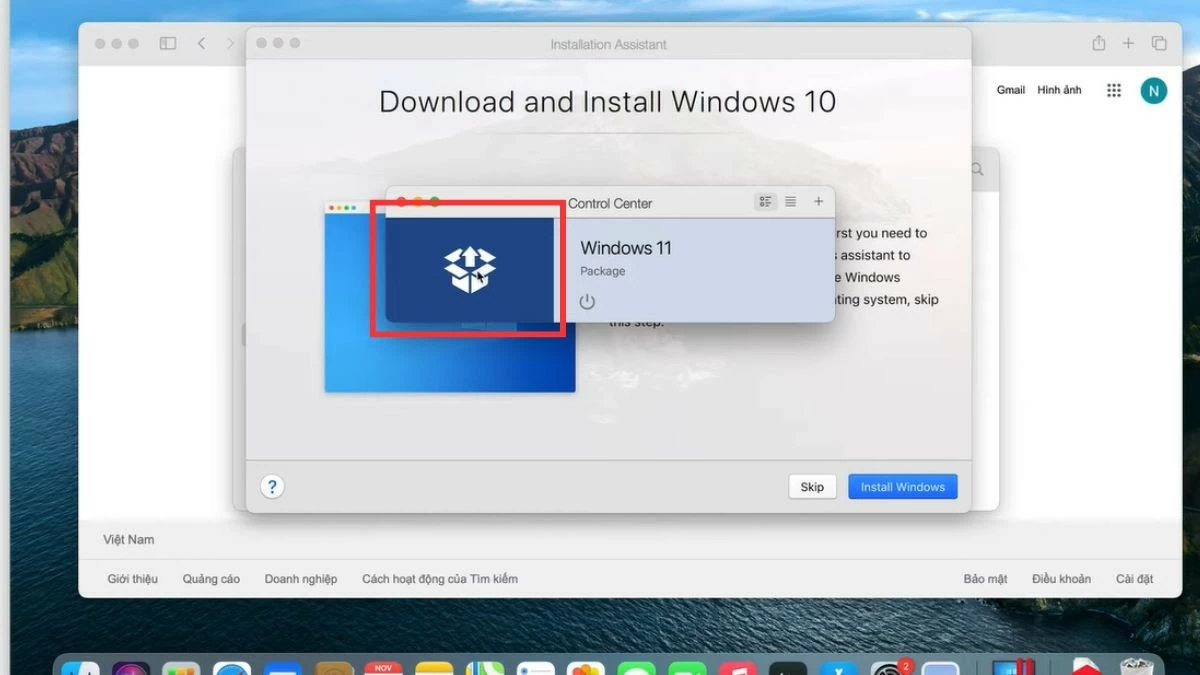
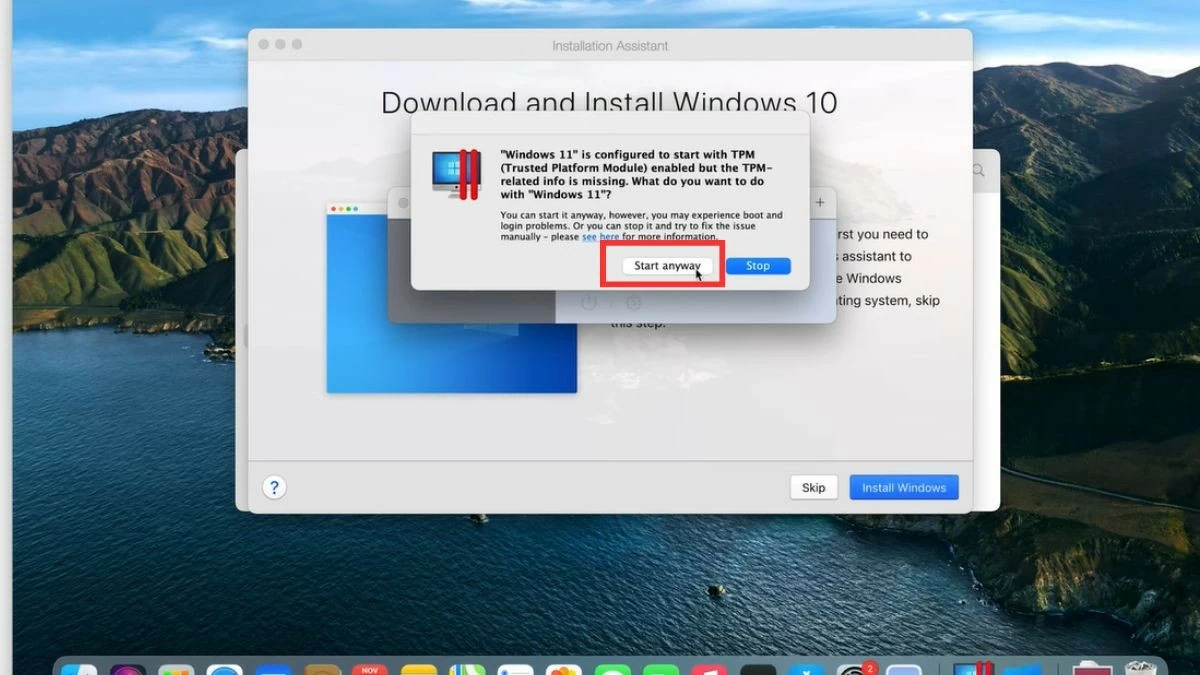
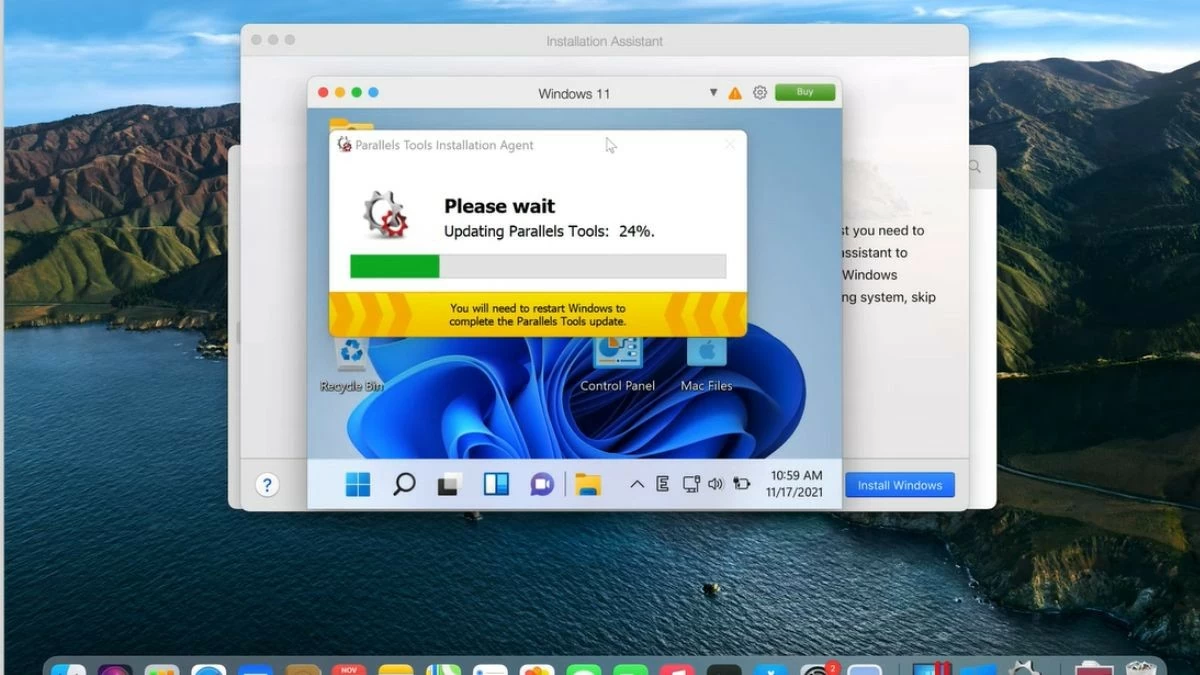
Step 4: Open the downloaded Windows file on your computer and click the "Copied" button. Next, click the Parallels icon in the corner of the screen, select "Control Center," and then select the box icon. Click "Start anyway" and wait for Parallels Tools to complete the installation process. Once complete, you can open Windows directly within your macOS environment.
 |
 |
 |
 |
 |
How to install Windows on a MacBook using Veertu Desktop
Veertu Desktop is an interesting option if you want to use a virtual machine on your MacBook. Although not as popular as Parallels, Veertu still offers an easy Windows installation experience with a user-friendly interface. Here are the steps to install Windows on your MacBook using Veertu Desktop:
Step 1: Download and install Veertu Desktop from the official website.
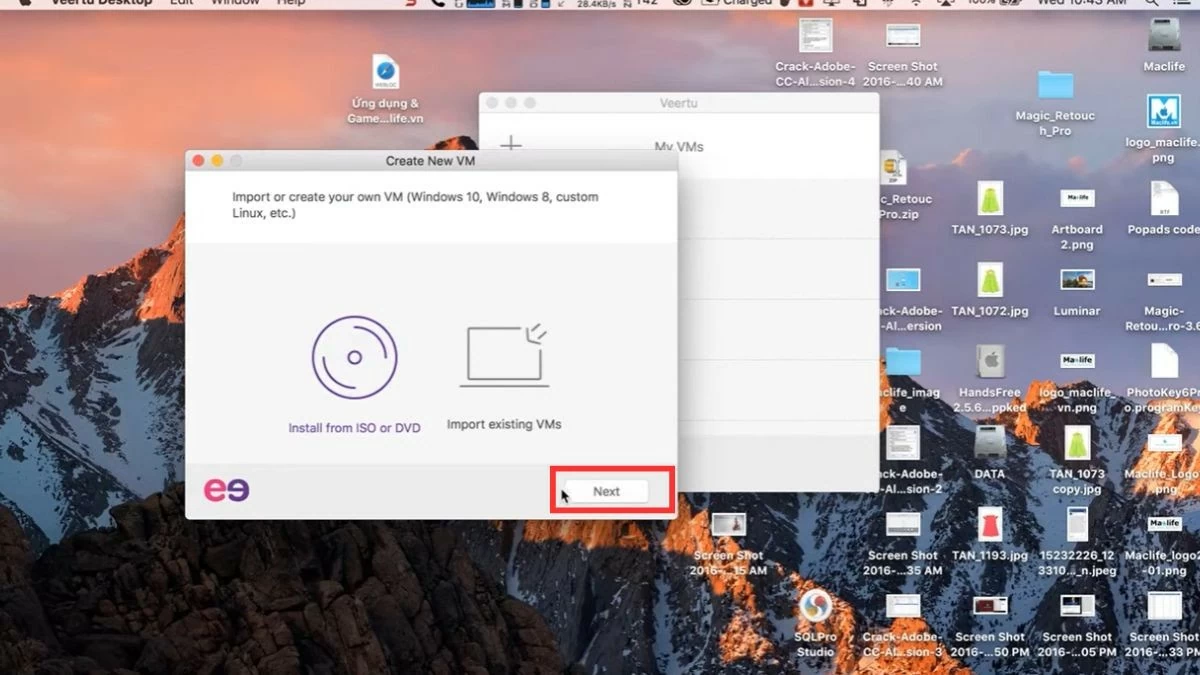 |
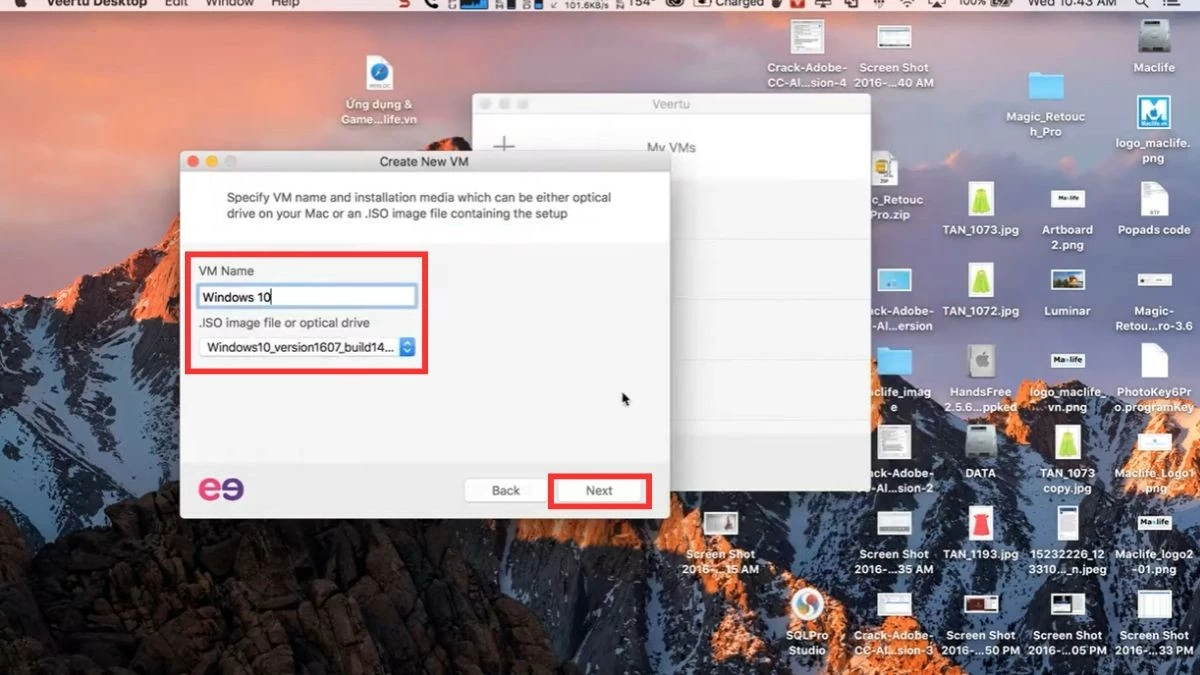
Step 2: Select the option to create a new virtual machine and upload the Windows ISO file.
 |
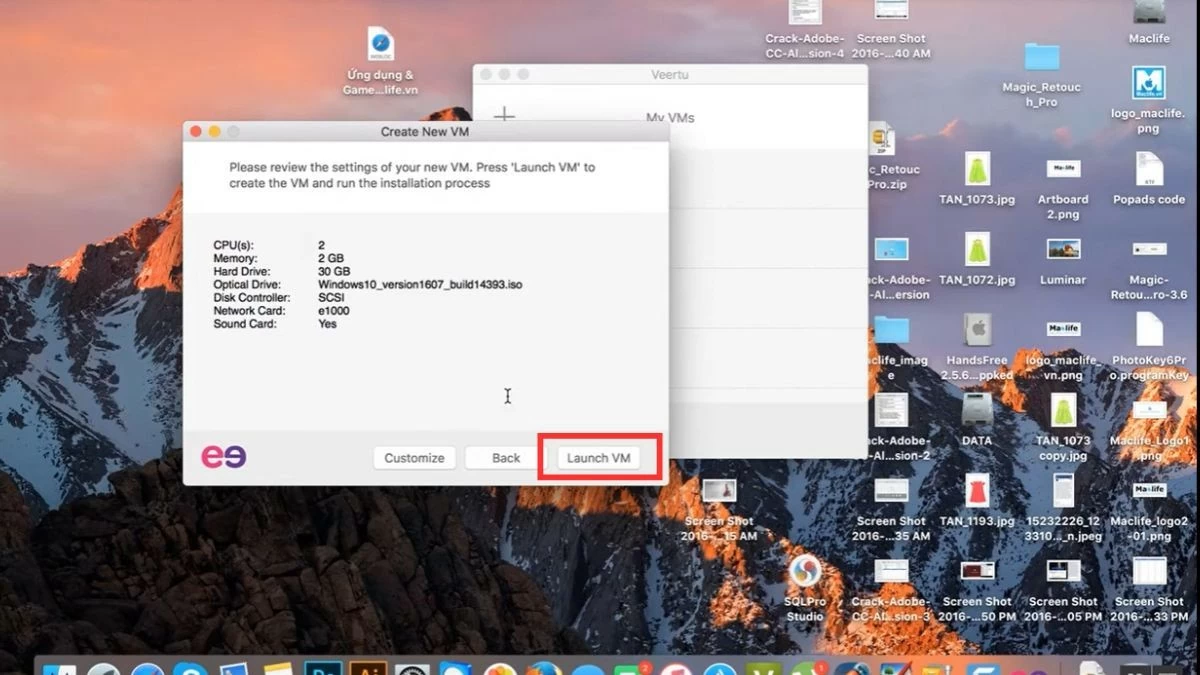
Step 3: Click "Next" as instructed, then select "Launch VM" to start the virtual machine, or "Customize" if you want to adjust the configuration.
 |
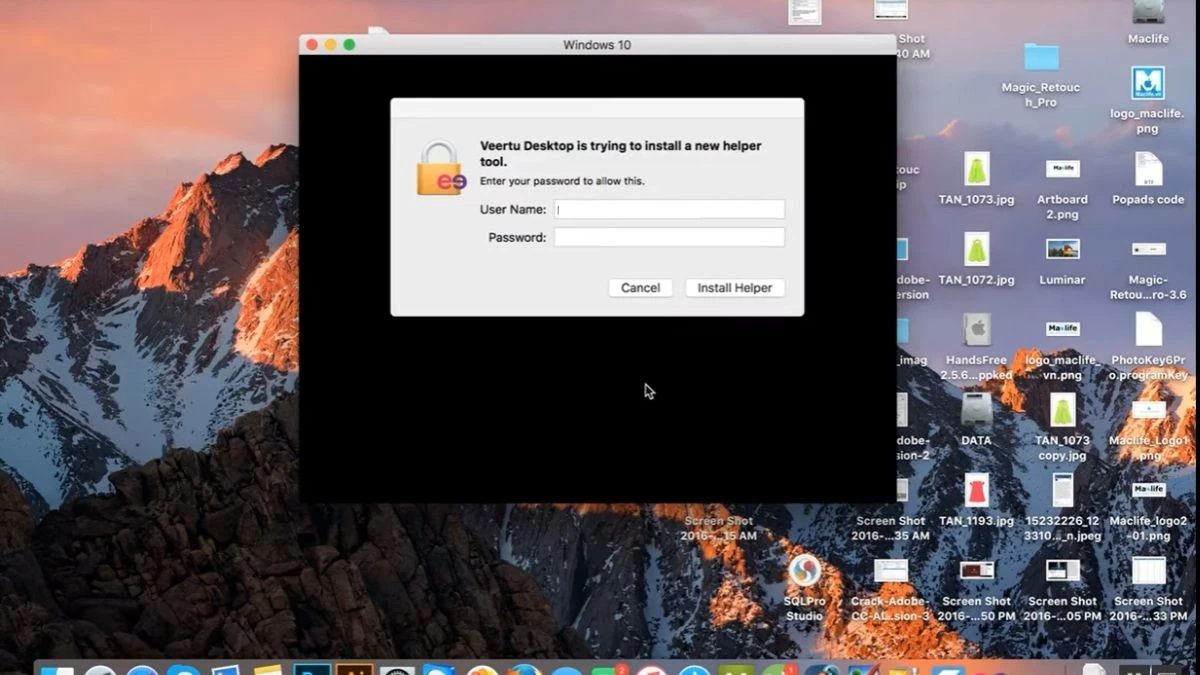
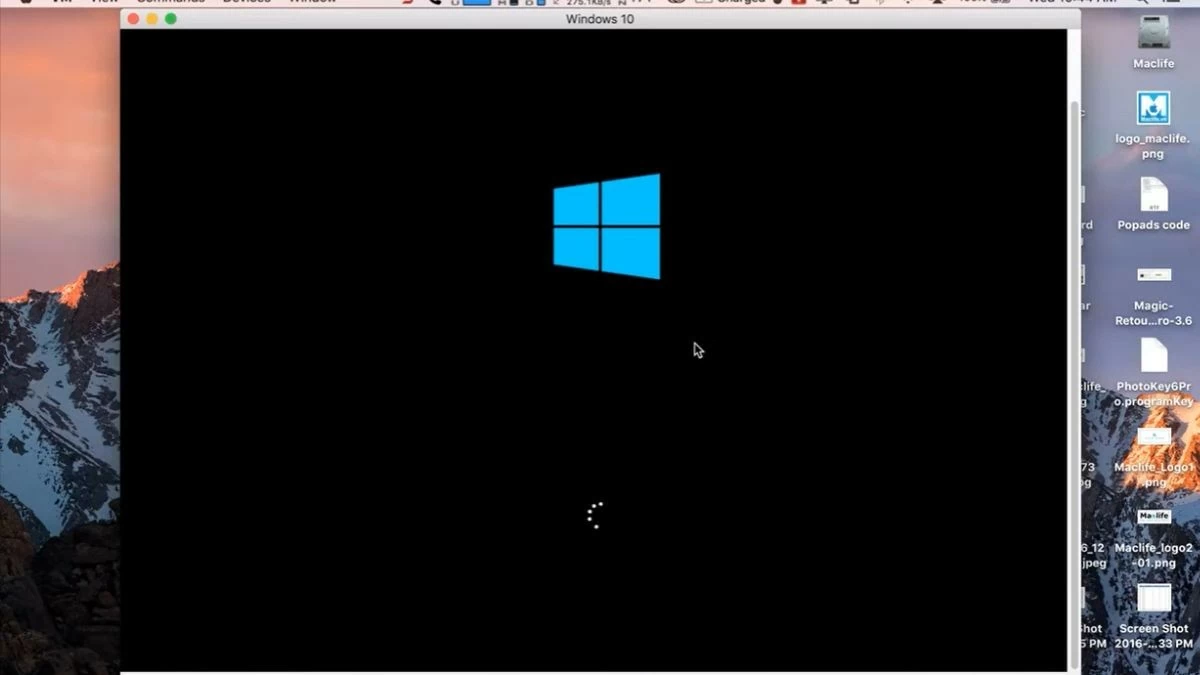
Step 4: Enter the password for the virtual machine and start Windows.
 |
 |
Instructions on how to switch between two operating systems on a MacBook.
Both Bootcamp and virtual machines allow you to easily experience macOS and Windows simultaneously. With a virtual machine, you simply open the application and select Windows from macOS without restarting. If you're using Bootcamp, follow these steps to switch between operating systems:
Step 1: First, restart your MacBook.
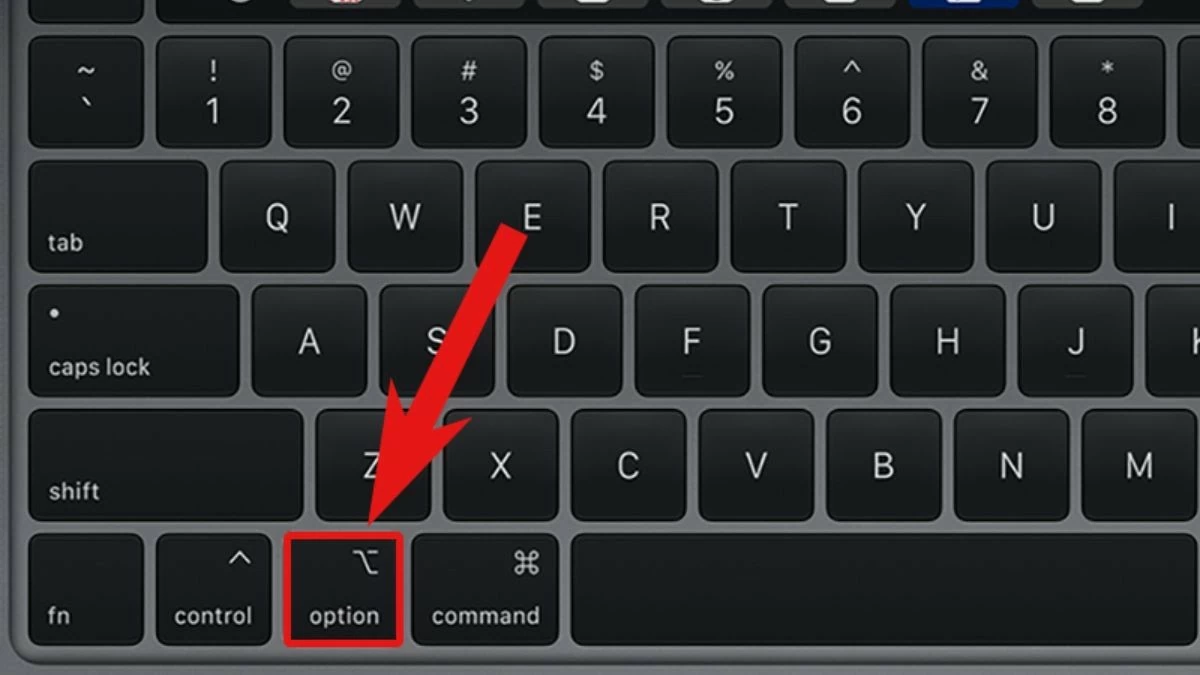
Step 2: As soon as the computer begins to restart, press and hold the "Option" key on the keyboard.
 |
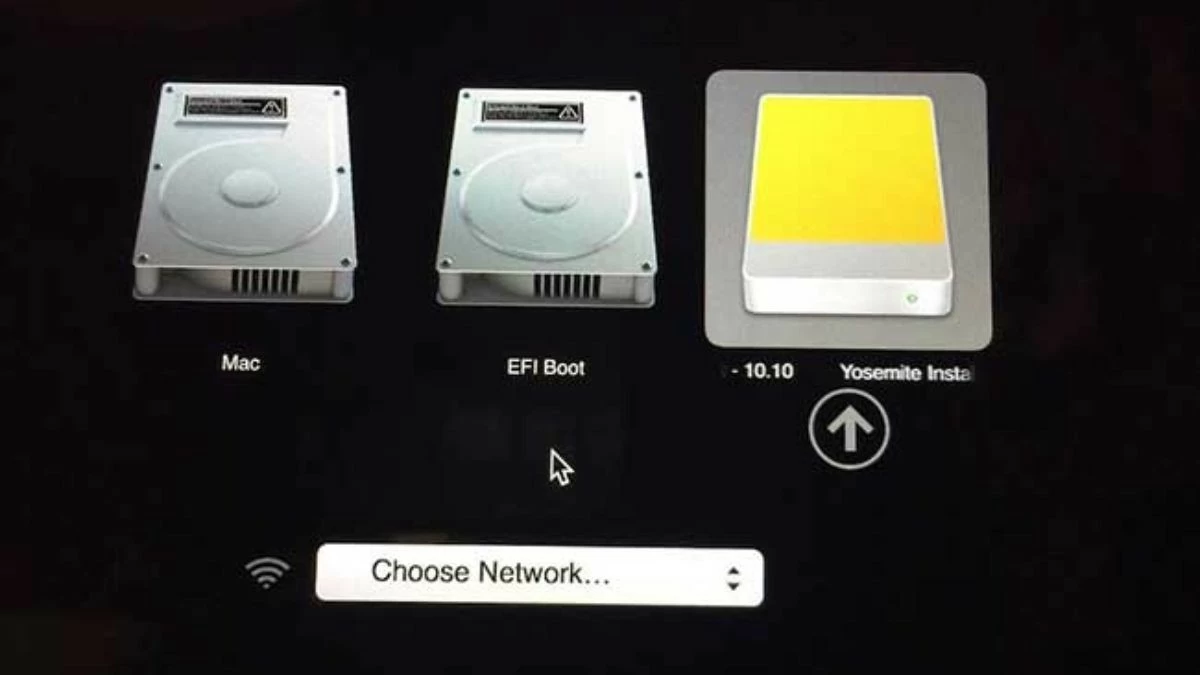
Step 3: A screen will appear showing the available operating systems. Simply use the arrow keys to select macOS or Windows, then press "Enter" to boot.
 |
Instructions on how to remove the Windows operating system from a MacBook.
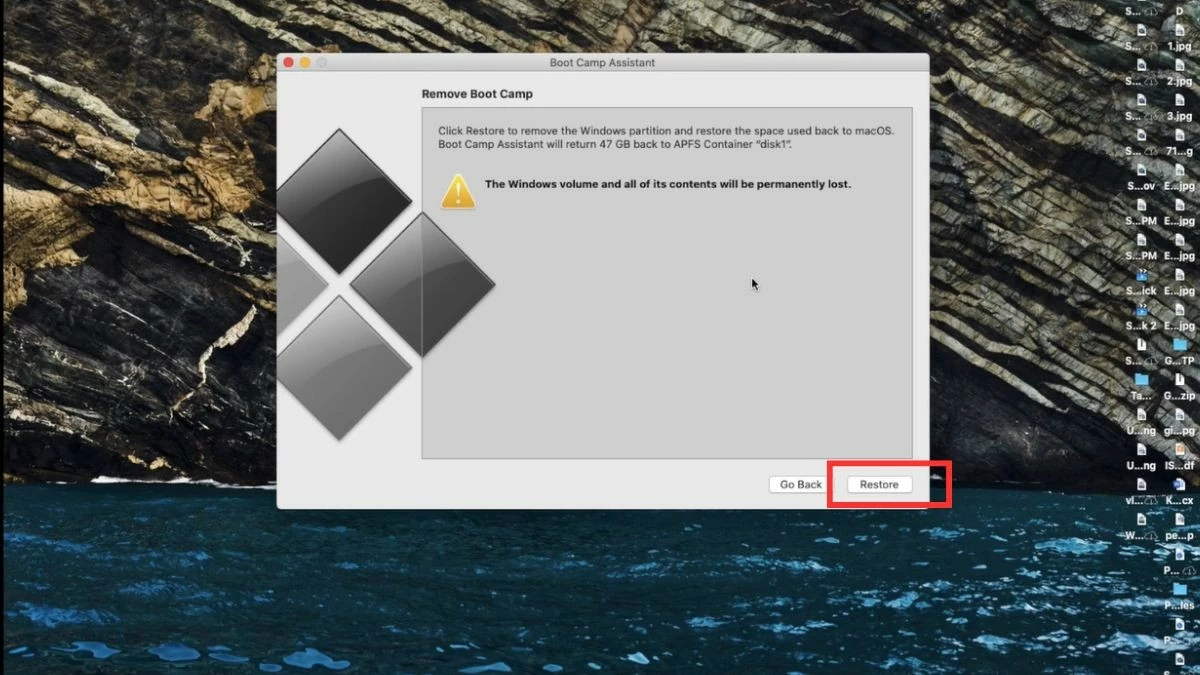
If you no longer need Windows, you can uninstall it on your Mac by following these steps:
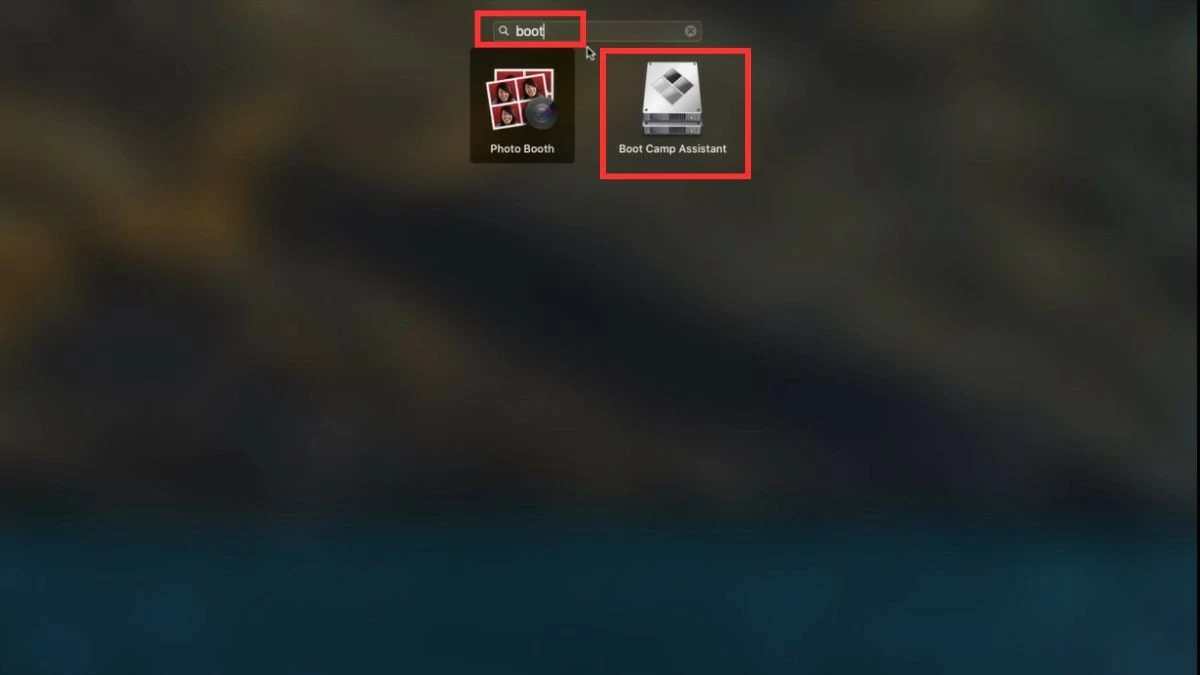
Step 1: First, open Boot Camp Assistant. Go to the "Applications" folder, find and click on the Boot Camp Assistant icon.
 |
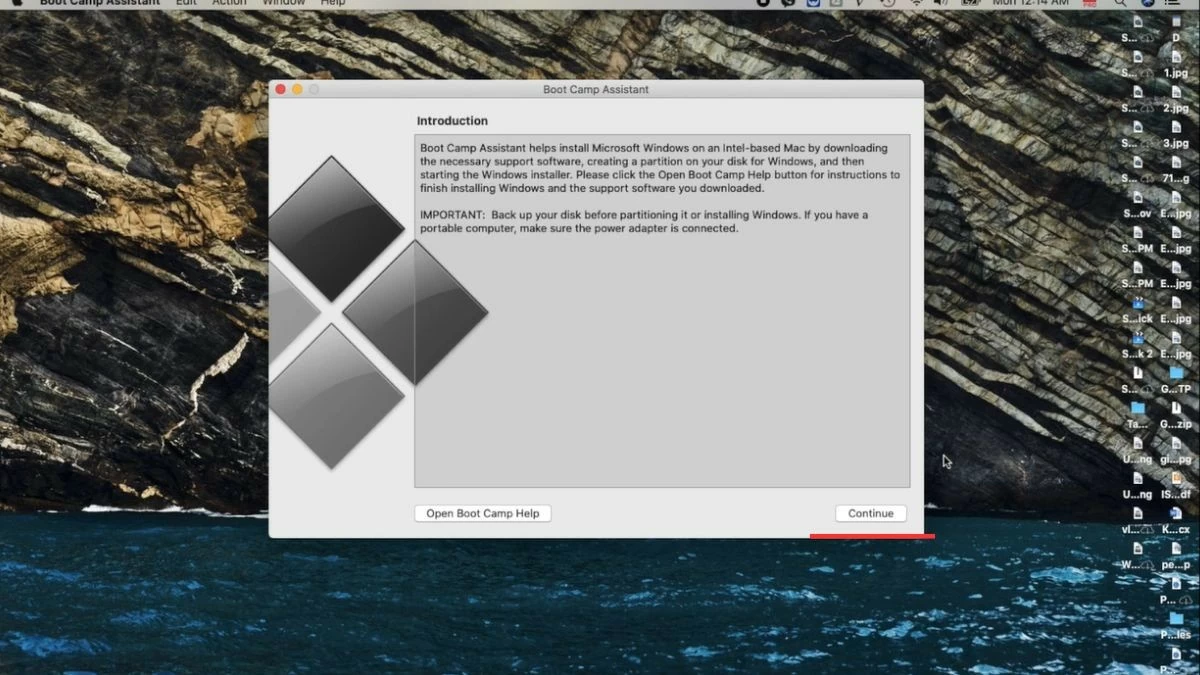
Step 2: Press "Continue". The computer will automatically identify the installation partition and its size. Then, select "Restore" to proceed with the deletion.
 |
 |
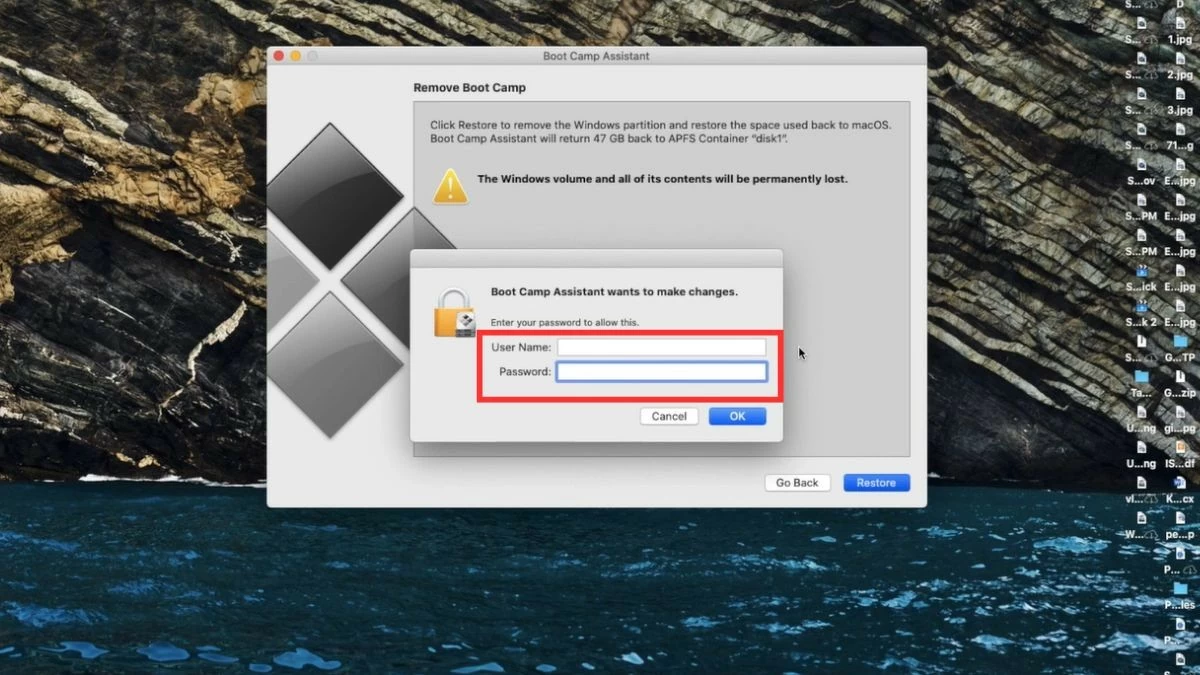
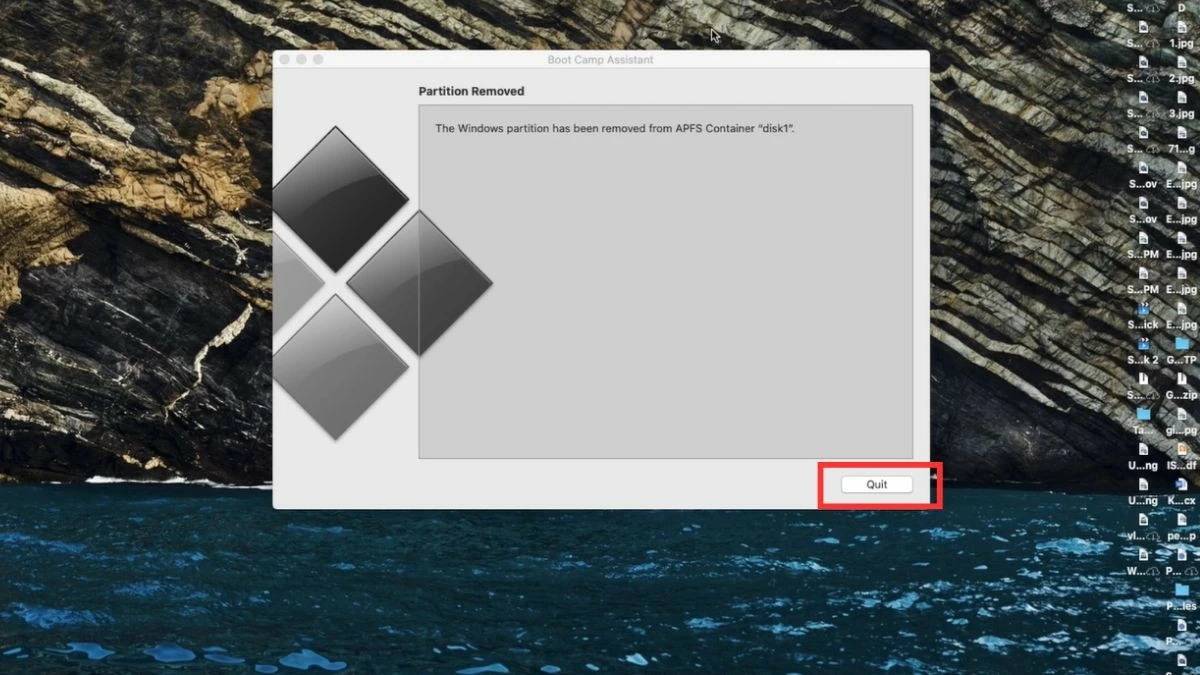
Step 3: Enter your computer's password to delete the Windows partition and free up space for macOS. Finally, select "Quit" to complete the uninstallation process.
 |
 |
Through the above article, hopefully you have found the answer to the question of whether installing Windows on a Mac is problematic, as well as understanding the process of installing Windows on a MacBook. Choosing the right method for installing Windows will help you optimize the performance of both operating systems. However, consider carefully before proceeding to ensure your machine runs stably and efficiently.
Source: https://baoquocte.vn/cai-win-cho-macbook-bang-bootcamp-may-ao-de-ap-dung-nhat-287627.html


![[Photo] General Secretary and President To Lam meets with National Assembly delegates from ethnic minorities.](https://vphoto.vietnam.vn/thumb/1200x675/vietnam/resource/IMAGE/2026/04/20/1776696701056_a1-bnd-8331-3342-jpg.webp)

![[Image] National Assembly discusses the implementation of the socio-economic development plan.](https://vphoto.vietnam.vn/thumb/1200x675/vietnam/resource/IMAGE/2026/04/20/1776696707422_ndo_br_img-20260420-185419-jpg.webp)































































































Comment (0)