

When choosing an SSD, many people invest in a high-speed version, with the mindset of "the faster the better." However, according to Howtogeek , there is no significant difference when using a super-fast SSD in most common situations.
Choose the right type of SSD.
Before considering speed, users need to know exactly what types of SSDs are currently available on the market.
HDDs store data on rotating magnetic disks, using a mechanical read/write head to read and write information. If you're still using an HDD to run your programs, replacing it with any SSD will significantly improve performance.
SATA SSDs retain the same connection as HDDs but replace magnetic disks with flash memory. They have a maximum speed of around 550 MB/s because they still use the old SATA port and the AHCI protocol, which is designed for hard drives, not flash memory.
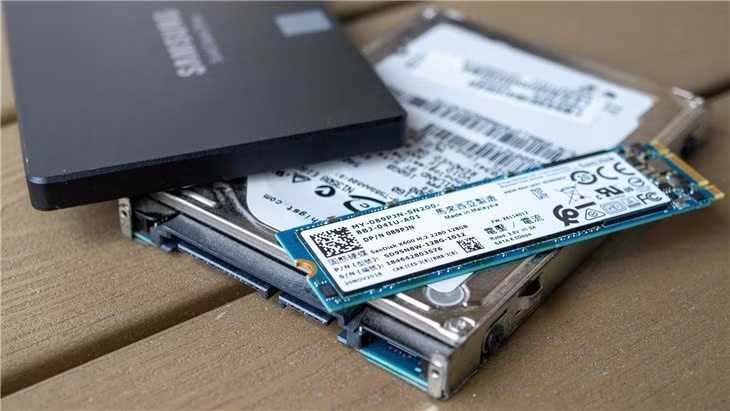 |
There are many types of SSDs with different speeds. Photo: Howtogeek. |
NVMe SSDs are currently the top choice. This type of storage device uses the PCIe standard, which is significantly faster than SATA. Even older drives using PCIe 3.0 have sequential read speeds of 3,500 MB/s, while the latest PCIe 5.0 SSDs can reach up to 14,900 MB/s.
Although there is a significant difference between 3,500 MB/s and 14,900 MB/s, the difference is still not as large as when upgrading from an HDD to an SSD.
The high price of ultra-fast SSDs
According to prices on the Amazon e-commerce platform, a 1TB PCIe Gen 3 M.2 NVMe SSD costs around $75 , with speeds ranging from 3,200 to 3,600 MB/s, significantly higher than SATA SSDs of similar price and capacity.
For a slightly higher price, around $100 , users can opt for a 1TB PCIe 4.0 SSD. If your motherboard supports this standard, you should buy a PCIe 4.0 SSD to get double the maximum sequential speed of PCIe 3.0 while the price difference is minimal.
Things get more complicated when choosing the latest PCIe Gen 5.0 SSD. There are many options in terms of speed and price. In the lower price range, you'll find drives like the Crucial P510 which can reach speeds of 11,000 MB/s and cost around $90 . For comparison, the older Crucial P310 (PCIe Gen 4.0) maxed out at 7,100 MB/s and cost $80 .
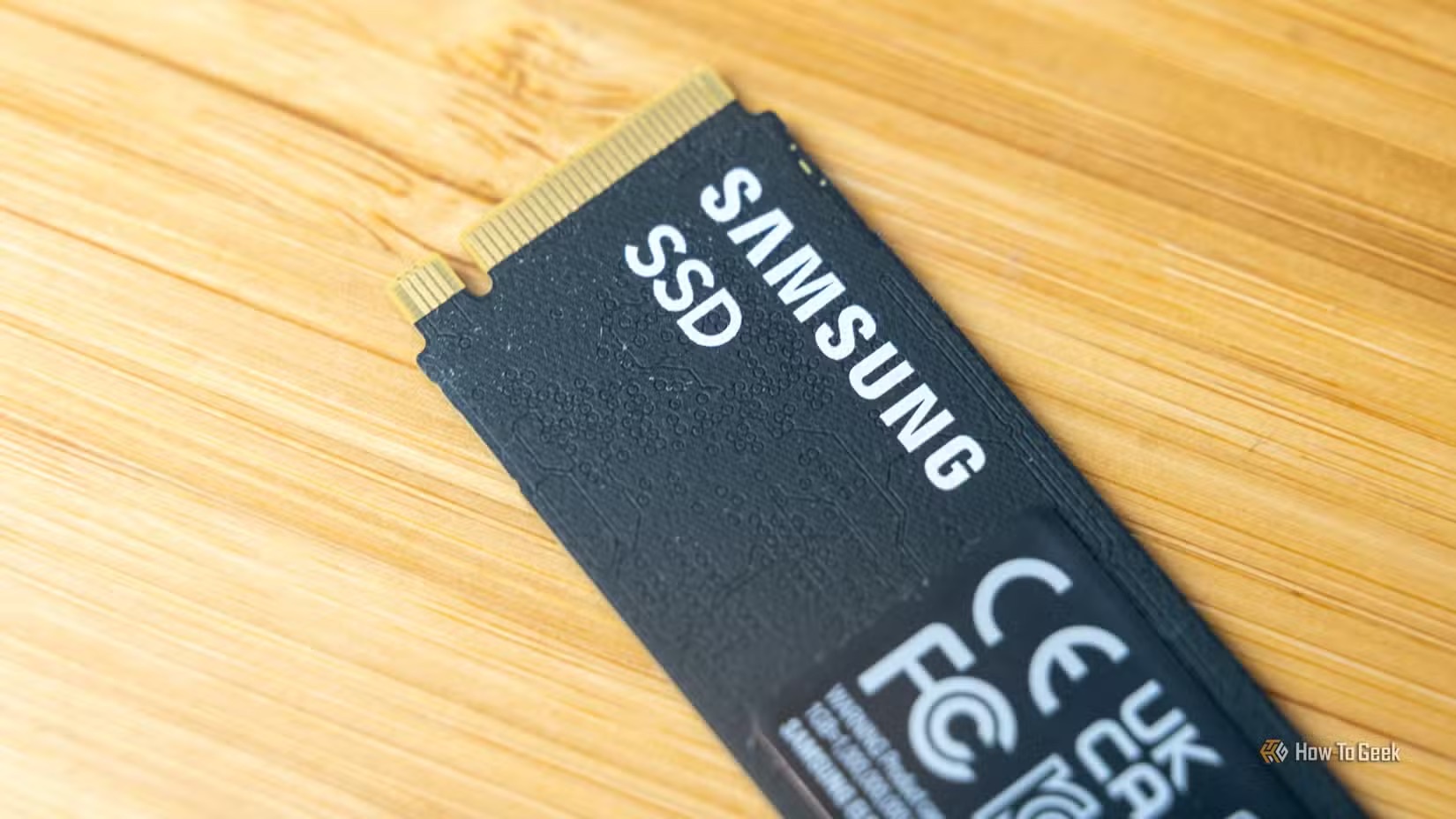 |
Samsung's top-of-the-line SSD boasts speeds of up to 14,700 MB/s. Photo: Howtogeek. |
But in the higher price segment, there are many reputable names like the Samsung 9100 Pro with read speeds up to 14,700 MB/s. The WD_Black SN8100 offers speeds of 14,900 MB/s, similar to the Crucial T710. All three are priced at around $200 , excluding promotional offers.
Importantly, the average user won't notice much difference if upgrading from the Crucial P310 to the Samsung 9100 Pro.
It's difficult to tell the difference.
Switching from an HDD to any SSD is a significant upgrade. Replacing a SATA SSD with an NVMe SSD also provides a noticeable performance boost. However, users won't likely notice a significant difference when switching from one NVMe SSD to another.
Although the difference between 3,500 MB/s and 14,900 MB/s seems huge, the actual benefit to users is almost negligible. It can be said that SSD speed is significantly affected by the "diminishing yield" phenomenon. This means that with each upgrade, the performance increase doesn't justify the price.
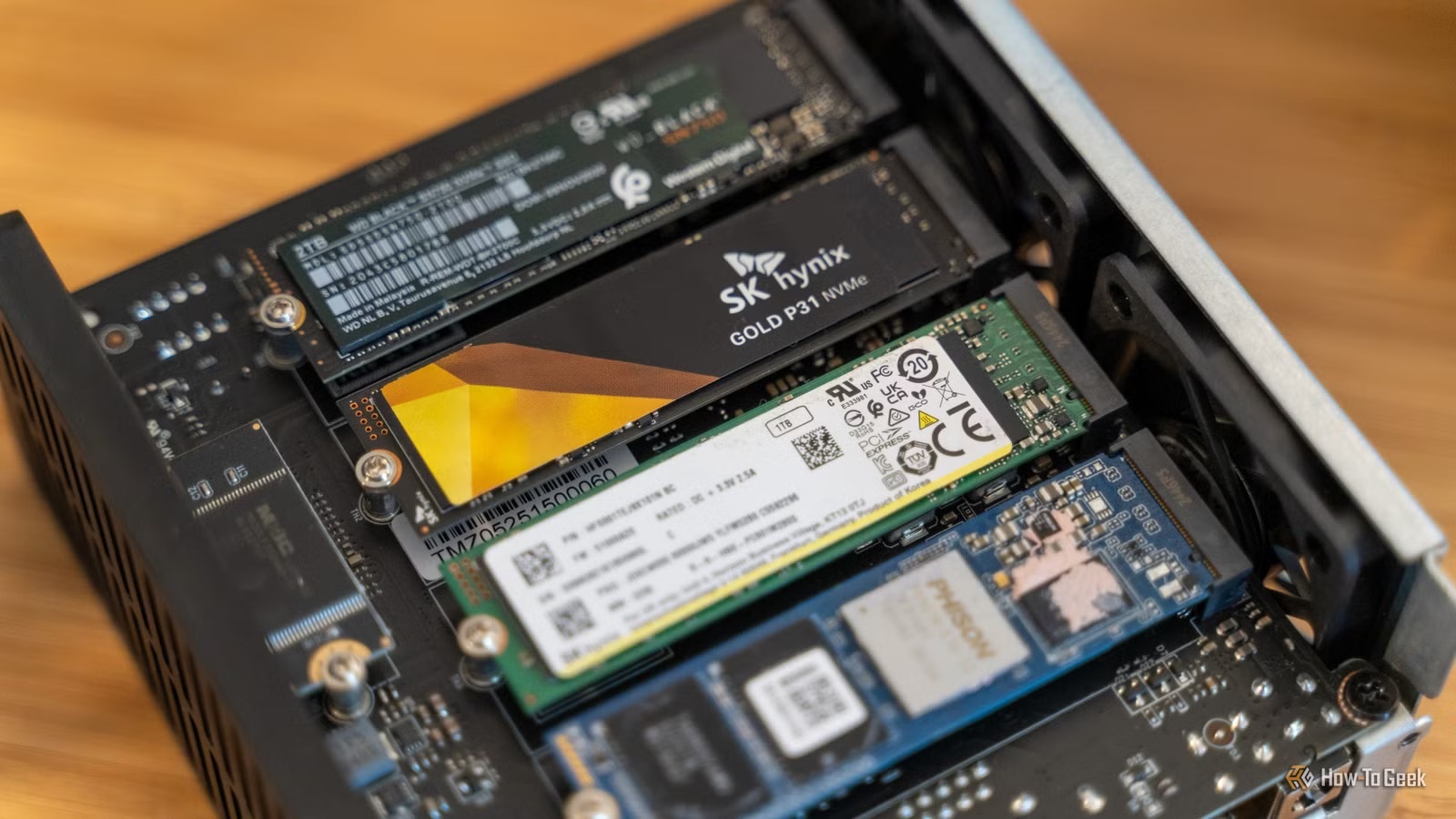 |
Under normal circumstances, there is a noticeable difference in speed between NVMe SSDs. Image: Howtogeek. |
Reducing game loading screens to just a few seconds won't feel as dramatically upgraded as reducing Windows boot time from 3 minutes to 20 seconds.
Numerous benchmarks, including Howtogeek's, show that faster SSDs have virtually no impact on gaming performance. Modern NVMe drives are so fast that users can't even notice the difference. Furthermore, saving a few seconds on game loading screens isn't worth an extra $25-$125 .
Only a select few users with specific needs can fully utilize the speed of high-end PCIe 5.0 SSDs, such as manufacturers and high-quality video editors. Similarly, those with demanding local AI systems and who work with large data files daily are also suitable candidates for this expensive component.
Better options
Instead of spending too much money on high-speed SSDs that don't offer any practical benefits, users should consider upgrading more essential components.
First, choose larger capacity over faster speed. You shouldn't use one large-capacity SSD for everything. You can buy two 1TB PCIe 4.0 SSDs and still save money compared to buying one 1TB 14,900 MB/s drive. Additionally, portable SSDs are a useful option for data backup needs.
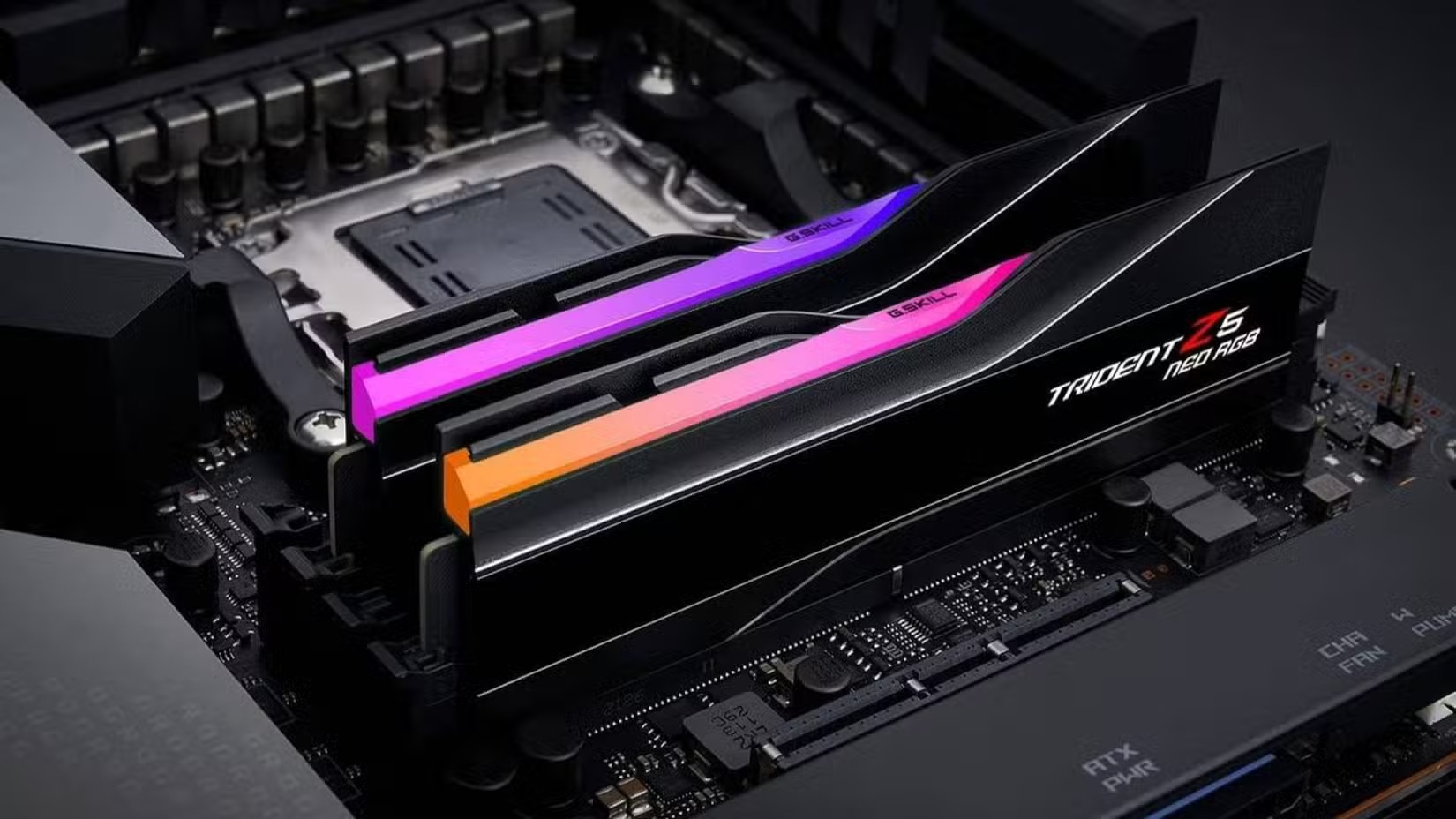 |
Users can upgrade many other components of their computer instead of investing in a super-fast SSD. Photo: Howtogeek. |
If you don't want to buy an SSD, you could consider adding RAM, although prices are currently quite high due to shortages. It's worth noting that RAM speed is also affected by the "gradual yield" phenomenon similar to SSDs, so you should buy average RAM instead of the best.
A better power supply is another smart upgrade. Users should choose a power supply with higher wattage than their actual needs or a high-efficiency power supply. Additionally, upgrading from a "Bronze" certified power supply to a "Gold" or higher certified one will provide you with components that offer better heat dissipation and quieter operation.
Source: https://znews.vn/dung-phi-tien-cho-thu-linh-kien-nay-post1606693.html




































































































Comment (0)