

Starting May 5th, 2025, Skype will officially cease operations, and Microsoft Teams will be its replacement platform with many expanded features. Skype users can switch to Microsoft Teams to continue chatting with old contacts completely free of charge.
 |
| How to transfer Skype data to Microsoft Teams |
In addition to maintaining the familiar messaging experience, Microsoft Teams offers many more features such as meeting archiving and calendar management. When you log in with your Skype account, your entire contact list will automatically appear, making it easy to use.
To conveniently switch from Skype to Microsoft Teams without losing data, follow the instructions below.
Step 1: First, you need to download the Microsoft Teams application to your computer.
 |
| Download the Microsoft Teams application to your computer. |
Step 2: Next, confirm the installation to complete the Teams installation process on your computer.
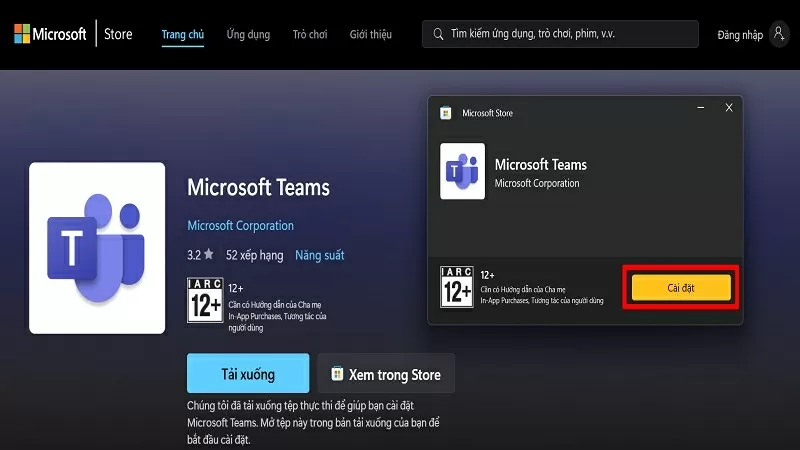 |
| Confirm Installation |
Step 3: Now, go to the website https://insider.teams.com/ and click the Join button.
Note: You need to be logged into Microsoft Teams using the same email address you use to log into Skype in order to synchronize.
 |
| Click the Join button |
Step 4: Here, click Join and Launch Teams to activate the synchronization feature.
 |
| Launch Teams to enable the sync feature. |
Step 5: After restarting, you will see a message indicating that your Microsoft account and Skype account have been synchronized. Press the Continue button to complete the synchronization process.
 |
| Press Continue to complete the synchronization process. |
Step 6: Your Skype account will appear on your computer screen. Select that account to restore all messages from Skype to Teams.
 |
| Select the account to recover all messages. |
Step 7: Re-verify the display name to your preference.
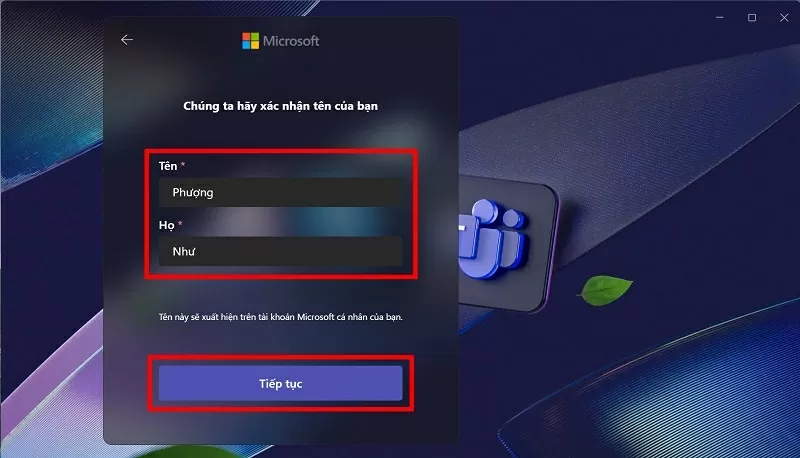 |
| Verify the displayed name |
Step 8: The synchronization process is complete, and all Skype messages have been successfully transferred to Microsoft Teams.
 |
| Synchronization process complete. |
With a few simple steps, you can quickly and efficiently synchronize all your data from Skype to Microsoft Teams. Now you can continue chatting and working without worrying about losing important messages on Skype.
Source
































































































Comment (0)