

After a period of use, personal computers (PCs) and laptops often experience slowdowns, directly impacting work performance. Instead of spending a large sum of money on immediate hardware upgrades, users can take advantage of the ReadyBoost feature available in Windows to improve system speed by turning a USB drive into a virtual RAM stick.
How ReadyBoost works on Windows
ReadyBoost is a Microsoft software algorithm, first introduced in Windows Vista and still maintained in Windows 10 and Windows 11. This feature allows the system to use a portion of the capacity of an external storage device (such as a USB drive or SD card) as a cache.
In principle, ReadyBoost helps reduce the burden on traditional HDDs. Because HDDs have a higher data retrieval latency compared to flash memory, storing small executable files on a USB drive will help the computer access them faster. However, this trick will not be noticeably effective for computers already equipped with SSDs, as SSDs are already significantly faster than most current USB drives.
Detailed instructions on how to set up virtual RAM from a USB drive.
To perform this procedure, users need a USB drive with at least 500MB of free space and a stable data transfer speed. Below are the 6 steps to follow:
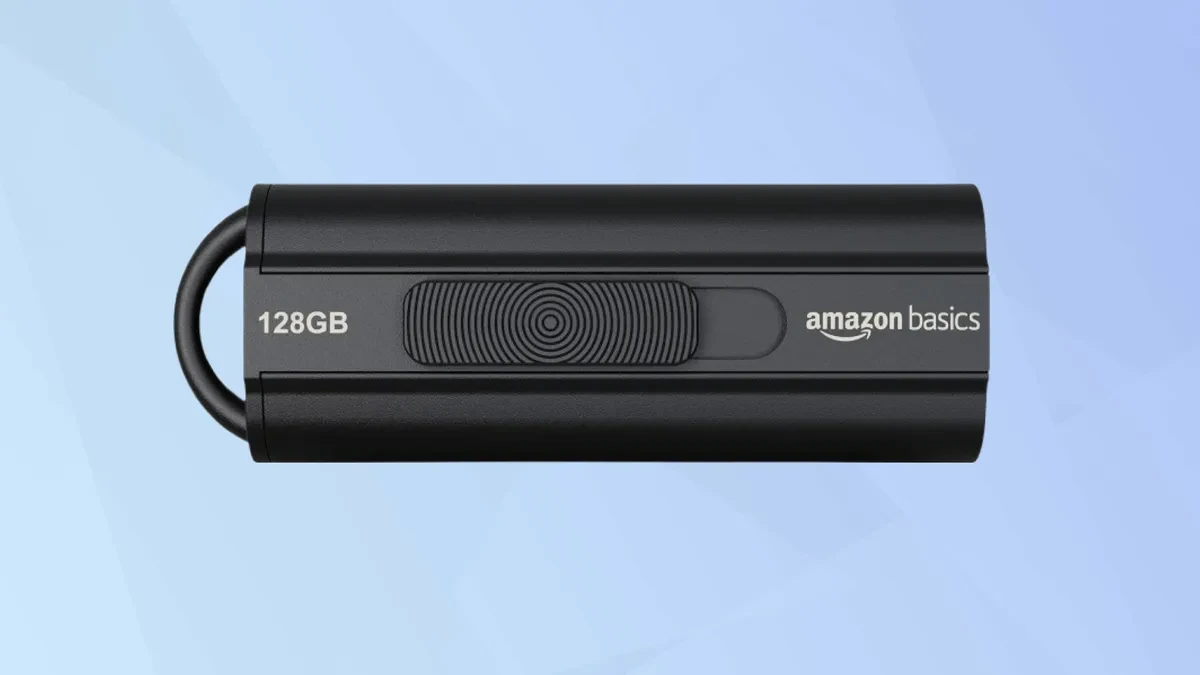
1. Connect the storage device.
First, plug a high-speed USB drive or SD card into your Windows computer. This device needs at least 500MB of free space for optimal performance.
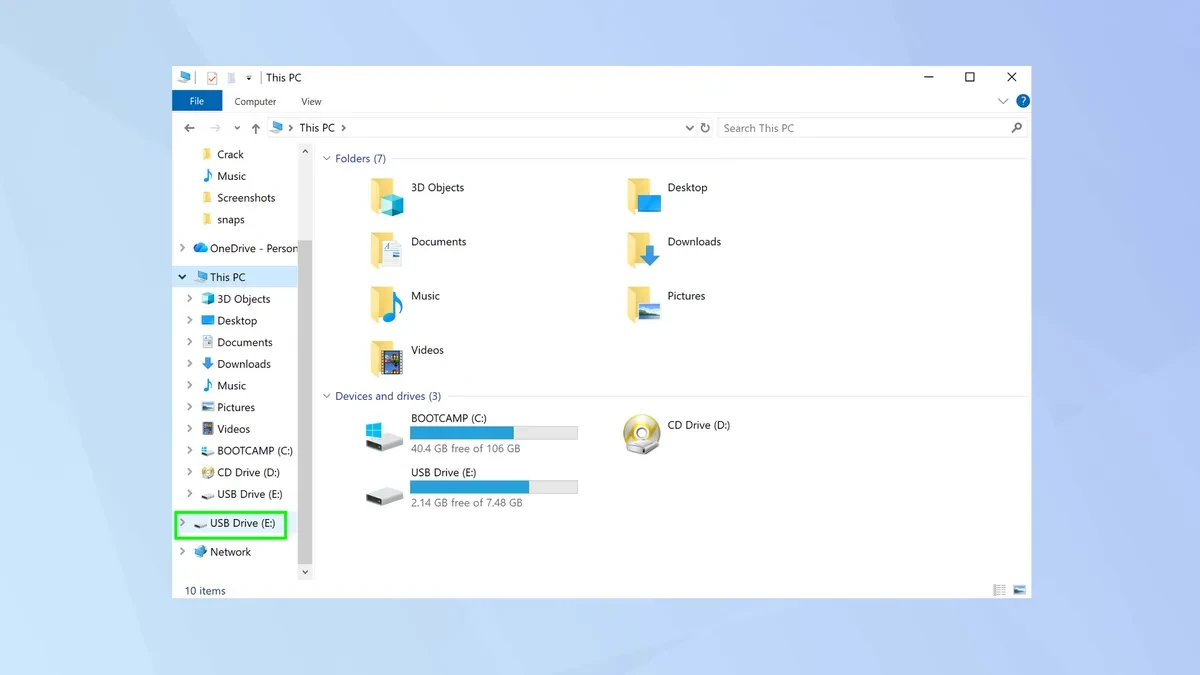
2. Access the file manager.
Next, open the File Explorer application that comes pre-installed on Windows. Your USB drive or SD card will appear in the left sidebar.
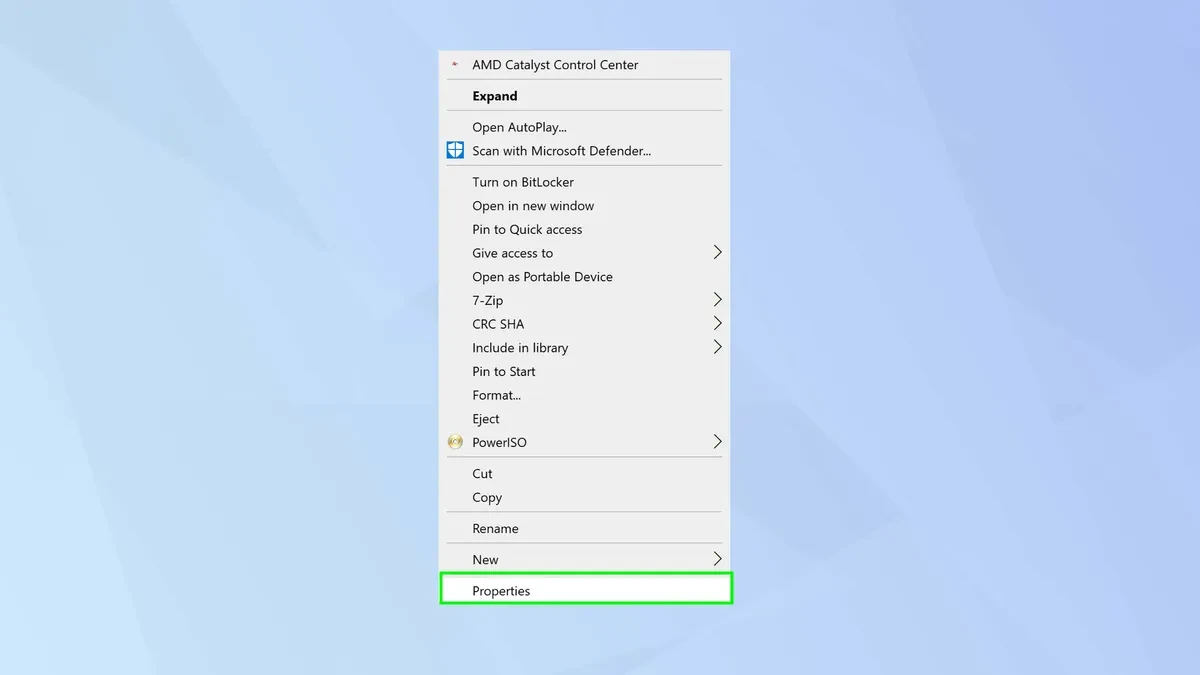
3. Set device properties
Right-click on the USB drive or SD card icon, then select Properties to open the advanced settings panel.
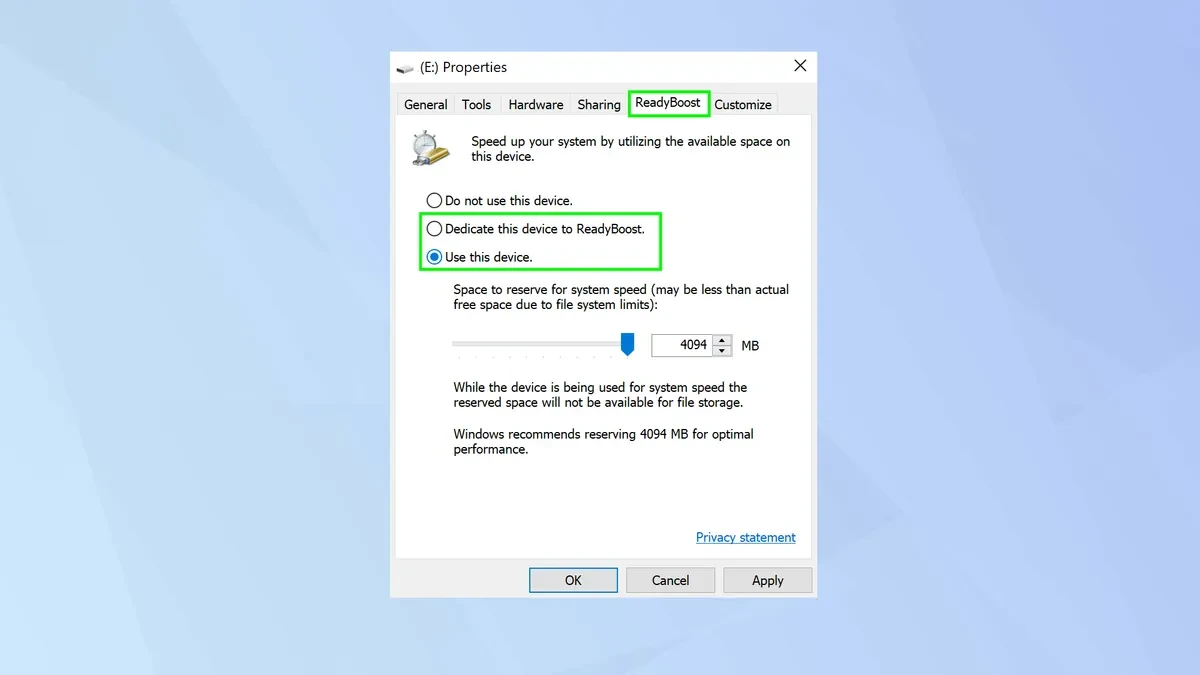
4. Activate the ReadyBoost feature.
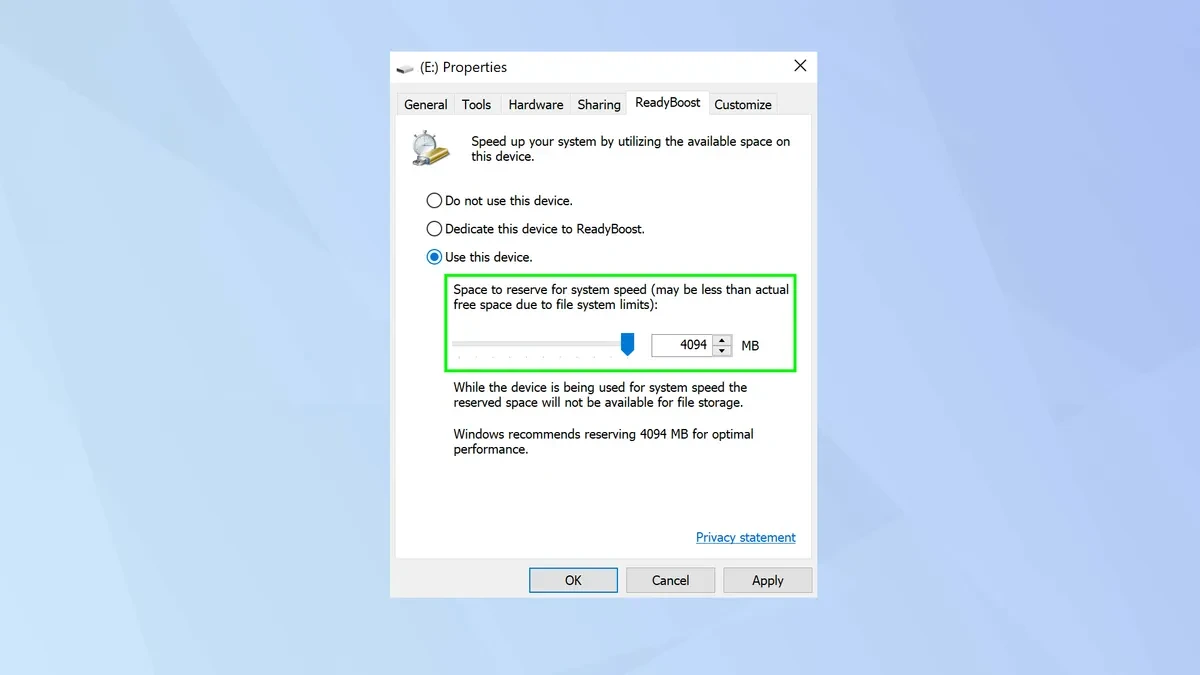
In the window that appears, you need to select the ReadyBoost tab. Here, click on "Dedicate this device to ReadyBoost" if you want to dedicate the entire USB space as virtual RAM, or select "Use this device" if you want to retain some space for personal data storage.
5. Allocate cache memory capacity
Users can use the slider to allocate the appropriate amount of RAM. Technically, the ideal amount should be 1 to 3 times the computer's actual RAM capacity. Typically, Windows will automatically suggest an optimal amount based on the current configuration.
6. Completion and Operation
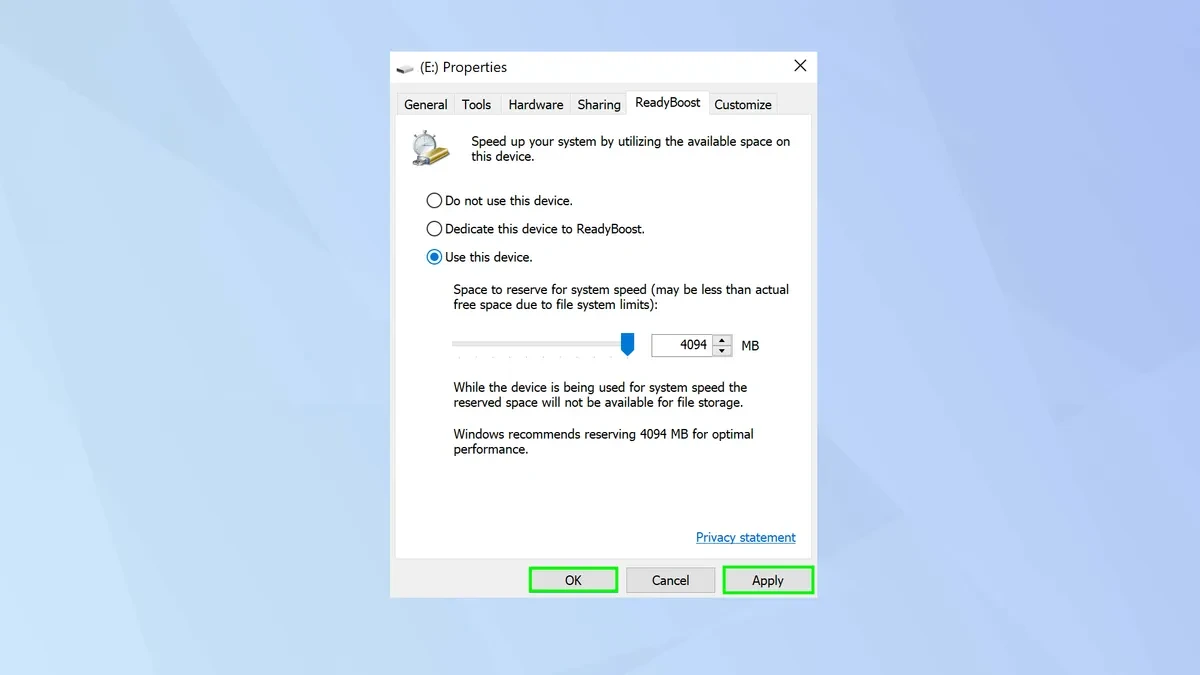
After completing the setup, click Apply and OK. The system will create a cache file on the USB drive and immediately begin the process of assisting the operating system in processing data.
Important notes for achieving high efficiency.
Although turning a USB drive into virtual RAM is a useful trick, users should note the following points to ensure stability:
- Device speed: Using USB 3.0 or 3.1 will provide higher efficiency compared to the older 2.0 standard.
- Do not unplug the USB device abruptly: Because the USB device is acting as a cache, unplugging it while the computer is running may cause system errors or temporary data loss.
- Hard drive configuration: Remember that ReadyBoost works best on systems running mechanical HDD hard drives. With SSDs, this feature is often automatically disabled by Windows as it's not needed.
Source: https://congluan.vn/cach-dung-usb-lam-ram-ao-de-tang-toc-may-tinh-chay-o-hdd-10324465.html




































































































Comment (0)