

Changing your App Store region to Vietnam makes it easier to download games and apps released in Vietnam. Furthermore, it optimizes your Apple device experience. This article will guide you on how to safely and easily change your App Store region to Vietnam.
 |
Changing your App Store region is a necessary step to fully utilize the app's features. Performing this region change on your iPhone correctly ensures data security and saves time.
Instructions on changing your iPhone region to Vietnam using the App Store
Below are the detailed steps to correctly change your App Store region to Vietnam.
Step 1: First, access the App Store on your iPhone and tap on the personal account data area in the upper right corner of the screen.
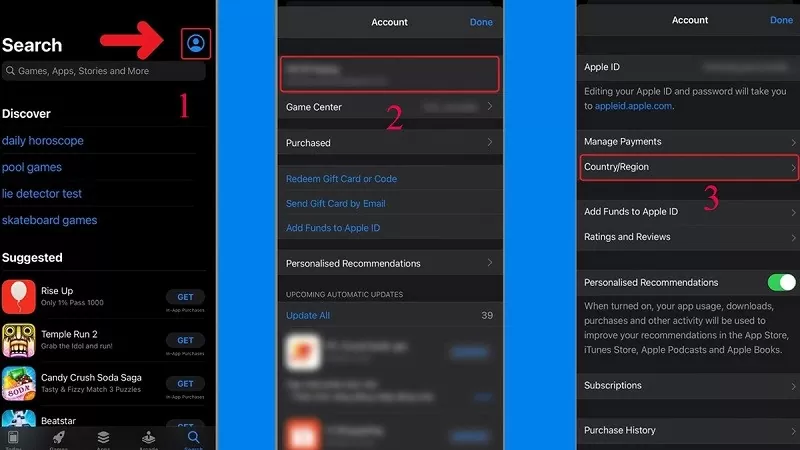 |
Step 2: Next, select your Apple ID to access it, then tap on "Country/Region".
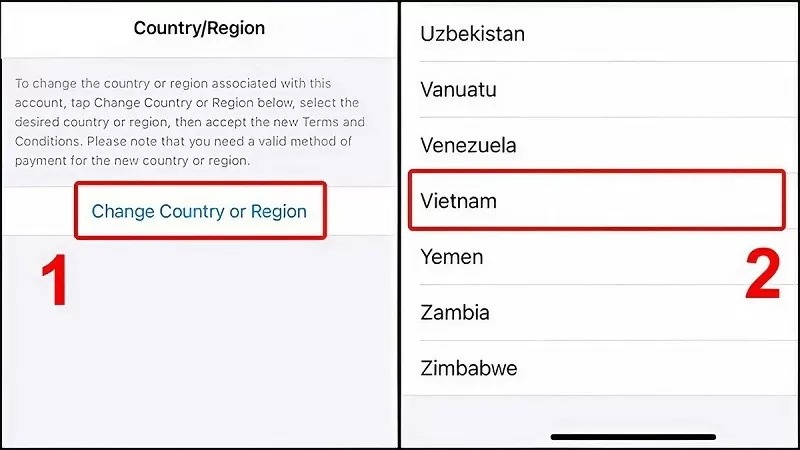
Step 3: Select Vietnam as the country to change the App Store region in the "Change Country or Region" section.
Step 4: After selecting Vietnam as your country, click the "Agree" button.
 |
Step 5: Tap “No” on the screen and record the iPhone's region information after changing it.
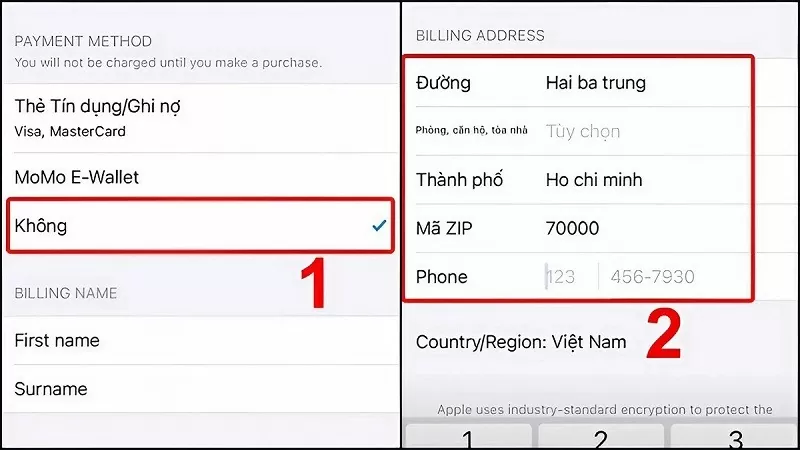 |
Additionally, to change your iPhone's region to Vietnam, you need to find out the local ZIP code of your area and enter it in the corresponding region code.
Step 6: After completing the above steps, your iPhone's region will be changed to Vietnam. At this point, you can exit and reopen the application. Once the App Store region has been successfully changed to Vietnam, the phone's interface will automatically display in Vietnamese.
How to change your iPhone region to Vietnam through Settings
Another way to change your App Store region to Vietnam is by changing your iPhone settings. Below are the steps to effectively change your iPhone's App Store region to Vietnam using the settings.
Step 1: First, access the "Settings" application.
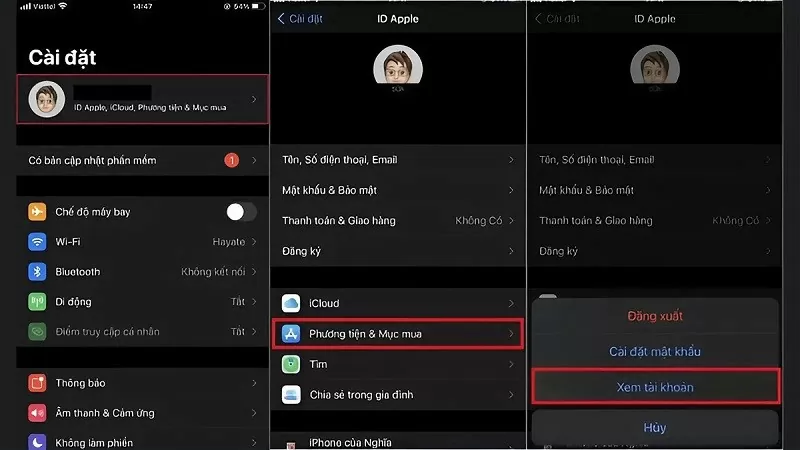 |
Step 2: Next, select the "Media & Purchases" option to switch your App Store to Vietnam.
Step 3: Next, tap on "Apple ID" located at the top of the screen. A menu will appear; select "View Apple ID" or "Account". At this point, you will need to enter your password or use other security methods to verify your Apple ID.
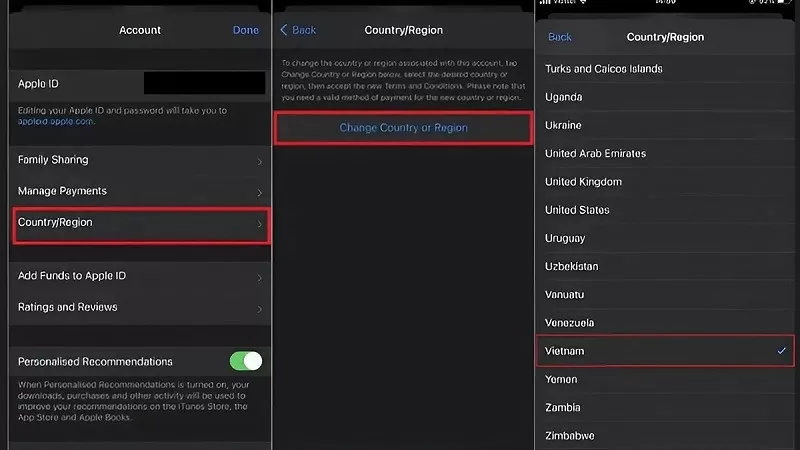 |
Step 4: When accessing your Apple ID information, select "Country/Region". Then, tap the "Change Country" option on your iPhone.
Step 5: Scroll down and select Vietnam. Next, carefully read the terms of use and click Agree twice to complete the process of changing your App Store region to Vietnam.
With just a few simple steps, you can quickly and safely change your App Store region to Vietnam without encountering any complicated issues.
Source



























































































Comment (0)