

From previous Android versions, the ability to turn a phone into a webcam wasn't new, but it had many limitations in terms of features, the number of supported applications, and the complicated setup and difficulty in connecting to a computer.
In the new Android 14 update introduced by Google, users can simplify the process because this feature has become official and supports various applications.
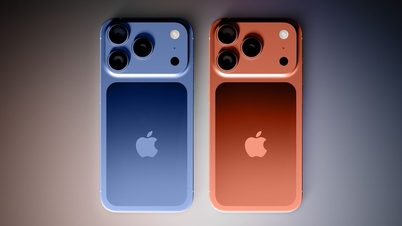
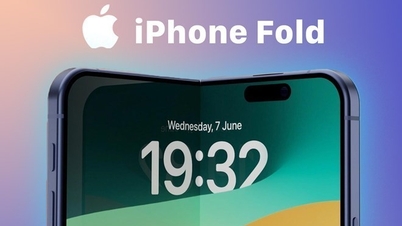
Meanwhile, iPhone users can use their phones as webcams starting with iOS 16, released last year (only for macOS computers). One difference between the two features is that iPhones use a wireless connection, while Android requires a wired connection between the phone and the computer.

Using smartphones as webcams has become common practice these days.
However, Android 14 is not yet widespread because Google has only recently updated its Pixel smartphones to the official version. Devices from other manufacturers have not yet received the Android 14 update, so users will have to wait longer, with the specific timeframe depending on the hardware manufacturer and the user's device.
Google recommends that users use a tripod or place the device in a stable position for the best image quality, avoiding shaking or blurring. Video quality, however, depends on the camera system (front or rear) of the device, as configured by the user during initial setup.
To use your Android smartphone as a webcam for your computer, follow these steps:
1. Connect your phone to your computer using a compatible USB-C cable.
2. When the screen shows a successful connection, tap the notification to select the optional camera category to display.
3. Choose display settings according to your needs, such as zooming in, or using the front or rear camera of your phone.
4. Open the application you want to use the webcam with and select Android Camera as the primary connected camera.
Khanh Linh
Source

![[Photo] General Secretary and President To Lam meets with National Assembly delegates from ethnic minorities.](https://vphoto.vietnam.vn/thumb/1200x675/vietnam/resource/IMAGE/2026/04/20/1776696701056_a1-bnd-8331-3342-jpg.webp)


![[Image] National Assembly discusses the implementation of the socio-economic development plan.](https://vphoto.vietnam.vn/thumb/1200x675/vietnam/resource/IMAGE/2026/04/20/1776696707422_ndo_br_img-20260420-185419-jpg.webp)



























































































Comment (0)