

 |
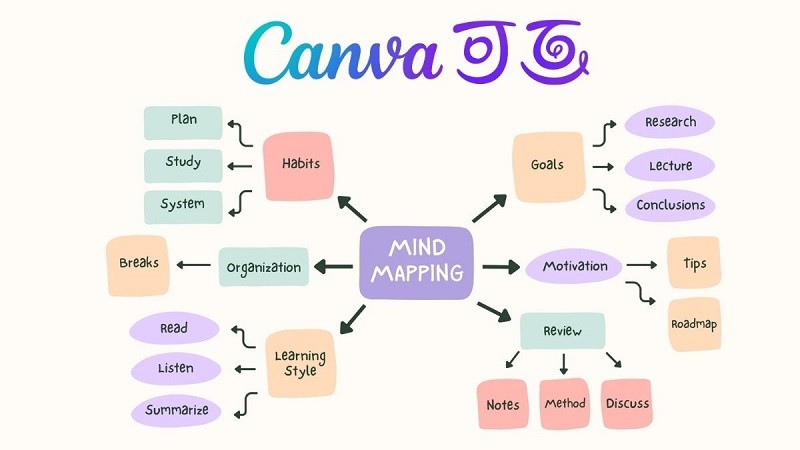
There are many ways to create mind maps on Canva. If you need to complete it within a short time, take advantage of Canva's pre-made templates. Alternatively, you can design your own mind map. Below is a detailed guide on how to create a mind map on Canva using a computer, covering both methods.
Create a mind map using a pre-made template on Canva.
Canva offers you a huge library of Mindmap design templates. To save time, choose a ready-made template and modify it to suit your needs. To create a Mindmap in Canva, follow these steps.
Step 1: First, open your web browser and enter the Canva website address (www.Canva.com) into the address bar. If you already have a Canva account, log in. If you don't have an account, click on Sign Up and follow the instructions to create a new account to start creating mind maps on Canva.
 |
Step 2: After successfully logging in, go to the Canva homepage. In the search box at the top of the page, type "Mindmap" and press Enter. Canva will search for design templates to create your Mindmap.
 |
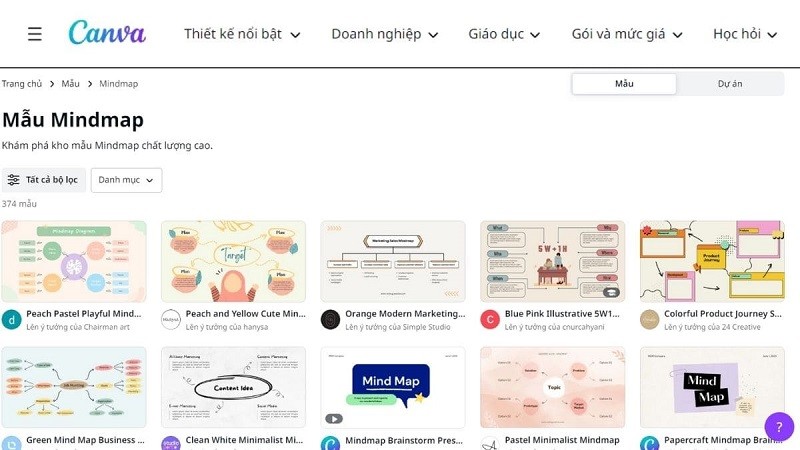
Step 3: Once you have the search results, you will see a list of Mindmap templates. Depending on your needs, choose a template by clicking on it to open it. Finally, you can edit and create your Mindmap in Canva to your liking.
 |
Once you have finished creating your Mindmap, click the Save button in the upper right corner of the editor to save it. You can save your Mindmap as an image (PNG, JPG) or PDF.
Design your own mind map on Canva.
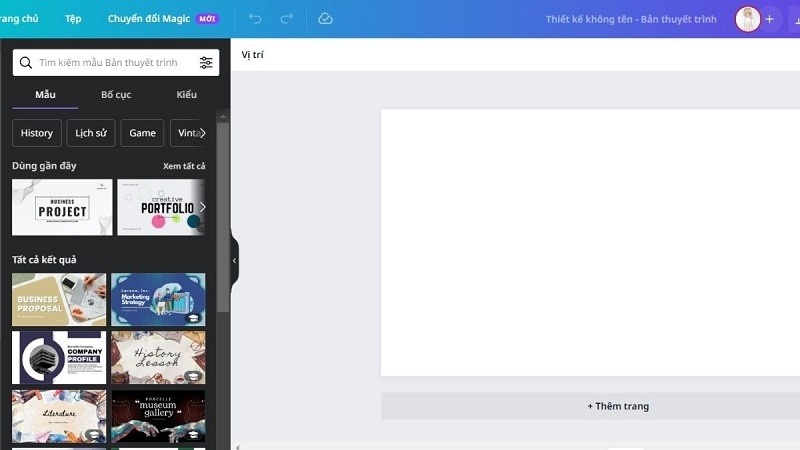
Besides using pre-designed templates on your computer, you can also create mind maps in Canva by designing your own. Here are the steps:
Step 1: Access the Canva website at www.Canva.com and log in. After successfully logging in, you will see a "Create a Design" button on the main Canva page. Click on it to start creating your own mind map in Canva.
Next, you'll be able to choose the size for your Mindmap page. You can select a custom size or use the default size for your Mindmap in Canva.
 |
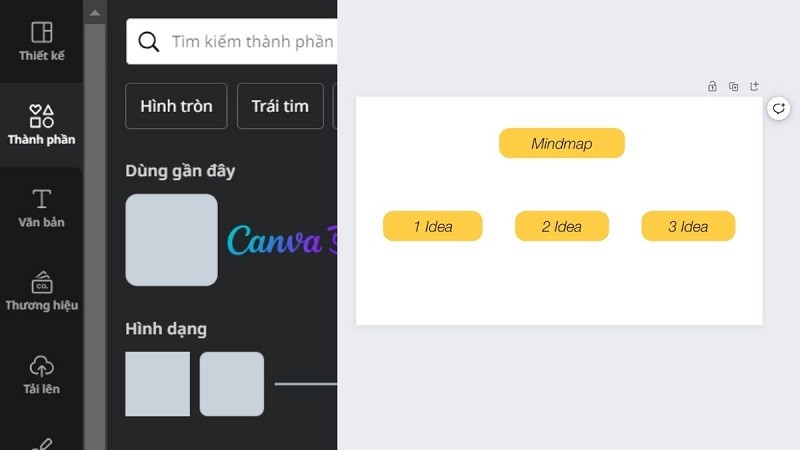
Step 2: Click on the Components section to add the appropriate shape boxes. You should arrange the boxes and headings beforehand to match your ideas.
 |
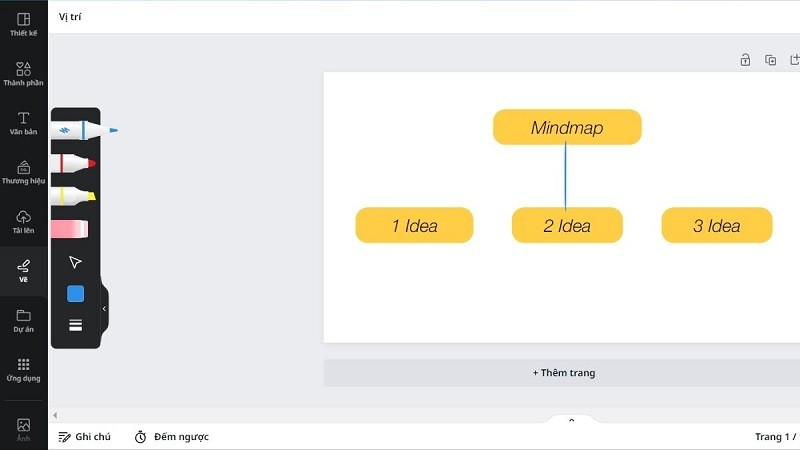
Step 3: To create connecting lines that show the relationship between headings, you can select straight lines in the Components section. Alternatively, you can click on the Draw option. Here, you will find three types of pens to use. Specifically, to create straight lines when creating a Mindmap in Canva, you can do so by pressing Shift while moving the computer cursor.
 |
The above was a guide on how to create a Mindmap in Canva using both pre-made templates and custom designs. Both methods are very simple and easy to follow, allowing users to freely create Mindmaps that suit their own style.
Source









































































































Comment (0)