

 |
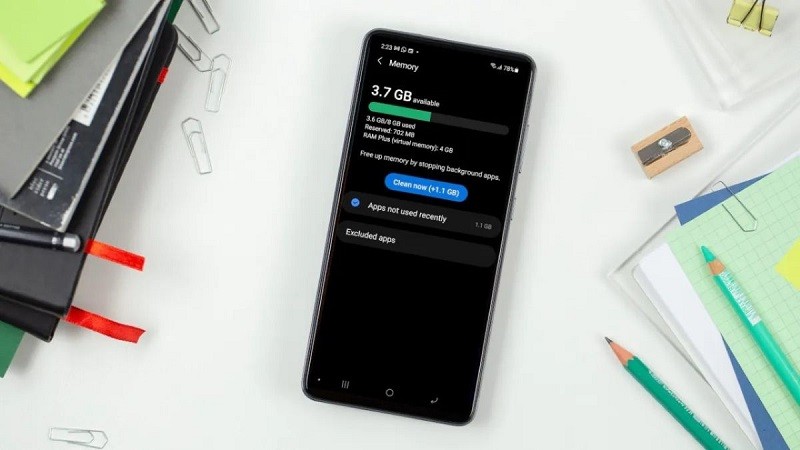
To expand the RAM on your Samsung device, you can do so quickly using the RAM Plus feature. Here are the detailed steps to do this:
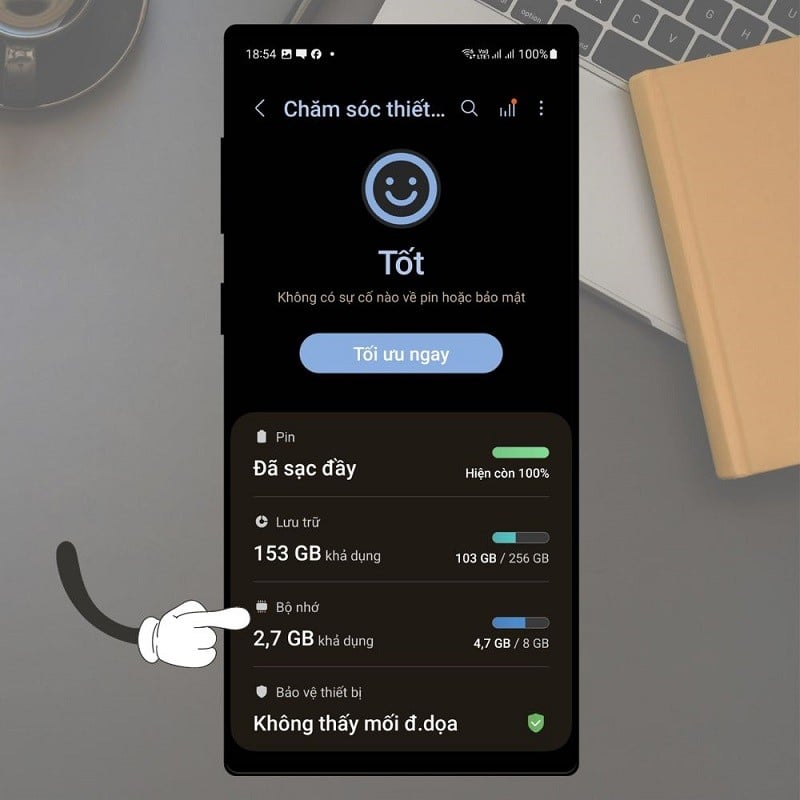
Step 1: First, access the Settings app from your Samsung phone's home screen. Then, scroll down to find and select Battery and Device Care. This section will give you an overview of your battery health, available storage, and RAM status.
 |

Step 2: In the Battery and Device Care section, find and select Storage. This is where you manage your storage; you can monitor RAM usage and adjust it to optimize performance.
 |
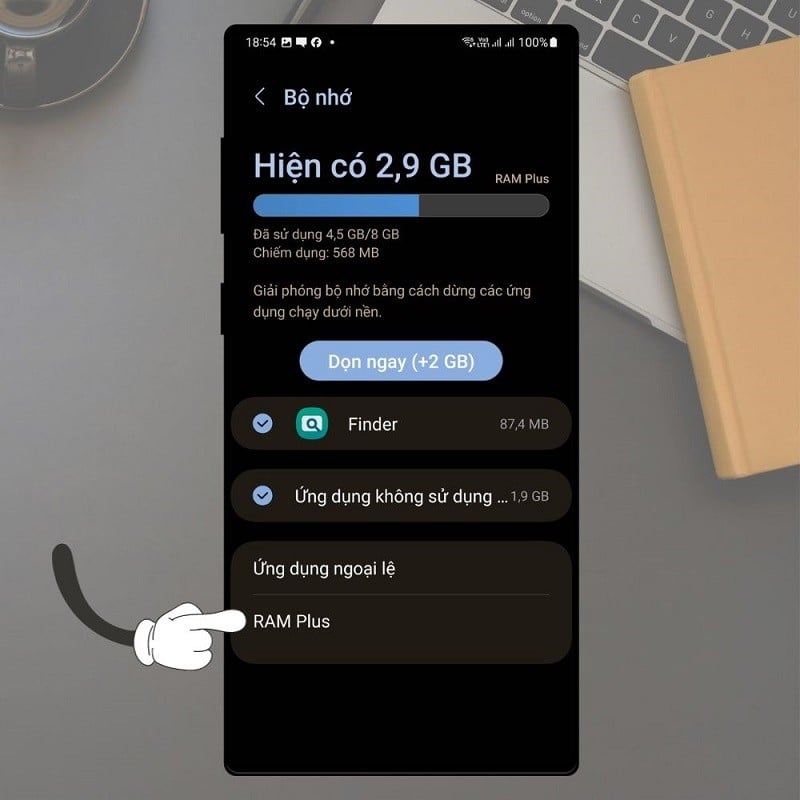
Step 3: Next, scroll down to the bottom of the Memory page to find the RAM Plus section. Click on it and you will see options for expanding virtual RAM.
 |
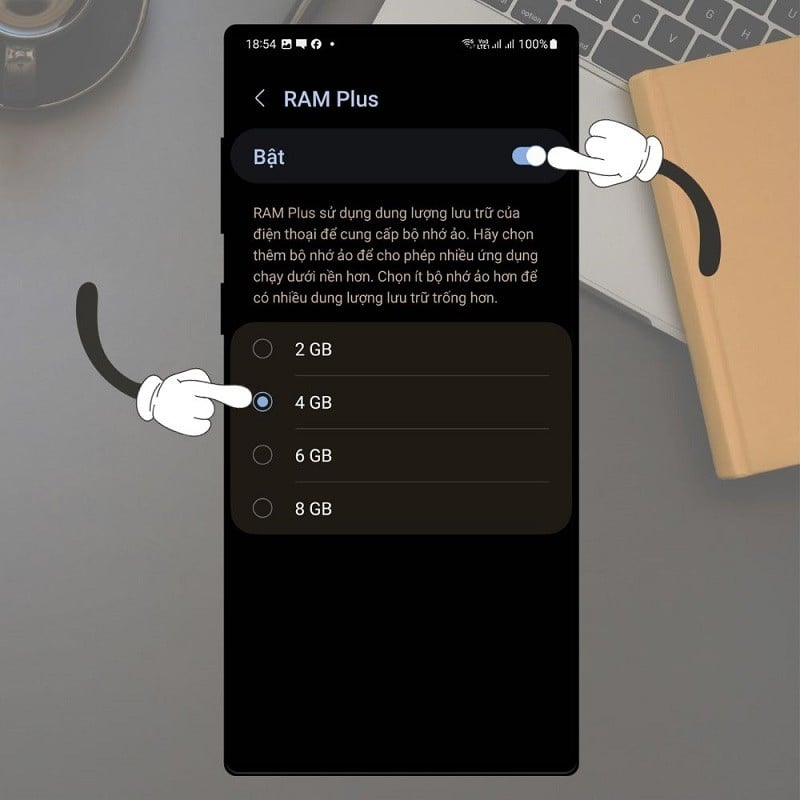
Step 4: Open the RAM Plus feature and select the appropriate expansion capacity from the displayed options: 2 GB, 4 GB, or more, depending on your available storage and needs. Once you have selected, you must restart your device to apply the changes. Follow the on-screen instructions to begin restarting your phone.

 |
After your phone restarts, RAM Plus will activate, and you'll immediately see an improvement in your phone's performance when running demanding apps or multiple apps simultaneously. This is an effective way to enhance multitasking capabilities and ensure your device runs more smoothly.
Source






























































![[Video] Sunset at Lap An Lagoon – Where the sun sets over the fishing nets](https://vphoto.vietnam.vn/thumb/1200x675/vietnam/resource/IMAGE/2026/05/31/1780192137701_beach-landscape-sea-water-nature-grass-745871-pxhere-com.jpeg)








































Comment (0)