

This article will provide detailed instructions on how to create links in PowerPoint in a simple and easy way, making your presentations more professional and flexible.
 |
| How to create links in PowerPoint |
Instructions on creating links in PowerPoint using hyperlinks.
Hyperlinks in PowerPoint allow you to easily create links to websites, files, emails, or other slides. Below is a guide on how to quickly and effectively create links in PowerPoint using hyperlinks.
Create a link to the slide.
Step 1: Choose the object to create the link for, which could be text, an image, a button, or a shape.
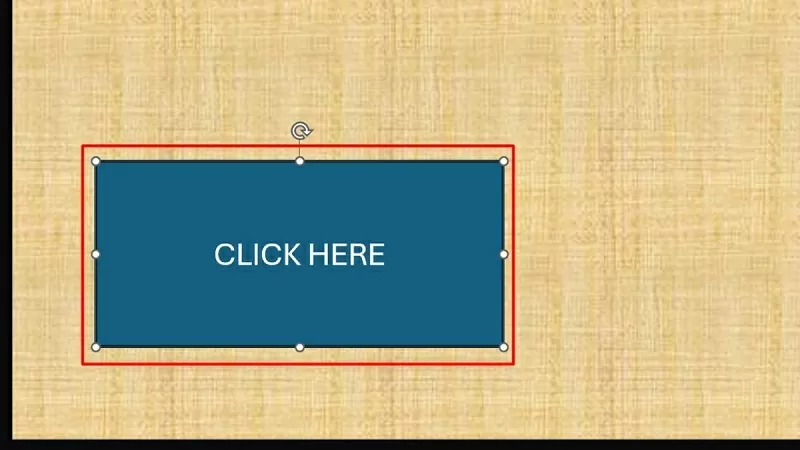 |
| Select the object you want to create a link to. |
Step 2: Right-click on the selected object and choose Link/Hyperlink (or press Ctrl + K).
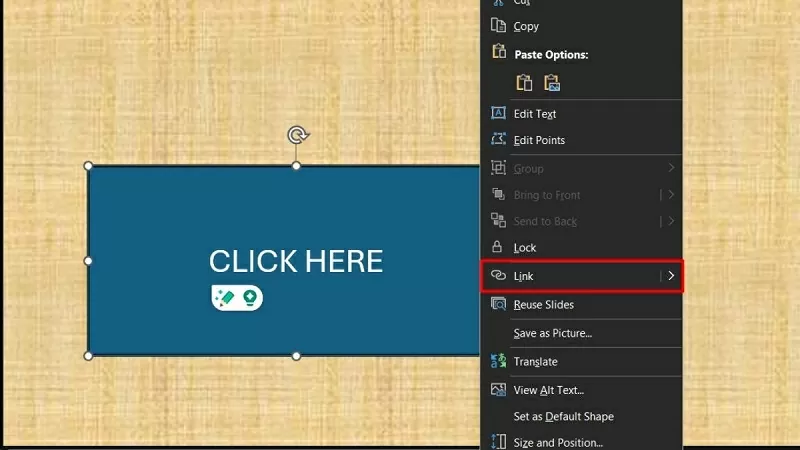 |
| Select Link/Hyperlink |
Step 3: In the Insert Hyperlink window, select Place in This Document. Then, choose the slide you want to link to and click OK to complete.
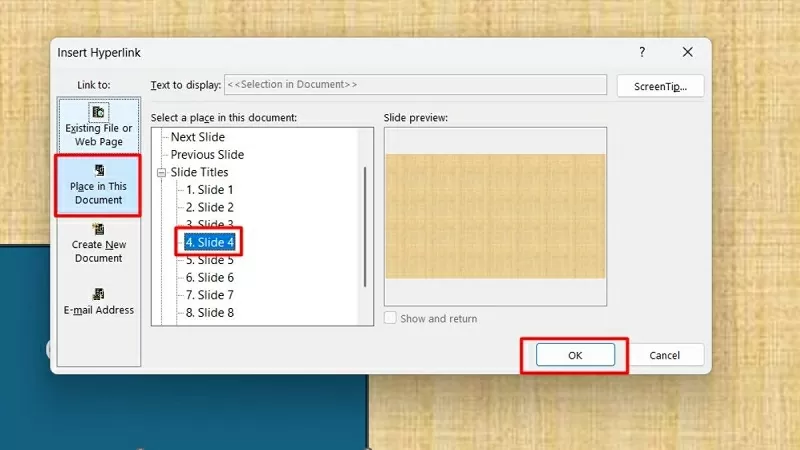 |
| Click on the "Place in This Document" option. |
Create a web access link
Step 1: First, select the object you want to create a link to, which could be text, an image, a button, or a shape.
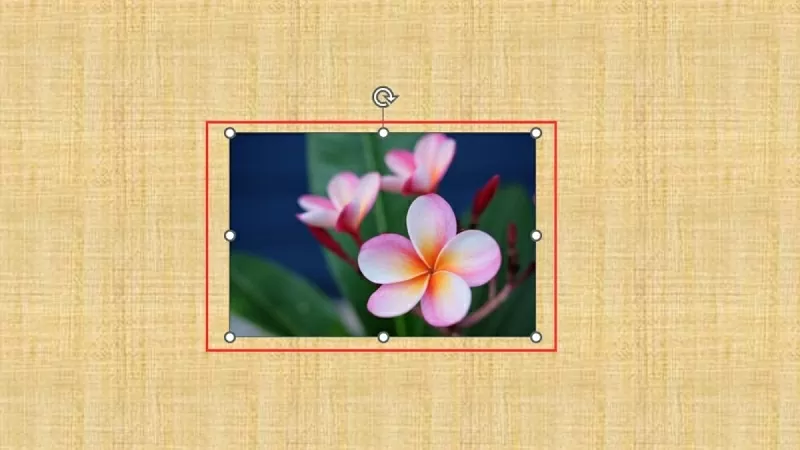 |
| Select the object you want to link to the website. |
Step 2: Next, right-click on the selected object and choose Link/Hyperlink (or press Ctrl + K).
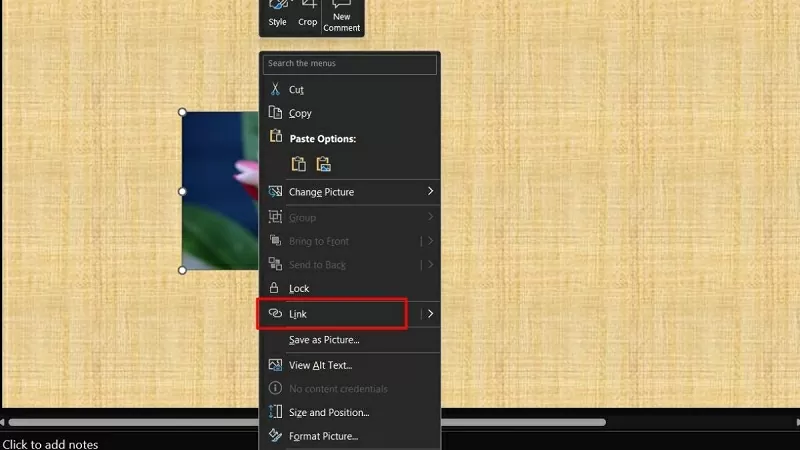 |
| Select Link/Hyperlink |
Step 3: In the Insert Hyperlink window, select Existing File or Web Page. Then, type or paste the website address into the Address field and click OK to complete the process.
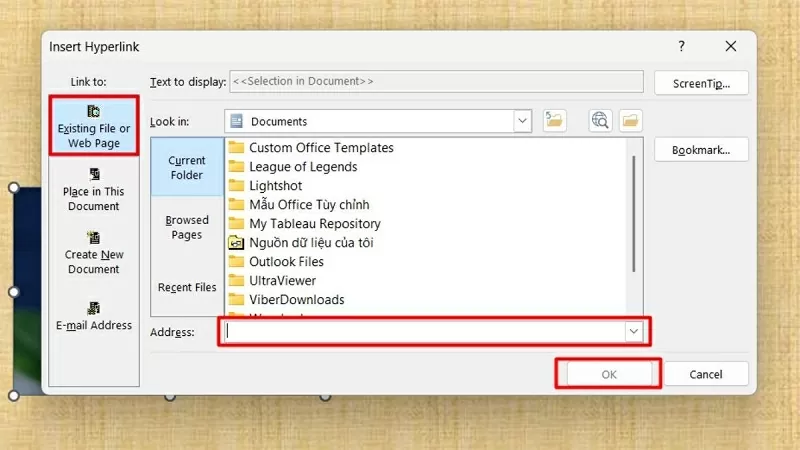 |
| Select Existing File or Web Page |
Quickly create a link to open a file in PowerPoint.
Step 1: First, choose the object you want to create a link to, whether it's text, an image, a button, or a shape.
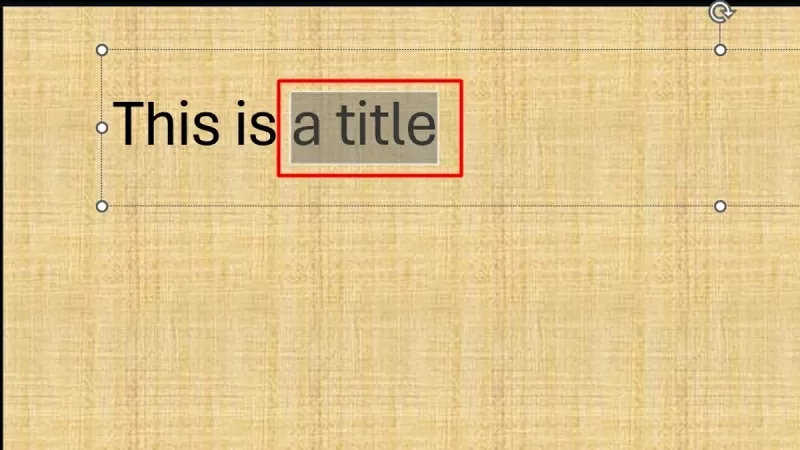 |
| Select the object you want to create a link to. |
Step 2: Right-click on the selected object and click Link/Hyperlink (or press Ctrl + K).
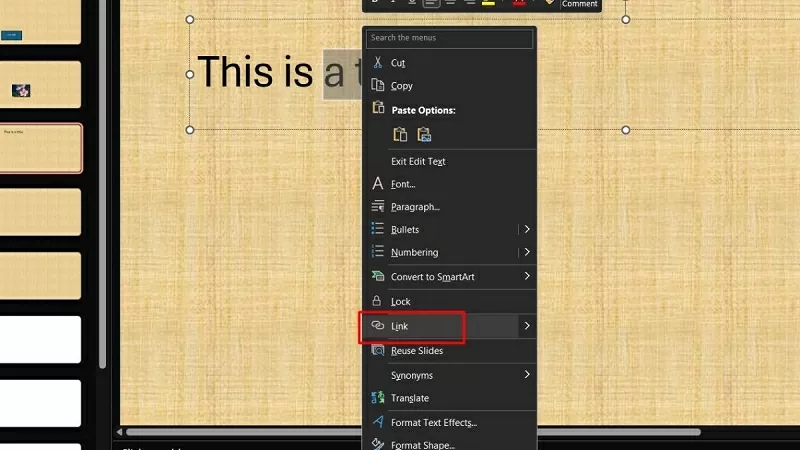 |
| Click on Link/Hyperlink |
Step 3: In the Insert Hyperlink window, select Existing File or Web Page. Then, click Browse for File and choose the file you want to link (PDF, Word, Excel, etc.).
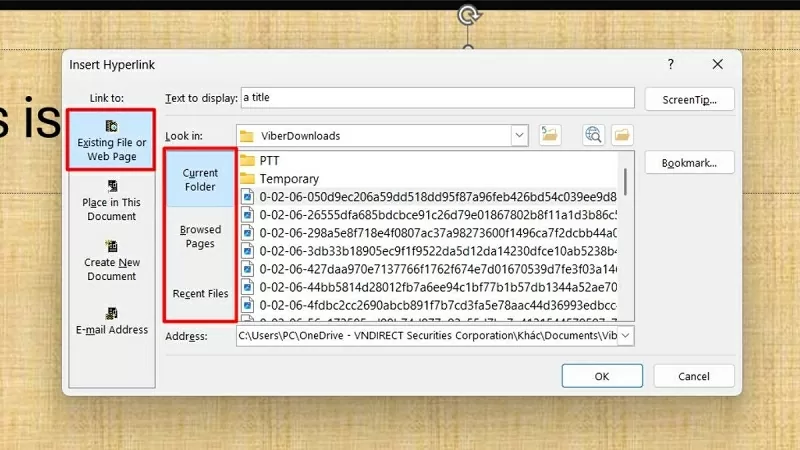 |
| Select Existing File or Web Page |
How to check inserted links
Here's a simple and quick way to check the links you've inserted:
Step 1: Press F5 or the Slideshow button to turn on slideshow mode.
 |
| Show the slides and click the link to check. |
Step 2: Next, click on the links to check if they are working correctly. If the link doesn't open or shows an error, please check the URL again.
 |
| Click the link to check. |
How to remove inserted links
If you accidentally create the wrong links in PowerPoint, you can delete them to make your presentation cleaner.
Step 1: Select the object containing the link you want to delete (text, image, button, etc.).
 |
| Select the object from which you want to remove the inserted link. |
Step 2: Next, right-click on the selected object and click on "Remove Hyperlink". The link will be removed, but the content (text/image) will remain.
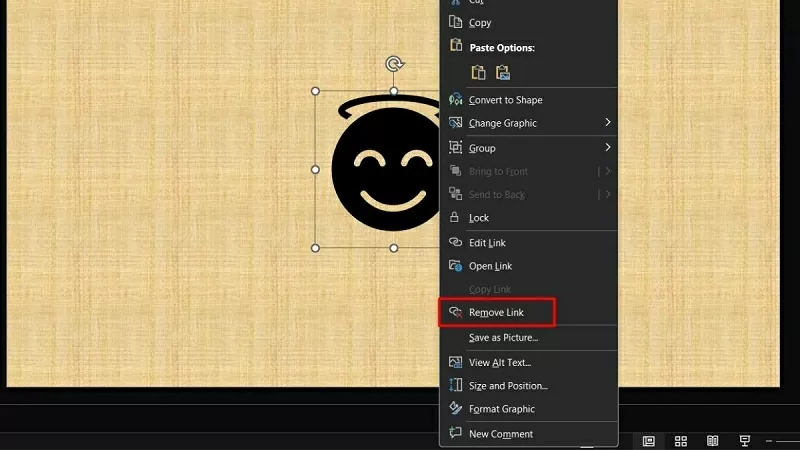 |
| Click on Remove Hyperlink |
The article above has just guided you in detail on how to create links in PowerPoint simply and quickly. Using hyperlinks and slide links in PowerPoint helps make your presentations more professional and flexible.
Source


![[Photo] Prime Minister Pham Minh Chinh presides over the conference announcing the establishment of the International Finance Centre in Vietnam.](/_next/image?url=https%3A%2F%2Fvphoto.vietnam.vn%2Fthumb%2F1200x675%2Fvietnam%2Fresource%2FIMAGE%2F2025%2F12%2F21%2F1766309817714_ndo_br_dsc-3400-jpg.webp&w=3840&q=75)

![[Photo] Prime Minister Pham Minh Chinh presides over a meeting on private sector economic development.](/_next/image?url=https%3A%2F%2Fvphoto.vietnam.vn%2Fthumb%2F1200x675%2Fvietnam%2Fresource%2FIMAGE%2F2025%2F12%2F20%2F1766237501876_thiet-ke-chua-co-ten-40-png.webp&w=3840&q=75)




























































































Comment (0)