

If automatic Windows 10 updates are annoying, you can permanently disable updates using software. This method is simple and effective, as explained in the article below!
 |
A guide on how to permanently disable Windows 10 updates quickly and easily.
Below are simple and effective ways to permanently disable Windows 10 updates, giving you control over your system without worrying about automatic updates. These methods not only help stabilize your system but also avoid unwanted problems from unnecessary updates.
How to use Services
A simple way to permanently disable Windows 10 updates is to turn off the Windows Update service in Services. This completely stops automatic updates without requiring deep system modifications.
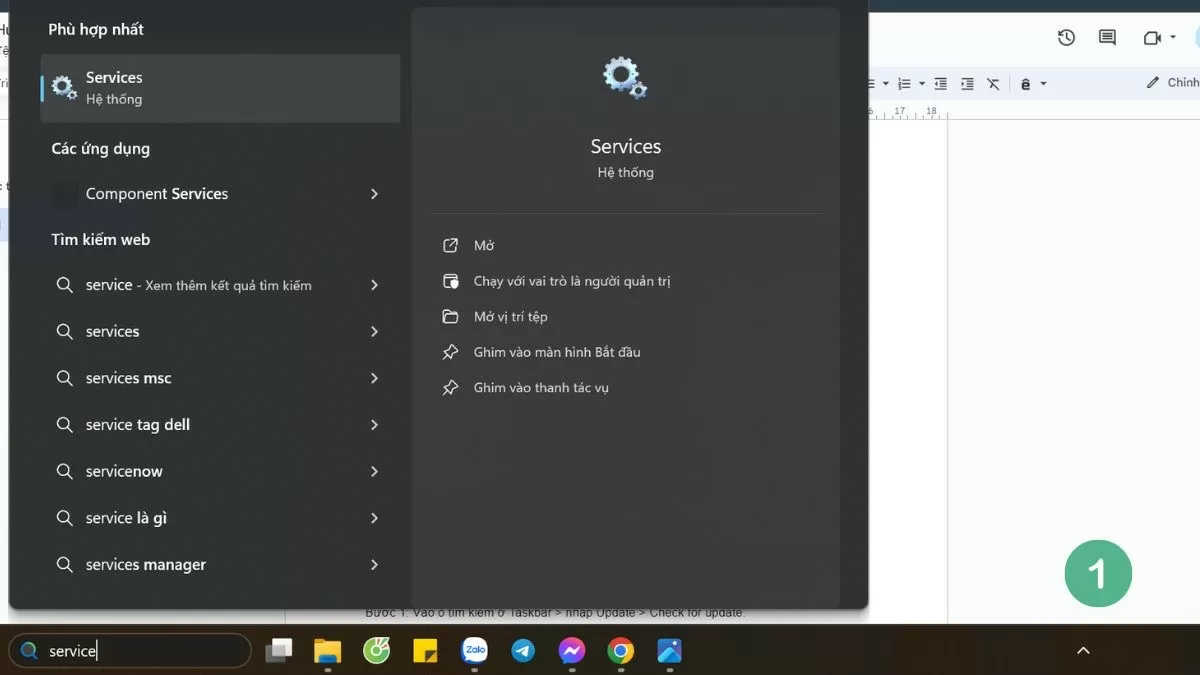
Step 1: Search for "Service" in the Taskbar search bar.
 |
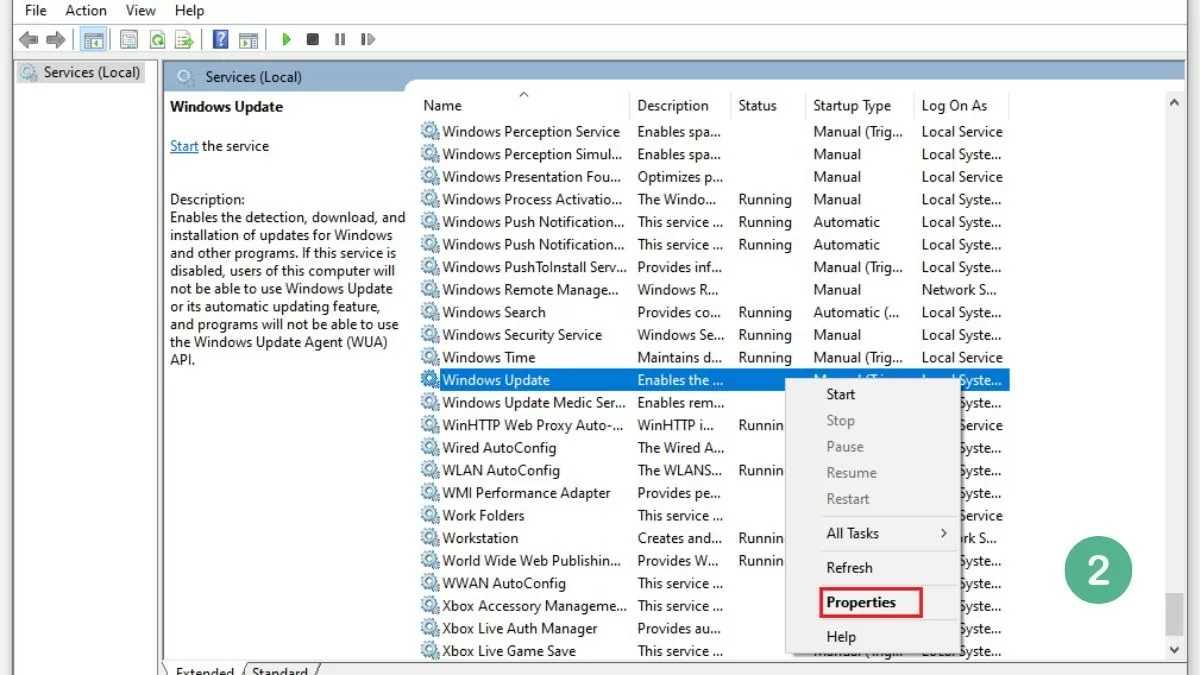
Step 2: Next, select Windows Update , then click Properties .
 |
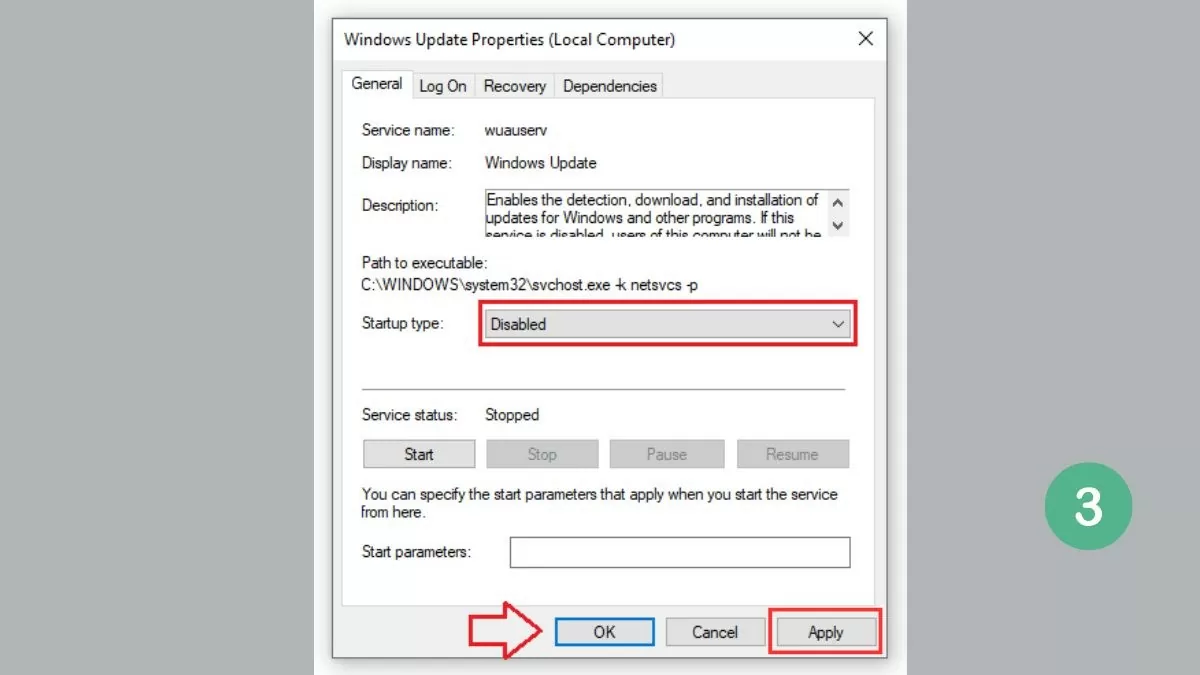
Step 3: In the Startup type section, select Disabled , then click OK and Apply to save the changes.
 |
How to set up system settings effectively
Users can disable updates on Windows 10 by adjusting the following system settings:
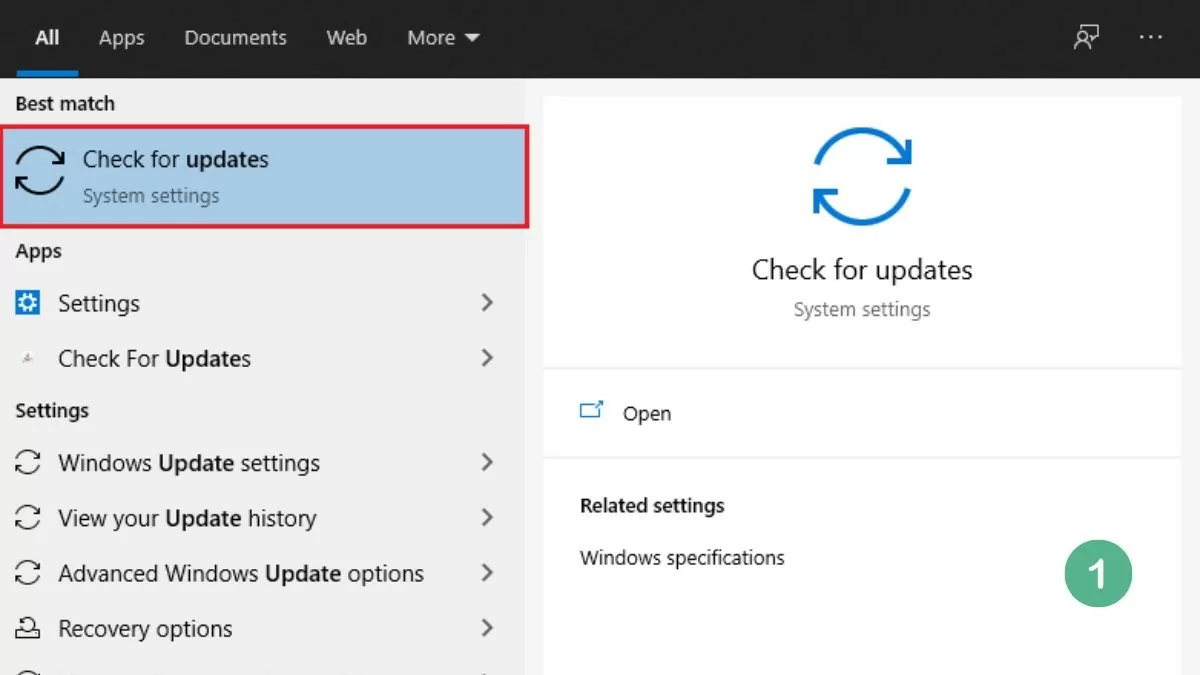
Step 1: First, open the search box on the Taskbar, type "Update," and select "Check for updates" from the results.
 |
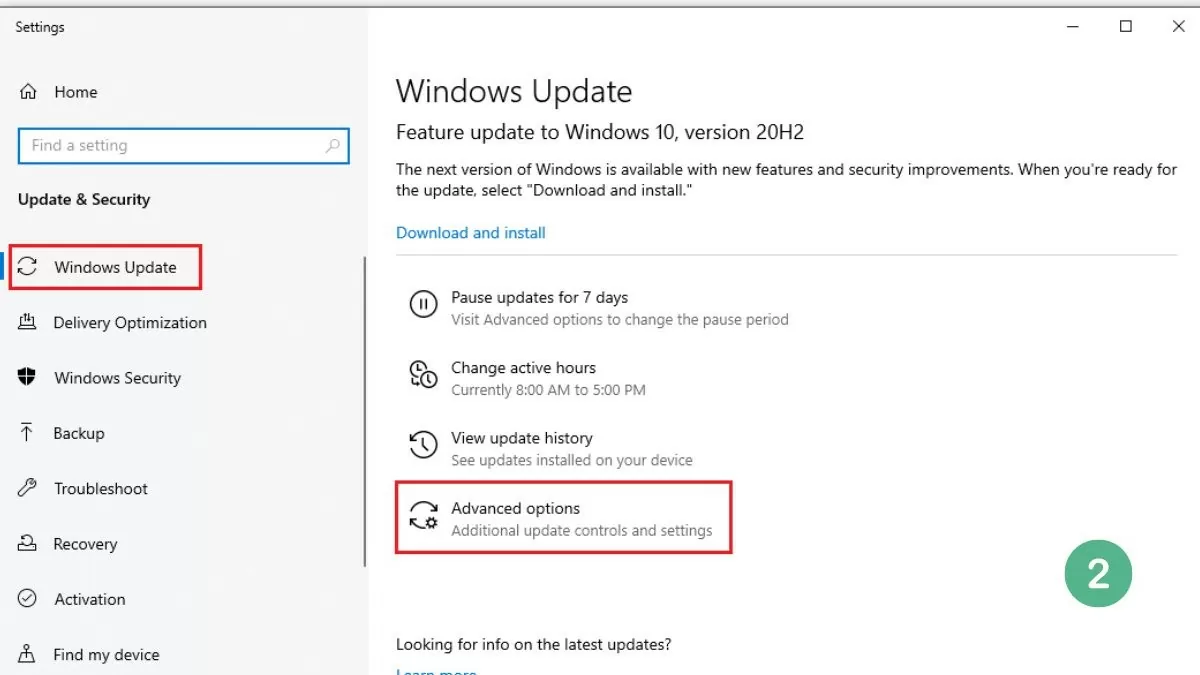
Step 2: Select Windows Update and then click on Advanced options.
 |
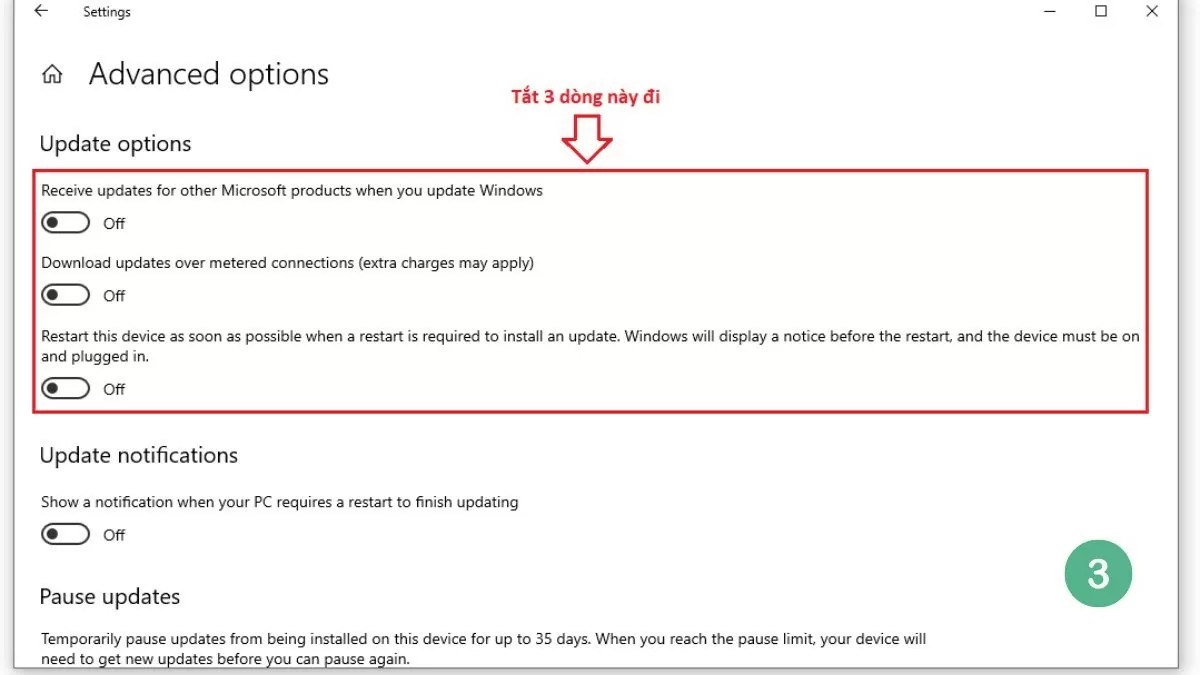
Step 3: Turn off the three options in the Update options section to permanently disable Windows Update.
 |
Note: This method only applies to devices running Windows 10 or later.
How to set up a WiFi connection
If you don't want to completely disable updates, another option is to set your WiFi connection to Metered Connection mode, which limits the download of large updates from Microsoft.
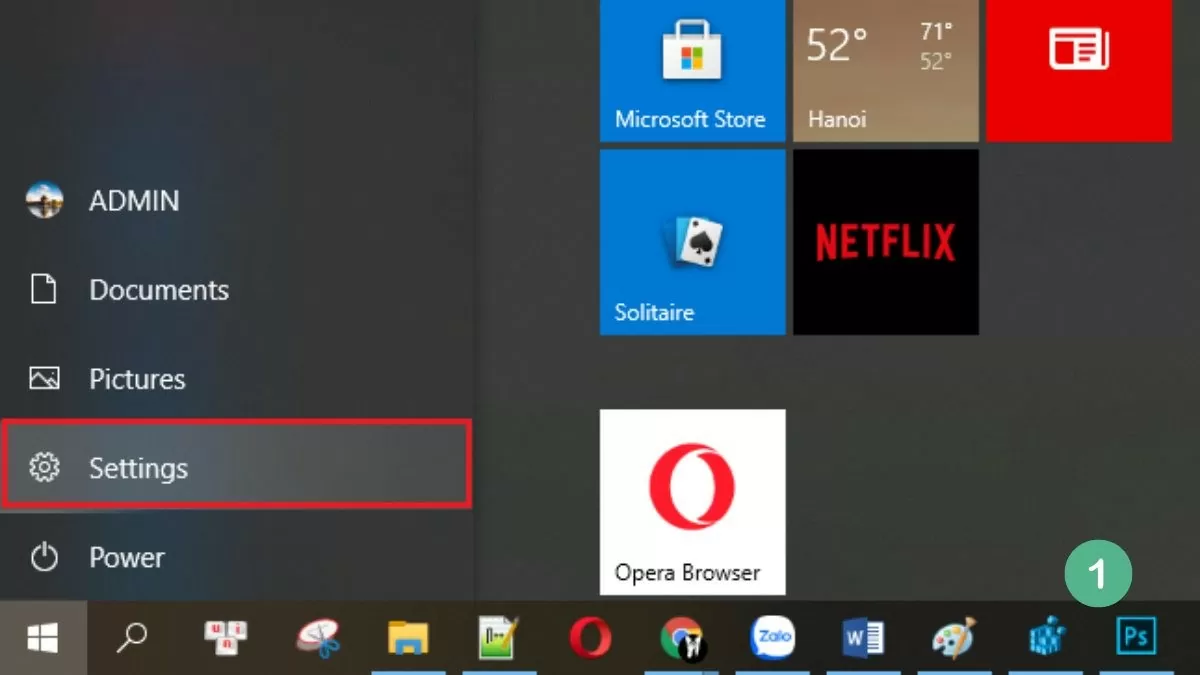
Step 1 : Open Settings on your computer.
 |
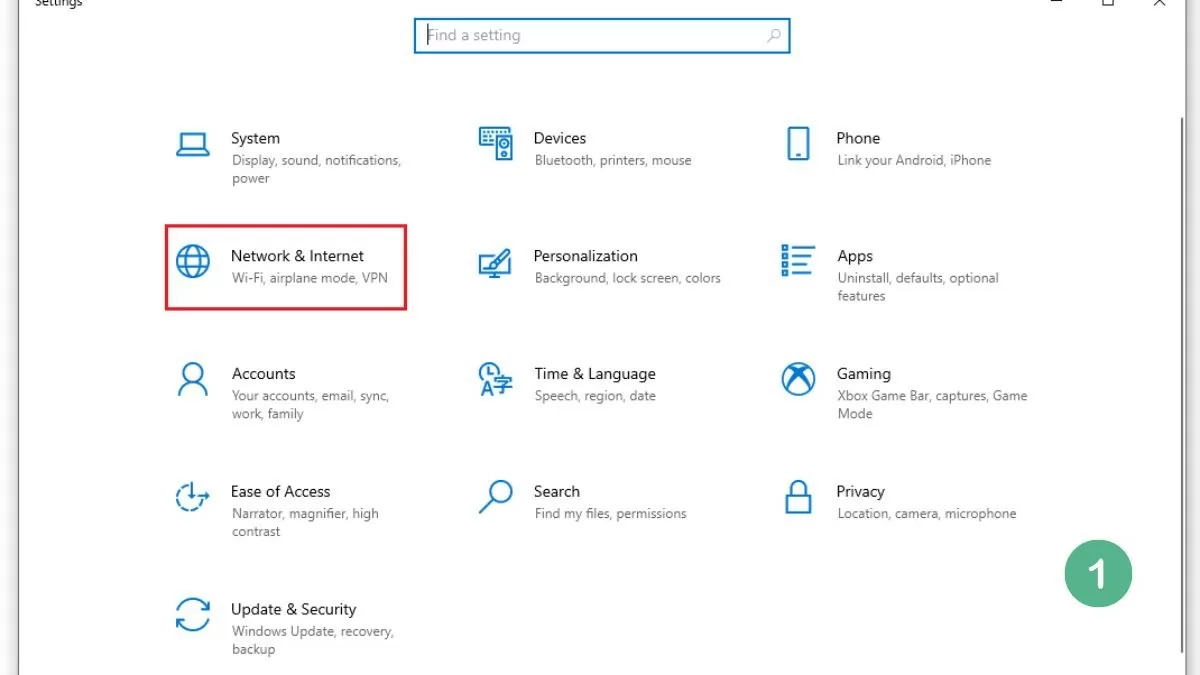
Step 2 : Select Networks & Internet when the results appear.
 |
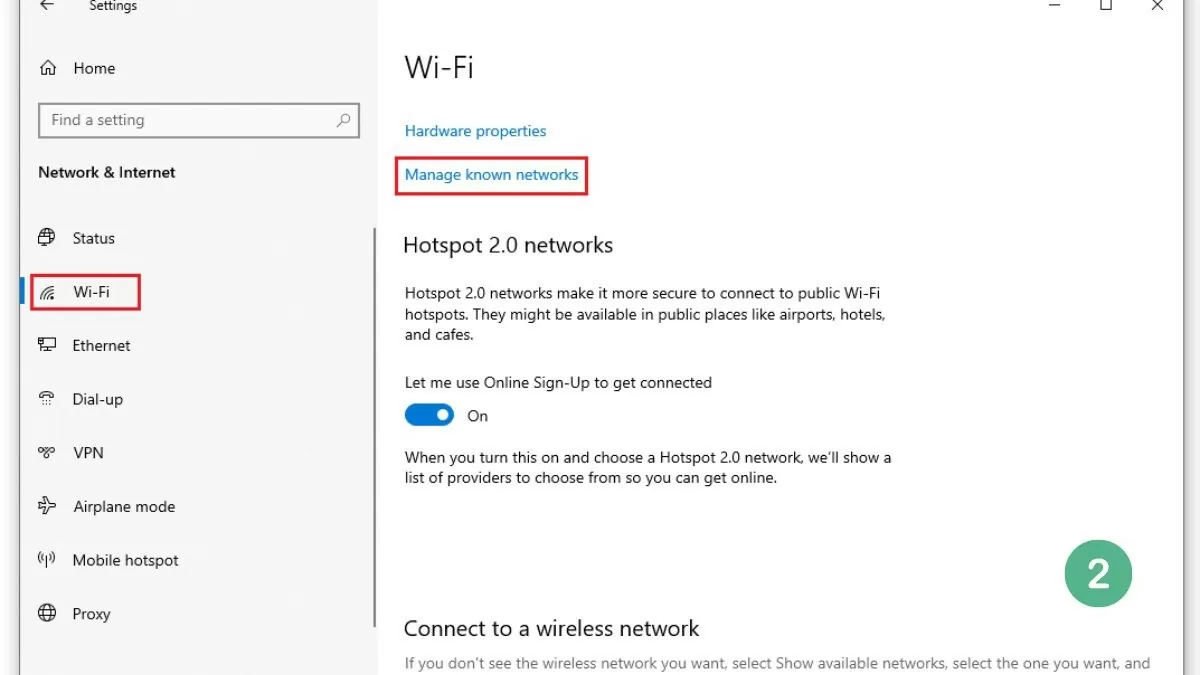
Step 3 : Go to the Wi-Fi section and select Manage known networks.
 |
Step 4 : Find and enable the "Set as metered connection" option.
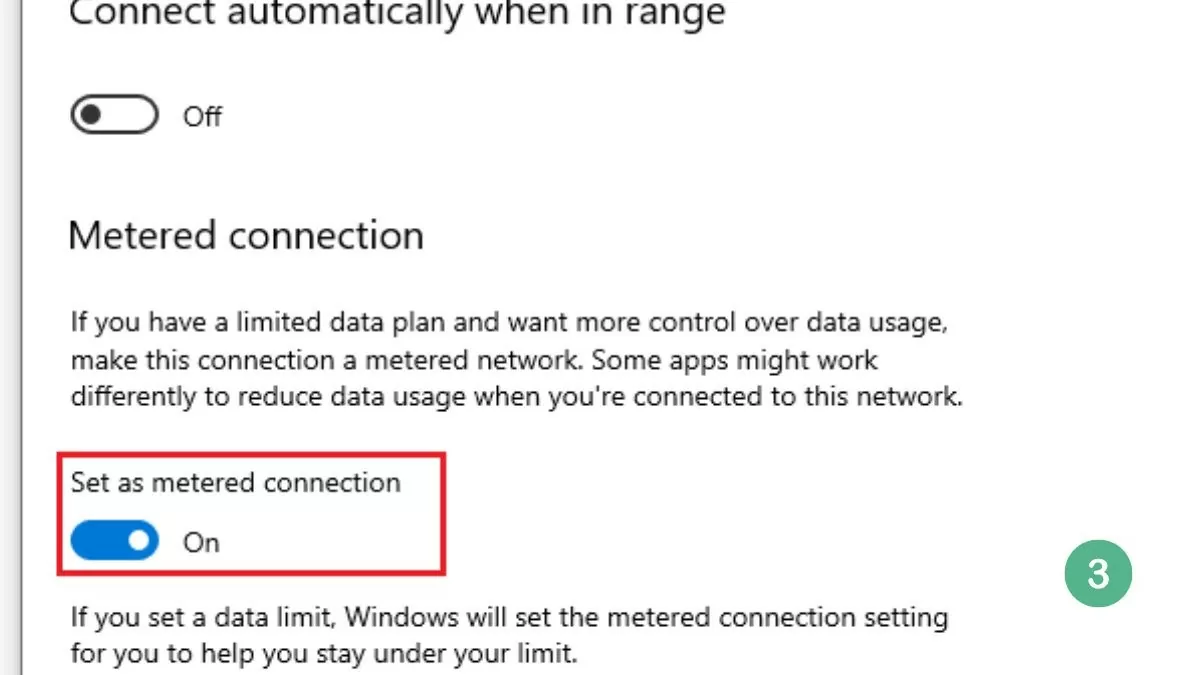 |
This helps limit automatic update downloads when using a Wi-Fi network, while still allowing downloads of critical security updates.
Use the Show or Hide Updates software effectively.
Microsoft's Show or Hide Updates software is a useful solution for permanently disabling Windows 10 updates. It allows users to hide unwanted updates, preventing the system from automatically installing them.
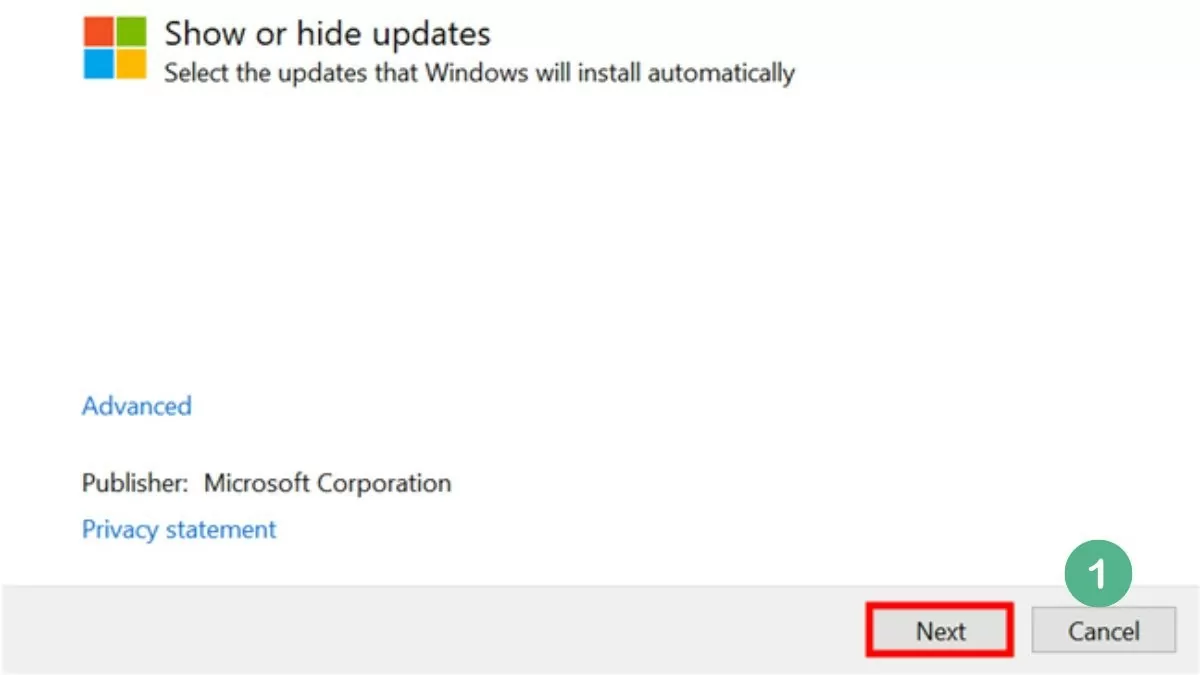
Step 1 : Download and install the Show or Hide Updates software from the Microsoft website, then click Next.
 |
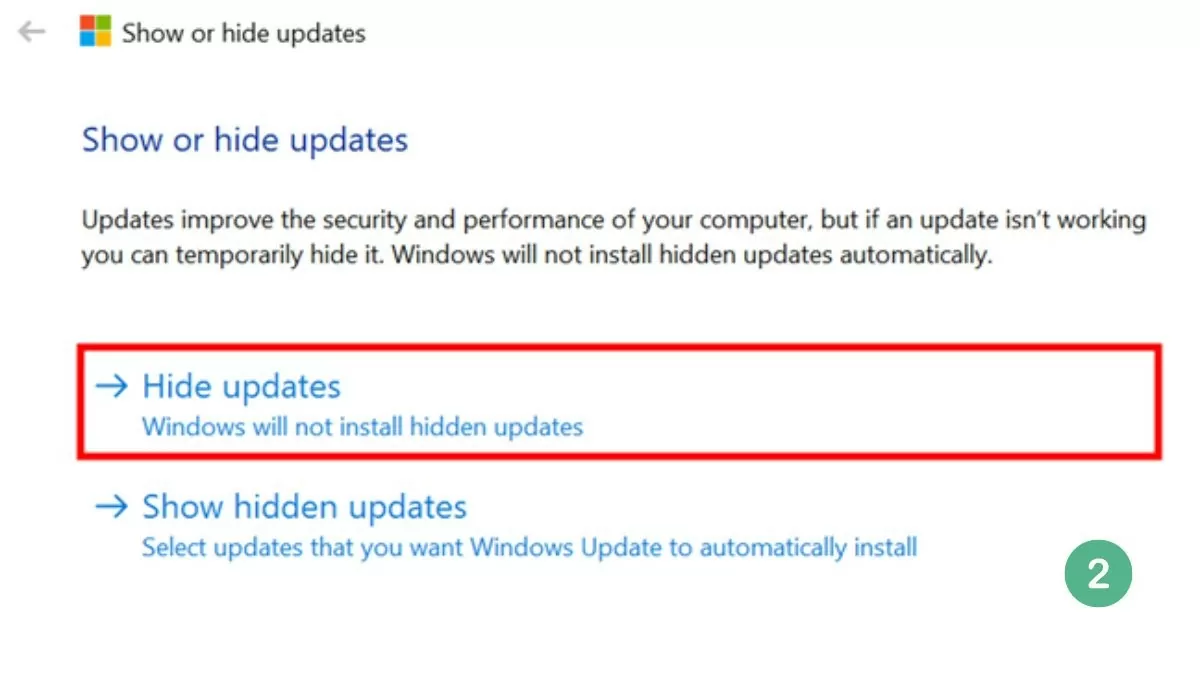
Step 2 : Select "Hide update" and you will see a list of available updates.
 |
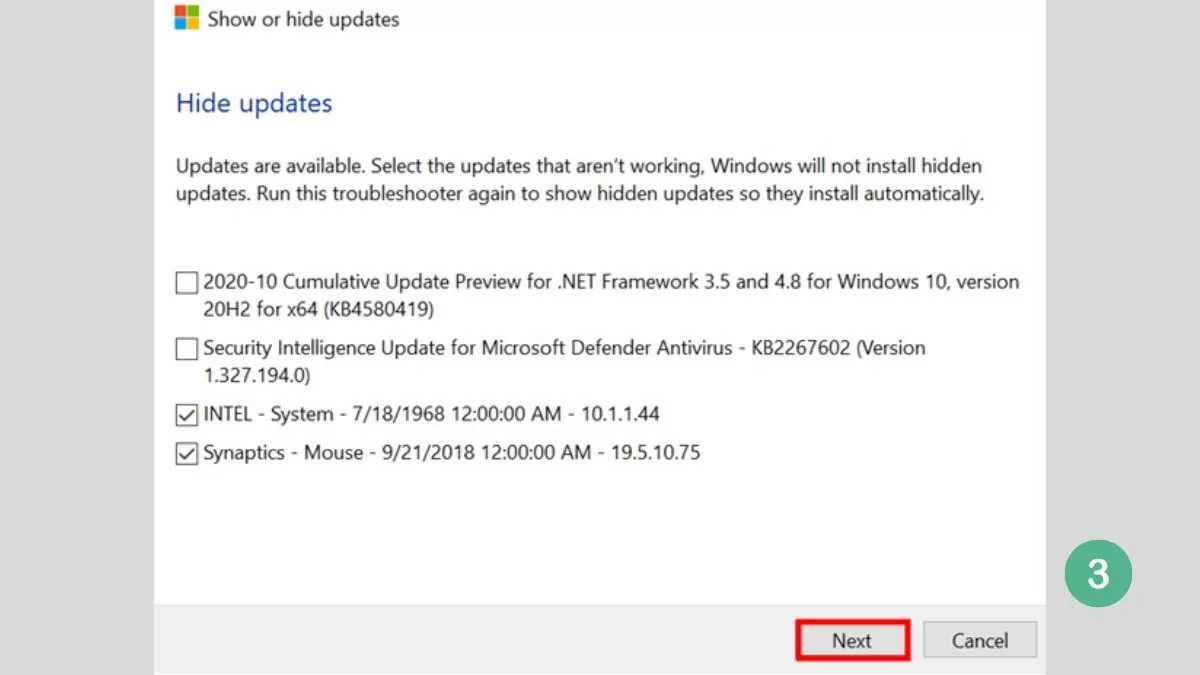
Step 3 : Select the update you want to hide, and Windows will not automatically install it. Then, click "Next".
 |
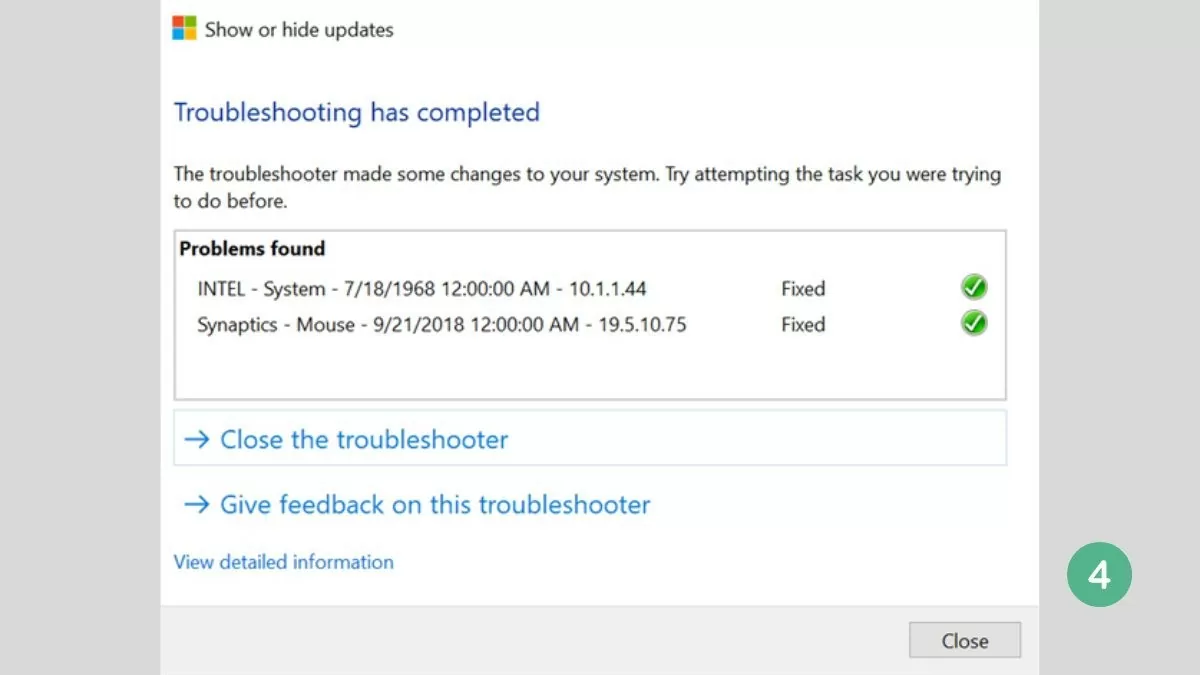
Step 4 : When the process is complete, the system will display a success message as shown below.
 |
Through this article, you have learned tricks to permanently disable Windows Update on Windows 10 using software, stopping unwanted automatic updates. This will help your computer run smoothly without interruption. Apply this method to disable automatic Windows Updates immediately to avoid unnecessary problems when using your computer.
Source






































































































Comment (0)