

The Favorites bar on your Samsung phone gives you quick access to frequently used apps without wasting time searching. If you want to add more apps to this area, check out the following guide on how to add multiple apps to the Favorites bar on Samsung.
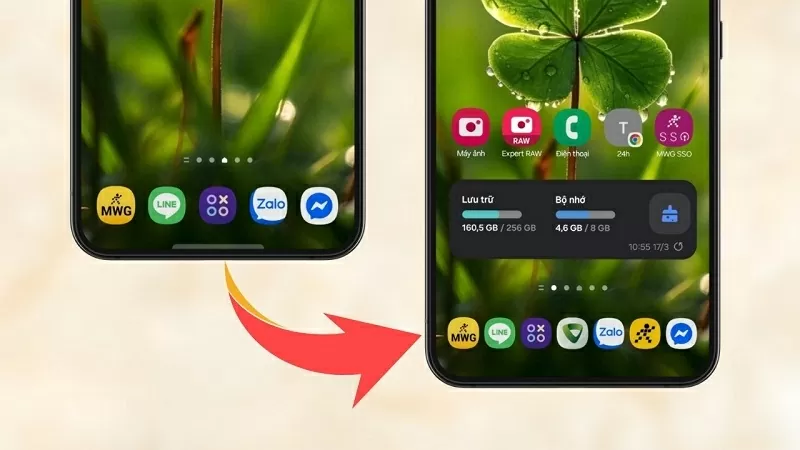 |
| How to add apps to the favorites bar on Samsung. |
Adding more apps to your favorites bar on Samsung makes it more convenient to use. Below are the detailed steps to add apps to your favorites bar on Samsung; let's get started.
Step 1: Open the Good Lock app on your Samsung phone and confirm the terms of use to continue.
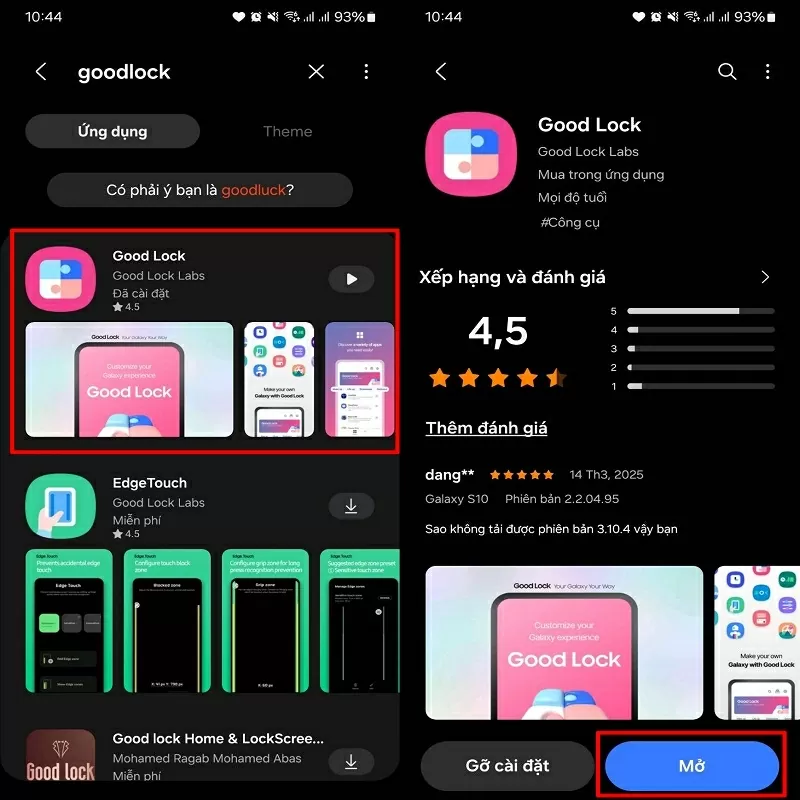 |
| Open the Good Lock app. |
Step 2: Next, scroll down and find HomeUp. Click on it to download and install. Once the installation is complete, click Start to activate HomeUp.
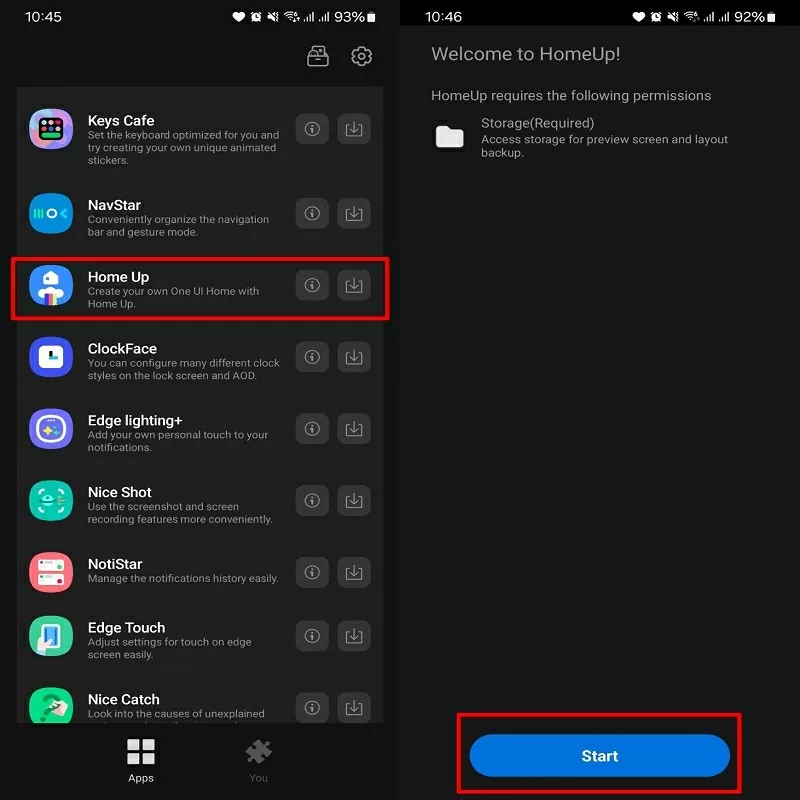 |
| Press Start to activate HomeUp |
Step 3: Now, toggle the HomeUp switch to activate the feature. Then, select Home Screen to customize the home screen interface.
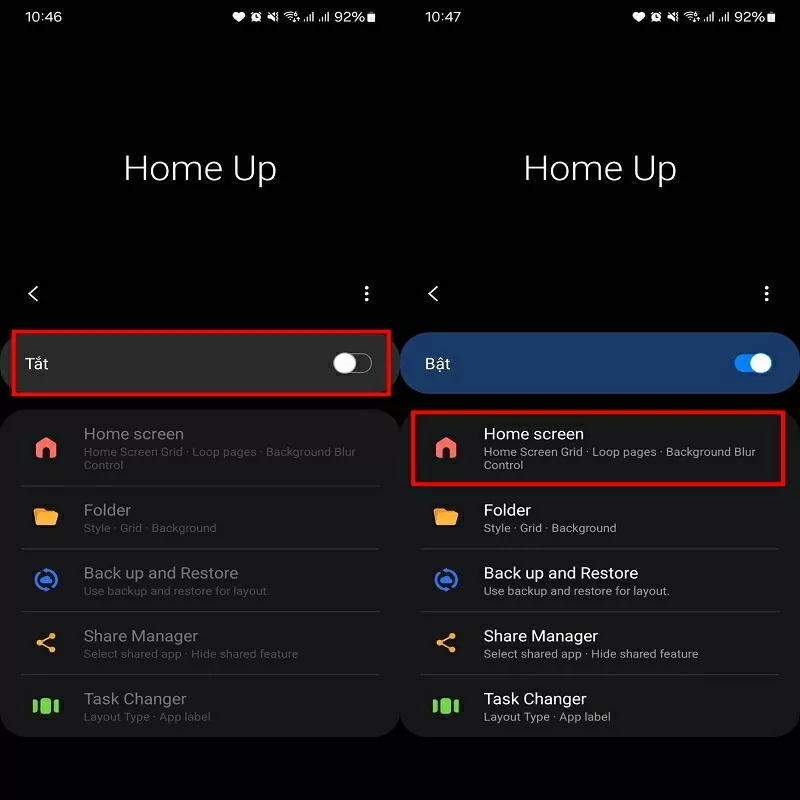 |
| Select the Home Screen option to customize the home screen interface. |
Step 4: Find the Favorites Max Count section and adjust the maximum number of favorite apps to 9 to add more app storage space to the favorites bar.
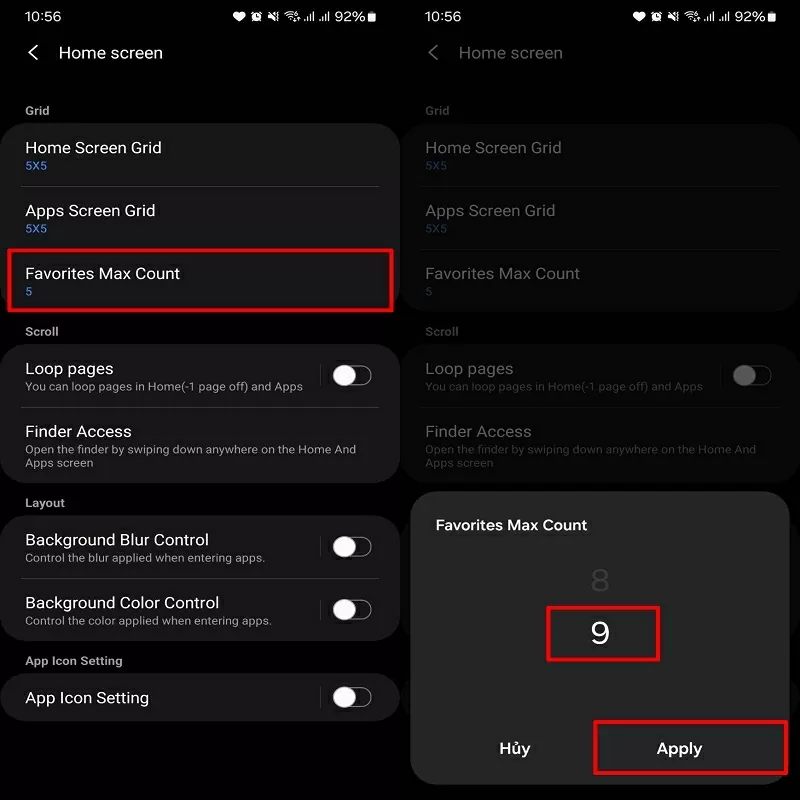 |
| Adjust the maximum number of favorite apps to 9. |
After completing the steps above, your Samsung's favorites bar will display more apps, making access more convenient. Thank you for watching.
Source





![[Image] A brilliant symphony and explosive power in the skies of Da Nang.](https://vphoto.vietnam.vn/thumb/1200x675/vietnam/resource/IMAGE/2026/05/31/1780196945787_anh-man-hinh-2026-05-31-luc-10-08-51.png)








![[Video] Sunset at Lap An Lagoon – Where the sun sets over the fishing nets](https://vphoto.vietnam.vn/thumb/340x192/vietnam/resource/IMAGE/2026/05/31/1780192137701_beach-landscape-sea-water-nature-grass-745871-pxhere-com.jpeg)














































































Comment (0)