

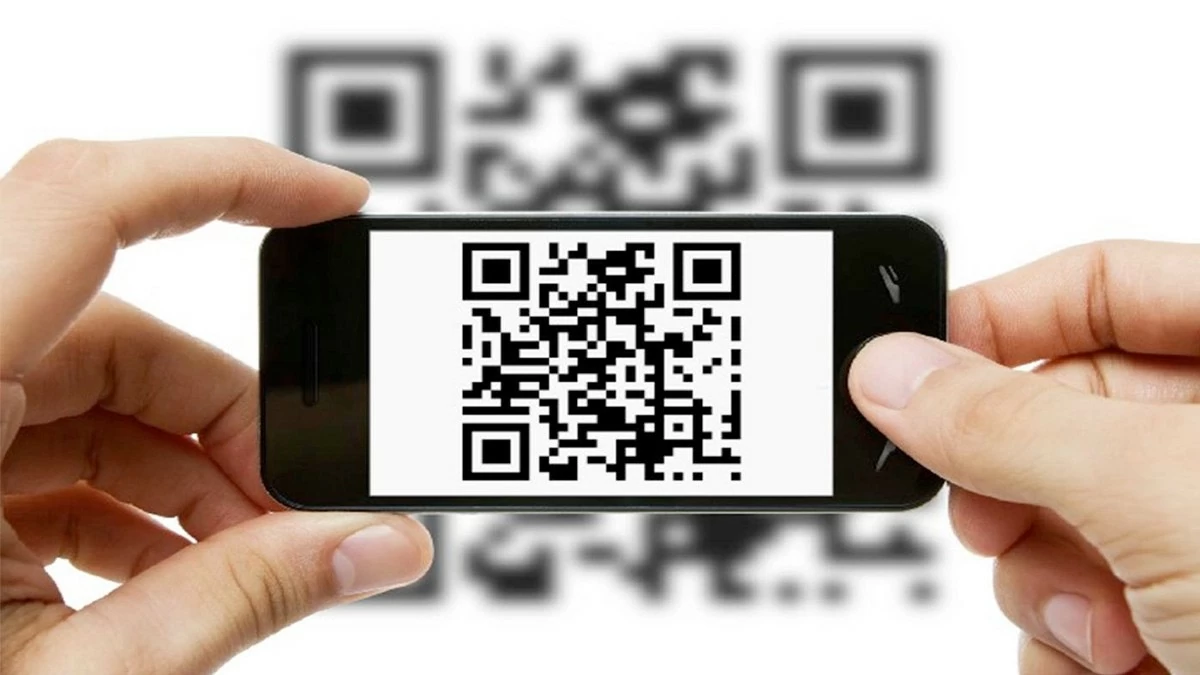
Knowing how to create QR codes for documents is a great way to share important data professionally and conveniently. This article will guide you on how to create QR codes!
 |
Create QR codes for documents online quickly with myqrcode.com.
Creating QR codes for documents is easy with the online tool myqrcode.com. In just a few simple steps, you can create professional-looking codes without needing to download complex software. This website has a user-friendly interface, supports various document formats such as PDF and Word, and even provides direct links to websites. You can also customize colors and add logos to your liking. Here's how to create a QR code for your document using myqrcode.com:
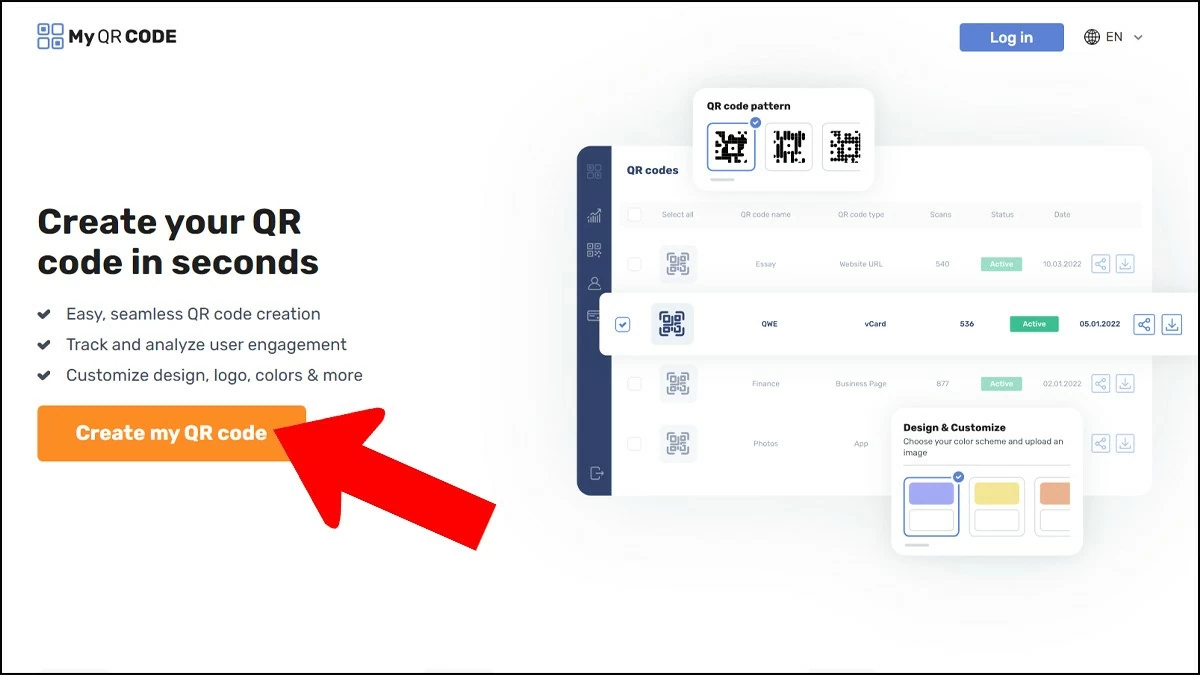
Step 1: First, go to Myqrcode.com and select the appropriate QR code type. On the main interface, click "Create my QR code."
Here, you can choose the type of code that suits your needs, from URLs and text to PDF documents. Choosing the right code type will help you scan and access documents quickly and accurately. After making your selection, simply follow the easy steps to complete creating a QR code for your document.
 |
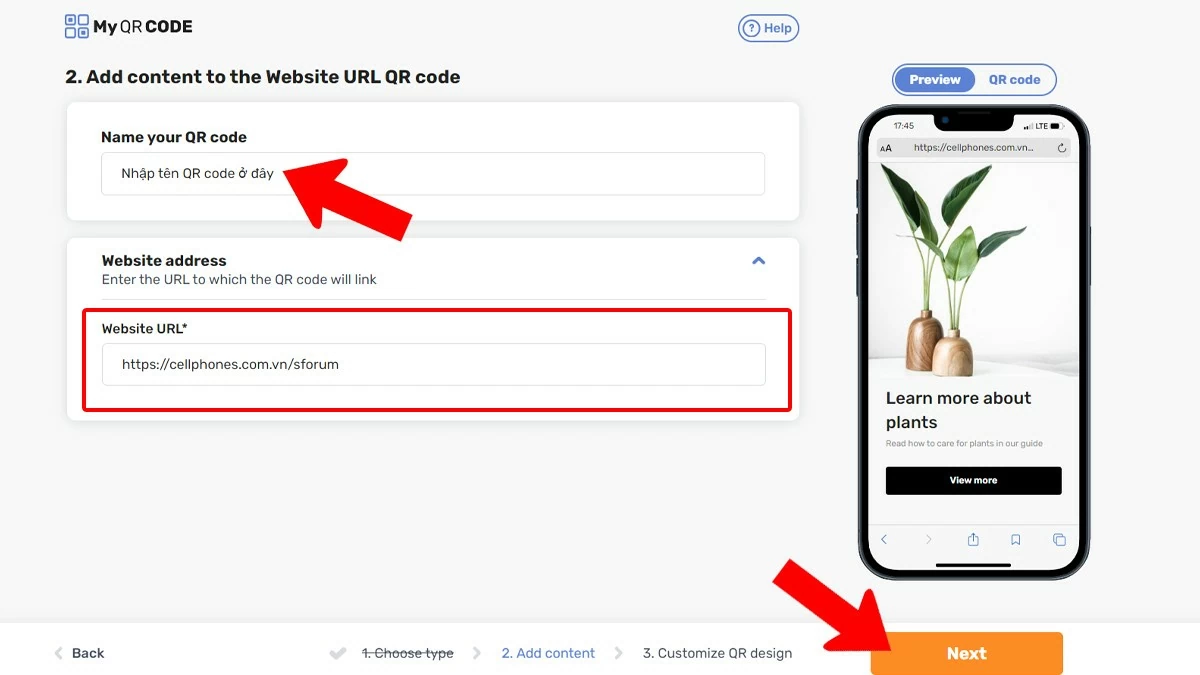
Step 2: Upload the data to be converted and enter the information.
To create a QR code for a document, the first step is to upload the type of data you want to convert. You can choose from formats such as PDF, images, or website links, depending on your needs.
In the "Name your QR code" section, enter the name you want, then press "Next." Next, you can upload data from your computer or paste the link you want to generate the code for into the blank field.
 |
Step 3: Design the code style according to your preference.
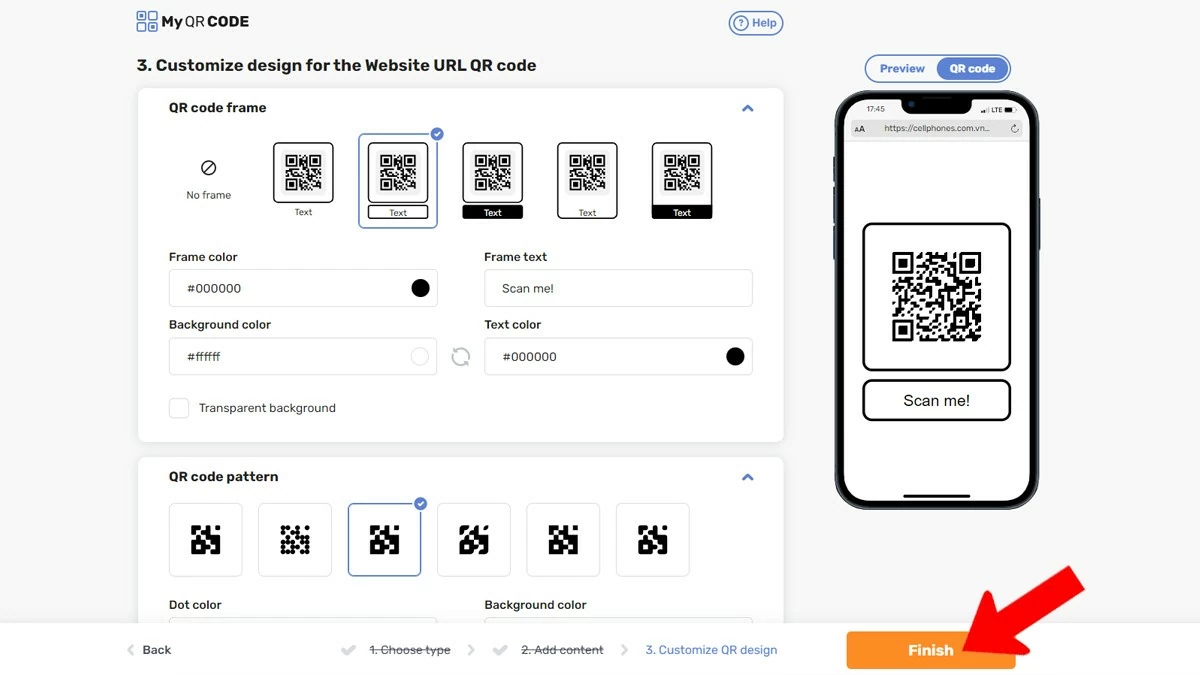
After entering the information and selecting the QR code type on myqrcode.com, the next step is to design the code to your liking. In the design interface, you can adjust many elements to create a unique and attractive code, including:
- Choose colors: Enhance the appeal of your code by selecting colors that align with your brand or personal style.
- Add a logo: Integrate your company logo or personal emblem to enhance brand recognition.
- Choose a shape: Select from a variety of shapes to make your QR code unique.
- Preview: Before finalizing, preview the design to ensure it meets your requirements.
 |
Step 4: Next, download the document code and use it.
Once you have completed the steps above, click the "Finish" button to have the system generate a QR code for you. The code will be generated immediately, and you can download it as an image (PNG, JPEG) or SVG. This code can then be printed in a document, sent via email, or shared on online platforms quickly and easily.
Instructions on how to easily create QR codes for documents online using me-qr.com.
With me-qr.com, creating QR codes for various documents is simpler and more convenient than ever. In just a few basic steps, you can create beautiful and professional QR codes to integrate into your documents. This article will guide you in detail on how to use me-qr.com to create QR codes, making it easy to share information and enhance the user experience.
To create QR codes conveniently for work and study, owning a laptop is absolutely essential.
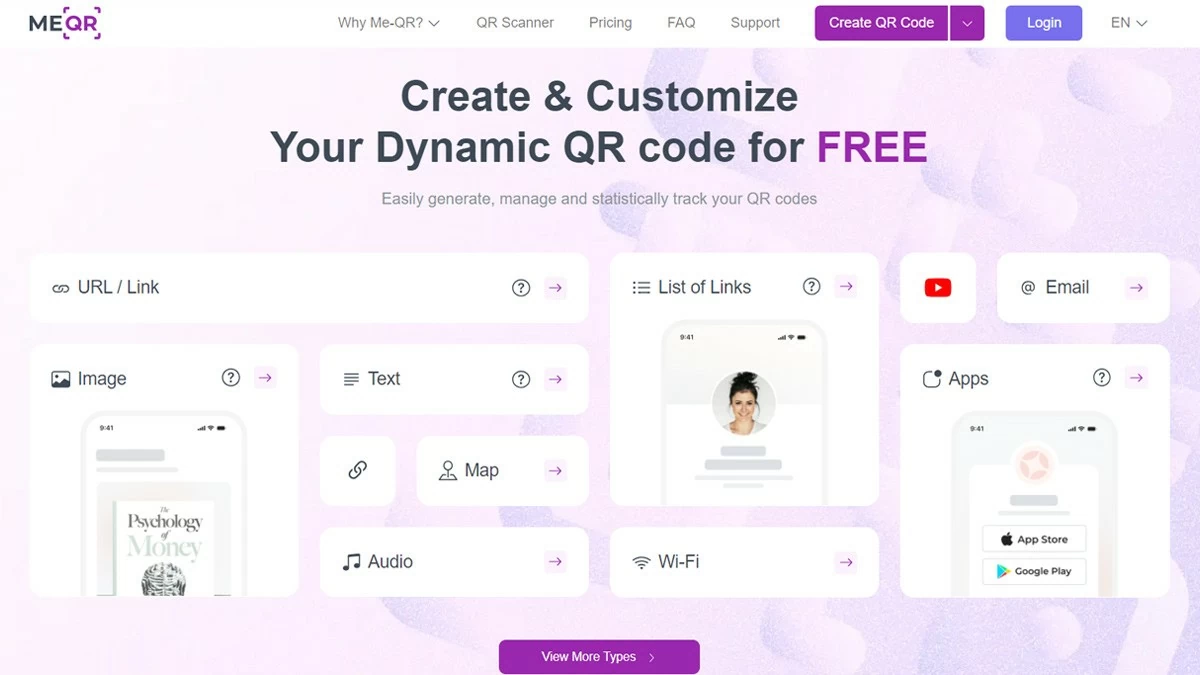
Step 1: Choose the appropriate QR code type.
Creating QR codes for documents is very simple with me-qr.com. First, identify and choose the type of QR code that best suits your needs. The website offers many options, including URL, text, email, phone number, address, and many others. Choosing the right format will help ensure your information is conveyed accurately and effectively.
 |
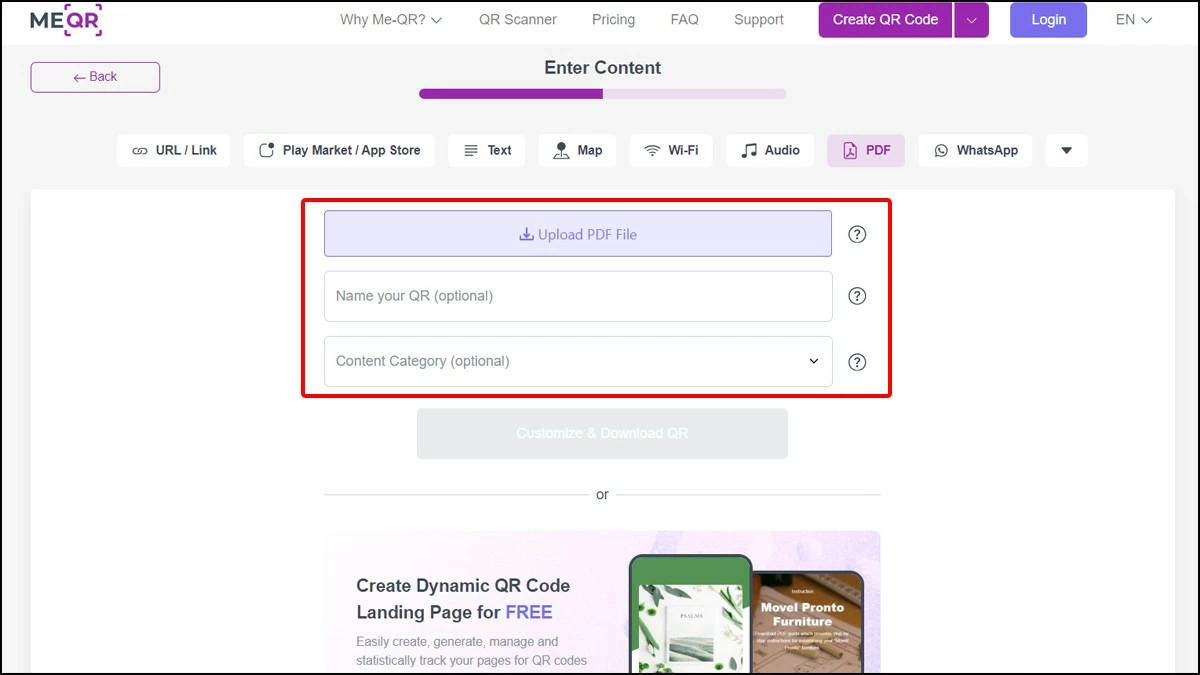
Step 2: Select the type of data you need to create an online QR code from.
In step 2 of the QR code creation process on me-qr.com, you will select the type of data you want to convert into a QR code. The website supports many different formats, including URLs, text, PDF documents, images, and many others. To create a QR code for a PDF or Word document, simply select the "Text" or "PDF" option and upload the file.
 |
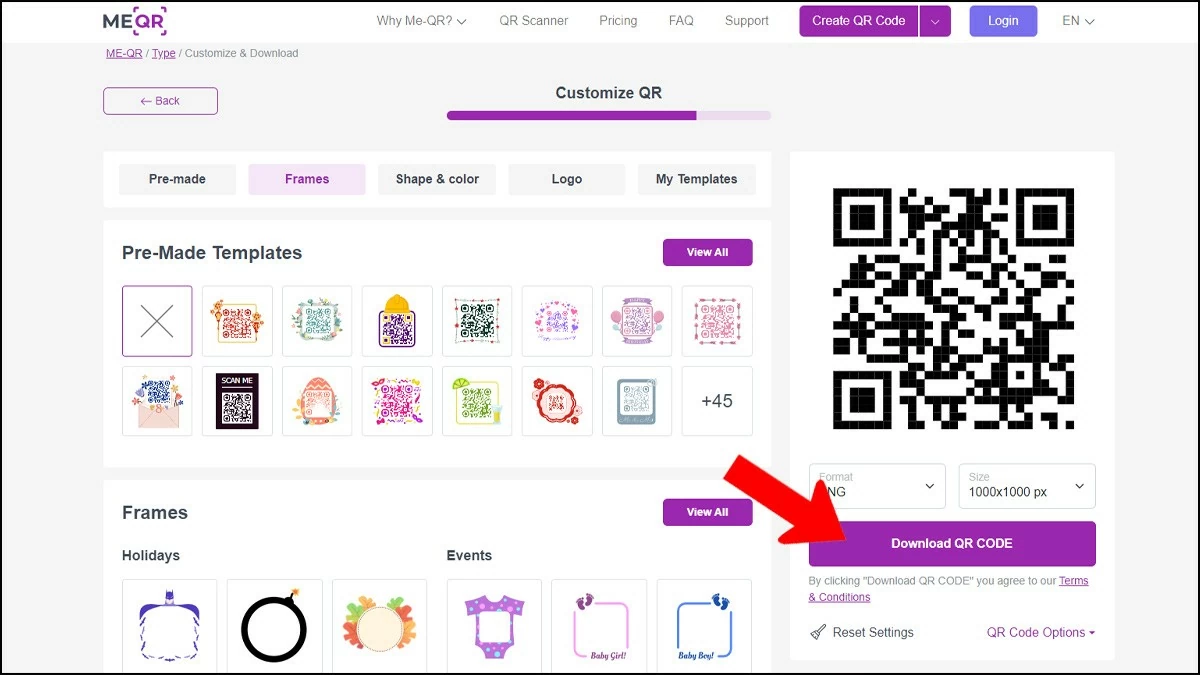
Step 3: Customize the QR code to your liking and download it.
Once you've entered the necessary document content or links, you can customize the QR code to your liking by changing the colors, adding a logo, or choosing different styles. This feature not only enhances brand recognition but also adds a professional touch to your document. After completing the customizations, simply click the "Download QR CODE" button to save the generated code to your computer, ready for work or personal use.
 |
Instructions on how to create QR codes for links and documents using QR-Tiger
QR-Tiger is a convenient online tool that helps you quickly create QR codes for Word documents, PDFs, or links. With a user-friendly interface, Vietnamese language support, and a wealth of features, users only need a few simple steps to create a QR code. In addition to the ability to customize codes to your liking, QR-Tiger also offers many advanced options to suit individual and business needs, making information sharing easier.
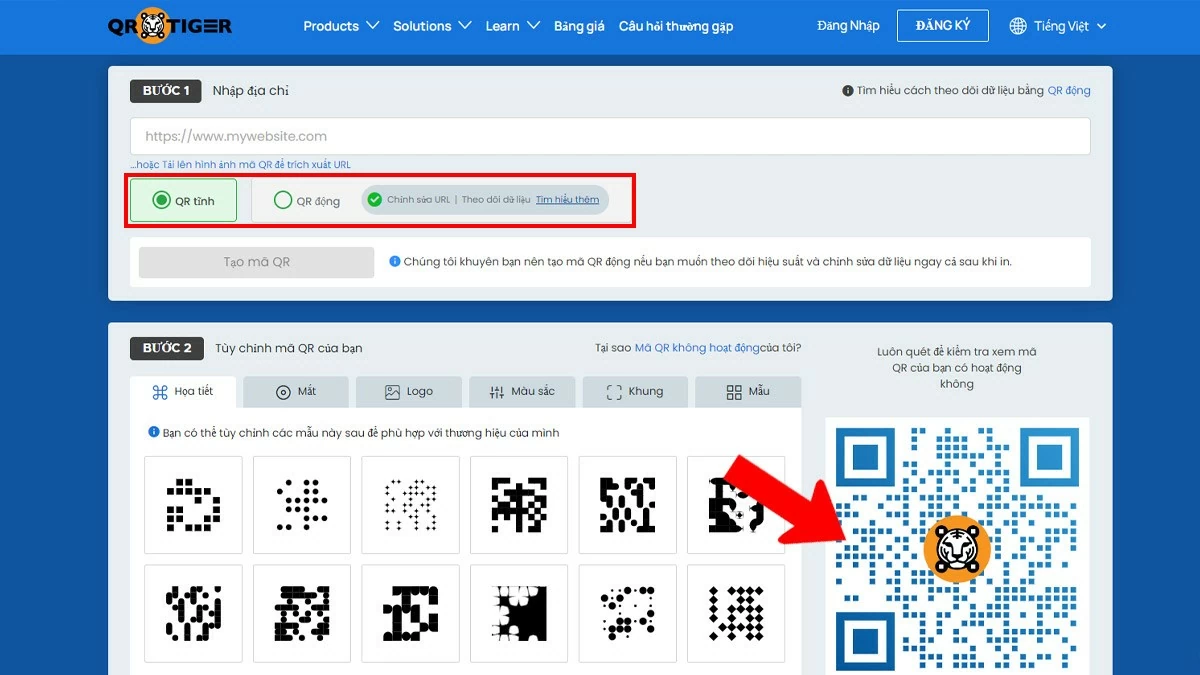
Step 1: Choose the appropriate QR code type.
The first step in creating a QR code is choosing the appropriate type. In the QR-Tiger interface, you can choose between static or dynamic QR codes. Static codes are typically used for fixed links, while dynamic codes allow you to edit the information after creation without changing the original code. This provides flexibility in updating content without affecting the shared QR code.
 |
Step 2: Create and customize the QR code
After selecting your desired QR code format on QR-Tiger, the next step is to create and customize the QR code to your needs. On the main interface, enter the link or document you want to convert. Then, you can customize the appearance of the QR code by choosing colors, styles, or adding a logo to match your brand. This not only makes the QR code look more professional but also easier to recognize.
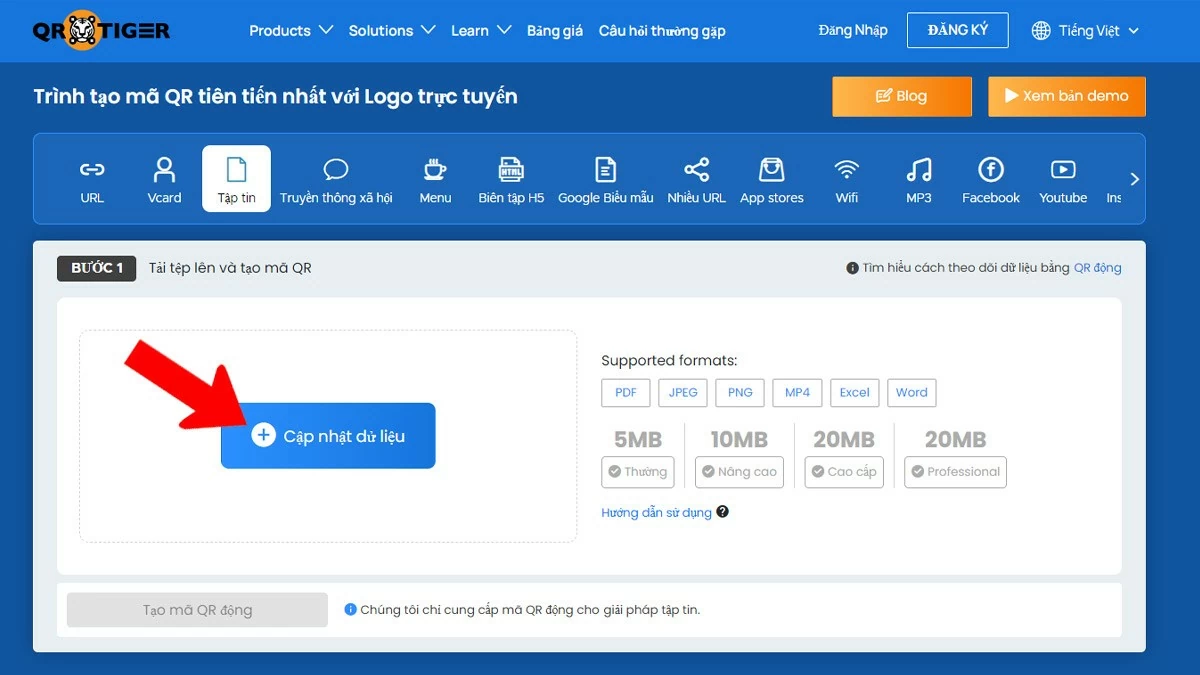 |
Step 3: Check and download
Once you've finished creating the QR code for your document on QR-Tiger, the next step is to check and download the QR code for use. Make sure the code leads to the correct link or document you want to share by scanning it with your phone. If the code works correctly, you can download it in common formats such as PNG, JPG, or SVG. Checking and downloading the QR code from QR-Tiger ensures its accuracy and professionalism before using it for personal or professional purposes.
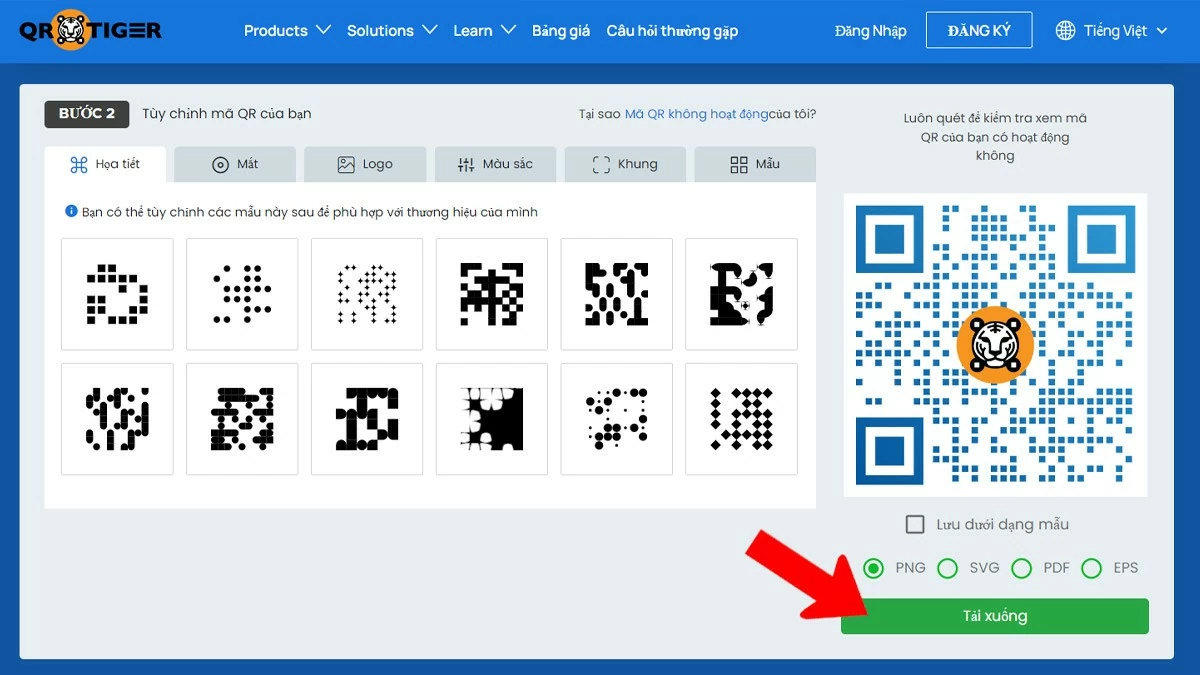 |
Creating QR codes for documents not only simplifies information sharing but also offers many practical benefits. With the methods described, you can create unique and professional QR codes for various documents such as Word and PDF files, allowing users to quickly access the content you want to share.
Source

![[Photo] Prime Minister Pham Minh Chinh presides over the conference announcing the establishment of the International Finance Centre in Vietnam.](/_next/image?url=https%3A%2F%2Fvphoto.vietnam.vn%2Fthumb%2F1200x675%2Fvietnam%2Fresource%2FIMAGE%2F2025%2F12%2F21%2F1766309817714_ndo_br_dsc-3400-jpg.webp&w=3840&q=75)


![[Photo] Prime Minister Pham Minh Chinh presides over a meeting on private sector economic development.](/_next/image?url=https%3A%2F%2Fvphoto.vietnam.vn%2Fthumb%2F1200x675%2Fvietnam%2Fresource%2FIMAGE%2F2025%2F12%2F20%2F1766237501876_thiet-ke-chua-co-ten-40-png.webp&w=3840&q=75)






























































































Comment (0)