

Adding text to photos on your iPhone helps liven up images and convey a message. Check out this article for detailed instructions on how to do it and choose the right tool!
 |
Adding text to photos on an iPhone is one of the most effective ways to convey a message and make images more lively. If you're unsure how to do it attractively and choose the right tools, check out this article from Sforum for a guide on how to easily add text to photos on your iPhone.
How to add text to photos on iPhone using the Photos app
Adding text to photos on your iPhone not only adds information and annotations but also makes the photo more lively and meaningful. Instead of using complicated apps, you can easily do this using the built-in Photos app. Below is a guide on how to add text to photos on your iPhone in just a few simple steps.
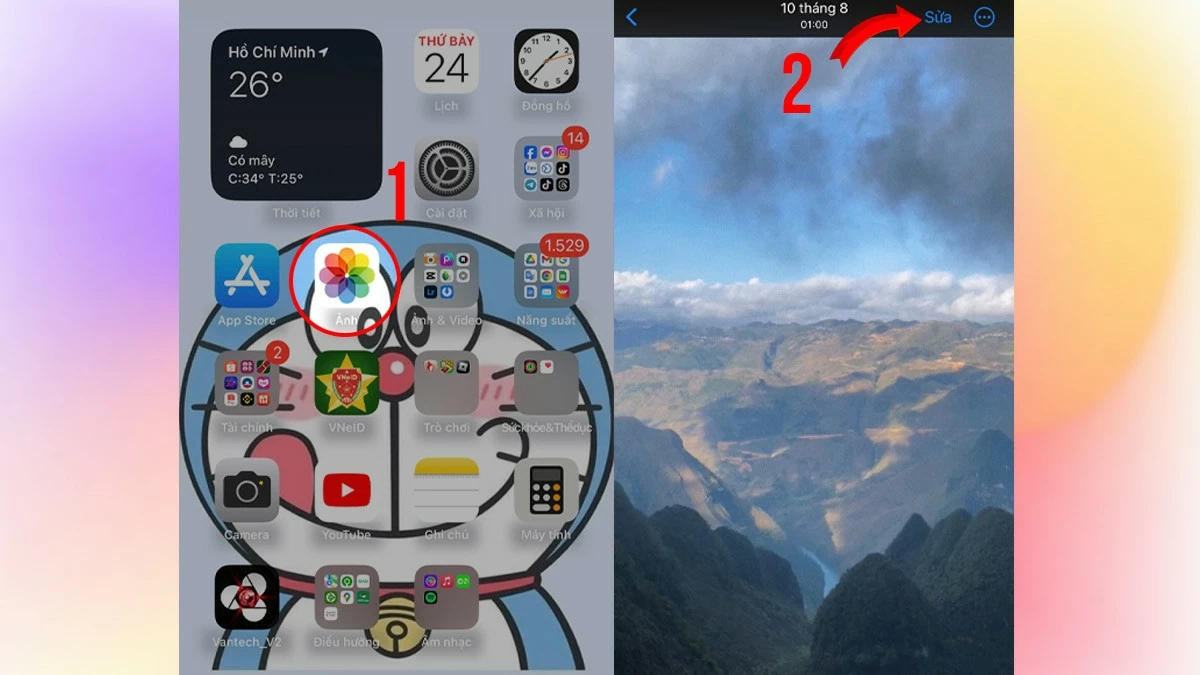
Step 1: Open the Photos app and select the image you want to add text to. Then, tap “Edit” in the upper right corner of the screen.
 |
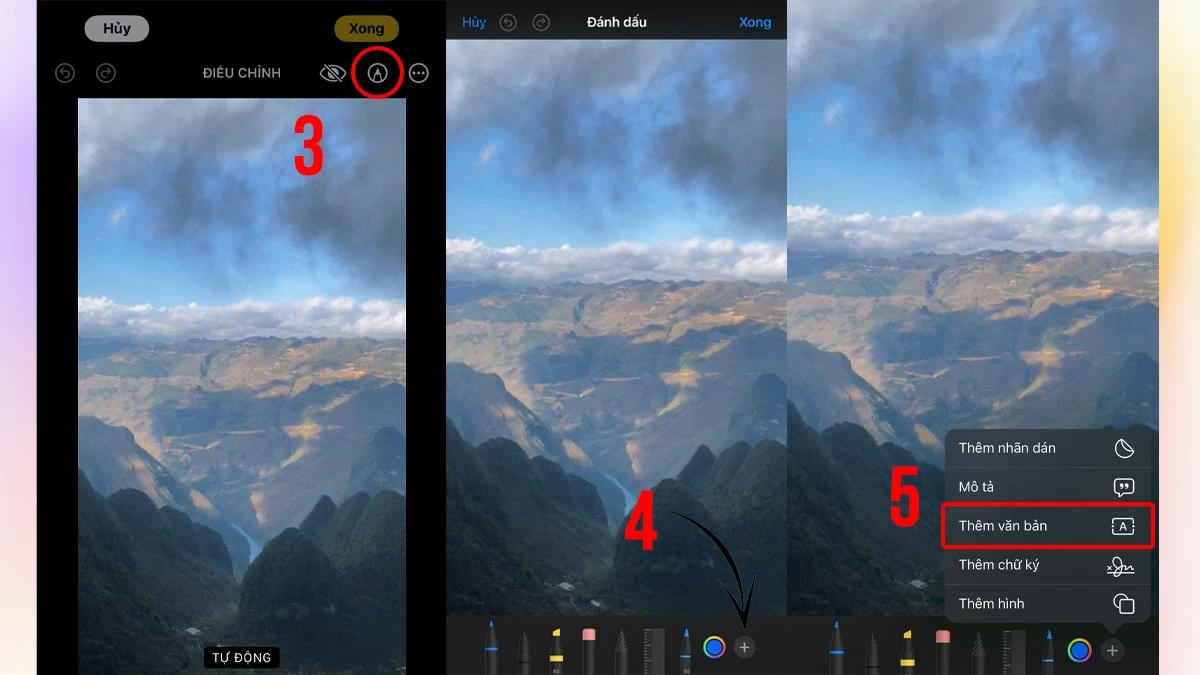
Step 2: Select the pen icon, then tap the plus sign in the bottom right corner of the screen. Next, select "Add text" to insert text into the photo on your iPhone.
 |
Step 3: Enter the text you want, then tap "Done" to complete adding text to your iPhone photo using the Photos app.
 |
Instructions on how to add text to photos on iPhone using third-party software.
Although iPhones have basic editing tools, using third-party apps like Canva offers more powerful features, helping you create beautiful and professional-looking photos. Below is a guide on how to add text to photos on iPhone using Canva, one of the most popular apps.
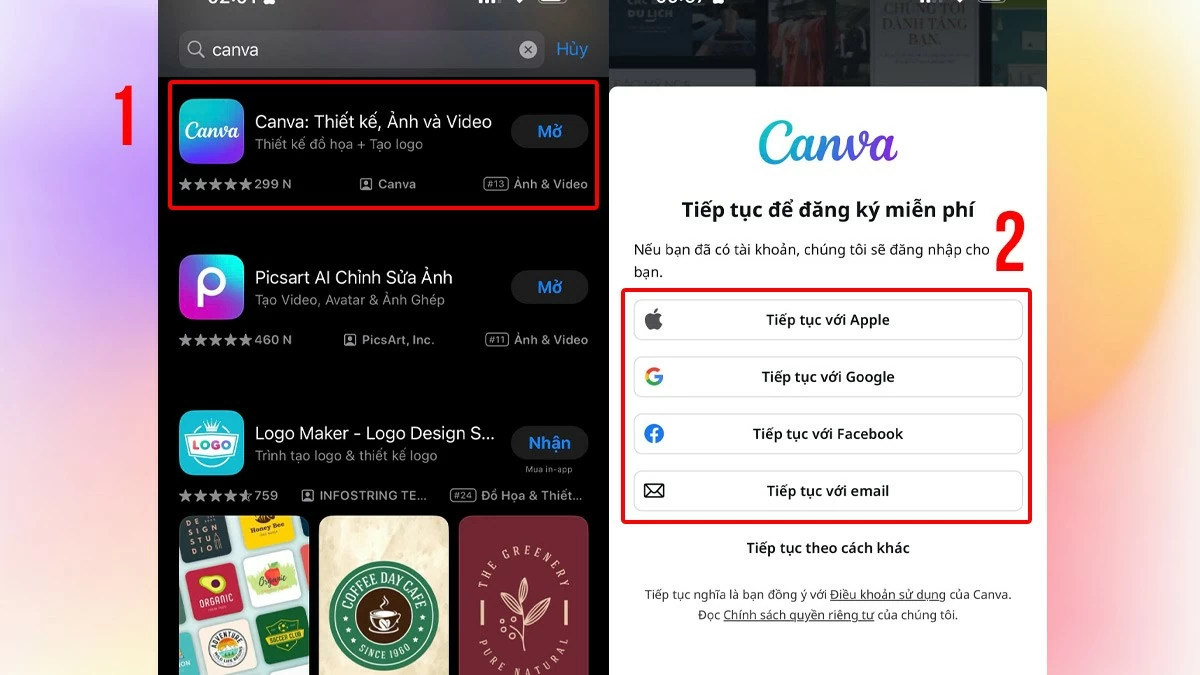
Step 1: Download the Canva app from the App Store, then open the app and log in with your account.
 |
Step 2: To continue adding text to your photos on your iPhone, tap the plus icon and select "Use your own photo" to begin.
 |
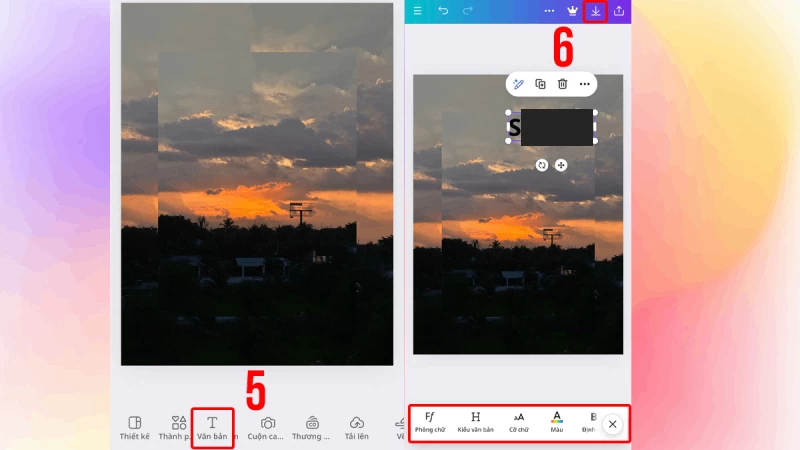
Step 3: Finally, select “Text” to add text to the image. You can customize the font, size, color, and position of the text to your liking. After you're finished, tap the save icon to save the image to your library. That's it! You've easily added text to your iPhone photos in just a few simple steps.
 |
How to add text to photos on iPhone using Instagram
Instagram is not only a popular platform for sharing photos and videos , but it also allows you to easily add text to photos on your iPhone. Here are the simple steps to do this:
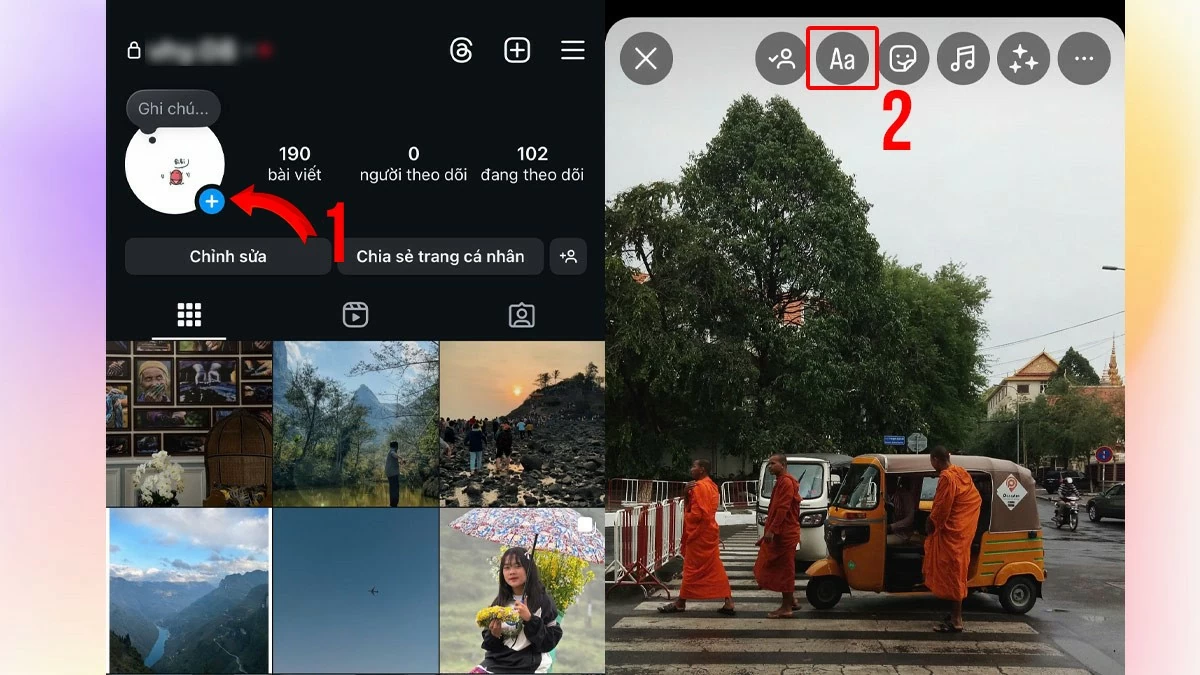
Step 1: Open Instagram on your phone, tap the plus icon below your avatar, and select the image you want to add text to. Then, tap the Aa (text) icon in the upper corner of the screen.
 |
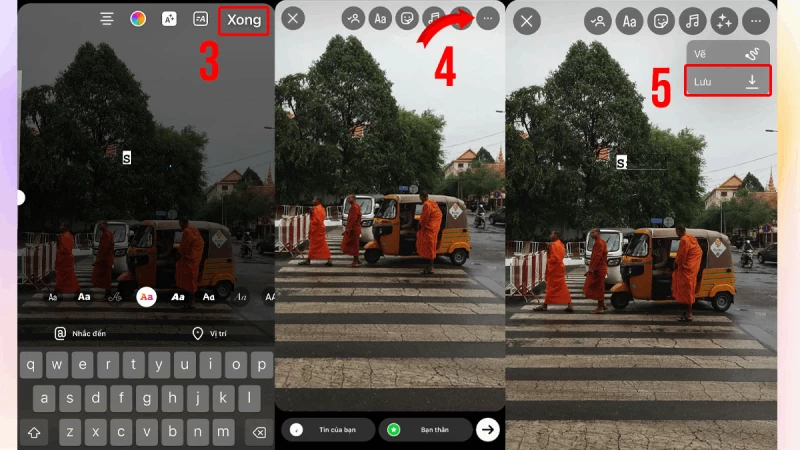
Step 2: After selecting the text tool, a keyboard will appear for you to enter your desired content. Once finished, press the "Done" button in the upper corner to insert text into the image. Finally, you can press the arrow icon to share the image to Instagram or the three-dot icon to save the image to your library.
 |
Instructions on how to add text to photos on iPhone using Facebook.
A simple way to add text to photos on your iPhone without needing complicated editing apps is to use Facebook, the familiar social media platform. Check out the instructions below to do this on your iPhone!
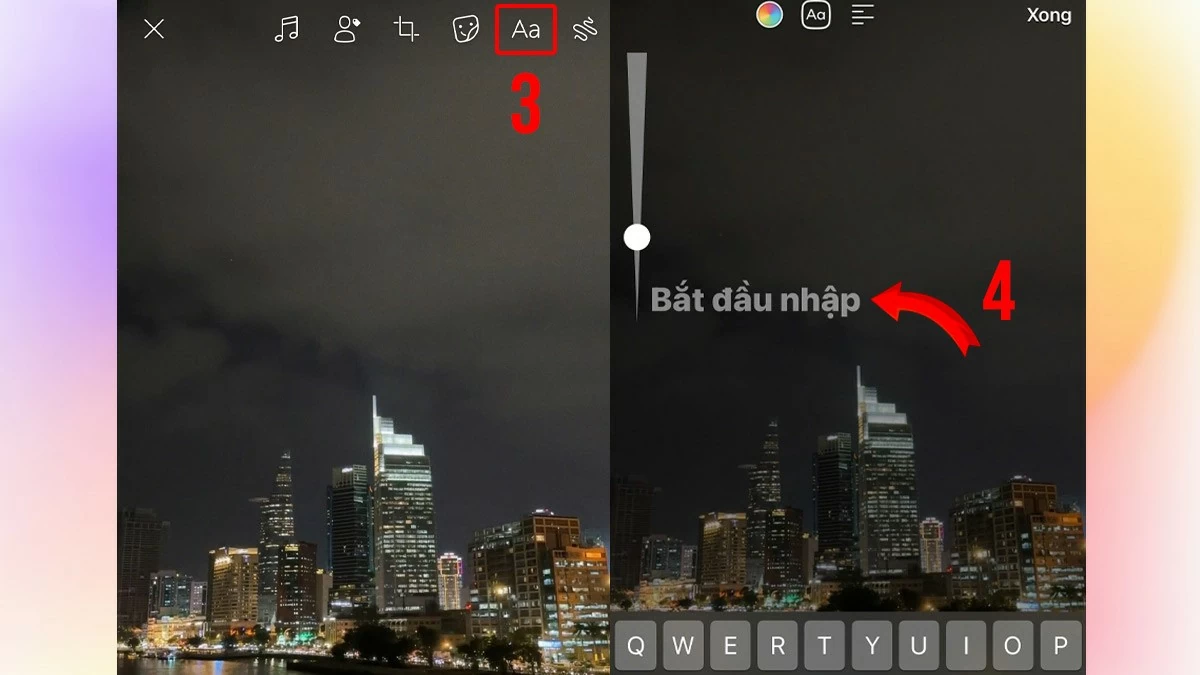
Step 1: Click on the photo icon on the Facebook homepage, then select the photo you want to add text to. Click "Edit" in the top left corner to begin the text insertion process.
 |
Step 2: Next, tap the Aa icon. A text box will appear on the image, allowing you to enter your desired content.
 |
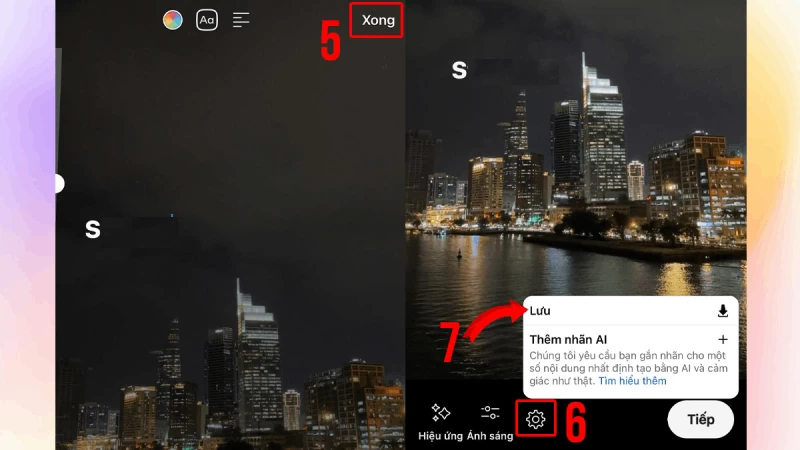
Step 3: Once you're satisfied with adding text to the image, tap "Done" to complete the editing. If you want to save the image to your device without posting it to Facebook, simply tap the Settings icon and select "Save" to finish.
 |
This article has guided you on how to easily add text to photos on your iPhone. Adding text to photos not only personalizes the image but also enhances the ability to convey a message clearly and impressively. With the simple steps guided, you can create unique and professional photos for yourself.
Source: https://baoquocte.vn/4-cach-chen-chu-vao-anh-tren-iphone-nhanh-chong-284503.html







































































































Comment (0)