

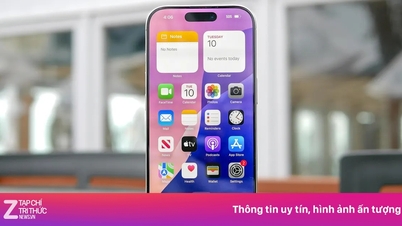
If your iPhone is malfunctioning, freezing, full of storage, or needs data erased for an upgrade, a factory reset is a good solution. Check out the following instructions on how to reset your iPhone!
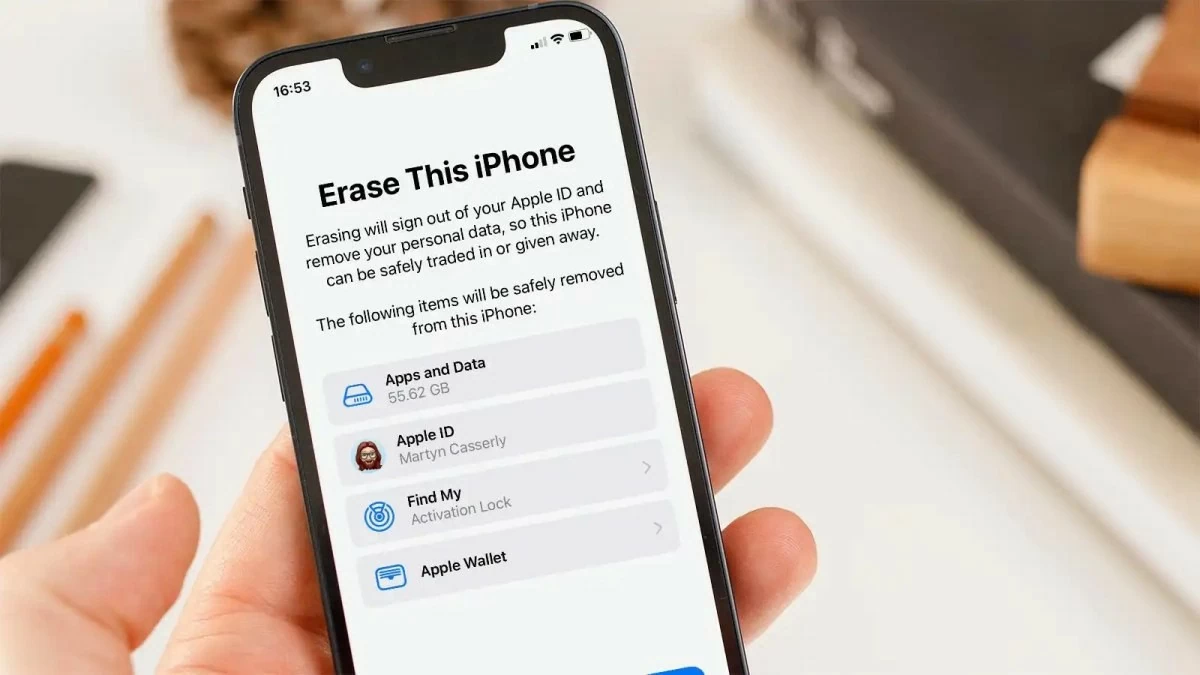 |
If your iPhone frequently experiences issues such as freezing, memory overload (especially with older iPhone models), or you want to erase data to upgrade to a new iPhone, a factory reset is an effective solution. Below is a guide on how to quickly and effectively reset your iPhone.
Instructions on how to restore factory settings and reset your iPhone.
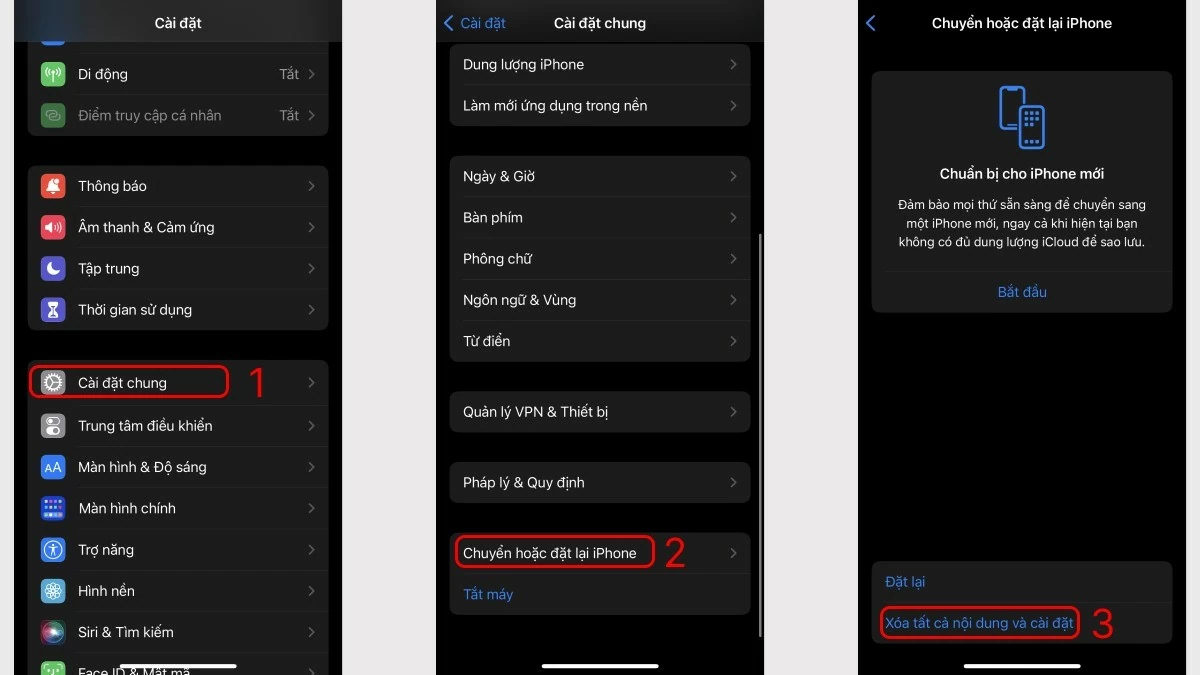
Resetting your iPhone directly on the phone is the most common method due to its convenience and speed. Below are the steps to reset your iPhone directly on the device:
Step 1: First, on your iPhone, open the Settings app.
Step 2: Scroll down and select General Settings.
Step 3: Select "Move or reset iPhone," then select "Erase all and reset." If you have a passcode set up, the system will prompt you to enter it.
Note: When you select "Erase all and reset," the system will delete all data and settings on your device. After performing this operation, you cannot recover the deleted data.
 |
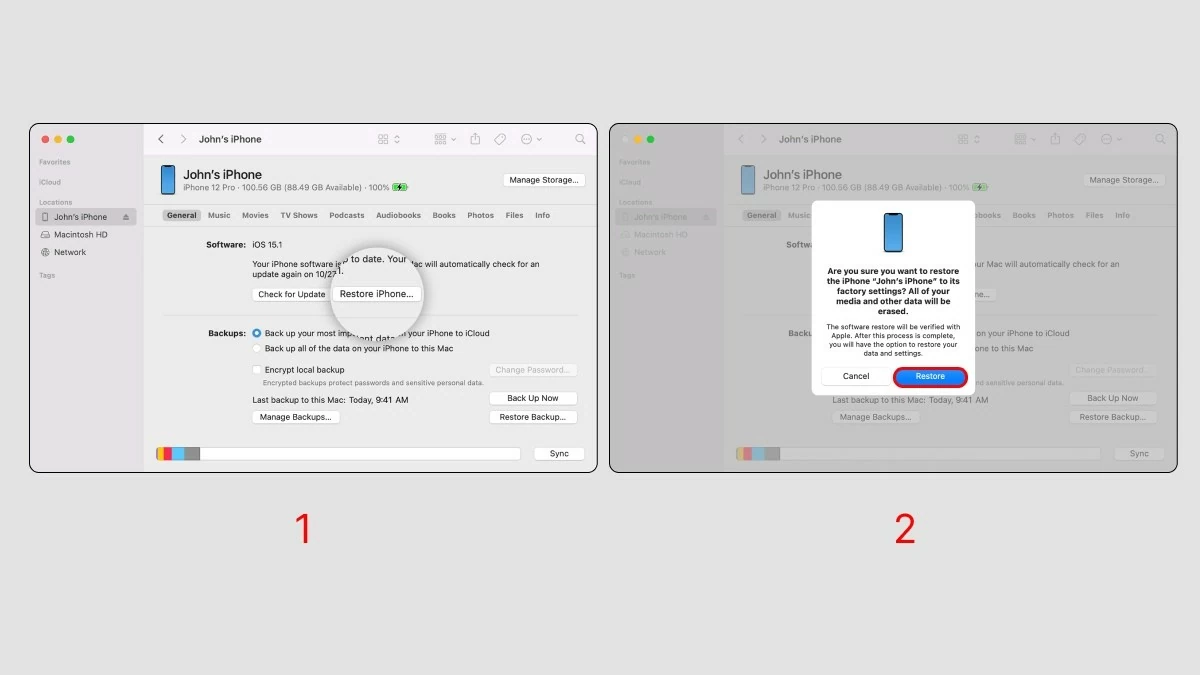
Instructions on how to restore factory settings and reset your iPhone on a computer.
Besides resetting your iPhone directly on the phone, you can also use iTunes software on your computer to do this. iTunes supports both macOS and Windows operating systems.
If your computer doesn't have iTunes installed, go to https://www.apple.com/itunes/ to download it. Below are the steps to restore factory settings through the iTunes application:
Step 1: Connect your iPhone to your computer or laptop using a Lightning cable. Depending on your computer's port, you can choose a Type C to Lightning or USB to Lightning cable.
Step 2: After successfully connecting, open the iTunes app and select "Restore iPhone" in the upper right corner of the screen.
Step 3: A dialog box will appear; select "Restore and Update".
Step 4: Select "Continue" to skip this section, then click "Agree".
 |
This article has introduced the iPhone's factory reset features, provided instructions on how to quickly reset it, and answered some frequently asked questions. If you need to reset your iPhone, try this method for best results. Don't forget to share this information with your friends and family who use iPhones so everyone can learn how to reset and restore factory settings!
Source: https://baoquocte.vn/cach-reset-va-khoi-phuc-cai-dat-goc-cho-iphone-284838.html
![[Photo] General Secretary and President To Lam receives Amazon's Senior Vice President David Zapolsky](https://vphoto.vietnam.vn/thumb/1200x675/vietnam/resource/IMAGE/2026/05/22/1779466547770_a1-bnd-3513-6601-jpg.webp)






























































































Comment (0)