

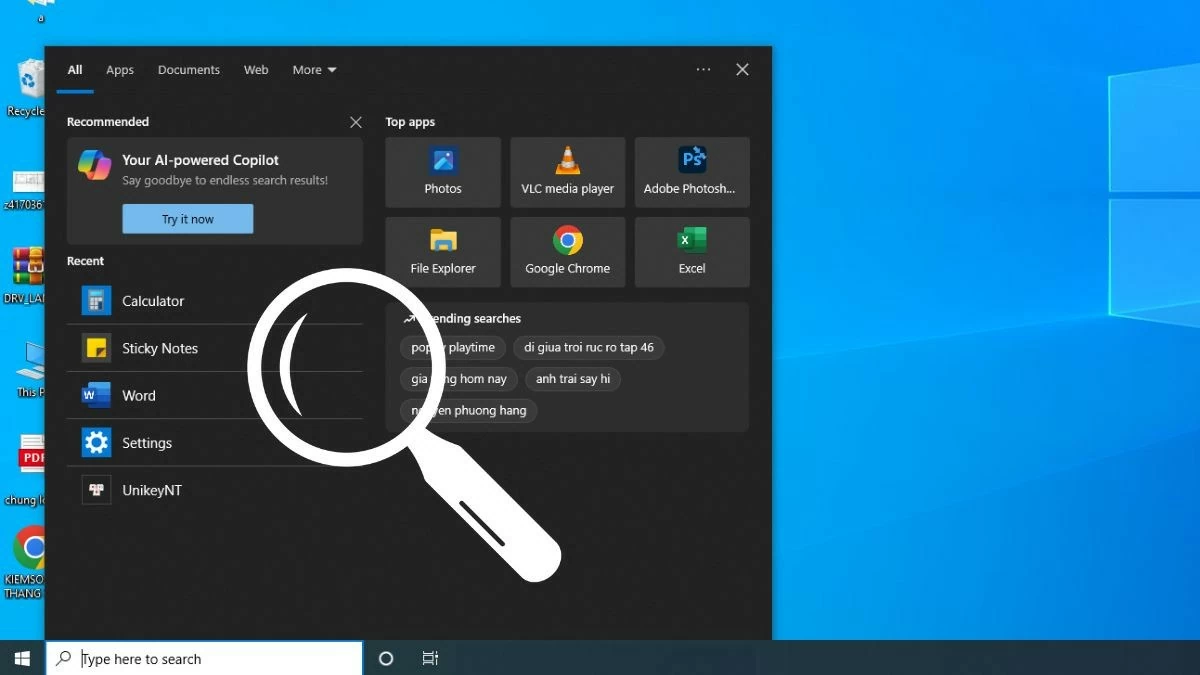
This article will guide you on how to disable the search bar on Windows 10 to optimize your workspace.
 |
How to quickly disable the search bar on Windows 10
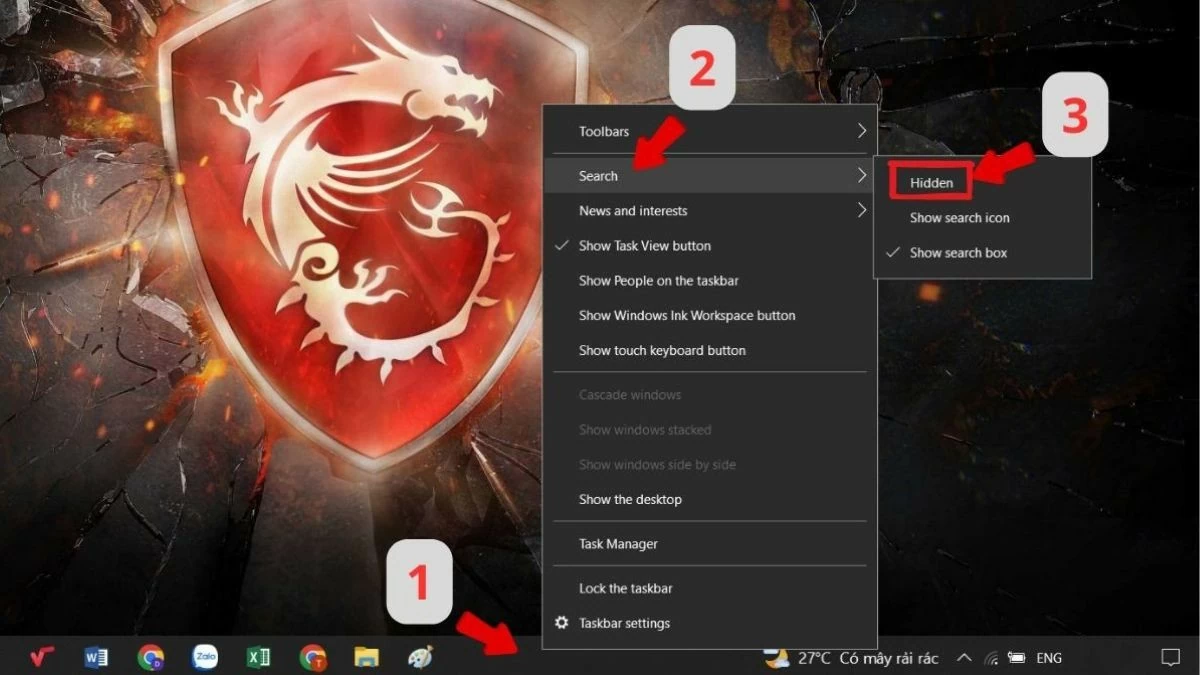
To disable the search bar on Windows 10 and streamline the taskbar, simply follow these easy steps:
Step 1: Right-click on an empty area of the taskbar at the bottom of the screen.
Step 2: Select "Search" from the menu. You will see three options:
- Hidden : Completely hides the search bar.
- Show search icon : This only displays the search icon.
- Show search box : This displays the full search box.
Step 3: Then, select "Hidden" to turn off the search bar.
With just a few simple steps, you can have a cleaner taskbar, making your workspace more organized and visually appealing.
 |
Instructions on how to restore the search bar on Windows 10
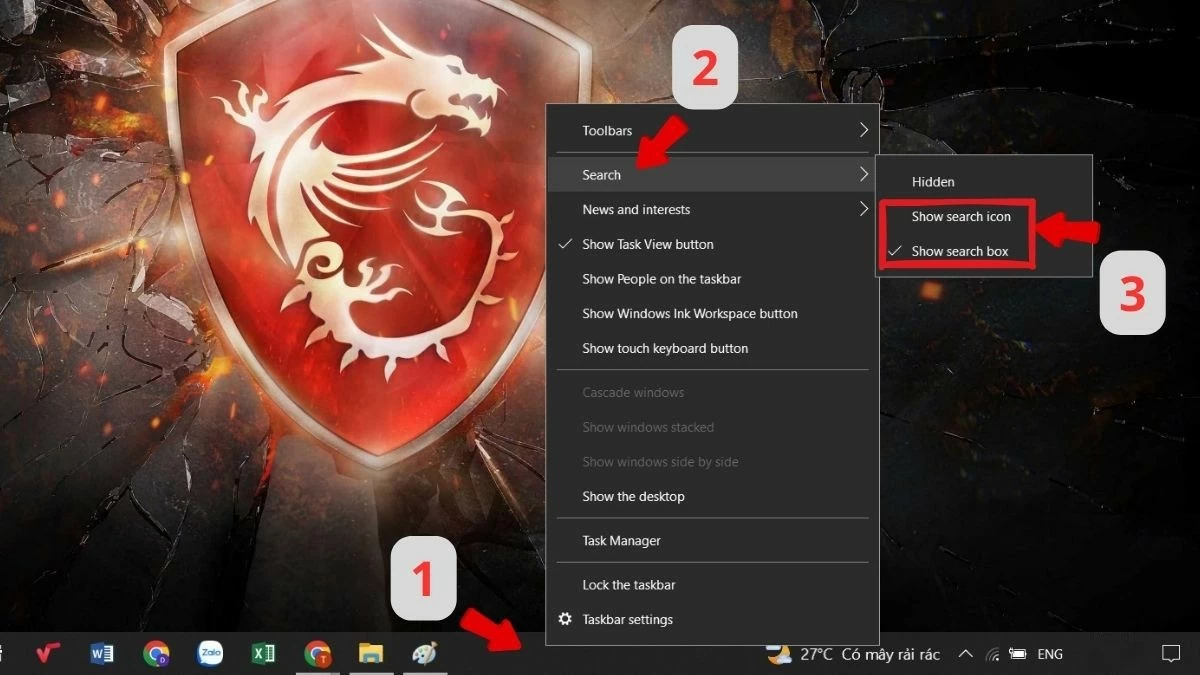
If you want to restore the search bar on Windows 10 after disabling it, simply follow these easy steps:
Step 1: Right-click on an empty area of the taskbar.
Step 2: Select "Search" from the menu to expand the search-related options.
Step 3: Select "Show search box" or "Show search icon" depending on your needs.
 |
Disabling the search bar on Windows 10 is an effective way to optimize your workspace. This simple and easy trick helps reduce distractions and focus on important applications and documents. Try it now to enjoy a cleaner workspace!
Source





































































































Comment (0)