

Automatic screen rotation helps users experience content in the most optimized way, for example when watching videos , browsing photos, or reading documents.
How to enable automatic screen rotation
First, make sure that automatic screen rotation is enabled on your device. This is an important step before customizing settings for individual apps.
1. Open Settings: Access the "Settings" app on your phone.
2. Select Display: Find and select "Display" in the list of settings.
3. Enable Auto-rotate: Under Display, make sure the "Auto-rotate" option is turned on.
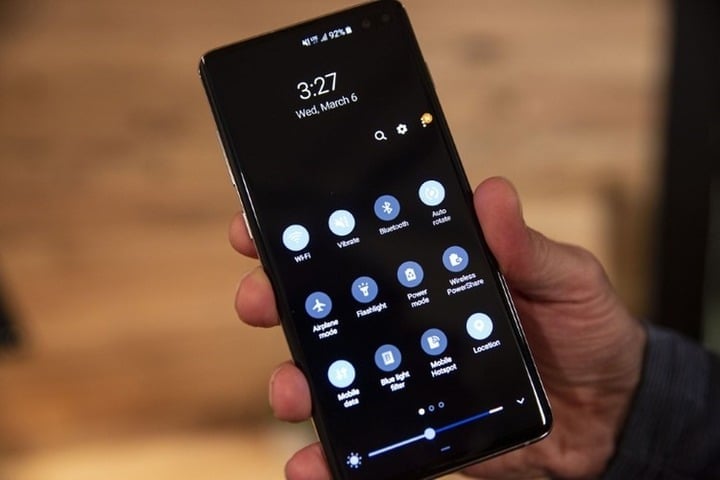
How to automatically rotate your Android phone screen for certain apps. (Illustrative image)
How to automatically rotate the screen
Switching back and forth between fixed screen and auto-rotate modes when using different apps can be annoying. Instead, you can set your phone to automatically rotate for specific apps.
1. Use the settings on your Samsung phone.
Samsung offers Modes and Routines on phones running One UI 5 and above, allowing for the automation of phone settings based on different scenarios, including the ability to set specific times.
You can use Routines to automatically rotate the screen orientation for specific apps on your Galaxy phone. Go to Settings, select Modes and Routines. Then, go to the Routines tab and tap the + button at the top. Tap Add what will trigger this routine in the If section.
On the next screen, tap the search bar and search for "App opened". Then, select all the apps you want to automatically rotate the screen for and tap "Done" to add the action to the habit category.
Next, tap Add what this routine will do in the Then section. Search for Screen orientation and select the Auto rotate option on the screen. Tap Done and Save.
2. In the app on other Android phones
If you're using a non-Samsung phone, like a Pixel or OnePlus, you can use third-party automation apps to rotate the screen in specific apps. Popular examples include MacroDroid, Rotation Control, or Rotation Manager.
The installation and usage procedures for these applications are as follows:
-Download and install the app;
- Open the application, select the "Add new task" option;
- Select the applications you want to set to automatically rotate;
- Press OK;
How to disable screen rotation on Android
To disable the automatic screen rotation function, follow these steps:
- Disable from the status bar: Drag the slider from the top to the bottom on your phone's home screen. Then, gently tap the "Turn off rotation" icon to disable it.
- Turn off screen rotation from Settings: Select Settings > Select Display > Select Automatic screen rotation to disable the screen rotation feature.
Additional note from Google
If you're using TalkBack, you might want to turn off auto-rotate because rotating the screen can interrupt voice responses.
To change the auto-rotate settings, follow these steps:
- Open the application.
- Install on the device.
- Select Accessibility Support.
- Select Automatic screen rotation.
Source

![[Photo] Prime Minister Pham Minh Chinh presides over the conference announcing the establishment of the International Finance Centre in Vietnam.](/_next/image?url=https%3A%2F%2Fvphoto.vietnam.vn%2Fthumb%2F1200x675%2Fvietnam%2Fresource%2FIMAGE%2F2025%2F12%2F21%2F1766309817714_ndo_br_dsc-3400-jpg.webp&w=3840&q=75)


![[Photo] Prime Minister Pham Minh Chinh presides over a meeting on private sector economic development.](/_next/image?url=https%3A%2F%2Fvphoto.vietnam.vn%2Fthumb%2F1200x675%2Fvietnam%2Fresource%2FIMAGE%2F2025%2F12%2F20%2F1766237501876_thiet-ke-chua-co-ten-40-png.webp&w=3840&q=75)



































































































Comment (0)