

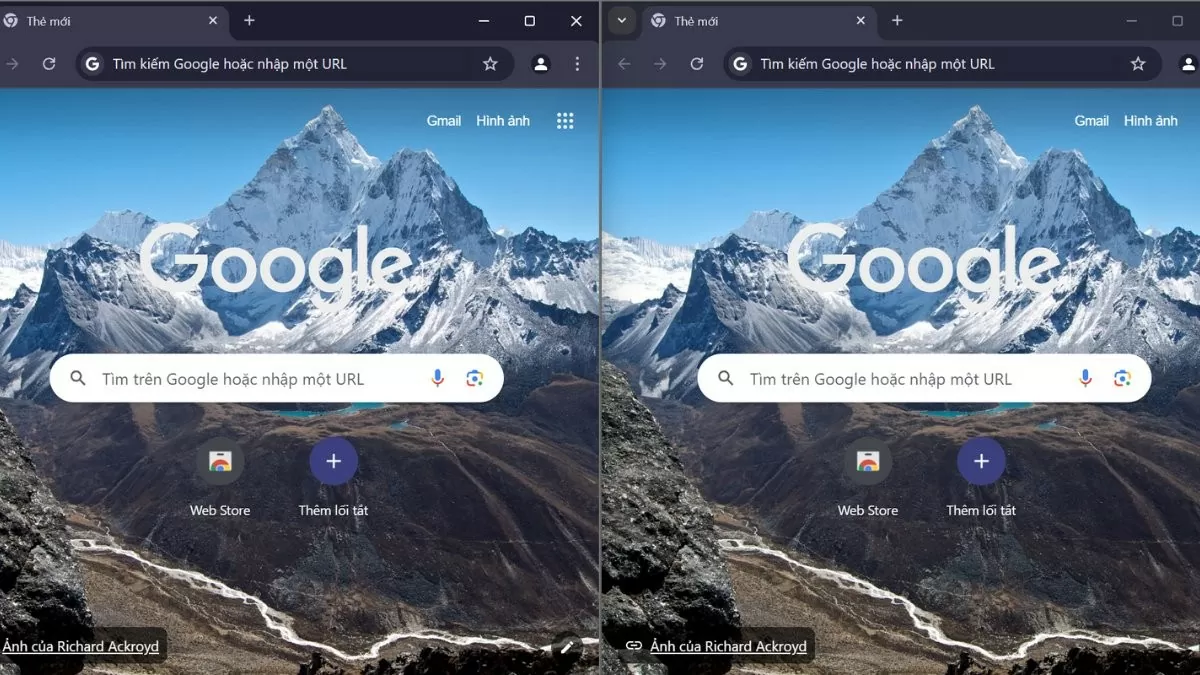
Split-screen shortcuts on Windows 10 help increase productivity, allowing you to monitor multiple applications simultaneously. Let's explore this trick in 3 simple steps!
 |
How to enable split-screen mode on Windows 10
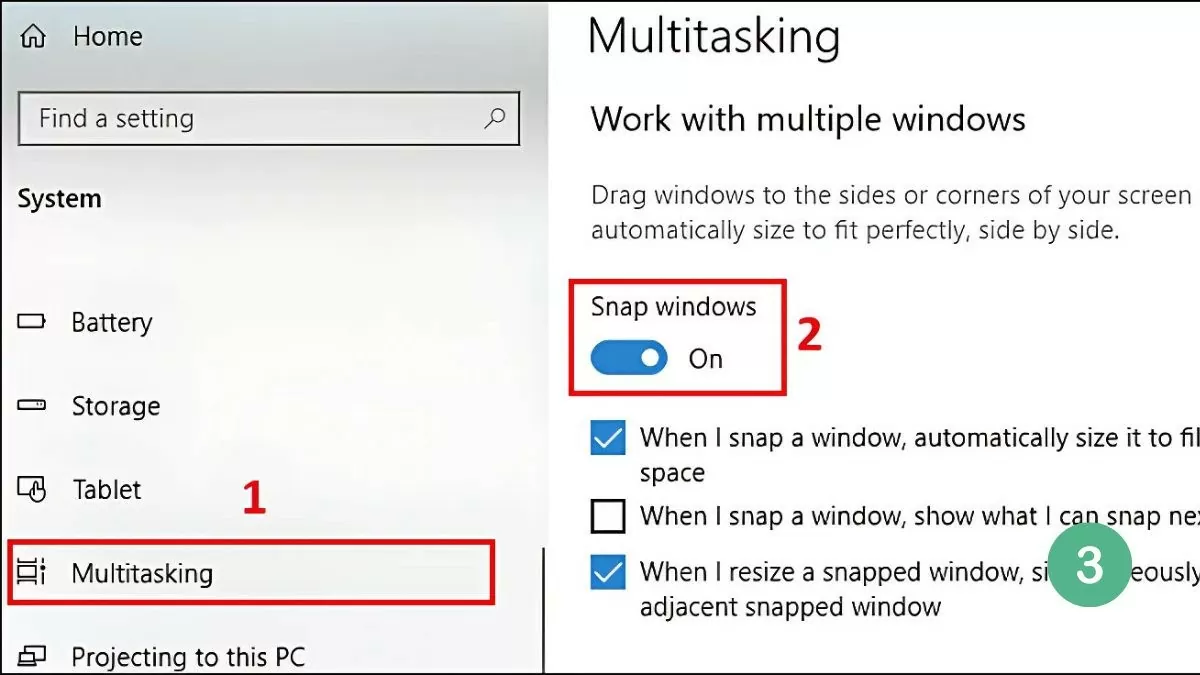
To use the split-screen feature, you need to make sure "Snap Windows" is enabled. This feature allows you to easily drag and drop windows to specific locations on the screen. Follow these steps to enable this mode:
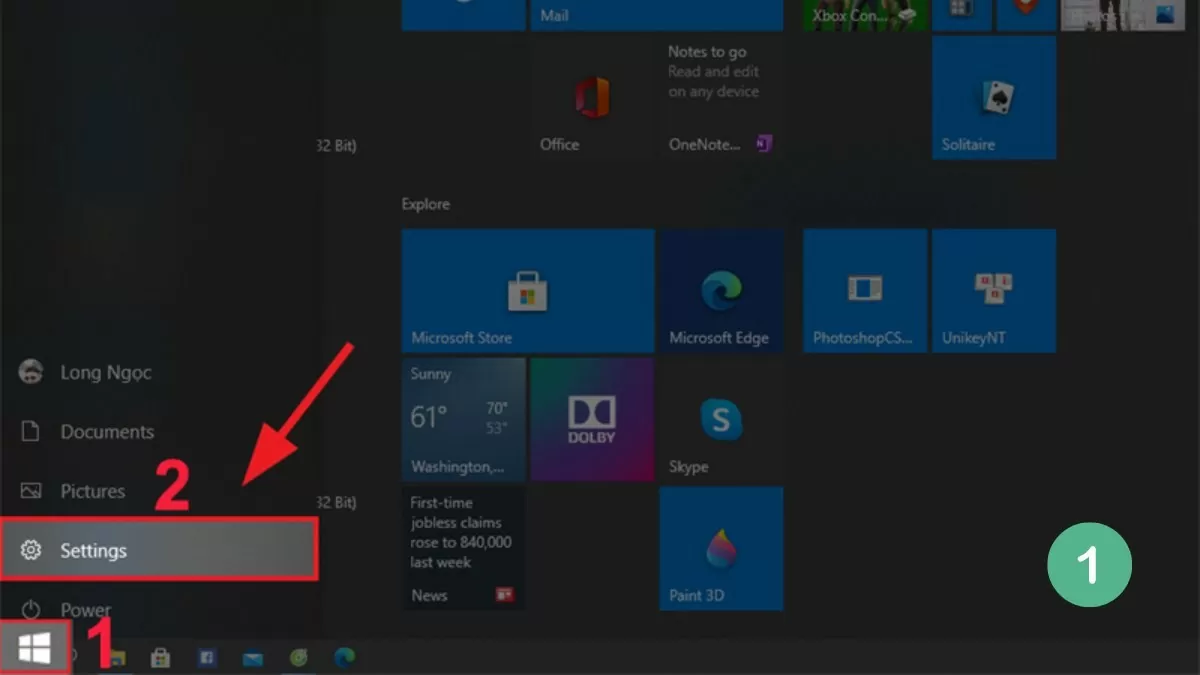
Step 1: First, open Settings on Windows 10.
 |
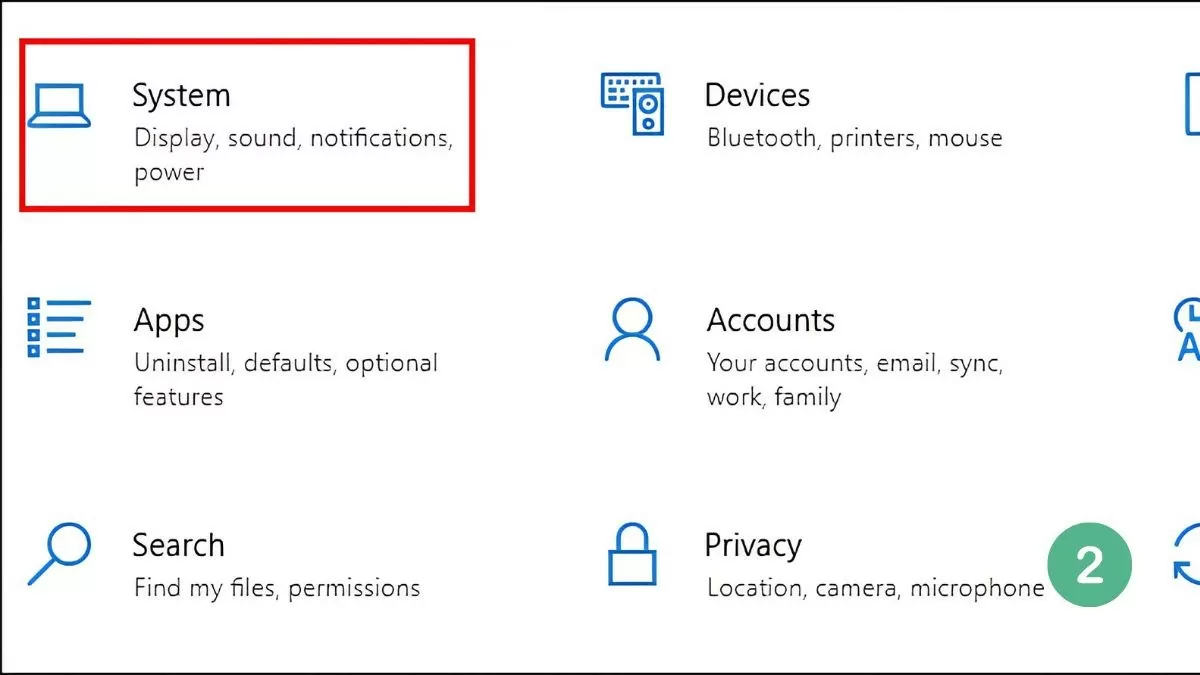
Step 2: Select System, then select Multitasking.
 |
Step 3: Enable Snap Windows mode by activating this option.
 |
After enabling Snap Windows, you can easily split your Windows 10 laptop screen using your mouse, Taskbar, or keyboard shortcuts. Detailed instructions will be provided in the following section.
The easiest way to split the screen in Windows 10.
Splitting the screen on a Windows 10 computer allows you to work with multiple windows simultaneously, saving time and increasing work efficiency. You can easily do this using methods such as the mouse, taskbar, or keyboard shortcuts.
Use the mouse.
The simplest way to do this is using the mouse. Just select the window you want to split and drag it to the left or right edge of the screen. When the window touches the edge, you'll see a faint border appear to confirm its position.
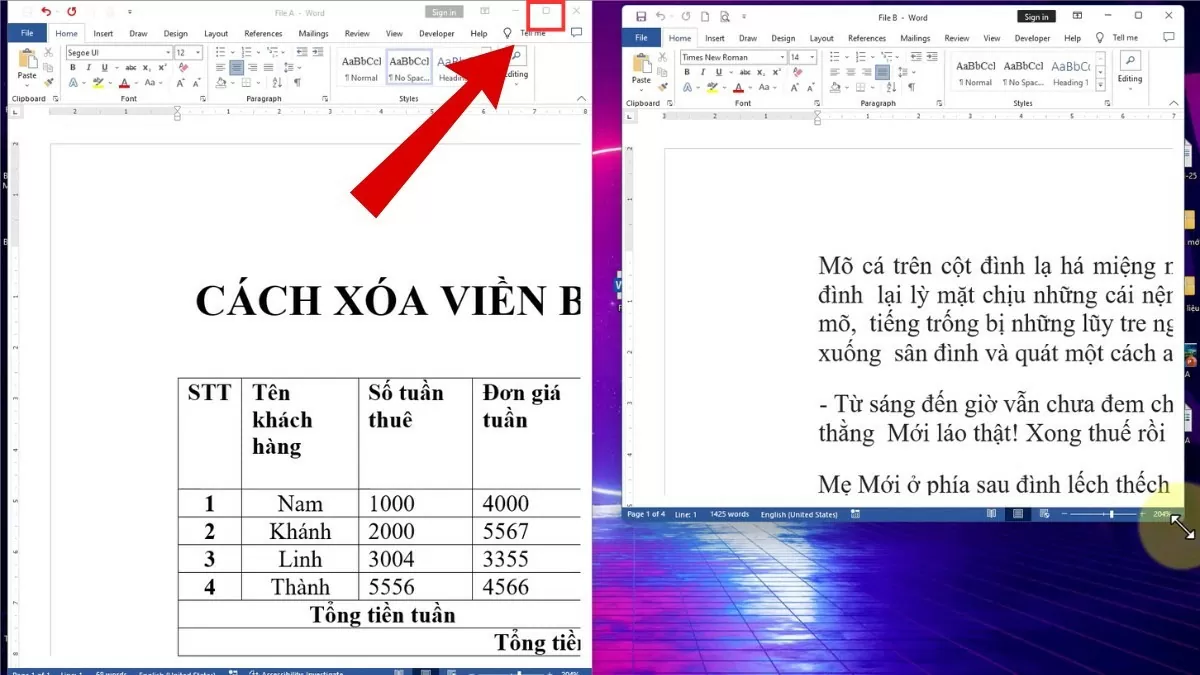 |
When you release the mouse, the window will automatically occupy half the screen, while the rest displays other windows you have open. You can select the second window to display in the remaining space, making it easy to work with multiple applications simultaneously.
Use the Taskbar
Splitting the screen on Windows 10 is a great way to optimize your workspace, allowing you to work with multiple windows without switching between them.
To use the Taskbar, simply follow these easy steps:
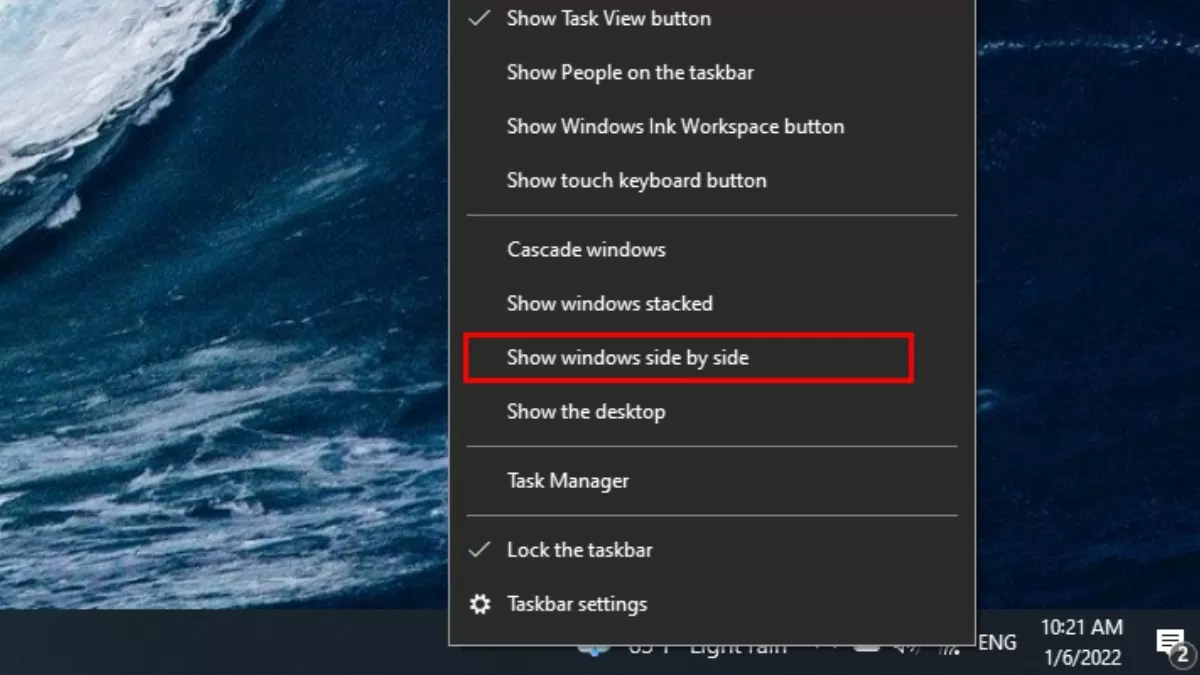
Step 1: Right-click on the Taskbar and select "Show windows side by side" to arrange windows quickly and efficiently.
 |
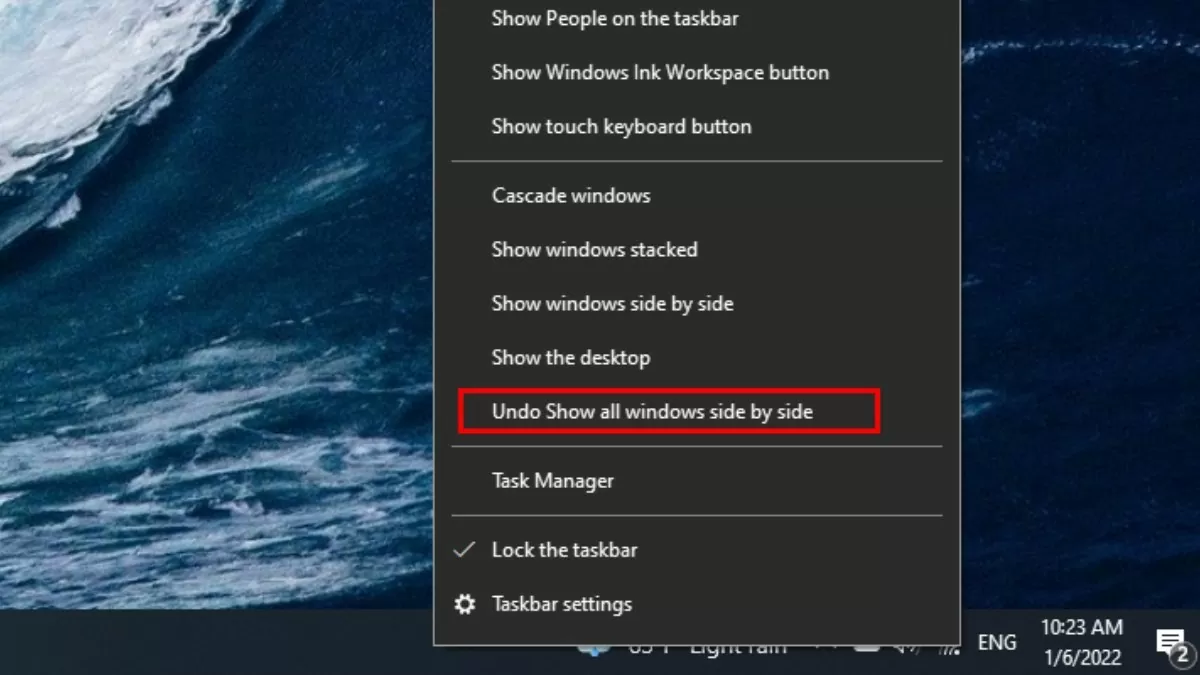
Step 2: To restore the original state, right-click on the Taskbar.
Step 3: Next, select "Undo Show all windows side by side" to cancel the split-screen window arrangement.
 |
All open windows will be automatically arranged and evenly distributed across the screen without overlapping, allowing users to monitor multiple windows simultaneously in a clear and organized manner.
Use keyboard shortcuts
Keyboard shortcuts are a quick and efficient way to split the screen on Windows 10. Simply use the Windows key + Left Arrow or Windows key + Right Arrow to move the window to the left or right of the screen, optimizing your workspace.
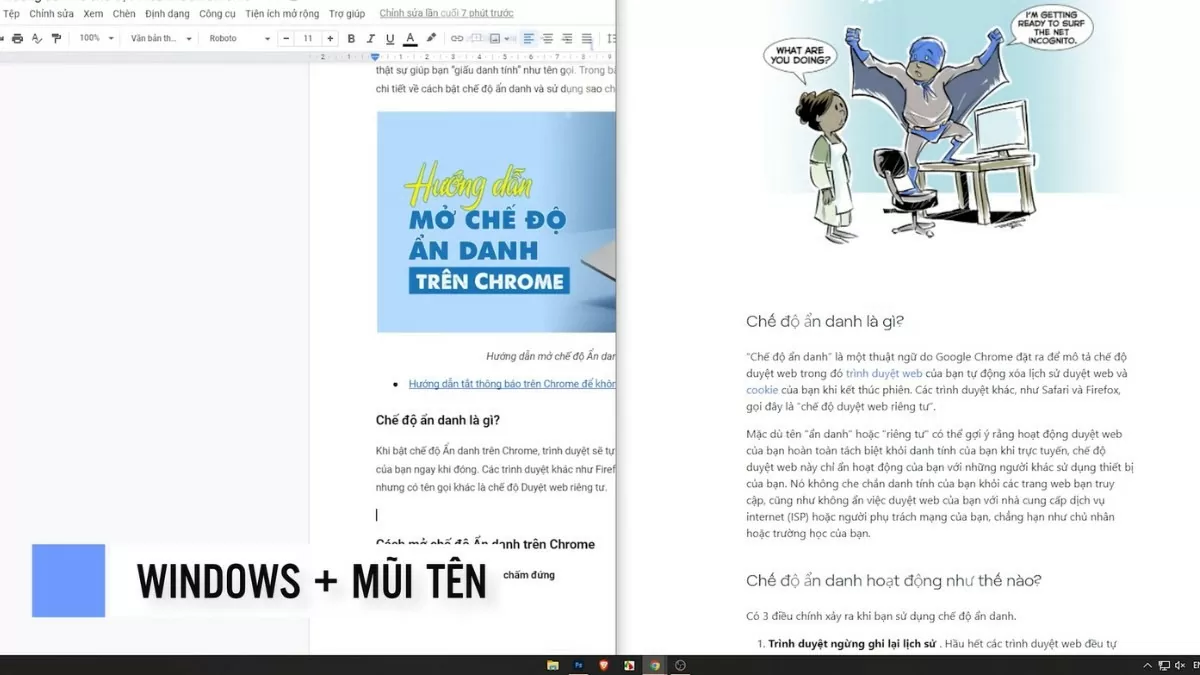 |
This method not only saves time but also offers flexibility, allowing users to easily manage multiple windows without having to move the mouse too much.
Instructions on how to split the screen into multiple windows
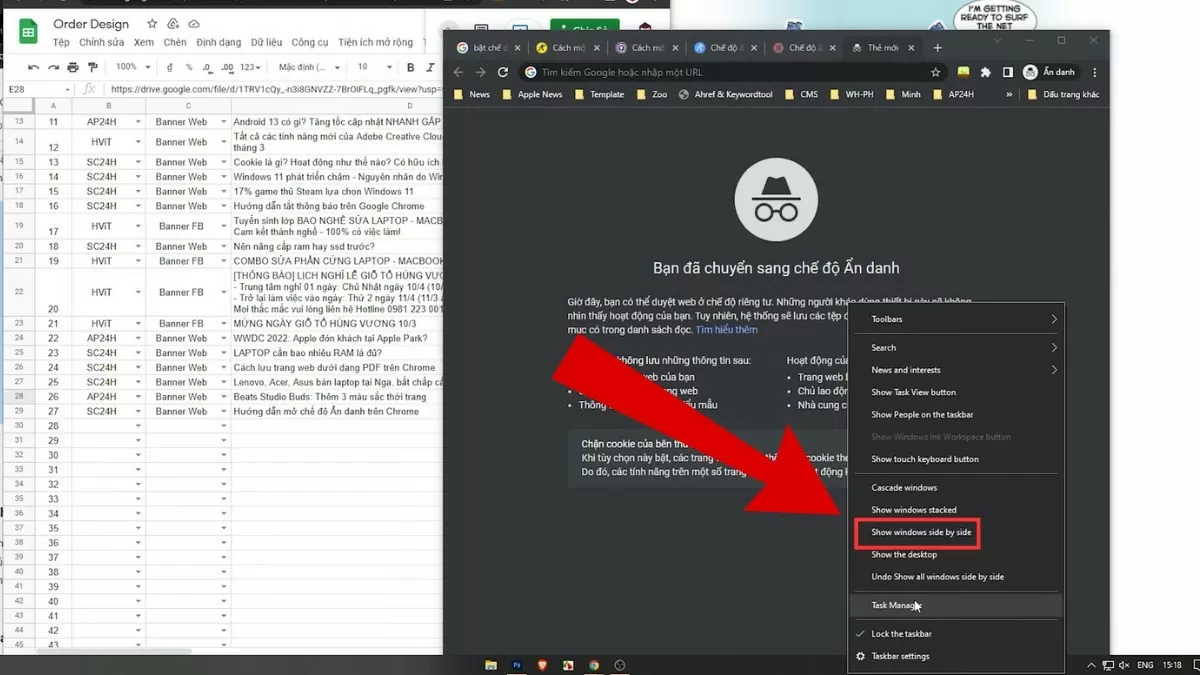
In addition to split-screen functionality, Windows 10 also supports splitting the screen into multiple windows simultaneously, optimizing workspace and increasing multitasking efficiency. Here are the steps to do it:
Step 1: Drag the windows you want to split to the outside of the screen.
Step 2: Next, right-click on the Taskbar.
Step 3: Select Show windows side by side to arrange the windows evenly on the screen.
 |
Instructions on how to enable Snap Windows on Windows 11
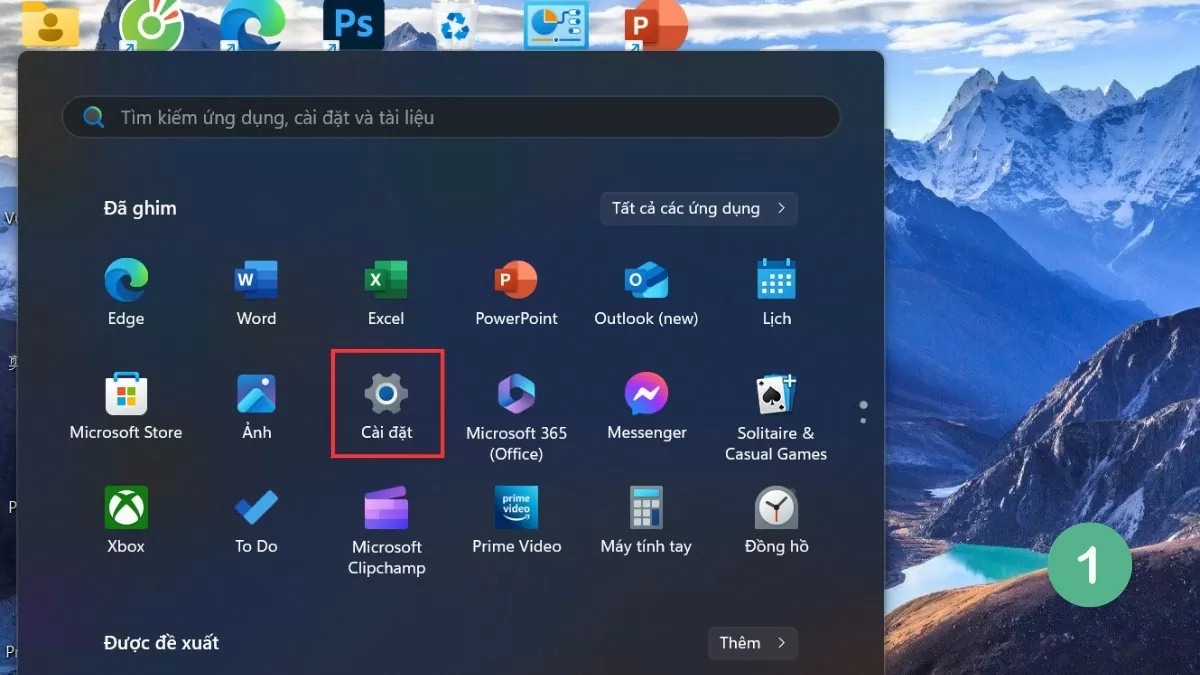
The Snap Windows feature in Windows 11 has been upgraded, providing users with easier and more efficient split-screen functionality. Here are the steps to enable this feature:
Step 1: First, open Settings on your device.
 |
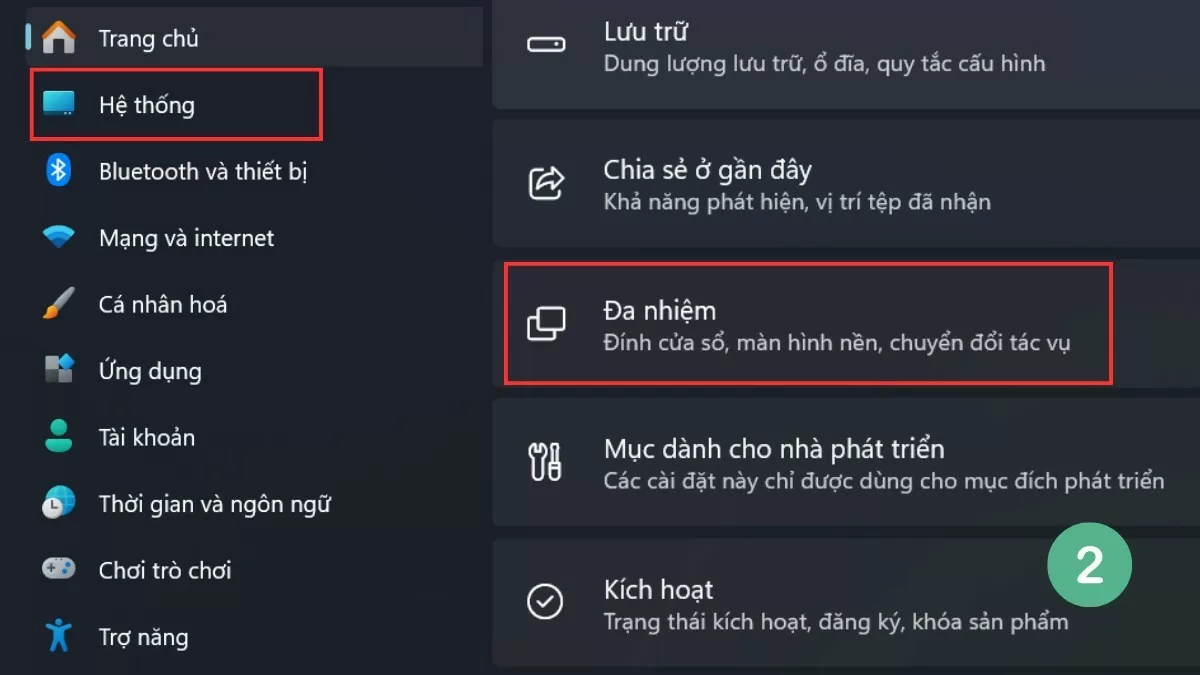
Step 2: Select System and then go to Multitasking .
 |
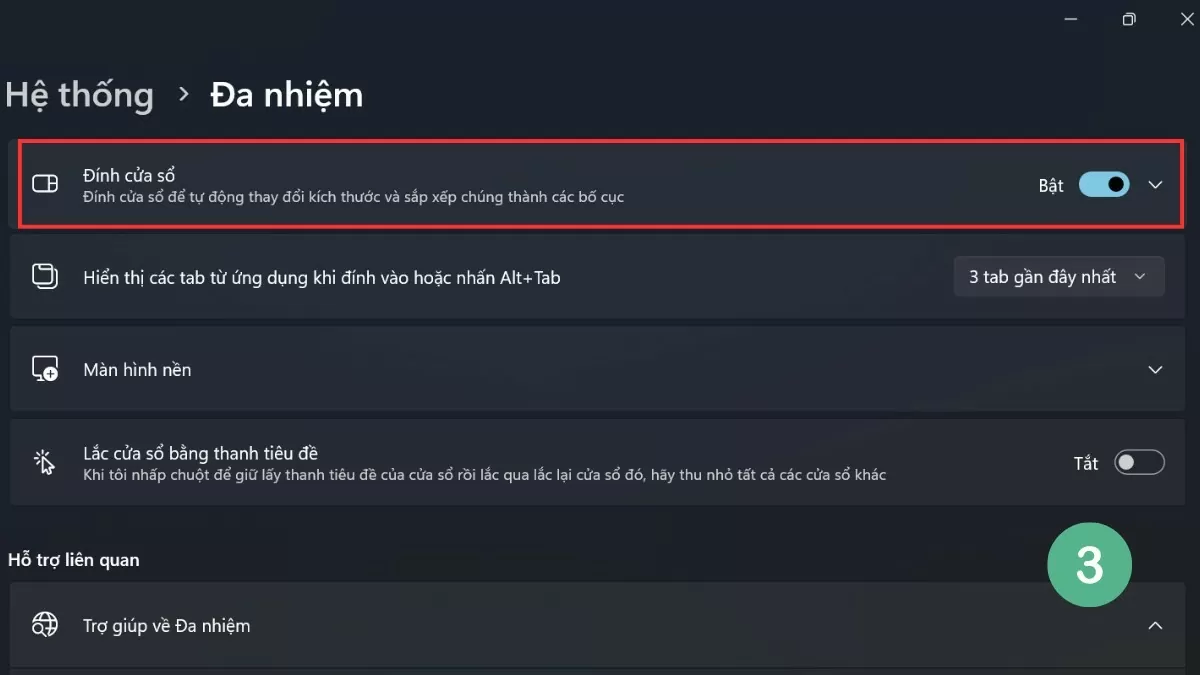
Step 3: Activate the Snap Windows option to enable split-screen mode.
 |
The Snap Windows feature in Windows 11 also adds many options for automatically arranging windows, helping users multitask efficiently without having to adjust them manually.
Guide to effectively splitting the screen in Windows 11
To utilize the split-screen feature on Windows 11, users can choose from several methods, ranging from using built-in tools to keyboard shortcuts. This version of Windows has improved split-screen capabilities, providing a smoother and more convenient experience.
Use Snap Layouts
One of the notable improvements in Windows 11 is the Snap Layouts feature, which allows users to easily choose different window layouts to optimize their workspace.
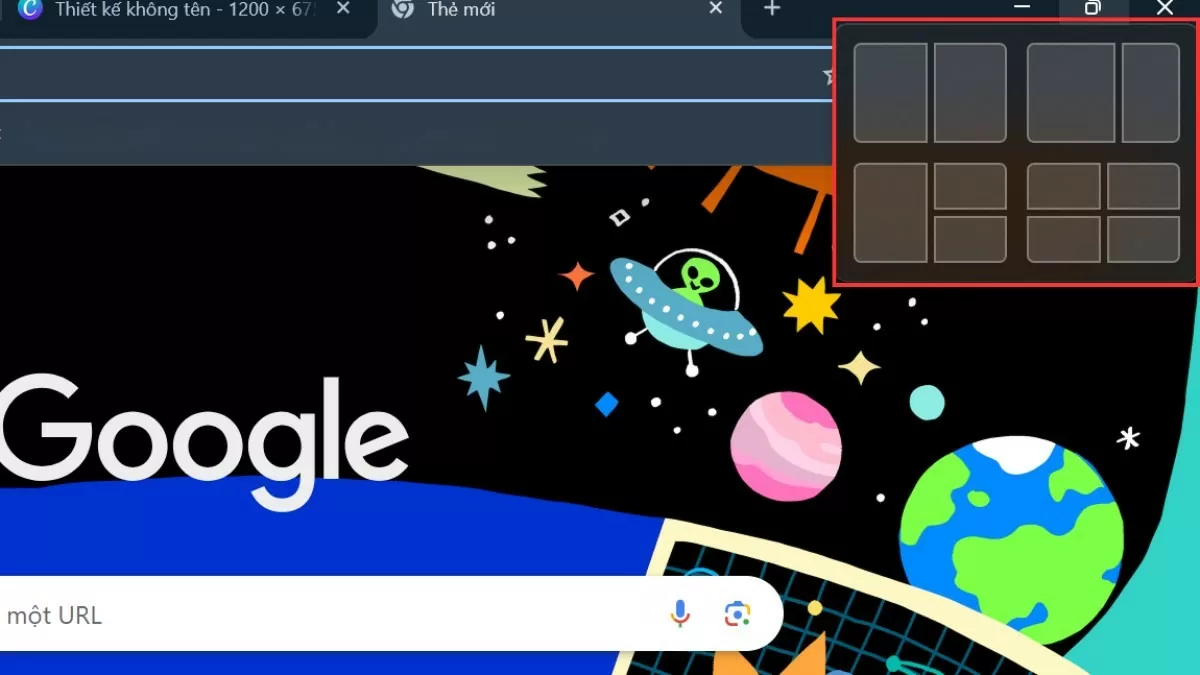 |
To use this feature, simply hover your mouse over the maximize icon of the window and select your desired layout. The remaining windows will then automatically adjust and arrange themselves according to the selected layout.
Use keyboard shortcuts
Similar to Windows 10, Windows 11 also supports split-screen functionality via keyboard shortcuts, allowing users to perform tasks quickly and easily without having to move the mouse frequently.
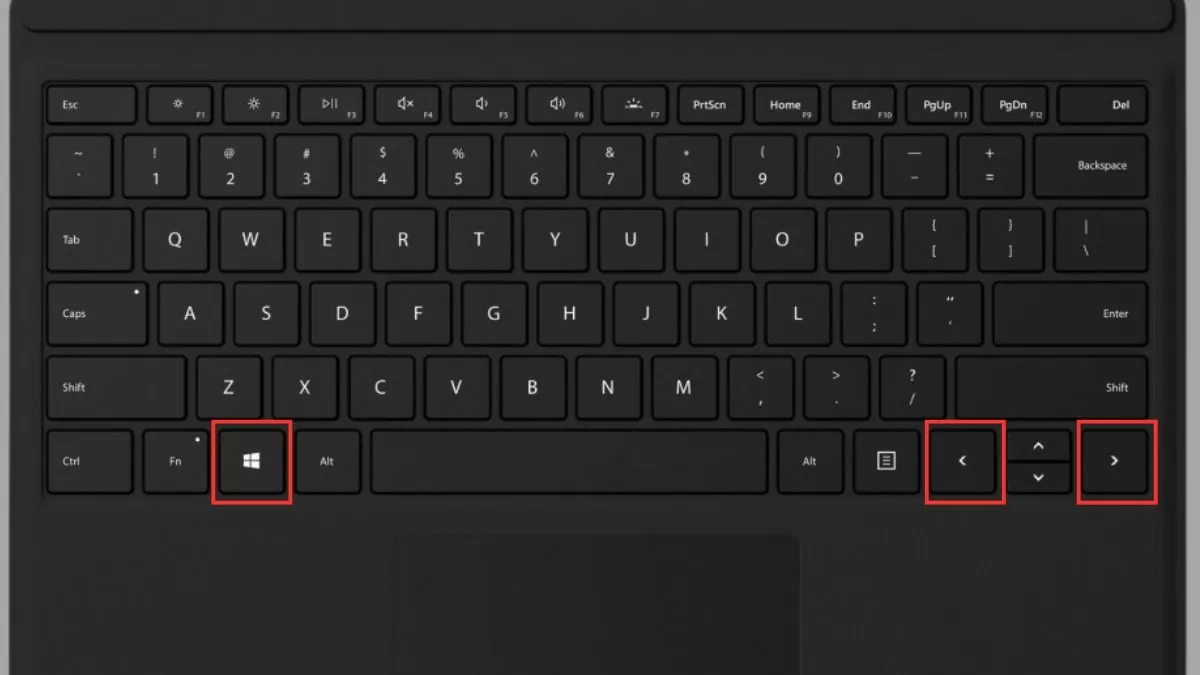 |
By pressing the Windows key and the left or right arrow key combination, you can quickly move a window to the side of the screen. This not only saves time but also optimizes workspace, helping you manage multiple windows more efficiently.
Using keyboard shortcuts to split the screen on Windows 10 and Windows 11 helps you work faster and create a neat and organized workspace. With these simple tricks, you can easily improve your work efficiency and computer experience.
Source


![[Photo] General Secretary and President To Lam meets with National Assembly delegates from ethnic minorities.](https://vphoto.vietnam.vn/thumb/1200x675/vietnam/resource/IMAGE/2026/04/20/1776696701056_a1-bnd-8331-3342-jpg.webp)
![[Image] National Assembly discusses the implementation of the socio-economic development plan.](https://vphoto.vietnam.vn/thumb/1200x675/vietnam/resource/IMAGE/2026/04/20/1776696707422_ndo_br_img-20260420-185419-jpg.webp)




























































































Comment (0)