

This article will guide you on how to put This PC on the Windows 10 desktop. This will save you time searching for data and increase your computer's efficiency!
 |
Instructions on how to quickly add This PC to the Windows 10 Desktop
By adding This PC to your Windows 10 desktop, you can easily access it without having to open File Explorer every time. Here are two simple and effective ways to do this.
Use Personalize
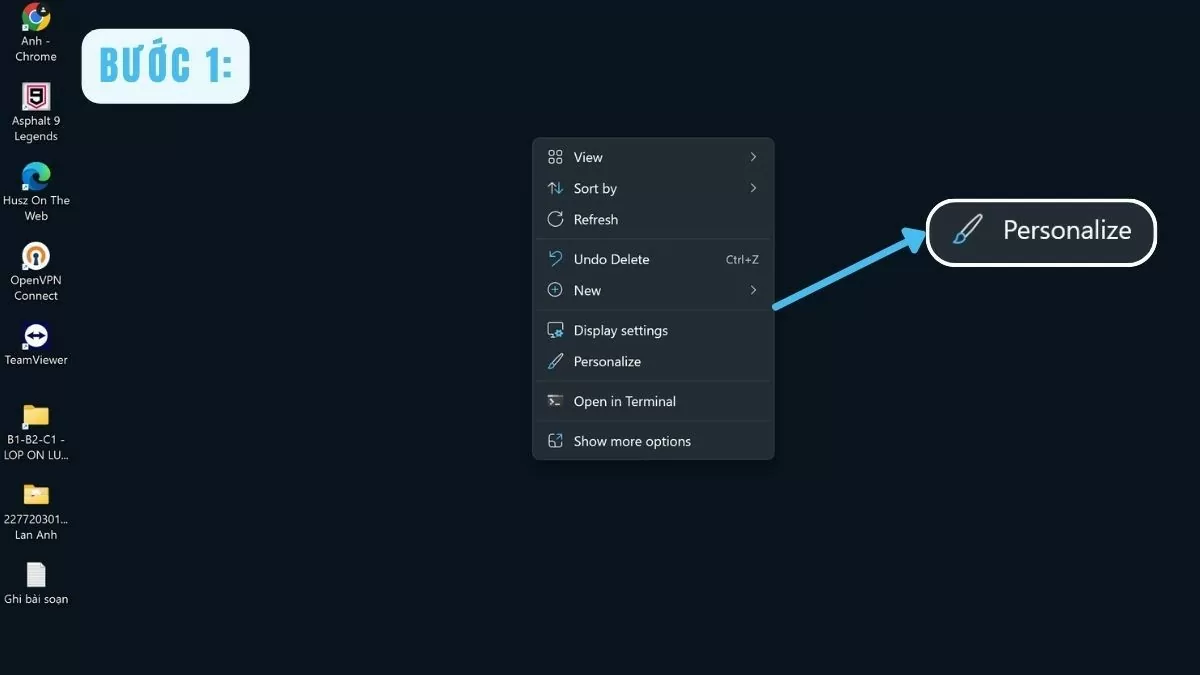
Step 1: To add This PC to the Windows 10 desktop, right-click on an empty space on the screen and select Personalize from the context menu.
 |
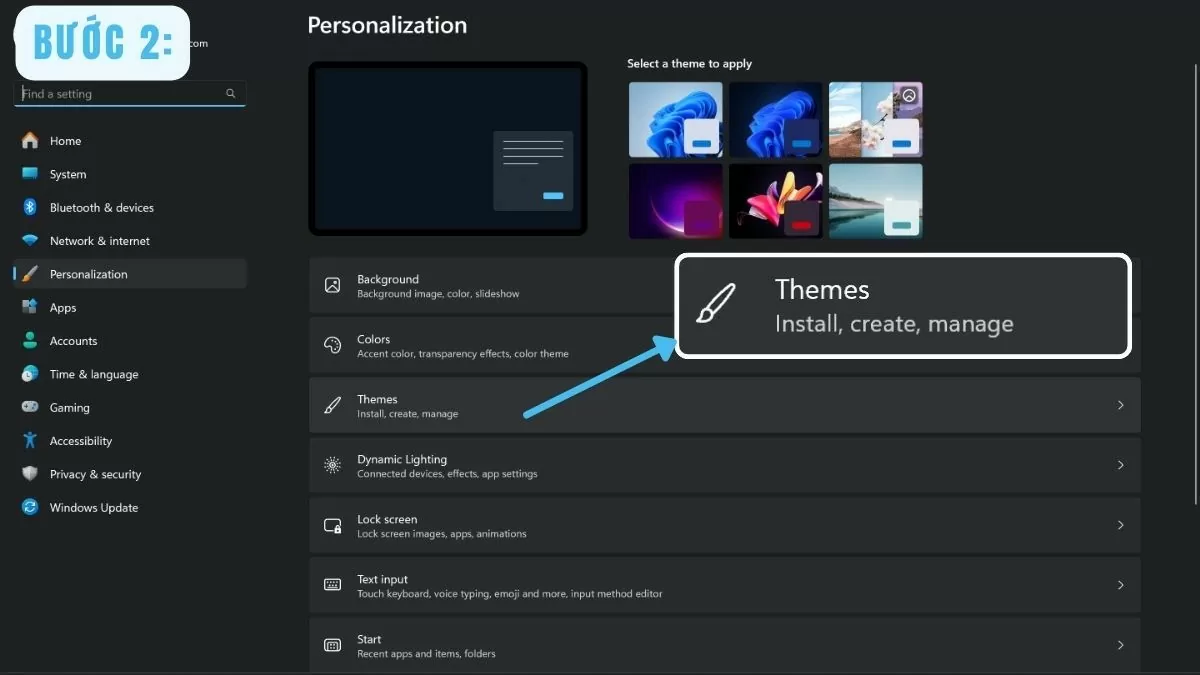
Step 2: In the Personalization window, select Themes on the left.
 |
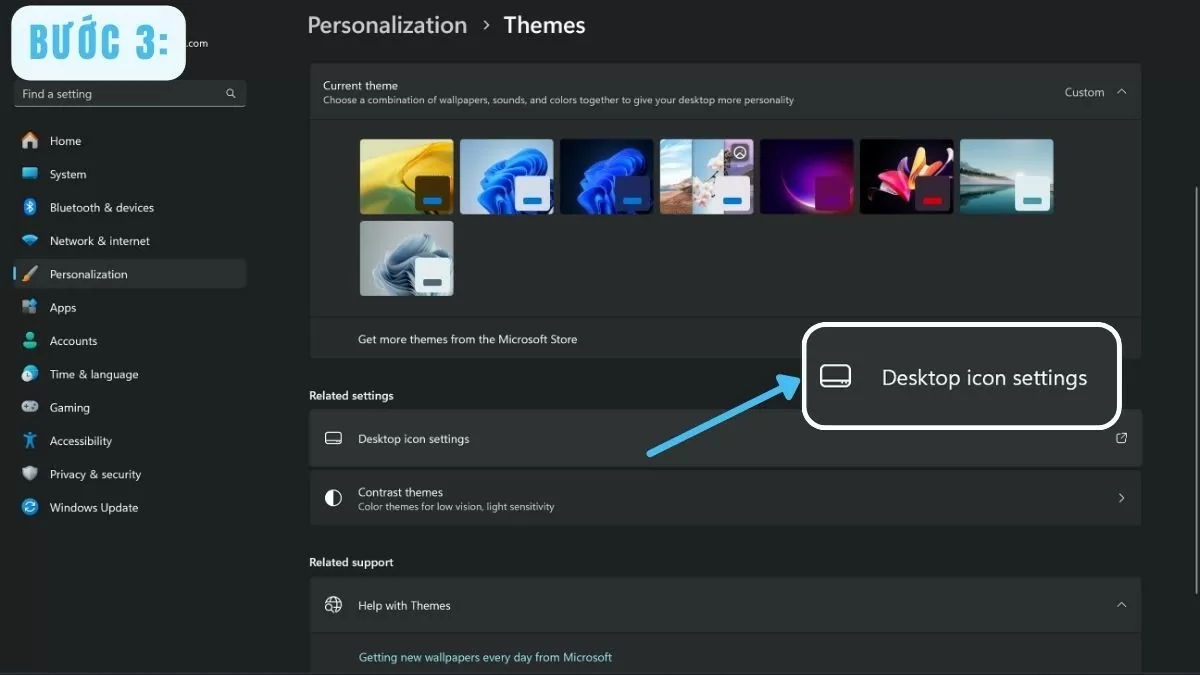
Step 3: In the upper right corner, click on the Desktop icon settings .
 |
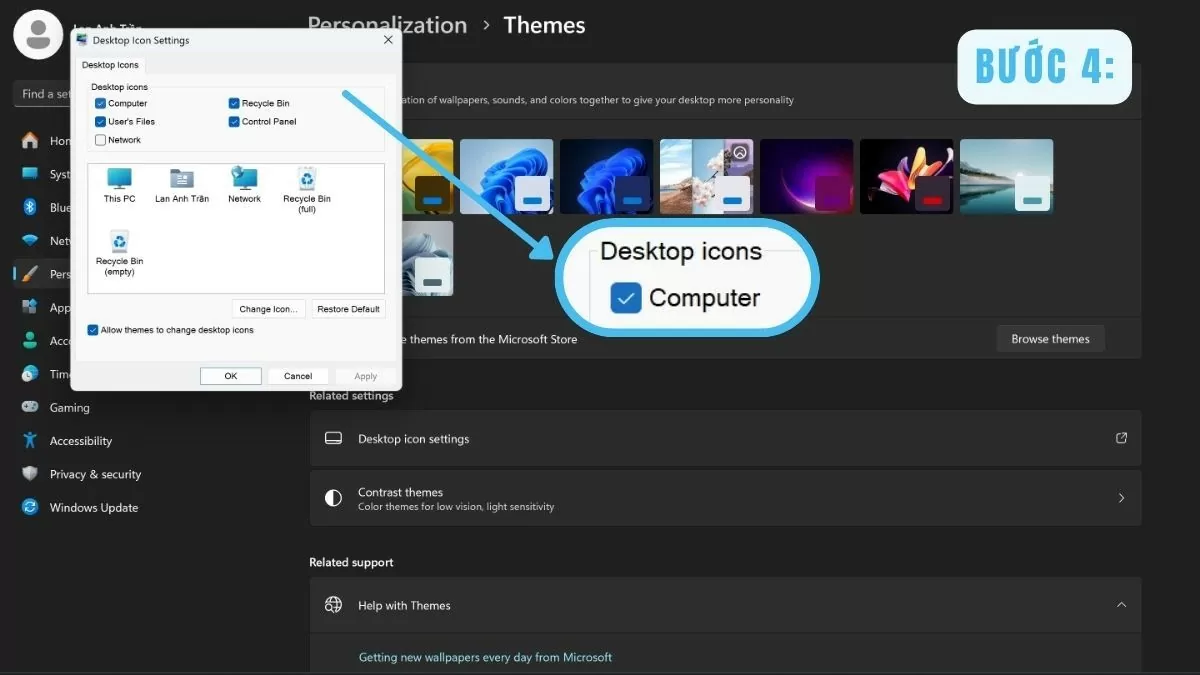
Step 4: Check the Computer box in the Desktop Icon Settings window.
 |
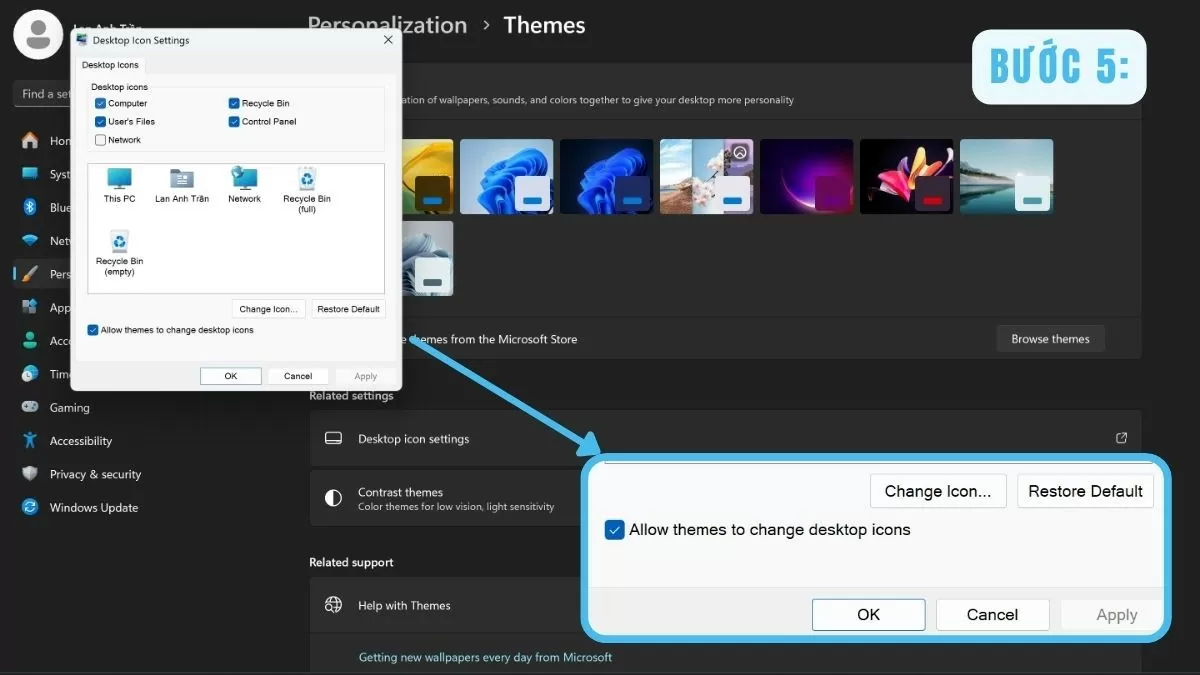
Step 5: Then, click OK to save the changes.
 |
With just a few taps through Personalize , the This PC icon will appear on your Desktop, providing quick and convenient access.
Use File Explorer
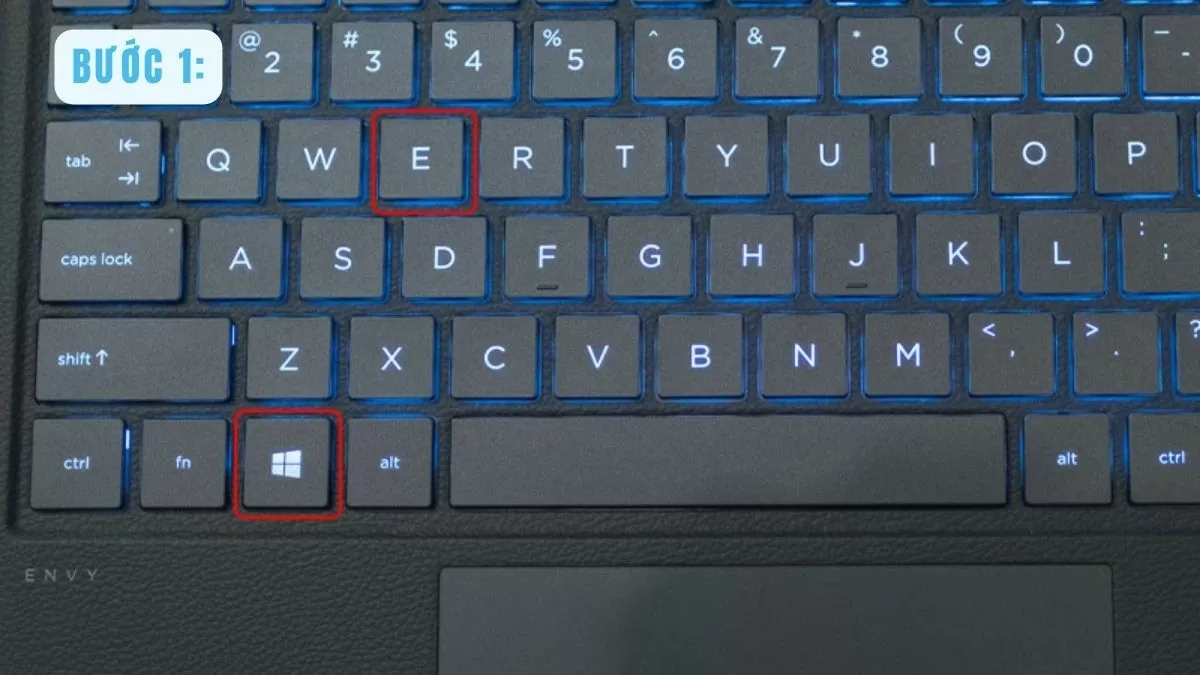
Step 1: Press the Windows key and E simultaneously to open File Explorer.
 |
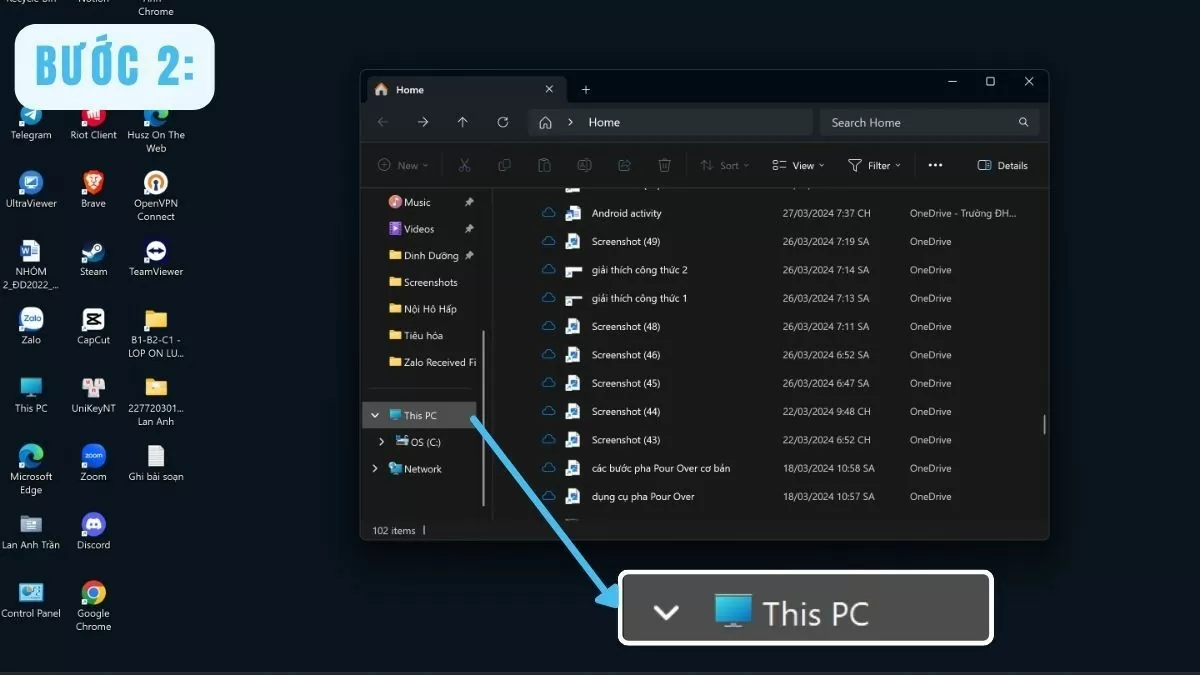
Step 2: Find This PC in the left sidebar and click on it.
 |
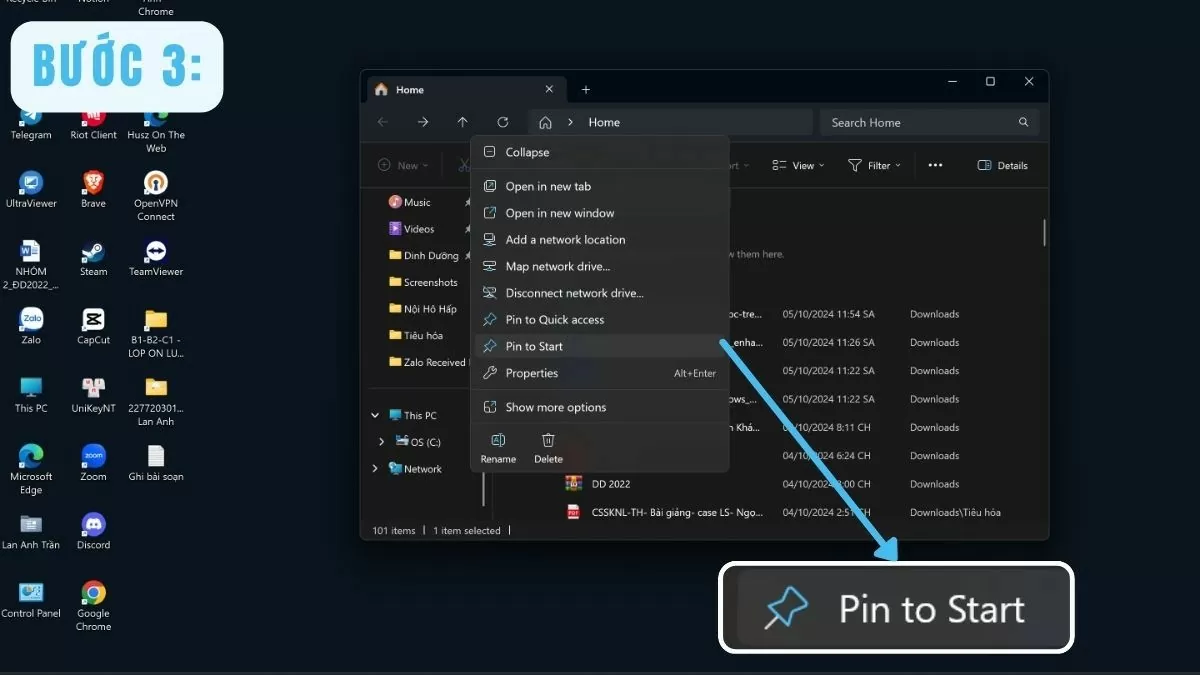
Step 3: Right-click on the This PC icon and select Pin to Start if you want to add it to the Start Menu.
 |
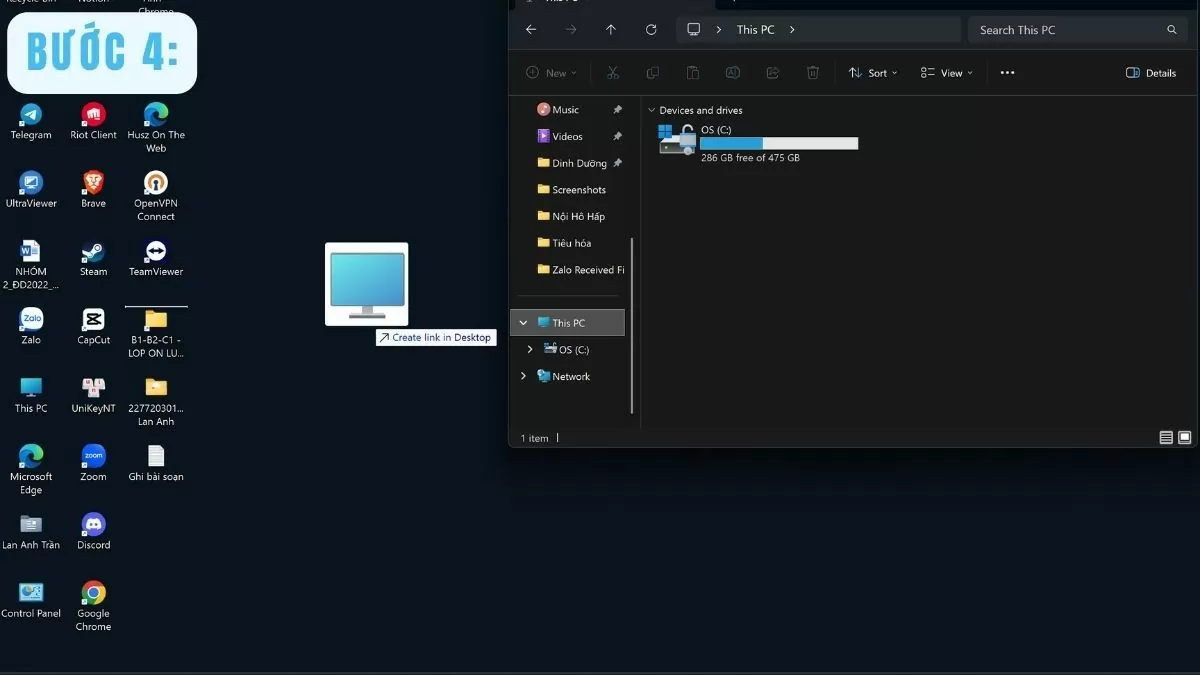
Step 4: To add This PC to your desktop, simply drag the This PC icon from File Explorer to your desktop.
 |
With File Explorer, you can easily bring This PC to the Windows 10 desktop without adjusting system settings.
Customize the This PC icon on your Desktop easily.
To create a personalized workspace, customizing desktop icons is essential. After completing the steps to add This PC to your Windows 10 desktop, users can change the size or name to their liking.
How to resize the This PC icon
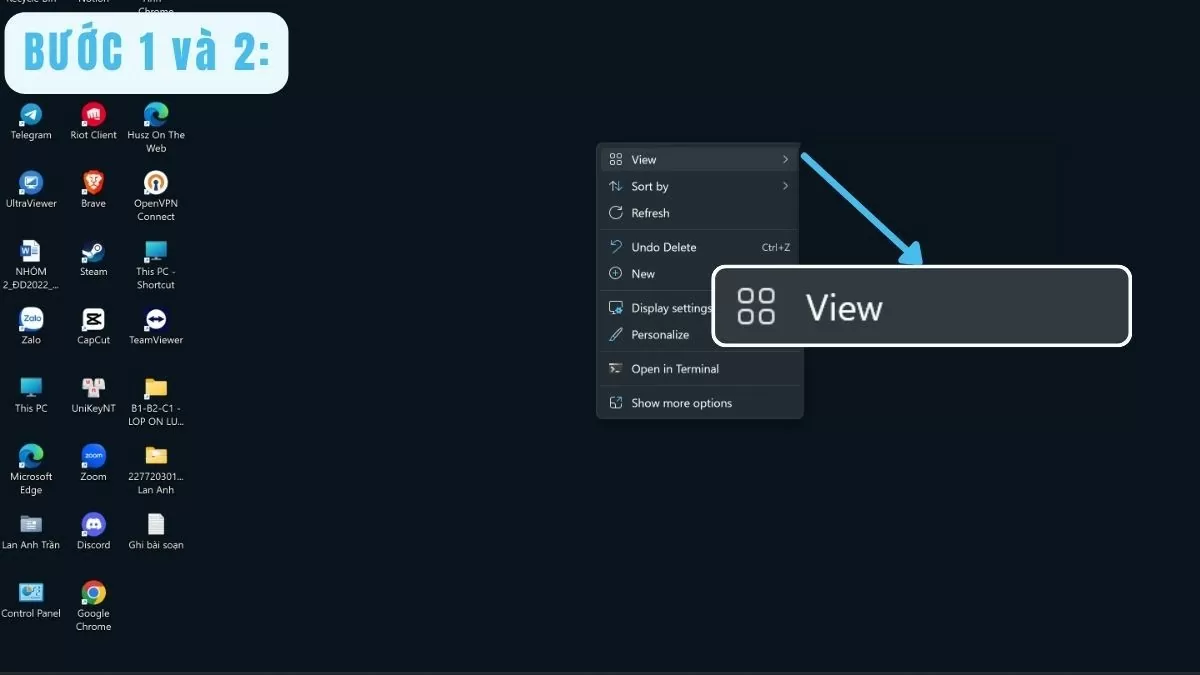
Step 1: Right-click on an empty space on the Desktop to open the context menu.
Step 2: Move your mouse to the View tab.
 |
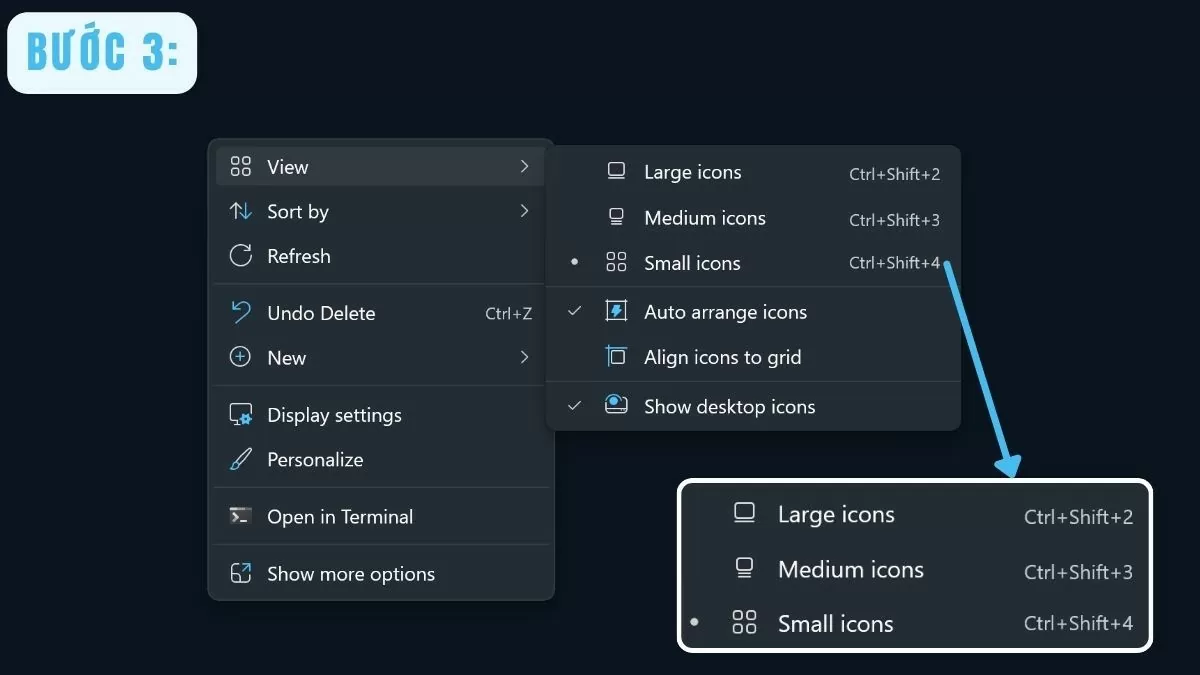
Step 3: Users can choose their desired icon size: Small icons , Medium icons , or Large icons . This makes it easier to arrange space on the desktop and create a more harmonious layout.
 |
Rename the This PC icon.
Step 1: First, right-click on the This PC icon on the Desktop.
Step 2: Select Rename from the context menu to change the name as needed.
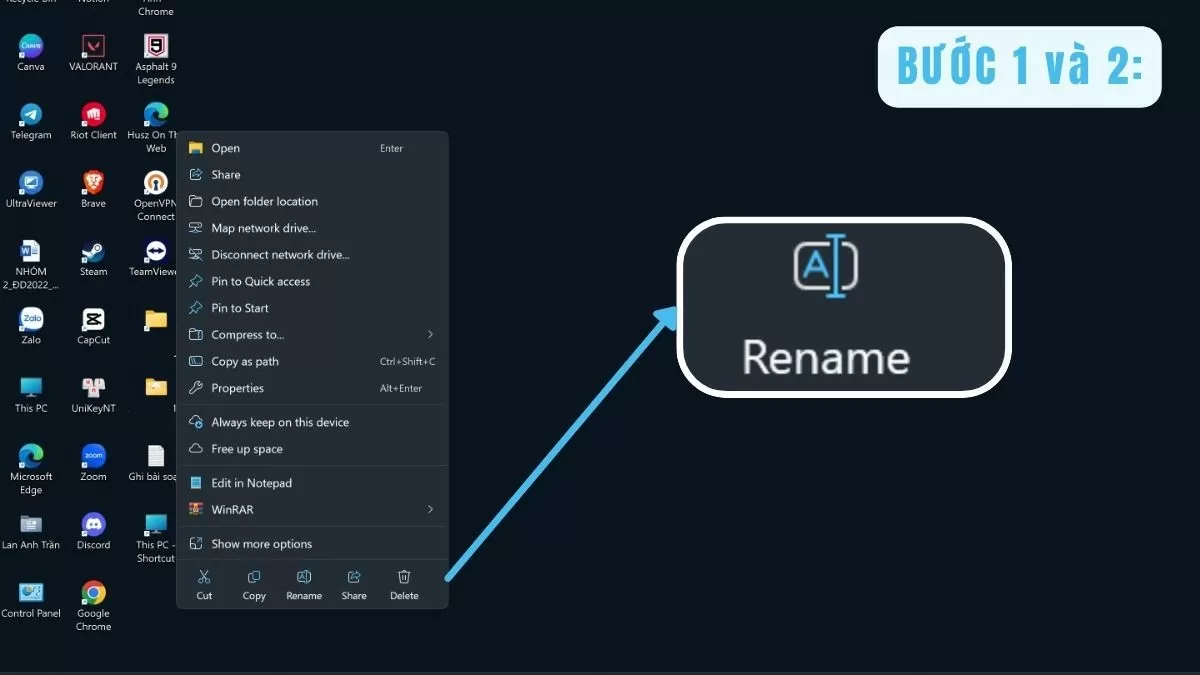 |
Step 3: Enter your desired new name and press Enter to confirm. Renaming the This PC icon allows you to customize your desktop to your liking, making it easier to identify.
 |
With these simple steps, you can not only add This PC to your Windows 10 desktop but also customize its arrangement to your liking. This makes it easy to find and access your PC every time you turn on your computer.
In summary, putting This PC on the Windows 10 desktop is a simple but very effective trick. It helps you quickly manage and access files, providing convenience in your daily computer use.
Source
![[Photo] Prime Minister Pham Minh Chinh receives the Chinese Ambassador to Vietnam](https://vphoto.vietnam.vn/thumb/1200x675/vietnam/resource/IMAGE/2026/04/05/1775397481797_ndo_br_dsc-5512-jpg.webp)


































































































Comment (0)