

Sleep Mode on Windows 10 is no longer suitable for some users. This article will also explain how to easily disable Sleep Mode on Windows 10 and 11!
 |
How to easily disable sleep mode in Windows 10
If your computer automatically going into sleep mode is disrupting your work, disabling it on Windows 10 is the ideal solution. You can do this through system settings or using keyboard shortcuts.
Use Windows Settings
To disable sleep mode on Windows 10 via System Settings, follow these steps:
Step 1: Open Settings from the Start Menu.
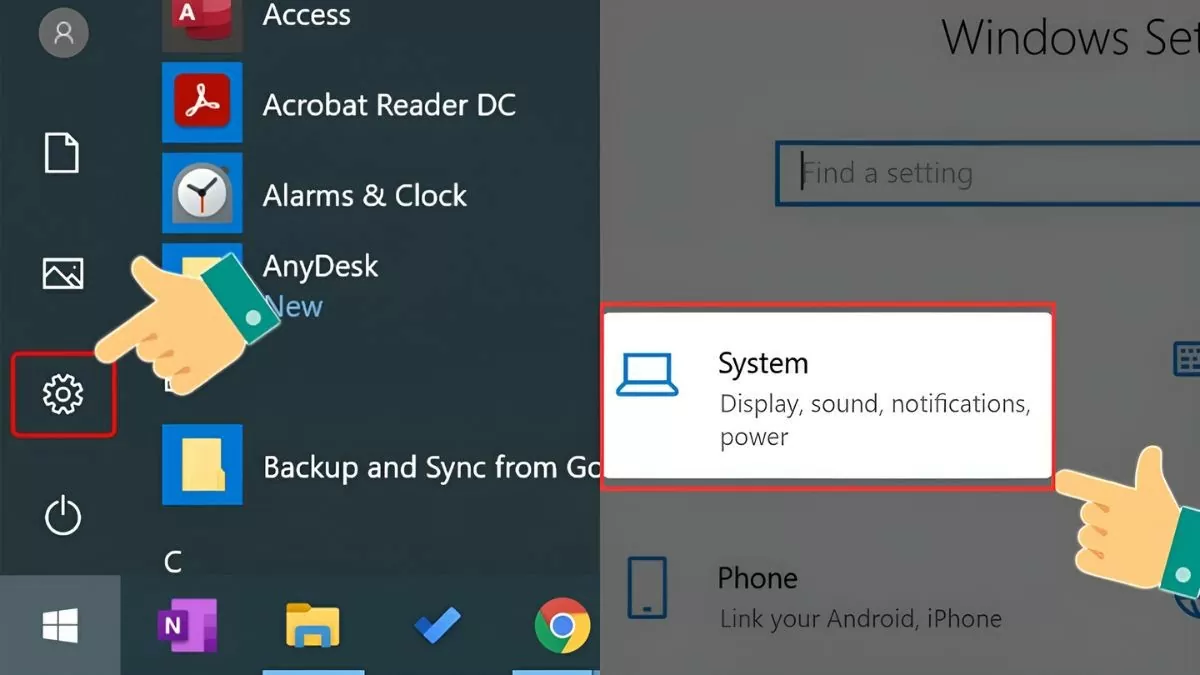 |
Step 2: Next, select "System," then click on "Power & Sleep."
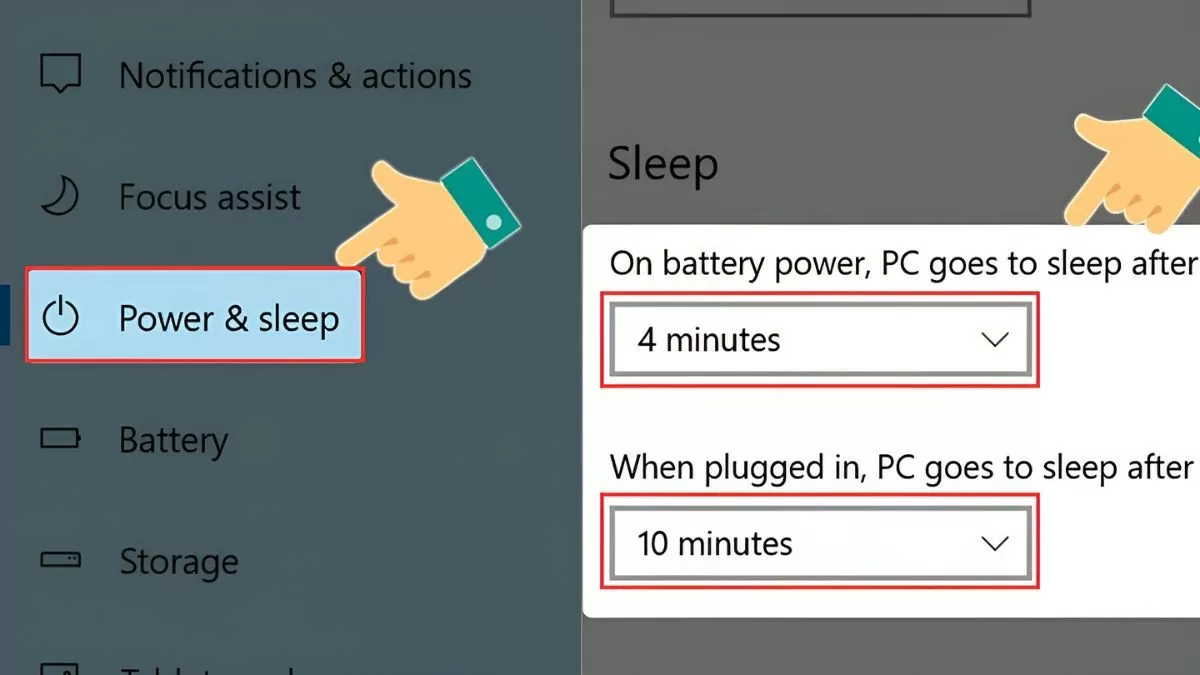 |
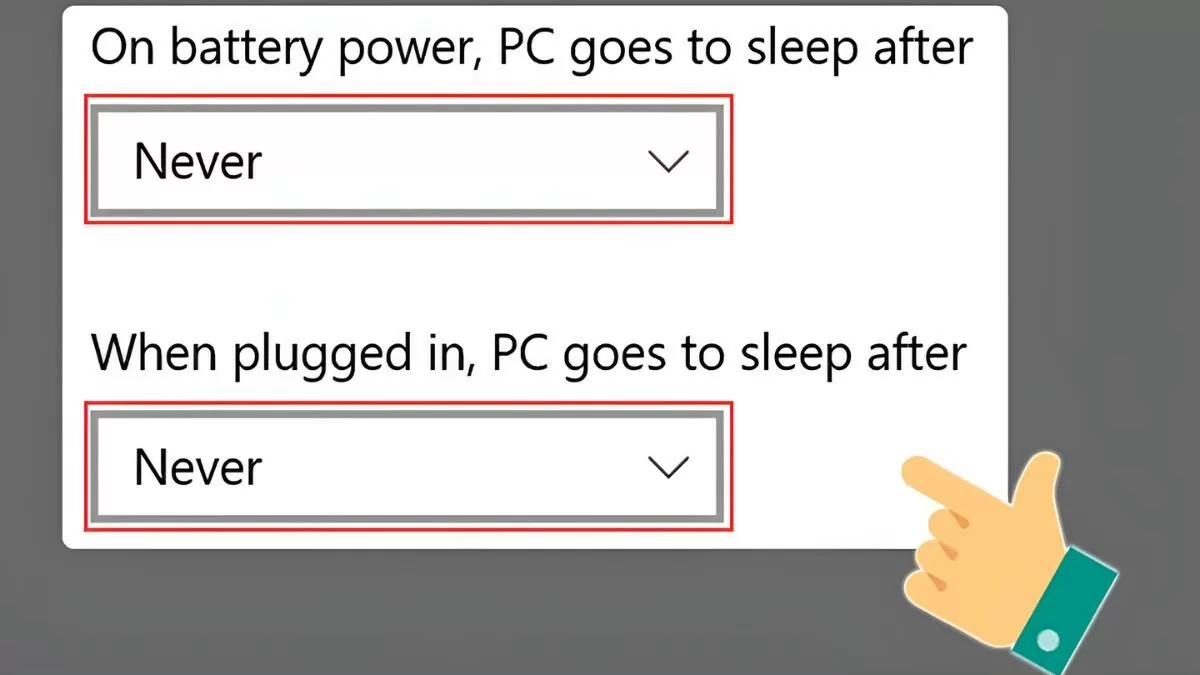
Step 3: Here, you can adjust the screen timeout and the timeout for the computer to go into sleep mode. To disable sleep mode on Windows 10, set these options to "Never".
 |
Use Power Options
Another way to disable sleep mode on Windows 10 is to use Power Options in the Control Panel:
Step 1: Press Windows + X and select Power Options.
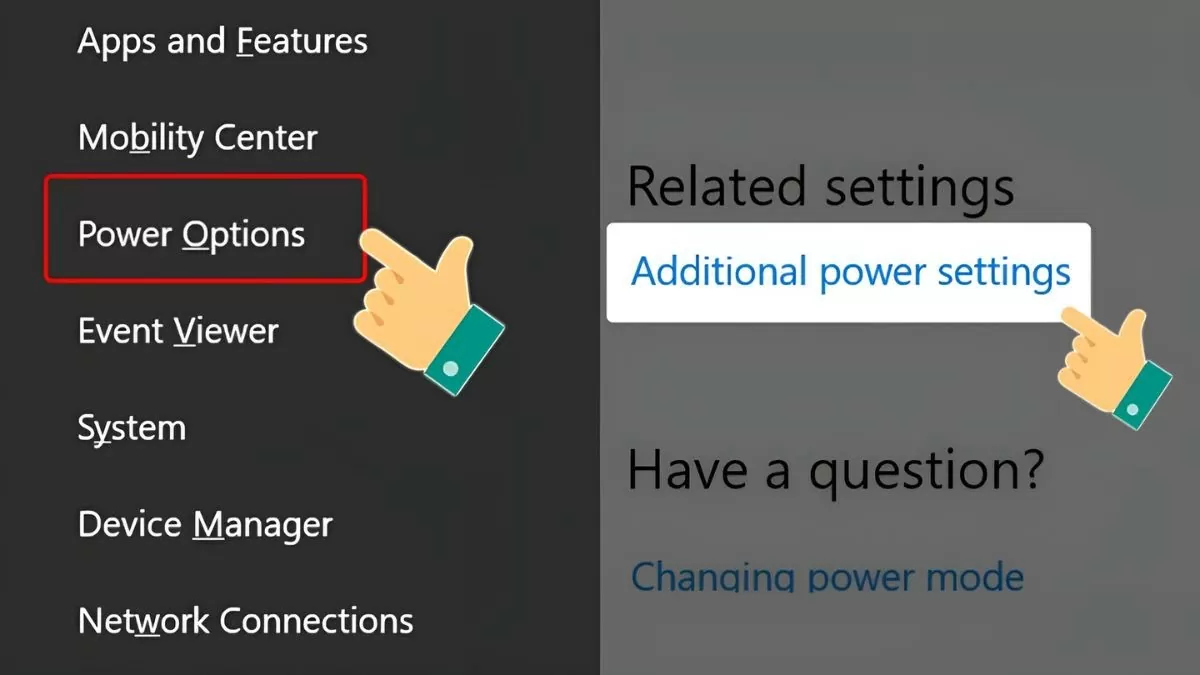 |
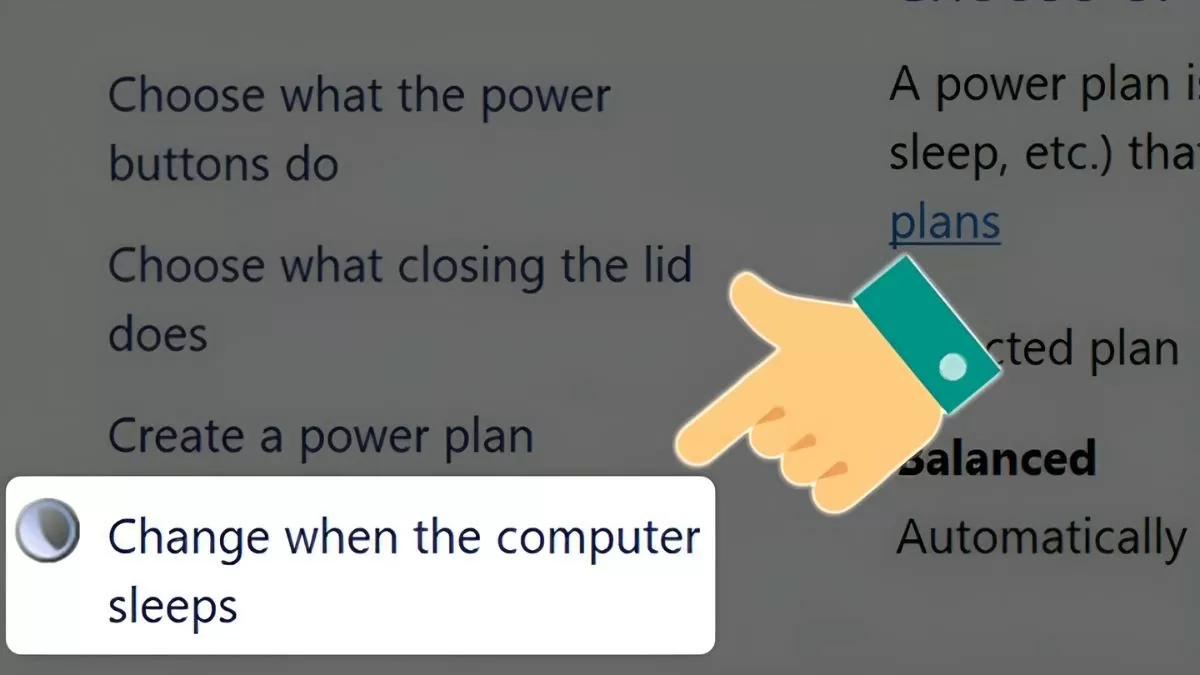
Step 2: In the Related Settings section, select "Additional Power Settings," then click "Change when the computer sleeps."
 |
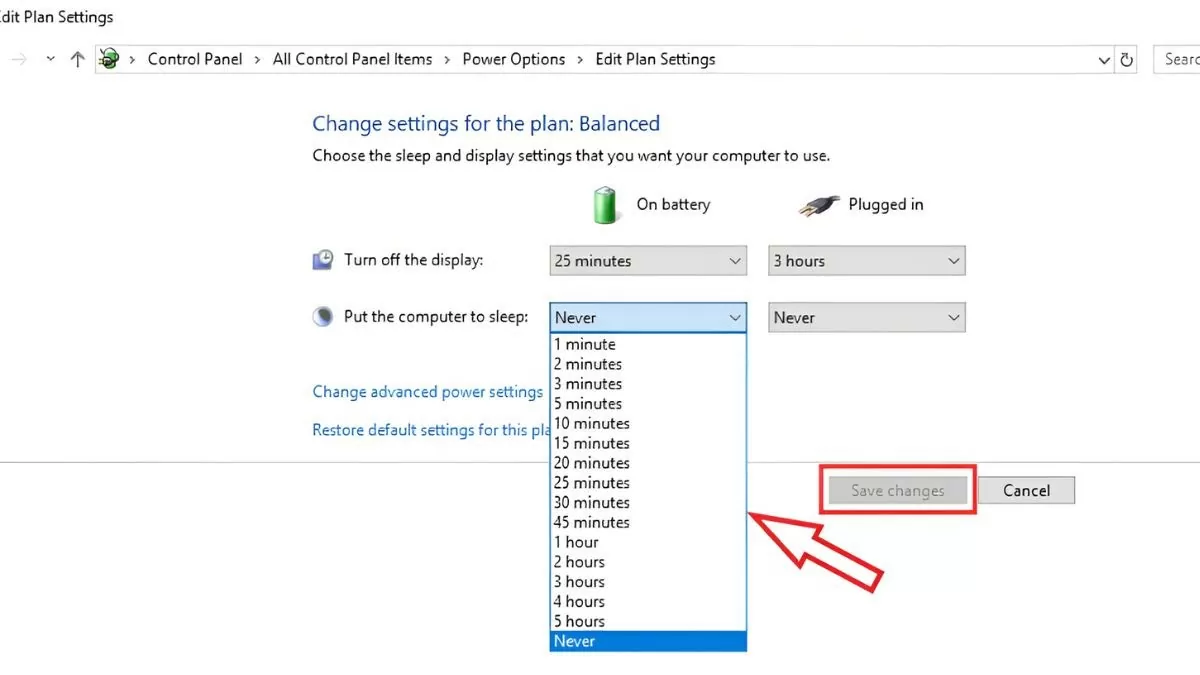
Step 3: In the "Edit plan settings" section, under "Sleep," select "Never" for both "On battery" and "Plugged in." Then, click "Save changes" to complete the process.
 |
Instructions on how to enable and disable hibernation mode on Windows 10
Besides Sleep mode, Hibernate mode is an effective energy-saving option that saves the computer's state to the hard drive before shutting down. Here's how to enable or disable Hibernate on Windows 10:
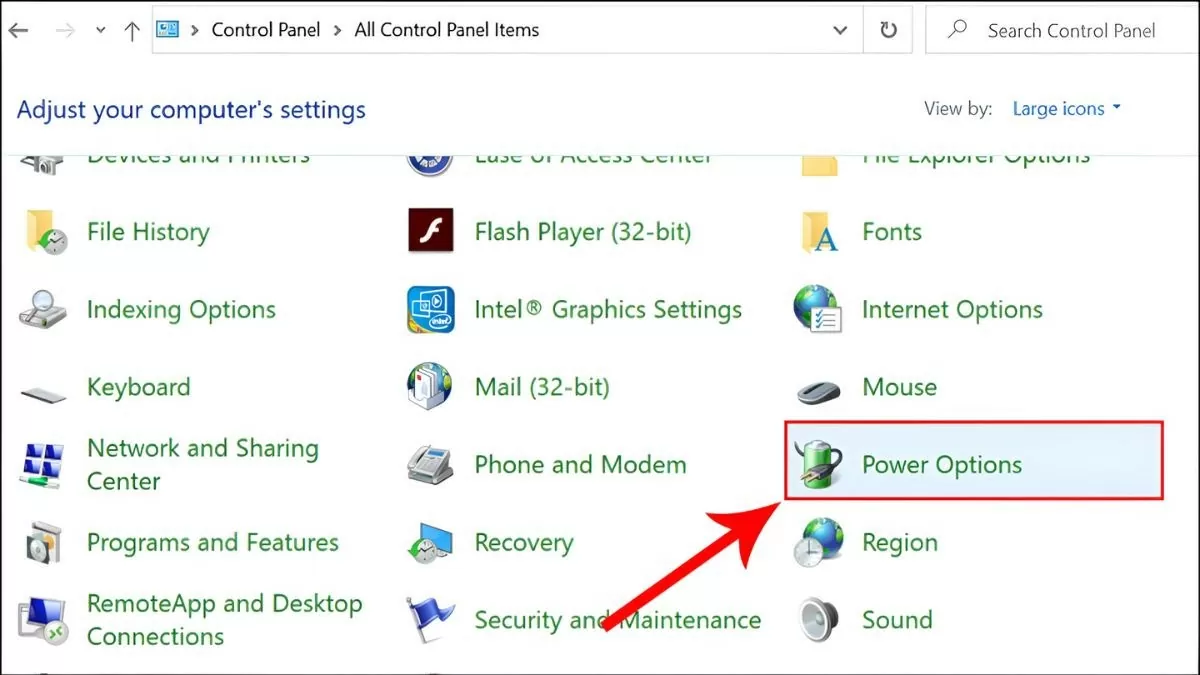
Step 1 : Open Control Panel from the search menu, then select Power Options .
 |
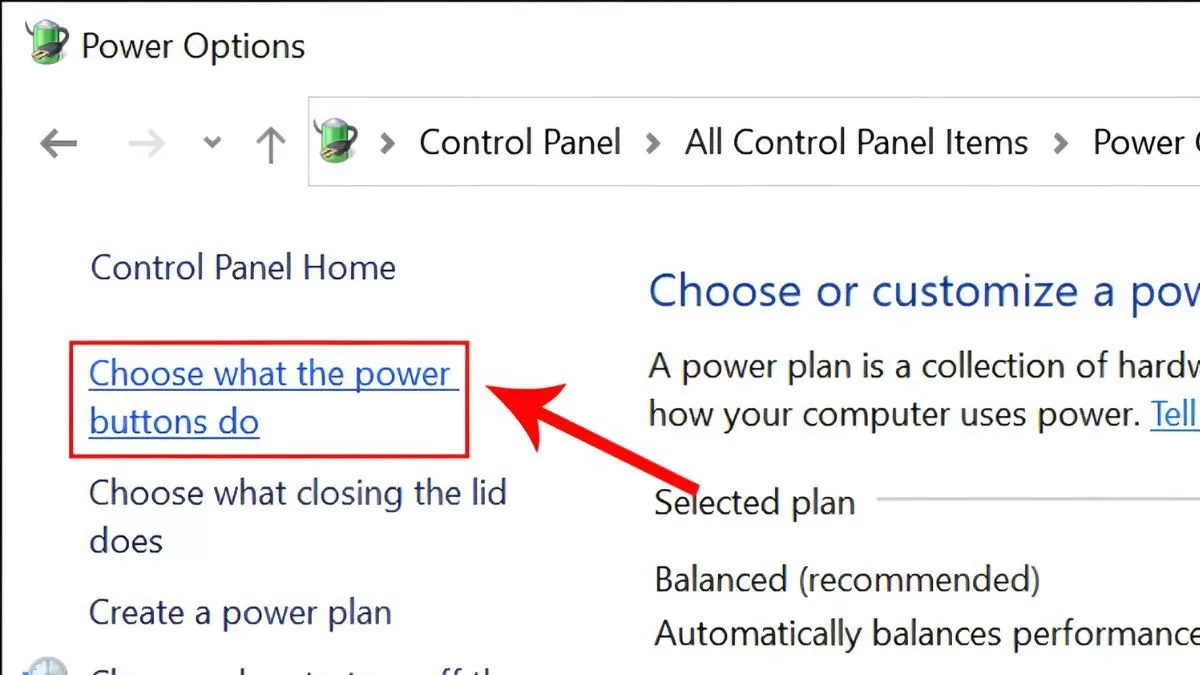
Step 2 : Select "Choose what the power buttons do" in the left column.
 |
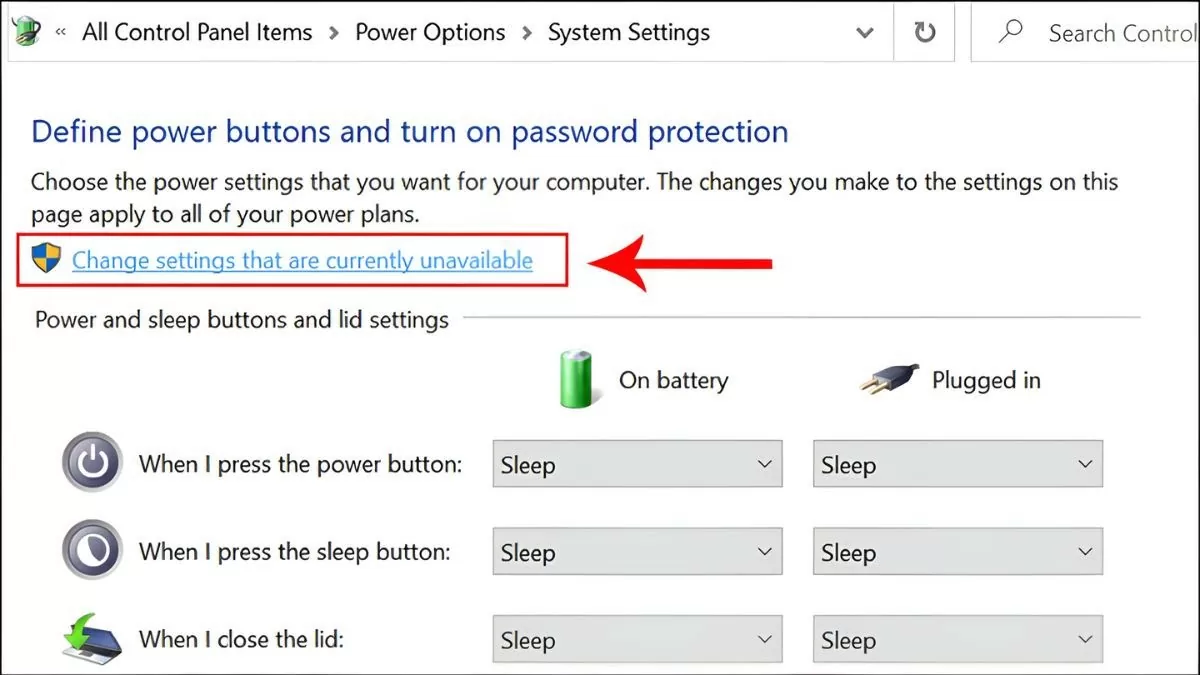
Step 3 : Click on Change settings that are currently unavailable to enable editing permissions.
 |
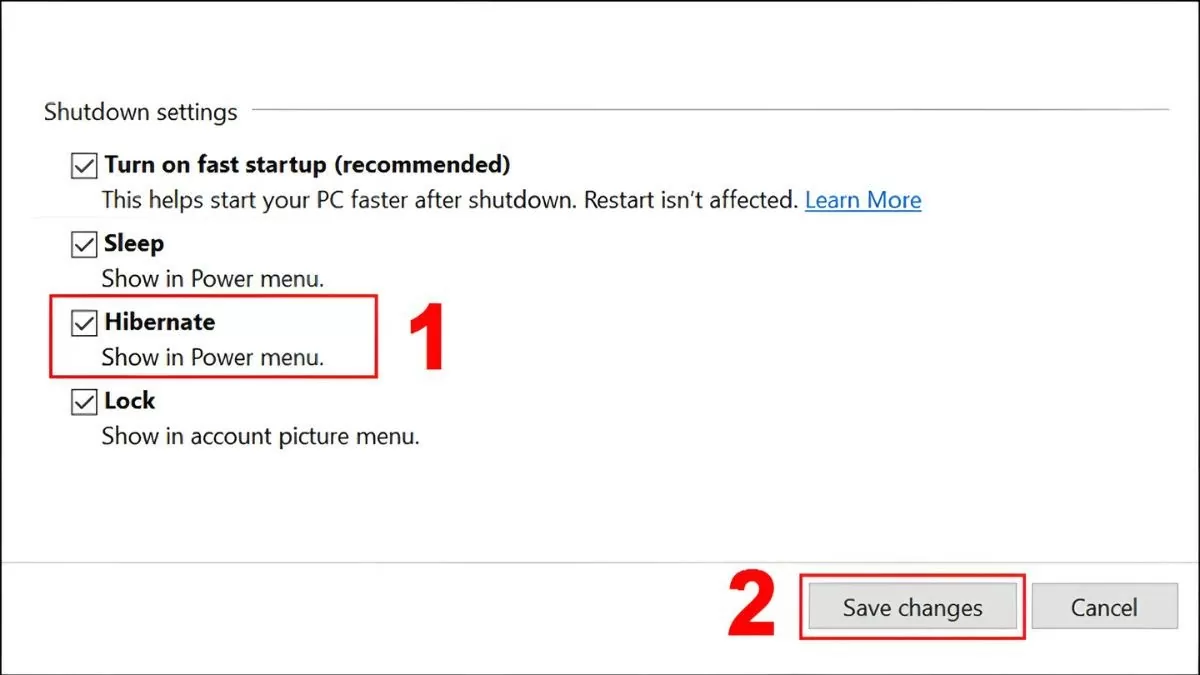
Step 4 : Scroll down and check the Hibernate box in the Shutdown settings section.
 |
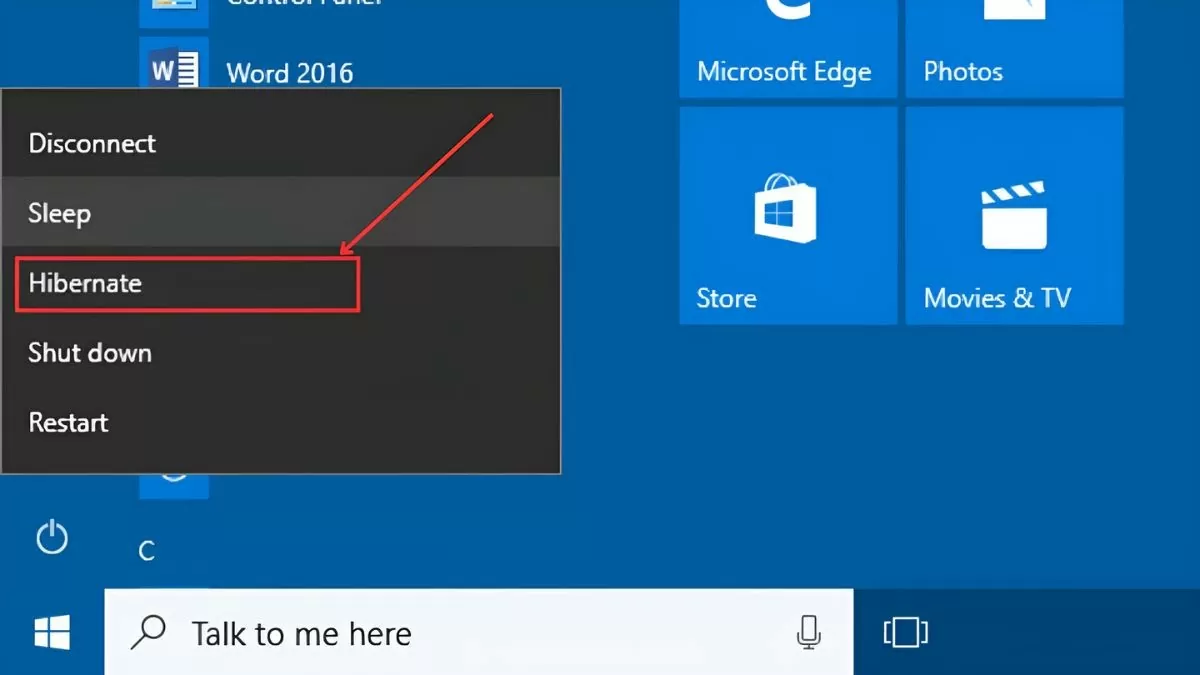
Step 5 : After saving the changes, you will see the Hibernate option in the Power menu.
 |
Disabling sleep mode on Windows 10 can help users maintain continuous operation without interruption. With the instructions above, you can easily disable sleep mode or enable other features like Hibernate, effectively protecting data and saving energy.
Source


![[Photo] Prime Minister Pham Minh Chinh attends the Conference summarizing and implementing tasks of the judicial sector.](/_next/image?url=https%3A%2F%2Fvphoto.vietnam.vn%2Fthumb%2F1200x675%2Fvietnam%2Fresource%2FIMAGE%2F2025%2F12%2F13%2F1765616082148_dsc-5565-jpg.webp&w=3840&q=75)





























































































Comment (0)