

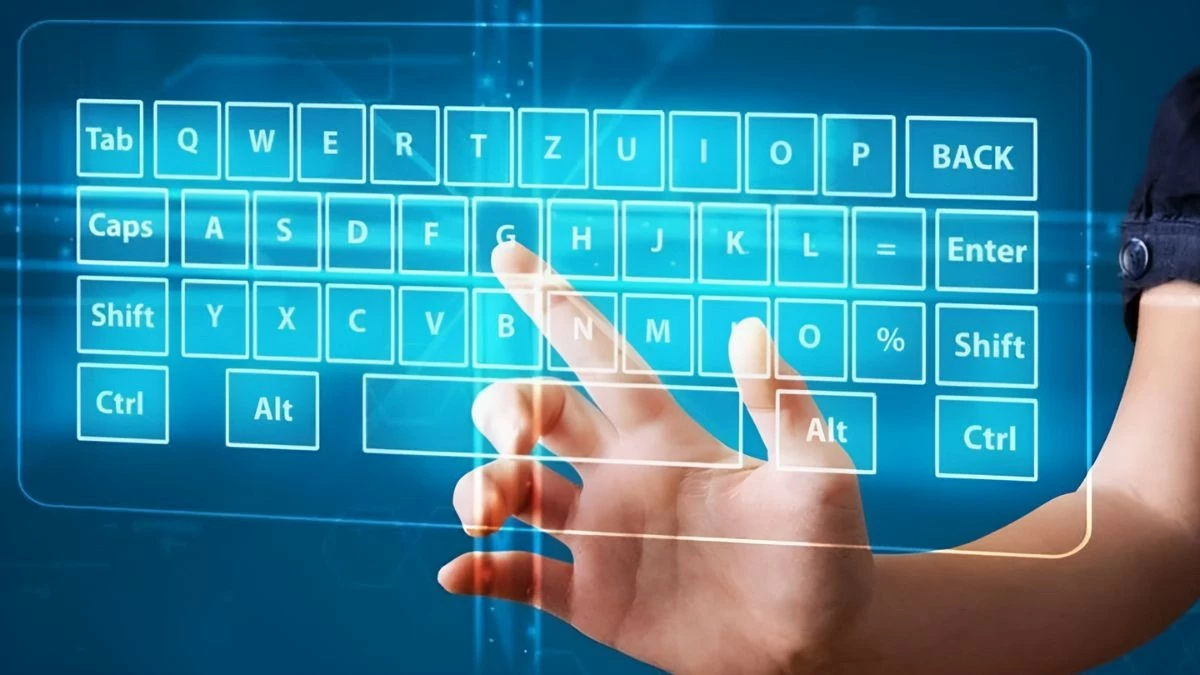
When encountering problems with the physical keyboard, you can use the virtual keyboard on Windows 10 for flexible input. This article guides you through simple ways to open the virtual keyboard!
 |
Instructions on how to easily open the virtual keyboard in Windows 10.
There are many ways to open the virtual keyboard on Windows 10, from keyboard shortcuts to system tools. Here's a simple way to activate the virtual keyboard:
Use the virtual keyboard on the login screen for quick access.
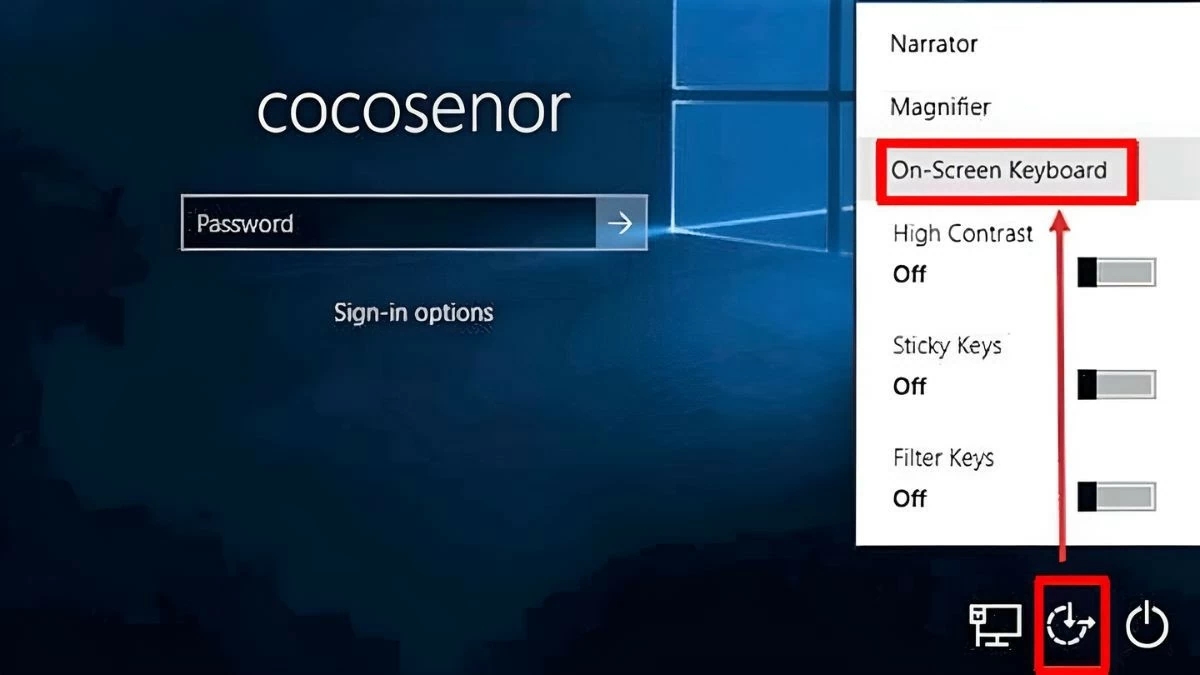
When your physical keyboard malfunctions and you can't log in, Windows 10 allows you to open a virtual keyboard directly on the login screen. To do this, simply click the clock-like icon in the bottom right corner of the screen. Once the dialog box opens, select "On-Screen Keyboard," and the virtual keyboard will appear for you to enter your password.
 |
Open the keyboard via the Taskbar.
Another simple way to open the virtual keyboard on your computer is to use the Taskbar. This method allows you to quickly access the virtual keyboard without having to go into the settings.
Step 1 : Right-click on the Taskbar to open the Options dialog box.
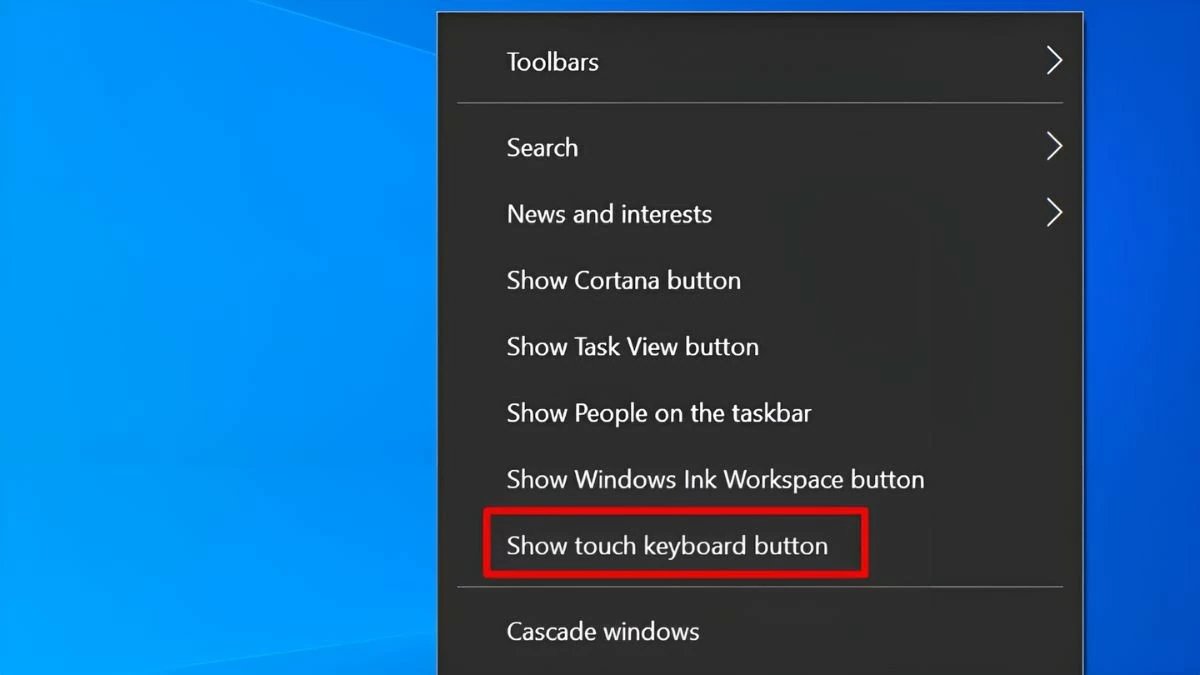 |
Step 2 : In the dialog box, select "Show touch keyboard button" to display the virtual keyboard button.
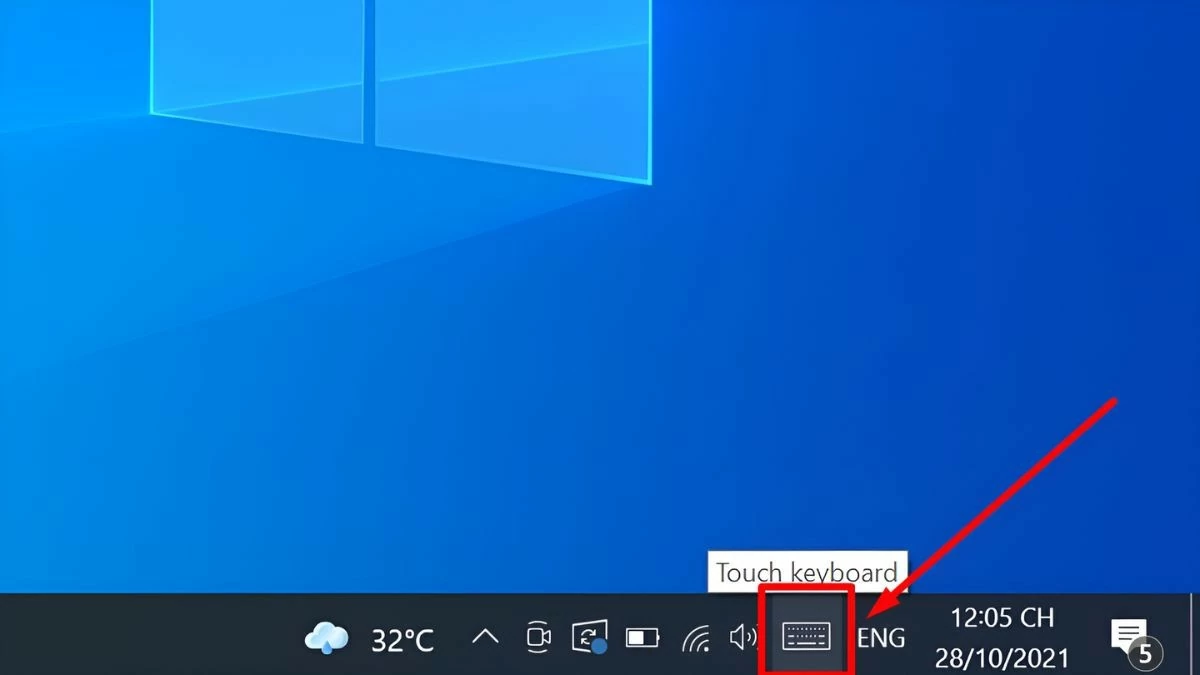
Step 3 : The keyboard icon will appear on the Taskbar; simply click on the icon to open the virtual keyboard.
 |
Use keyboard shortcuts to open the virtual keyboard.
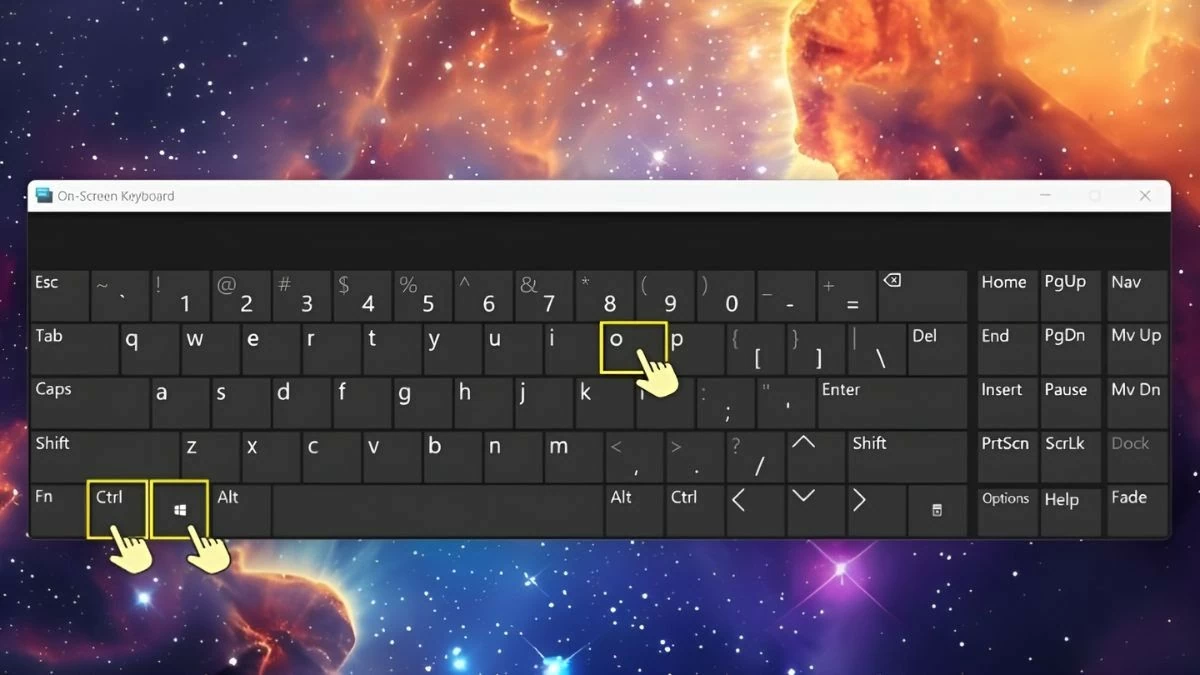
If you prefer speed and convenience, keyboard shortcuts are a great way to open the virtual keyboard without searching through menus. Simply press Windows + Ctrl + O , and the virtual keyboard will appear instantly.
 |
How to effectively open the virtual keyboard using the Run dialog box.
If you prefer quick action through the Run dialog box, here's a simple way to open the virtual keyboard.
Step 1 : First, press Windows + R to open the Run dialog box.
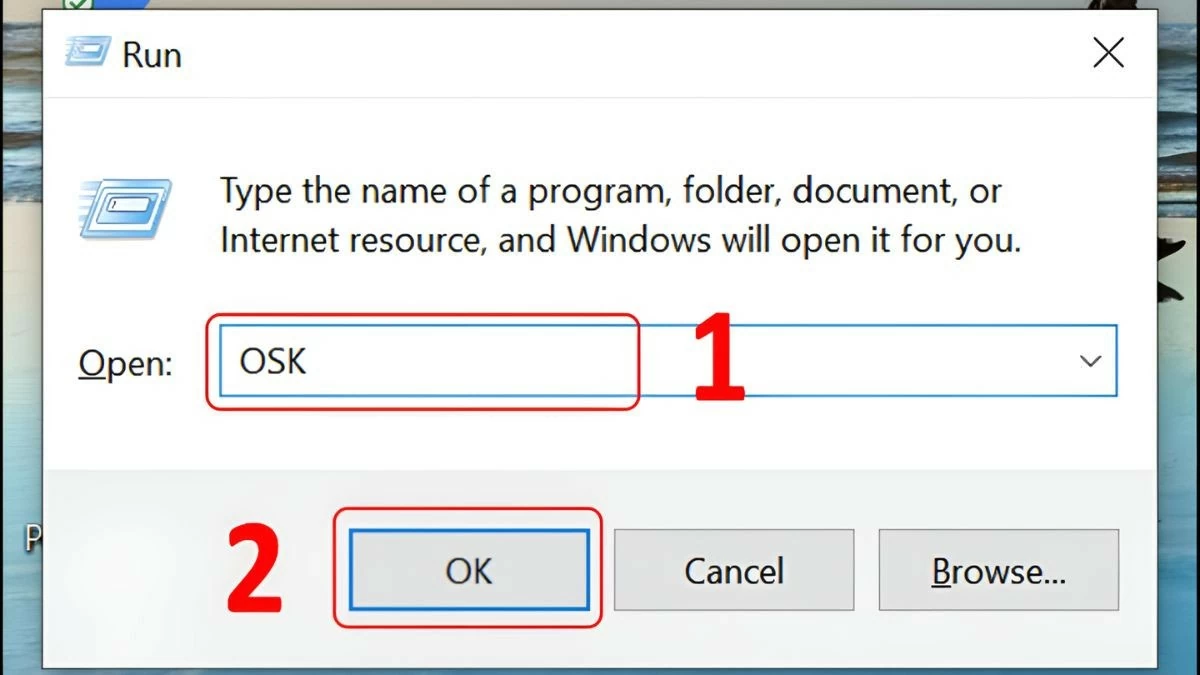 |
Step 2: In the command input box, type "osk" and press OK.
Step 3: Once completed, the virtual keyboard will appear on the screen.
This method is suitable for those who are accustomed to using the Run dialog box for quick access to tools.
Open the virtual keyboard from the search bar in the Start Menu.
The Start Menu contains many options for quickly accessing Windows features, and opening the virtual keyboard is also included here. If you don't want to remember keyboard shortcuts or complicated steps, this is the most intuitive and easy-to-understand method.
Step 1: Open the Start Menu by clicking the Start icon.
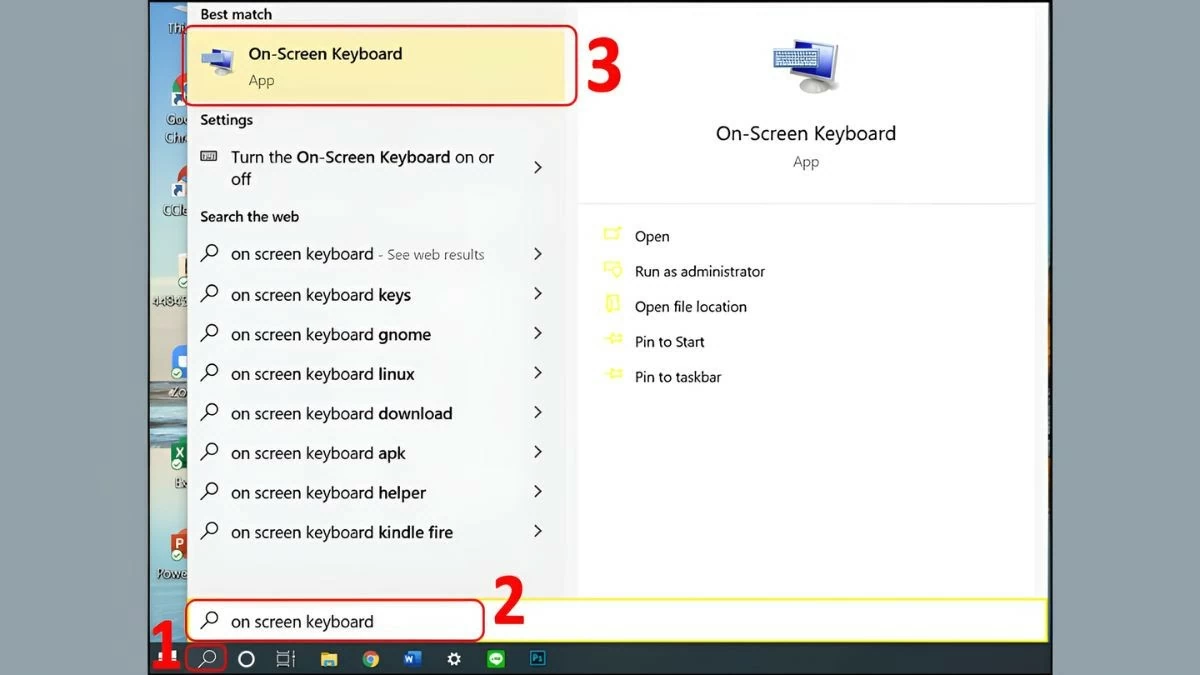 |
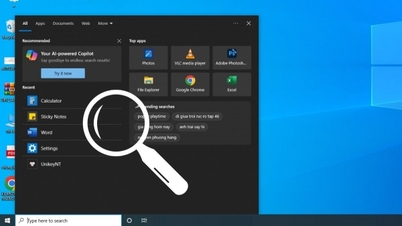
Step 2: Next, type "On-Screen Keyboard" into the search box.
Step 3 : When the results appear, click the "On-Screen Keyboard" option to open the virtual keyboard.
Open the virtual keyboard via Settings.
In addition to using keyboard shortcuts, you can also access the virtual keyboard through the Settings menu. This is where you can manage many system functions, including the virtual keyboard. You just need to perform a few simple steps in the Settings to enable this tool.
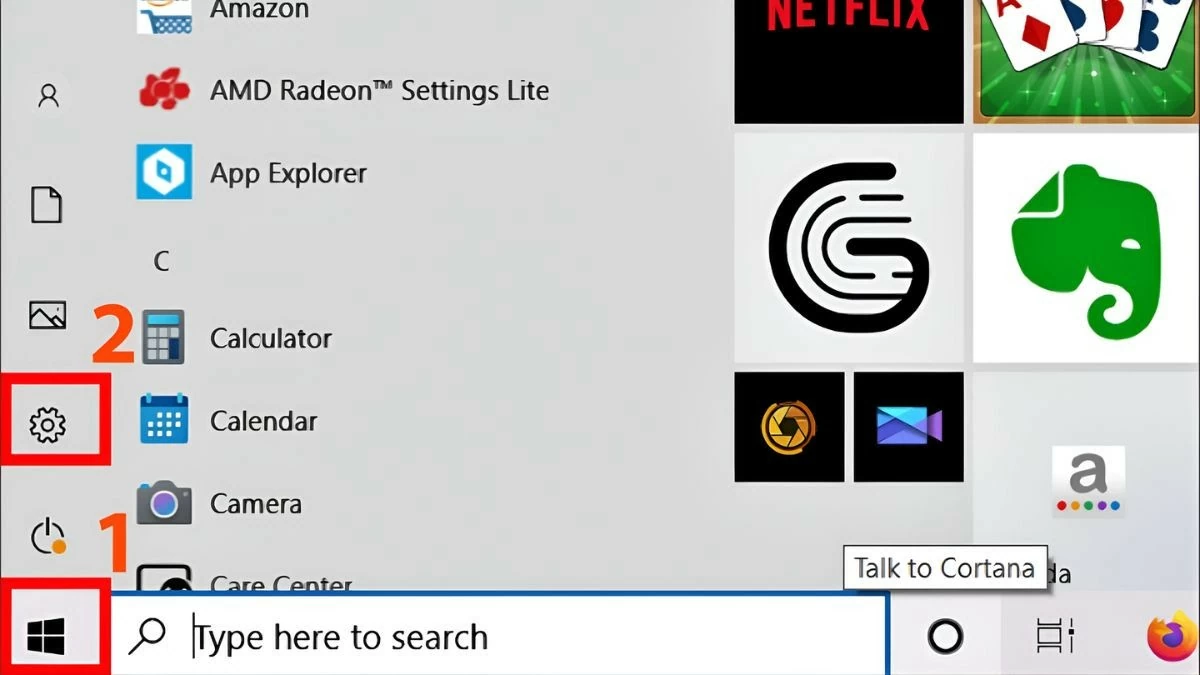
Step 1: Click Start to open the Menu bar and select Settings.
 |
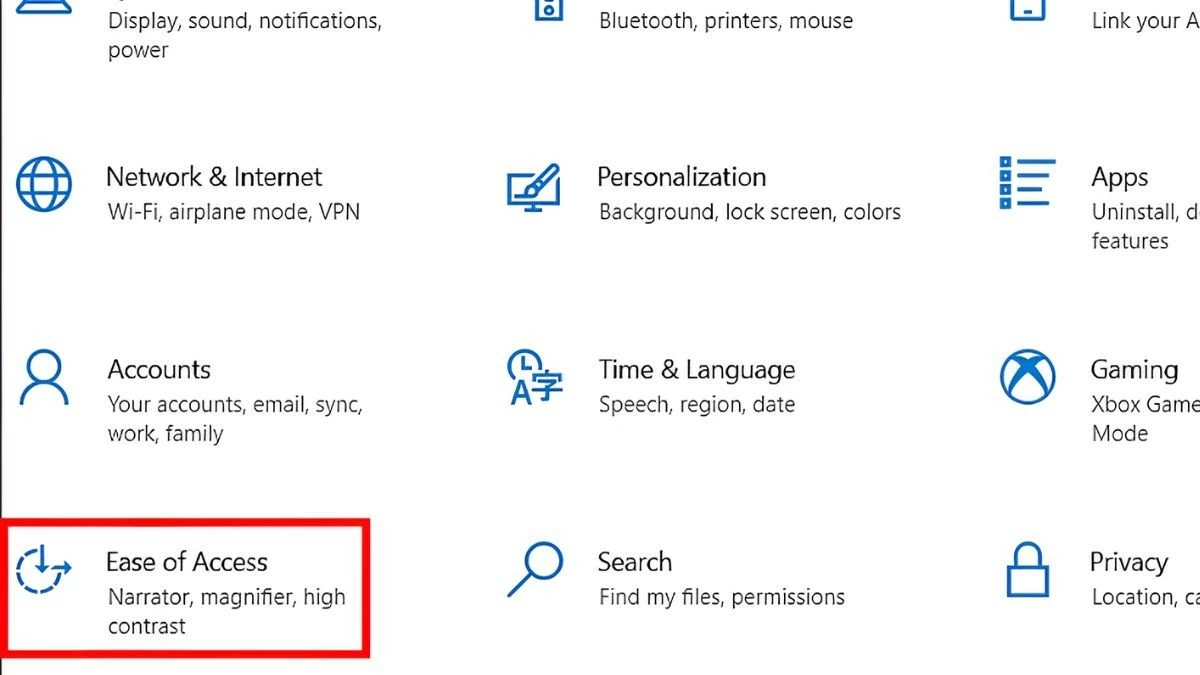
Step 2: Select the Ease of Access option.
 |
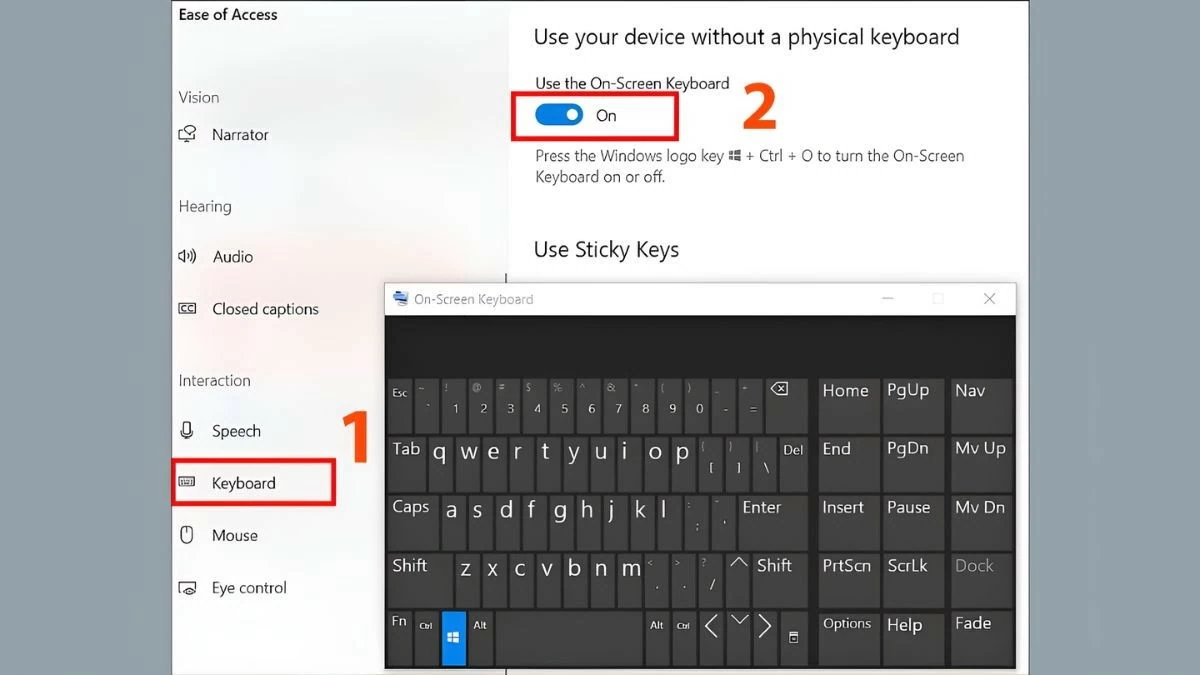
Step 3: Next, find and select the Keyboard option. In the "Use the On-Screen Keyboard" section, toggle the switch to activate the virtual keyboard. The keyboard will appear immediately after you enable this feature.
 |
How to enable the virtual keyboard from the Control Panel
If you frequently use the Control Panel to manage your computer's features, you can also enable the virtual keyboard from there. Here are the steps:
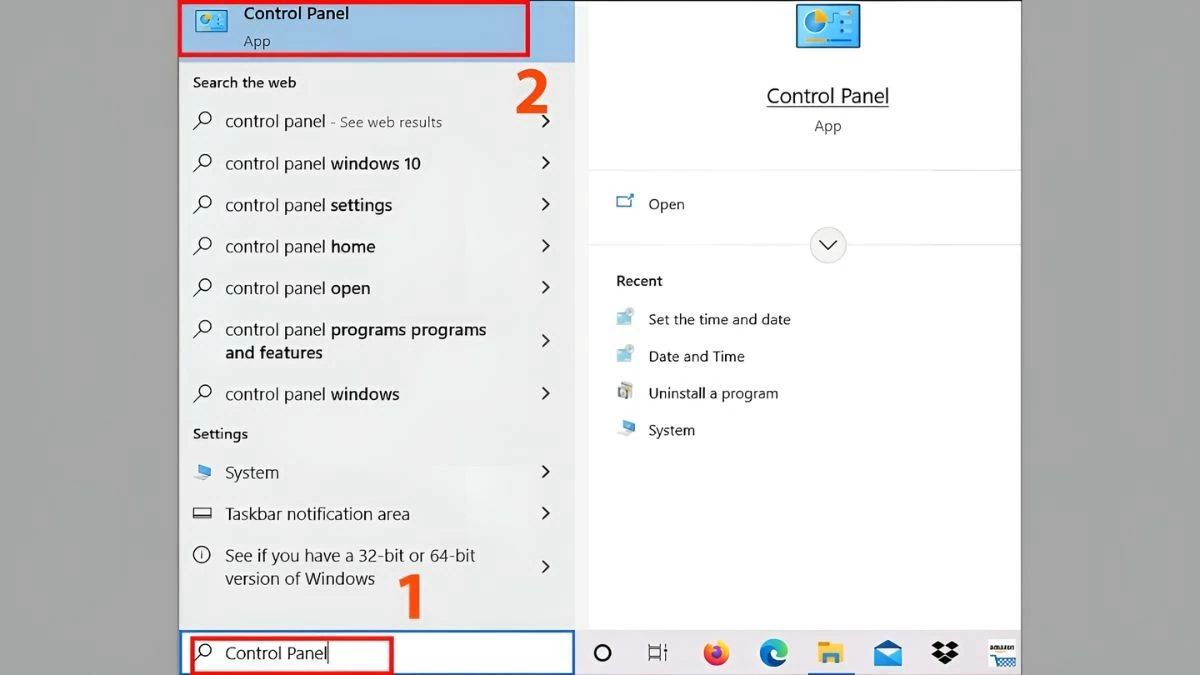
Step 1: First, open the Control Panel by clicking the Start button and typing "Control Panel" in the search box.
 |
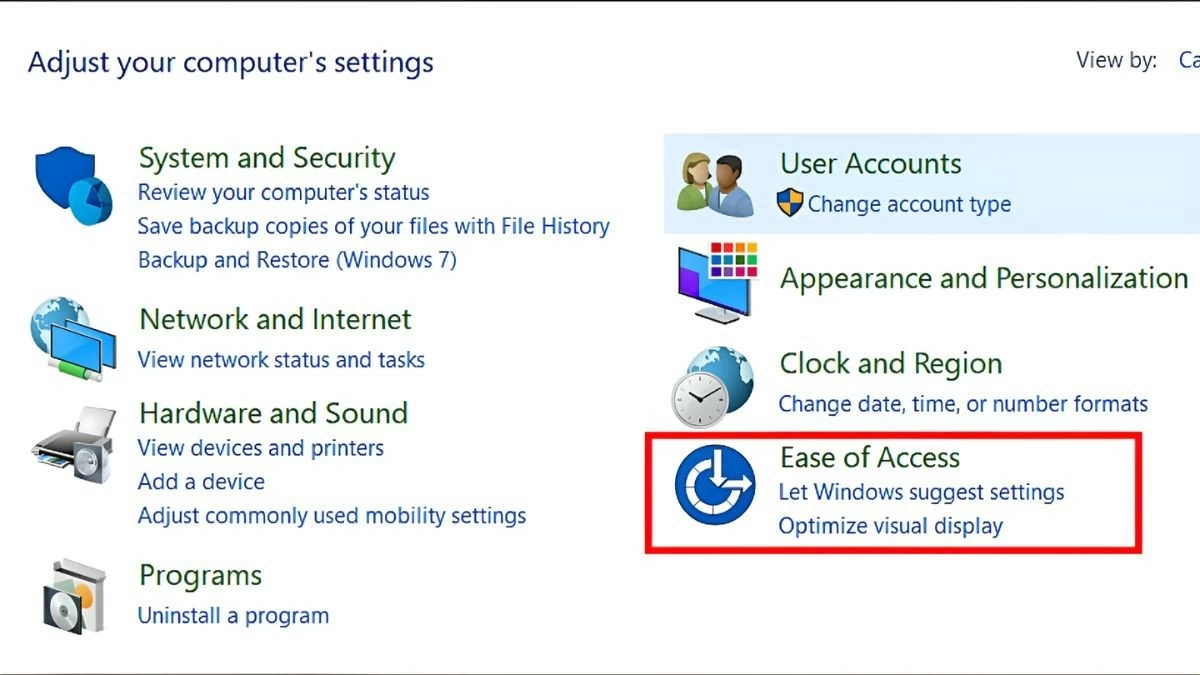
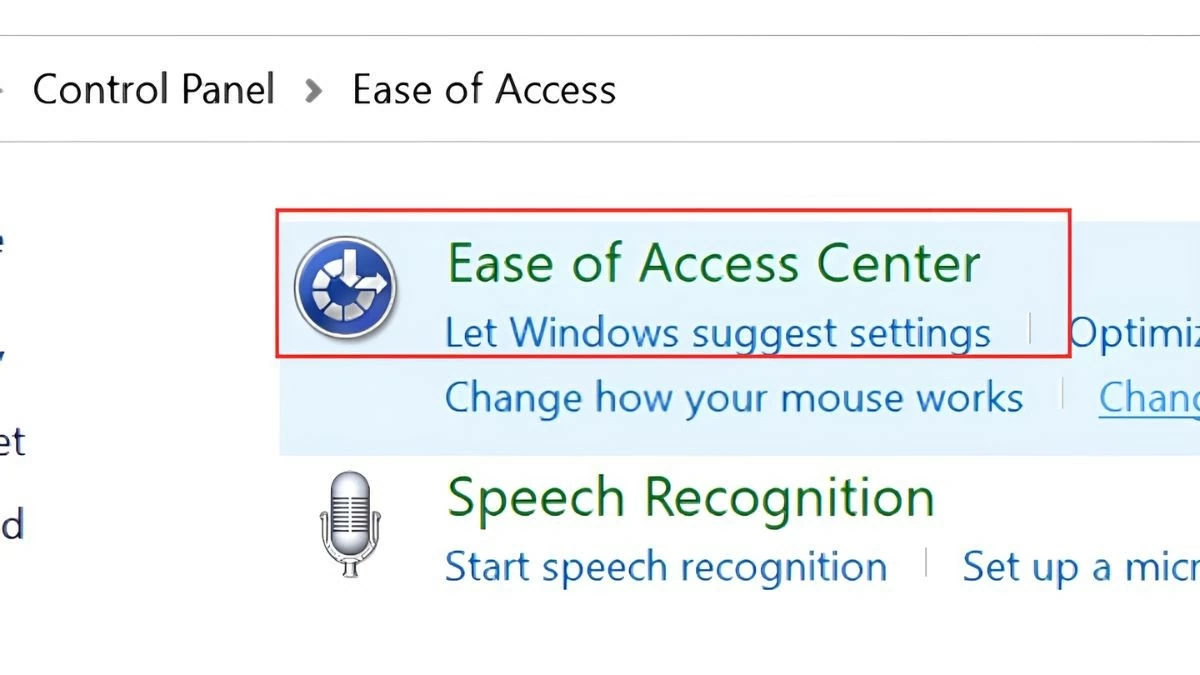
Step 2: After opening the Control Panel, select the Ease of Access option.
 |
Step 3: Next, select Ease of Access Center.
 |
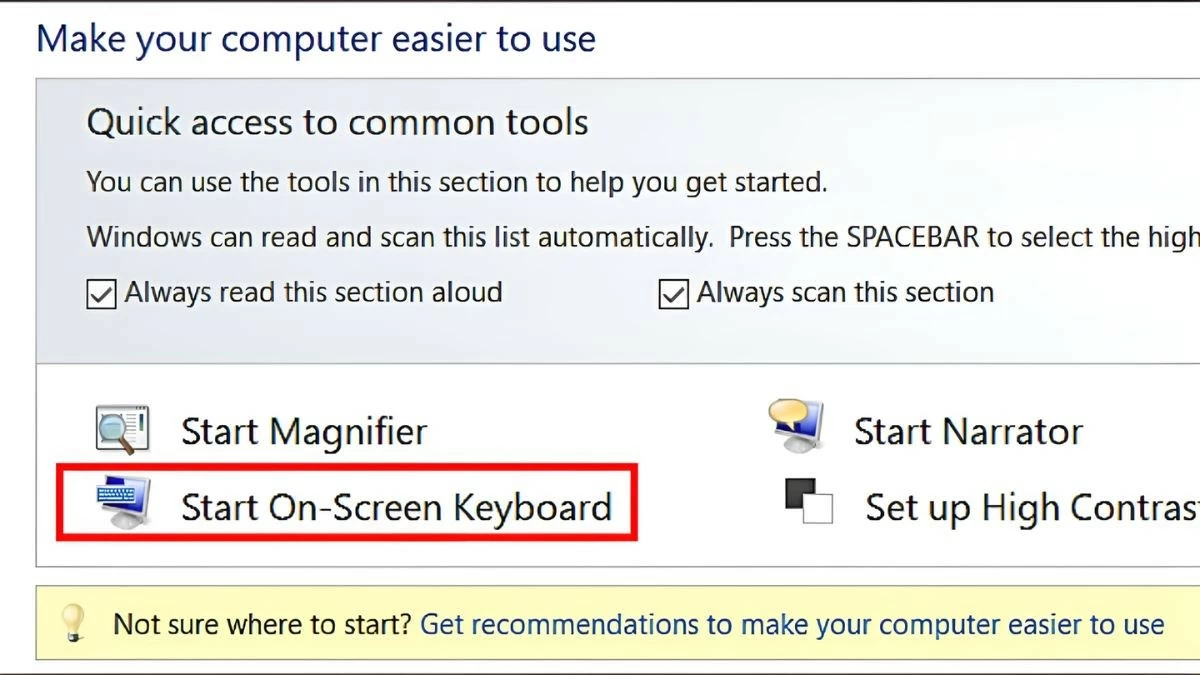
Step 4: Next, click the "Start On-Screen Keyboard" option to activate the virtual keyboard.
 |
This method is very useful when you are installing or managing other Windows features and need to enable the virtual keyboard directly from the Control Panel.
Above are the simplest methods to open the virtual keyboard on Windows 10. Whether you're having trouble with the physical keyboard or just want easier operation, these methods will help you solve the problem effectively. Save these methods for opening the virtual keyboard on Win 10 to use when your computer encounters problems.
Source




![[Image] Nearly 125,000 Hanoi students completed the Literature exam for the 10th grade entrance exam.](https://vphoto.vietnam.vn/thumb/1200x675/vietnam/resource/IMAGE/2026/05/30/1780117233041_ndo_br_thiet-ke-chua-co-ten-2-png.webp)





























































































Comment (0)