

To make sharing data easier, you should reduce the size of your Word file before sending it. You can refer to the article below to learn how to reduce Word file size!
 |
Simple ways to compress and reduce the size of Word files.
Compressing and reducing the size of Word files is an effective way to optimize storage space and easily share documents. You can do this by reducing image quality, deleting unnecessary data, and other methods. Below is how to compress Word files using WinRAR to quickly reduce their size.
Compress Word files using WinRAR
Using WinRAR to compress Word files is a simple and effective way to reduce file size. Compression optimizes document storage and sharing. Simply follow these steps:
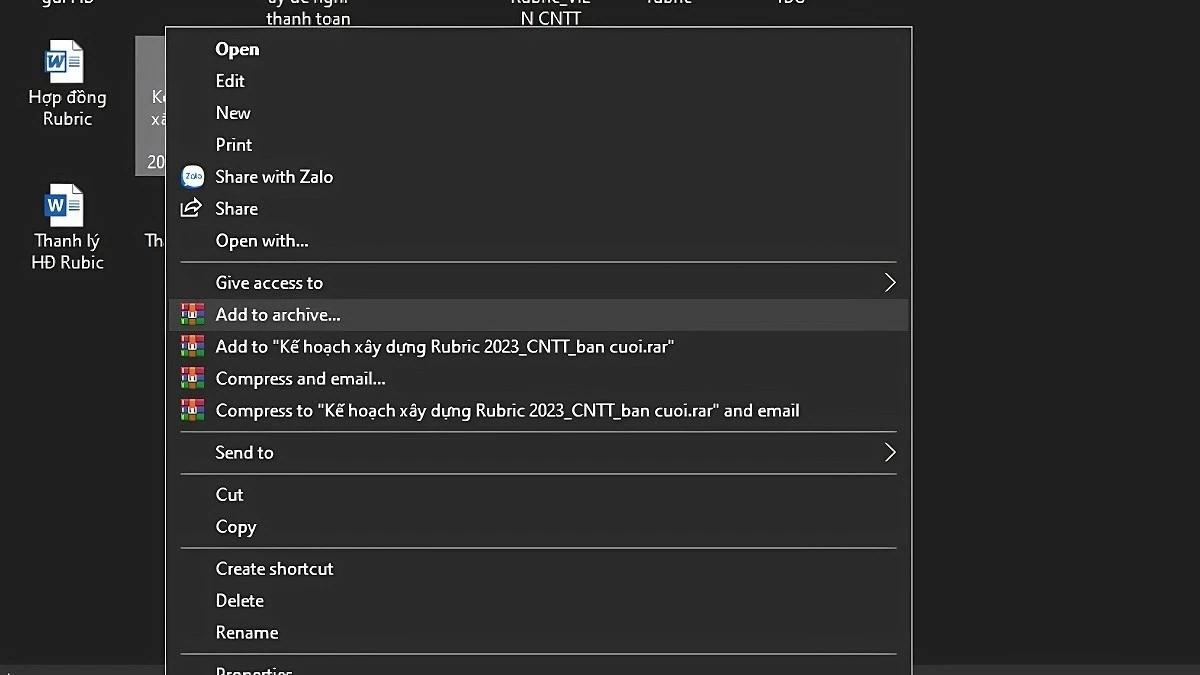
Step 1: First, select the Word file you want to compress, right-click, and choose "Add to archive..." from the context menu.
 |
Step 2: Name the compressed file, choose the RAR, RAR5, or ZIP format, and then click "OK" to complete the compression process.
 |
Use SmallPDF software.
SmallPDF is an online tool that helps you quickly reduce the size of Word files without compromising content quality.
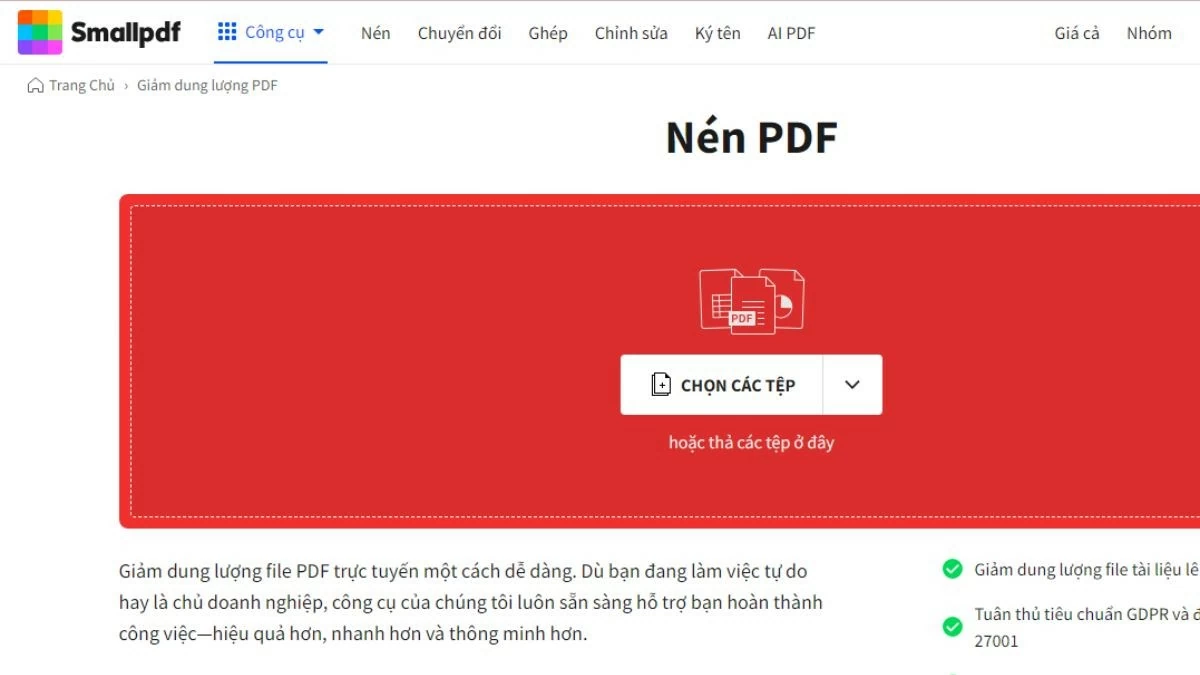
Step 1: Access the SmallPDF website at https://smallpdf.com/vi/compress-pdf and select the file compression feature.
 |
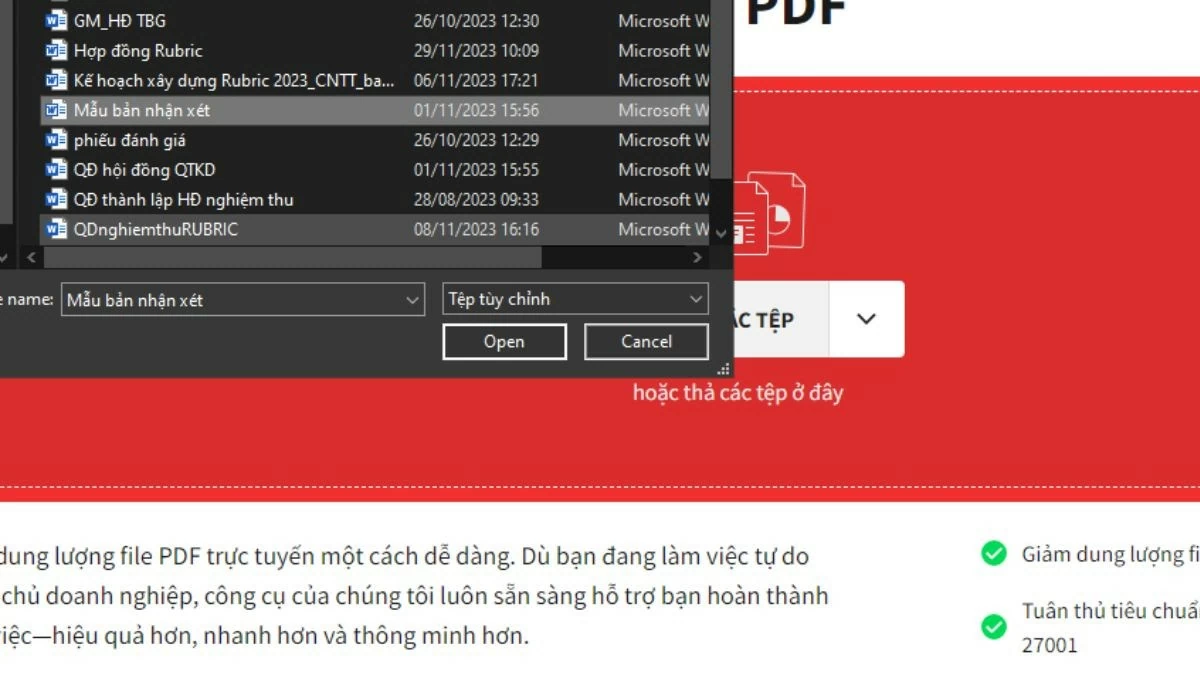
Step 2: Click on "Choose file" to upload the file you want to compress.
 |
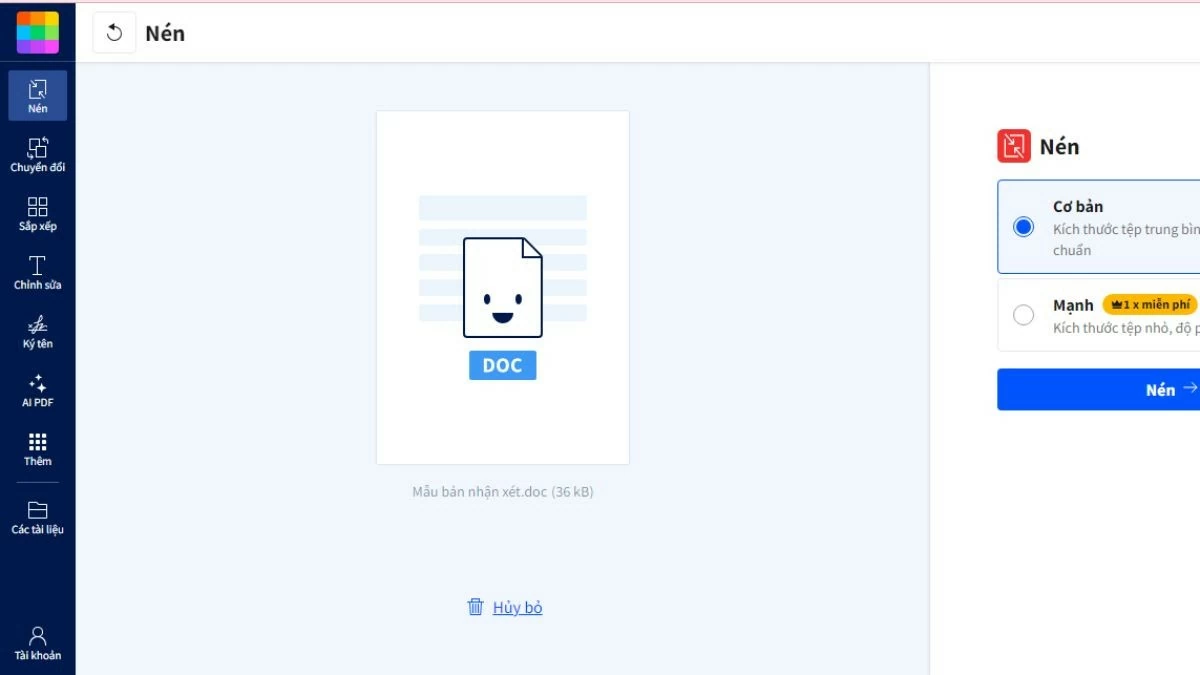
Step 3: Choose "Basic Compression" or "Strong Compression" (requires payment), then press "Compress" to begin the file size reduction process.
 |
Step 4: After the compression process is complete, press "Download" to save the file to your device.
 |
Compress images in a Word file.
Images in Word files often increase document size. To reduce file size while maintaining image quality, you can compress images directly within Word without using external software.
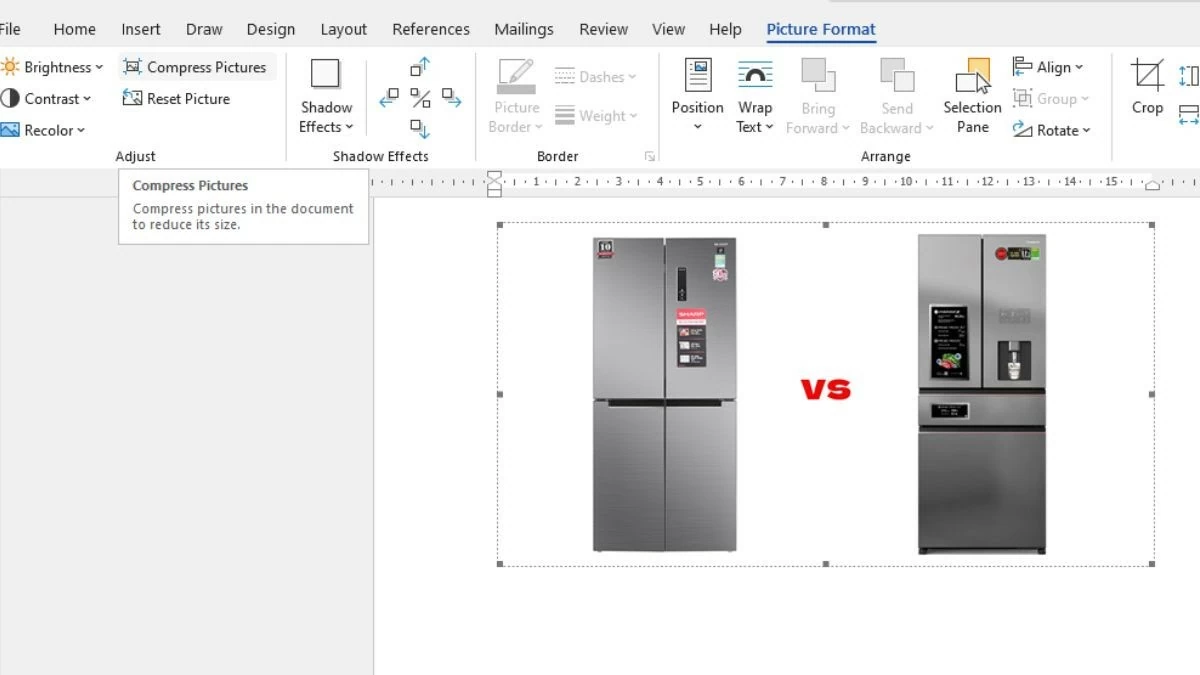
Step 1: Open the Word file containing the image you want to compress, click on the image, select the "Format" tab, and then select " Compress Pictures."
 |
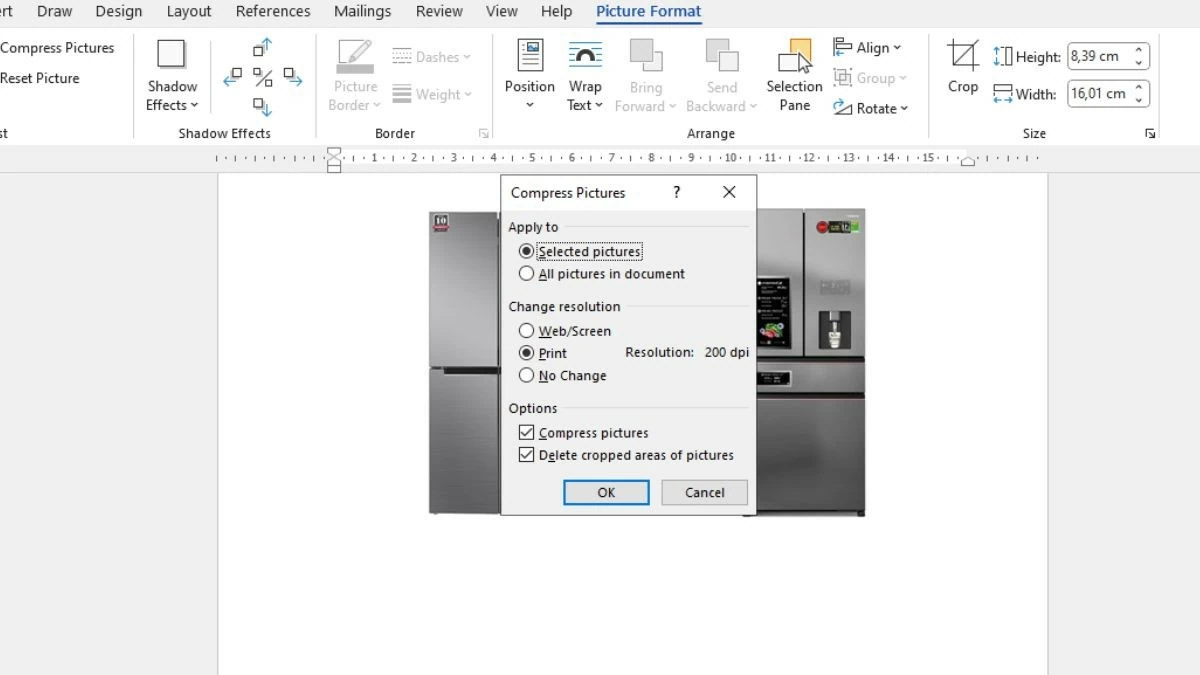
Step 2: When the "Compress Pictures" dialog box appears, uncheck "Apply only to this picture," then select the appropriate image compression options and click "OK."
 |
How to effectively disable image editing features in Word
Disabling image editing in Word removes unnecessary data and reduces file size without altering the image content.
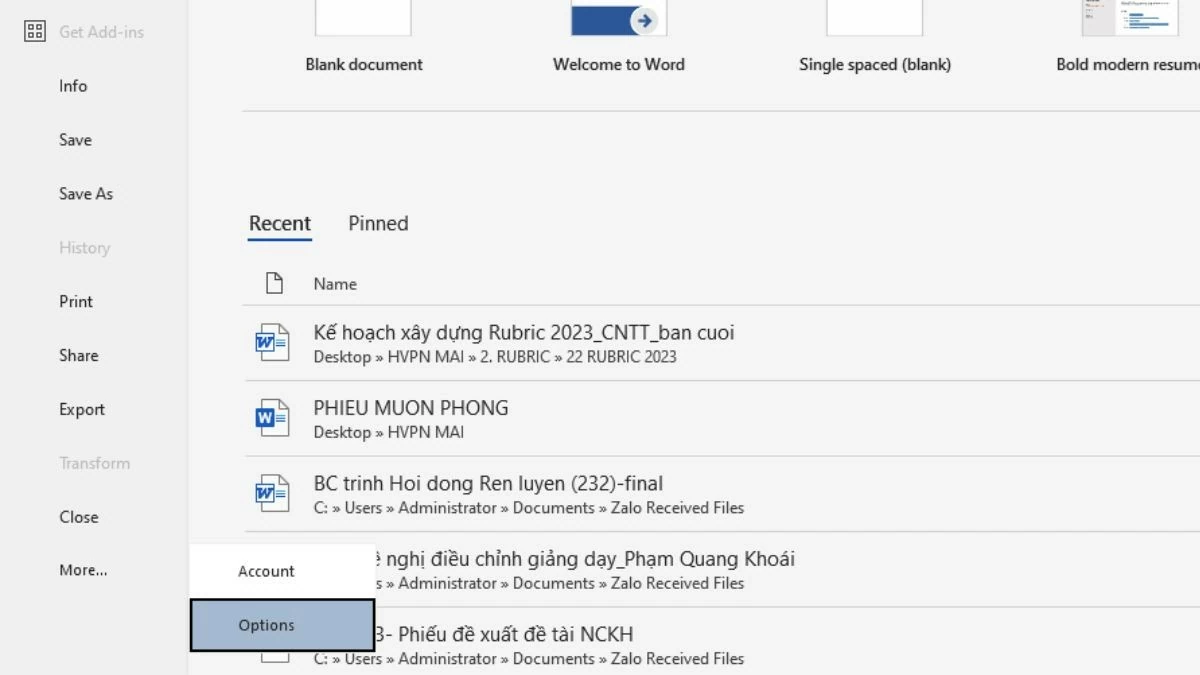
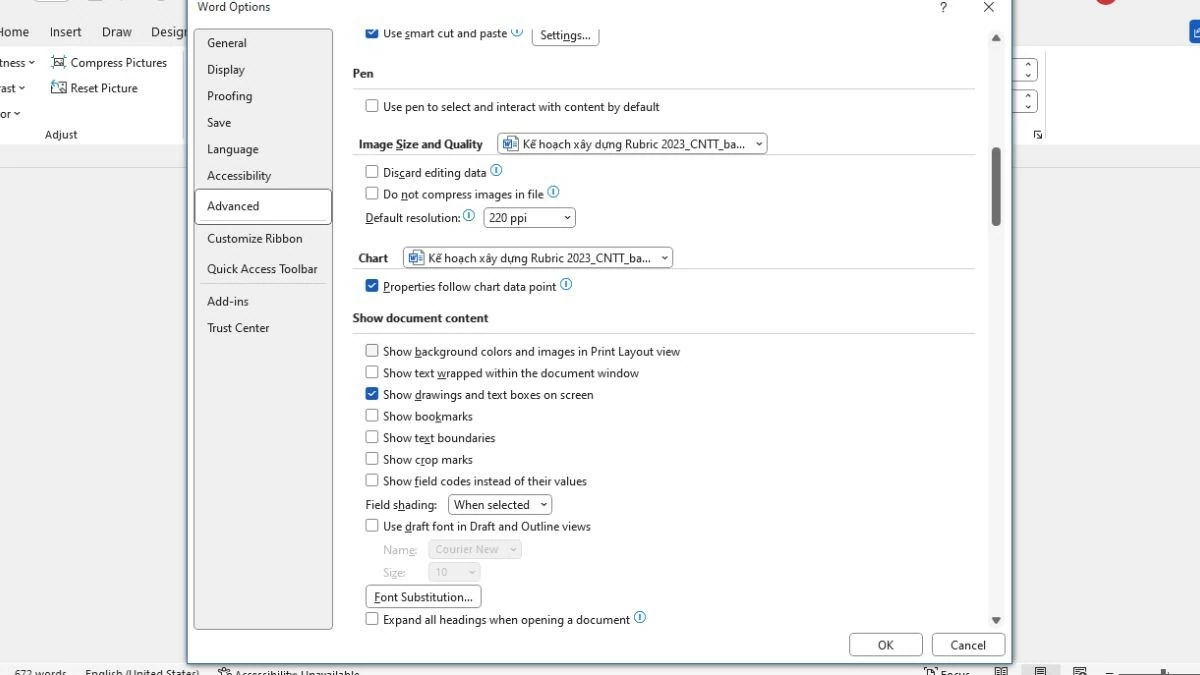
Step 1: Open the Word file you want to compress, select "File," and then go to "Options."
 |
Step 2: In the "Options" dialog box, select "Advanced," then find "Image Size and Quality." Uncheck the box "Do not compress images in file" and click "OK" to reduce the file size.
 |
Remove excess spaces.
Removing unnecessary whitespace in a Word file makes the document neater and more professional, while also reducing file size.
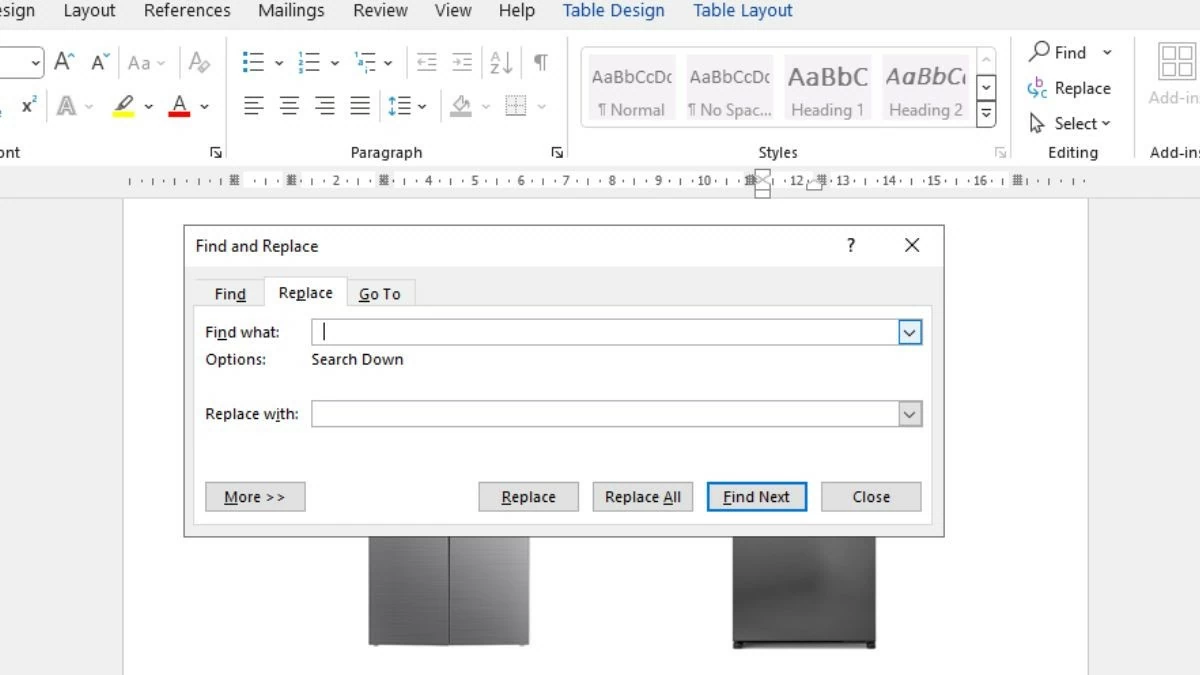
Step 1: Open the Word file you want to compress, press Ctrl + H to open the Find and Replace dialog box.
Step 2: In the "Find what" section, enter two spaces, and in "Replace with," enter one space, then click "Replace All."
 |
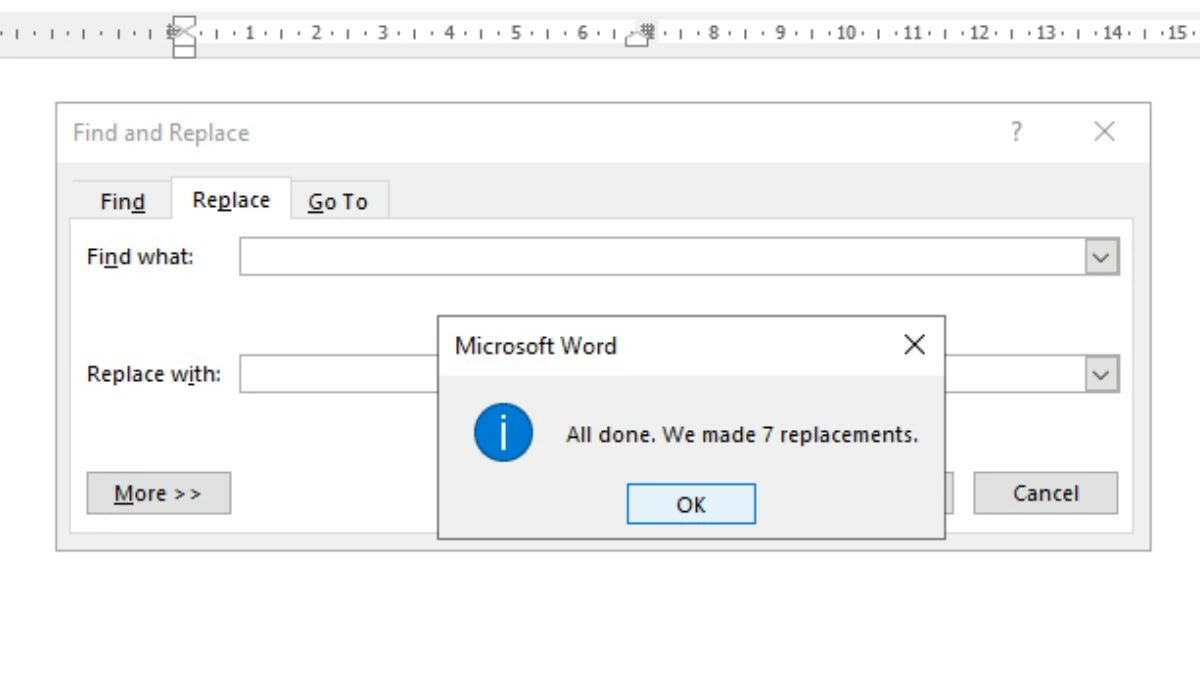
Step 3: Once complete, any excess whitespace will be removed. Press "OK" to finish.
 |
Reduce Word file size with WeCompress.
WeCompress is an online tool that helps you quickly reduce the size of Word files without installing any software. Simply upload your document, and WeCompress will automatically reduce its size without compromising quality.
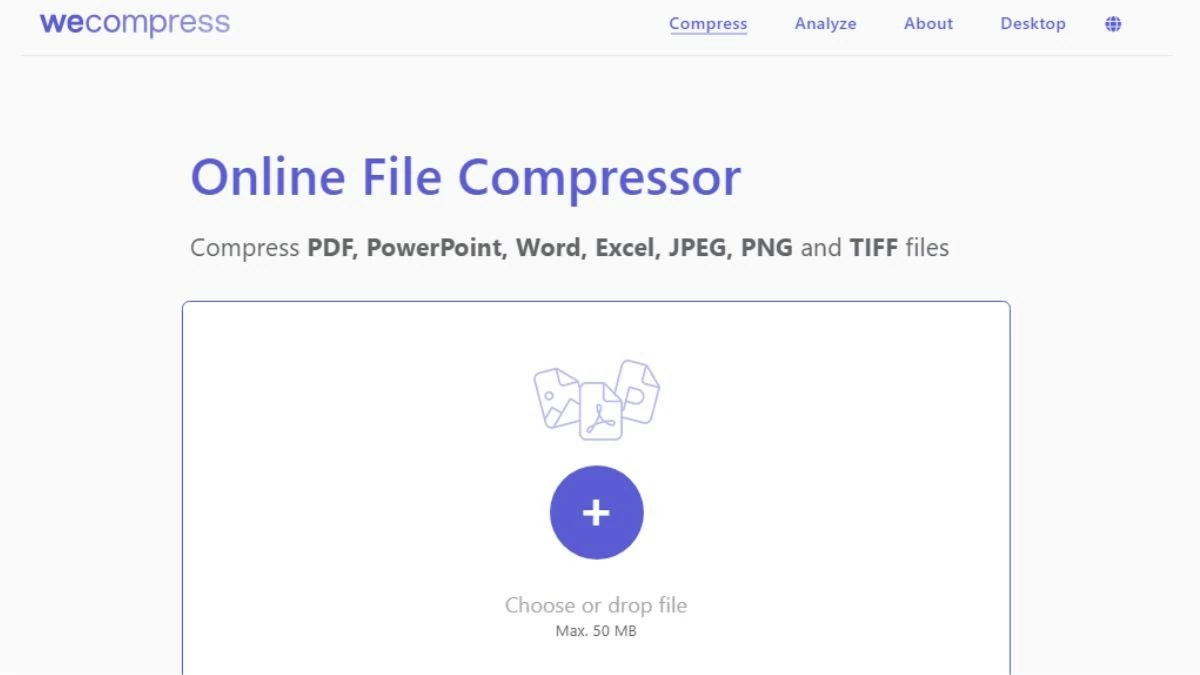
Step 1: Access the WeCompress website at: https://www.wecompress.com/en/
Step 2: Next, tap the plus icon in the middle of the screen to upload your file, with a maximum limit of 50MB.
 |
Step 3: After the file is uploaded, the compression process will start automatically. Once complete, you can download the file immediately.
Do not insert additional fonts into Word quickly.
Inserting special fonts into a Word file can increase the document size. To reduce file size, use the default fonts in Word to optimize space and avoid display errors when sharing.
Step 1: First, open the Word file and select the "File" option.
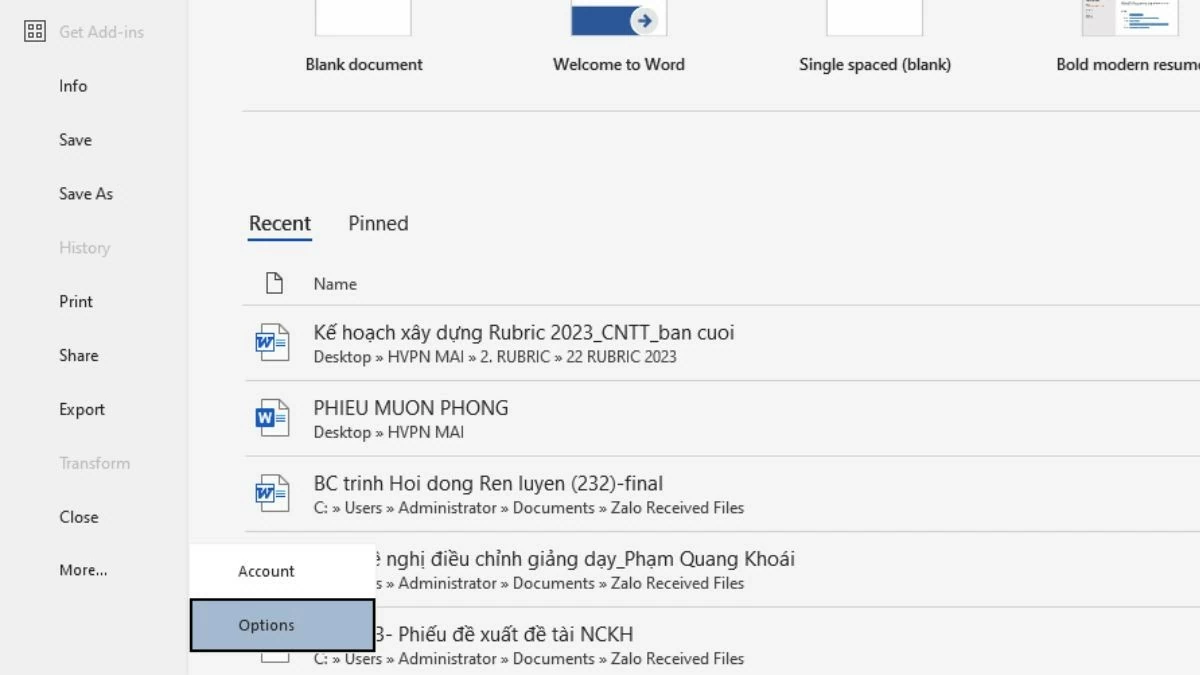 |
Step 2: Select "Options," then go to "Save" and uncheck "Embed fonts in the file" to complete the process.
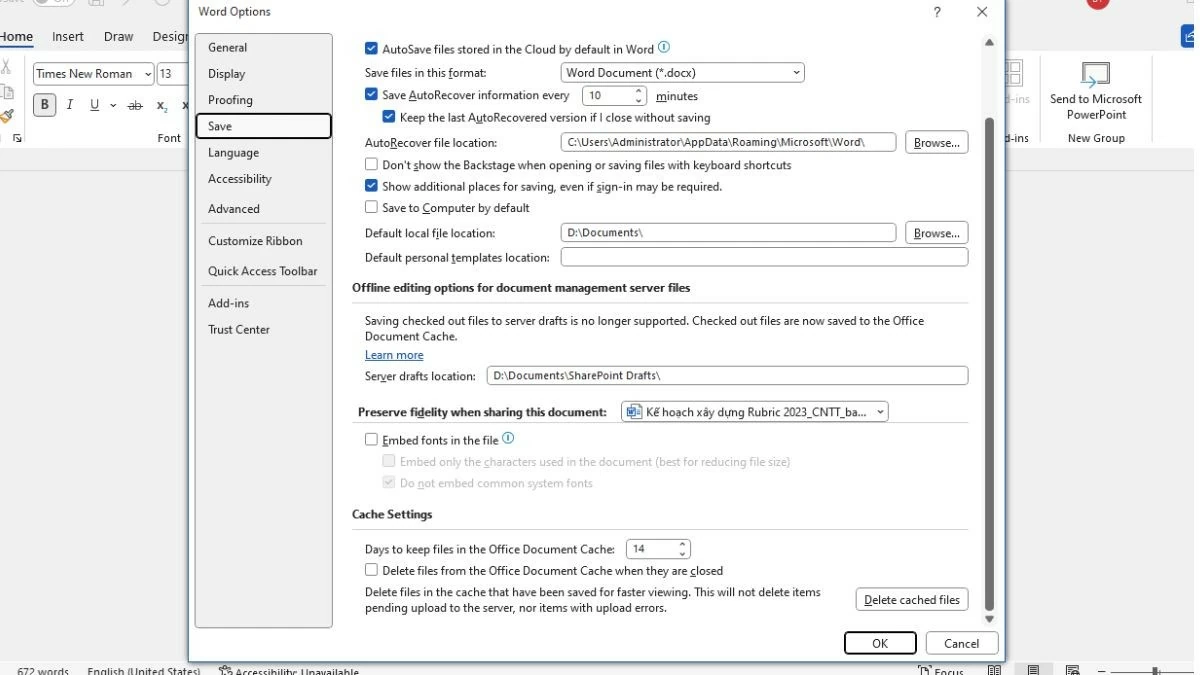 |
Avoid pasting images directly into Word files for better results.
Inserting images directly from a website into a Word file can significantly increase file size. To reduce file size, you should insert images using the Insert tool and select Picture in Microsoft Word. Before inserting, optimize the images by converting them from PNG to JPG format and using online image compression tools like tinypng.com to reduce image size.
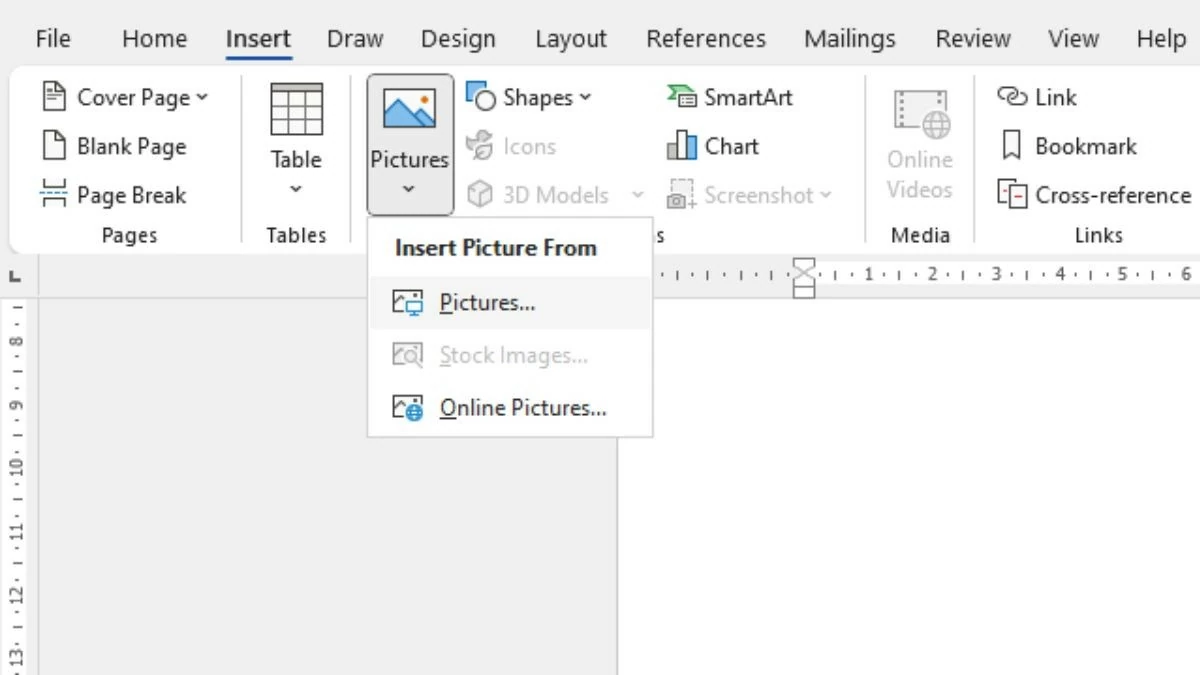 |
Remove unnecessary content from the file conveniently.
When a Word file contains many images, charts, tables, and other data, its size can increase significantly. To reduce the size, you should review the document and delete unnecessary parts. If you need to share the file, you can cut or move irrelevant content to another file to make it easier to upload and share.
 |
With these 9 simple ways to reduce Word file size, you can easily optimize your documents without difficulty. These tips not only save storage space but also make sharing and processing files faster and more efficient.
Source








































































































Comment (0)