

Similar to previous iOS versions, iOS 17 contains many hidden features and settings that are just as useful as the well-known ones. Below are 7 interesting hidden features in iOS 17 that users should try.
Automatically delete verification codes sent via SMS or email.

Each time you log into an app that requires two-factor authentication, you'll receive an SMS or email containing a verification code. You probably have hundreds of these verification codes in your inbox. iOS 17 offers a simpler way to delete them instead of having to manually remove them.
Go to Settings > Passwords > Password Options , and enable Automatic Cleanup under Verification Codes . This will automatically delete verification codes from messages and emails after they are inserted using AutoFill.
Private browsing lock in Safari
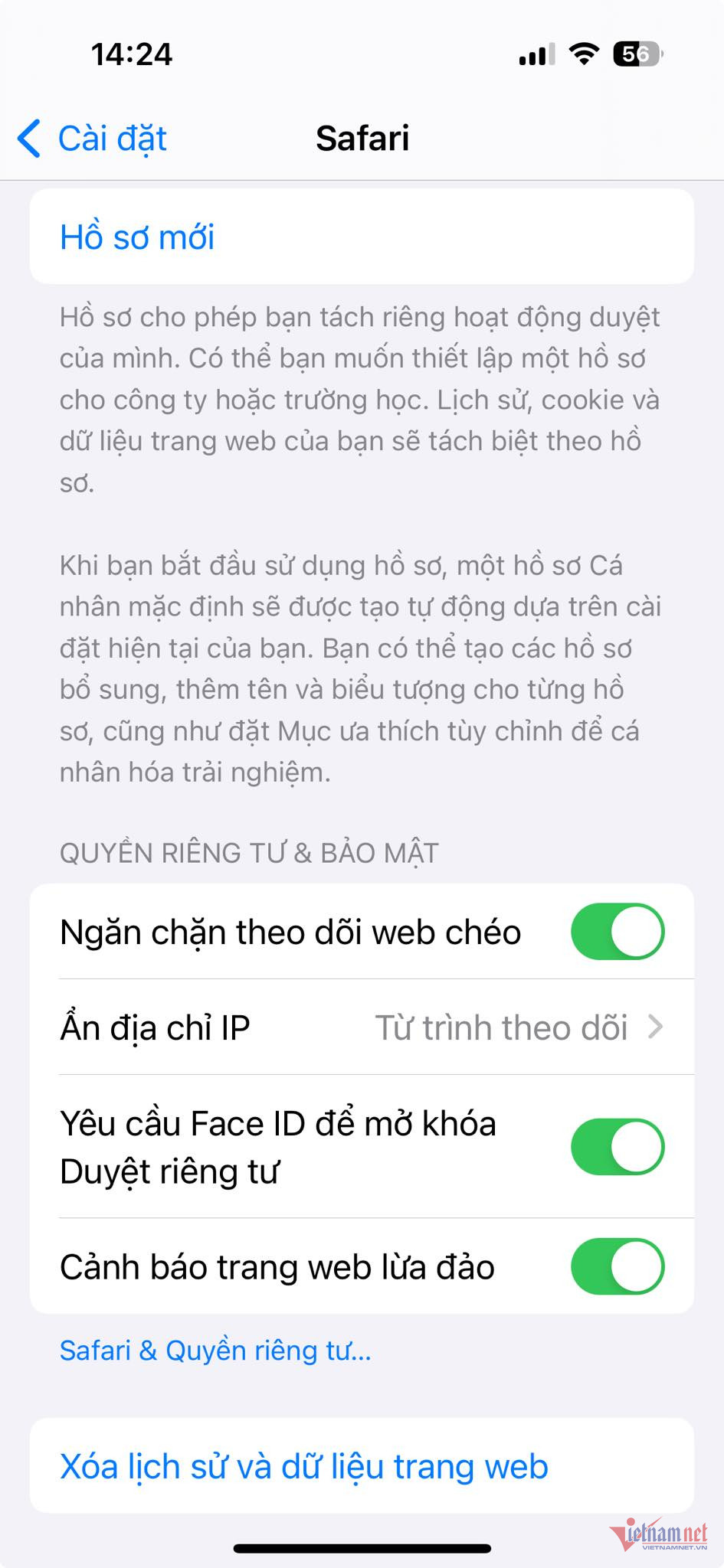
Private browsing in Safari allows you to browse the web without saving browsing history or cookies. However, when you open tabs in private browsing, they don't automatically disappear when you're finished browsing; you have to close them manually. Therefore, anyone using your iPhone can see what you're viewing.
On iOS 17, you can prevent this by going to Settings > Safari > Require Face ID to unlock Private Browsing . From now on, every time you open Safari, you must use Face ID or your password to browse privately.
View Apple Maps offline.

Previously, you needed an internet connection to use Apple Maps. With iOS 17, you can download offline maps to view directions even without an internet connection.
On the map, tap your profile picture in the upper right corner to access the offline map. You can see suggestions to download maps of similar size with frequently used routes or download new maps.
Crop photos using the zoom feature in Photos.

On iOS 17, when you zoom in on an image, the Crop button appears in the top right corner. It automatically takes you into editing mode and allows you to quickly crop the image. However, you have to act quickly because the Crop button only appears a few seconds after zooming in on the image.
Look up laundry icons
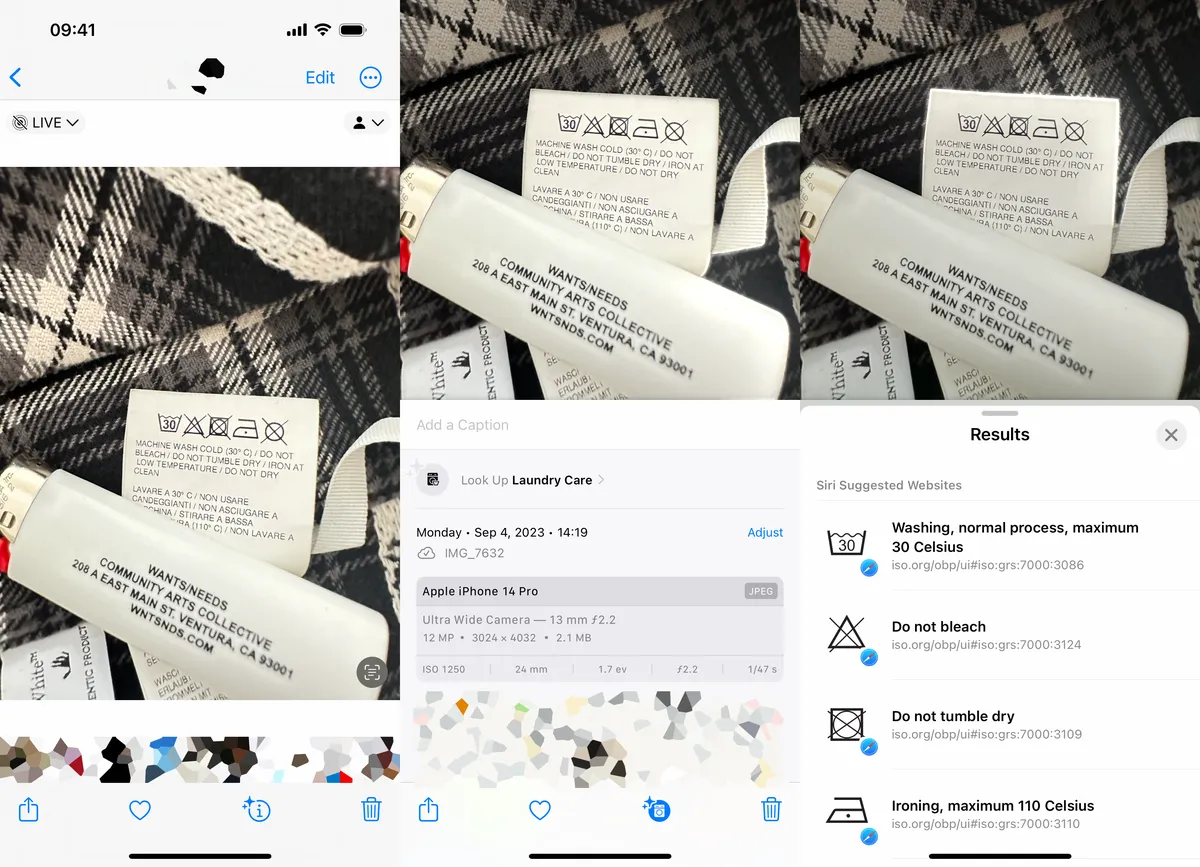
Each shirt or pair of pants comes with a tag containing various laundry icons. You may not know the meaning of every icon. With iOS 17, you can use the built-in lookup feature in the Photos app to help. Simply take a clear photo of the icon, open the photo in Photos, swipe up from the bottom, and select Lookup Laundry Care . You will see a caption along with suggested websites to read more about.
Smoother music transitions

When listening to music, iOS 17 offers an Interleaving feature for smoother transitions between songs. In Settings > Music , turn on Interleaving . You can choose from 1 second to 12 seconds. For example, if you choose 5 seconds, the next song in the playlist/album will start playing in the background 5 seconds before the current song ends.
Interact with certain widgets on the home screen.
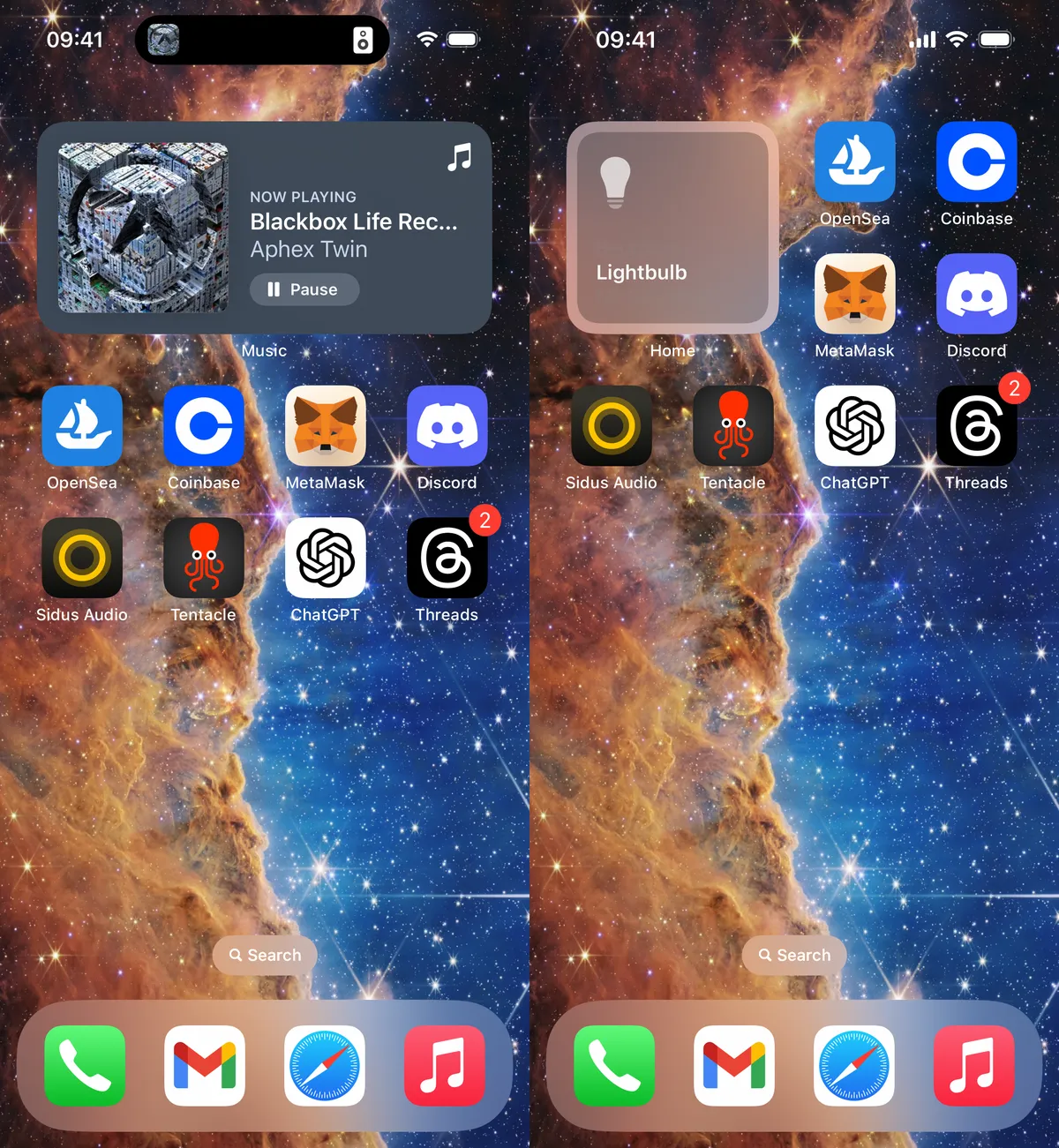
Apple has introduced interactive widgets to the iPhone, allowing users to control apps directly from the home screen, similar to using the Control Center. Currently, the number of widgets is limited. To add a widget to the home screen, simply press and hold on an empty space on the screen to enter edit mode, then tap the "+" at the top to browse the list.
Some of the interactive features available include Podcast, Home, Notes, and Music. For example, in Music, you can play or pause music, while in Home you can turn devices like smart lights and temperature sensors on or off.
(According to Cnet)

Source


![[Photo] Prime Minister Pham Minh Chinh presides over a meeting on private sector economic development.](/_next/image?url=https%3A%2F%2Fvphoto.vietnam.vn%2Fthumb%2F1200x675%2Fvietnam%2Fresource%2FIMAGE%2F2025%2F12%2F20%2F1766237501876_thiet-ke-chua-co-ten-40-png.webp&w=3840&q=75)

![[Photo] Prime Minister Pham Minh Chinh presides over the conference announcing the establishment of the International Finance Centre in Vietnam.](/_next/image?url=https%3A%2F%2Fvphoto.vietnam.vn%2Fthumb%2F1200x675%2Fvietnam%2Fresource%2FIMAGE%2F2025%2F12%2F21%2F1766309817714_ndo_br_dsc-3400-jpg.webp&w=3840&q=75)

























































































Comment (0)