

Double-tapping to turn on the screen is a feature that allows Samsung phone users to quickly turn the screen on and off without having to press the power button, reducing the frequency of pressing the power button to turn on the screen.
At the same time, on some Samsung models that do not support double-tap to wake the screen, double-tapping combined with Always On Display will help you quickly wake your phone screen.
How to enable double-tap to wake screen on Samsung phones.
Note: These steps were performed on a Samsung Galaxy A11 phone; you can still perform them on other Android phones, however the interface may be slightly different.
Step 1: Open "Settings," select "Advanced features," then select "Motion and gestures."
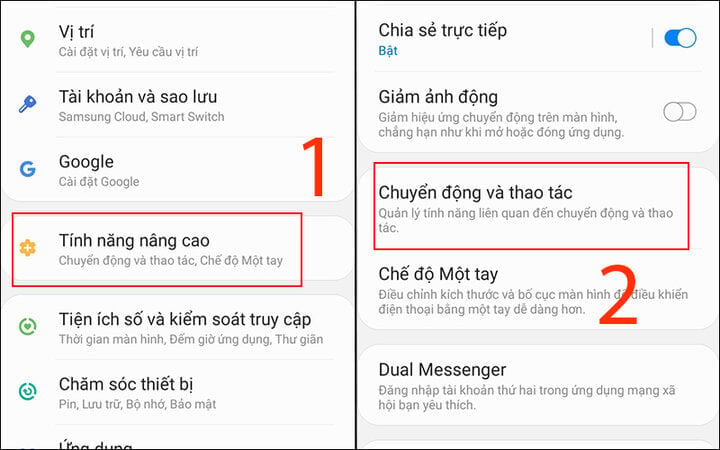
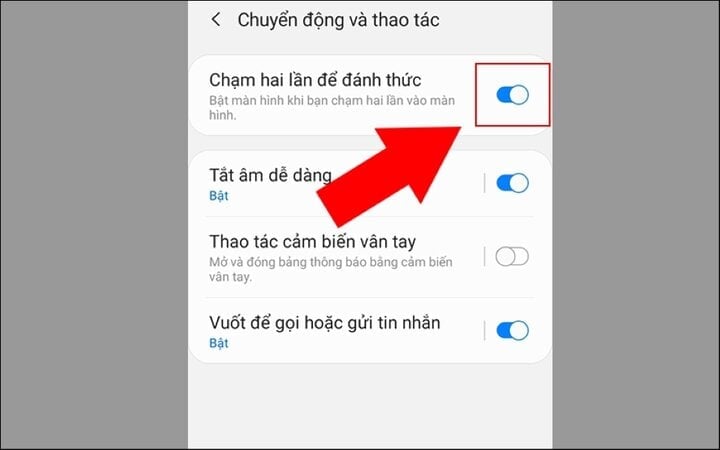
Step 2: Flip the round button to enable the "Double-tap to turn on screen" mode.
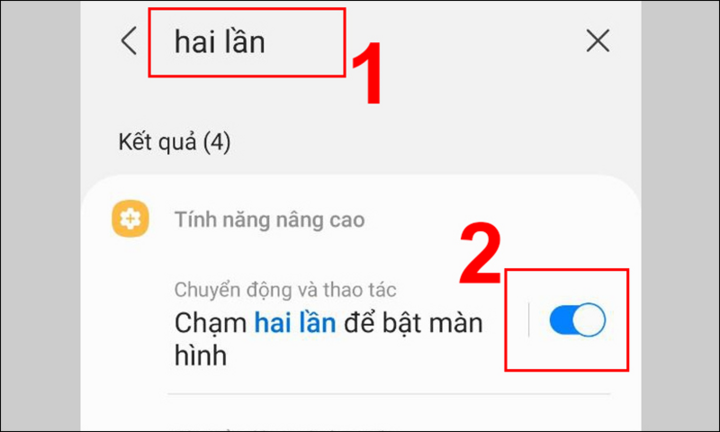
A quicker way is to open "Settings," type "double tap" into the "Search" box, and toggle the circular switch to enable "Double tap to turn on screen" mode.
Enabled in Always On Display (AOD)
Always On Display is a feature that allows you to display information such as the clock, calendar, messages, calls, or app notifications even when your phone screen is off.
Note: The instructions below will only work if you haven't set up a screen lock on your phone. If you have set up a PIN, fingerprint, or face lock, you will need to enter the password, press your finger, or have the phone recognize your face to unlock it.
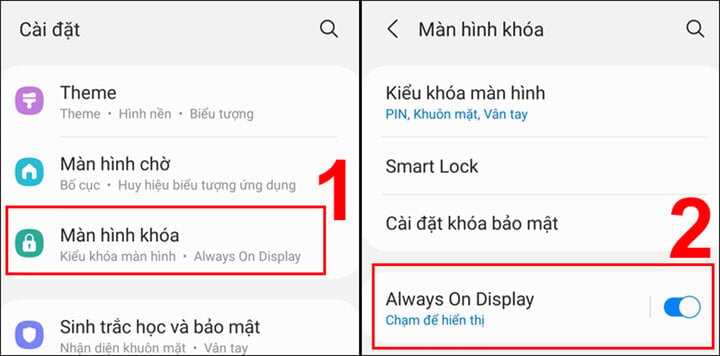
Here's how to do it: Open "Settings," select "Lock screen," and turn on "Always On Display."
Source































![[Photo] Reception to welcome General Secretary and President To Lam and his wife on their State visit to the Philippines](https://vphoto.vietnam.vn/thumb/1200x675/vietnam/resource/IMAGE/2026/06/01/1780295488620_vna-potal-chieu-dai-chao-mung-tong-bi-thu-chu-tich-nuoc-to-lam-va-phu-nhan-tham-cap-nha-nuoc-toi-philippines-8798060-7855-jpg.webp)









































































Comment (0)