

 |
The following is a detailed guide to help you effectively utilize Telegram's file storage capabilities.
Upload files to Telegram
Step 1: First, open the Telegram app and tap the menu icon (three horizontal lines).
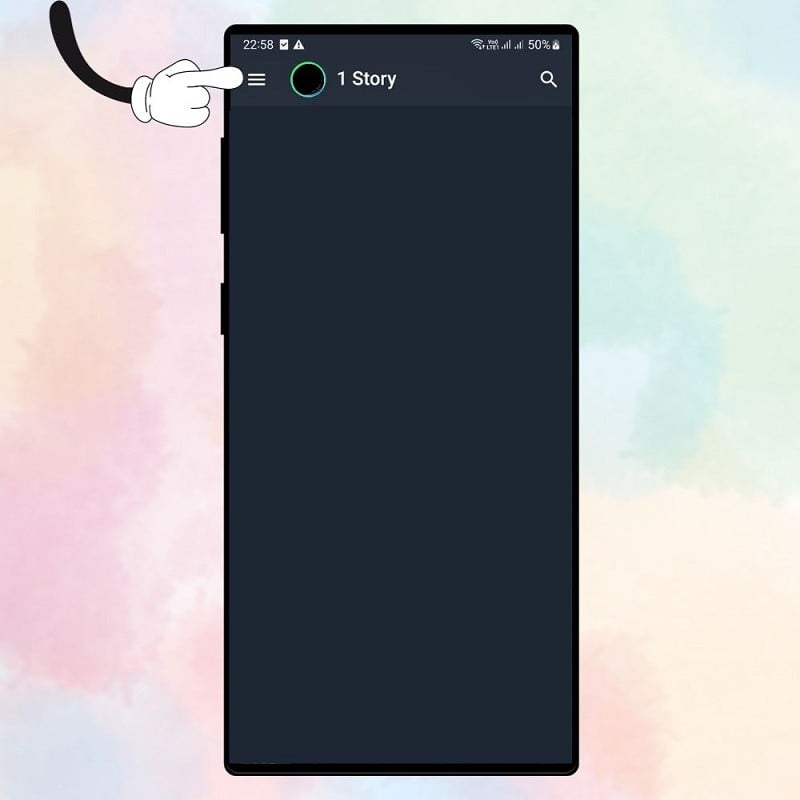 |
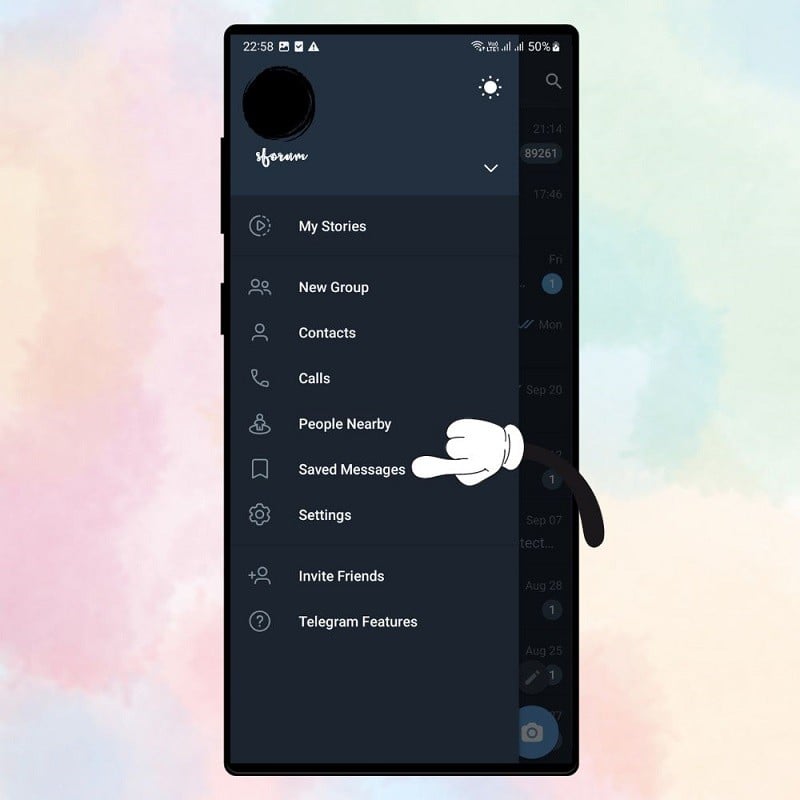
Step 2: Next, click on Saved Messages.
 |
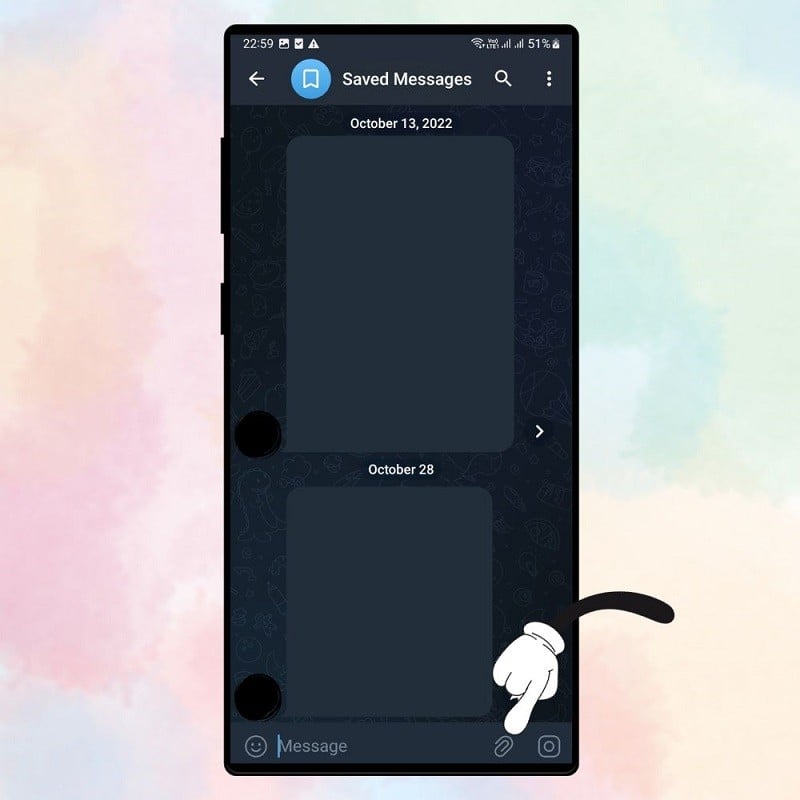
Step 3: In the Saved Messages interface, click the attachment icon to upload the file from your device's storage.
 |
Step 4: Now you can upload images, videos, other file types, or audio files. Note that you can upload images and videos without losing quality by clicking on "File".
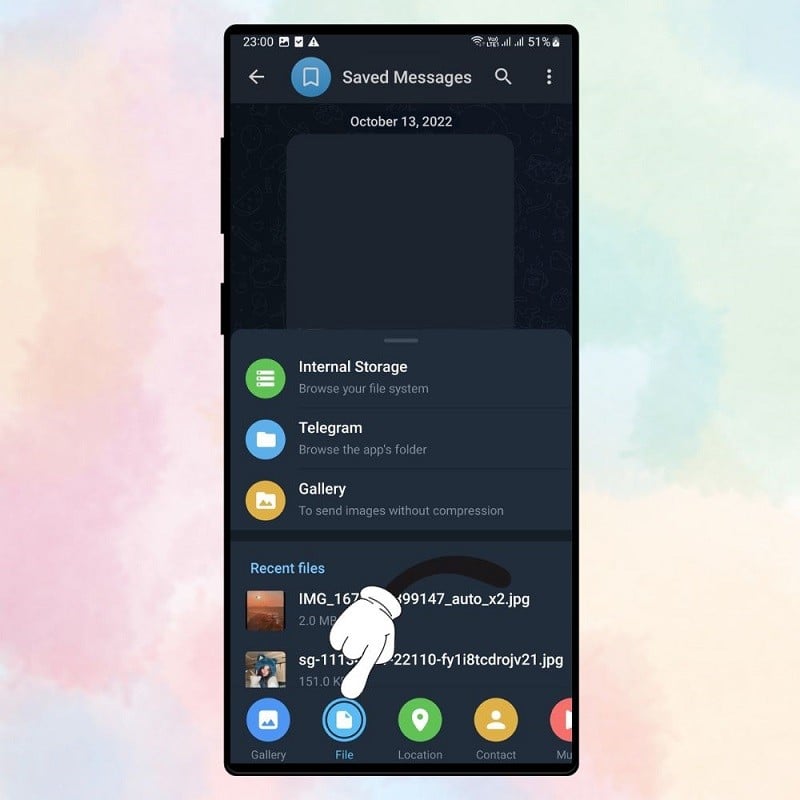 |
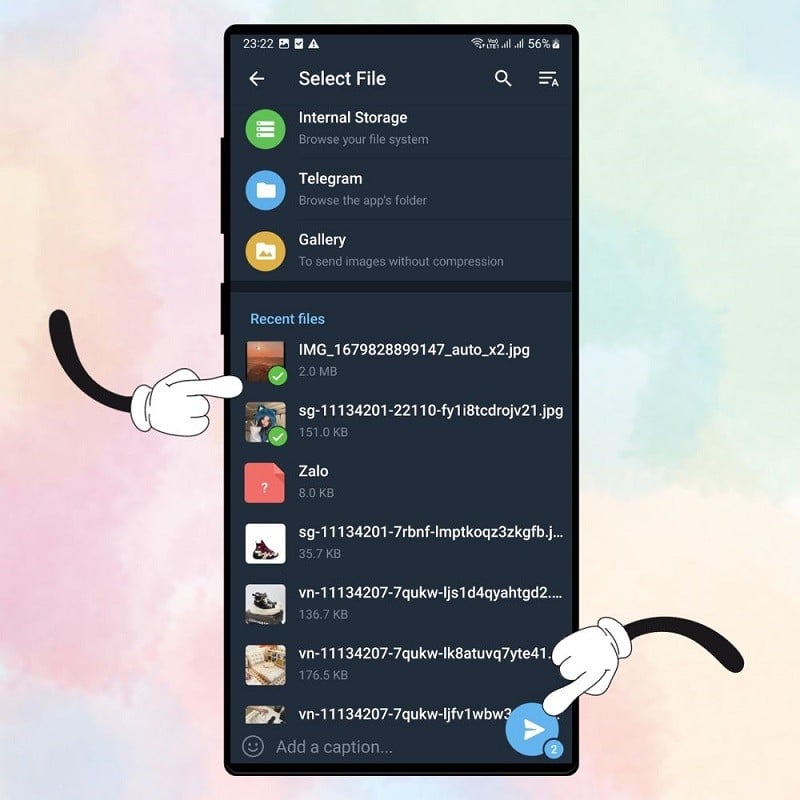
Step 5: After clicking on File, select the image or file you want to send without being compressed in size and click Send. Wait for the upload process to complete; your file will be securely stored in the Saved Messages folder.
 |
File management on Telegram
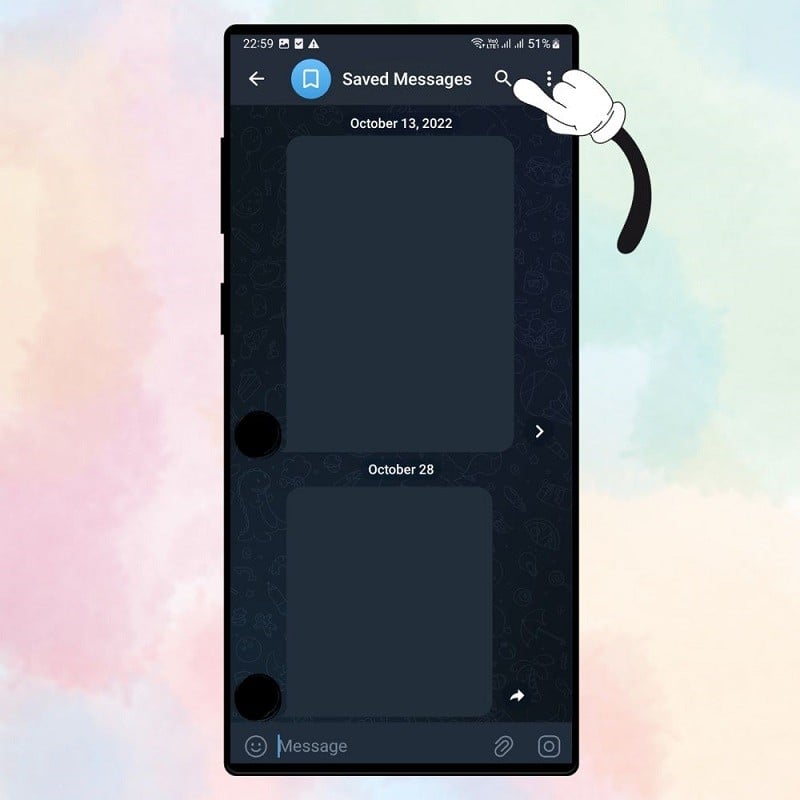
Uploaded files can be easily managed in the Saved Messages section. You can use the magnifying glass icon to search for files, select files to download, delete, add comments, and many other options. Files here are divided into three groups: Media, Files, and Links, making it easy to find and organize them.
 |
With just a few simple steps, you can effectively utilize your storage space, helping you manage your data safely and efficiently. The important thing is to always remember to update your applications and check your security settings to ensure all your personal information and important data are protected in the best possible way.
Source


![[Photo] Prime Minister Pham Minh Chinh presides over a meeting on private sector economic development.](/_next/image?url=https%3A%2F%2Fvphoto.vietnam.vn%2Fthumb%2F1200x675%2Fvietnam%2Fresource%2FIMAGE%2F2025%2F12%2F20%2F1766237501876_thiet-ke-chua-co-ten-40-png.webp&w=3840&q=75)

































































































Comment (0)