

 |
Sometimes, you want to delete some images that have been automatically copied to iCloud. Here's how to quickly delete and restore photos on iCloud.
How to delete photos from iCloud using iPhone
To delete photos from iCloud on your iPhone, follow these steps:
Step 1: Go to Settings and select your iCloud account.
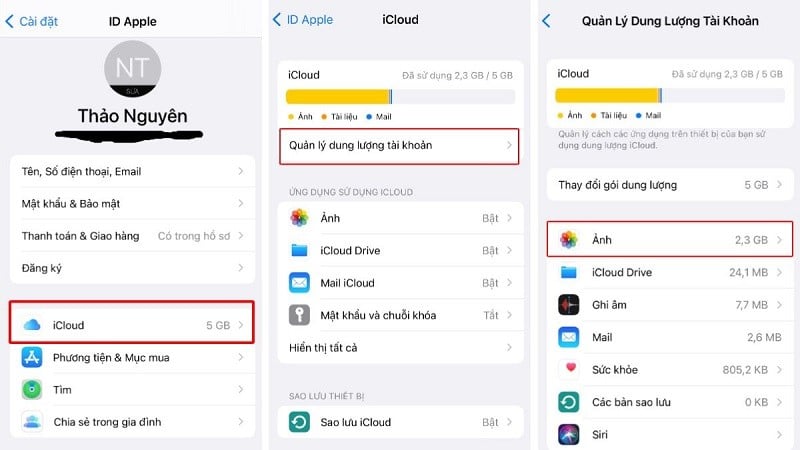 |
Step 2: Here, open iCloud and select Manage Storage.
Step 3: Next, select Photos.
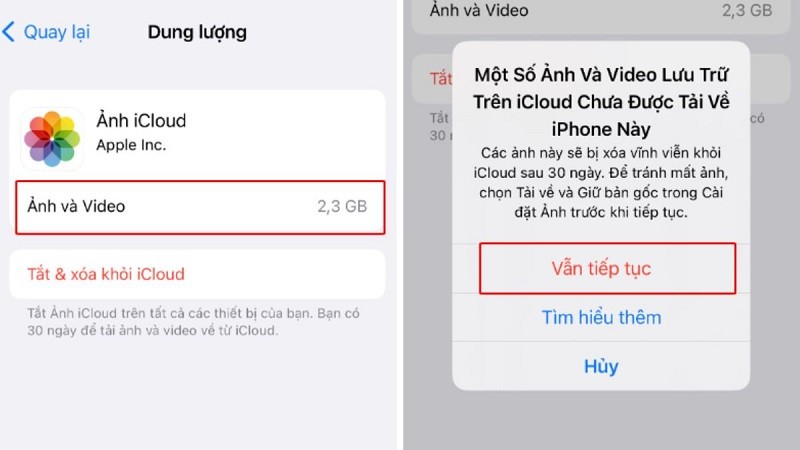
Step 4: Then, click on the "Turn Off and Delete" option.
Step 5: A message will appear stating "Permanently delete photos from iCloud within 30 days." Click the "Continue" button to confirm the action. If you wish to cancel, click "Undo" to turn off and delete.
 |
How to recover photos on iCloud
After successfully deleting photos from iCloud when you've run out of storage, but then realize you accidentally deleted important photos, you can still recover them. The specific steps to recover photos are as follows:
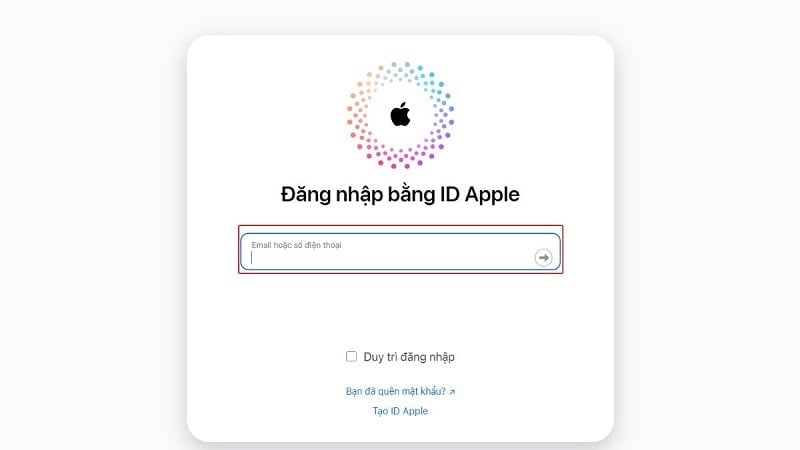
Step 1: Open iCloud, then log in using your Apple ID and enter your password.
 |
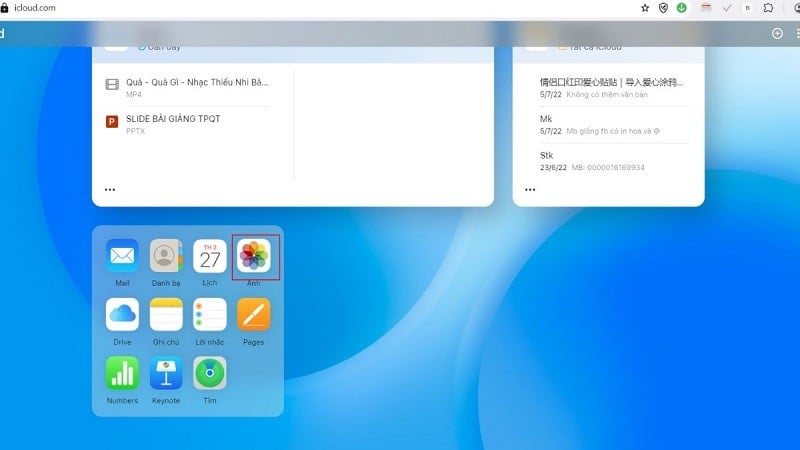
Step 2: Next, click on the "Photos" option.
 |
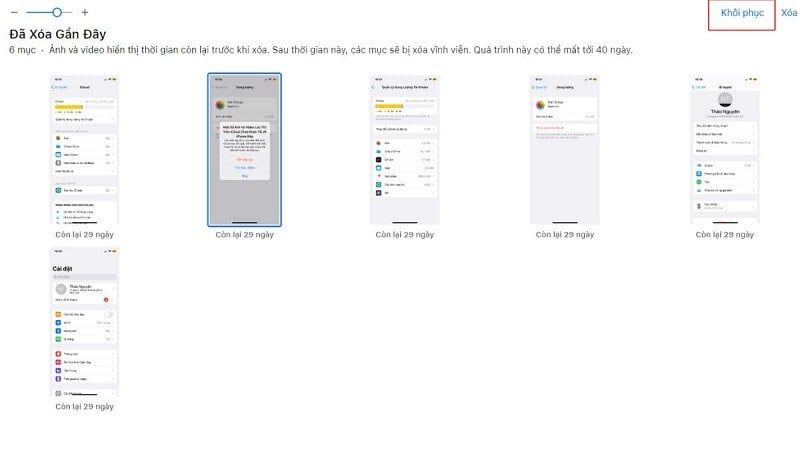
Step 3: Here, open the "Recently Deleted Photos" section.
 |
Step 4: Find and select the photo you want to restore, then click the "Restore" option to complete the process.
 |
The article above has just shown you how to delete photos from iCloud on your iPhone when you run out of storage. Hopefully, this article will help you delete photos from iCloud more easily.
Source

![[Photo] Prime Minister Pham Minh Chinh presides over a meeting on private sector economic development.](/_next/image?url=https%3A%2F%2Fvphoto.vietnam.vn%2Fthumb%2F1200x675%2Fvietnam%2Fresource%2FIMAGE%2F2025%2F12%2F20%2F1766237501876_thiet-ke-chua-co-ten-40-png.webp&w=3840&q=75)





































































































Comment (0)