

According to a joint statement from authorities, the 911 S5 botnet began operating in May 2014 and was shut down in July 2022 before "re-emerging" under the name Cloudrouter in October 2023.
911 S5 may be the world's largest residential proxy service and botnet, with over 19 million IP addresses compromised in more than 190 countries, causing billions of dollars in damages.
Authorities have identified several illegal, free VPN applications designed to connect to the 911 S5 service, including MaskVPN, DewVPN, PaladinVPN, ProxyGate, ShieldVPN, and ShineVPN.
When users download these VPN apps, they inadvertently become victims of the 911 S5 botnet. These proxy backdoors allow criminals to commit crimes such as bomb threats, financial fraud, identity theft, and child exploitation. By using proxy backdoors, these illegal activities appear to originate from the victim's device.
To find out if you are a victim of the 911 S5 botnet, readers can follow the FBI's instructions below.
1. Press the Control + Alt + Delete keys on your keyboard and select Task Manager, or right-click on the Start menu and select Task Manager.
2. Once Task Manager is launched, under the Process tab, search for: MaskVPN (mask_svc.exe), DewVPN (dew_svc.exe), PaladinVPN (pldsvc.exe), ProxyGate (proxygate.exe, cloud.exe), ShieldVPN (shieldsvc.exe), ShineVPN (shsvc.exe).
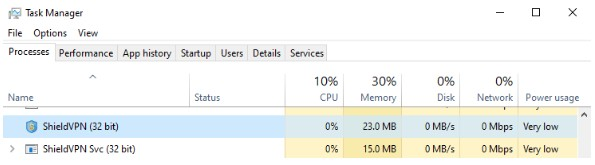
If Task Manager doesn't detect any of the aforementioned services, check the Start menu for any traces of software labeled "MaskVPN," "DewVPN," "ShieldVPN," "PaladinVPN," "ProxyGate," or "ShineVPN."
3. Click the Start button in the bottom left corner of the screen, then search for the following names: MaskVPN, DewVPN, ShieldVPN, PaladinVPN, ShineVPN, ProxyGate.
4. If you detect any VPN applications, you can find the uninstallation tool located below. Click on Uninstall.
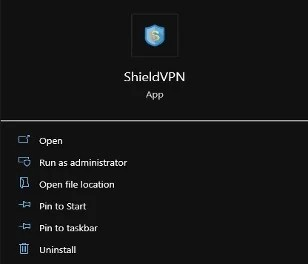
5. If the app doesn't have an uninstall option, follow these steps:
a. Click the Start menu and type “Add or remove programs” to open the “Add and remove programs” menu.
b. Find the name of the malicious application. Once found, click on the application's name and select Uninstall.
c. Then you can verify by clicking Start and typing File Explorer.
d. Click on drive C and select Program Files (x86). Here, find the name of the malicious application in the list of files and folders.
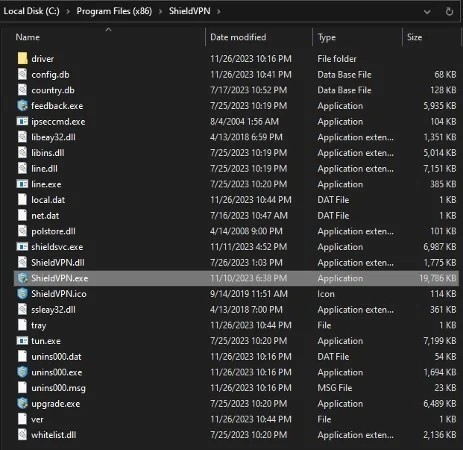
e. With ProxyGate, go to "C:\users\[Userprofile]\AppData\Roaming\ProxyGate”.
f. If you don't see any folders labeled "MaskVPN," "DewVPN," "ShineVPN," "ShieldVPN," "PaladinVPN," or "Proxygate," these applications may not be installed.
g. If a service is detected as running but is not found in the Start menu or Add and Remove Programs:
Go to the directory described in sections 5d and 5e.
Open Task Manager.
Select the service associated with one of the malicious VPN applications running in the process tab.
Select End task to stop the application. Then, right-click on the folder named “MaskVPN,” “DewVPN,” “ShineVPN,” “ShieldVPN,” “PaladinVPN,” or “ProxyGate,” and select Delete. You can also select all files in the folder and choose Delete.
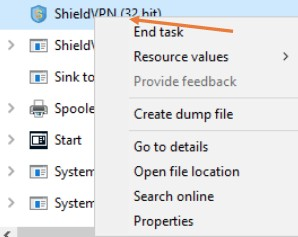
If you see an error message when trying to delete a folder or all files within a folder, make sure you have terminated all processes in Windows Task Manager as described in step 5g.
(According to the FBI)
Source: https://vietnamnet.vn/fbi-huong-dan-go-bo-ung-dung-vpn-cua-mang-botnet-vua-bi-danh-sap-2286974.html








































































































Comment (0)