

UltraViewer is convenient and easy to use software. This article guides you on how to download it for free on your MacBook, helping you install and use it quickly for remote support!
 |
UltraViewer for MacBook is software that supports remote computer control, enabling easy screen sharing, chatting, and file transfer between devices. This makes teaching or technical support more convenient than ever, ideal for assisting friends or partners.
Downloading and using TeamViewer and AnyDesk for MacBook: A detailed guide.
Although you can't download UltraViewer directly for MacBook from the publisher, you can still use alternative software. Below are some popular options and detailed installation instructions.
Instructions on how to easily download TeamViewer for MacBook.
To install TeamViewer on your Mac, follow these steps:
Step 1 : Go to the TeamViewer website and download the version compatible with your macOS.
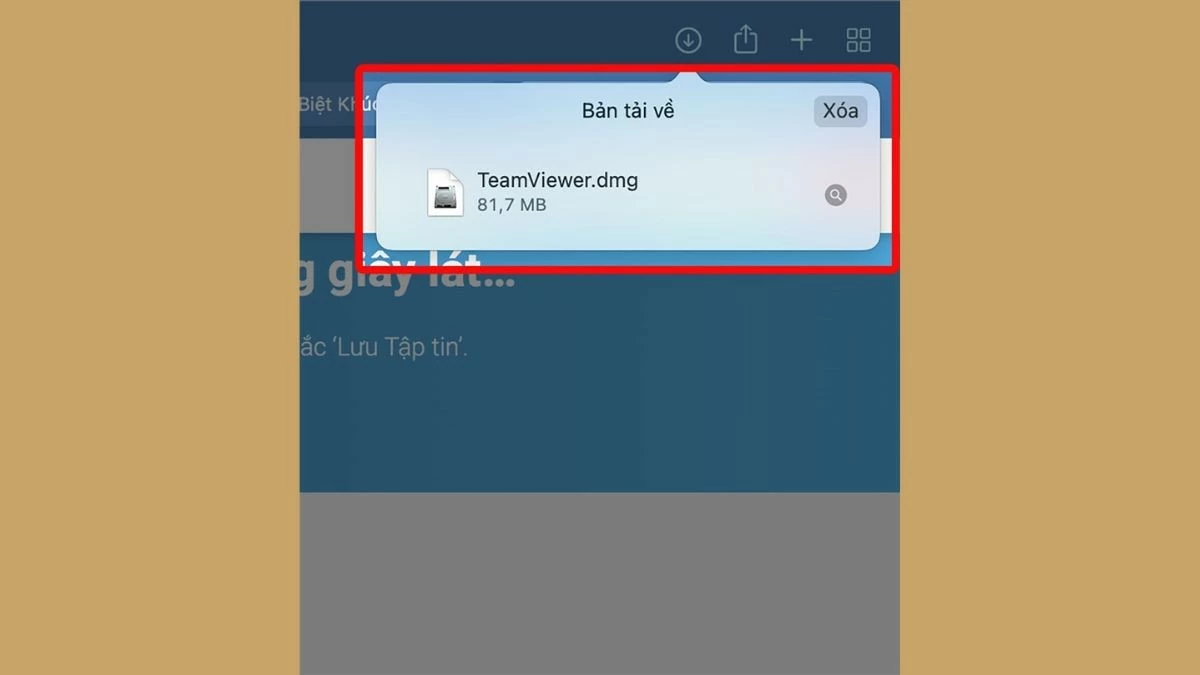
Step 2: Next, after the download is complete, find the downloaded .dmg file; this is the installation file for macOS.
 |
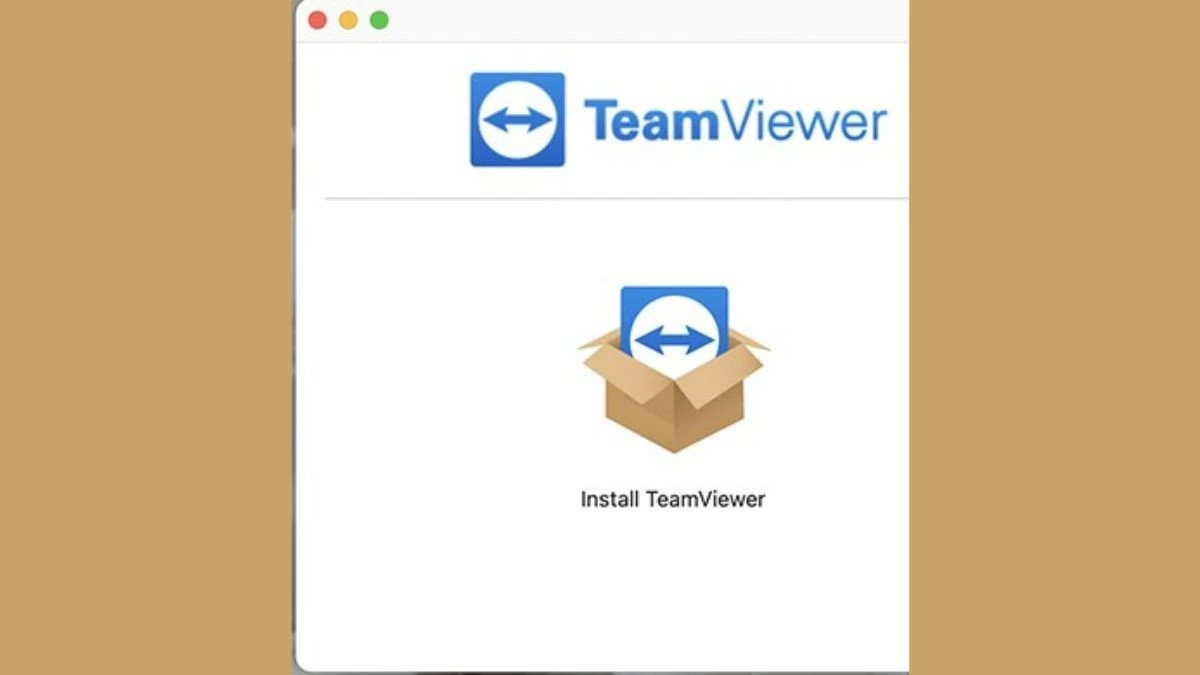
Step 3: When the installation window appears, select the "Install TeamViewer" icon to begin the installation process.
 |
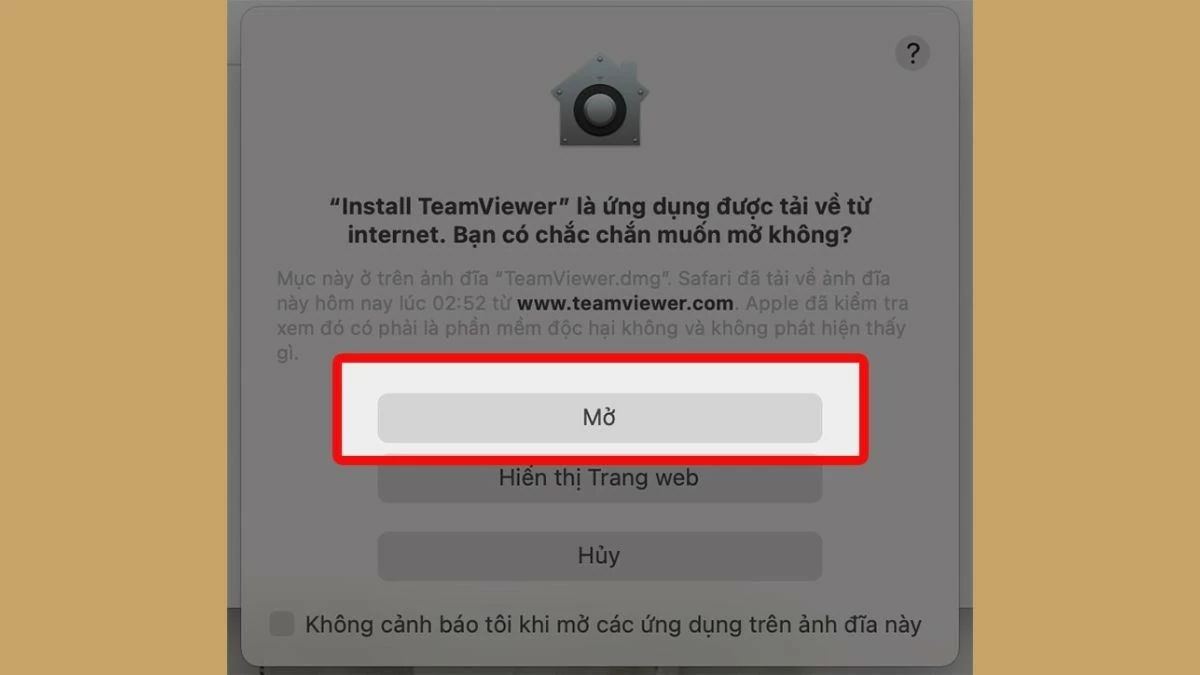
Step 4: If a warning appears about opening the app from the internet, click "Open" to continue.
 |
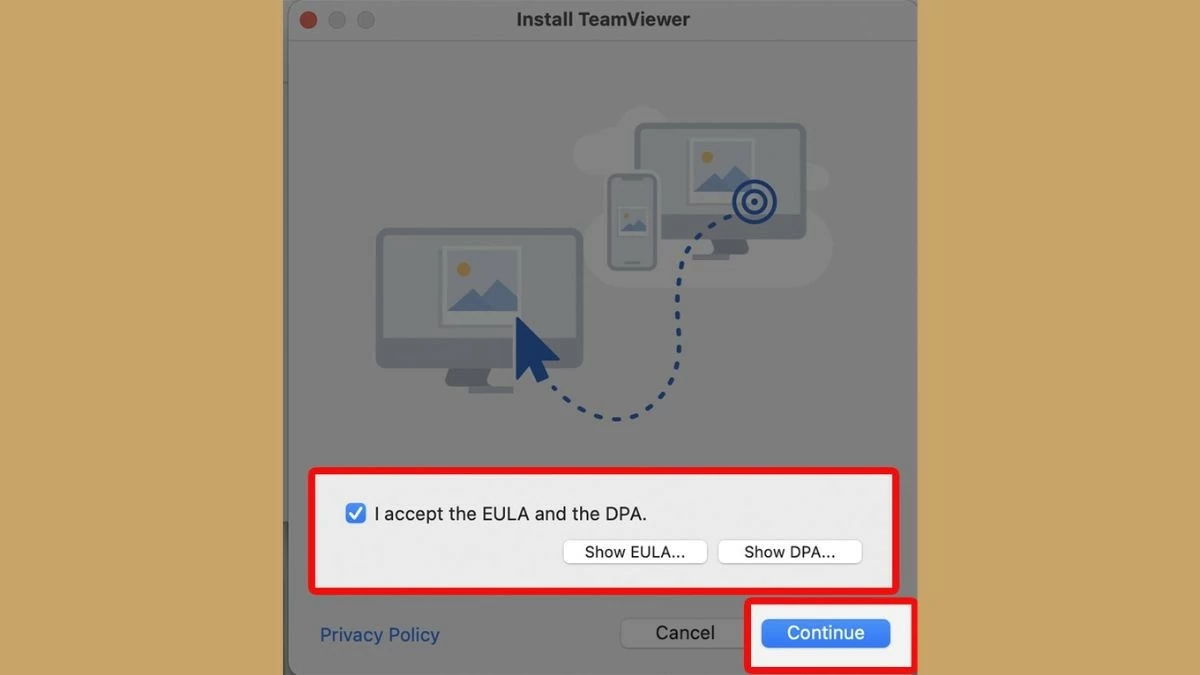
Step 5: To continue, you need to agree to the EULA and DPA terms by checking the corresponding boxes, then click "Continue" to proceed to the next step.
 |
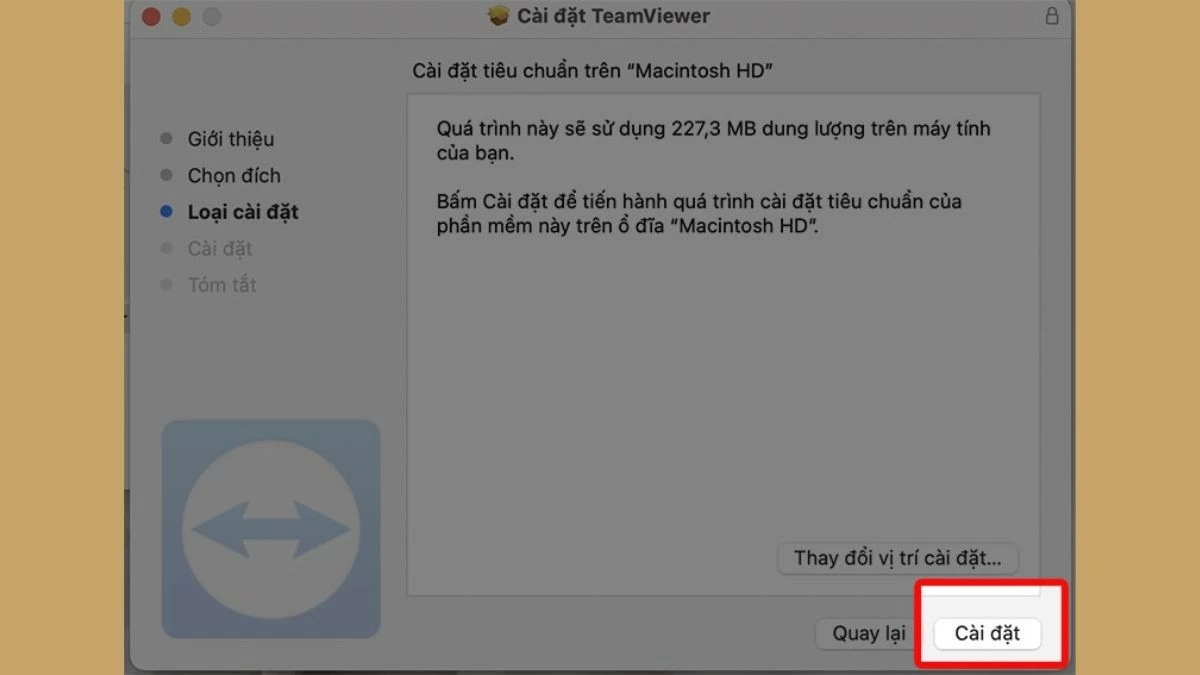
Step 6 : Click "Install" and wait a few minutes for the process to complete, then you will be able to use TeamViewer on your Mac.
 |
Instructions on how to download AnyDesk for MacBook
To install AnyDesk on your MacBook, follow these steps:
Step 1: Visit the official AnyDesk website and download the version compatible with macOS.
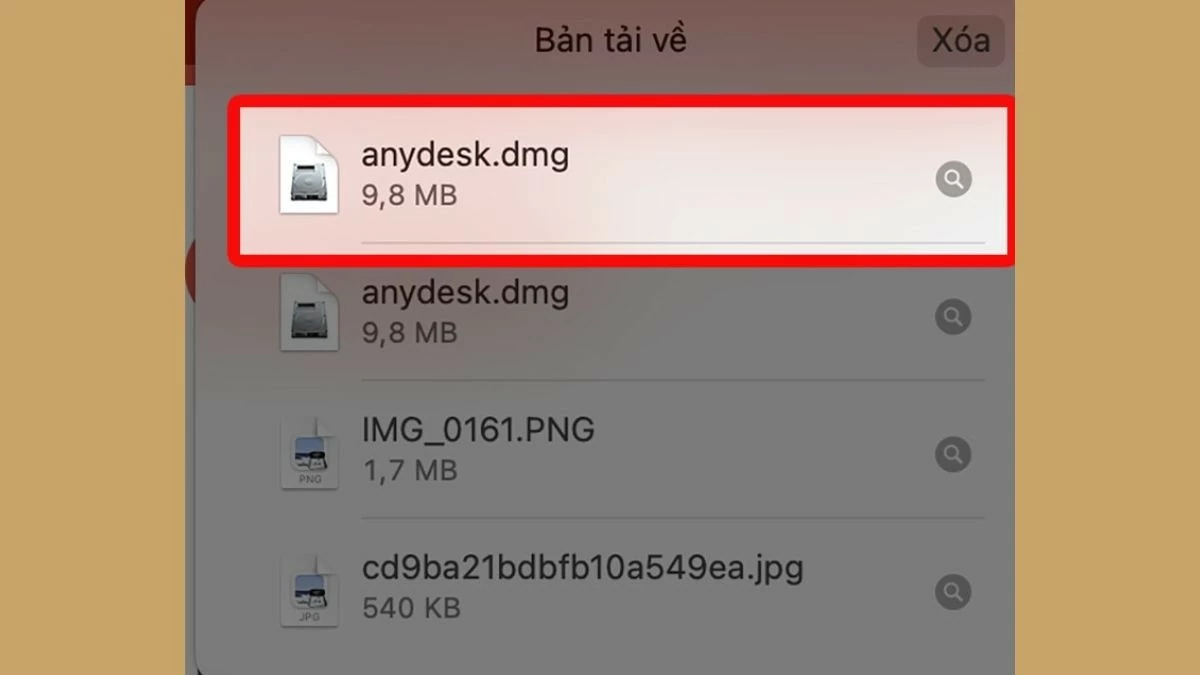
Step 2: After downloading, find and open the "anydesk.dmg" file; this is the installation file for macOS.
 |
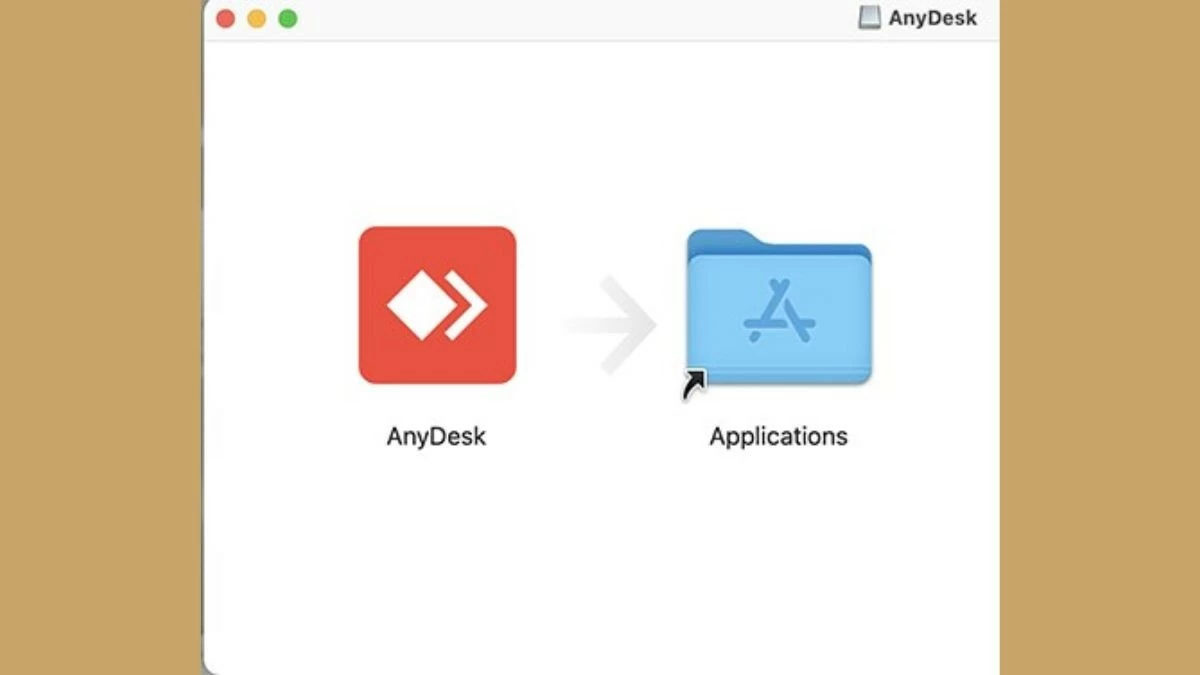
Step 3: Drag the “AnyDesk” icon into the "Applications" folder.
 |
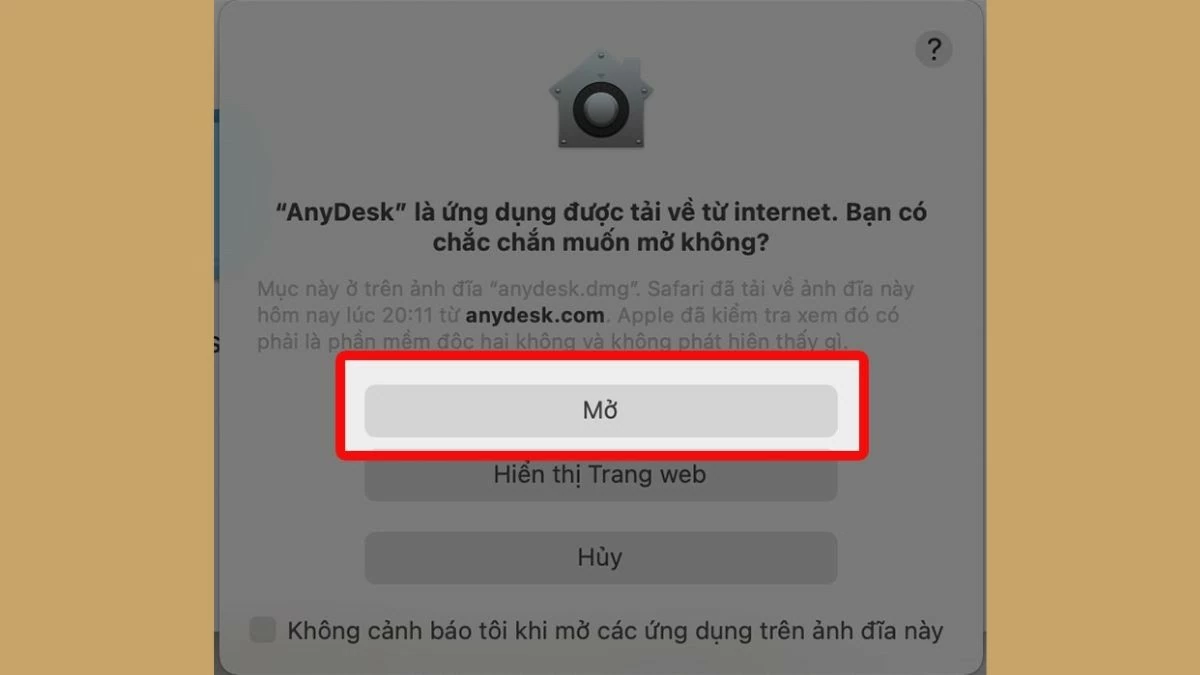
Step 4: A dialog box will appear asking you to confirm opening the app from an unknown source. Press "Open" to agree and continue the installation process.
 |
Above is a detailed guide on how to quickly and easily download and install UltraViewer for Mac for free. By following these steps, you will easily set up UltraViewer on your MacBook, enabling convenient and efficient remote connectivity.
Source: https://baoquocte.vn/huong-dan-cach-tai-ultraviewer-cho-macbook-nhanh-chong-va-don-gian-287726.html


![[Photo] Prime Minister Pham Minh Chinh presides over a meeting on private sector economic development.](/_next/image?url=https%3A%2F%2Fvphoto.vietnam.vn%2Fthumb%2F1200x675%2Fvietnam%2Fresource%2FIMAGE%2F2025%2F12%2F20%2F1766237501876_thiet-ke-chua-co-ten-40-png.webp&w=3840&q=75)





























































































Comment (0)