

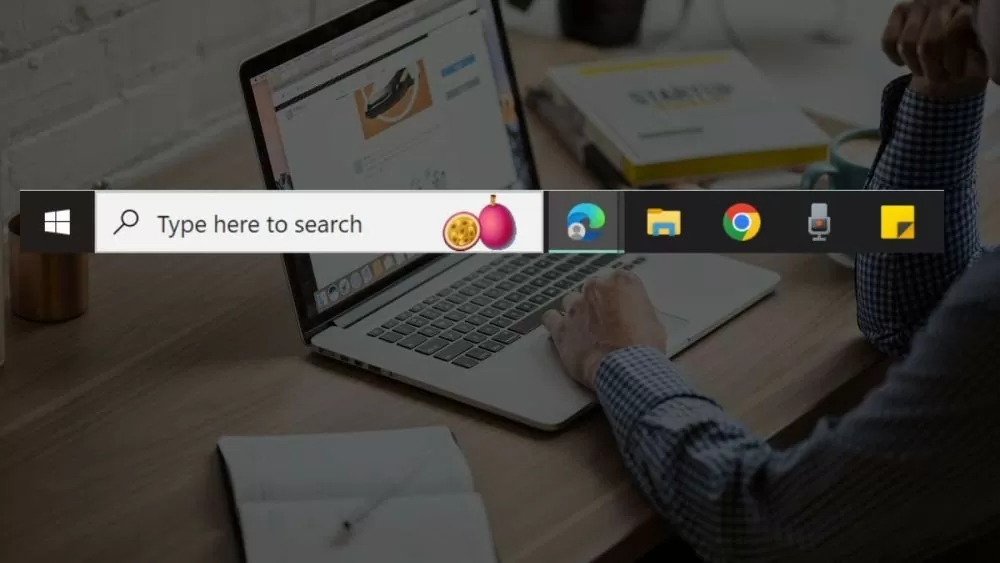
Are you looking for ways to change the transparent Taskbar color on Windows 10 to match your personal style and explore other options? Read on!
 |
| Here are 3 super easy ways to make your Windows 10 taskbar transparent. |
There are many ways to change the Taskbar color to transparent on Windows 10, from simple methods to more complex ones with multiple steps, giving you more options. The instructions below almost meet the needs of most users, so please refer to and apply them right away.
Instructions on how to make the Windows 10 taskbar transparent without installing an app.
Users can make the Windows 10 Taskbar transparent without installing any additional software, using only the operating system's built-in settings.
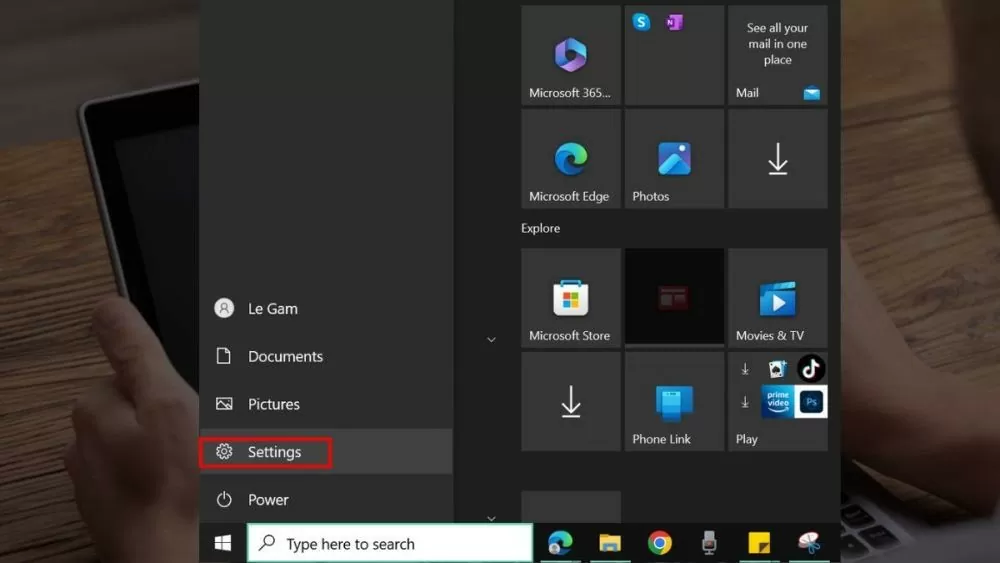
Step 1: Click the Windows icon in the Start menu, or save time by pressing the Windows key on your keyboard. Then, find the Settings icon and click it to open the next window.
 |
| Here are 3 super easy ways to make your Windows 10 taskbar transparent. |
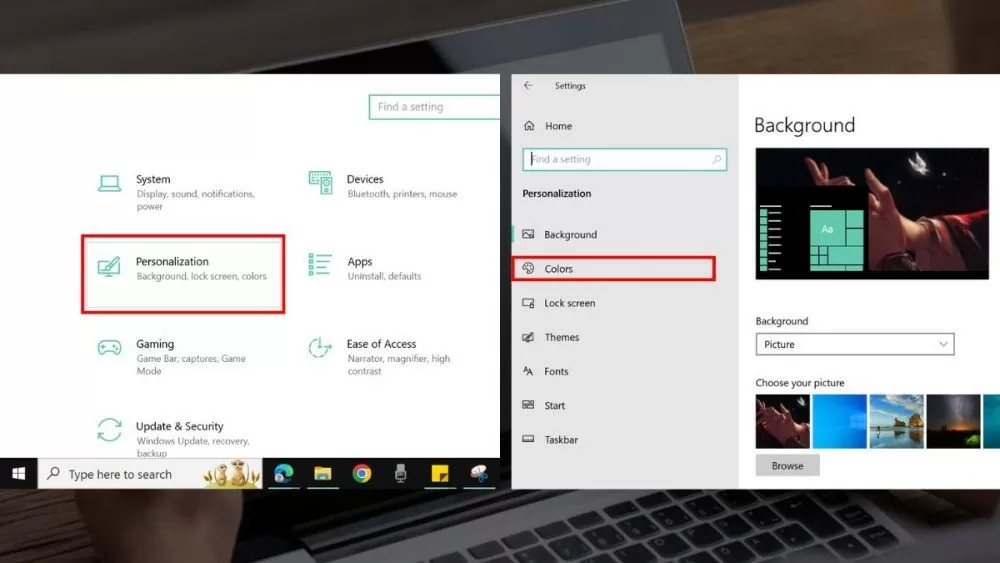
Step 2: In the Settings window, among many options, select "Personalization" to customize the elements on the screen, including the Taskbar.
 |
| Here are 3 super easy ways to make your Windows 10 taskbar transparent. |
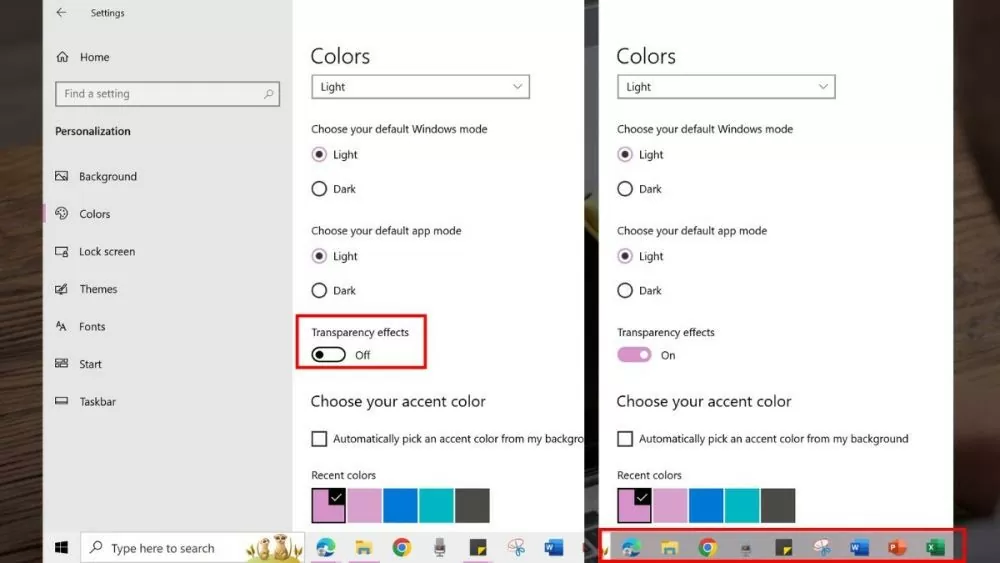
Step 3: Next, click on "Colors". In the options on the right, find "Transparency effects" and switch it to "On". You will see the change immediately on your Taskbar. If you wish, you can adjust the colors to make the transparency more noticeable.
 |
| Here are 3 super easy ways to make your Windows 10 taskbar transparent. |
Instructions on how to use StartIsBack software
Additionally, users can use software to make the Windows 10 Taskbar transparent with various options. One popular software is StartIsBack, with the following simple steps.
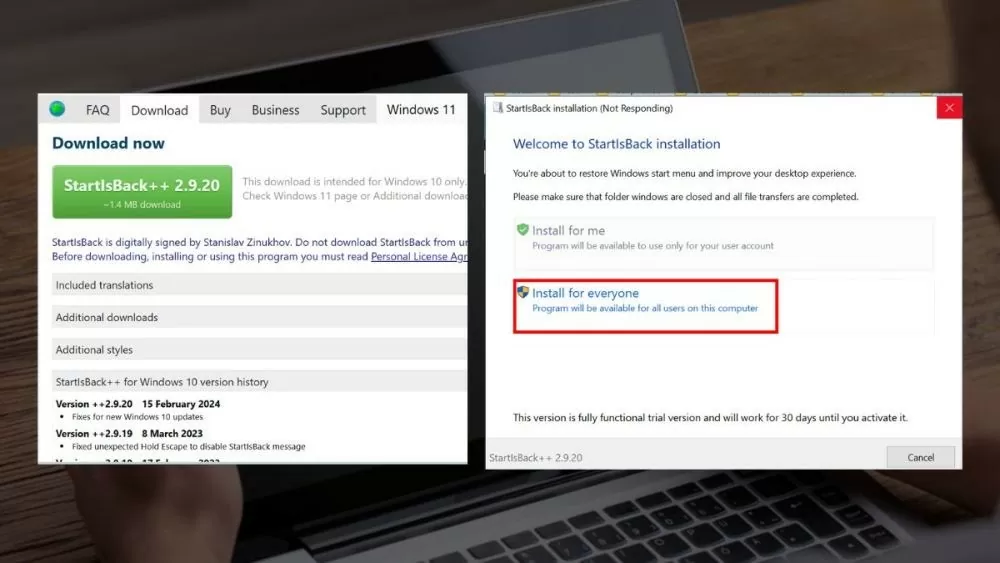
Step 1: To install StartIsBack on your PC, visit the official StartIsBack website and download the latest version. After downloading, open the installer file and follow the instructions to complete the installation process.
 |
| Here are 3 super easy ways to make your Windows 10 taskbar transparent. |
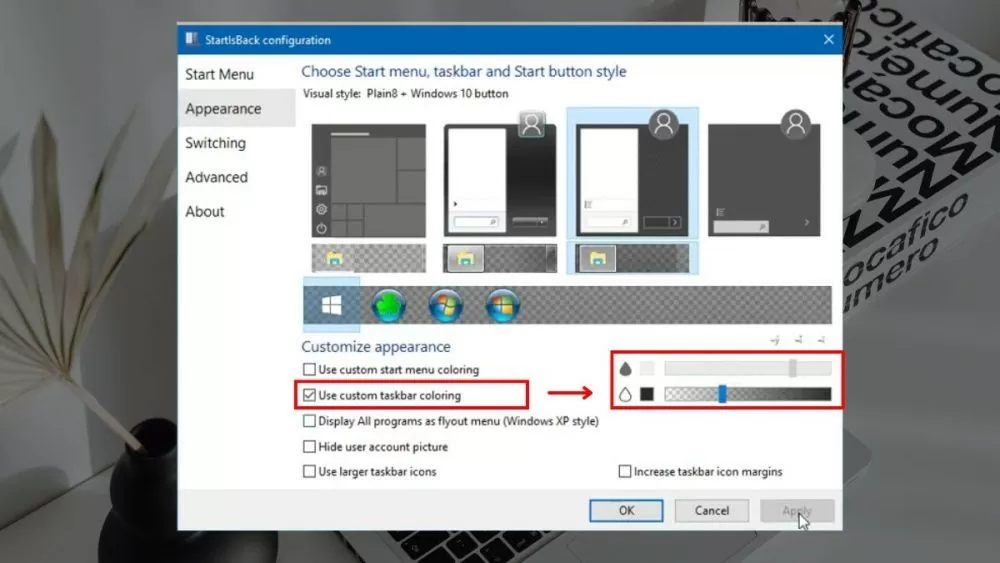
Step 2: After installation is complete, StartIsBack will automatically start. If not, you can find and open StartIsBack from the Start menu. In the main StartIsBack interface, click the "Appearance" tab to open the interface options.
 |
| Here are 3 super easy ways to make your Windows 10 taskbar transparent. |
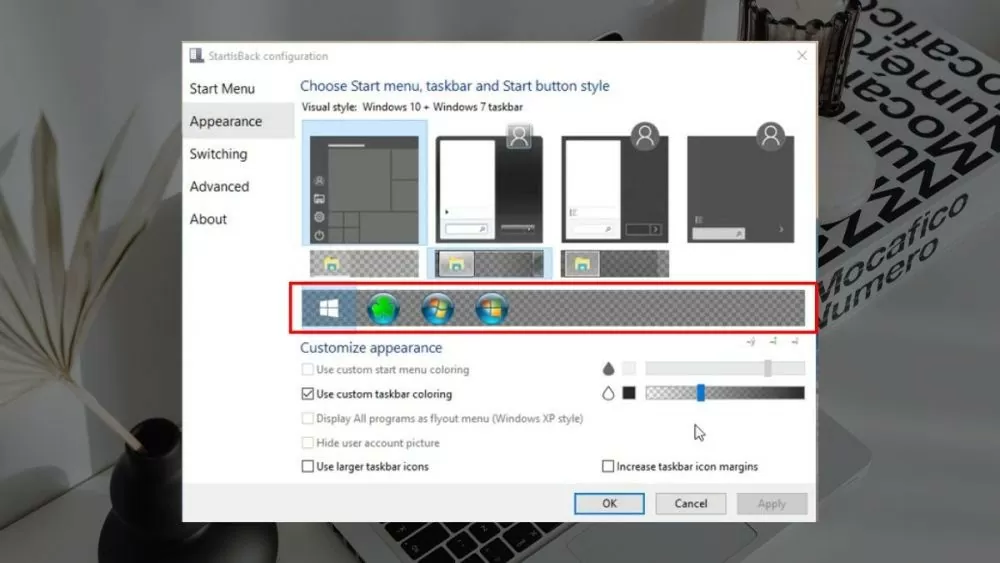
In the "Appearance" tab, you'll find the "Taskbar" section. Here, select the "Taskbar transparency" option. Turn this option on and adjust the transparency level to your liking by dragging the slider.
Step 3 : After you have adjusted the transparency level to your liking, click the "Apply" button to apply the changes. Check the Taskbar again to ensure it is now transparent as you desired.
 |
| Here are 3 super easy ways to make your Windows 10 taskbar transparent. |
Additionally, StartIsBack offers many other customizable features for the Taskbar and Start menu interface. You can explore and adjust them for the best user experience.
Instructions on how to use the TranslucentTB app.
Besides StartIsBack, you can use TranslucentTB as an alternative. You can make your Taskbar transparent on Windows 10 with this application by following these instructions:
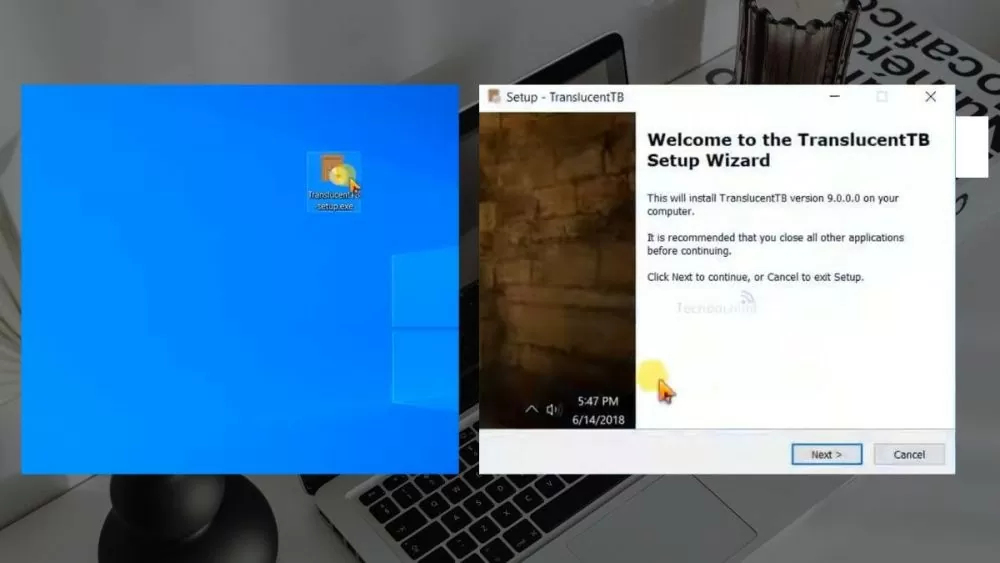
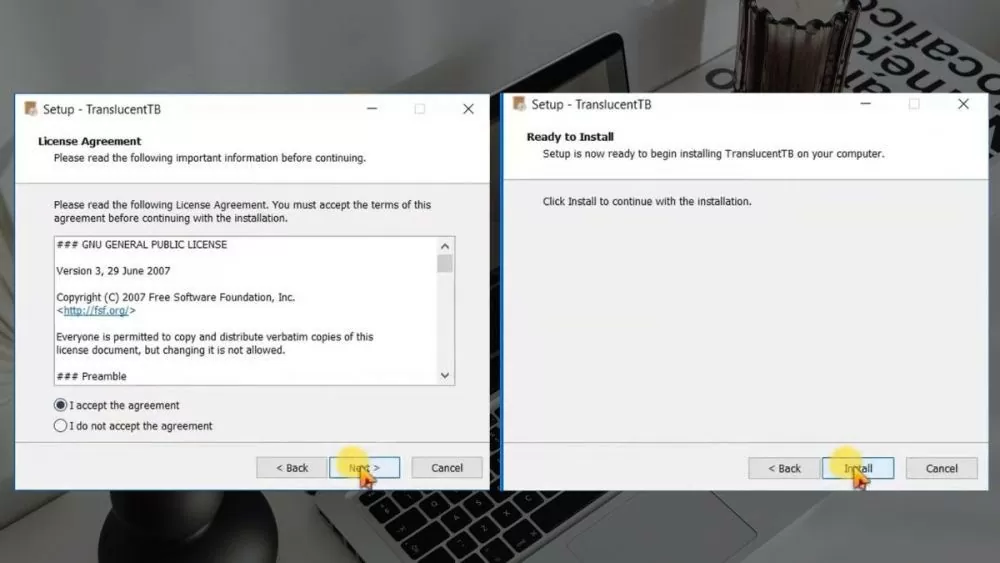
Step 1: Open the Microsoft Store and search for the TranslucentTB app. After downloading, tap "Next" in the first tab.
 |
| Here are 3 super easy ways to make your Windows 10 taskbar transparent. |
Step 2: Tap "I accept the agreement" in the app's permissions tab, then simply tap "Install" and wait a few moments.
 |
| Here are 3 super easy ways to make your Windows 10 taskbar transparent. |
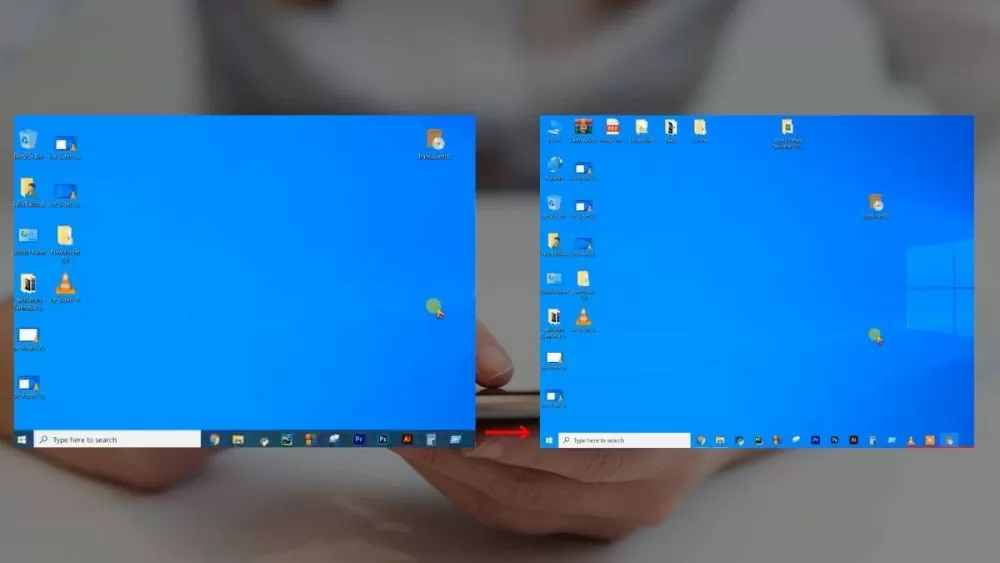
Step 3: As soon as the application installation is complete, the Taskbar will change to the application's default settings. Then, if you want to adjust it to your liking, reopen the application.
 |
| Here are 3 super easy ways to make your Windows 10 taskbar transparent. |
So, you now know about popular software that makes the Taskbar transparent on Windows 10, and they're not difficult to use. Take advantage of them to change the Taskbar color to your desired transparent style.
Source: https://baoquocte.vn/mach-ban-3-cach-lam-trong-suot-thanh-taskbar-windows-10-sieu-de-278945.html


![[Photo] Prime Minister Pham Minh Chinh presides over a meeting on private sector economic development.](/_next/image?url=https%3A%2F%2Fvphoto.vietnam.vn%2Fthumb%2F1200x675%2Fvietnam%2Fresource%2FIMAGE%2F2025%2F12%2F20%2F1766237501876_thiet-ke-chua-co-ten-40-png.webp&w=3840&q=75)
![[Photo] Prime Minister Pham Minh Chinh presides over the conference announcing the establishment of the International Finance Centre in Vietnam.](/_next/image?url=https%3A%2F%2Fvphoto.vietnam.vn%2Fthumb%2F1200x675%2Fvietnam%2Fresource%2FIMAGE%2F2025%2F12%2F21%2F1766309817714_ndo_br_dsc-3400-jpg.webp&w=3840&q=75)
























































































Comment (0)