

 |
| How to reset your computer on Windows 11 is simple and easy. |
After some time using it, Windows 11 computers may become slow, laggy, or experience software errors that affect daily work. System restore is an effective way to help your computer run more stably and quickly resolve many issues. If you don't know how to do it, here's a detailed guide on how to reset your Windows 11 computer.
How to quickly reset your computer on Windows 11
To help your computer run more smoothly when it's slow, lagging, or experiencing system errors, you can easily reset Windows 11 by following the steps below.
Step 1: Click the Windows icon on the taskbar, then open Settings to access the main system interface.
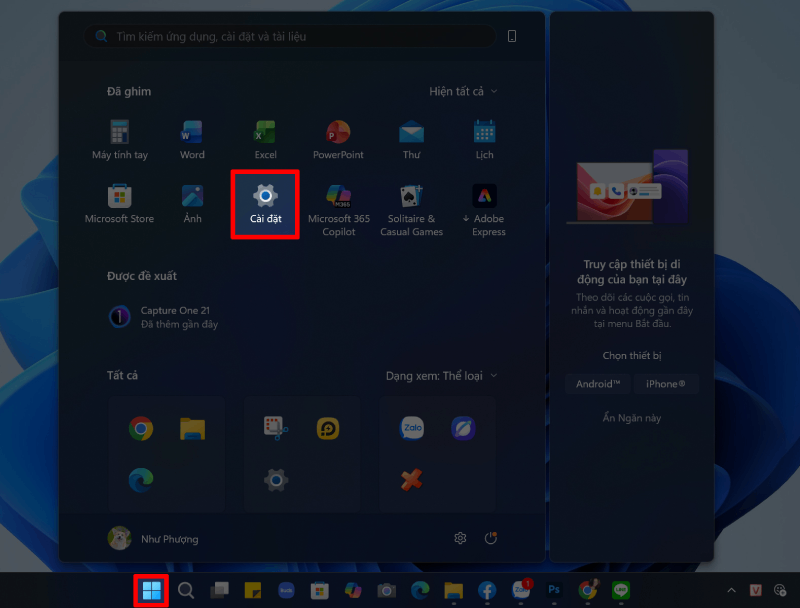 |
| Click the Windows icon on the taskbar. |
Step 2: In the settings interface, select Windows Update from the left-hand menu to access system settings.
 |
| In the settings interface, select Windows Update. |
Step 3: Scroll down and select Advanced Options to open additional settings related to updates and recovery.
 |
| Scroll down and select Advanced options. |
Step 4: Continue to find and click on the "Recovery" option; this is where you will find the computer reset options.
 |
| Continue searching and tap on the Restore option. |
Step 5: In the Reset PC section, click the Reset PC button to begin the system recovery process.
 |
| In this Reset PC section, click the Reset PC button. |
Step 6: Choose one of the two options:
- Keep my files: Deletes apps and settings but retains personal data.
- Erase everything: Delete all data and restore the device to its factory settings.
 |
| Choose one of the two options: |
Step 7: Follow the on-screen instructions and wait for the system to process, which can take from a few minutes to several tens of minutes depending on your computer's configuration.
Step 8: Once complete, the device will restart automatically. Simply log back into your account and perform the initial setup to use it normally.
Resetting Windows 11 is an effective way to refresh the system, fix errors, and quickly improve computer performance.
Therefore, resetting Windows 11 is quite simple and can help your computer run more smoothly, reduce errors, and significantly improve performance. You should do this when your device shows signs of slowness, lag, or software issues to ensure a more stable user experience.
Source: https://baoquocte.vn/reset-may-tinh-บน-windows-11-don-gian-de-dang-397121.html




































































































Comment (0)