

 |
Google automatically saves all the information users have searched for. If you want to review what you were looking at or delete your Google search history, you can do so in one of two ways:
1. Instructions on how to view and delete recent search history on Google on your phone.
To view and delete your recent Google search history from your phone, follow these steps:
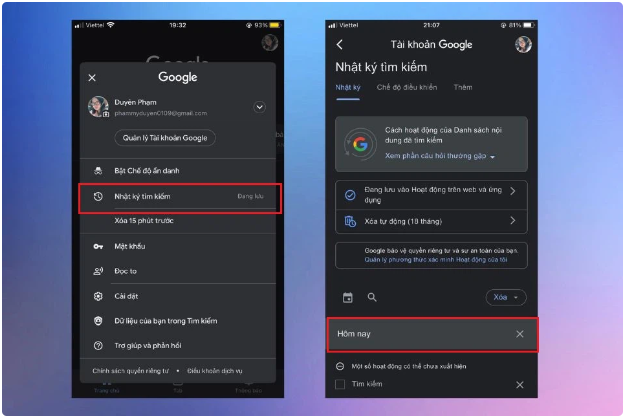
Step 1: Open the Google app on your phone. Next, tap your profile picture in the top right corner of the screen and tap on Search Log. Scroll down to see your recent Google search history.
 |
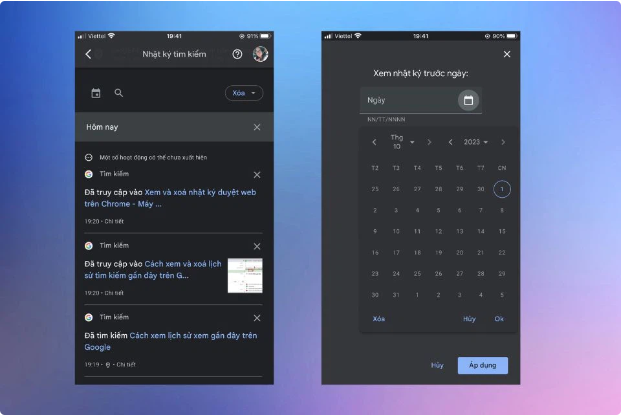
Step 2: To view your recent Google search history from previous days, scroll down further. Alternatively, click the Calendar icon next to the search icon, then select or enter the date you want to review and click Apply to search.
 |
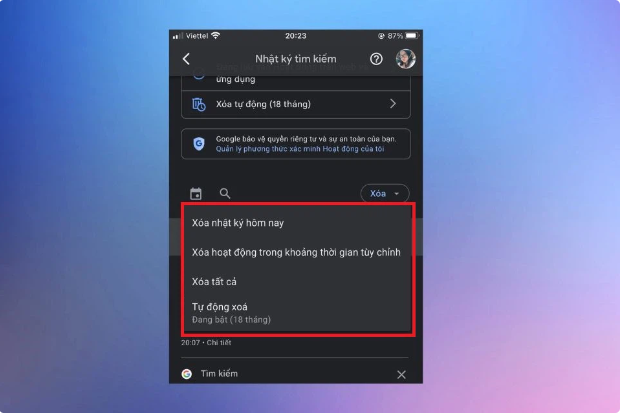
Step 3: If you want to delete your recent browsing history on Google, click on the "Delete" option and select the time period you want to delete.
 |
2. Instructions on how to view and delete recent search history on Google on a computer.
To view and delete your recent Google search history from your computer, follow these instructions:
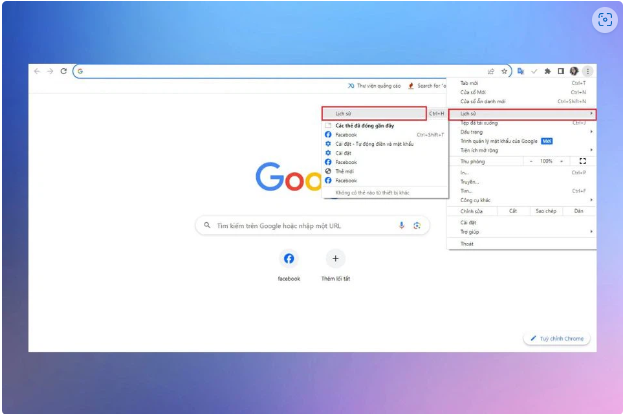
Step 1: Access the Google browser on your computer. Next, click on the three dots in the upper right corner of the screen. Then, click on History and then click on the History bar next to it.
 |
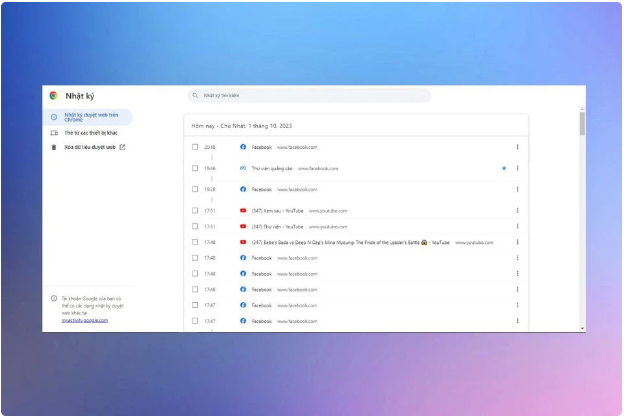
Step 2: A list of search results will appear on the screen. Scroll down to see your recent search history.
 |
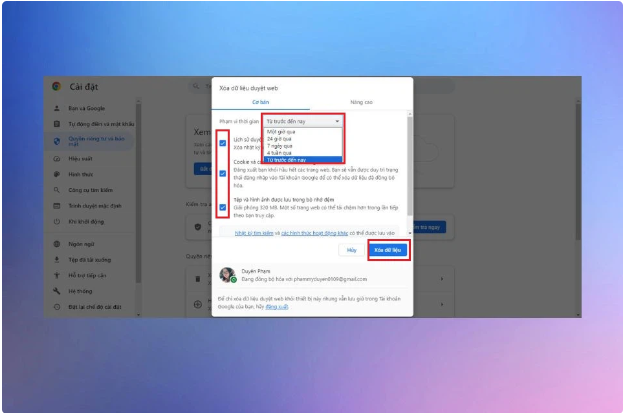
Step 3: To delete your recent Google search history, click on "Clear browsing data". In the "Time range" section, adjust the time period you want to delete and select the items you want to remove. Finally, click the "Clear data" button below to complete the process.
 |
Source

![[Photo] Prime Minister Pham Minh Chinh presides over a meeting on private sector economic development.](/_next/image?url=https%3A%2F%2Fvphoto.vietnam.vn%2Fthumb%2F1200x675%2Fvietnam%2Fresource%2FIMAGE%2F2025%2F12%2F20%2F1766237501876_thiet-ke-chua-co-ten-40-png.webp&w=3840&q=75)



































































































Comment (0)