

Android devices are now equipped with many simple WiFi password sharing features. Instead of entering the WiFi password, you can share the connected WiFi network on your device with other devices through the passwordless WiFi sharing feature.
Here are two ways to share Wi-Fi on Android without a password; you can refer to them for more information.
Share Wi-Fi via Bluetooth
Step 1: Go to the Settings menu and select Connections.

Tap Settings.
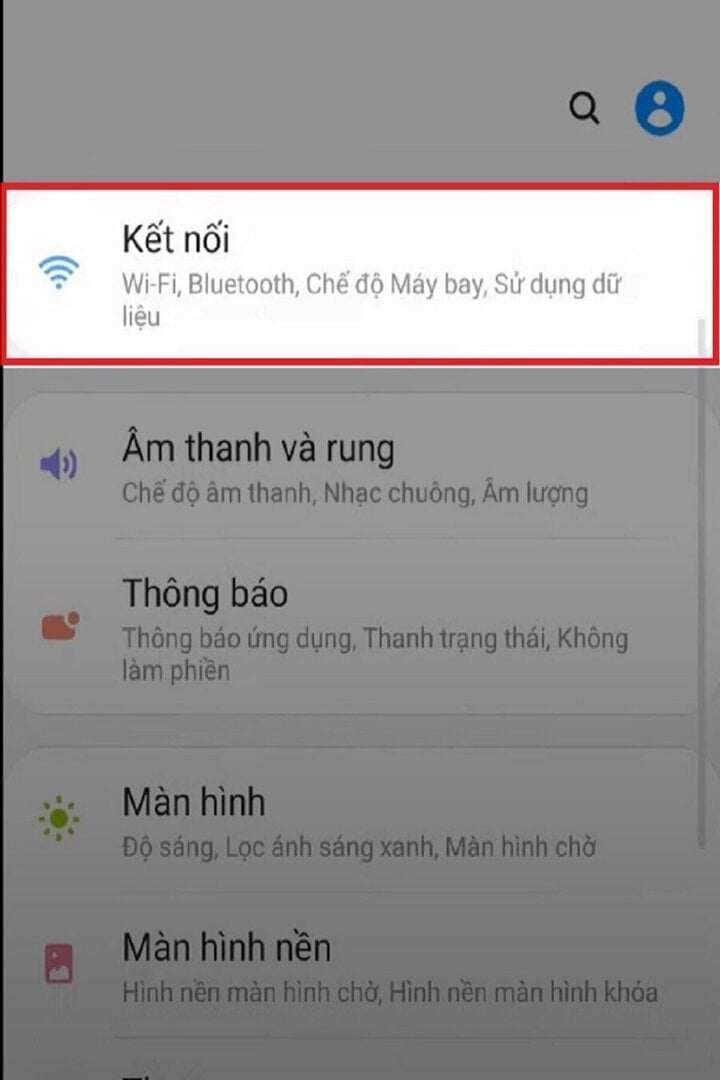
Select the Connection option.
Step 2: Find the Bluetooth option on both devices and pair them with the phone you want to share with.
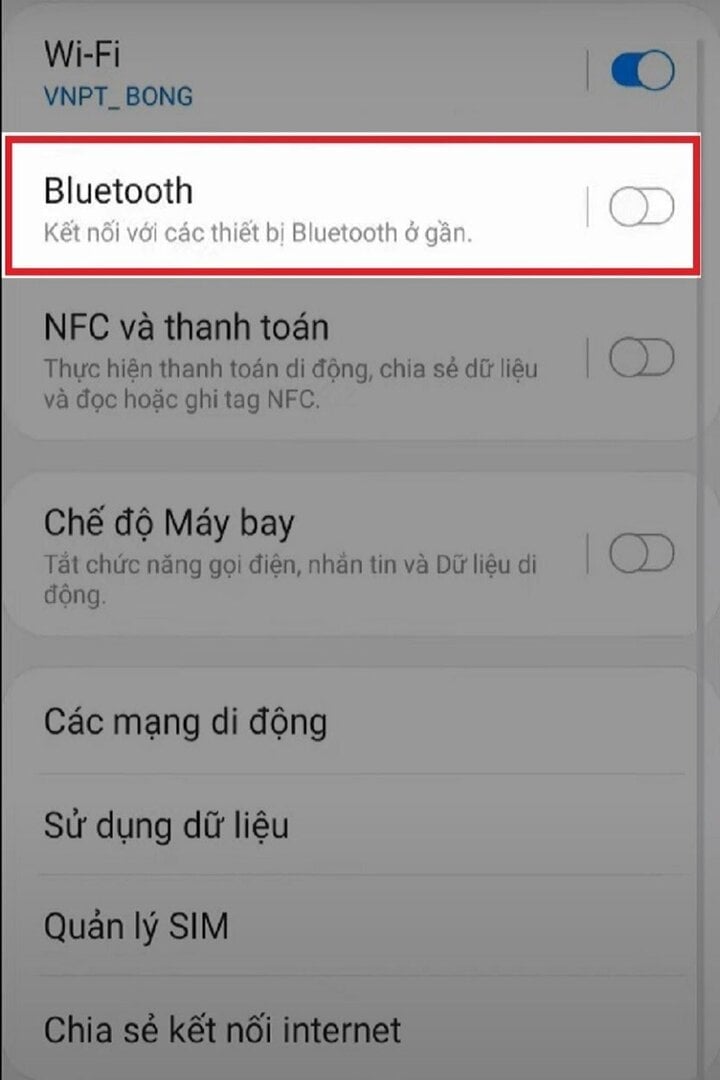
Turn on Bluetooth.
Step 3: To successfully share your Wi-Fi, find the "Share Internet Connection" option at the bottom.

Share your internet connection.
Step 4: In the Internet Connection Sharing menu > Access the Bluetooth Internet Connection menu > Turn this option on > Select Pair with the device you want to share with.
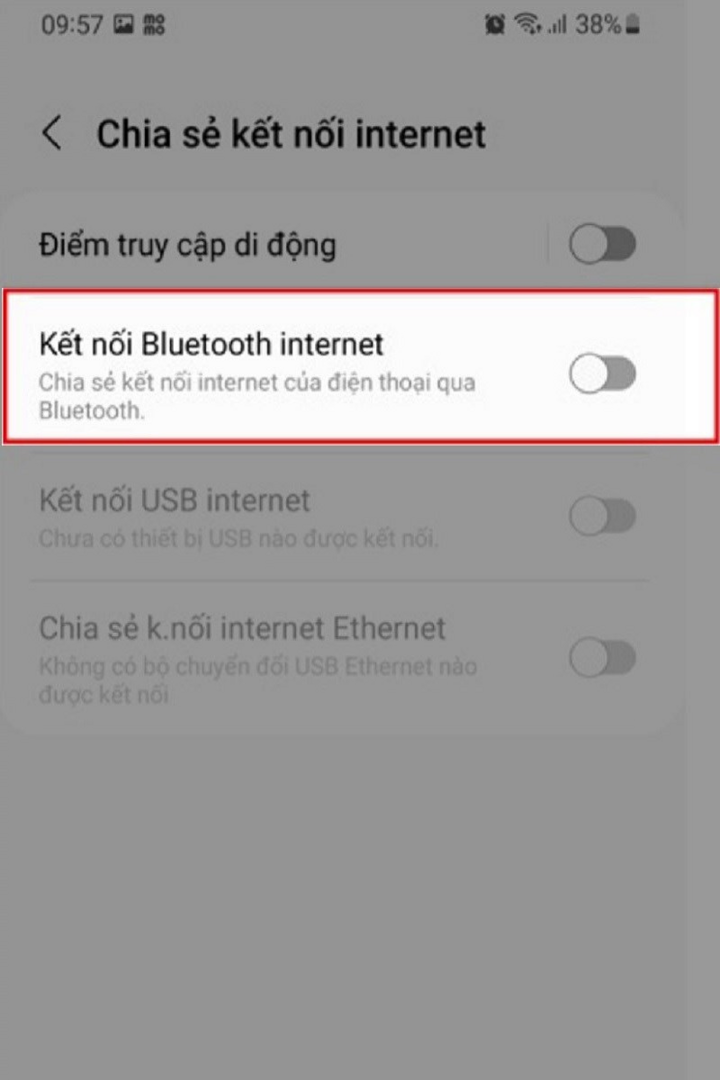
Open the Bluetooth Internet connection option.

Choose a match.
Step 5: Now, on the phone that needs to share the Wi-Fi, select "Share Wi-Fi" > Go to the Bluetooth menu > Select the paired device. Once you see the "Connected" message, it means the device has successfully received the Wi-Fi signal.
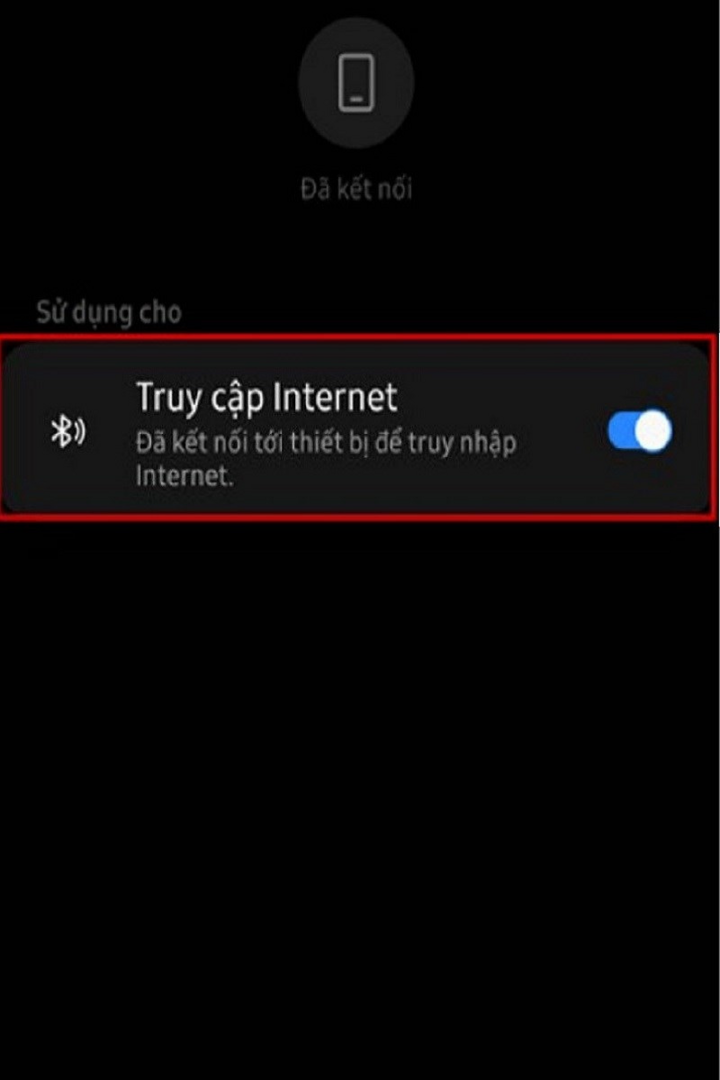
Once the screen displays as shown above, it means the device has successfully shared the Wi-Fi.
Share WiFi using a QR code.
Step 1: On the home screen, tap the Settings icon.

Tap the settings icon on the home screen.
Step 2: Next, go to the Connections section > Select Wi-Fi, choose the name of the previously connected Wi-Fi network, and tap the gear icon.
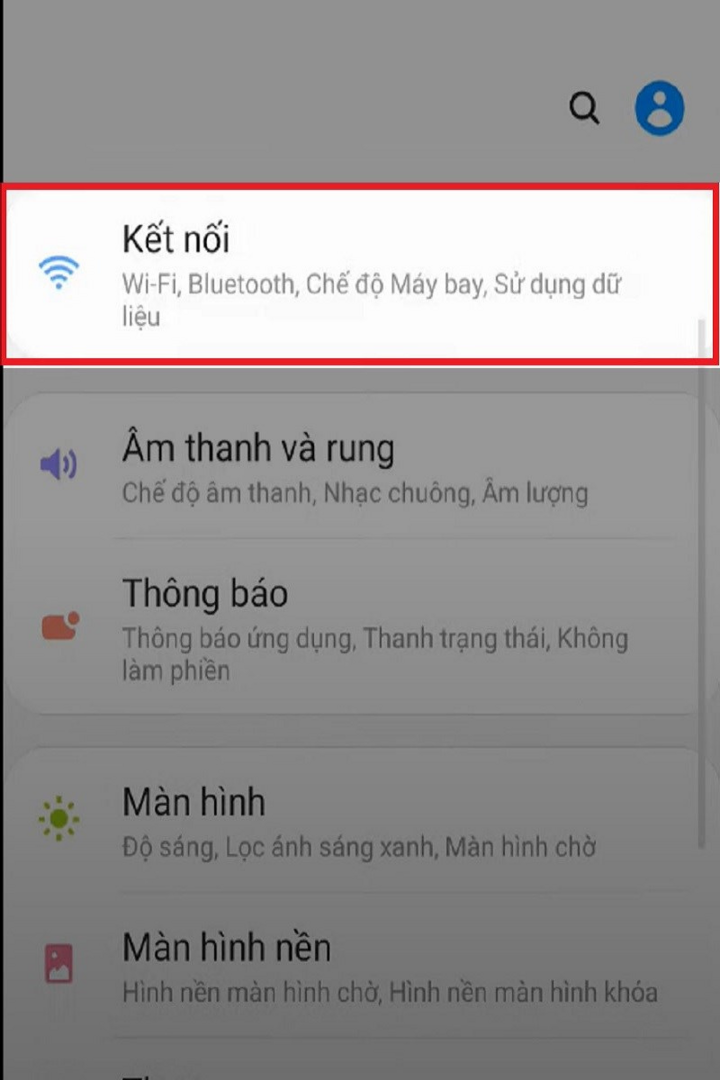
Select the Connection option.
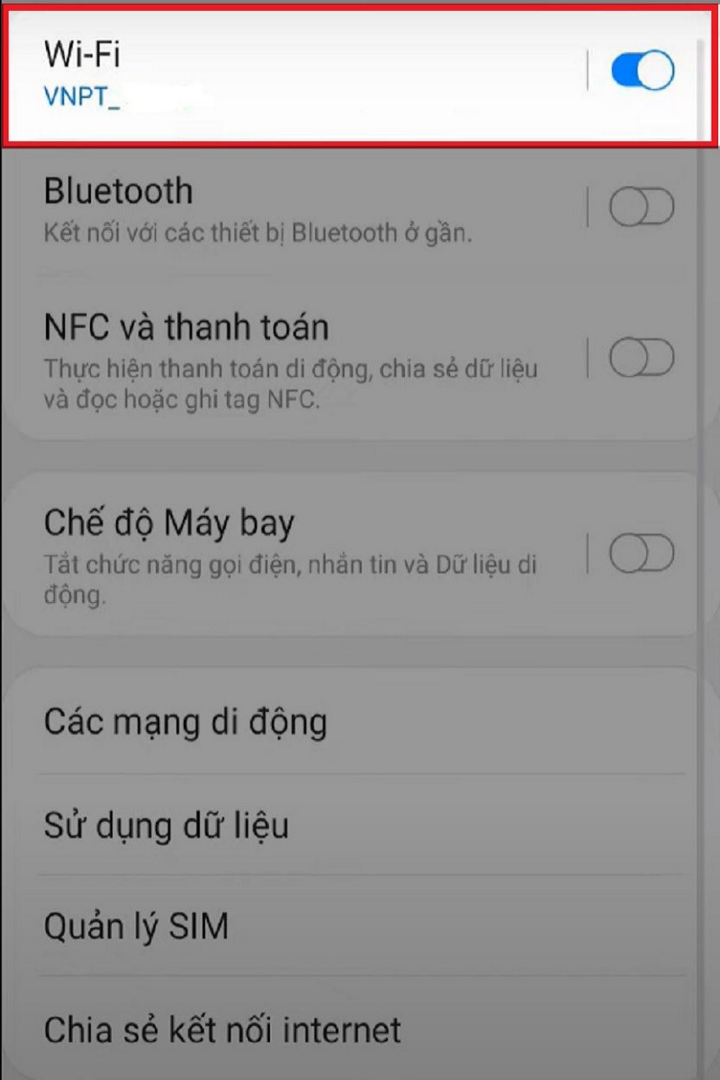
Access Wi-Fi.

Select the Wi-Fi name and tap the gear icon.
Step 3: In the bottom corner of the screen, tap "QR Code" to get the code. To connect, use your phone's QR code scanner to scan the code and retrieve the password.
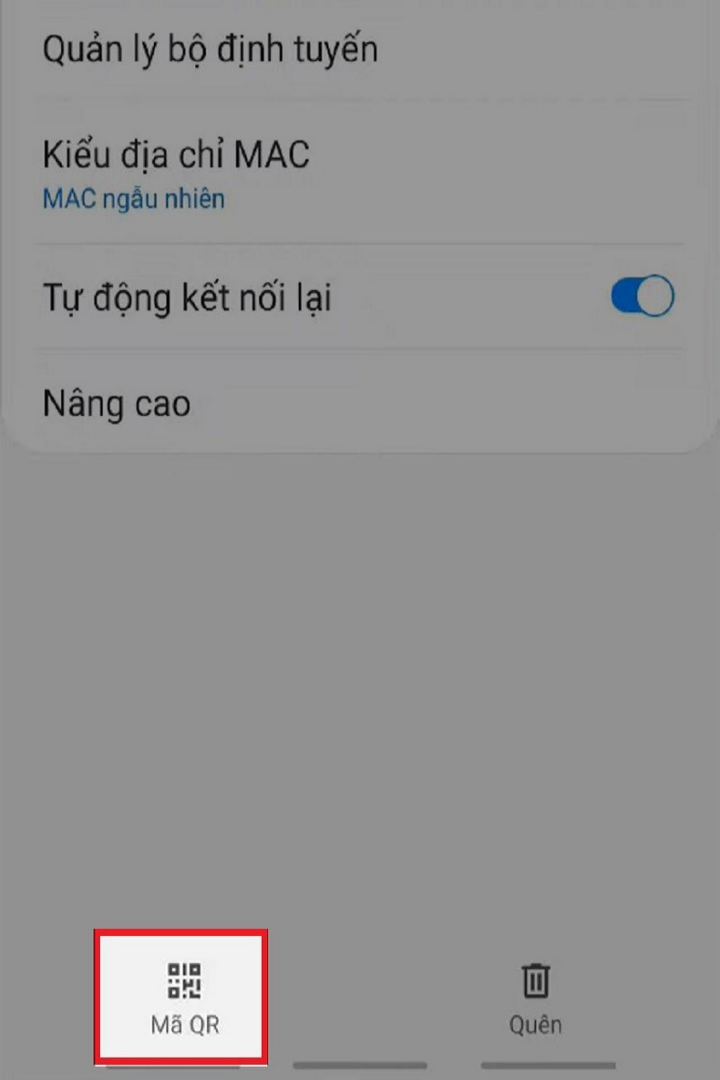
To display the WiFi sharing QR code, tap on the QR code.
An Nhi (Source: Compilation)
Source
![[Photo] Enchanting ancient rose garden on the mountainside in Nghe An](/_next/image?url=https%3A%2F%2Fvphoto.vietnam.vn%2Fthumb%2F1200x675%2Fvietnam%2Fresource%2FIMAGE%2F2025%2F12%2F19%2F1766109900916_vuon-hong-chin-do-thu-hut-du-khach-toi-check-in-o-ha-noi-3-20162778-1671624890024-1671624890104198100259.jpeg&w=3840&q=75)


![[Photo] General Secretary To Lam visits the exhibition space showcasing books, photo exhibitions, and achievements of digital transformation in journalism.](/_next/image?url=https%3A%2F%2Fvphoto.vietnam.vn%2Fthumb%2F1200x675%2Fvietnam%2Fresource%2FIMAGE%2F2025%2F12%2F19%2F1766110879215_1766110240024-jpg.webp&w=3840&q=75)



















































































Comment (0)