

 |
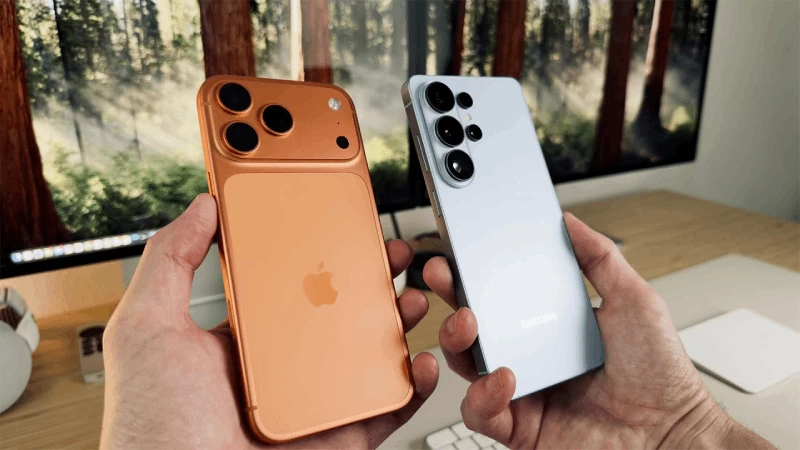
| How to conveniently use AirDrop between vivo and iPhone/MacBook. |
Transferring photos, videos , or documents between a Vivo phone and an iPhone or MacBook is now much simpler and faster. Thanks to cross-platform file sharing, users can send data back and forth in just a few steps, without needing cables or installing complicated applications.
How to quickly transfer files from Vivo to iPhone and MacBook
Thanks to the new cross-platform file sharing feature, vivo phones can now quickly transfer data to iPhones or MacBooks without cables. You can send photos, videos, or documents with just a few simple steps:
Step 1: First, open the photo, video, or document you want to share on your Vivo phone > Tap Share > Select Quick Share to start searching for nearby devices.
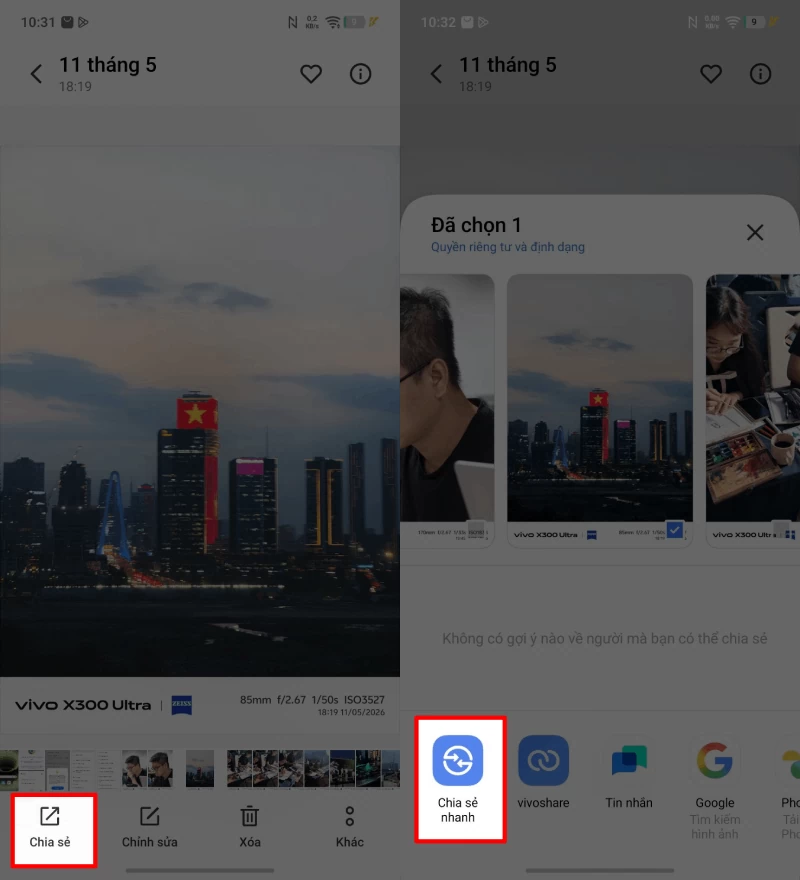 |
| First, open the photo, video, or document you want to share on your Vivo phone. |
Step 2: On your iPhone, swipe up Control Center > Press and hold the Wi-Fi and Bluetooth area > Turn on AirDrop and switch to Everyone mode so that vivo devices can recognize you.
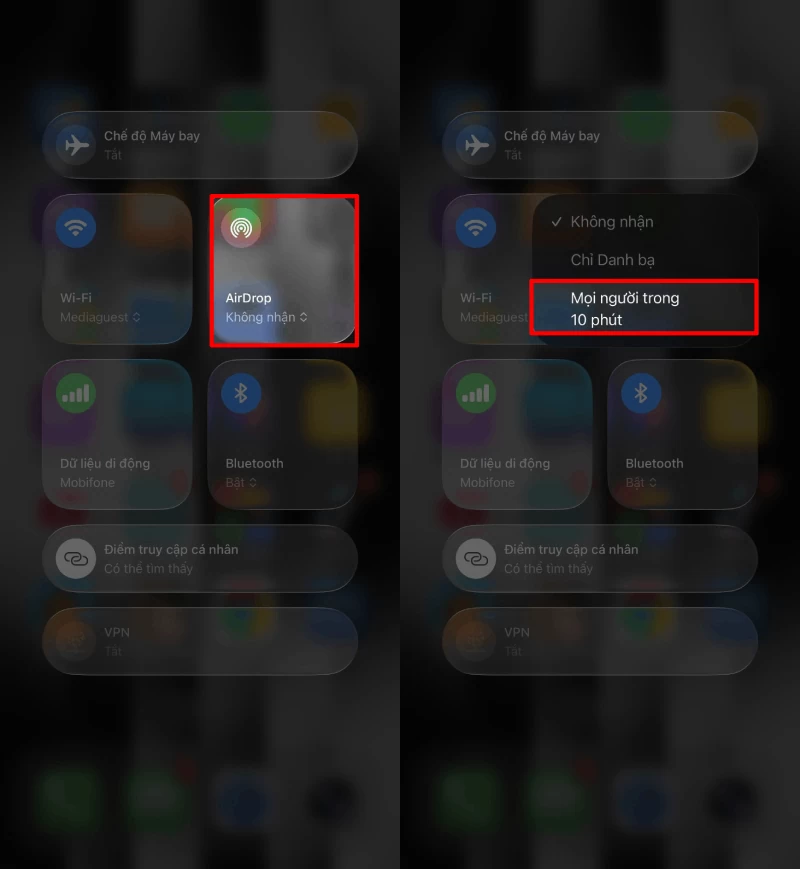 |
| On iPhone, swipe to open Control Center. |
Step 3: Return to your Vivo phone > Wait for the system to scan for nearby devices > Select the correct iPhone or MacBook name to send the file to.
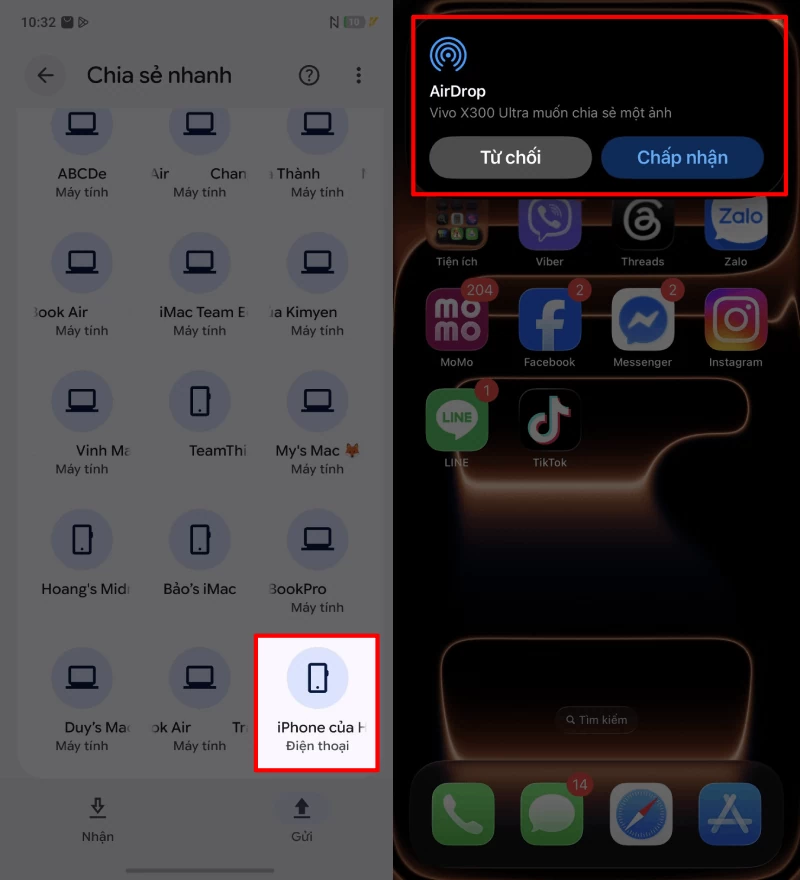 |
| Go back to your Vivo phone > Wait for the system to scan for nearby devices. |
Step 4: A notification will appear on your iPhone or MacBook indicating that you have received the AirDrop data > Tap Accept to begin the file transfer process.
Once completed, photos, videos, or documents will be automatically saved to your Apple device for immediate use.
How to easily transfer files from iPhone and MacBook to vivo
Not only can you send data from vivo to iPhone, but you can also transfer photos, videos, and documents back from your Apple device to your vivo phone very quickly. Here are the steps:
Step 1: On your Vivo phone, open the Quick Share feature and switch to Everyone mode so your iPhone or MacBook can find the device.
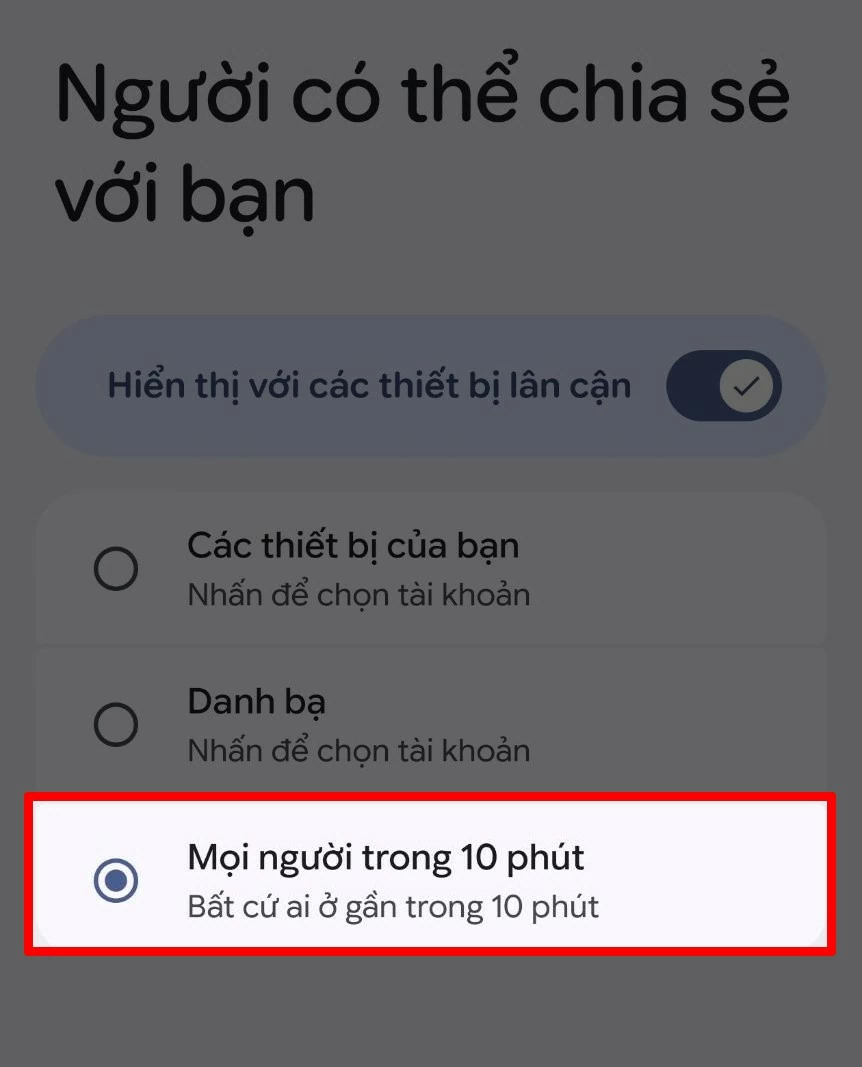 |
| On your Vivo phone, open the Quick Share feature. |
Step 2: On your iPhone or MacBook, open the photo, video, or file you want to send > Tap the Share icon > Select AirDrop .
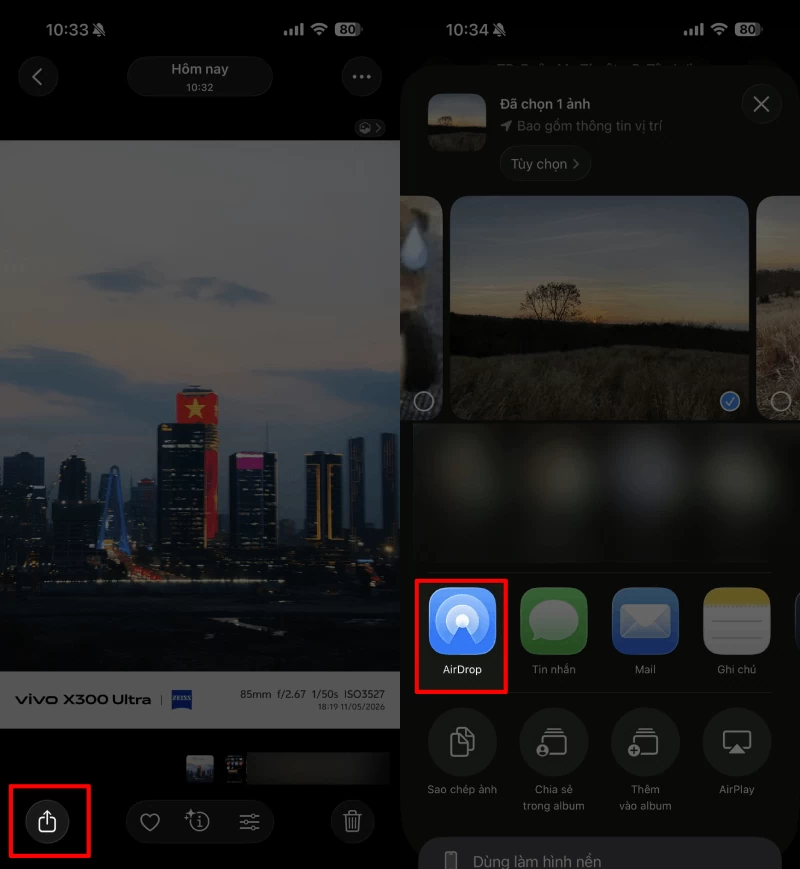 |
| On your iPhone or MacBook, open the photo, video, or file you want to send. |
Step 3: When the list of devices appears, select the correct Vivo phone name you want to receive data from.
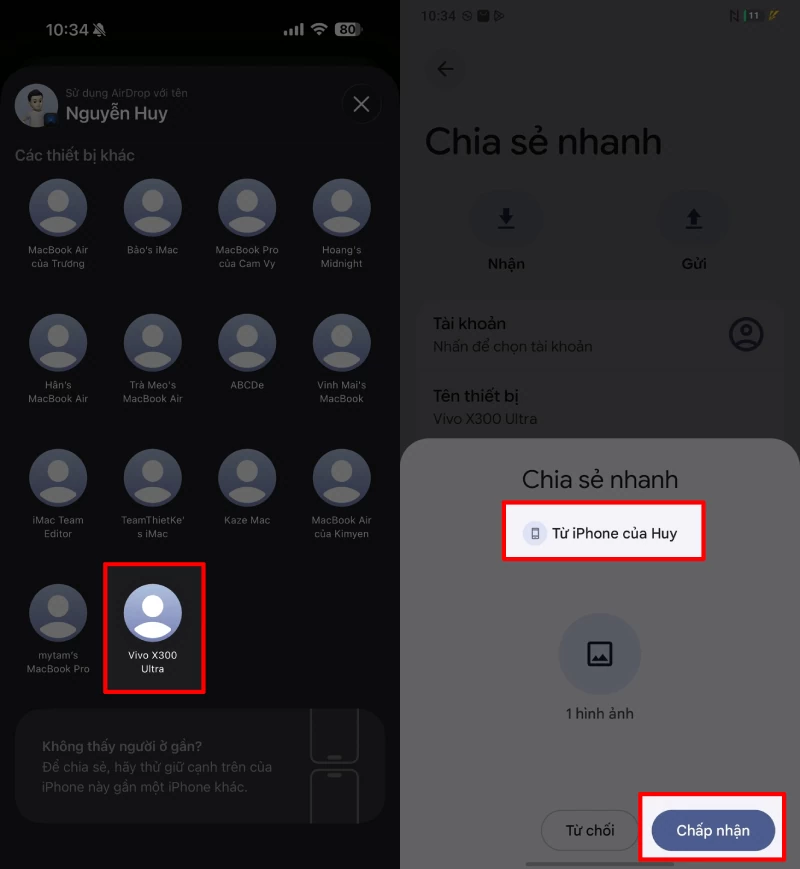 |
| Please select the correct name of the vivo phone you want to receive data for. |
Step 4: A notification will appear on your Vivo phone indicating that the file has been received > Press Accept to begin the data transfer process.
Once completed, all photos, videos, or documents will be automatically saved to your Vivo phone for immediate use.
Thus, sharing data between vivo and iPhone or MacBook is now much simpler and more convenient. You can transfer files quickly without needing cables or installing complicated applications. If you found this article helpful, don't forget to share it with your friends!
Source: https://baoquocte.vn/cach-airdrop-giua-vivo-va-iphone-macbook-tien-loi-398821.html





![[Image] A brilliant symphony and explosive power in the skies of Da Nang.](https://vphoto.vietnam.vn/thumb/1200x675/vietnam/resource/IMAGE/2026/05/31/1780196945787_anh-man-hinh-2026-05-31-luc-10-08-51.png)













![[Video] Sunset at Lap An Lagoon – Where the sun sets over the fishing nets](https://vphoto.vietnam.vn/thumb/340x192/vietnam/resource/IMAGE/2026/05/31/1780192137701_beach-landscape-sea-water-nature-grass-745871-pxhere-com.jpeg)
















































































Comment (0)