

 |
| How to download Office 365 for free for new students. |
Students can now use Office 365 for free to support their studies, assignments, and presentations more conveniently. This licensed suite integrates many useful features to help process work quickly. Below is a detailed and easy-to-follow installation guide for your reference.
How to download Office 365 for free for students on Windows easily
Windows users can easily install the free Office 365 for students with just a few simple steps. The process is quite fast and doesn't require much technical knowledge. You can refer to the steps below to install this useful learning toolset.
Step 1: Access the Microsoft Education website.
Open your browser on your computer and go to: https://www.microsoft.com/vi-vn/education/products/office to begin registering for Office 365 for students.
Step 2: Verify the student's email address.
Enter the email address provided by your school and click Next. Microsoft will verify the information and send a confirmation email. Simply open the email and click the verification link to activate your account.
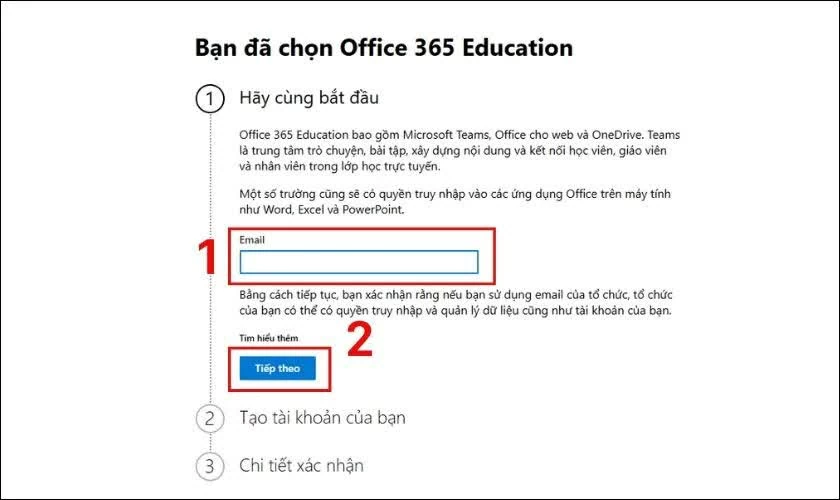 |
| Verify the student's email address. |
Step 3: Proceed to download and install Office 365
After successful verification, log in or create a Microsoft Education account. In the Office 365 management interface, select Install to download the installer to your computer. Open the downloaded file and follow the instructions to complete the installation.
Once installed, you can immediately use applications like Word, Excel, or PowerPoint for more convenient studying and working.
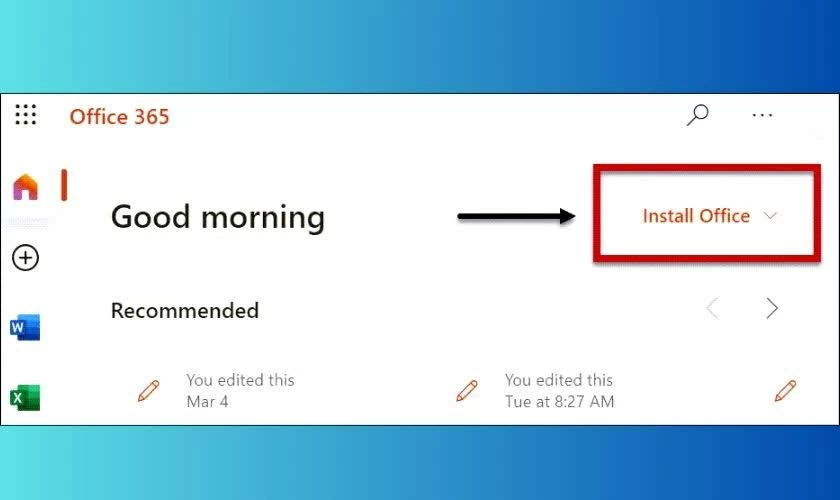 |
| Proceed to download and install Office 365. |
How to download Office 365 for free for students on a MacBook effectively.
MacBook users can also easily register and use the free Office 365 student version. The steps are almost the same as on Windows, the only difference being downloading the installer suitable for macOS. Below is a detailed guide you can refer to.
Step 1: Access the Microsoft Education website.
Open Safari or Chrome on your MacBook and go to: https://www.microsoft.com/vi-vn/education/products/office to begin registration.
Step 2: Verify the student's email address.
Enter the email address provided by your school in the registration field, then click Start for Microsoft to verify the information. The system will send a confirmation email to your inbox. Open the email and click the verification link to continue.
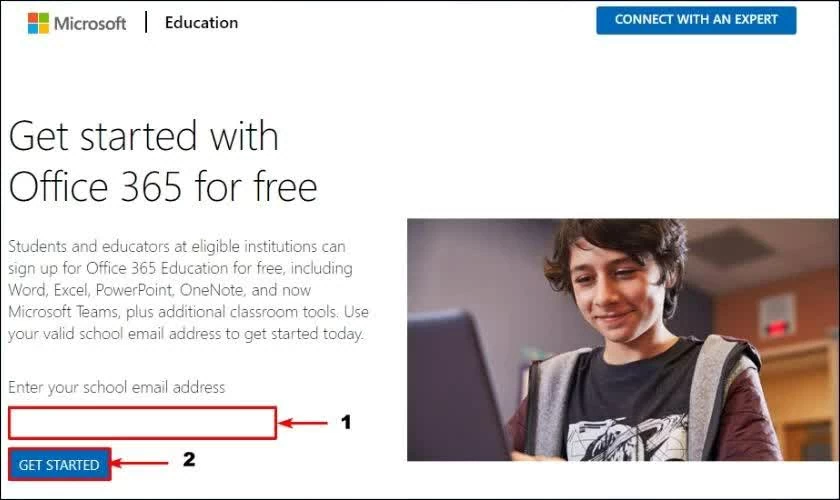 |
| Verify the student's email address. |
Step 3: Log in to your Microsoft Education account.
After successful verification, you need to create or log in to a Microsoft Education account to access the Office 365 management page.
Step 4: Download Office for macOS
In the management interface, click Install and select the version for macOS. After the download is complete, open the installation file and drag the Office suite into the Applications folder to finish.
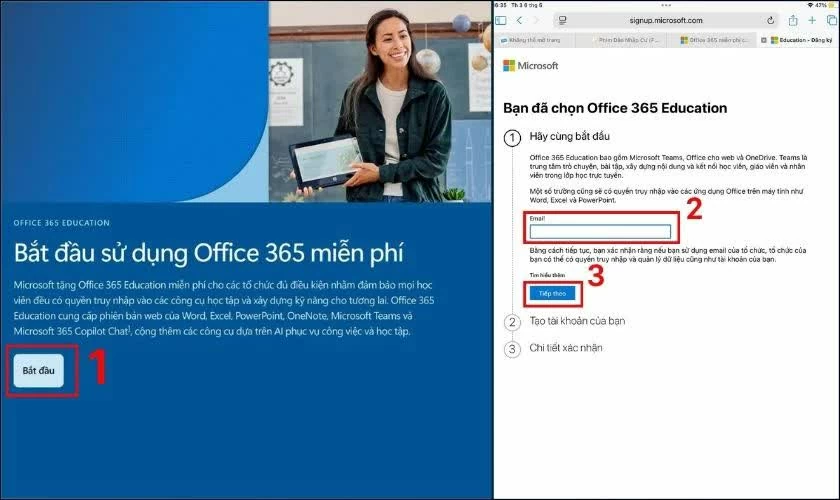 |
| Download Office for macOS. |
After successful installation, you can use Word, Excel, PowerPoint, and many other tools completely free and securely on your MacBook.
How to quickly download Office 365 for free on your phone for students.
Students can now use Office 365 for free on their phones for more convenient learning and document editing. With just a few simple steps, you can use Word, Excel, or PowerPoint anytime, anywhere.
Step 1: Access the Microsoft Education registration page.
Open your browser on your phone and go to: https://www.microsoft.com/vi-vn/education/products/office. Then click Start, enter your school email address, and select Next to allow the system to verify your information.
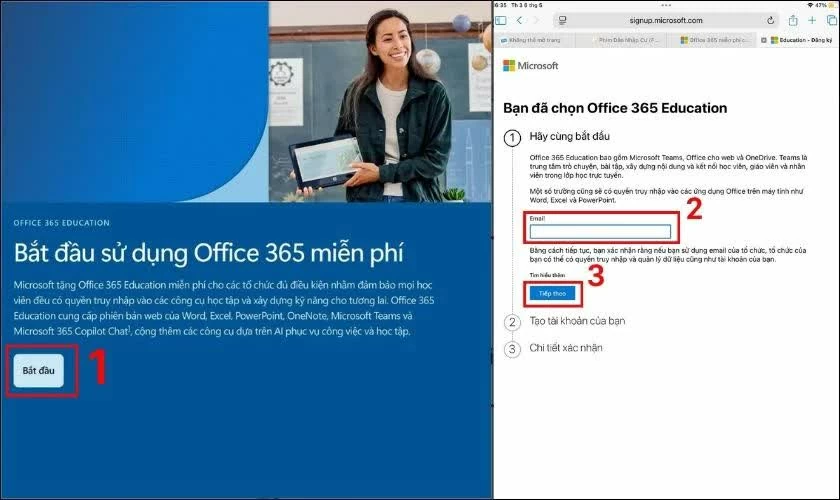 |
| Visit the Microsoft Education registration page. |
Step 2: Verify student email
Open the email inbox provided by your school and click the Microsoft verification link. Once completed, you can create or log in to your Microsoft Education account.
Step 3: Download the Office app to your phone.
Access the Google Play Store on Android or the App Store on iPhone, search for Microsoft Office or its individual applications such as Word, Excel, PowerPoint, and then proceed with the installation.
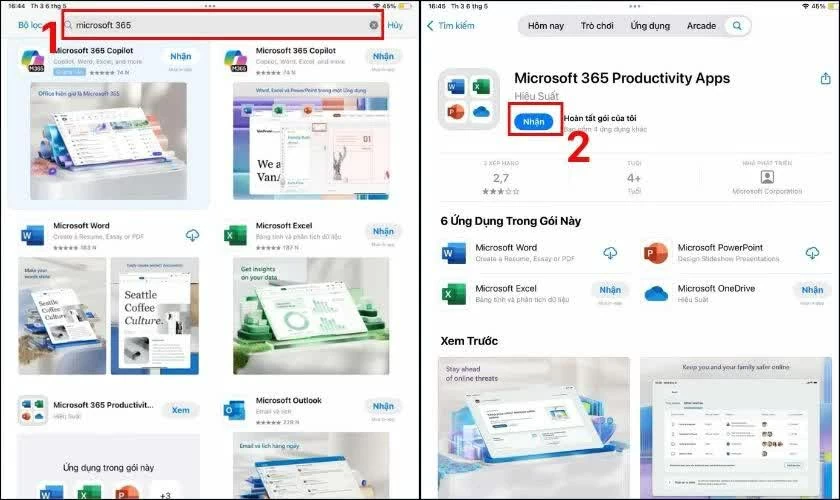 |
| Download the Office app to your phone. |
Step 4: Log in to use
Open the downloaded app and log in with your previously registered Microsoft Education account to start using Office 365 for free on your phone.
Once completed, you can easily study, do assignments, or edit documents directly on your smartphone.
Office 365, free for students, is a very useful learning toolkit for both computers and phones. With just a few simple registration steps, you can use Word, Excel, PowerPoint, and many other licensed applications completely free of charge. Hopefully, the above instructions will help you successfully install and use Office 365 more conveniently in your studies and work.
Source: https://baoquocte.vn/cach-tai-office-365-mien-phi-cho-sinh-vien-moi-nhat-393937.html


![[Photo] General Secretary and President To Lam presides over the meeting to approve the draft report on the results of the second inspection by the Politburo of the Standing Committee of the Hanoi City Party Committee.](https://vphoto.vietnam.vn/thumb/1200x675/vietnam/resource/IMAGE/2026/05/26/1779789811432_a2-bnd-4430-9620-jpg.webp)






































































































Comment (0)