

 |
| How to keep your computer screen from turning off when not in use (detailed instructions). |
If you want your computer screen to always be on while working, go to Settings > System > Power & battery and set the Screen setting to Never. This helps prevent interruptions during presentations, online meetings, or work processes. However, you should limit prolonged use as it can drain the battery and affect the screen's lifespan. Below are detailed instructions and important notes for setting this up on Windows.
How to quickly keep your computer screen on when not in use.
If you want to prevent your computer screen from automatically turning off while working or presenting content, you can adjust the system settings in Windows. This helps the device maintain a continuous display state, minimizing interruptions during studying, working, or presentations. Here are the simple steps:
Step 1: Press the Windows + I key combination to open Settings , then select System .
 |
| Press the Windows + I key combination to open Settings. |
Step 2: In the System interface, select Power & battery to access the power management section.
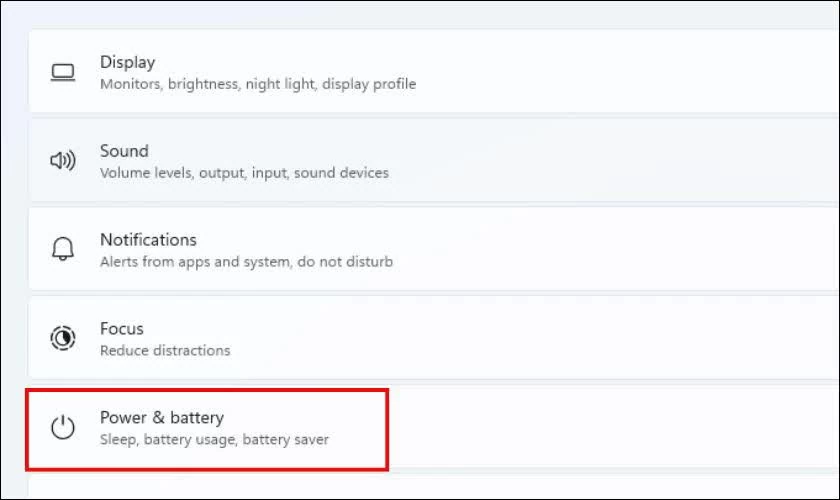 |
| Select Power & battery to access the power management section. |
Step 3: Find the Screen & sleep section, then adjust all related options to Never so that the screen does not turn off automatically.
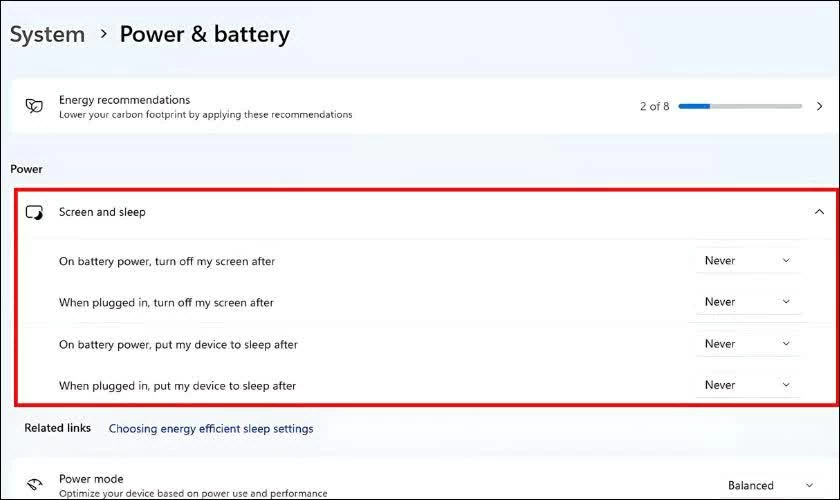 |
| Set all relevant options to Never. |
After the setup is complete, you can double-check by leaving the device idle for a few minutes to ensure the screen is still functioning correctly according to the settings.
Thus, with just a few simple steps in the settings, you can keep your computer screen bright as needed. However, you should consider adjusting it appropriately when not necessary to save energy and better protect the device's lifespan during long-term use.
Source: https://baoquocte.vn/giu-man-hinh-may-tinh-khong-tat-khi-khong-dung-395789.html





![[Photo] General Secretary and President To Lam presides over the meeting to approve the draft report on the results of the second inspection by the Politburo of the Standing Committee of the Hanoi City Party Committee.](https://vphoto.vietnam.vn/thumb/1200x675/vietnam/resource/IMAGE/2026/05/26/1779789811432_a2-bnd-4430-9620-jpg.webp)































































































Comment (0)