

Here are two extremely easy ways to create passwords for apps on your iPhone.
Method 1: Create app passwords on iPhone based on usage time.
Step 1: Open "Settings" on your iPhone and find "Screen Time". Then, tap "Add Screen Time" and select "Continue". Next, tap "This is my iPhone" to confirm.
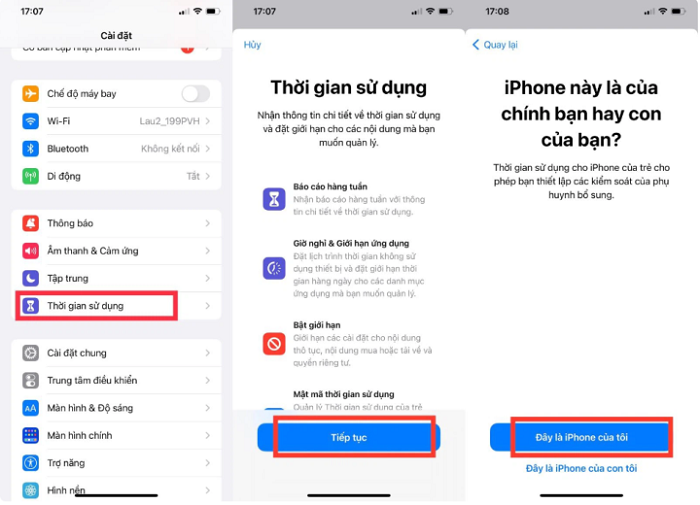 |
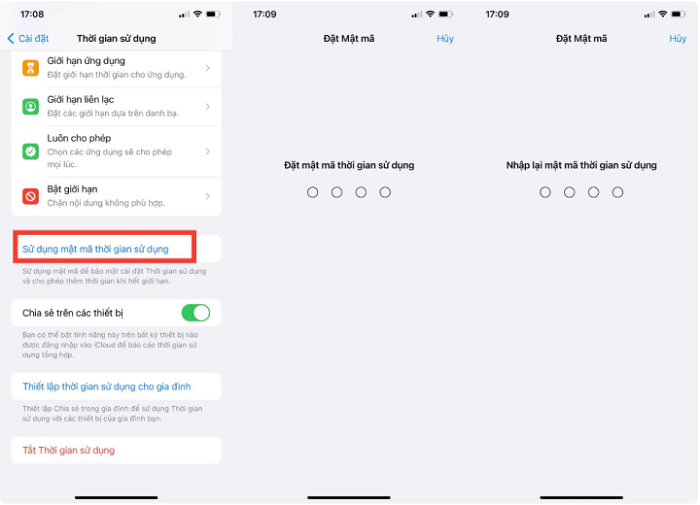
Step 2: Select "Use time-lapse password" and set a password for the application.
 |
Step 3:
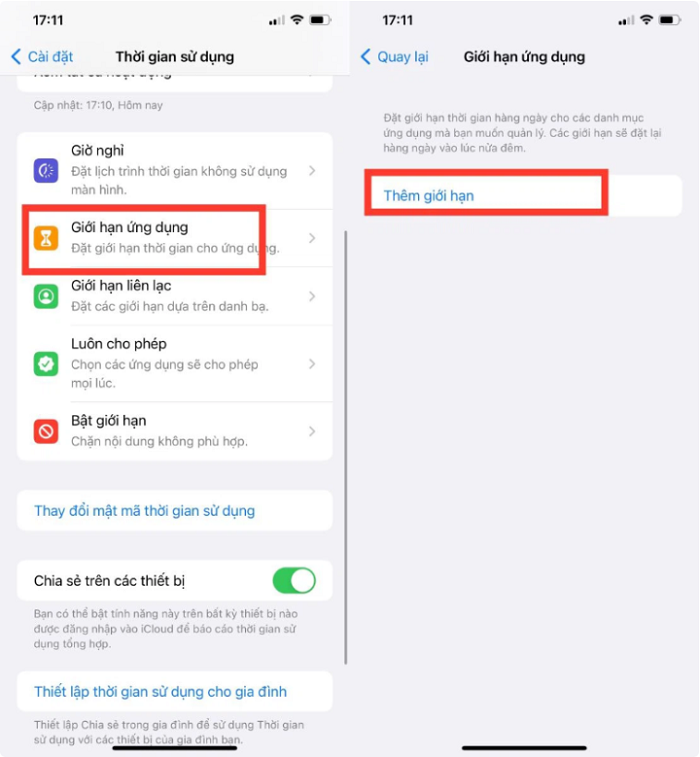
Next, select "App restrictions" and then select "Add a restriction".
 |
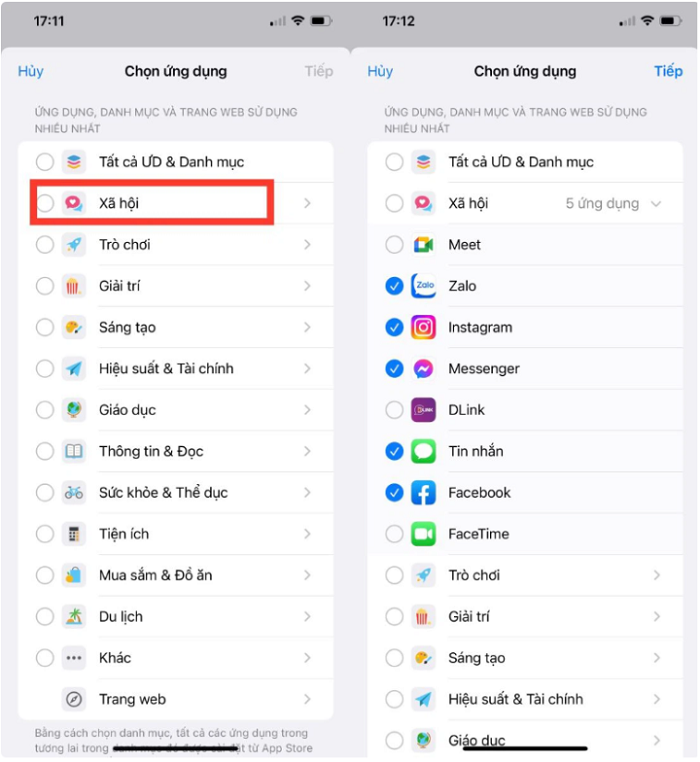
Next, select the application category and choose each application you want to password protect. Once you have selected them, click the "Next" button in the upper right corner of the screen.
 |
Step 4:
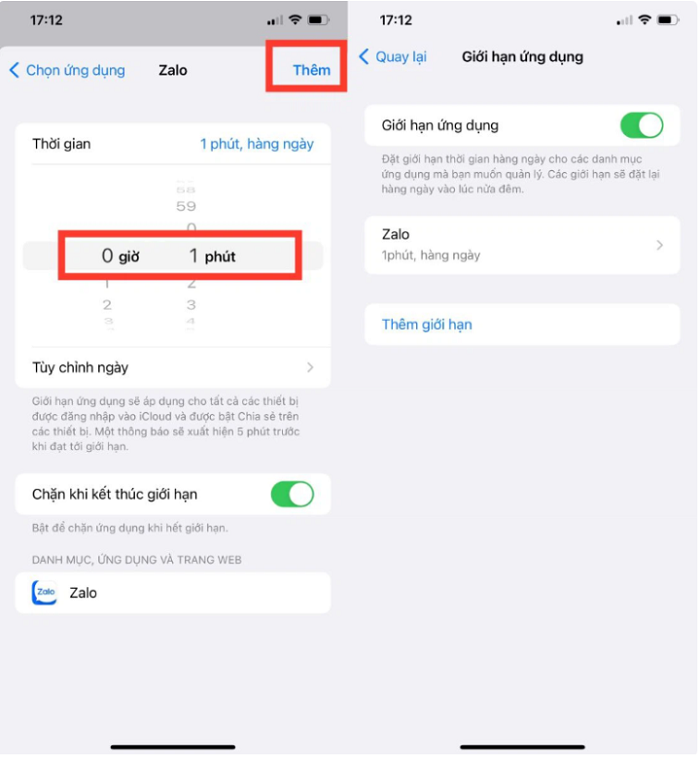
Please select a time of 1 minute and then tap "Add" in the upper right corner of the screen.
 |
Step 5:
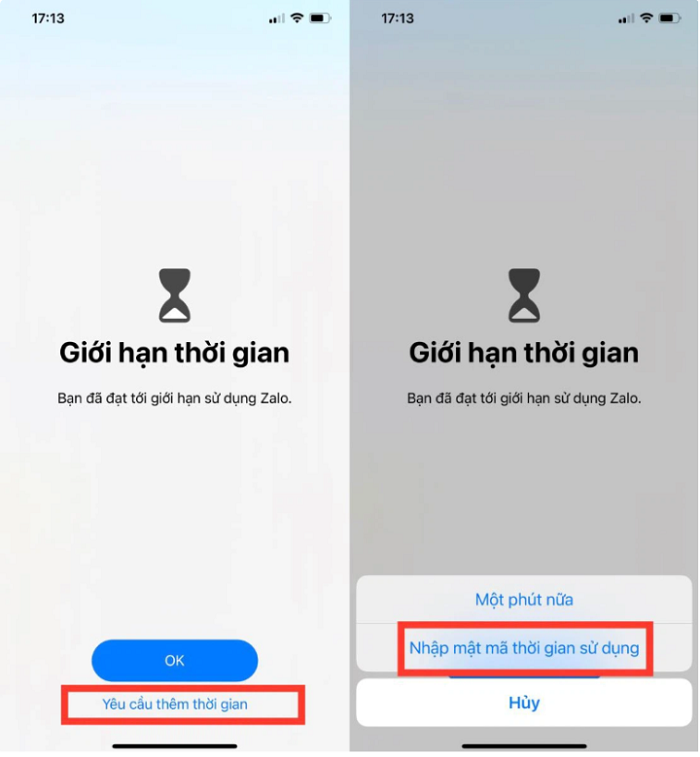
Finally, return to the home screen and tap on the app you just set a password for. Your iPhone will then notify you that your usage time has expired. If you wish to "Request more time," simply enter the app password on your iPhone.
 |
Method 2: Set an app password on your iPhone based on guided access.
Step 1:
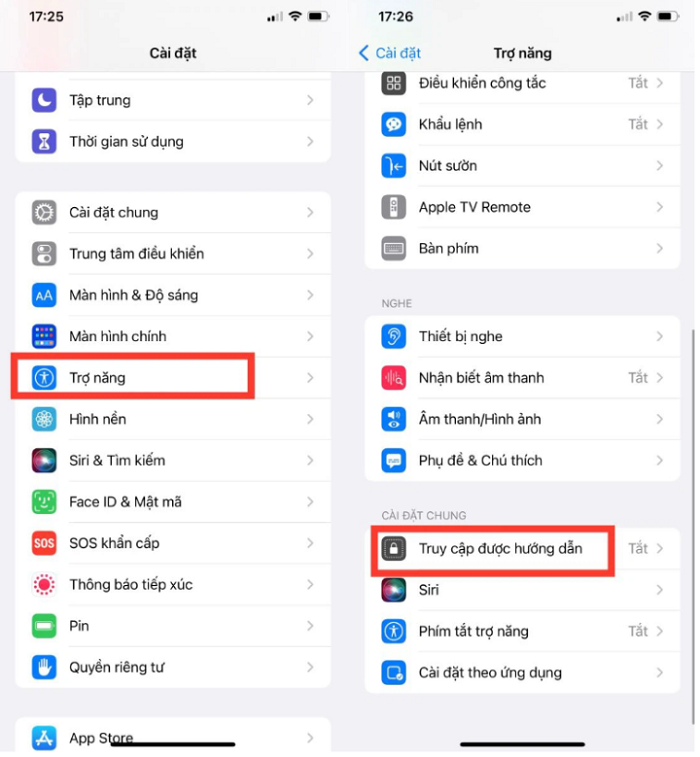
Open "Settings" and select "Accessibility". Here, tap on "Guided Access".
 |
Step 2:
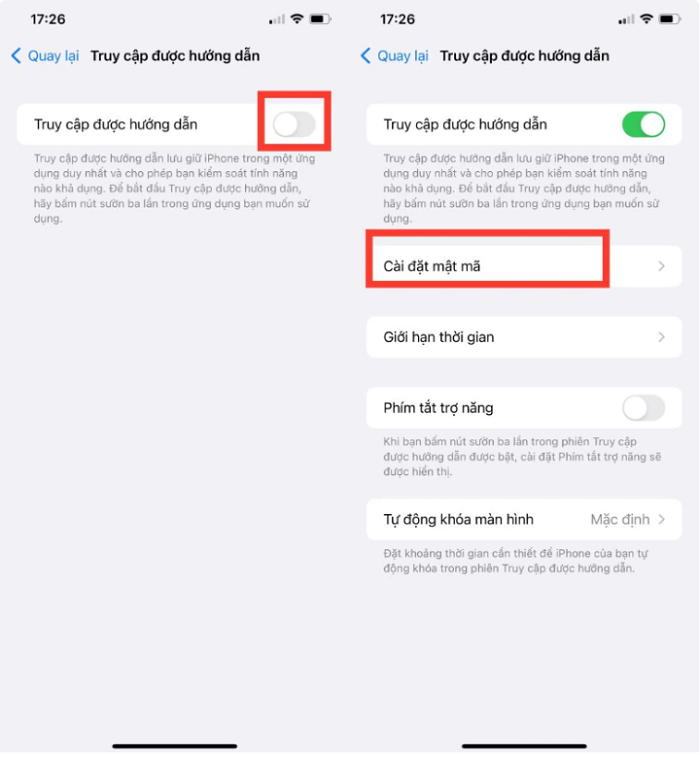
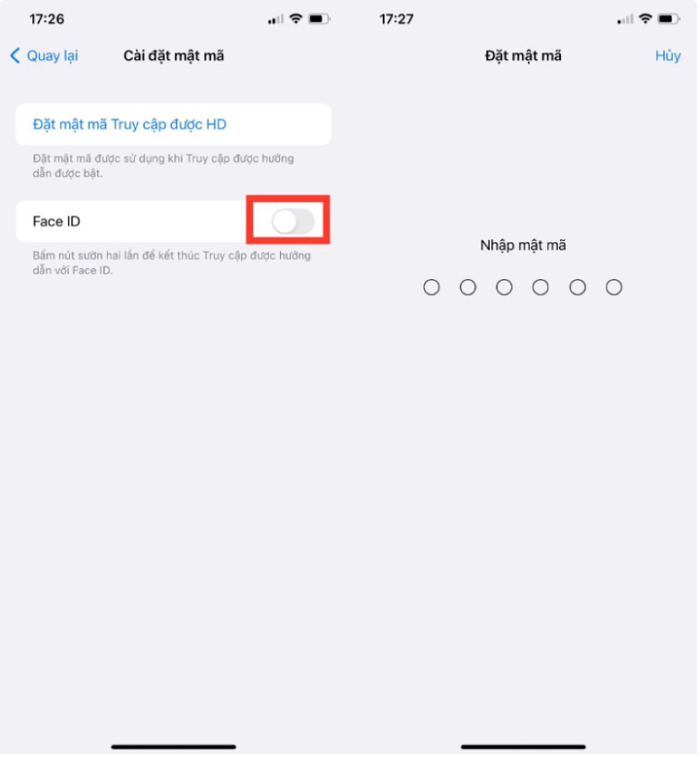
Turn on "Guided Access" and then select "Set Passcode" to set an app password on your iPhone.
 |
Step 3:
Finally, you can choose to unlock using a passcode or Face ID. After successful setup, simply open the password-protected app and press the side button three times to launch it. If you want to exit Guided Access mode, press the side button three times, enter your passcode, and press Finish.
 |
This second method is only suitable when you are using your phone and want to share it with someone else. The person borrowing your phone can only see the app you currently have open; they cannot exit and view other apps.
Source
![[Photo] Prime Minister Pham Minh Chinh presides over a meeting on private sector economic development.](/_next/image?url=https%3A%2F%2Fvphoto.vietnam.vn%2Fthumb%2F1200x675%2Fvietnam%2Fresource%2FIMAGE%2F2025%2F12%2F20%2F1766237501876_thiet-ke-chua-co-ten-40-png.webp&w=3840&q=75)




































































































Comment (0)