

How to remove automatic shortcuts on Facebook
Facebook offers users an automatic shortcut feature that allows them to quickly access chats/groups they frequently interact with. However, in some cases, this feature can be annoying.
Step 1: Access the Facebook app > Tap the menu with the avatar icon in the bottom right corner. The suggested shortcuts will then appear in your Shortcuts section.
Step 2: Next, press and hold the account/group you want to remove the shortcut to > Tap Remove Shortcut.
How to delete automatic shortcuts on your computer
Step 1: Open Facebook on your computer > On the main screen, in the bottom left corner you will see "Your Shortcuts," click Edit next to it.
Step 2: Next, click the dropdown arrow in the corresponding chat/group you want to delete > Select Hide > Finally, click the Save button.
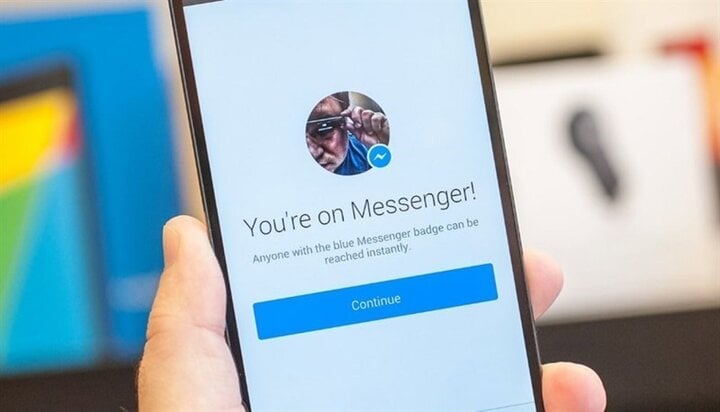
(Illustrative image)
Secret features in Facebook Messenger you might not know about.
- Create a short video : Instead of sending a photo, simply hold down the capture button and a video will be recorded.
After recording, release the shutter button and press the Send Video button. You can also add color filters, effects, and fonts to your video at the top of the screen before pressing send.
- Transfer money from your bank account to anyone using your Visa or MasterCard.
Facebook allows users to transfer money from their bank accounts to anyone using Messenger. Each transaction can take several days depending on the bank, and it's completely free.
- Book an Uber ride directly on Messenger
In locations where Uber is available, simply press and hold the address you want, then book a ride through Uber. You can also manage your logged-in accounts under "Transportation" in the list of integrated apps.
- Share news, recipes, restaurants, hotels, and flights.
With Facebook Messenger partnering with numerous third-party apps, users can easily send friends various information such as travel plans, search for and share hotel and flight information using extensions.
To use these features, simply open the dialog box and click the plus sign in the bottom left corner of the screen.
- Fun chat with 3D text
This feature, called Sribble Chat, is part of the Facebook Messenger extensions. The app transforms text into fun 3D animations.
To activate it, go to the dialog box and click the plus sign in the bottom left corner of the screen. In the Extensions section, swipe right until you see "Scribble Chat," then click to select it.
- Automatically save photos to your phone.
Facebook Messenger will automatically save photos to anyone who sends them to you in their library. You can do this by tapping the profile icon in the upper right corner of Messenger in the app.
Next, tap Photos & Media, switch Save Photos to On, and all photos will be saved to your device's library.
- Chat with strangers
Facebook Messenger has launched a new feature that allows users to connect and chat with complete strangers. A notable aspect of this new feature is that neither you nor the person you connect with will have your identity revealed.
To send a message, search for Chatible in the search bar, and when you're finished with a conversation, simply tap the like icon to end the conversation and start a new one.
- Keep the conversation confidential.
Messenger has long allowed users to send self-destructing messages after a certain period of time through Secret Conversations. This feature helps to some extent to ensure the privacy of conversations.
Open a conversation with the person you want to message and tap on their account name > Secret Chat to activate the feature.
Source




































































































Comment (0)