

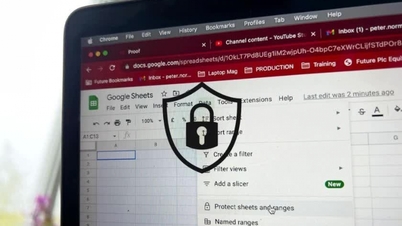
Creating QR codes for Google Forms makes sharing forms quick and convenient. Below are instructions on how to create QR codes from Google Drive and Google Sheets to collect data effectively!
 |
How to create QR codes for Google Forms: A detailed and effective guide.
To create a QR code for a Google Form on a Google Sheet, you only need to follow three simple steps:
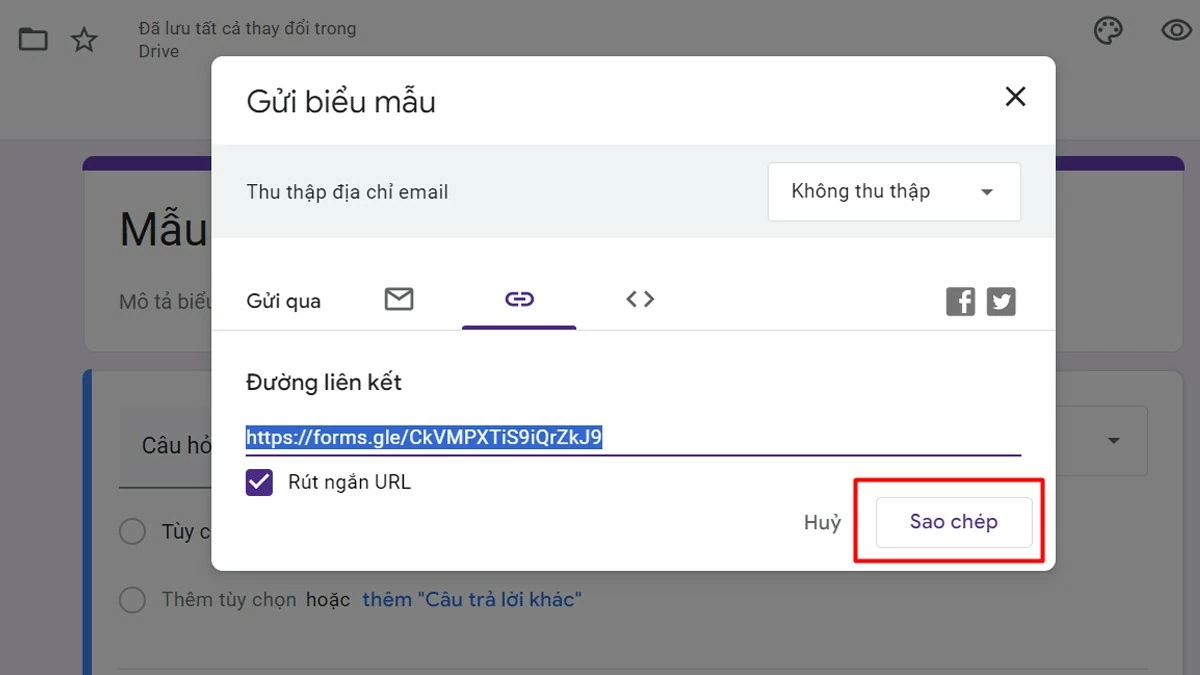
Step 1: Access Google Forms via your browser, create or open the form you want to share. Click the "Submit" button in the upper right corner, select the "Link" icon, and then copy the Google Form link. You can select "Shorten link" to make the link shorter and easier to read.
 |
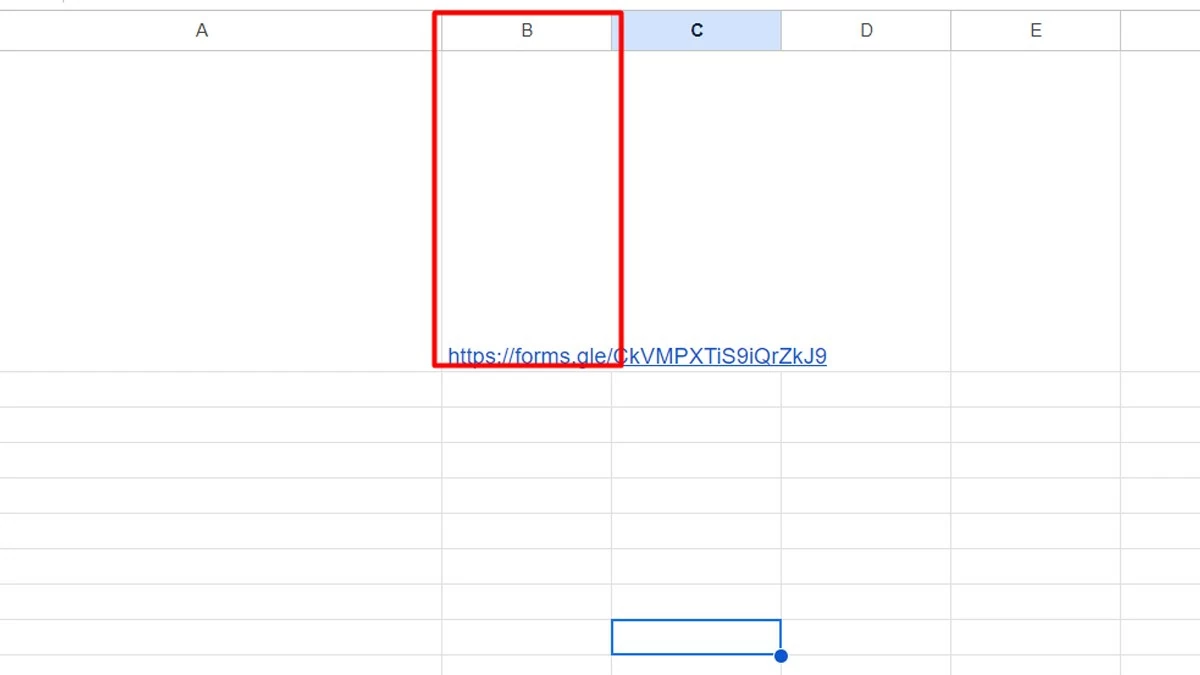
Step 2: Open Google Sheets on Google Drive and paste the copied link into any cell, for example cell B1.
 |
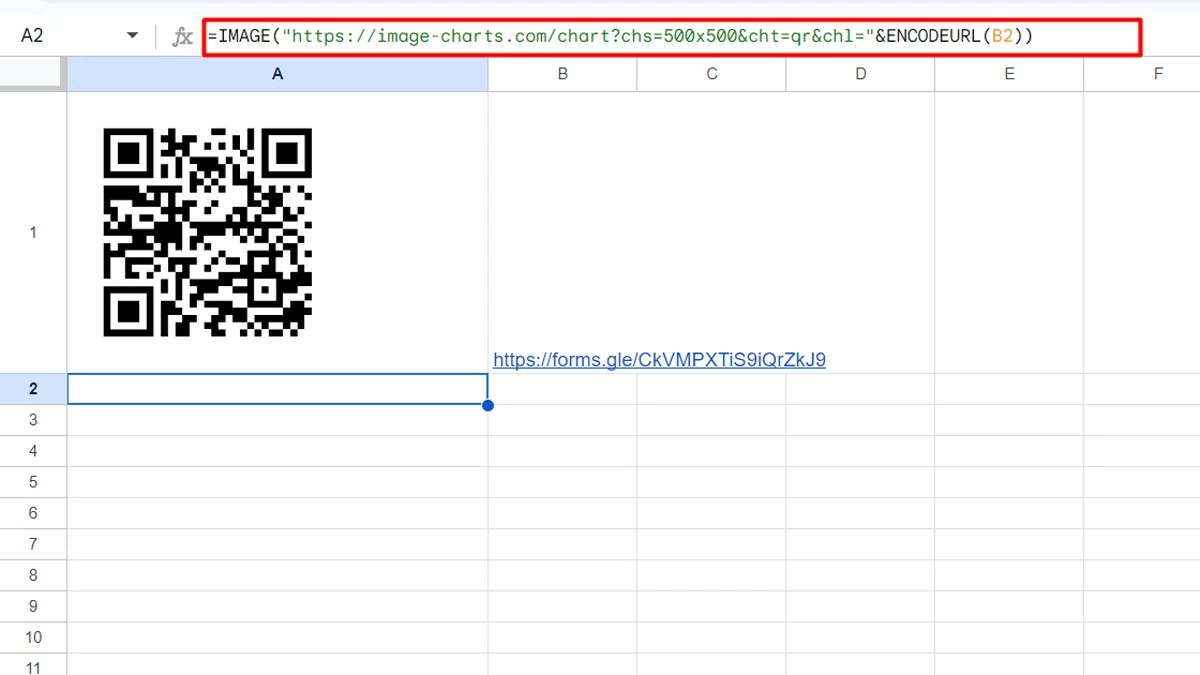
Step 3: Next, enter the following formula into the cell where you want the QR code to appear:
`=IMAGE("https://image-charts.com/chart?chs=500x500&cht=qr&chl="&ENCODEURL(B1))`.
 |
Explanation of the formula:
- IMAGE : This function is used to display an image from a URL.
- https://image-charts.com/chart ? : This is the link to generate the QR code.
- chs=500x500 : Defines the size of the QR code (500x500 pixels).
- cht=qr : Specifies the chart type as QR code.
- chl= : This is the part containing the data that the QR code will encode.
- ENCODEURL(B1) : This function encodes the content in cell B1 into URL format. You can replace B1 with the cell containing the data you want to convert into a QR code.
How to easily share a Google Form using a QR code.
To share a Google Form via QR code, you can follow these three steps:
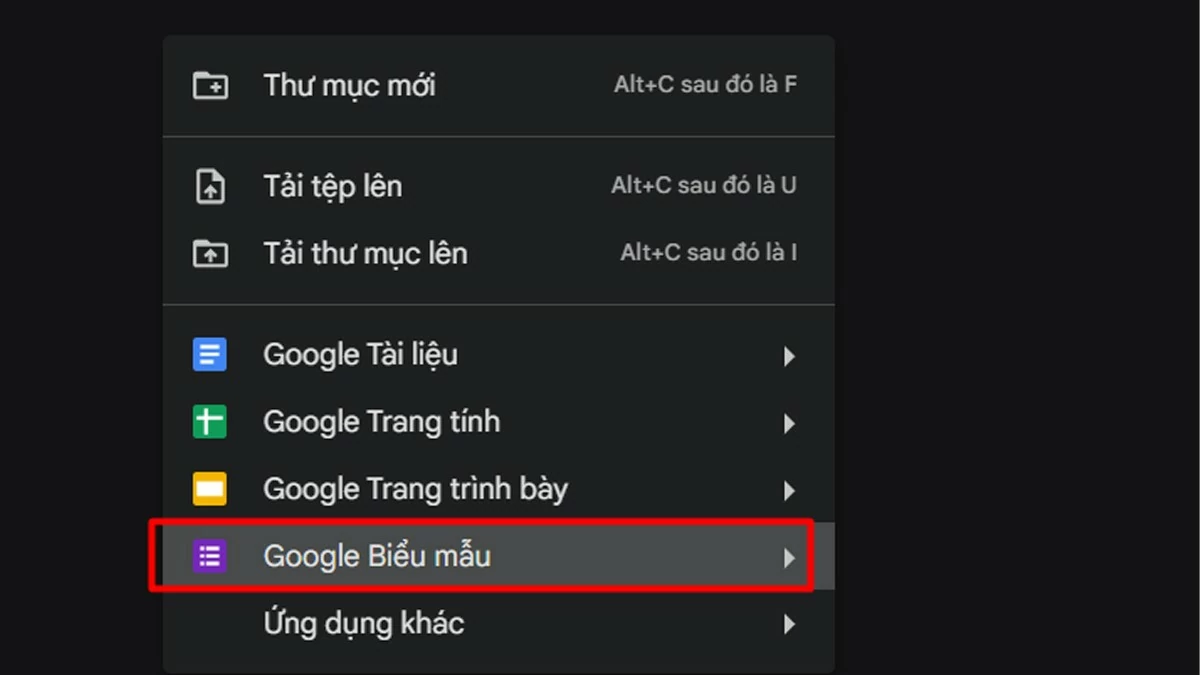
Step 1: Access Google Forms and create or open the form you want to share.
 |
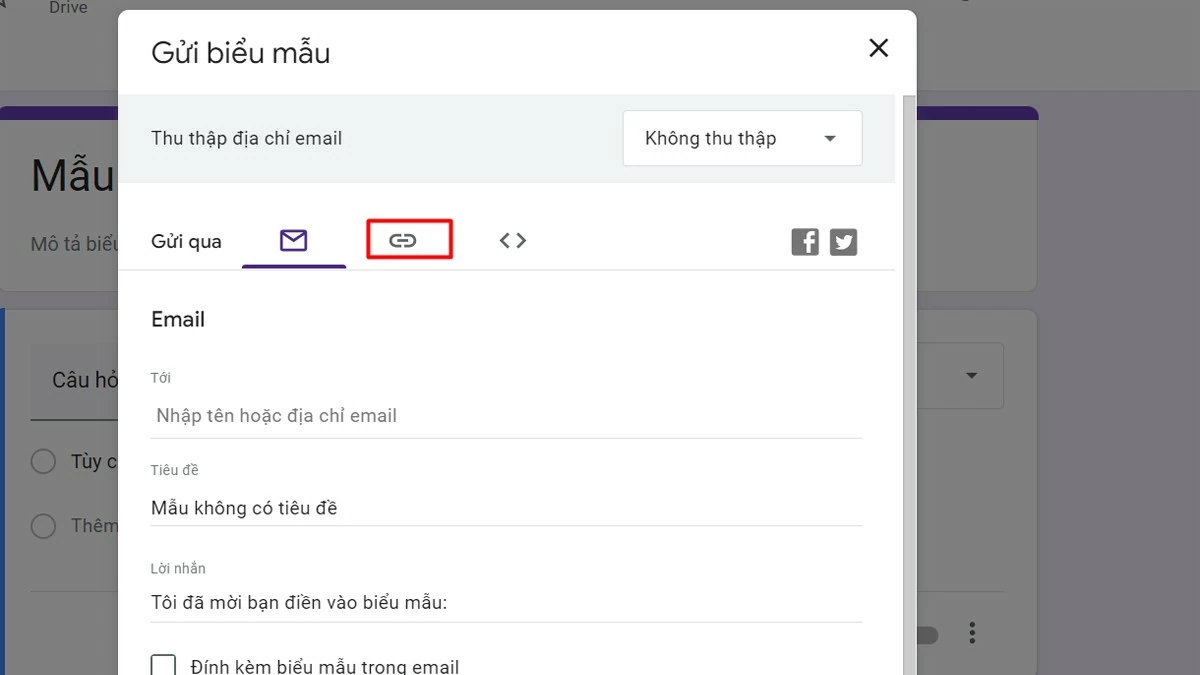
Step 2: After completing the form, click the "Submit" button in the upper right corner, go to the "Links" tab, and copy the Google Form link. If needed, you can select "Shorten URL" to make the link shorter.
 |
Step 3: Access a free QR code generator website such as: https://new.express.adobe.com/tools/generate-qr-code? to generate a QR code from the link you just copied.
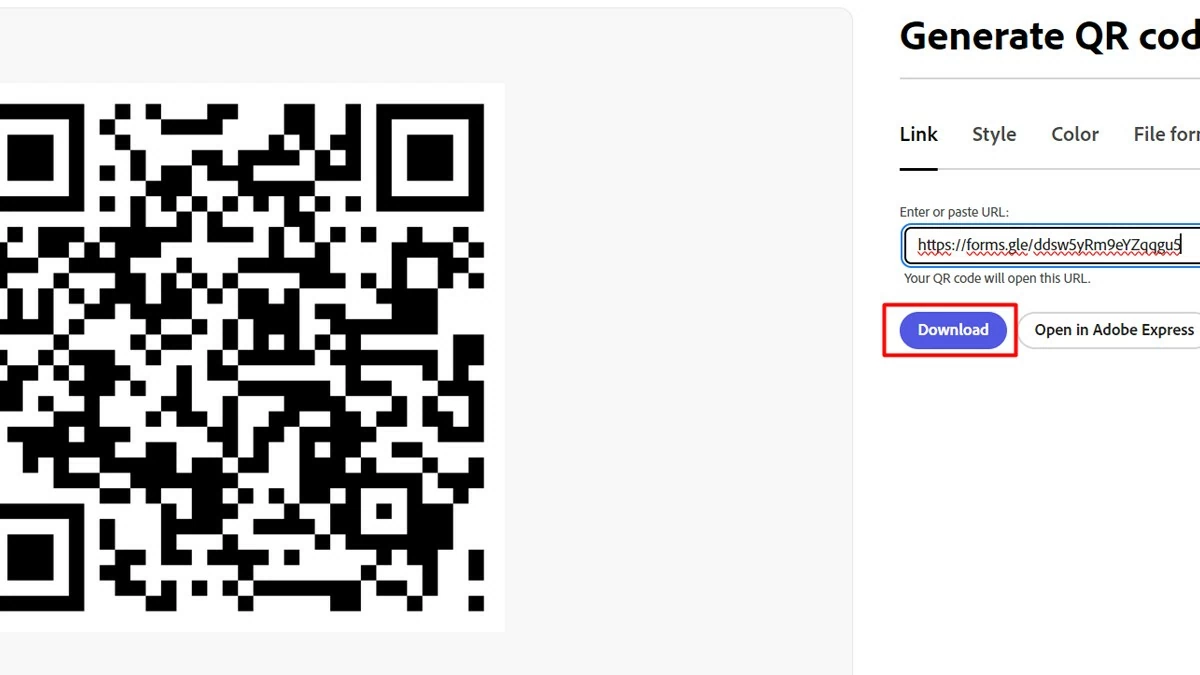 |
Paste the copied Google Form link into the QR code generator box on the website, click to generate and download the QR code. Then, you can print the QR code or share it via social media, email, or other platforms for others to scan and access. Alternatively, you can create the QR code directly on Google Sheets, then capture and print it to share.
Creating QR codes for Google Forms is a convenient and effective way to share forms with others. With just a few simple steps, you can quickly create a QR code, making it easier to reach your target audience. Try creating QR codes on Google Drive or Google Sheets to experience the convenience it offers.
Source



![[Photo] General Secretary and President To Lam presides over a meeting on preparations for the review of one year of operation of the three-tiered government system.](https://vphoto.vietnam.vn/thumb/1200x675/vietnam/resource/IMAGE/2026/06/02/1780391821195_a1-bnd-4595-9717-jpg.webp)































































































Comment (0)