

Creating Google Forms on your phone and computer is simple, but sometimes it can still be challenging. Let's learn how to create forms and surveys in this article!
 |
A guide on how to quickly create a professional Google Form.
Google Forms is a great tool for surveys and data collection. Knowing how to create professional Google Forms will be very helpful for your work. In this section, the article will guide you on how to create forms and surveys on Google Forms simply and easily.
Instructions on how to create a Google Form via Google Drive
You can create Google Forms on both your phone and computer, as long as you have a Google account. To create a survey or form with Google Drive, follow these steps:
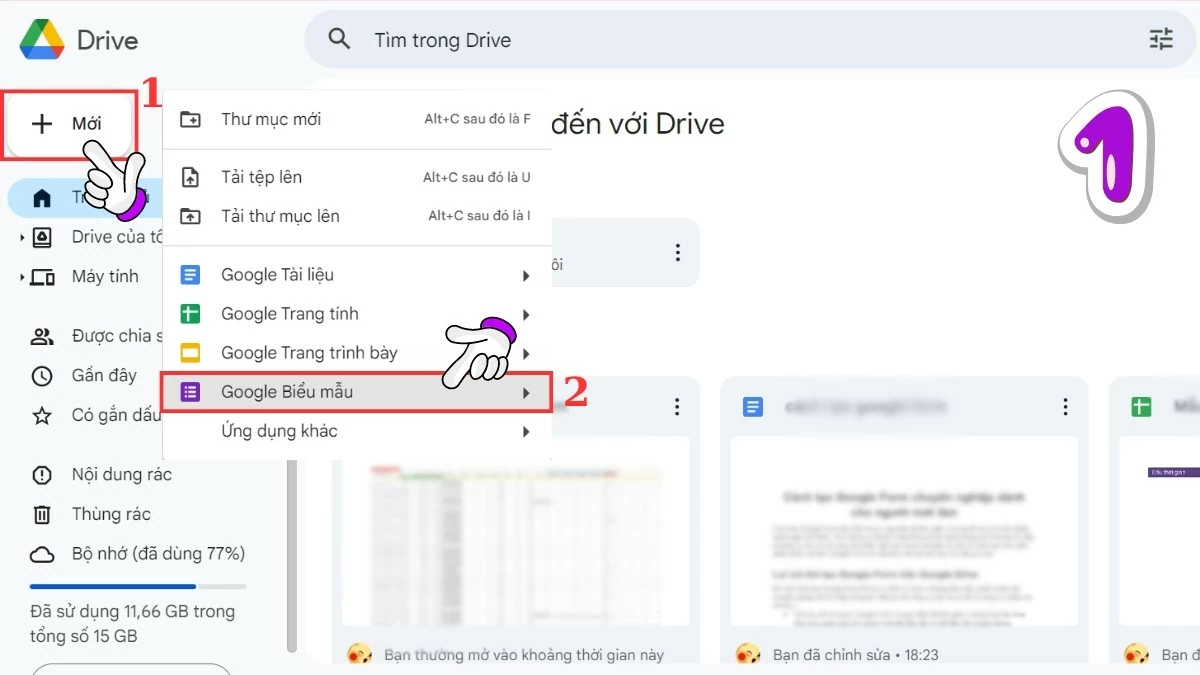
Step 1 : Access Google Drive, tap the "+" sign, and select "Google Forms" from the menu.
 |
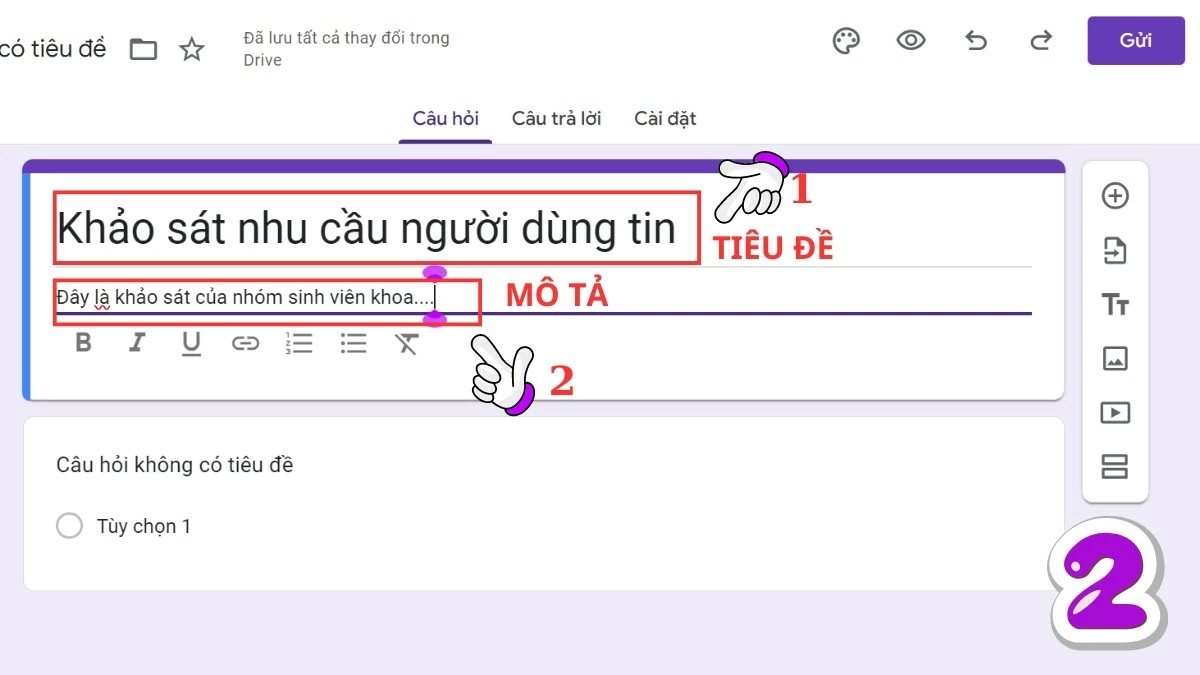
Step 2 : Once the Google Forms interface opens, you can begin creating the form as needed. First, enter a title and description so users understand the purpose of the survey.
 |
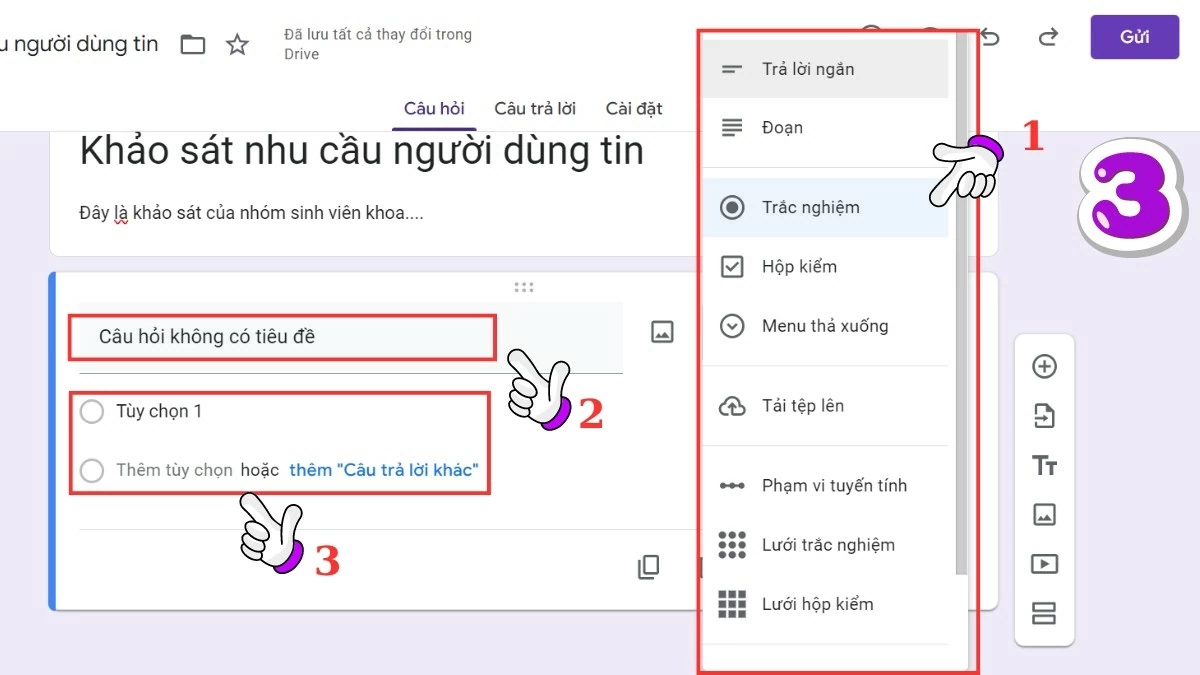
Step 3 : Next, choose a suitable question format such as multiple-choice questions, checkboxes, grid questions, etc. Then, fill in the question and answer choices.
 |
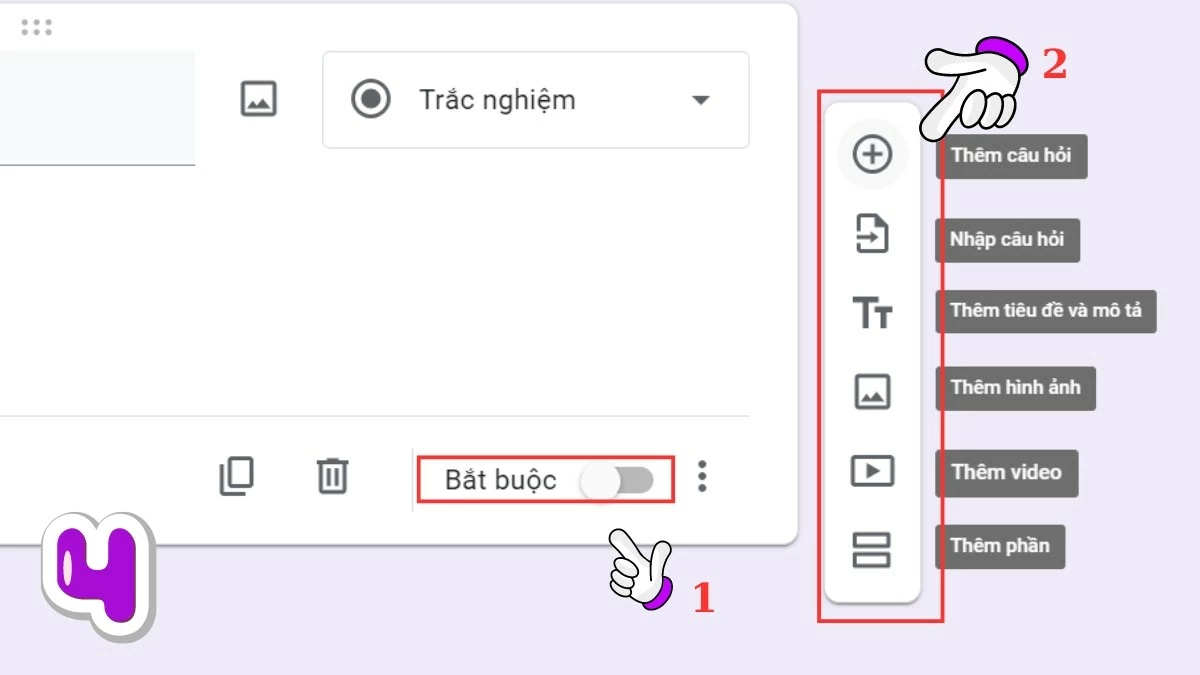
Step 4 : If you want to require users to answer, enable the "Required" option. To add new questions, use the tool on the right side of the form. Continue adding questions until the survey is complete.
 |
Instructions on how to create a Google Form using Google Chrome
In addition to using Google Drive, you can also create forms and surveys on Google Forms via the Google Chrome browser by following these steps:
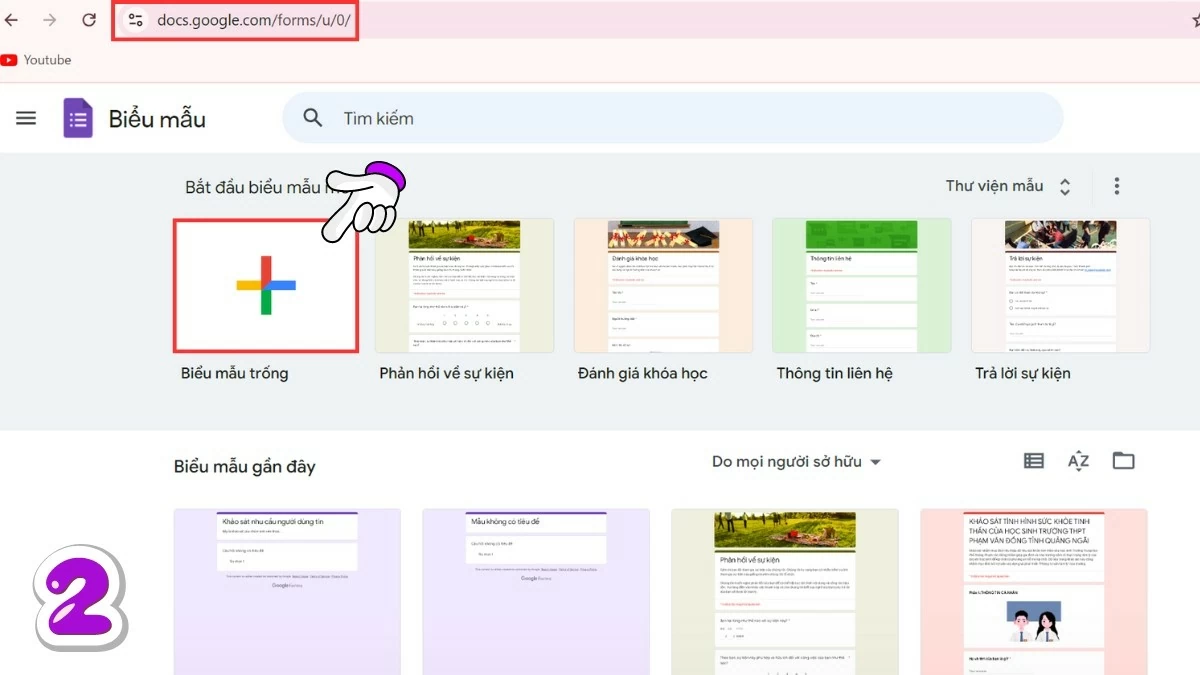
Step 1 : Open Google Chrome, go to the app store, or access it directly via the link https://docs.google.com/forms/u/0/.
 |
Step 2 : Next, select "Blank Form" to start creating your Google Form, or you can choose from pre-made templates in the "Template Library" to save time on design and layout.
 |
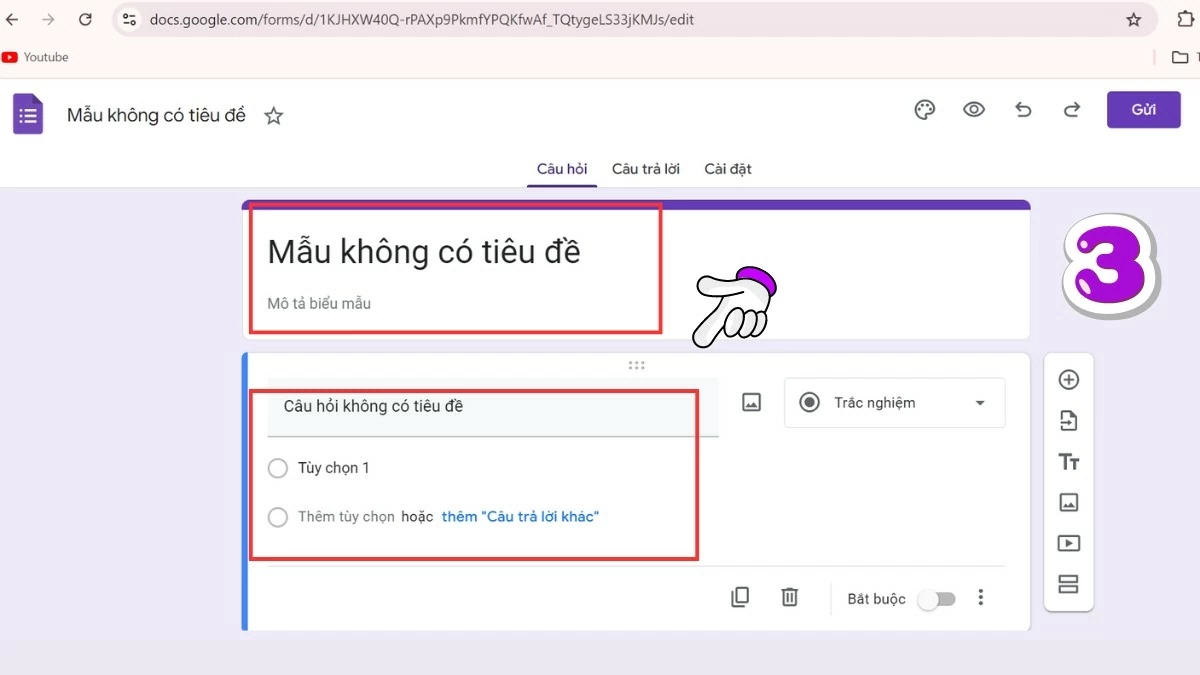
Step 3 : Once the Google Form opens, you can begin drafting your survey questions and concerns.
 |
Instructions on how to create a Google Form using Google Sheets
To create a Google Form directly from Google Sheets, follow these steps:
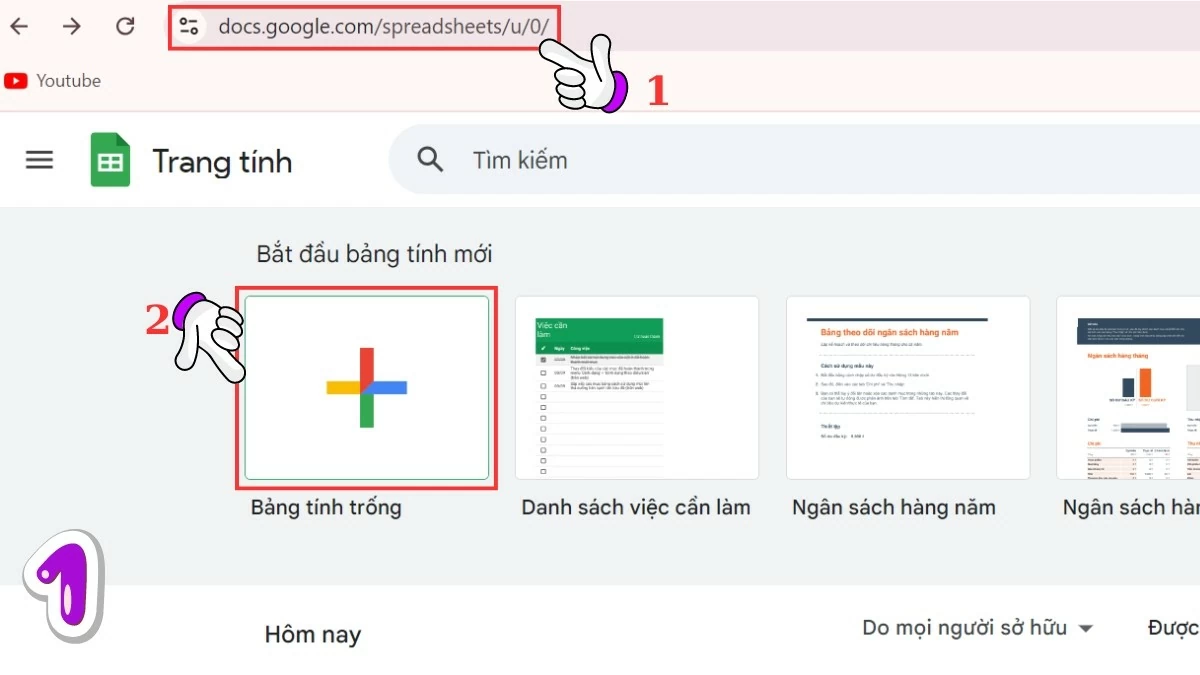
Step 1 : First, access Google Sheets.
 |
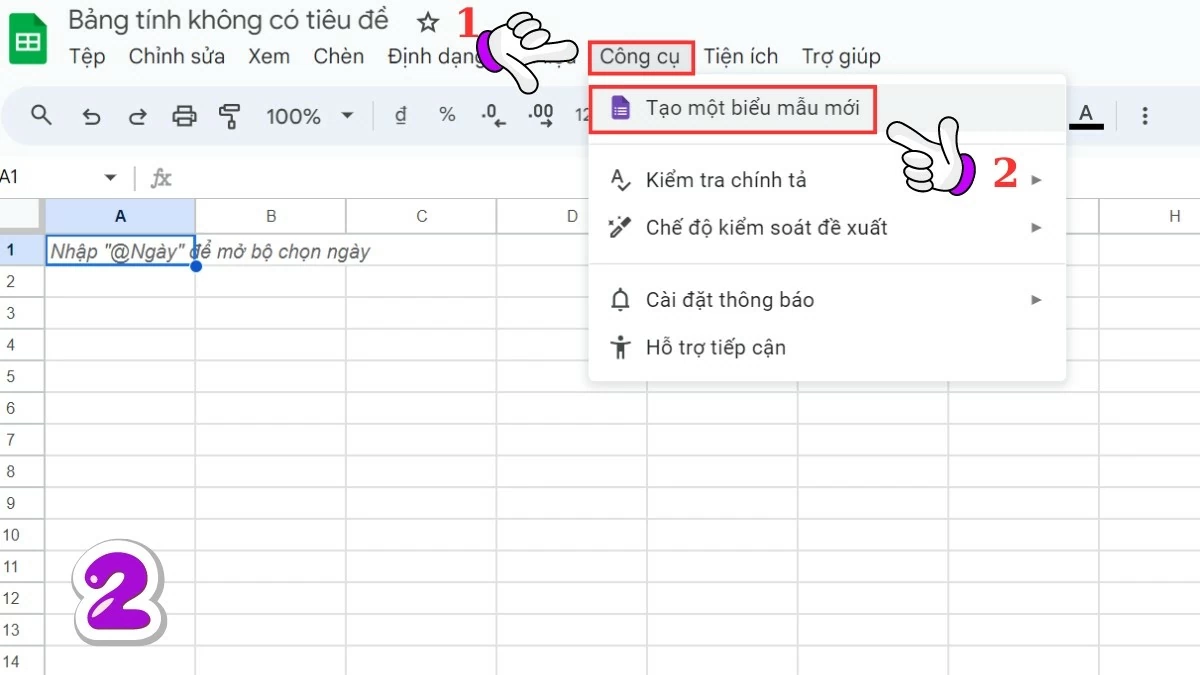
Step 2 : In the spreadsheet interface, select the "Tools" tab and then select "Create a new form".
 |
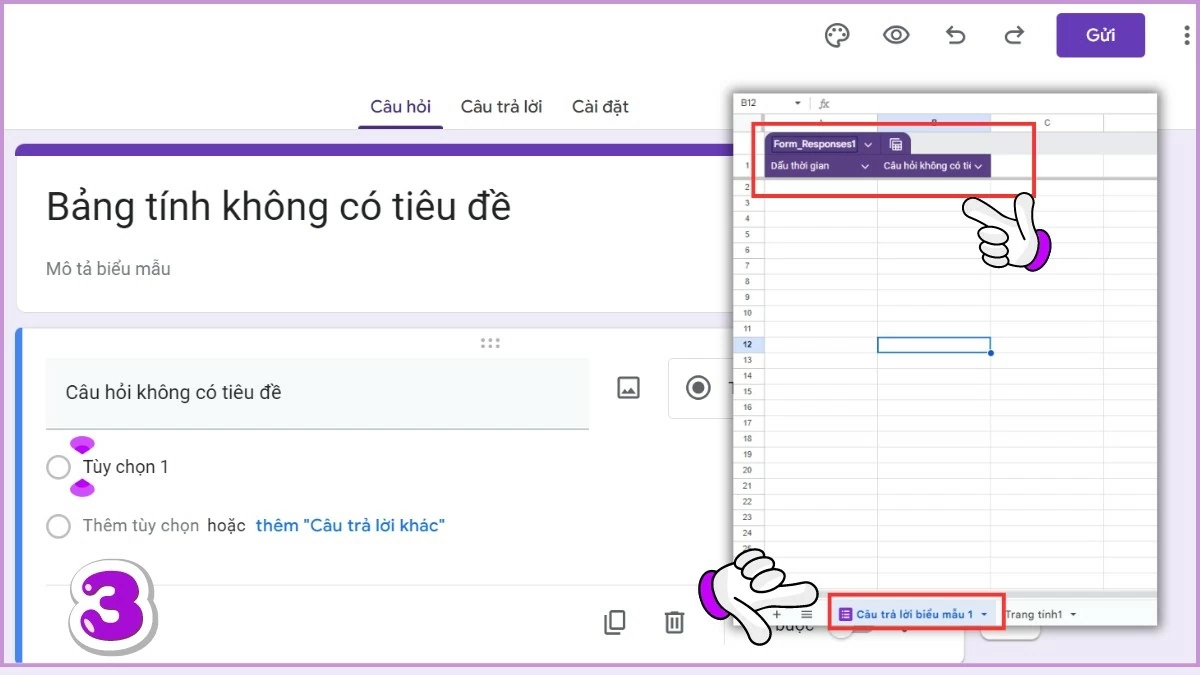
Step 3 : The Google Forms interface will open, and you can start creating survey questions as needed. Once completed, Google Forms will be linked to Google Sheets, making it easy to track, manage, and analyze results.
 |
How to effectively view responses on Google Forms
After creating a Google Form and receiving responses from survey participants, you can view the results by following these steps:
Step 1 : Open the Google Form you want to view the responses for.
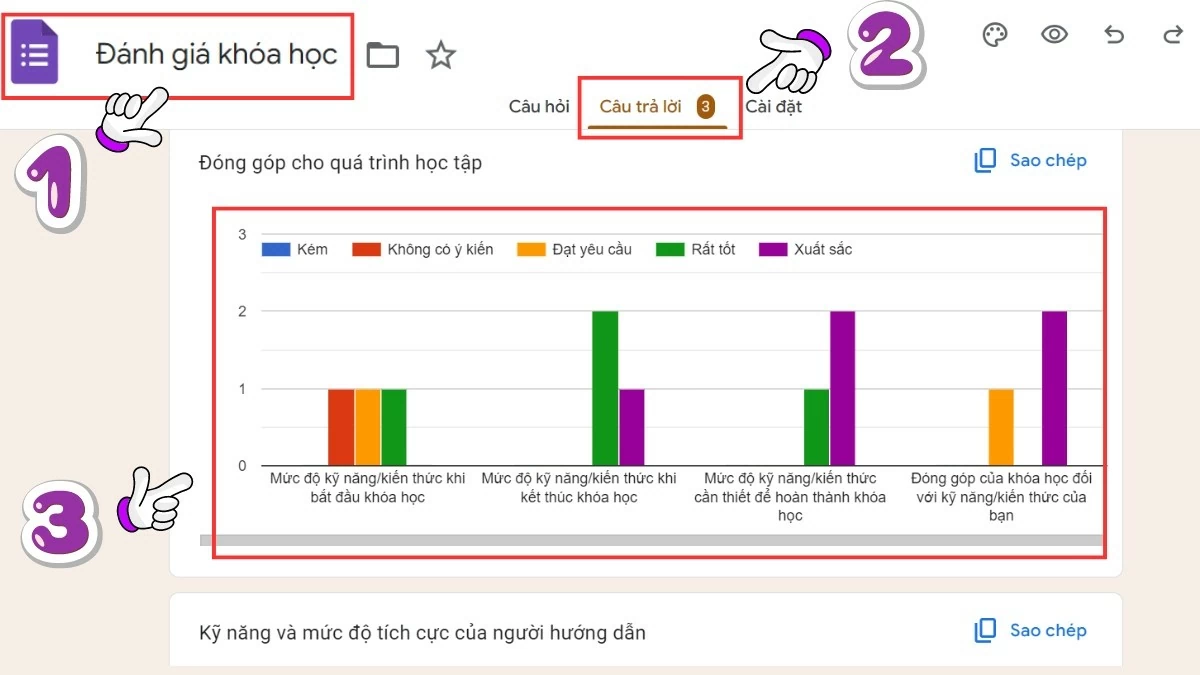 |
Step 2 : At the top of the form, select the "Responses" tab.
Step 3 : Here, you can view the number and details of the answers, as well as statistical charts of the results.
The article above has provided instructions on how to create Google Forms on both phones and computers, suitable for all users.
Source

![[Photo] Prime Minister Pham Minh Chinh receives Lao Minister of Education and Sports Thongsalith Mangnormek](/_next/image?url=https%3A%2F%2Fvphoto.vietnam.vn%2Fthumb%2F1200x675%2Fvietnam%2Fresource%2FIMAGE%2F2025%2F12%2F16%2F1765876834721_dsc-7519-jpg.webp&w=3840&q=75)
![[Photo] Prime Minister Pham Minh Chinh receives the Governor of Tochigi Province (Japan)](/_next/image?url=https%3A%2F%2Fvphoto.vietnam.vn%2Fthumb%2F1200x675%2Fvietnam%2Fresource%2FIMAGE%2F2025%2F12%2F16%2F1765892133176_dsc-8082-6425-jpg.webp&w=3840&q=75)

![[Live] 2025 Community Action Awards Gala](/_next/image?url=https%3A%2F%2Fvphoto.vietnam.vn%2Fthumb%2F1200x675%2Fvietnam%2Fresource%2FIMAGE%2F2025%2F12%2F16%2F1765899631650_ndo_tr_z7334013144784-9f9fe10a6d63584c85aff40f2957c250-jpg.webp&w=3840&q=75)
![[Image] Leaked images ahead of the 2025 Community Action Awards gala.](/_next/image?url=https%3A%2F%2Fvphoto.vietnam.vn%2Fthumb%2F1200x675%2Fvietnam%2Fresource%2FIMAGE%2F2025%2F12%2F16%2F1765882828720_ndo_br_thiet-ke-chua-co-ten-45-png.webp&w=3840&q=75)




































































































Comment (0)