

In today's work environment, creating a professional impression through email is crucial. One simple yet effective way to do this is to create a professional Gmail signature.
Why is a Gmail signature important?
A Gmail signature is more than just personal information attached to each email you send. It's also a tool that helps you:
1. Establishing your personal brand: A professional signature reflects the care and professionalism in your approach to work.
2. Providing contact information: Signatures provide contact information quickly and conveniently, saving time for both you and the recipient.
3. Make a lasting impression: A well-designed signature can help you be remembered more easily.
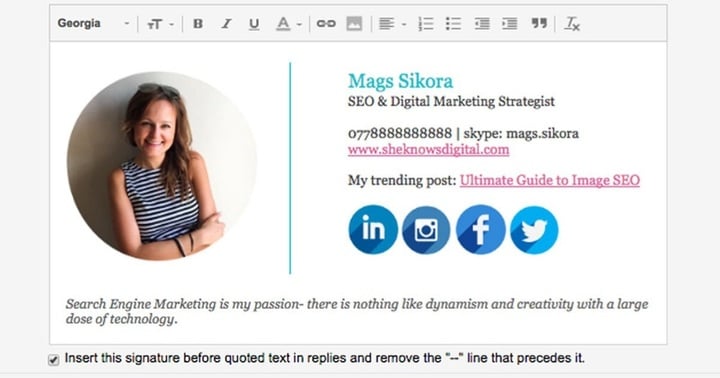
Instructions on creating a professional Gmail signature. (Illustrative image)
How to create a professional Gmail signature
Step 1: Log in to your Gmail account
First, you need to log in to your Gmail account. Make sure you're using the web version so you can see all the settings options.
Step 2: Access Gmail settings
On the main Gmail interface, find the gear icon in the upper right corner and click "See all settings".
Step 3: Create a new signature
In the "General" tab, scroll down to the "Signature" section. Click "Create new" to begin setting up your signature.
Step 4: Design the signature content
This is the most important part of creating a signature. Here are some essential elements:
- Name and Title: Write your full name and job title.
- Contact information: Including phone number, work email address, and company address (if necessary).
- Social media links: Add icons and links to your professional social media pages, such as LinkedIn.
- Logo or image: Add your company logo or personal image to create a brand identity.
Additionally, pay attention to choosing an easy-to-read font, and ensure that the size and color are appropriate to improve readability.
Step 5: Save the signature
After you've finished designing, don't forget to click "Save Changes" at the bottom of the page to update your new signature.
Tips for optimizing your Gmail signature
Keep it concise: Signatures should be brief so that the recipient can easily grasp the necessary information.
Check display on different devices: Make sure your signature displays well on mobile phones and tablets.
Regular checks: Update and refine your signature regularly to keep up with trends and optimize effectiveness.
Source


![[Photo] General Secretary and President To Lam presides over a meeting on preparations for the review of one year of operation of the three-tiered government system.](https://vphoto.vietnam.vn/thumb/1200x675/vietnam/resource/IMAGE/2026/06/02/1780391821195_a1-bnd-4595-9717-jpg.webp)





























![[Image] Affirming the aspirations and new standards of the Vietnamese real estate market in the new era.](https://vphoto.vietnam.vn/thumb/1200x675/vietnam/resource/IMAGE/2026/06/03/1780441948766_giai-thuong-bat-dong-san-2026-minh-duy-6-7364-jpg.webp)

































































Comment (0)